
在 Android 上格式化 PowerPoint 圖形
簡介
在 PowerPoint 中,您可以向投影片加入圖形。由於圖形是由線條組成,您可以透過修改或套用效果到其輪廓來格式化它們。此外,您還可以透過指定設定來控制圖形內部的填充方式,以格式化圖形。
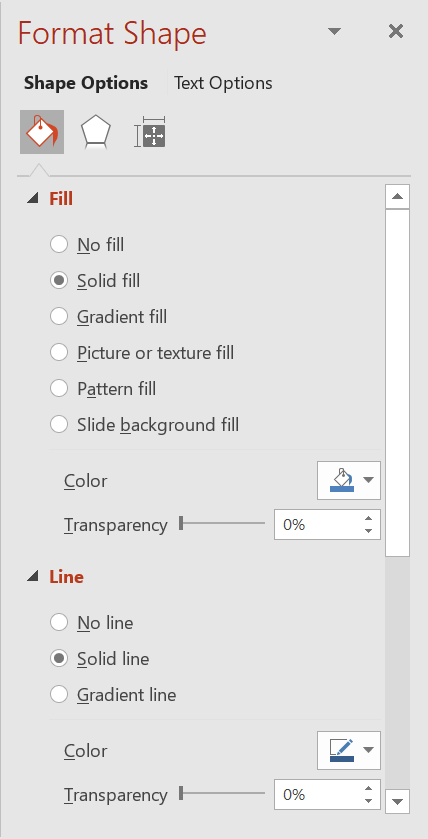
Aspose.Slides for Android via Java 提供介面與方法,讓您能使用 PowerPoint 中相同的選項來格式化圖形。
格式化線條
使用 Aspose.Slides,您可以為圖形指定自訂線條樣式。以下步驟說明了此程序:
- 建立 Presentation 類別的實例。
- 依索引取得投影片的參考。
- 將 IAutoShape 加入投影片。
- 設定圖形的 line style。
- 設定線條寬度。
- 設定線條的 dash style。
- 設定圖形的線條顏色。
- 將修改後的簡報另存為 PPTX 檔案。
以下程式碼示範如何格式化矩形 AutoShape:
import com.aspose.slides.*;
import java.awt.Color;

// 實例化代表簡報檔案的 Presentation 類別。
Presentation presentation = new Presentation();
try {
    // 取得第一張投影片。
    ISlide slide = presentation.getSlides().get_Item(0);

    // 加入類型為矩形的自動圖形。
    IAutoShape shape = slide.getShapes().addAutoShape(ShapeType.Rectangle, 50, 150, 150, 75);

    // 移除矩形圖形的填充,使僅顯示其線條。
    shape.getFillFormat().setFillType(FillType.NoFill);

    // 套用格式至矩形的線條。
    shape.getLineFormat().setStyle(LineStyle.ThickThin);
    shape.getLineFormat().setWidth(7);
    shape.getLineFormat().setDashStyle(LineDashStyle.Dash);

    // 設定矩形線條的顏色。
    shape.getLineFormat().getFillFormat().setFillType(FillType.Solid);
    shape.getLineFormat().getFillFormat().getSolidFillColor().setColor(Color.BLUE);

    // 將 PPTX 檔案儲存至磁碟。
    presentation.save("formatted_lines.pptx", SaveFormat.Pptx);
} finally {
    presentation.dispose();
}
結果:

套用素描效果至圖形線條
素描效果會使圖形線條看起來像手繪。使用 IShape.getLineFormat 取得線條設定,使用 ILineFormat.getSketchFormat 取得素描設定,並使用 ISketchFormat.setSketchType 從 LineSketchType 列舉中選取值。
以下 Java 程式碼示範如何套用 LineSketchType.Curved 效果、讀取明確指派的值,以及使用 LineSketchType.None 取消效果:
import com.aspose.slides.*;

Presentation presentation = new Presentation();
try {
    ISlide slide = presentation.getSlides().get_Item(0);
    IAutoShape shape = slide.getShapes().addAutoShape(ShapeType.Rectangle, 50, 50, 200, 100);

    // 存取圖形的線條格式及其素描格式。
    ISketchFormat sketchFormat = shape.getLineFormat().getSketchFormat();

    // 套用素描效果。
    sketchFormat.setSketchType(LineSketchType.Curved);

    // 讀取直接指派給圖形的素描效果。
    int explicitSketchType = sketchFormat.getSketchType();
    System.out.println("Explicit sketch type: " + explicitSketchType);

    // 移除素描效果。
    sketchFormat.setSketchType(LineSketchType.None);
} finally {
    presentation.dispose();
}
由 ISketchFormat.getSketchType 回傳的值代表直接指派給圖形的設定。若線條格式可以從佈景主題、母片或版面投影片繼承,請使用 ILineFormat.getEffective,取得 ILineFormatEffectiveData.getSketchFormat,並讀取 ISketchFormatEffectiveData.getSketchType。有效值會反映在繼承解析後實際套用的格式:
import com.aspose.slides.*;

Presentation presentation = new Presentation("presentation.pptx");
try {
    IShape shape = presentation.getSlides().get_Item(0).getShapes().get_Item(0);
    ILineFormat lineFormat = shape.getLineFormat();

    int explicitSketchType = lineFormat.getSketchFormat().getSketchType();
    ILineFormatEffectiveData effectiveLineFormat = lineFormat.getEffective();
    int effectiveSketchType = effectiveLineFormat.getSketchFormat().getSketchType();

    System.out.println("Explicit sketch type: " + explicitSketchType);
    System.out.println("Effective sketch type: " + effectiveSketchType);
} finally {
    presentation.dispose();
}
格式化接合樣式
以下是三種接合類型選項:
- 圓角
- 斜角
- 斜面
預設情況下,PowerPoint 在將兩條線在角度處(例如圖形的角落)相接時,使用 Round 設定。但如果您在繪製具有銳角的圖形,可能會偏好 Miter 選項。
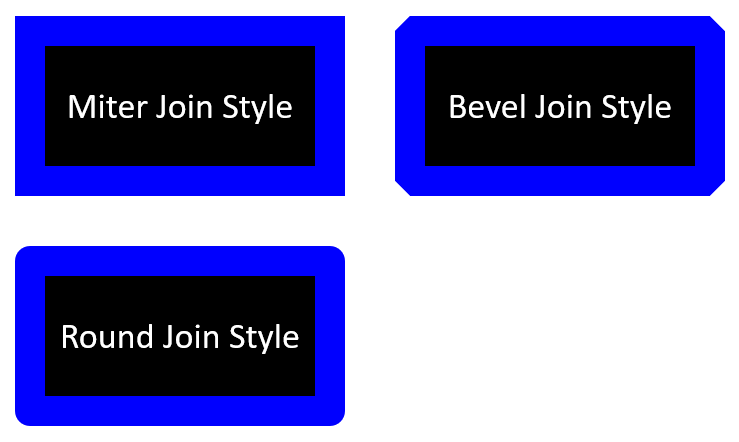
以下 Java 程式碼示範如何使用 Miter、Bevel 與 Round 接合類型設定,建立上圖中示範的三個矩形:
import com.aspose.slides.*;
import java.awt.Color;

// 實例化代表簡報檔案的 Presentation 類別。
Presentation presentation = new Presentation();
try {
    // 取得第一張投影片。
    ISlide slide = presentation.getSlides().get_Item(0);

    // 加入三個類型為矩形的自動圖形。
    IAutoShape shape1 = slide.getShapes().addAutoShape(ShapeType.Rectangle, 20, 20, 150, 75);
    IAutoShape shape2 = slide.getShapes().addAutoShape(ShapeType.Rectangle, 210, 20, 150, 75);
    IAutoShape shape3 = slide.getShapes().addAutoShape(ShapeType.Rectangle, 20, 135, 150, 75);

    // 設定每個矩形圖形的填色。
    shape1.getFillFormat().setFillType(FillType.Solid);
    shape1.getFillFormat().getSolidFillColor().setColor(Color.BLACK);
    shape2.getFillFormat().setFillType(FillType.Solid);
    shape2.getFillFormat().getSolidFillColor().setColor(Color.BLACK);
    shape3.getFillFormat().setFillType(FillType.Solid);
    shape3.getFillFormat().getSolidFillColor().setColor(Color.BLACK);

    // 設定線條寬度。
    shape1.getLineFormat().setWidth(15);
    shape2.getLineFormat().setWidth(15);
    shape3.getLineFormat().setWidth(15);

    // 設定每個矩形的線條顏色。
    shape1.getLineFormat().getFillFormat().setFillType(FillType.Solid);
    shape1.getLineFormat().getFillFormat().getSolidFillColor().setColor(Color.BLUE);
    shape2.getLineFormat().getFillFormat().setFillType(FillType.Solid);
    shape2.getLineFormat().getFillFormat().getSolidFillColor().setColor(Color.BLUE);
    shape3.getLineFormat().getFillFormat().setFillType(FillType.Solid);
    shape3.getLineFormat().getFillFormat().getSolidFillColor().setColor(Color.BLUE);

    // 設定接合樣式。
    shape1.getLineFormat().setJoinStyle(LineJoinStyle.Miter);
    shape2.getLineFormat().setJoinStyle(LineJoinStyle.Bevel);
    shape3.getLineFormat().setJoinStyle(LineJoinStyle.Round);

    // 為每個矩形加入文字。
    shape1.getTextFrame().setText("Miter Join Style");
    shape2.getTextFrame().setText("Bevel Join Style");
    shape3.getTextFrame().setText("Round Join Style");

    // 將 PPTX 檔案儲存至磁碟。
    presentation.save("join_styles.pptx", SaveFormat.Pptx);
} finally {
    presentation.dispose();
}
漸層填色
在 PowerPoint 中,Gradient Fill(漸層填色)是一種格式化選項,可讓您對圖形套用持續的顏色漸層。例如,您可以以顏色逐漸淡入另一種顏色的方式,套用兩種或以上的顏色。
以下說明如何使用 Aspose.Slides 對圖形套用漸層填色:
- 建立 Presentation 類別的實例。
- 依索引取得投影片的參考。
- 將 IAutoShape 加入投影片。
- 將圖形的 FillType 設為
Gradient。 - 使用 IGradientFormat 介面所公開的漸層停止集合的
add方法,依定義的位置加入您偏好的兩種顏色。 - 將修改後的簡報另存為 PPTX 檔案。
import com.aspose.slides.*;

// 實例化代表簡報檔案的 Presentation 類別。
Presentation presentation = new Presentation();
try {
    // 取得第一張投影片。
    ISlide slide = presentation.getSlides().get_Item(0);

    // 加入類型為橢圓的自動圖形。
    IAutoShape shape = slide.getShapes().addAutoShape(ShapeType.Ellipse, 50, 50, 150, 75);

    // 為橢圓套用漸層格式。
    shape.getFillFormat().setFillType(FillType.Gradient);
    shape.getFillFormat().getGradientFormat().setGradientShape(GradientShape.Linear);

    // 設定漸層的方向。
    shape.getFillFormat().getGradientFormat().setGradientDirection(GradientDirection.FromCorner2);

    // 新增兩個漸層停止點。
    shape.getFillFormat().getGradientFormat().getGradientStops().addPresetColor((float)1.0, PresetColor.Purple);
    shape.getFillFormat().getGradientFormat().getGradientStops().addPresetColor((float)0, PresetColor.Red);

    // 將 PPTX 檔案儲存至磁碟。
    presentation.save("gradient_fill.pptx", SaveFormat.Pptx);
} finally {
    presentation.dispose();
}
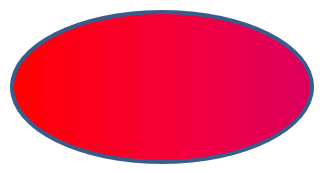
如果在匯出影像時漸層看起來與 PowerPoint 中不同,請參閱 Choose a Gradient Rendering Style。您可以在不變更簡報中儲存的漸層填色的情況下,選擇渲染樣式。
圖案填色
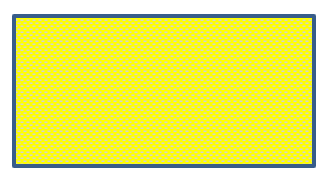
在 PowerPoint 中,Pattern Fill(圖案填色)是一種格式化選項,讓您對圖形套用兩色設計——例如點、條紋、交叉線或格子——您可以為圖案的前景色與背景色選擇自訂顏色。
Aspose.Slides 提供超過 45 種預定義的圖案樣式,您可以套用於圖形以提升簡報的視覺效果。即使選擇了預定義圖案,仍然可以指定其使用的精確顏色。
以下說明如何使用 Aspose.Slides 對圖形套用圖案填色:
- 建立 Presentation 類別的實例。
- 依索引取得投影片的參考。
- 將 IAutoShape 加入投影片。
- 將圖形的 FillType 設為
Pattern。 - 從預定義的選項中選擇圖案樣式。
- 設定圖案的 Background Color。
- 設定圖案的 Foreground Color。
- 將修改後的簡報另存為 PPTX 檔案。
import com.aspose.slides.*;
import java.awt.Color;

// 實例化代表簡報檔案的 Presentation 類別。
Presentation presentation = new Presentation();
try {
    // 取得第一張投影片。
    ISlide slide = presentation.getSlides().get_Item(0);

    // 加入類型為矩形的自動圖形。
    IAutoShape shape = slide.getShapes().addAutoShape(ShapeType.Rectangle, 50, 50, 150, 75);

    // 設定填充類型為 Pattern。
    shape.getFillFormat().setFillType(FillType.Pattern);

    // 設定圖案樣式。
    shape.getFillFormat().getPatternFormat().setPatternStyle(PatternStyle.Trellis);

    // 設定圖案的背景色與前景色。
    shape.getFillFormat().getPatternFormat().getBackColor().setColor(Color.LIGHT_GRAY);
    shape.getFillFormat().getPatternFormat().getForeColor().setColor(Color.YELLOW);

    // 將 PPTX 檔案儲存至磁碟。
    presentation.save("pattern_fill.pptx", SaveFormat.Pptx);
} finally {
    presentation.dispose();
}
圖片填色
在 PowerPoint 中,Picture Fill(圖片填色)是一種格式化選項,讓您將影像插入圖形內部——實質上將影像作為圖形的背景。
以下說明如何使用 Aspose.Slides 對圖形套用圖片填色:
- 建立 Presentation 類別的實例。
- 依索引取得投影片的參考。
- 將 IAutoShape 加入投影片。
- 將圖形的 FillType 設為
Picture。 - 將圖片填充模式設定為
Tile(或其他偏好模式)。 - 建立一個 IPPImage 物件,使用您想要的圖像。
- 將圖像傳遞給
ISlidesPicture.setImage方法。 - 將修改後的簡報另存為 PPTX 檔案。

import com.aspose.slides.*;

// 實例化代表簡報檔案的 Presentation 類別。
Presentation presentation = new Presentation();
try {
    // 取得第一張投影片。
    ISlide slide = presentation.getSlides().get_Item(0);

    // 加入類型為矩形的自動圖形。
    IAutoShape shape = slide.getShapes().addAutoShape(ShapeType.Rectangle, 50, 50, 255, 130);

    // 設定填充類型為 Picture。
    shape.getFillFormat().setFillType(FillType.Picture);

    // 設定圖片填充模式。
    shape.getFillFormat().getPictureFillFormat().setPictureFillMode(PictureFillMode.Tile);

    // 載入影像並將其加入簡報資源。
    IImage image = Images.fromFile("lotus.png");
    IPPImage picture = presentation.getImages().addImage(image);
    image.dispose();

    // 設定圖片。
    shape.getFillFormat().getPictureFillFormat().getPicture().setImage(picture);

    // 將 PPTX 檔案儲存至磁碟。
    presentation.save("picture_fill.pptx", SaveFormat.Pptx);
} finally {
    presentation.dispose();
}
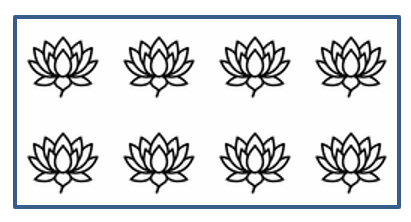
將圖片平鋪為紋理
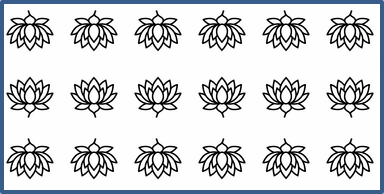
如果您想將平鋪的圖片作為紋理並自訂平鋪行為,可以使用以下 IPictureFillFormat 介面與 PictureFillFormat 類別的方法:
- setPictureFillMode: 設定圖片填充模式 —
Tile或Stretch。 - setTileAlignment: 指定平鋪在圖形內的對齊方式。
- setTileFlip: 控制平鋪是否水平翻轉、垂直翻轉或同時翻轉。
- setTileOffsetX: 設定平鋪相對於圖形原點的水平位移(以點為單位)。
- setTileOffsetY: 設定平鋪相對於圖形原點的垂直位移(以點為單位)。
- setTileScaleX: 定義平鋪的水平比例,以百分比表示。
- setTileScaleY: 定義平鋪的垂直比例,以百分比表示。
以下程式碼示範如何加入一個具有平鋪圖片填充的矩形,並設定平鋪選項:
import com.aspose.slides.*;

// 實例化代表簡報檔案的 Presentation 類別。
Presentation presentation = new Presentation();
try {
    // 取得第一張投影片。
    ISlide firstSlide = presentation.getSlides().get_Item(0);

    // 加入矩形自動圖形。
    IAutoShape shape = firstSlide.getShapes().addAutoShape(ShapeType.Rectangle, 50, 50, 190, 95);

    // 設定圖形的填充類型為 Picture。
    shape.getFillFormat().setFillType(FillType.Picture);

    // 載入影像並將其加入簡報資源。
    IImage sourceImage = Images.fromFile("lotus.png");
    IPPImage presentationImage = presentation.getImages().addImage(sourceImage);
    sourceImage.dispose();

    // 將影像指派給圖形。
    IPictureFillFormat pictureFillFormat = shape.getFillFormat().getPictureFillFormat();
    pictureFillFormat.getPicture().setImage(presentationImage);

    // 設定圖片填充模式與平鋪屬性。
    pictureFillFormat.setPictureFillMode(PictureFillMode.Tile);
    pictureFillFormat.setTileOffsetX(-32);
    pictureFillFormat.setTileOffsetY(-32);
    pictureFillFormat.setTileScaleX(50);
    pictureFillFormat.setTileScaleY(50);
    pictureFillFormat.setTileAlignment(RectangleAlignment.BottomRight);
    pictureFillFormat.setTileFlip(TileFlip.FlipBoth);

    // 將 PPTX 檔案儲存至磁碟。
    presentation.save("tile.pptx", SaveFormat.Pptx);
} finally {
    presentation.dispose();
}
純色填色
在 PowerPoint 中,Solid Color Fill(純色填色)是一種格式化選項,會以單一均勻的顏色填滿圖形。此純色背景不包含任何漸層、紋理或圖案。
使用 Aspose.Slides 套用純色填色的步驟如下:
- 建立 Presentation 類別的實例。
- 依索引取得投影片的參考。
- 將 IAutoShape 加入投影片。
- 將圖形的 FillType 設為
Solid。 - 為圖形指定您偏好的填色。
- 將修改後的簡報另存為 PPTX 檔案。
import com.aspose.slides.*;
import java.awt.Color;

// 實例化代表簡報檔案的 Presentation 類別。
Presentation presentation = new Presentation();
try {
    // 取得第一張投影片。
    ISlide slide = presentation.getSlides().get_Item(0);

    // 加入類型為矩形的自動圖形。
    IAutoShape shape = slide.getShapes().addAutoShape(ShapeType.Rectangle, 50, 50, 150, 75);

    // 設定填充類型為 Solid。
    shape.getFillFormat().setFillType(FillType.Solid);

    // 設定填充顏色。
    shape.getFillFormat().getSolidFillColor().setColor(Color.YELLOW);

    // 將 PPTX 檔案儲存至磁碟。
    presentation.save("solid_color_fill.pptx", SaveFormat.Pptx);
} finally {
    presentation.dispose();
}

設定透明度
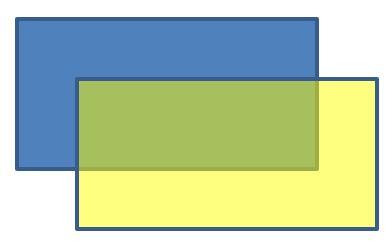
在 PowerPoint 中,當您對圖形套用純色、漸層、圖片或紋理填色時,也可以設定透明度,以控制填色的不透明程度。較高的透明度值會使圖形更透,讓背景或底層物件部分可見。
Aspose.Slides 透過調整填色顏色的 alpha 值來設定透明度。操作步驟如下:
- 建立 Presentation 類別的實例。
- 依索引取得投影片的參考。
- 將 IAutoShape 加入投影片。
- 將 FillType 設為
Solid。 - 使用
Color定義帶有透明度的顏色(alpha 成分控制透明度)。 - 儲存簡報。
import com.aspose.slides.*;
import java.awt.Color;

// 實例化代表簡報檔案的 Presentation 類別。
Presentation presentation = new Presentation();
try {
    // 取得第一張投影片。
    ISlide slide = presentation.getSlides().get_Item(0);

    // 加入實心矩形自動圖形。
    IAutoShape solidShape = slide.getShapes().addAutoShape(ShapeType.Rectangle, 50, 50, 150, 75);

    // 在實心圖形上方加入透明矩形自動圖形。
    IAutoShape transparentShape = slide.getShapes().addAutoShape(ShapeType.Rectangle, 80, 80, 150, 75);
    transparentShape.getFillFormat().setFillType(FillType.Solid);
    transparentShape.getFillFormat().getSolidFillColor().setColor(new Color(255, 255, 0, 204));

    // 將 PPTX 檔案儲存至磁碟。
    presentation.save("shape_transparency.pptx", SaveFormat.Pptx);
} finally {
    presentation.dispose();
}
旋轉圖形
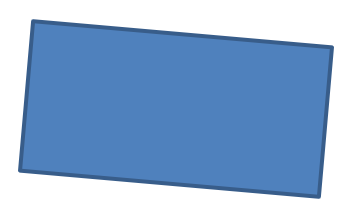
Aspose.Slides 讓您能在 PowerPoint 簡報中旋轉圖形,這在需要特定對齊或設計需求時相當有用。
旋轉投影片上的圖形,請依下列步驟操作:
- 建立 Presentation 類別的實例。
- 依索引取得投影片的參考。
- 將 IAutoShape 加入投影片。
- 將圖形的旋轉屬性設定為所需的角度。
- 儲存簡報。
import com.aspose.slides.*;

// 實例化代表簡報檔案的 Presentation 類別。
Presentation presentation = new Presentation();
try {
    // 取得第一張投影片。
    ISlide slide = presentation.getSlides().get_Item(0);

    // 加入類型為矩形的自動圖形。
    IAutoShape shape = slide.getShapes().addAutoShape(ShapeType.Rectangle, 50, 50, 150, 75);

    // 將圖形旋轉 5 度。
    shape.setRotation(5);

    // 將 PPTX 檔案儲存至磁碟。
    presentation.save("shape_rotation.pptx", SaveFormat.Pptx);
} finally {
    presentation.dispose();
}
新增 3D 斜角效果
Aspose.Slides 允許您透過設定圖形的 ThreeDFormat 屬性,為圖形套用 3D 斜角效果。
新增 3D 斜角效果的步驟如下:
- 建立 Presentation 類別的實例。
- 依索引取得投影片的參考。
- 將 IAutoShape 加入投影片。
- 設定圖形的 ThreeDFormat 以定義斜角設定。
- 儲存簡報。
import com.aspose.slides.*;
import java.awt.Color;

// 建立 Presentation 類別的實例。
Presentation presentation = new Presentation();
try {
    ISlide slide = presentation.getSlides().get_Item(0);

    // 在投影片上加入圖形。
    IAutoShape shape = slide.getShapes().addAutoShape(ShapeType.Ellipse, 50, 50, 100, 100);
    shape.getFillFormat().setFillType(FillType.Solid);
    shape.getFillFormat().getSolidFillColor().setColor(Color.GREEN);
    shape.getLineFormat().getFillFormat().setFillType(FillType.Solid);
    shape.getLineFormat().getFillFormat().getSolidFillColor().setColor(Color.ORANGE);
    shape.getLineFormat().setWidth(2.0);

    // 設定圖形的 ThreeDFormat 屬性。
    shape.getThreeDFormat().setDepth(4);
    shape.getThreeDFormat().getBevelTop().setBevelType(BevelPresetType.Circle);
    shape.getThreeDFormat().getBevelTop().setHeight(6);
    shape.getThreeDFormat().getBevelTop().setWidth(6);
    shape.getThreeDFormat().getCamera().setCameraType(CameraPresetType.OrthographicFront);
    shape.getThreeDFormat().getLightRig().setLightType(LightRigPresetType.ThreePt);
    shape.getThreeDFormat().getLightRig().setDirection(LightingDirection.Top);

    // 將簡報儲存為 PPTX 檔案。
    presentation.save("3D_bevel_effect.pptx", SaveFormat.Pptx);
} finally {
    presentation.dispose();
}

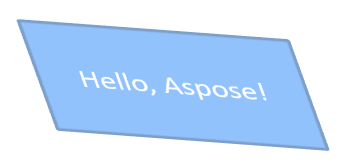
新增 3D 旋轉效果
Aspose.Slides 允許您透過設定圖形的 ThreeDFormat 屬性,為圖形套用 3D 旋轉效果。
套用 3D 旋轉的步驟如下:
- 建立 Presentation 類別的實例。
- 依索引取得投影片的參考。
- 將 IAutoShape 加入投影片。
- 使用 setCameraType 與 setLightType 定義 3D 旋轉。
- 儲存簡報。
import com.aspose.slides.*;

// 建立 Presentation 類別的實例。
Presentation presentation = new Presentation();
try {
    ISlide slide = presentation.getSlides().get_Item(0);

    IAutoShape autoShape = slide.getShapes().addAutoShape(ShapeType.Rectangle, 50, 50, 150, 75);
    autoShape.getTextFrame().setText("Hello, Aspose!");

    autoShape.getThreeDFormat().setDepth(6);
    autoShape.getThreeDFormat().getCamera().setRotation(40, 35, 20);
    autoShape.getThreeDFormat().getCamera().setCameraType(CameraPresetType.IsometricLeftUp);
    autoShape.getThreeDFormat().getLightRig().setLightType(LightRigPresetType.Balanced);

    // 將簡報儲存為 PPTX 檔案。
    presentation.save("3D_rotation_effect.pptx", SaveFormat.Pptx);
} finally {
    presentation.dispose();
}
控制圖形的黑白渲染
IShape.setBlackWhiteMode 方法指定當簡報以黑白模式檢視或處理時,單一圖形的呈現方式。此方法本身不會啟動黑白顯示,也不會在正常彩色模式下變更圖形的填充、線條或其他格式。
使用 BlackWhiteMode 類別中的值選取所需行為。例如,Automatic 讓渲染應用程式自行決定轉換方式,Gray 與 LightGray 使用灰階,BlackWhite 僅使用黑白,Black 與 White 強制單色,Color 保留正常上色,Hidden 在黑白模式下隱藏圖形,NotDefined 表示未指派圖形層級模式。
以下 Java 程式碼建立一個有顏色的圖形,並在黑白顯示模式下呈現為灰色:
import com.aspose.slides.*;
import android.graphics.Color;

Presentation presentation = new Presentation();
try {
    ISlide slide = presentation.getSlides().get_Item(0);

    IAutoShape shape = slide.getShapes().addAutoShape(ShapeType.Rectangle, 50, 50, 200, 100);
    shape.getFillFormat().setFillType(FillType.Solid);
    shape.getFillFormat().getSolidFillColor().setColor(Color.rgb(255, 165, 0));

    // 在彩色模式下保留橙色填充,但在黑白模式下將圖形以灰階呈現。
    shape.setBlackWhiteMode(BlackWhiteMode.Gray);

    presentation.save("shape_black_white_mode.pptx", SaveFormat.Pptx);
} finally {
    presentation.dispose();
}
在正常彩色模式下,矩形保留橙色填色。在黑白顯示工作流程中,因其模式設定為 Gray,因此使用灰色呈現。這讓您在保留完整彩色投影片的同時,為列印、預覽或其他遵循黑白顯示設定的工作流程定義不同的外觀。
重設格式
以下 Java 程式碼示範如何重設投影片的格式,並將 LayoutSlide 上所有具有佔位符的圖形的位置、大小與格式還原為預設設定:
import com.aspose.slides.*;

Presentation presentation = new Presentation("sample.pptx");
try {
    for (ISlide slide : presentation.getSlides()) {
        // 重設投影片上具有版面佔位符的每個圖形。
        slide.reset();
    }
    presentation.save("reset_formatting.pptx", SaveFormat.Pptx);
} finally {
    presentation.dispose();
}
常見問題
圖形格式化會影響最終簡報檔案大小嗎?
僅影響極小。嵌入的影像與媒體佔用大部分檔案空間,而圖形的顏色、效果與漸層等參數僅以中繼資料儲存,幾乎不會增加檔案大小。
如何偵測投影片上具有相同格式的圖形以便將它們分組?
比較每個圖形的關鍵格式屬性——填充、線條與效果設定。若所有對應的值皆相同,即可視為樣式相同,將這些圖形邏輯上分組,便於日後的樣式管理。
我可以將一組自訂圖形樣式另存為檔案,以在其他簡報中重複使用嗎?
可以。將具有所需樣式的樣本圖形存於範本投影片或 .POTX 範本檔。建立新簡報時,開啟範本,複製需要的已樣式化圖形,並在需要的地方重新套用其格式。