
在 PHP 中管理 PowerPoint 文本段落
概述
Aspose.Slides for PHP via Java 将文本表示为文本框、段落和片段的层次结构:
- TextFrame 表示形状中的文本容器,并提供对其段落集合的访问。
- Paragraph 表示文本框中的一个段落,并提供对其片段和段落级格式的访问。
- Portion 表示段落中的一段文本运行。每个片段可以拥有自己的文本和字符级格式。
因此,一个段落可以通过使用多个片段来包含具有不同字体、颜色、大小和其他格式的文本。
创建和格式化段落
使用多个片段创建段落
以下步骤创建一个包含三个段落的文本框,每个段落包含三个片段:
- 创建一个 Presentation 类的实例。
- 通过索引访问相应的幻灯片。
- 向幻灯片添加一个矩形的 AutoShape。
- 访问形状的 TextFrame。
- 使用默认段落并向文本框再添加两个 Paragraph 对象。
- 为每个段落添加足够的 Portion 对象,使其包含三个片段。默认段落已经包含一个空片段。
- 设置每个片段的文本。
- 通过 Portion::getPortionFormat 应用字符级格式。
- 保存修改后的演示文稿。
下面的 PHP 示例实现了上述步骤:
use aspose\slides\FillType;
use aspose\slides\NullableBool;
use aspose\slides\Paragraph;
use aspose\slides\Portion;
use aspose\slides\Presentation;
use aspose\slides\SaveFormat;
use aspose\slides\ShapeType;

$presentation = new Presentation();
try {
    $slide = $presentation->getSlides()->get_Item(0);
    $shape = $slide->getShapes()->addAutoShape(ShapeType::Rectangle, 50, 150, 300, 150);
    $textFrame = $shape->getTextFrame();

    $firstParagraph = $textFrame->getParagraphs()->get_Item(0);
    $firstParagraph->getPortions()->add(new Portion());
    $firstParagraph->getPortions()->add(new Portion());

    $secondParagraph = new Paragraph();
    $secondParagraph->getPortions()->add(new Portion());
    $secondParagraph->getPortions()->add(new Portion());
    $secondParagraph->getPortions()->add(new Portion());
    $textFrame->getParagraphs()->add($secondParagraph);

    $thirdParagraph = new Paragraph();
    $thirdParagraph->getPortions()->add(new Portion());
    $thirdParagraph->getPortions()->add(new Portion());
    $thirdParagraph->getPortions()->add(new Portion());
    $textFrame->getParagraphs()->add($thirdParagraph);

    $paragraphCount = java_values($textFrame->getParagraphs()->getCount());
    for ($paragraphIndex = 0; $paragraphIndex < $paragraphCount; $paragraphIndex++) {
        $paragraph = $textFrame->getParagraphs()->get_Item($paragraphIndex);
        $portionCount = java_values($paragraph->getPortions()->getCount());
        for ($portionIndex = 0; $portionIndex < $portionCount; $portionIndex++) {
            $portion = $paragraph->getPortions()->get_Item($portionIndex);
            $portion->setText("Portion " . ($paragraphIndex + 1) . "." . ($portionIndex + 1));

            if ($portionIndex == 0) {
                $portion->getPortionFormat()->getFillFormat()->setFillType(FillType::Solid);
                $portion->getPortionFormat()->getFillFormat()->getSolidFillColor()->setColor(java("java.awt.Color")->RED);
                $portion->getPortionFormat()->setFontBold(NullableBool::True);
                $portion->getPortionFormat()->setFontHeight(15);
            } else if ($portionIndex == 1) {
                $portion->getPortionFormat()->getFillFormat()->setFillType(FillType::Solid);
                $portion->getPortionFormat()->getFillFormat()->getSolidFillColor()->setColor(java("java.awt.Color")->BLUE);
                $portion->getPortionFormat()->setFontItalic(NullableBool::True);
                $portion->getPortionFormat()->setFontHeight(18);
            }
        }
    }

    $presentation->save("paragraphs_with_portions.pptx", SaveFormat::Pptx);
} finally {
    $presentation->dispose();
}
创建项目符号和编号列表
创建项目符号或编号列表
项目符号和编号可以使相关项目更易于浏览。在 Aspose.Slides 中,列表设置通过 BulletFormat 定义。
- 创建一个 Presentation 类的实例。
- 通过索引访问相应的幻灯片。
- 向选定的幻灯片添加一个 AutoShape。
- 访问形状的 TextFrame。
- 从文本框中移除默认段落。
- 为符号项目符号创建一个 Paragraph。
- 将 BulletFormat::setType 设置为 BulletType::Symbol 并指定项目符号字符。
- 设置段落文本、缩进、项目符号颜色和项目符号高度。
- 将段落添加到文本框。
- 创建第二个段落并将 BulletFormat::setType 设置为 BulletType::Numbered。
- 配置编号项目符号样式并将段落添加到文本框。
- 保存演示文稿。
下面的 PHP 示例创建了一个符号项目符号和一个编号项目符号:
use aspose\slides\BulletType;
use aspose\slides\ColorType;
use aspose\slides\NullableBool;
use aspose\slides\NumberedBulletStyle;
use aspose\slides\Paragraph;
use aspose\slides\Presentation;
use aspose\slides\SaveFormat;
use aspose\slides\ShapeType;

$presentation = new Presentation();
try {
    $slide = $presentation->getSlides()->get_Item(0);
    $shape = $slide->getShapes()->addAutoShape(ShapeType::Rectangle, 200, 200, 400, 200);
    $textFrame = $shape->getTextFrame();
    $textFrame->getParagraphs()->clear();

    $symbolParagraph = new Paragraph();
    $symbolParagraph->setText("Welcome to Aspose.Slides");
    $symbolParagraph->getParagraphFormat()->getBullet()->setType(BulletType::Symbol);
    $symbolParagraph->getParagraphFormat()->getBullet()->setChar("•");
    $symbolParagraph->getParagraphFormat()->setIndent(25);
    $symbolParagraph->getParagraphFormat()->getBullet()->getColor()->setColorType(ColorType::RGB);
    $symbolParagraph->getParagraphFormat()->getBullet()->getColor()->setColor(java("java.awt.Color")->BLACK);
    $symbolParagraph->getParagraphFormat()->getBullet()->setBulletHardColor(NullableBool::True);
    $symbolParagraph->getParagraphFormat()->getBullet()->setHeight(100);
    $textFrame->getParagraphs()->add($symbolParagraph);

    $numberedParagraph = new Paragraph();
    $numberedParagraph->setText("This is a numbered item");
    $numberedParagraph->getParagraphFormat()->getBullet()->setType(BulletType::Numbered);
    $numberedParagraph->getParagraphFormat()->getBullet()->setNumberedBulletStyle(NumberedBulletStyle::BulletCircleNumWDBlackPlain);
    $numberedParagraph->getParagraphFormat()->setIndent(25);
    $numberedParagraph->getParagraphFormat()->getBullet()->getColor()->setColorType(ColorType::RGB);
    $numberedParagraph->getParagraphFormat()->getBullet()->getColor()->setColor(java("java.awt.Color")->BLACK);
    $numberedParagraph->getParagraphFormat()->getBullet()->setBulletHardColor(NullableBool::True);
    $numberedParagraph->getParagraphFormat()->getBullet()->setHeight(100);
    $textFrame->getParagraphs()->add($numberedParagraph);

    $presentation->save("bulleted_and_numbered_list.pptx", SaveFormat::Pptx);
} finally {
    $presentation->dispose();
}
使用图片项目符号
图片项目符号允许使用自定义图像代替符号或数字。
- 创建一个 Presentation 类的实例。
- 通过索引访问相应的幻灯片。
- 添加一个 AutoShape 并访问其 TextFrame。
- 从文本框中移除默认段落。
- 加载项目符号图片并将其作为 PPImage 添加到演示文稿的图像集合中。
- 创建一个 Paragraph 并设置其文本。
- 将 BulletFormat::setType 设置为 BulletType::Picture。
- 通过 BulletFormat::getPicture 分配图像并设置项目符号高度。
- 将段落添加到文本框。
- 保存修改后的演示文稿。
下面的 PHP 示例创建了一个图片项目符号:
use aspose\slides\BulletType;
use aspose\slides\Images;
use aspose\slides\Paragraph;
use aspose\slides\Presentation;
use aspose\slides\SaveFormat;
use aspose\slides\ShapeType;

$presentation = new Presentation();
try {
    $slide = $presentation->getSlides()->get_Item(0);

    $bulletImage = Images::fromFile("bullets.png");
    try {
        $presentationImage = $presentation->getImages()->addImage($bulletImage);
    } finally {
        $bulletImage->dispose();
    }

    $shape = $slide->getShapes()->addAutoShape(ShapeType::Rectangle, 200, 200, 400, 200);
    $textFrame = $shape->getTextFrame();
    $textFrame->getParagraphs()->clear();

    $paragraph = new Paragraph();
    $paragraph->setText("Welcome to Aspose.Slides");
    $paragraph->getParagraphFormat()->getBullet()->setType(BulletType::Picture);
    $paragraph->getParagraphFormat()->getBullet()->getPicture()->setImage($presentationImage);
    $paragraph->getParagraphFormat()->getBullet()->setHeight(100);
    $textFrame->getParagraphs()->add($paragraph);

    $presentation->save("picture_bullet.pptx", SaveFormat::Pptx);
    $presentation->save("picture_bullet.ppt", SaveFormat::Ppt);
} finally {
    $presentation->dispose();
}
创建多级列表
将 ParagraphFormat::setDepth 设置为不同的深度,以在列表中放置不同层级的段落。顶层的深度为 0。
- 创建一个 Presentation 并访问一张幻灯片。
- 添加一个 AutoShape 并清除其文本框中的默认段落。
- 创建四个段落并配置它们的项目符号符号。
- 将它们的 ParagraphFormat::setDepth 值分别设为
0、1、2、3。 - 将段落添加到文本框并保存演示文稿。
下面的 PHP 示例创建了一个四级项目符号列表:
use aspose\slides\BulletType;
use aspose\slides\FillType;
use aspose\slides\Paragraph;
use aspose\slides\Presentation;
use aspose\slides\SaveFormat;
use aspose\slides\ShapeType;

$presentation = new Presentation();
try {
    $slide = $presentation->getSlides()->get_Item(0);
    $shape = $slide->getShapes()->addAutoShape(ShapeType::Rectangle, 200, 200, 400, 200);
    $textFrame = $shape->getTextFrame();
    $textFrame->getParagraphs()->clear();

    $firstParagraph = new Paragraph();
    $firstParagraph->setText("Content");
    $firstParagraph->getParagraphFormat()->getBullet()->setType(BulletType::Symbol);
    $firstParagraph->getParagraphFormat()->getBullet()->setChar("•");
    $firstParagraph->getParagraphFormat()->getDefaultPortionFormat()->getFillFormat()->setFillType(FillType::Solid);
    $firstParagraph->getParagraphFormat()->getDefaultPortionFormat()->getFillFormat()->getSolidFillColor()->setColor(java("java.awt.Color")->BLACK);
    $firstParagraph->getParagraphFormat()->setDepth(0);

    $secondParagraph = new Paragraph();
    $secondParagraph->setText("Second level");
    $secondParagraph->getParagraphFormat()->getBullet()->setType(BulletType::Symbol);
    $secondParagraph->getParagraphFormat()->getBullet()->setChar('-');
    $secondParagraph->getParagraphFormat()->getDefaultPortionFormat()->getFillFormat()->setFillType(FillType::Solid);
    $secondParagraph->getParagraphFormat()->getDefaultPortionFormat()->getFillFormat()->getSolidFillColor()->setColor(java("java.awt.Color")->BLACK);
    $secondParagraph->getParagraphFormat()->setDepth(1);

    $thirdParagraph = new Paragraph();
    $thirdParagraph->setText("Third level");
    $thirdParagraph->getParagraphFormat()->getBullet()->setType(BulletType::Symbol);
    $thirdParagraph->getParagraphFormat()->getBullet()->setChar("•");
    $thirdParagraph->getParagraphFormat()->getDefaultPortionFormat()->getFillFormat()->setFillType(FillType::Solid);
    $thirdParagraph->getParagraphFormat()->getDefaultPortionFormat()->getFillFormat()->getSolidFillColor()->setColor(java("java.awt.Color")->BLACK);
    $thirdParagraph->getParagraphFormat()->setDepth(2);

    $fourthParagraph = new Paragraph();
    $fourthParagraph->setText("Fourth level");
    $fourthParagraph->getParagraphFormat()->getBullet()->setType(BulletType::Symbol);
    $fourthParagraph->getParagraphFormat()->getBullet()->setChar('-');
    $fourthParagraph->getParagraphFormat()->getDefaultPortionFormat()->getFillFormat()->setFillType(FillType::Solid);
    $fourthParagraph->getParagraphFormat()->getDefaultPortionFormat()->getFillFormat()->getSolidFillColor()->setColor(java("java.awt.Color")->BLACK);
    $fourthParagraph->getParagraphFormat()->setDepth(3);

    $textFrame->getParagraphs()->add($firstParagraph);
    $textFrame->getParagraphs()->add($secondParagraph);
    $textFrame->getParagraphs()->add($thirdParagraph);
    $textFrame->getParagraphs()->add($fourthParagraph);

    $presentation->save("multilevel_list.pptx", SaveFormat::Pptx);
} finally {
    $presentation->dispose();
}
从自定义值开始编号列表项
使用 BulletFormat::setNumberedBulletStartWith 为编号段落设置初始显示的数字。
- 创建一个 Presentation 并向幻灯片添加一个 AutoShape。
- 清除形状的文本框中的默认段落。
- 创建三个编号段落。
- 将 BulletFormat::setNumberedBulletStartWith 分别设置为
2、3、7。 - 将段落添加到文本框并保存演示文稿。
下面的 PHP 示例为每个段落分配了自定义的起始编号:
use aspose\slides\BulletType;
use aspose\slides\Paragraph;
use aspose\slides\Presentation;
use aspose\slides\SaveFormat;
use aspose\slides\ShapeType;

$presentation = new Presentation();
try {
    $shape = $presentation->getSlides()->get_Item(0)->getShapes()->addAutoShape(ShapeType::Rectangle, 200, 200, 400, 200);
    $textFrame = $shape->getTextFrame();
    $textFrame->getParagraphs()->clear();

    $firstParagraph = new Paragraph();
    $firstParagraph->setText("Start at 2");
    $firstParagraph->getParagraphFormat()->getBullet()->setType(BulletType::Numbered);
    $firstParagraph->getParagraphFormat()->getBullet()->setNumberedBulletStartWith(2);
    $textFrame->getParagraphs()->add($firstParagraph);

    $secondParagraph = new Paragraph();
    $secondParagraph->setText("Start at 3");
    $secondParagraph->getParagraphFormat()->getBullet()->setType(BulletType::Numbered);
    $secondParagraph->getParagraphFormat()->getBullet()->setNumberedBulletStartWith(3);
    $textFrame->getParagraphs()->add($secondParagraph);

    $thirdParagraph = new Paragraph();
    $thirdParagraph->setText("Start at 7");
    $thirdParagraph->getParagraphFormat()->getBullet()->setType(BulletType::Numbered);
    $thirdParagraph->getParagraphFormat()->getBullet()->setNumberedBulletStartWith(7);
    $textFrame->getParagraphs()->add($thirdParagraph);

    $presentation->save("custom_numbered_list.pptx", SaveFormat::Pptx);
} finally {
    $presentation->dispose();
}
控制段落布局和结束属性
设置首行缩进
使用 ParagraphFormat::setIndent 控制段落的首行缩进。此方法仅相对于段落左边距移动第一行。正值将首行向右移动,而其余行保持与段落正文对齐。
当需要移动整个段落时使用 ParagraphFormat::setMarginLeft。仅需移动首行时使用 ParagraphFormat::setIndent。
下面的示例创建了多个段落,并对它们应用不同的 ParagraphFormat::setIndent 值,以演示首行缩进对段落布局的影响。
- 创建一个 Presentation 类的实例。
- 访问目标幻灯片。
- 向幻灯片添加一个矩形的 AutoShape。
- 访问形状的 TextFrame 并移除默认段落。
- 创建多个段落并为它们设置不同的 ParagraphFormat::setIndent 值。
- 将段落添加到文本框。
- 保存修改后的演示文稿。
下面的 PHP 代码展示了如何设置段落缩进:
use aspose\slides\FillType;
use aspose\slides\Paragraph;
use aspose\slides\Presentation;
use aspose\slides\SaveFormat;
use aspose\slides\ShapeType;
use aspose\slides\TextAutofitType;

$presentation = new Presentation();
try {
    $slide = $presentation->getSlides()->get_Item(0);

    $shape = $slide->getShapes()->addAutoShape(ShapeType::Rectangle, 50, 50, 420, 220);
    $shape->getFillFormat()->setFillType(FillType::NoFill);
    $shape->getLineFormat()->getFillFormat()->setFillType(FillType::Solid);
    $shape->getLineFormat()->getFillFormat()->getSolidFillColor()->setColor(java("java.awt.Color")->GRAY);

    $textFrame = $shape->getTextFrame();
    $textFrame->getTextFrameFormat()->setAutofitType(TextAutofitType::Shape);
    $textFrame->getParagraphs()->clear();

    $firstParagraph = new Paragraph();
    $firstParagraph->setText("No first-line indent. Wrapped lines start at the same position as the first line.");
    $firstParagraph->getParagraphFormat()->getDefaultPortionFormat()->getFillFormat()->setFillType(FillType::Solid);
    $firstParagraph->getParagraphFormat()->getDefaultPortionFormat()->getFillFormat()->getSolidFillColor()->setColor(java("java.awt.Color")->BLACK);
    $firstParagraph->getParagraphFormat()->setMarginLeft(20.0);
    $firstParagraph->getParagraphFormat()->setIndent(0.0);

    $secondParagraph = new Paragraph();
    $secondParagraph->setText("First-line indent of 20 points. The first line moves to the right, while wrapped lines remain aligned to the paragraph body.");
    $secondParagraph->getParagraphFormat()->getDefaultPortionFormat()->getFillFormat()->setFillType(FillType::Solid);
    $secondParagraph->getParagraphFormat()->getDefaultPortionFormat()->getFillFormat()->getSolidFillColor()->setColor(java("java.awt.Color")->BLACK);
    $secondParagraph->getParagraphFormat()->setMarginLeft(20.0);
    $secondParagraph->getParagraphFormat()->setIndent(20.0);

    $thirdParagraph = new Paragraph();
    $thirdParagraph->setText("First-line indent of 40 points. This paragraph shows a larger first-line offset to make the effect easier to see.");
    $thirdParagraph->getParagraphFormat()->getDefaultPortionFormat()->getFillFormat()->setFillType(FillType::Solid);
    $thirdParagraph->getParagraphFormat()->getDefaultPortionFormat()->getFillFormat()->getSolidFillColor()->setColor(java("java.awt.Color")->BLACK);
    $thirdParagraph->getParagraphFormat()->setMarginLeft(20.0);
    $thirdParagraph->getParagraphFormat()->setIndent(40.0);

    $textFrame->getParagraphs()->add($firstParagraph);
    $textFrame->getParagraphs()->add($secondParagraph);
    $textFrame->getParagraphs()->add($thirdParagraph);

    $presentation->save("paragraph_indent.pptx", SaveFormat::Pptx);
} finally {
    $presentation->dispose();
}
结果:

设置悬挂缩进
悬挂缩进是一种段落布局,第一行位于其余行的左侧。在 Aspose.Slides 中,可使用 ParagraphFormat::setIndent 实现此效果。传入负值即可使第一行相对于段落正文向左移动。
在实际操作中,ParagraphFormat::setMarginLeft 定义段落正文的左侧位置,而 ParagraphFormat::setIndent 定义第一行相对于该边距的位置。要创建悬挂缩进,需对 setMarginLeft 传入正值,对 setIndent 传入负值。
此类格式常用于参考文献、词条、术语表等,需要让换行后的行对齐到段落正文而不是第一行首字符的场景。
- 创建一个 Presentation 类的实例。
- 访问目标幻灯片。
- 向幻灯片添加一个矩形的 AutoShape。
- 访问形状的 TextFrame 并移除默认段落。
- 为每个段落创建段落并对 ParagraphFormat::setMarginLeft 传入正值。
- 对 ParagraphFormat::setIndent 传入负值,以产生悬挂缩进效果。
- 将段落添加到文本框。
- 保存修改后的演示文稿。
下面的 PHP 代码展示了如何为段落设置悬挂缩进:
use aspose\slides\FillType;
use aspose\slides\Paragraph;
use aspose\slides\Presentation;
use aspose\slides\SaveFormat;
use aspose\slides\ShapeType;
use aspose\slides\TextAutofitType;

$presentation = new Presentation();
try {
    $slide = $presentation->getSlides()->get_Item(0);

    $shape = $slide->getShapes()->addAutoShape(ShapeType::Rectangle, 50, 50, 420, 220);
    $shape->getFillFormat()->setFillType(FillType::NoFill);
    $shape->getLineFormat()->getFillFormat()->setFillType(FillType::Solid);
    $shape->getLineFormat()->getFillFormat()->getSolidFillColor()->setColor(java("java.awt.Color")->GRAY);

    $textFrame = $shape->getTextFrame();
    $textFrame->getTextFrameFormat()->setAutofitType(TextAutofitType::Shape);
    $textFrame->getParagraphs()->clear();

    $firstParagraph = new Paragraph();
    $firstParagraph->setText("A hanging indent is created by combining a positive left margin with a negative indent. The first line starts to the left, while wrapped lines align with the paragraph body.");
    $firstParagraph->getParagraphFormat()->getDefaultPortionFormat()->getFillFormat()->setFillType(FillType::Solid);
    $firstParagraph->getParagraphFormat()->getDefaultPortionFormat()->getFillFormat()->getSolidFillColor()->setColor(java("java.awt.Color")->BLACK);
    $firstParagraph->getParagraphFormat()->setMarginLeft(40.0);
    $firstParagraph->getParagraphFormat()->setIndent(-20.0);

    $secondParagraph = new Paragraph();
    $secondParagraph->setText("This second example uses a deeper hanging indent so the difference between the first line and the wrapped lines is easier to compare.");
    $secondParagraph->getParagraphFormat()->getDefaultPortionFormat()->getFillFormat()->setFillType(FillType::Solid);
    $secondParagraph->getParagraphFormat()->getDefaultPortionFormat()->getFillFormat()->getSolidFillColor()->setColor(java("java.awt.Color")->BLACK);
    $secondParagraph->getParagraphFormat()->setMarginLeft(60.0);
    $secondParagraph->getParagraphFormat()->setIndent(-30.0);

    $textFrame->getParagraphs()->add($firstParagraph);
    $textFrame->getParagraphs()->add($secondParagraph);

    $presentation->save("hanging_indent.pptx", SaveFormat::Pptx);
} finally {
    $presentation->dispose();
}
结果:

设置段落结束运行属性
Paragraph::setEndParagraphPortionFormat 控制段落结束标记的格式。以下 PHP 示例为第二段落的结束标记分配字体大小和拉丁字体:
- 加载一个 Presentation 并访问一张幻灯片。
- 添加一个 AutoShape 并清除其默认段落。
- 创建两个段落并向其添加文本片段。
- 为第二段落的结束标记创建一个 PortionFormat。
- 设置 BasePortionFormat::setFontHeight 和 BasePortionFormat::setLatinFont。
- 使用 Paragraph::setEndParagraphPortionFormat 赋予格式并保存演示文稿。
use aspose\slides\FontData;
use aspose\slides\Paragraph;
use aspose\slides\Portion;
use aspose\slides\PortionFormat;
use aspose\slides\Presentation;
use aspose\slides\SaveFormat;
use aspose\slides\ShapeType;

$presentation = new Presentation("Test.pptx");
try {
    $slide = $presentation->getSlides()->get_Item(0);
    $shape = $slide->getShapes()->addAutoShape(ShapeType::Rectangle, 10, 10, 200, 250);
    $textFrame = $shape->getTextFrame();
    $textFrame->getParagraphs()->clear();

    $firstParagraph = new Paragraph();
    $firstParagraph->getPortions()->add(new Portion("Sample text"));

    $secondParagraph = new Paragraph();
    $secondParagraph->getPortions()->add(new Portion("Sample text 2"));

    $endParagraphFormat = new PortionFormat();
    $endParagraphFormat->setFontHeight(48);
    $endParagraphFormat->setLatinFont(new FontData("Times New Roman"));
    $secondParagraph->setEndParagraphPortionFormat($endParagraphFormat);

    $textFrame->getParagraphs()->add($firstParagraph);
    $textFrame->getParagraphs()->add($secondParagraph);

    $presentation->save("end_paragraph_format.pptx", SaveFormat::Pptx);
} finally {
    $presentation->dispose();
}
统计渲染行数
有关影响自动换行和行尾标点的段落规则,请参阅 Control Line Breaking 和 Control Hanging Punctuation。
使用 Paragraph::getLinesCount 可统计段落在文本布局后所占的行数,包括自动换行。这在检查演示文稿模板中文本长度和布局时非常有用。
段落是 TextFrame::getParagraphs 中的一个项目,它可能占据多行渲染。段落内部的显式换行会强制换行但不会创建新段落。自动换行根据可用宽度生成行,而不会向文本中插入显式换行符。因此,仅统计段落或换行字符并不能得到渲染行数。
以下示例创建一个文本形状,统计其行数,缩窄形状,然后用更短的字符串替换文本。启用换行并关闭自动适应,以便形状宽度控制换行而不会自动缩小文本或调整形状大小。形状尺寸以点为单位。最后,示例向文本框添加另一个段落并汇总整个文本框的行数。
use aspose\slides\NullableBool;
use aspose\slides\Paragraph;
use aspose\slides\Presentation;
use aspose\slides\ShapeType;
use aspose\slides\TextAutofitType;

$presentation = new Presentation();
try {
    $slide = $presentation->getSlides()->get_Item(0);

    $shape = $slide->getShapes()->addAutoShape(ShapeType::Rectangle, 50, 50, 400, 200);
    $textFrame = $shape->getTextFrame();
    $textFrame->getTextFrameFormat()->setWrapText(NullableBool::True);
    $textFrame->getTextFrameFormat()->setAutofitType(TextAutofitType::None);

    $paragraph = $textFrame->getParagraphs()->get_Item(0);
    $paragraph->getParagraphFormat()->getDefaultPortionFormat()->setFontHeight(20);
    $paragraph->setText("This text demonstrates how automatic wrapping changes the number of rendered lines.");
    echo "Original width: " . java_values($paragraph->getLinesCount()) . PHP_EOL;

    $shape->setWidth(150);
    echo "Narrower shape: " . java_values($paragraph->getLinesCount()) . PHP_EOL;

    $paragraph->setText("Short text.");
    echo "Shorter text: " . java_values($paragraph->getLinesCount()) . PHP_EOL;

    $secondParagraph = new Paragraph();
    $secondParagraph->setText("Another paragraph.");
    $secondParagraph->getParagraphFormat()->getDefaultPortionFormat()->setFontHeight(20);
    $textFrame->getParagraphs()->add($secondParagraph);

    $totalLineCount = 0;
    for ($i = 0; $i < java_values($textFrame->getParagraphs()->getCount()); $i++) {
        $currentParagraph = $textFrame->getParagraphs()->get_Item($i);
        $totalLineCount += java_values($currentParagraph->getLinesCount());
    }
    echo "Total lines in the text frame: " . $totalLineCount . PHP_EOL;
} finally {
    $presentation->dispose();
}
使用这些文本和尺寸时,缩窄形状会增加行数,而用短字符串替换文本会减少行数。精确计数可能随字体可用性与替代、字体大小、边距、缩进、换行和自动适应设置而变化。检查模板时请使用目标环境的字体和布局设置。
仅行数并不能决定文本是否溢出其容器。可用高度、行高、段落和行间距以及自动适应行为也很重要;即使是一行文本,在关闭换行时也可能超出可用宽度。
导入和导出段落内容
将 HTML 文本导入段落
使用 ParagraphCollection::addFromHtml 将 HTML 标记转换为文本框中的段落和片段。
- 创建一个 Presentation 类的实例。
- 访问一张幻灯片并添加一个 AutoShape。
- 访问形状的 TextFrame 并清除其默认段落。
- 读取源 HTML 文件。
- 将 HTML 字符串传递给 ParagraphCollection::addFromHtml。
- 保存修改后的演示文稿。
下面的 PHP 示例将 HTML 导入到文本框:
use aspose\slides\FillType;
use aspose\slides\Presentation;
use aspose\slides\SaveFormat;
use aspose\slides\ShapeType;

$presentation = new Presentation();
try {
    $slide = $presentation->getSlides()->get_Item(0);
    $shapeWidth = java_values($presentation->getSlideSize()->getSize()->getWidth()) - 20;
    $shapeHeight = java_values($presentation->getSlideSize()->getSize()->getHeight()) - 20;
    $shape = $slide->getShapes()->addAutoShape(ShapeType::Rectangle, 10, 10, $shapeWidth, $shapeHeight);
    $shape->getFillFormat()->setFillType(FillType::NoFill);
    $shape->getTextFrame()->getParagraphs()->clear();

    $html = file_get_contents("file.html");
    if ($html !== false) {
        $shape->getTextFrame()->getParagraphs()->addFromHtml($html);
        $presentation->save("html_text.pptx", SaveFormat::Pptx);
    } else {
        echo "The HTML file could not be read.";
    }
} finally {
    $presentation->dispose();
}
将段落文本导出为 HTML
使用 ParagraphCollection::exportToHtml 将选定范围的段落导出为 HTML。
- 创建一个 Presentation 类的实例并加载所需的演示文稿。
- 访问幻灯片并找到包含文本的 AutoShape。
- 访问形状的 TextFrame。
- 调用 ParagraphCollection::exportToHtml,并提供起始段落索引和要导出的段落数。
- 将返回的 HTML 字符串写入文件。
下面的 PHP 示例导出第一个文本形状中的所有段落:
use aspose\slides\Presentation;

$presentation = new Presentation("ExportingHTMLText.pptx");
try {
    $shape = $presentation->getSlides()->get_Item(0)->getShapes()->get_Item(0);

    if (java_instanceof($shape, new JavaClass("com.aspose.slides.AutoShape"))) {
        $textFrame = $shape->getTextFrame();
        if (!java_is_null($textFrame)) {
            $paragraphs = $textFrame->getParagraphs();
            $html = $paragraphs->exportToHtml(0, $paragraphs->getCount(), null);
            if (file_put_contents("paragraphs.html", $html) === false) {
                echo "The HTML file could not be written.";
            }
        } else {
            echo "The first shape does not contain a text frame.";
        }
    } else {
        echo "The first shape is not a text shape.";
    }
} finally {
    $presentation->dispose();
}
将段落渲染为图像
Paragraph::getImage 直接渲染单个段落并返回一个 IImage。使用 IImage::save 将结果保存为文件或流。无需渲染包含的形状或手动裁剪位图。
如果段落无法在其父集合中找到、没有有效的渲染边界或无法渲染,Paragraph::getImage 可能返回 null。在保存之前检查结果,并在使用后释放返回的图像。
以默认比例渲染段落
假设我们有一个名为 sample.pptx 的演示文稿文件,其中包含一张幻灯片,第一形状是包含三个段落的文本框。
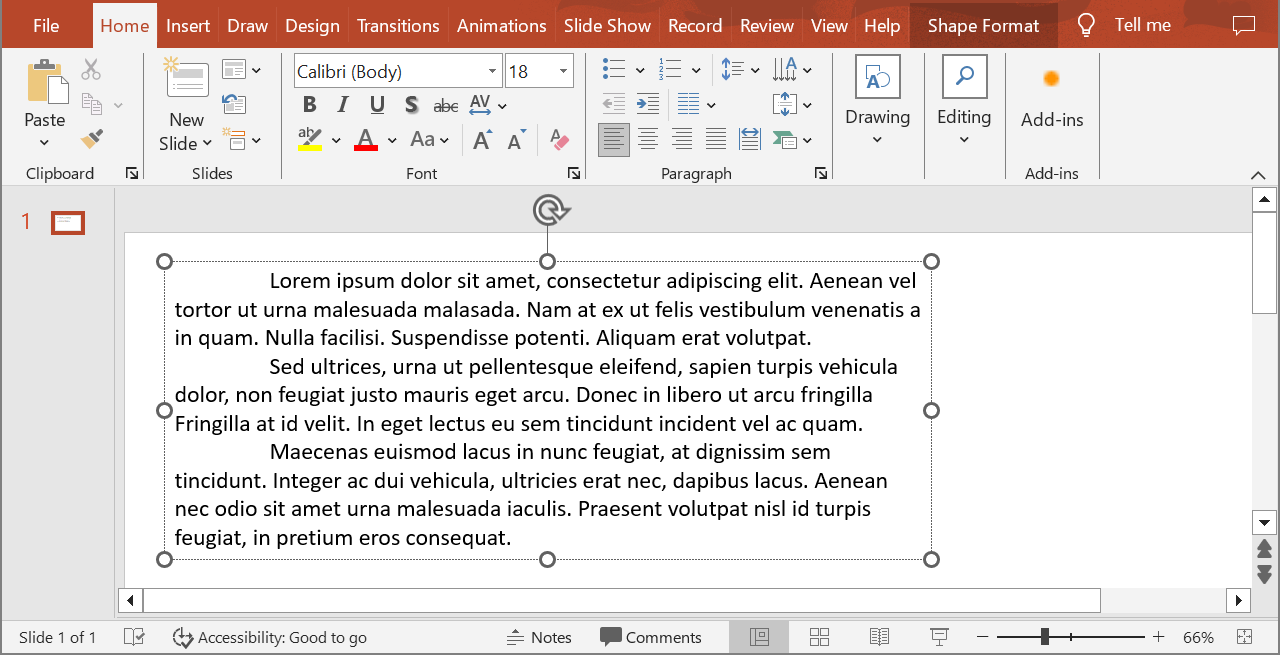
下面的 PHP 示例在常规文本形状中以默认比例渲染第二段落,并以 PNG 格式保存返回的图像。finally 块确保图像被正确释放。
use aspose\slides\ImageFormat;
use aspose\slides\Presentation;

$presentation = new Presentation("sample.pptx");
try {
    $shape = $presentation->getSlides()->get_Item(0)->getShapes()->get_Item(0);

    if (java_instanceof($shape, new JavaClass("com.aspose.slides.AutoShape"))) {
        $textFrame = $shape->getTextFrame();
        if (!java_is_null($textFrame) && java_values($textFrame->getParagraphs()->getCount()) > 1) {
            $paragraph = $textFrame->getParagraphs()->get_Item(1);
            $paragraphImage = $paragraph->getImage();

            if (!java_is_null($paragraphImage)) {
                try {
                    $paragraphImage->save("paragraph.png", ImageFormat::Png);
                } finally {
                    $paragraphImage->dispose();
                }
            } else {
                echo "The paragraph could not be rendered.";
            }
        } else {
            echo "The expected paragraph was not found.";
        }
    } else {
        echo "The first shape is not a text shape.";
    }
} finally {
    $presentation->dispose();
}
结果:

在表格单元格中渲染段落并进行缩放
使用接受 $scaleX 和 $scaleY 参数的 Paragraph::getImage 重载,可设置水平和垂直缩放系数。下面的 PHP 示例创建一个表格,在其第一个单元格中以两倍默认宽高渲染段落,并将结果保存为 PNG 图像。
use aspose\slides\ImageFormat;
use aspose\slides\Presentation;

$scaleX = 2;
$scaleY = 2;

$presentation = new Presentation();
try {
    $slide = $presentation->getSlides()->get_Item(0);
    $table = $slide->getShapes()->addTable(50, 50, array(300), array(80));
    $paragraph = $table->get_Item(0, 0)->getTextFrame()->getParagraphs()->get_Item(0);
    $paragraph->setText("Text in a table cell");

    $paragraphImage = $paragraph->getImage($scaleX, $scaleY);
    if (!java_is_null($paragraphImage)) {
        try {
            $paragraphImage->save("table_paragraph.png", ImageFormat::Png);
        } finally {
            $paragraphImage->dispose();
        }
    } else {
        echo "The paragraph could not be rendered.";
    }
} finally {
    $presentation->dispose();
}
1 的缩放系数保持该轴的默认像素大小。例如,两个系数均为 2 时,图像的宽度和高度约为默认尺寸的两倍,像素数量约为四倍。更大的系数通常可为缩放或高分辨率输出提供更锐利的文本,但也会增加内存使用和文件大小。系数小于 1 会生成更小、细节更少的图像。使用相等的系数可保持段落的纵横比;不同的水平和垂直系数会独立拉伸输出。
在需要包含形状填充、边框或其他视觉上下文的情况下,使用 Shape::getImage 渲染整个形状仍然有用。仅渲染段落图像时,请使用 Paragraph::getImage。
常见问题
是否可以完全禁用文本框内的换行?
是的。将 TextFrameFormat::setWrapText 设置为禁用换行,从而使行不会在文本框边缘处断开。
如何获取特定段落在幻灯片上的精确边界?
使用 Paragraph::getRect 可检索段落的边界矩形。Portion::getRect 提供单个片段的边界。
段落对齐(左、右、居中或两端对齐)在哪里控制?
ParagraphFormat::setAlignment 是段落级别的设置,适用于整个段落,而不受单个片段格式的影响。
要在每行内部垂直对齐不同字号的片段,请参阅 Align Fonts Within a Line。
是否可以为段落的一部分设置校对语言?
是的。为单个片段设置 BasePortionFormat::setLanguageId,这样一个段落即可包含多种语言的文本。