
在 PHP 中向 PowerPoint 演示文稿添加数学公式
概述
PowerPoint 将公式存储为 Office Math Markup Language (OMML)。使用 Aspose.Slides for PHP via Java,您可以以编程方式创建相同类型的数学内容:分数、根式、函数、极限、N 元运算符、矩阵、数组和格式化的数学块。
在 PowerPoint 中,用户通常从 Insert > Equation 添加公式:

结果是在幻灯片上可编辑的数学文本:

Aspose.Slides 通过三个主要对象构建该数学文本:
- 一个数学形状,通过 addMathShape 创建,用于包含公式的形状。
- MathPortion 在形状文本框内存储数学内容。
- MathParagraph 包含一个或多个 MathBlock 对象。
下面的大多数示例使用 MathematicalText 和来自 MathElementBase 的流畅方法,以保持代码简短且易读。
有关 MathML 导出场景,请参阅 导出演示文稿中的数学公式 (PHP via Java)。
创建公式
此示例使用 addMathShape 创建一个数学形状并添加勾股定理:

$presentation = new Presentation();
try {
    $slide = $presentation->getSlides()->get_Item(0);

    $mathShape = $slide->getShapes()->addMathShape(20, 20, 700, 120);
    $mathParagraph = $mathShape->getTextFrame()->getParagraphs()
        - >get_Item(0)->getPortions()->get_Item(0)->getMathParagraph();

    $equation = (new MathematicalText("c"))
        - >setSuperscript("2")
        - >join("=")
        - >join((new MathematicalText("a"))->setSuperscript("2"))
        - >join("+")
        - >join((new MathematicalText("b"))->setSuperscript("2"));

    $mathParagraph->add($equation);

    $presentation->save("pythagorean-theorem.pptx", SaveFormat::Pptx);
} finally {
    if (!java_is_null($presentation)) {
        $presentation->dispose();
    }
}
合并数学块
当公式的各部分独立构建为 MathBlock 对象时,使用 joinBlock 将它们合并。示例在左块中构建 c² =,在右块中构建 a² + b²。setSuperscript 为这三个幂创建可编辑的数学上标。
use aspose\slides\MathBlock;
use aspose\slides\MathematicalText;
use aspose\slides\Presentation;
use aspose\slides\SaveFormat;

$presentation = new Presentation();
try {
    $slide = $presentation->getSlides()->get_Item(0);

    $shape = $slide->getShapes()->addMathShape(20, 20, 600, 100);
    $mathPortion = $shape->getTextFrame()->getParagraphs()->get_Item(0)->getPortions()->get_Item(0);
    $mathParagraph = $mathPortion->getMathParagraph();

    $leftBlock = new MathBlock();
    $leftBlock->add((new MathematicalText("c"))->setSuperscript("2"));
    $leftBlock->add(new MathematicalText("="));

    $rightBlock = new MathBlock();
    $rightBlock->add((new MathematicalText("a"))->setSuperscript("2"));
    $rightBlock->add(new MathematicalText("+"));
    $rightBlock->add((new MathematicalText("b"))->setSuperscript("2"));

    $combinedBlock = $leftBlock->joinBlock($rightBlock);
    $mathParagraph->add($combinedBlock);

    $presentation->save("equation.pptx", SaveFormat::Pptx);
} finally {
    $presentation->dispose();
}
joinBlock 返回 $leftBlock 本身,现在按顺序包含两个部分,并使 $rightBlock 为空。仅将合并后的块添加一次到 MathParagraph。重新打开 equation.pptx 后,段落包含一个表示 c² = a² + b² 的块,三个幂均保留为数学上标。
改为使用 $leftBlock->add($rightBlock) 调用 add 会尝试将一个块直接嵌套在另一个块内部,导致抛出 InvalidOperationException。
添加分数
使用 divide 创建分数。您可以使用 MathFractionTypes 选择分数样式。

$presentation = new Presentation();
try {
    $slide = $presentation->getSlides()->get_Item(0);

    $mathShape = $slide->getShapes()->addMathShape(20, 20, 700, 100);
    $mathParagraph = $mathShape->getTextFrame()->getParagraphs()
        - >get_Item(0)->getPortions()->get_Item(0)->getMathParagraph();

    $fraction = (new MathematicalText("1"))
        - >divide("x", MathFractionTypes::Skewed);

    $mathParagraph->add(new MathBlock($fraction));

    $presentation->save("fraction.pptx", SaveFormat::Pptx);
} finally {
    if (!java_is_null($presentation)) {
        $presentation->dispose();
    }
}
对于堆叠式分数,使用 MathFractionTypes::Bar:
$stackedFraction = (new MathematicalText("x + 1"))->divide("y - 1", MathFractionTypes::Bar);
添加根式
使用 radical 创建平方根、立方根或其他根式。当前元素成为基底,参数成为次数。

$presentation = new Presentation();
try {
    $slide = $presentation->getSlides()->get_Item(0);

    $mathShape = $slide->getShapes()->addMathShape(20, 20, 700, 100);
    $mathParagraph = $mathShape->getTextFrame()->getParagraphs()
        - >get_Item(0)->getPortions()->get_Item(0)->getMathParagraph();

    $radical = (new MathematicalText("x"))
        - >radical("n");

    $mathParagraph->add(new MathBlock($radical));

    $presentation->save("radical.pptx", SaveFormat::Pptx);
} finally {
    if (!java_is_null($presentation)) {
        $presentation->dispose();
    }
}
显示或隐藏平方根的次数
平方根可以显示显式的 2,或使用传统的 √x 符号。MathRadical 的 setHideDegree 方法控制显示哪种形式。这两种形式在可编辑公式中均保留次数 2 和被开方数 x。
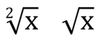
示例将相同的平方根保存两次。在 visible-degree.pptx 中,2 可见;在 hidden-degree.pptx 中,2 被隐藏。
use aspose\slides\MathBlock;
use aspose\slides\MathematicalText;
use aspose\slides\Presentation;
use aspose\slides\SaveFormat;

$presentation = new Presentation();
try {
    $slide = $presentation->getSlides()->get_Item(0);

    $radical = (new MathematicalText("x"))->radical("2");

    $shape = $slide->getShapes()->addMathShape(20, 20, 200, 100);
    $portion = $shape->getTextFrame()->getParagraphs()->get_Item(0)->getPortions()->get_Item(0);
    $portion->getMathParagraph()->add(new MathBlock($radical));

    $radical->setHideDegree(false);
    $presentation->save("visible-degree.pptx", SaveFormat::Pptx);

    $radical->setHideDegree(true);
    $presentation->save("hidden-degree.pptx", SaveFormat::Pptx);
} finally {
    $presentation->dispose();
}
添加函数和极限
对于 sin(x)、log(x) 或自定义函数名等函数,使用 asArgumentOfFunction 或 function。对于极限,将 lim 放入 MathLimit 或使用 setLowerLimit。

$presentation = new Presentation();
try {
    $slide = $presentation->getSlides()->get_Item(0);

    $mathShape = $slide->getShapes()->addMathShape(20, 20, 700, 100);
    $mathParagraph = $mathShape->getTextFrame()->getParagraphs()
        - >get_Item(0)->getPortions()->get_Item(0)->getMathParagraph();

    $limit = (new MathematicalText("lim"))
        - >setLowerLimit("x\u{2192}\u{221E}")
        - >function("x");

    $mathParagraph->add(new MathBlock($limit));

    $presentation->save("functions-and-limits.pptx", SaveFormat::Pptx);
} finally {
    if (!java_is_null($presentation)) {
        $presentation->dispose();
    }
}
对于自定义函数名,将函数名设为当前元素,然后使用其参数调用 function:
$customFunction = (new MathematicalText("f"))->function("x + 1");
添加 N 元运算符和积分
使用 nary 进行求和、并集、交集以及其他大运算符。使用 integral 处理积分。这两种方法都可以设置下限和上限。

$presentation = new Presentation();
try {
    $slide = $presentation->getSlides()->get_Item(0);

    $mathShape = $slide->getShapes()->addMathShape(20, 20, 700, 120);
    $mathParagraph = $mathShape->getTextFrame()->getParagraphs()
        - >get_Item(0)->getPortions()->get_Item(0)->getMathParagraph();

    $summationBase = (new MathematicalText("x"))
        - >setSuperscript("k")
        - >join((new MathematicalText("a"))->setSuperscript("n-k"));

    $summation = $summationBase->nary(MathNaryOperatorTypes::Summation, "k=0", "n");

    $mathParagraph->add(new MathBlock($summation));

    $presentation->save("nary-operators.pptx", SaveFormat::Pptx);
} finally {
    if (!java_is_null($presentation)) {
        $presentation->dispose();
    }
}
N 元运算符用于带可选上下限的大运算符。诸如 +、-、= 等简单运算符通常以 MathematicalText 添加并组合到表达式中。
对于积分,使用 integral:
$integralBase = (new MathematicalText("x"))->join((new MathematicalText("dx"))->toBox());
$integral = $integralBase->integral(MathIntegralTypes::Simple, "0", "1");
添加矩阵
使用 MathMatrix 来表示行和列。矩阵默认不包含括号,因此在需要圆括号、方括号或大括号时需要自行包裹矩阵。

$presentation = new Presentation();
try {
    $slide = $presentation->getSlides()->get_Item(0);

    $mathShape = $slide->getShapes()->addMathShape(20, 20, 700, 120);
    $mathParagraph = $mathShape->getTextFrame()->getParagraphs()
        - >get_Item(0)->getPortions()->get_Item(0)->getMathParagraph();

    $matrix = new MathMatrix(2, 3);
    $matrix->set_Item(0, 0, new MathematicalText("1"));
    $matrix->set_Item(0, 1, new MathematicalText("x"));
    $matrix->set_Item(1, 0, new MathematicalText("x"));
    $matrix->set_Item(1, 1, new MathematicalText("2"));
    $matrix->set_Item(1, 2, new MathematicalText("y"));

    $mathParagraph->add(new MathBlock($matrix));

    $presentation->save("matrix.pptx", SaveFormat::Pptx);
} finally {
    if (!java_is_null($presentation)) {
        $presentation->dispose();
    }
}
编辑现有矩阵
假设线性代数课程以 matrix.pptx 中的系数矩阵开始(该矩阵由前面的示例保存)。在下一练习中,保留第一条公式,用两条新公式替换第二条,并修改变量集。通过 MathMatrix 打开现有矩阵,以保留仍然适用的系数。
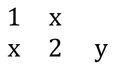
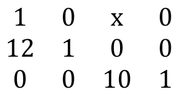
行和列索引从零开始,指向每次调用时的矩阵状态。在索引 1 之前插入行会将原来的第二行移动到索引 2。随后在索引 2 之后插入会追加一行。删除第 2 行会移除原来的第二条公式,并将追加的行上移一位。列的移动方式相同。
use aspose\slides\MathematicalText;
use aspose\slides\MathHorizontalAlignment;
use aspose\slides\Presentation;
use aspose\slides\SaveFormat;

$presentation = new Presentation("matrix.pptx");
try {
    $shape = $presentation->getSlides()->get_Item(0)->getShapes()->get_Item(0);
    $portion = $shape->getTextFrame()->getParagraphs()->get_Item(0)->getPortions()->get_Item(0);
    $block = $portion->getMathParagraph()->get_Item(0);
    $matrix = $block->get_Item(0);

    $matrix->insertRowBefore(1);
    $matrix->insertRowAfter(2);
    $matrix->deleteRow(2);

    $matrix->insertColumnBefore(1);
    $matrix->insertColumnAfter(3);
    $matrix->deleteColumn(3);

    // 新单元格最初为 null。先设置非零系数。
    $matrix->set_Item(1, 0, new MathematicalText("12"));
    $matrix->set_Item(1, 1, new MathematicalText("1"));
    $matrix->set_Item(2, 2, new MathematicalText("10"));
    $matrix->set_Item(2, 3, new MathematicalText("1"));
    $rowCount = java_values($matrix->getRowCount());
    $columnCount = java_values($matrix->getColumnCount());
    for ($row = 0; $row < $rowCount; $row++) {
        for ($column = 0; $column < $columnCount; $column++) {
            $coefficient = $matrix->get_Item($row, $column);
            if (java_is_null($coefficient)) {
                $matrix->set_Item($row, $column, new MathematicalText("0"));
            }
        }
    }

    $matrix->setColumnAlignment(0, MathHorizontalAlignment::Left);
    $matrix->setColumnsAlignment(1, 3, MathHorizontalAlignment::Right);

    $presentation->save("updated-matrix.pptx", SaveFormat::Pptx);
} finally {
    $presentation->dispose();
}
setColumnAlignment 将第一列左对齐。setColumnsAlignment 将从索引 1 开始的连续三列右对齐。在 updated-matrix.pptx 中,矩阵包含三条公式和四个变量。原始第一行的系数 1 和 x 现在出现在第一列和第三列。
添加公式数组
需要对齐的公式或垂直堆叠表达式时,使用 toMathArray。

$presentation = new Presentation();
try {
    $slide = $presentation->getSlides()->get_Item(0);

    $mathShape = $slide->getShapes()->addMathShape(20, 20, 700, 140);
    $mathParagraph = $mathShape->getTextFrame()->getParagraphs()
        - >get_Item(0)->getPortions()->get_Item(0)->getMathParagraph();

    $equationArray = (new MathematicalText("x"))
        - >join("y")
        - >toMathArray();

    $mathParagraph->add(new MathBlock($equationArray));

    $presentation->save("equation-array.pptx", SaveFormat::Pptx);
} finally {
    if (!java_is_null($presentation)) {
        $presentation->dispose();
    }
}
将数组与周围元素对齐
setBaseJustification 控制数组相对于其旁边数学元素的垂直对齐方式。下面的示例比较了与第一行、数组中心和最后一行的对齐方式。
以下示例创建了三个相同的数组,每个数组有三行,邻近元素为 A= 和 =B。所有数学文本均使用 24 磅的 Cambria Math。唯一改变的是数组的对齐方式。
use aspose\slides\FillType;
use aspose\slides\FontData;
use aspose\slides\MathArray;
use aspose\slides\MathBlock;
use aspose\slides\MathJustification;
use aspose\slides\MathVerticalAlignment;
use aspose\slides\MathematicalText;
use aspose\slides\Presentation;
use aspose\slides\SaveFormat;
use aspose\slides\ShapeType;
use aspose\slides\SlideSizeScaleType;
use aspose\slides\TextAnchorType;

$createText = static function (string $value) {
    $text = new MathematicalText($value);
    $text->getFormat()->setFontHeight(24);
    $text->getFormat()->setLatinFont(new FontData("Cambria Math"));
    return $text;
};

$alignments = ["Top" => MathVerticalAlignment::Top, "Center" => MathVerticalAlignment::Center, "Bottom" => MathVerticalAlignment::Bottom];
$presentation = new Presentation();
try {
    $presentation->getSlideSize()->setSize(780, 200, SlideSizeScaleType::DoNotScale);
    $slide = $presentation->getSlides()->get_Item(0);
    $x = 20;
    foreach ($alignments as $name => $alignment) {
        $label = $slide->getShapes()->addAutoShape(ShapeType::Rectangle, $x, 10, 240, 30);
        $label->getFillFormat()->setFillType(FillType::NoFill);
        $label->getLineFormat()->getFillFormat()->setFillType(FillType::NoFill);
        $label->getTextFrame()->setText($name);
        $labelFormat = $label->getTextFrame()->getParagraphs()->get_Item(0)->getPortions()->get_Item(0)->getPortionFormat();
        $labelFormat->setFontHeight(16);
        $labelFormat->getFillFormat()->setFillType(FillType::Solid);
        $labelFormat->getFillFormat()->getSolidFillColor()->setColor(java("java.awt.Color")->BLACK);

        $mathShape = $slide->getShapes()->addMathShape($x, 60, 240, 130);
        $mathShape->getTextFrame()->getTextFrameFormat()->setAnchoringType(TextAnchorType::Top);
        $paragraph = $mathShape->getTextFrame()->getParagraphs()->get_Item(0);
        $mathParagraph = $paragraph->getPortions()->get_Item(0)->getMathParagraph();
        $mathParagraph->setJustification(MathJustification::LeftJustified);

        $firstRow = $createText("x+y=3");
        $equationArray = new MathArray($firstRow);
        foreach (["x-y=1", "x=2"] as $value) {
            $row = $createText($value);
            $equationArray->getArguments()->add($row);
        }
        $equationArray->setBaseJustification($alignment);
        $leftText = $createText("A=");
        $rightText = $createText("=B");
        $equation = (new MathBlock($leftText))->join($equationArray)->join($rightText);
        $mathParagraph->add($equation);
        $x += 260;
    }
    $presentation->save("equation-array-alignment.pptx", SaveFormat::Pptx);
} finally {
    $presentation->dispose();
}
下面的比较显示了在 PowerPoint 中保存的演示文稿。请注意每个数组旁边的 A= 和 =B 的位置。

配置行间距
setRowSpacingRule 选择数组内部行的间距规则。setRowSpacing 为显式间距规则提供数值,预设规则会忽略此值。
精确间距的单位是磅。比例间距的单位是半行:示例中的值 3 表示 1.5 行。指定显式值时需要同时设置两个属性,仅更改数值不会选择间距规则。
下面的示例保存了五个演示文稿,使用相同的公式、对齐方式和字体设置。前三个使用预设,后两个显示显式数值。
use aspose\slides\FontData;
use aspose\slides\MathArray;
use aspose\slides\MathBlock;
use aspose\slides\MathJustification;
use aspose\slides\MathRowSpacingRule;
use aspose\slides\MathVerticalAlignment;
use aspose\slides\MathematicalText;
use aspose\slides\Presentation;
use aspose\slides\SaveFormat;

$createText = static function (string $value) {
    $text = new MathematicalText($value);
    $text->getFormat()->setFontHeight(24);
    $text->getFormat()->setLatinFont(new FontData("Cambria Math"));
    return $text;
};

$settings = [
    "SingleLineGap" => [MathRowSpacingRule::SingleLineGap, 0],
    "OneAndAHalfLineGap" => [MathRowSpacingRule::OneAndAHalfLineGap, 0],
    "TwoLineGap" => [MathRowSpacingRule::TwoLineGap, 0],
    "Exactly" => [MathRowSpacingRule::Exactly, 20],
    "Multiple" => [MathRowSpacingRule::Multiple, 3],
];

foreach ($settings as $name => [$rule, $spacing]) {
    $presentation = new Presentation();
    try {
        $mathShape = $presentation->getSlides()->get_Item(0)->getShapes()->addMathShape(20, 20, 600, 300);
        $paragraph = $mathShape->getTextFrame()->getParagraphs()->get_Item(0);
        $paragraph->getParagraphFormat()->setSpaceBefore(0);
        $paragraph->getParagraphFormat()->setSpaceAfter(0);
        $mathParagraph = $paragraph->getPortions()->get_Item(0)->getMathParagraph();
        $mathParagraph->setJustification(MathJustification::LeftJustified);

        $firstRow = $createText("x+y=3");
        $equationArray = new MathArray($firstRow);
        foreach (["x-y=1", "x=2"] as $value) {
            $row = $createText($value);
            $equationArray->getArguments()->add($row);
        }
        $equationArray->setBaseJustification(MathVerticalAlignment::Center);
        $equationArray->setRowSpacingRule($rule);
        $equationArray->setRowSpacing($spacing);
        $leftText = $createText("A=");
        $rightText = $createText("=B");
        $equation = (new MathBlock($leftText))->join($equationArray)->join($rightText);
        $mathParagraph->add($equation);
        $presentation->save("equation-array-$name.pptx", SaveFormat::Pptx);
    } finally {
        $presentation->dispose();
    }
}
数组行间距与段落间距是分开的。setSpaceBefore 和 setSpaceAfter 为包含段落的前后添加空白,而不是数组行之间的间距。同样,MathParagraph::setJustification 水平定位整个数学段落;它不会替代数组的垂直对齐设置。
添加三角函数
当参数是当前元素且已知函数名时,使用 asArgumentOfFunction。

$presentation = new Presentation();
try {
    $slide = $presentation->getSlides()->get_Item(0);

    $mathShape = $slide->getShapes()->addMathShape(20, 20, 700, 100);
    $mathParagraph = $mathShape->getTextFrame()->getParagraphs()
        - >get_Item(0)->getPortions()->get_Item(0)->getMathParagraph();

    $cosine = (new MathematicalText("2x"))
        - >asArgumentOfFunction(MathFunctionsOfOneArgument::Cos);

    $mathParagraph->add(new MathBlock($cosine));

    $presentation->save("trigonometric-function.pptx", SaveFormat::Pptx);
} finally {
    if (!java_is_null($presentation)) {
        $presentation->dispose();
    }
}
添加下标和上标
使用下标和上标帮助函数来表示索引和幂。当索引需要出现在基底左侧时,使用 setSubSuperscriptOnTheLeft。

$presentation = new Presentation();
try {
    $slide = $presentation->getSlides()->get_Item(0);

    $mathShape = $slide->getShapes()->addMathShape(20, 20, 700, 100);
    $mathParagraph = $mathShape->getTextFrame()->getParagraphs()
        - >get_Item(0)->getPortions()->get_Item(0)->getMathParagraph();

    $scripts = (new MathematicalText("Y"))
        - >setSubSuperscriptOnTheLeft("1", "n");

    $mathParagraph->add(new MathBlock($scripts));

    $presentation->save("subscript-superscript.pptx", SaveFormat::Pptx);
} finally {
    if (!java_is_null($presentation)) {
        $presentation->dispose();
    }
}
对齐右侧下标和上标
当两个脚本属于同一基底时,使用 MathRightSubSuperscriptElement。其 setAlignScripts 方法控制它们的水平位置:false(默认)使其遵循基底轮廓,而 true 则使脚本水平对齐。
此示例将相同的可编辑表达式的两个副本并排放置。两者均使用数学斜体 f (U+1D453)、下标 1、上标 2,且字体为 72 磅的 Cambria Math。倾斜的基底使差异在 PowerPoint 中可见。运行示例前请先安装 Cambria Math。
use aspose\slides\FontData;
use aspose\slides\MathBlock;
use aspose\slides\MathematicalText;
use aspose\slides\MathRightSubSuperscriptElement;
use aspose\slides\PortionFormat;
use aspose\slides\Presentation;
use aspose\slides\SaveFormat;
use aspose\slides\SlideSizeScaleType;

$presentation = new Presentation();
try {
    $presentation->getSlideSize()->setSize(900, 250, SlideSizeScaleType::DoNotScale);
    $slide = $presentation->getSlides()->get_Item(0);

    $format = new PortionFormat();
    $format->setFontHeight(72);
    $font = new FontData("Cambria Math");
    $format->setLatinFont($font);

    for ($i = 0; $i < 2; $i++) {
        $left = 40 + $i * 440;
        $shape = $slide->getShapes()->addMathShape($left, 75, 380, 150);

        $baseText = new MathematicalText("\u{1D453}", $format);
        $subscript = new MathematicalText("1", $format);
        $superscript = new MathematicalText("2", $format);
        $scripts = new MathRightSubSuperscriptElement($baseText, $subscript, $superscript);
        $scripts->setAlignScripts($i === 1);

        $portion = $shape->getTextFrame()->getParagraphs()->get_Item(0)->getPortions()->get_Item(0);
        $portion->getPortionFormat()->setFontHeight($format->getFontHeight());
        $portion->getPortionFormat()->setLatinFont($format->getLatinFont());
        $mathBlock = new MathBlock($scripts);
        $portion->getMathParagraph()->add($mathBlock);
    }

    $presentation->save("aligned-scripts.pptx", SaveFormat::Pptx);
} finally {
    $presentation->dispose();
}
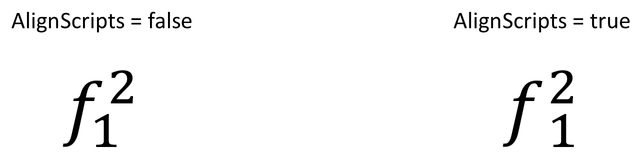
左侧,下标起点比上标更靠左,遵循基底轮廓。右侧,两者水平对齐。
添加分隔符
使用 enclose 将表达式放入分隔符内。对于包含多个元素的分隔符表达式,还可以设置分隔字符。

$presentation = new Presentation();
try {
    $slide = $presentation->getSlides()->get_Item(0);

    $mathShape = $slide->getShapes()->addMathShape(20, 20, 700, 100);
    $mathParagraph = $mathShape->getTextFrame()->getParagraphs()
        - >get_Item(0)->getPortions()->get_Item(0)->getMathParagraph();

    $delimiter = (new MathematicalText("x"))
        - >join("y")
        - >join("z")
        - >enclose(new Java("java.lang.Character", "<"), new Java("java.lang.Character", ">"));
    $delimiter->setSeparatorCharacter(new Java("java.lang.Character", "|"));

    $mathParagraph->add(new MathBlock($delimiter));

    $presentation->save("delimiters.pptx", SaveFormat::Pptx);
} finally {
    if (!java_is_null($presentation)) {
        $presentation->dispose();
    }
}
大小和对齐分隔符
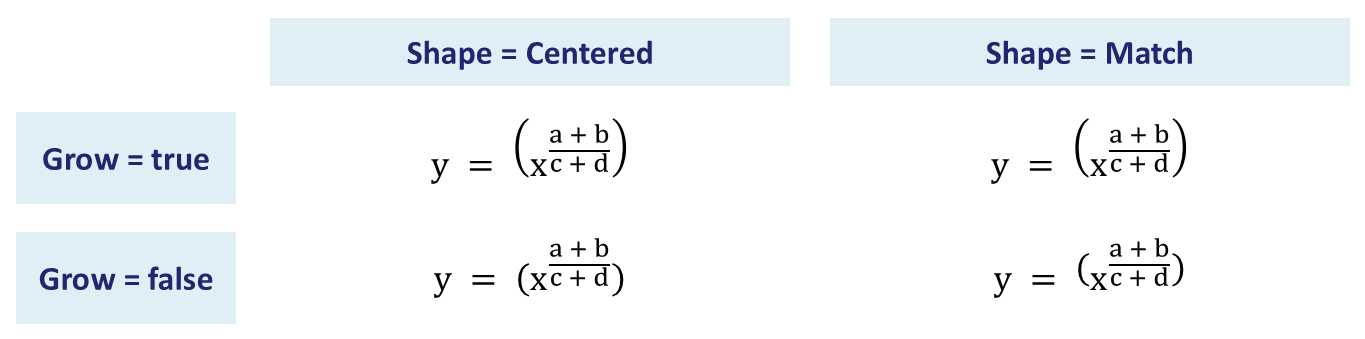
向 setGrowToMatchOperandHeight 传入 true 可让括号随高操作数而增长,传入 false 则保持正常大小。使用 setDelimiterShape 并结合两种 MathDelimiterShape 值之一。Centered 将括号居中在数学轴上,即等号中线;Match 将其对齐到所包围的内容。两个设置仅影响括号本身,内部表达式保持不变。
示例在 x 的指数位置放置分数,使表达式在基线以上的延伸超过基线以下。四个公式均使用相同的括号和字体设置。
use aspose\slides\MathDelimiterShape;
use aspose\slides\MathematicalText;
use aspose\slides\Presentation;
use aspose\slides\SaveFormat;

$presentation = new Presentation();
try {
    $slide = $presentation->getSlides()->get_Item(0);
    $opening = new Java("java.lang.Character", "(");
    $closing = new Java("java.lang.Character", ")");
    for ($row = 0; $row < 2; $row++) {
        for ($column = 0; $column < 2; $column++) {
            $fraction = (new MathematicalText("a + b"))->divide("c + d");
            $power = (new MathematicalText("x"))->setSuperscript($fraction);
            $delimiter = $power->enclose($opening, $closing);
            $delimiter->setGrowToMatchOperandHeight($row === 0);
            $delimiter->setDelimiterShape($column === 0 ? MathDelimiterShape::Centered : MathDelimiterShape::Match);

            $mathShape = $slide->getShapes()->addMathShape(20 + 330 * $column, 20 + 120 * $row, 300, 100);
            $portion = $mathShape->getTextFrame()->getParagraphs()->get_Item(0)->getPortions()->get_Item(0);
            $portion->getPortionFormat()->setFontHeight(32);
            $equation = (new MathematicalText("y = "))->join($delimiter);
            $portion->getMathParagraph()->add($equation);
        }
    }
    $presentation->save("delimiter-sizing.pptx", SaveFormat::Pptx);
} finally {
    $presentation->dispose();
}
在 PowerPoint 中比较各行可见增长效果。顶部行,括号会增长以包围指数,两种形状看起来相同。底部行,增长关闭。左侧较小的括号(Centered)与等号对齐,而右侧(Match)则在表达式上方更高。
添加边框框
对分数调用 toBorderBox 可为整个表达式加框。返回的 MathBorderBox 默认显示四个边。使用 setHideTop、setHideBottom、setHideLeft 和 setHideRight 可单独隐藏边。
示例在一张幻灯片上放置相同分数的六个副本。为显示消除效果,先隐藏四个边,然后对上升对角线 (↗) 传入 true 给 setStrikethroughBottomLeftToTopRight,或对下降对角线 (↘) 传入 true 给 setStrikethroughTopLeftToBottomRight。也可以使用 setStrikethroughHorizontal 或 setStrikethroughVertical 与任意可见边组合。
use aspose\slides\MathBlock;
use aspose\slides\MathematicalText;
use aspose\slides\Presentation;
use aspose\slides\SaveFormat;
use aspose\slides\SlideSizeScaleType;

$presentation = new Presentation();
try {
    $presentation->getSlideSize()->setSize(540, 220, SlideSizeScaleType::DoNotScale);
    $slide = $presentation->getSlides()->get_Item(0);

    $addFraction = function ($x, $y, $hideBorder) use ($slide) {
        $fraction = (new MathematicalText("x+1"))->divide("y+2");
        $box = $fraction->toBorderBox();
        $box->setHideTop($hideBorder);
        $box->setHideBottom($hideBorder);
        $box->setHideLeft($hideBorder);
        $box->setHideRight($hideBorder);

        $shape = $slide->getShapes()->addMathShape($x, $y, 160, 90);
        $portion = $shape->getTextFrame()->getParagraphs()->get_Item(0)->getPortions()->get_Item(0);
        $portion->getPortionFormat()->setFontHeight(28);
        $mathBlock = new MathBlock($box);
        $portion->getMathParagraph()->add($mathBlock);
        return $box;
    };

    $addFraction(10, 10, false);

    $partial = $addFraction(190, 10, false);
    $partial->setHideTop(true);
    $partial->setHideRight(true);

    $addFraction(370, 10, true)->setStrikethroughBottomLeftToTopRight(true);
    $addFraction(10, 120, true)->setStrikethroughTopLeftToBottomRight(true);
    $addFraction(190, 120, true)->setStrikethroughHorizontal(true);
    $addFraction(370, 120, false)->setStrikethroughVertical(true);

    $presentation->save("border-box.pptx", SaveFormat::Pptx);
} finally {
    $presentation->dispose();
}
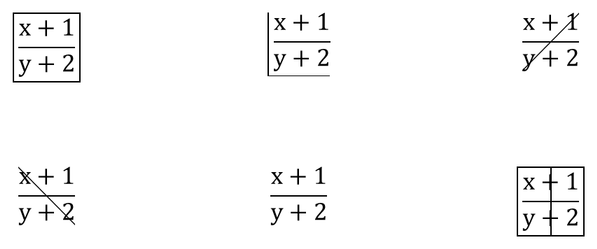
在此分数中,水平划线与分数线重叠。垂直划线穿过分子和分母,而周围的边框仍然可见。这些线装饰整个表达式。普通文本的删除线仅作用于文字运行中的字符。重新在 PowerPoint 中打开演示文稿后,仍可独立编辑分子和分母。
使用 Phantom 元素控制可见性和布局
将表达式包装在 MathPhantom 中,可独立控制其可见性以及在公式中占用的空间。MathPhantom 方法可控制以下内容:
| 方法 | 效果 |
|---|---|
| setShow | 传入 false 可隐藏表达式。除非下面相应方法接收 true,否则其尺寸仍会影响布局。 |
| setZeroWidth | 将表达式的水平宽度视为零,使相邻元素更靠近。 |
| setZeroAsc | 将其上升高度(基线以上的高度)视为零,可减少相邻元素上方保留的空间。 |
| setZeroDesc | 将其下降深度(基线以下的深度)视为零,可使分数线或表达式下方的内容更靠近相邻元素。 |
基线是普通数学字母所在的参考线。隐藏内容并不会移除其尺寸,将尺寸设为零也并不删除表达式。底层表达式可通过 getBase 获得。传入 true 给 setShow 可再次显示;尺寸设置保持不变。
use aspose\slides\FillType;
use aspose\slides\FontData;
use aspose\slides\MathBlock;
use aspose\slides\MathFraction;
use aspose\slides\MathPhantom;
use aspose\slides\MathematicalText;
use aspose\slides\Presentation;
use aspose\slides\SaveFormat;
use aspose\slides\ShapeType;
use aspose\slides\SlideSizeScaleType;
use aspose\slides\TextAnchorType;

$createText = static function (string $value) {
    $text = new MathematicalText($value);
    $text->getFormat()->setFontHeight(24);
    $text->getFormat()->setLatinFont(new FontData("Cambria Math"));
    return $text;
};

$presentation = new Presentation();
try {
    $presentation->getSlideSize()->setSize(1000, 180, SlideSizeScaleType::DoNotScale);
    $slide = $presentation->getSlides()->get_Item(0);

    $labels = ["Visible", "Hidden: reserves space", "Hidden: ZeroWidth", "Hidden: ZeroAsc", "Hidden: ZeroDesc"];

    $guide = $slide->getShapes()->addAutoShape(ShapeType::Line, 10, 60, 980, 0);
    $guide->getLineFormat()->getFillFormat()->setFillType(FillType::Solid);
    $guide->getLineFormat()->getFillFormat()->getSolidFillColor()->setColor(java("java.awt.Color")->LIGHT_GRAY);

    foreach ($labels as $i => $labelText) {
        $left = 10 + $i * 200;

        $label = $slide->getShapes()->addAutoShape(ShapeType::Rectangle, $left, 10, 190, 30);
        $label->getFillFormat()->setFillType(FillType::NoFill);
        $label->getLineFormat()->getFillFormat()->setFillType(FillType::NoFill);
        $label->getTextFrame()->setText($labelText);

        $labelFormat = $label->getTextFrame()->getParagraphs()->get_Item(0)->getPortions()->get_Item(0)->getPortionFormat();
        $labelFormat->setFontHeight(14);
        $labelFormat->getFillFormat()->setFillType(FillType::Solid);
        $labelFormat->getFillFormat()->getSolidFillColor()->setColor(java("java.awt.Color")->BLACK);

        $fractionNumerator = $createText("a+b");
        $fractionDenominator = $createText("c+d");
        $fraction = new MathFraction($fractionNumerator, $fractionDenominator);
        $phantom = new MathPhantom($fraction);
        $phantom->setShow($i === 0);
        $phantom->setZeroWidth($i === 2);
        $phantom->setZeroAsc($i === 3);
        $phantom->setZeroDesc($i === 4);

        $leftText = $createText("x+");
        $rightText = $createText("+y");
        $numerator = (new MathBlock($leftText))->join($phantom)->join($rightText);
        $denominator = $createText("z");
        $equation = new MathFraction($numerator, $denominator);

        $shape = $slide->getShapes()->addMathShape($left, 60, 190, 100);
        $shape->getTextFrame()->getTextFrameFormat()->setAnchoringType(TextAnchorType::Top);

        $mathPortion = $shape->getTextFrame()->getParagraphs()->get_Item(0)->getPortions()->get_Item(0);
        $mathParagraph = $mathPortion->getMathParagraph();
        $mathBlock = new MathBlock($equation);
        $mathParagraph->add($mathBlock);
    }

    $presentation->save("math-phantom.pptx", SaveFormat::Pptx);
} finally {
    $presentation->dispose();
}

分组项
使用 group 在表达式上方或下方放置分组字符。添加极限可为分组项加标签。

$presentation = new Presentation();
try {
    $slide = $presentation->getSlides()->get_Item(0);

    $mathShape = $slide->getShapes()->addMathShape(20, 20, 700, 120);
    $mathParagraph = $mathShape->getTextFrame()->getParagraphs()
        - >get_Item(0)->getPortions()->get_Item(0)->getMathParagraph();

    $grouped = (new MathematicalText("x + y"))
        - >group(new Java("java.lang.Character", "\u{23DF}"), MathTopBotPositions::Bottom, MathTopBotPositions::Top)
        - >setLowerLimit("any text");

    $mathParagraph->add(new MathBlock($grouped));

    $presentation->save("grouped-terms.pptx", SaveFormat::Pptx);
} finally {
    if (!java_is_null($presentation)) {
        $presentation->dispose();
    }
}
格式化数学元素
仅在有助于阐明公式时使用格式化帮助函数。例如,overbar 在数学元素上方放置一条横线。

$presentation = new Presentation();
try {
    $slide = $presentation->getSlides()->get_Item(0);

    $mathShape = $slide->getShapes()->addMathShape(20, 20, 700, 100);
    $mathParagraph = $mathShape->getTextFrame()->getParagraphs()
        - >get_Item(0)->getPortions()->get_Item(0)->getMathParagraph();

    $overbar = (new MathematicalText("ABC"))->overbar();

    $mathParagraph->add(new MathBlock($overbar));

    $presentation->save("overbar.pptx", SaveFormat::Pptx);
} finally {
    if (!java_is_null($presentation)) {
        $presentation->dispose();
    }
}
在现有公式中格式化文本
要在整个现有公式中格式化文本,需要遍历每个数学块的元素树。MathElementBase::getChildren 只返回直接子元素,需要递归调用以访问分数、上下标、根式及其他嵌套结构中的文本。检查当前元素及其子元素,以在起始元素为 MathematicalText 时也能包含在内。
此示例假设 input.pptx 包含类似 z = xᵢ / ∛y 的公式,其中分子包含下标,分母包含根式。仅处理块的顶层元素会遗漏分数内部的文本。示例在幻灯片文本框中查找数学部分,通过 MathPortion::getMathParagraph 访问其块,并使用 setFontHeight 将每个文本元素的 getFormat 方法中的字体大小设为 28 磅。
use aspose\slides\Presentation;
use aspose\slides\SaveFormat;

function formatMathText($element, $mathematicalTextClass) {
    if (java_instanceof($element, $mathematicalTextClass)) {
        $element->getFormat()->setFontHeight(28);
    }

    foreach ($element->getChildren() as $child) {
        formatMathText($child, $mathematicalTextClass);
    }
}

$mathematicalTextClass = new JavaClass("com.aspose.slides.MathematicalText");
$autoShapeClass = new JavaClass("com.aspose.slides.IAutoShape");
$mathPortionClass = new JavaClass("com.aspose.slides.IMathPortion");

$presentation = new Presentation("input.pptx");
try {
    for ($slideIndex = 0; $slideIndex < java_values($presentation->getSlides()->size()); $slideIndex++) {
        $slide = $presentation->getSlides()->get_Item($slideIndex);
        for ($shapeIndex = 0; $shapeIndex < java_values($slide->getShapes()->size()); $shapeIndex++) {
            $shape = $slide->getShapes()->get_Item($shapeIndex);
            if (!java_instanceof($shape, $autoShapeClass)) {
                continue;
            }

            $textFrame = $shape->getTextFrame();
            if (java_is_null($textFrame)) {
                continue;
            }

            for ($paragraphIndex = 0; $paragraphIndex < java_values($textFrame->getParagraphs()->getCount()); $paragraphIndex++) {
                $paragraph = $textFrame->getParagraphs()->get_Item($paragraphIndex);
                for ($portionIndex = 0; $portionIndex < java_values($paragraph->getPortions()->getCount()); $portionIndex++) {
                    $portion = $paragraph->getPortions()->get_Item($portionIndex);
                    if (java_instanceof($portion, $mathPortionClass)) {
                        for ($blockIndex = 0; $blockIndex < java_values($portion->getMathParagraph()->getCount()); $blockIndex++) {
                            $block = $portion->getMathParagraph()->get_Item($blockIndex);
                            formatMathText($block, $mathematicalTextClass);
                        }
                    }
                }
            }
        }
    }

    $presentation->save("formatted-equations.pptx", SaveFormat::Pptx);
} finally {
    $presentation->dispose();
}
保存的演示文稿在每个处理过的公式的各级别中都包含了更新后的文本格式,同时保留了其文本内容和数学结构。
快速参考
| 任务 | 主要 API |
|---|---|
| 创建数学文本 | MathematicalText |
| 合并元素 | join |
| 创建分数 | divide |
| 添加上标或下标 | setSuperscript, setSubscript |
| 添加函数 | function, asArgumentOfFunction |
| 添加根式 | radical |
| 添加极限 | setLowerLimit, setUpperLimit |
| 添加左侧脚本 | setSubSuperscriptOnTheLeft |
| 添加求和和积分 | nary, integral |
| 添加矩阵 | MathMatrix |
| 添加公式数组 | toMathArray |
| 添加分隔符 | enclose |
| 添加横线和边框 | overbar, toBorderBox |
| 分组项 | group |
常见问题
我可以编辑已有的 PowerPoint 公式吗?
可以。打开演示文稿,找到包含 MathPortion 的形状,调用 getMathParagraph,并更新该段落中的数学块。
公式是否以可编辑的 PowerPoint 数学形式保存?
是的。保存为 PPTX 时,Aspose.Slides 会将公式写入为可编辑的 Office 数学内容。
我可以将公式导出为 LaTeX 吗?
是的。获取其 MathParagraph(从 MathPortion 获得),然后调用 MathParagraph::toLatex 直接导出。完整示例请参阅 导出演示文稿中的数学公式 (PHP via Java)。