
إدارة صناديق النص في العروض باستخدام Java
المقدمة
في Aspose.Slides for Java، يتم تخزين نص الشريحة في إطارات نصية تنتمي إلى الأشكال. تمثل الواجهة IAutoShape الشكل الأكثر شيوعًا الذي يحمل نصًا وتُعرّف نصه عبر الطريقة IAutoShape.getTextFrame .
Note
كل شكل تلقائي يُنفّذ IShape، لكن ليس كل شكل تلقائي أو يدعم إطار نص. عند معالجة عرض تقديمي موجود، تحقق من أن الشكل يُنفّذ IAutoShape قبل الوصول إلى نصه.إنشاء مربع نص على شريحة
لإنشاء مربع نص، أضف شكلًا تلقائيًا إلى شريحة، أضف نصًا إلى إطاره النصي، ثم احفظ العرض التقديمي. المثال التالي ينشئ مربع نص مستطيل:
import com.aspose.slides.*;

Presentation presentation = new Presentation();
try {
    ISlide slide = presentation.getSlides().get_Item(0);
    IAutoShape textBox = slide.getShapes().addAutoShape(ShapeType.Rectangle, 150, 75, 300, 50);
    textBox.addTextFrame("Aspose TextBox");

    presentation.save("TextBox.pptx", SaveFormat.Pptx);
} finally {
    presentation.dispose();
}
الإحداثيات والأبعاد الممررة إلى الطريقة IShapeCollection.addAutoShape تُقاس بالنقاط. تُهيّئ الطريقة IAutoShape.addTextFrame إطار النص بالنص المزوَّد.
التحقق من كون الشكل مربع نص
استخدم الطريقة IAutoShape.isTextBox لتحديد ما إذا كان الشكل التلقائي يُعامل كمربع نص. هذا مفيد عندما يحتوي العرض التقديمي على كلٍ من الأشكال التي تحمل نصًا والأشكال الرسومية البحتة.
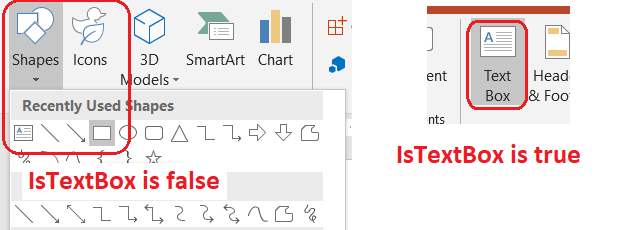
المثال التالي يفحص كل شكل تلقائي في عرض تقديمي:
import com.aspose.slides.*;

Presentation presentation = new Presentation();
try {
    ISlide slide = presentation.getSlides().get_Item(0);
    IAutoShape textBox = slide.getShapes().addAutoShape(ShapeType.Rectangle, 10, 10, 120, 40);
    textBox.addTextFrame("Text box");
    slide.getShapes().addAutoShape(ShapeType.Ellipse, 150, 10, 40, 40);

    for (ISlide currentSlide : presentation.getSlides()) {
        for (IShape shape : currentSlide.getShapes()) {
            if (shape instanceof IAutoShape) {
                IAutoShape autoShape = (IAutoShape) shape;
                System.out.println(autoShape.isTextBox() ? "The shape is a text box." : "The shape is not a text box.");
            }
        }
    }
} finally {
    presentation.dispose();
}
الشكل التلقائي المضاف حديثًا لا يُعتبر مربع نص حتى يحتوي على نص غير فارغ. يمكنك تزويده بذلك النص عبر IAutoShape.addTextFrame أو ITextFrame.setText. إضافة أو تعيين سلسلة فارغة تُعيد IAutoShape.isTextBox القيمة false:
import com.aspose.slides.*;

Presentation presentation = new Presentation();
try {
    ISlide slide = presentation.getSlides().get_Item(0);

    IAutoShape shape1 = slide.getShapes().addAutoShape(ShapeType.Rectangle, 10, 10, 100, 40);
    shape1.addTextFrame("Shape 1");
    System.out.println(shape1.isTextBox());

    IAutoShape shape2 = slide.getShapes().addAutoShape(ShapeType.Rectangle, 10, 70, 100, 40);
    shape2.getTextFrame().setText("Shape 2");
    System.out.println(shape2.isTextBox());

    IAutoShape shape3 = slide.getShapes().addAutoShape(ShapeType.Rectangle, 10, 130, 100, 40);
    shape3.addTextFrame("");
    System.out.println(shape3.isTextBox());

    IAutoShape shape4 = slide.getShapes().addAutoShape(ShapeType.Rectangle, 10, 190, 100, 40);
    shape4.getTextFrame().setText("");
    System.out.println(shape4.isTextBox());
} finally {
    presentation.dispose();
}
النداءان الأولان يطبعان true؛ والنداءان الأخيران يطبعان false.
العثور على الشكل الذي يملك إطار نص
قد يتلقى كود معالجة نص عام كائنًا من نوع ITextFrame دون معرفة أي كائن عرض تقديمي يحتويه. استخدم الطريقة للقراءة فقط ITextFrame.getParentShape للعودة إلى الشكل المالِك IShape.
بالنسبة لإطار نص مملوك لشكل تلقائي أو أي شكل يحمل نصًا، تُعيد ITextFrame.getParentShape المالك وتُعيد ITextFrame.getParentCell القيمة null. تحقّق من القيمة المرجعة قبل الوصول إليها. لتحديد كل من مالكي الشكل وخلية الجدول، بما في ذلك الأشكال المرتبطة بعقد SmartArt، راجع Search and Replace Text.
إضافة أعمدة إلى مربع نص
تقسّم الطريقة ITextFrameFormat.setColumnCount إطار النص إلى أعمدة، بينما تُحدد الطريقة ITextFrameFormat.setColumnSpacing الفجوة بين الأعمدة بالنقاط. كلا الإعدادين ينتميان إلى ITextFrameFormat ويمكن تغييره عبر إطار نص مربع نص موجود. يُعيد النص تدفقه بين الأعمدة داخل نفس الشكل؛ ولا ينتقل إلى شكل آخر.
المثال التالي ينشئ مربع نص ذو ثلاثة أعمدة بمسافة 10 نقاط بين الأعمدة، يحفظ العرض التقديمي، ثم يقرأ الإعدادات المخزَّنة من ملف الإخراج:
import com.aspose.slides.*;

Presentation presentation = new Presentation();
try {
    ISlide slide = presentation.getSlides().get_Item(0);
    IAutoShape textBox = slide.getShapes().addAutoShape(ShapeType.Rectangle, 100, 100, 300, 200);
    textBox.addTextFrame("This text is distributed automatically across all columns in the text box.");

    ITextFrameFormat textFrameFormat = textBox.getTextFrame().getTextFrameFormat();
    textFrameFormat.setColumnCount(3);
    textFrameFormat.setColumnSpacing(10);

    presentation.save("TextBoxColumns.pptx", SaveFormat.Pptx);

    Presentation savedPresentation = new Presentation("TextBoxColumns.pptx");
    try {
        IAutoShape savedTextBox = (IAutoShape) savedPresentation.getSlides().get_Item(0).getShapes().get_Item(0);
        ITextFrameFormat savedFormat = savedTextBox.getTextFrame().getTextFrameFormat();
        System.out.println("Columns: " + savedFormat.getColumnCount() + "; spacing: " + savedFormat.getColumnSpacing() + " points");
    } finally {
        savedPresentation.dispose();
    }
} finally {
    presentation.dispose();
}
استخراج النص من الأعمدة الفردية
استخدم الطريقة ITextFrame.splitTextByColumns لاسترداد النص المخصص لكل عمود بصري في إطار نص موجود. تُعيد الطريقة سلسلة واحدة لكل عمود، بترتيب القراءة القائم على الأعمدة. ينتج إطار نص بعمود واحد مصفوفة بعنصر واحد، ويُمثَّل العمود الفارغ بسلسلة فارغة. السلاسل تحتوي على نص عادي فقط؛ ولا يتم الحفاظ على تنسيق المستوى الجزئي.
هذا مفيد عندما تحتاج إلى:
- استخراج النص مع الحفاظ على ترتيبه القائم على الأعمدة.
- فهرسة أو مقارنة محتوى الشرائح متعددة الأعمدة.
- تصدير كل عمود إلى ملف منفصل أو حقل قاعدة بيانات أو وجهة أخرى.
- فحص كيفية إعادة توزيع النص بعد تغيير عدد الأعمدة عبر ITextFrameFormat.setColumnCount، أو الفجوة عبر ITextFrameFormat.setColumnSpacing، أو الخط، أو حجم إطار النص.
تُبلّغ الطريقة النص الموزَّع داخل ITextFrame الحالي؛ ولا تُجري تدفقًا تلقائيًا للنص بين أشكال أو مربعات نص منفصلة. قد يعتمد توزيع الأعمدة على الخطوط المتوفرة وإعدادات تخطيط النص الأخرى، لذا تأكد من توفر الخطوط المطلوبة عندما تكون النتائج المتسقة مهمة.
المثال التالي يحمل عرضًا تقديميًا، يحدد أول شكل تلقائي متعدد الأعمدة يحتوي على إطار نص، يقرأ عدد الأعمدة المُكوَّن، ويكتب النص من كل عمود إلى ملف منفصل. تُتخَطى الأشكال التي لا توفر إطار نص.
import com.aspose.slides.*;
import java.io.IOException;
import java.nio.charset.StandardCharsets;
import java.nio.file.Files;
import java.nio.file.Path;
import java.nio.file.Paths;

Presentation presentation = new Presentation("MultiColumnText.pptx");
try {
    IAutoShape textBox = null;
    for (IShape shape : presentation.getSlides().get_Item(0).getShapes()) {
        if (shape instanceof IAutoShape) {
            IAutoShape autoShape = (IAutoShape) shape;
            if (autoShape.getTextFrame() != null) {
                int columnCount = autoShape.getTextFrame().getTextFrameFormat().getColumnCount();
                if (columnCount > 1) {
                    textBox = autoShape;
                    break;
                }
            }
        }
    }

    if (textBox == null) {
        System.out.println("No multi-column text frame was found.");
    } else {
        ITextFrame textFrame = textBox.getTextFrame();
        int configuredColumnCount = textFrame.getTextFrameFormat().getColumnCount();
        String[] columnTexts = textFrame.splitTextByColumns();

        System.out.println("Configured columns: " + configuredColumnCount);

        for (int columnIndex = 0; columnIndex < columnTexts.length; columnIndex++) {
            int columnNumber = columnIndex + 1;
            String columnText = columnTexts[columnIndex];
            System.out.println("Column " + columnNumber + ": " + columnText);
            Path outputPath = Paths.get("Column-" + columnNumber + ".txt");
            byte[] textBytes = columnText.getBytes(StandardCharsets.UTF_8);
            try {
                Files.write(outputPath, textBytes);
            } catch (IOException exception) {
                System.out.println("Could not write column " + columnNumber + ": " + exception.getMessage());
            }
        }
    }
} finally {
    presentation.dispose();
}
تحديث النص
لتحديث النص في جميع أنحاء العرض التقديمي، كرّر عبر الشرائح والأشكال، اختر الأشكال التلقائية، ثم حرّر أجزاء النص الخاصة بها. يتيح العمل على مستوى الجزء تعديل كل من النص وتنسيق الأحرف.
المثال التالي يستبدل كل ظهور لكلمة years بـ months في نص الأشكال التلقائية ويجعل كل جزء متأثر غامقًا:
import com.aspose.slides.*;

Presentation presentation = new Presentation("Text.pptx");
try {
    for (ISlide slide : presentation.getSlides()) {
        for (IShape shape : slide.getShapes()) {
            if (!(shape instanceof IAutoShape)) {
                continue;
            }

            IAutoShape autoShape = (IAutoShape) shape;
            ITextFrame textFrame = autoShape.getTextFrame();
            if (textFrame == null) {
                continue;
            }

            for (IParagraph paragraph : textFrame.getParagraphs()) {
                for (IPortion portion : paragraph.getPortions()) {
                    String text = portion.getText();
                    if (text != null && text.contains("years")) {
                        portion.setText(text.replace("years", "months"));
                        portion.getPortionFormat().setFontBold(NullableBool.True);
                    }
                }
            }
        }
    }

    presentation.save("TextChanged.pptx", SaveFormat.Pptx);
} finally {
    presentation.dispose();
}
هذا التنقُّل يُحدّث النص فقط في الأشكال التلقائية. النص المخزَّن في الجداول أو المخططات أو SmartArt أو الأشكال المجمعة يتطلب تنقُّل مجموعات تلك الكائنات الخاصة.
إضافة مربع نص مع ارتباط تشعبي
يمكن تعيين ارتباط تشعبي إلى جزء نص محدد، بحيث يكون ذلك الجزء فقط هو القابل للنقر. استخدم الطريقة IHyperlinkManager.setExternalHyperlinkClick لربط الجزء بعنوان URL خارجي.
المثال التالي ينشئ نصًا مرتبطًا ويُحفظ في عرض تقديمي:
import com.aspose.slides.*;

Presentation presentation = new Presentation();
try {
    ISlide slide = presentation.getSlides().get_Item(0);
    IAutoShape textBox = slide.getShapes().addAutoShape(ShapeType.Rectangle, 150, 150, 200, 50);
    textBox.addTextFrame("Aspose.Slides");

    IPortion textPortion = textBox.getTextFrame().getParagraphs().get_Item(0).getPortions().get_Item(0);
    textPortion.getPortionFormat().getHyperlinkManager().setExternalHyperlinkClick("https://www.aspose.com/");

    presentation.save("Hyperlink.pptx", SaveFormat.Pptx);
} finally {
    presentation.dispose();
}
الأسئلة الشائعة
ما الفرق بين مربع النص وعنصر نائب للنص على شريحة أساسية أو تخطيطية؟
يمكن لـ placeholder أن يرث موقعه وتنسيقه من master slide أو layout slide. مربع النص العادي هو شكل مستقل على الشريحة التي تم إنشاؤه فيها ولا يكتسب سلوك العنصر النائب عند تغيير التخطيط.
كيف يمكنني استبدال النص دون تعديل النص في المخططات أو الجداول أو SmartArt؟
قصر التنقُّل على الأشكال التي تُنفّذ IAutoShape، كما هو موضح في مثال تحديث النص. تخزن المخططات والجداول وSmartArt النص في نماذج كائناتها الخاصة، لذا لا يتم تعديلها بواسطة تلك الحلقة.