
เพิ่มสมการคณิตศาสตร์ลงในงานนำเสนอ PowerPoint ด้วย Python
ภาพรวม
PowerPoint เก็บสมการเป็น Office Math Markup Language (OMML). ด้วย Aspose.Slides for Python via Java คุณสามารถสร้างเนื้อหาคณิตศาสตร์ประเภทเดียวกันโดยใช้โค้ด: เศษส่วน, ราก, ฟังก์ชัน, ขีดจำกัด, ตัวดำเนินการ N-ary, เมทริกซ์, อาเรย์, และบล็อกคณิตศาสตร์ที่จัดรูปแบบ
ใน PowerPoint ผู้ใช้โดยปกติจะเพิ่มสมการจาก Insert > Equation:
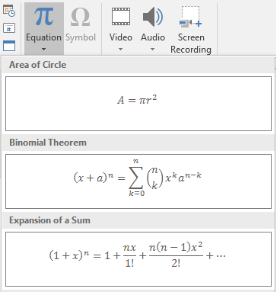
ผลลัพธ์คือตัวอักษรคณิตศาสตร์ที่สามารถแก้ไขได้บนสไลด์:

Aspose.Slides สร้างข้อความคณิตศาสตร์นั้นผ่านวัตถุหลักสามประเภท:
- รูปคณิตศาสตร์ที่สร้างด้วย addMathShape คือรูปที่บรรจุสมการ
- MathPortion เก็บเนื้อหาคณิตศาสตร์ภายในเฟรมข้อความของรูป
- MathParagraph มีหนึ่งหรือหลายอ็อบเจ็กต์ MathBlock
ตัวอย่างส่วนใหญ่ด้านล่างใช้ MathematicalText และเมธอด fluent จาก MathElementBase เพื่อให้โค้ดสั้นและอ่านง่าย
สำหรับกรณีส่งออก MathML ดู Export Math Equations from Presentations in Python
สร้างสมการ
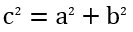
ตัวอย่างนี้สร้างรูปคณิตศาสตร์และเพิ่มสูตรพีทากอรัส:
import jpype
import asposeslides

if not jpype.isJVMStarted():
    jpype.startJVM()

from asposeslides.api import MathematicalText, Presentation, SaveFormat

presentation = Presentation()
try:
    slide = presentation.getSlides().get_Item(0)

    math_shape = slide.getShapes().addMathShape(20, 20, 700, 120)
    math_paragraph = math_shape.getTextFrame().getParagraphs().get_Item(0).getPortions().get_Item(0).getMathParagraph()

    a_squared = MathematicalText("a").setSuperscript("2")
    b_squared = MathematicalText("b").setSuperscript("2")
    equation = MathematicalText("c").setSuperscript("2").join("=").join(a_squared).join("+").join(b_squared)

    math_paragraph.add(equation)

    presentation.save("pythagorean-theorem.pptx", SaveFormat.Pptx)
finally:
    presentation.dispose()
Note
addMathShape สร้างรูปที่มี MathParagraph อยู่แล้ว เข้าถึง MathPortion ตัวแรก, ดึง MathParagraph ของมัน, แล้วเพิ่ม MathBlock หรือ MathElement ลงไปเพิ่มเศษส่วน
ใช้ divide เพื่อสร้างเศษส่วน คุณสามารถเลือกสไตล์ของเศษส่วนด้วย MathFractionTypes

import jpype
import asposeslides

if not jpype.isJVMStarted():
    jpype.startJVM()

from asposeslides.api import MathBlock, MathFractionTypes, MathematicalText, Presentation, SaveFormat

presentation = Presentation()
try:
    slide = presentation.getSlides().get_Item(0)

    math_shape = slide.getShapes().addMathShape(20, 20, 700, 100)
    math_paragraph = math_shape.getTextFrame().getParagraphs().get_Item(0).getPortions().get_Item(0).getMathParagraph()

    fraction = MathematicalText("1").divide("x", MathFractionTypes.Skewed)

    math_block = MathBlock(fraction)
    math_paragraph.add(math_block)

    presentation.save("fraction.pptx", SaveFormat.Pptx)
finally:
    presentation.dispose()
สำหรับเศษส่วนแบบซ้อนกัน ใช้ MathFractionTypes.Bar:
import jpype
import asposeslides

if not jpype.isJVMStarted():
    jpype.startJVM()

from asposeslides.api import MathFractionTypes, MathematicalText

stacked_fraction = MathematicalText("x + 1").divide("y - 1", MathFractionTypes.Bar)
เพิ่มราก
ใช้ radical เพื่อสร้างรากกำลังสอง, รากกำลังสาม หรือรากอื่น ๆ สมาชิกปัจจุบันจะเป็นฐานและอาร์กิวเมนต์จะเป็นดีกรี

import jpype
import asposeslides

if not jpype.isJVMStarted():
    jpype.startJVM()

from asposeslides.api import MathBlock, MathematicalText, Presentation, SaveFormat

presentation = Presentation()
try:
    slide = presentation.getSlides().get_Item(0)

    math_shape = slide.getShapes().addMathShape(20, 20, 700, 100)
    math_paragraph = math_shape.getTextFrame().getParagraphs().get_Item(0).getPortions().get_Item(0).getMathParagraph()

    radical = MathematicalText("x").radical("n")

    math_block = MathBlock(radical)
    math_paragraph.add(math_block)

    presentation.save("radical.pptx", SaveFormat.Pptx)
finally:
    presentation.dispose()
เพิ่มฟังก์ชันและขีดจำกัด
ใช้ asArgumentOfFunction หรือ function สำหรับฟังก์ชันเช่น sin(x), log(x) หรือชื่อฟังก์ชันกำหนดเอง สำหรับขีดจำกัด ให้ใส่ lim ใน MathLimit หรือใช้ setLowerLimit

import jpype
import asposeslides

if not jpype.isJVMStarted():
    jpype.startJVM()

from asposeslides.api import MathBlock, MathematicalText, Presentation, SaveFormat

presentation = Presentation()
try:
    slide = presentation.getSlides().get_Item(0)

    math_shape = slide.getShapes().addMathShape(20, 20, 700, 100)
    math_paragraph = math_shape.getTextFrame().getParagraphs().get_Item(0).getPortions().get_Item(0).getMathParagraph()

    limit = MathematicalText("lim").setLowerLimit("x\u2192\u221E").function("x")

    math_block = MathBlock(limit)
    math_paragraph.add(math_block)

    presentation.save("functions-and-limits.pptx", SaveFormat.Pptx)
finally:
    presentation.dispose()
สำหรับชื่อฟังก์ชันกำหนดเอง ให้ทำให้ชื่อฟังก์ชันเป็นสมาชิกปัจจุบัน:
import jpype
import asposeslides

if not jpype.isJVMStarted():
    jpype.startJVM()

from asposeslides.api import MathematicalText

custom_function = MathematicalText("f").function("x + 1")
เพิ่มตัวดำเนินการ N-ary และอินทิกรัล
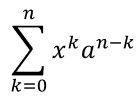
ใช้ nary สำหรับการบวกรวม, การยูเนียน, การอินเตอร์เซกชัน และตัวดำเนินการขนาดใหญ่อื่น ๆ ใช้ integral สำหรับอินทิกรัล ทั้งสองเมธอดให้คุณตั้งค่าขีดจำกัดล่างและบน
import jpype
import asposeslides

if not jpype.isJVMStarted():
    jpype.startJVM()

from asposeslides.api import MathBlock, MathNaryOperatorTypes, MathematicalText, Presentation, SaveFormat

presentation = Presentation()
try:
    slide = presentation.getSlides().get_Item(0)

    math_shape = slide.getShapes().addMathShape(20, 20, 700, 120)
    math_paragraph = math_shape.getTextFrame().getParagraphs().get_Item(0).getPortions().get_Item(0).getMathParagraph()

    a_power = MathematicalText("a").setSuperscript("n-k")
    summation_base = MathematicalText("x").setSuperscript("k").join(a_power)

    summation = summation_base.nary(MathNaryOperatorTypes.Summation, "k=0", "n")

    math_block = MathBlock(summation)
    math_paragraph.add(math_block)

    presentation.save("nary-operators.pptx", SaveFormat.Pptx)
finally:
    presentation.dispose()
ตัวดำเนินการ N-ary ใช้สำหรับตัวดำเนินการขนาดใหญ่ที่มีขีดจำกัดแบบเลือกได้ ตัวดำเนินการง่ายเช่น +, - และ = มักจะเพิ่มเป็น MathematicalText แล้วเชื่อมต่อเป็นนิพจน์
สำหรับอินทิกรัล ให้ใช้ integral:
import jpype
import asposeslides

if not jpype.isJVMStarted():
    jpype.startJVM()

from asposeslides.api import MathIntegralTypes, MathematicalText

differential = MathematicalText("dx").toBox()
integral_base = MathematicalText("x").join(differential)
integral = integral_base.integral(MathIntegralTypes.Simple, "0", "1")
เพิ่มเมทริกซ์
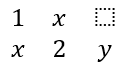
ใช้ MathMatrix สำหรับแถวและคอลัมน์ เมทริกซ์โดยปกติจะไม่มีวงเล็บดังนั้นให้ล้อมเมทริกซ์เมื่อจำเป็นต้องมีวงเล็บ, กรอบ หรือวงเกลียว
import jpype
import asposeslides

if not jpype.isJVMStarted():
    jpype.startJVM()

from asposeslides.api import MathBlock, MathMatrix, MathematicalText, Presentation, SaveFormat

presentation = Presentation()
try:
    slide = presentation.getSlides().get_Item(0)

    math_shape = slide.getShapes().addMathShape(20, 20, 700, 120)
    math_paragraph = math_shape.getTextFrame().getParagraphs().get_Item(0).getPortions().get_Item(0).getMathParagraph()

    matrix = MathMatrix(2, 3)
    cell_0_0 = MathematicalText("1")
    matrix.set_Item(0, 0, cell_0_0)
    cell_0_1 = MathematicalText("x")
    matrix.set_Item(0, 1, cell_0_1)
    cell_1_0 = MathematicalText("x")
    matrix.set_Item(1, 0, cell_1_0)
    cell_1_1 = MathematicalText("2")
    matrix.set_Item(1, 1, cell_1_1)
    cell_1_2 = MathematicalText("y")
    matrix.set_Item(1, 2, cell_1_2)

    math_block = MathBlock(matrix)
    math_paragraph.add(math_block)

    presentation.save("matrix.pptx", SaveFormat.Pptx)
finally:
    presentation.dispose()
เพิ่มอาเรย์สมการ
ใช้ toMathArray เมื่อคุณต้องการสมการจัดแนวหรือสแตกของนิพจน์ในแนวตั้ง

import jpype
import asposeslides

if not jpype.isJVMStarted():
    jpype.startJVM()

from asposeslides.api import MathBlock, MathematicalText, Presentation, SaveFormat

presentation = Presentation()
try:
    slide = presentation.getSlides().get_Item(0)

    math_shape = slide.getShapes().addMathShape(20, 20, 700, 140)
    math_paragraph = math_shape.getTextFrame().getParagraphs().get_Item(0).getPortions().get_Item(0).getMathParagraph()

    equation_array = MathematicalText("x").join("y").toMathArray()

    math_block = MathBlock(equation_array)
    math_paragraph.add(math_block)

    presentation.save("equation-array.pptx", SaveFormat.Pptx)
finally:
    presentation.dispose()
เพิ่มฟังก์ชันตรีโกณมิติ
ใช้ asArgumentOfFunction เมื่ออาร์กิวเมนต์เป็นสมาชิกปัจจุบันและชื่อฟังก์ชันเป็นที่ทราบ

import jpype
import asposeslides

if not jpype.isJVMStarted():
    jpype.startJVM()

from asposeslides.api import MathBlock, MathFunctionsOfOneArgument, MathematicalText, Presentation, SaveFormat

presentation = Presentation()
try:
    slide = presentation.getSlides().get_Item(0)

    math_shape = slide.getShapes().addMathShape(20, 20, 700, 100)
    math_paragraph = math_shape.getTextFrame().getParagraphs().get_Item(0).getPortions().get_Item(0).getMathParagraph()

    cosine = MathematicalText("2x").asArgumentOfFunction(MathFunctionsOfOneArgument.Cos)

    math_block = MathBlock(cosine)
    math_paragraph.add(math_block)

    presentation.save("trigonometric-function.pptx", SaveFormat.Pptx)
finally:
    presentation.dispose()
เพิ่มตัวห้อยและตัวบน
ใช้ตัวช่วยสำหรับตัวห้อยและตัวบนสำหรับดัชนีและกำลัง เมื่อดัชนีต้องแสดงด้านซ้ายของฐาน ให้ใช้ setSubSuperscriptOnTheLeft

import jpype
import asposeslides

if not jpype.isJVMStarted():
    jpype.startJVM()

from asposeslides.api import MathBlock, MathematicalText, Presentation, SaveFormat

presentation = Presentation()
try:
    slide = presentation.getSlides().get_Item(0)

    math_shape = slide.getShapes().addMathShape(20, 20, 700, 100)
    math_paragraph = math_shape.getTextFrame().getParagraphs().get_Item(0).getPortions().get_Item(0).getMathParagraph()

    scripts = MathematicalText("Y").setSubSuperscriptOnTheLeft("1", "n")

    math_block = MathBlock(scripts)
    math_paragraph.add(math_block)

    presentation.save("subscript-superscript.pptx", SaveFormat.Pptx)
finally:
    presentation.dispose()
เพิ่มตัวคั่น
ใช้ enclose เพื่อนำนิพจน์ใส่ในตัวคั่น คุณยังสามารถกำหนดอักขระคั่นสำหรับนิพจน์ตัวคั่นที่มีหลายองค์ประกอบได้

import jpype
import asposeslides

if not jpype.isJVMStarted():
    jpype.startJVM()

from asposeslides.api import MathBlock, MathematicalText, Presentation, SaveFormat

presentation = Presentation()
try:
    slide = presentation.getSlides().get_Item(0)

    math_shape = slide.getShapes().addMathShape(20, 20, 700, 100)
    math_paragraph = math_shape.getTextFrame().getParagraphs().get_Item(0).getPortions().get_Item(0).getMathParagraph()

    delimiter = MathematicalText("x").join("y").join("z").enclose('<', '>')
    delimiter.setSeparatorCharacter('|')

    math_block = MathBlock(delimiter)
    math_paragraph.add(math_block)

    presentation.save("delimiters.pptx", SaveFormat.Pptx)
finally:
    presentation.dispose()
เพิ่มกล่องกรอบ
ใช้ toBorderBox เมื่อสมการควรอยู่ในกรอบ
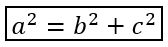
import jpype
import asposeslides

if not jpype.isJVMStarted():
    jpype.startJVM()

from asposeslides.api import MathBlock, MathematicalText, Presentation, SaveFormat

presentation = Presentation()
try:
    slide = presentation.getSlides().get_Item(0)

    math_shape = slide.getShapes().addMathShape(20, 20, 700, 100)
    math_paragraph = math_shape.getTextFrame().getParagraphs().get_Item(0).getPortions().get_Item(0).getMathParagraph()

    b_squared = MathematicalText("b").setSuperscript("2")
    c_squared = MathematicalText("c").setSuperscript("2")
    boxed_equation = MathematicalText("a").setSuperscript("2").join("=").join(b_squared).join("+").join(c_squared).toBorderBox()

    math_block = MathBlock(boxed_equation)
    math_paragraph.add(math_block)

    presentation.save("border-box.pptx", SaveFormat.Pptx)
finally:
    presentation.dispose()
จัดกลุ่มเทอม
ใช้ group เพื่อวางอักขระจัดกลุ่มเหนือหรือใต้นิพจน์ เพิ่มขีดจำกัดเพื่อทำป้ายกำกับให้เทอมที่จัดกลุ่ม

import jpype
import asposeslides

if not jpype.isJVMStarted():
    jpype.startJVM()

from asposeslides.api import MathBlock, MathTopBotPositions, MathematicalText, Presentation, SaveFormat

presentation = Presentation()
try:
    slide = presentation.getSlides().get_Item(0)

    math_shape = slide.getShapes().addMathShape(20, 20, 700, 120)
    math_paragraph = math_shape.getTextFrame().getParagraphs().get_Item(0).getPortions().get_Item(0).getMathParagraph()

    grouped = MathematicalText("x + y").group('\u23DF', MathTopBotPositions.Bottom, MathTopBotPositions.Top).setLowerLimit("any text")

    math_block = MathBlock(grouped)
    math_paragraph.add(math_block)

    presentation.save("grouped-terms.pptx", SaveFormat.Pptx)
finally:
    presentation.dispose()
จัดรูปแบบองค์ประกอบคณิตศาสตร์
ใช้ตัวช่วยจัดรูปแบบเฉพาะเมื่อช่วยให้สูตรชัดเจน เช่น overbar จะวางเส้นขีดเหนือองค์ประกอบคณิตศาสตร์

import jpype
import asposeslides

if not jpype.isJVMStarted():
    jpype.startJVM()

from asposeslides.api import MathBlock, MathematicalText, Presentation, SaveFormat

presentation = Presentation()
try:
    slide = presentation.getSlides().get_Item(0)

    math_shape = slide.getShapes().addMathShape(20, 20, 700, 100)
    math_paragraph = math_shape.getTextFrame().getParagraphs().get_Item(0).getPortions().get_Item(0).getMathParagraph()

    overbar = MathematicalText("ABC").overbar()

    math_block = MathBlock(overbar)
    math_paragraph.add(math_block)

    presentation.save("overbar.pptx", SaveFormat.Pptx)
finally:
    presentation.dispose()
อ้างอิงอย่างรวดเร็ว
| งาน | API หลัก |
|---|---|
| สร้างข้อความคณิตศาสตร์ | MathematicalText |
| รวมองค์ประกอบ | MathElementBase.join |
| สร้างเศษส่วน | MathElementBase.divide |
| เพิ่มตัวบนหรือ ตัวห้อย | setSuperscript, setSubscript |
| เพิ่มฟังก์ชัน | function, asArgumentOfFunction |
| เพิ่มราก | MathElementBase.radical |
| เพิ่มขีดจำกัด | setLowerLimit, setUpperLimit |
| เพิ่มสคริปต์ด้านซ้าย | setSubSuperscriptOnTheLeft |
| เพิ่มการบวกรวมและอินทิกรัล | nary, integral |
| เพิ่มเมทริกซ์ | MathMatrix |
| เพิ่มอาเรย์สมการ | toMathArray |
| เพิ่มตัวคั่น | enclose |
| เพิ่มเส้นขีดและกรอบ | overbar, toBorderBox |
| จัดกลุ่มเทอม | group |
คำถามที่พบบ่อย
ฉันสามารถแก้ไขสมการ PowerPoint ที่มีอยู่ได้หรือไม่?
ใช่. เปิดการนำเสนอ, ค้นหารูปที่มี MathPortion, ดึง MathParagraph ของมัน, จากนั้นอัปเดต MathBlock ในย่อหนนนั้น
สมการถูกบันทึกเป็นคณิตศาสตร์ PowerPoint ที่แก้ไขได้หรือไม่?
ใช่. เมื่อคุณบันทึกเป็น PPTX, Aspose.Slides จะเขียนสมการเป็นเนื้อหา Office Math ที่แก้ไขได้
ฉันสามารถส่งออกสมการเป็น LaTeX ได้หรือไม่?
ใช่. ดึง MathParagraph ของสมการจาก MathPortion, แล้วเรียก MathParagraph.toLatex เพื่อส่งออกโดยตรง สำหรับตัวอย่างเต็มให้ดูที่ Export Math Equations from Presentations in Python