
PythonでPowerPointプレゼンテーションに数式を追加
概要
PowerPoint は方程式を Office Math Markup Language (OMML) として保存します。Aspose.Slides for Python via Java を使用すると、プログラムで同様の数式コンテンツを作成できます:分数、根号、関数、リミット、N 進演算子、行列、配列、そして書式設定された数式ブロック。
PowerPoint では、ユーザーは通常 挿入 > 数式 から方程式を追加します:
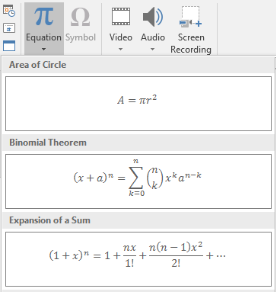
その結果、スライド上に編集可能な数式テキストが表示されます:

Aspose.Slides は、次の 3 つの主要オブジェクトを使用して数式テキストを構築します:
- addMathShape で作成された数式シェイプは、方程式を含むシェイプです。
- MathPortion はシェイプのテキストフレーム内に数式コンテンツを格納します。
- MathParagraph は 1 つまたは複数の MathBlock オブジェクトを含みます。
以下のほとんどの例は MathematicalText と MathElementBase のフルエントメソッドを使用して、コードを短く読みやすくしています。
MathML エクスポートシナリオについては、Export Math Equations from Presentations in Python を参照してください。
数式の作成
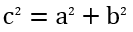
この例は数式シェイプを作成し、ピタゴラスの定理を追加します:
import jpype
import asposeslides

if not jpype.isJVMStarted():
    jpype.startJVM()

from asposeslides.api import MathematicalText, Presentation, SaveFormat

presentation = Presentation()
try:
    slide = presentation.getSlides().get_Item(0)

    math_shape = slide.getShapes().addMathShape(20, 20, 700, 120)
    math_paragraph = math_shape.getTextFrame().getParagraphs().get_Item(0).getPortions().get_Item(0).getMathParagraph()

    a_squared = MathematicalText("a").setSuperscript("2")
    b_squared = MathematicalText("b").setSuperscript("2")
    equation = MathematicalText("c").setSuperscript("2").join("=").join(a_squared).join("+").join(b_squared)

    math_paragraph.add(equation)

    presentation.save("pythagorean-theorem.pptx", SaveFormat.Pptx)
finally:
    presentation.dispose()
Note
addMathShape は、すでに数式段落を含むシェイプを作成します。最初の MathPortion にアクセスし、その MathParagraph を取得して、数式ブロックまたは数式要素を追加します。分数の追加
divide を使用して分数を作成します。MathFractionTypes で分数のスタイルを選択できます。

import jpype
import asposeslides

if not jpype.isJVMStarted():
    jpype.startJVM()

from asposeslides.api import MathBlock, MathFractionTypes, MathematicalText, Presentation, SaveFormat

presentation = Presentation()
try:
    slide = presentation.getSlides().get_Item(0)

    math_shape = slide.getShapes().addMathShape(20, 20, 700, 100)
    math_paragraph = math_shape.getTextFrame().getParagraphs().get_Item(0).getPortions().get_Item(0).getMathParagraph()

    fraction = MathematicalText("1").divide("x", MathFractionTypes.Skewed)

    math_block = MathBlock(fraction)
    math_paragraph.add(math_block)

    presentation.save("fraction.pptx", SaveFormat.Pptx)
finally:
    presentation.dispose()
スタックした分数の場合は、MathFractionTypes.Bar を使用します:
import jpype
import asposeslides

if not jpype.isJVMStarted():
    jpype.startJVM()

from asposeslides.api import MathFractionTypes, MathematicalText

stacked_fraction = MathematicalText("x + 1").divide("y - 1", MathFractionTypes.Bar)
根号の追加
radical を使用して平方根、立方根、その他の根号を作成します。現在の要素が基数になり、引数が次数になります。

import jpype
import asposeslides

if not jpype.isJVMStarted():
    jpype.startJVM()

from asposeslides.api import MathBlock, MathematicalText, Presentation, SaveFormat

presentation = Presentation()
try:
    slide = presentation.getSlides().get_Item(0)

    math_shape = slide.getShapes().addMathShape(20, 20, 700, 100)
    math_paragraph = math_shape.getTextFrame().getParagraphs().get_Item(0).getPortions().get_Item(0).getMathParagraph()

    radical = MathematicalText("x").radical("n")

    math_block = MathBlock(radical)
    math_paragraph.add(math_block)

    presentation.save("radical.pptx", SaveFormat.Pptx)
finally:
    presentation.dispose()
関数とリミットの追加
asArgumentOfFunction または function を使用して、sin(x)、log(x) などの関数やカスタム関数名を指定します。リミットの場合は、MathLimit に lim を入れるか、setLowerLimit を使用します。

import jpype
import asposeslides

if not jpype.isJVMStarted():
    jpype.startJVM()

from asposeslides.api import MathBlock, MathematicalText, Presentation, SaveFormat

presentation = Presentation()
try:
    slide = presentation.getSlides().get_Item(0)

    math_shape = slide.getShapes().addMathShape(20, 20, 700, 100)
    math_paragraph = math_shape.getTextFrame().getParagraphs().get_Item(0).getPortions().get_Item(0).getMathParagraph()

    limit = MathematicalText("lim").setLowerLimit("x\u2192\u221E").function("x")

    math_block = MathBlock(limit)
    math_paragraph.add(math_block)

    presentation.save("functions-and-limits.pptx", SaveFormat.Pptx)
finally:
    presentation.dispose()
カスタム関数名を使用する場合は、関数名を現在の要素にします:
import jpype
import asposeslides

if not jpype.isJVMStarted():
    jpype.startJVM()

from asposeslides.api import MathematicalText

custom_function = MathematicalText("f").function("x + 1")
N 進演算子と積分の追加
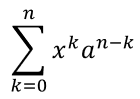
nary を使用して総和、和集合、積集合、その他の大きな演算子を作成します。integral を使用して積分を作成します。両方のメソッドで下限と上限を設定できます。
import jpype
import asposeslides

if not jpype.isJVMStarted():
    jpype.startJVM()

from asposeslides.api import MathBlock, MathNaryOperatorTypes, MathematicalText, Presentation, SaveFormat

presentation = Presentation()
try:
    slide = presentation.getSlides().get_Item(0)

    math_shape = slide.getShapes().addMathShape(20, 20, 700, 120)
    math_paragraph = math_shape.getTextFrame().getParagraphs().get_Item(0).getPortions().get_Item(0).getMathParagraph()

    a_power = MathematicalText("a").setSuperscript("n-k")
    summation_base = MathematicalText("x").setSuperscript("k").join(a_power)

    summation = summation_base.nary(MathNaryOperatorTypes.Summation, "k=0", "n")

    math_block = MathBlock(summation)
    math_paragraph.add(math_block)

    presentation.save("nary-operators.pptx", SaveFormat.Pptx)
finally:
    presentation.dispose()
N 進演算子はオプションのリミットを持つ大きな演算子用です。+、-、= などの単純な演算子は通常 MathematicalText で追加し、式に結合します。
積分の場合は、integral を使用します:
import jpype
import asposeslides

if not jpype.isJVMStarted():
    jpype.startJVM()

from asposeslides.api import MathIntegralTypes, MathematicalText

differential = MathematicalText("dx").toBox()
integral_base = MathematicalText("x").join(differential)
integral = integral_base.integral(MathIntegralTypes.Simple, "0", "1")
行列の追加
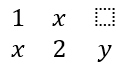
MathMatrix を使用して行と列を定義します。行列はデフォルトで括弧を含まないため、丸括弧、角括弧、波括弧が必要なときは外側に囲んでください。
import jpype
import asposeslides

if not jpype.isJVMStarted():
    jpype.startJVM()

from asposeslides.api import MathBlock, MathMatrix, MathematicalText, Presentation, SaveFormat

presentation = Presentation()
try:
    slide = presentation.getSlides().get_Item(0)

    math_shape = slide.getShapes().addMathShape(20, 20, 700, 120)
    math_paragraph = math_shape.getTextFrame().getParagraphs().get_Item(0).getPortions().get_Item(0).getMathParagraph()

    matrix = MathMatrix(2, 3)
    cell_0_0 = MathematicalText("1")
    matrix.set_Item(0, 0, cell_0_0)
    cell_0_1 = MathematicalText("x")
    matrix.set_Item(0, 1, cell_0_1)
    cell_1_0 = MathematicalText("x")
    matrix.set_Item(1, 0, cell_1_0)
    cell_1_1 = MathematicalText("2")
    matrix.set_Item(1, 1, cell_1_1)
    cell_1_2 = MathematicalText("y")
    matrix.set_Item(1, 2, cell_1_2)

    math_block = MathBlock(matrix)
    math_paragraph.add(math_block)

    presentation.save("matrix.pptx", SaveFormat.Pptx)
finally:
    presentation.dispose()
方程式配列の追加
toMathArray を使用すると、整列した方程式や垂直にスタックした式を作成できます。

import jpype
import asposeslides

if not jpype.isJVMStarted():
    jpype.startJVM()

from asposeslides.api import MathBlock, MathematicalText, Presentation, SaveFormat

presentation = Presentation()
try:
    slide = presentation.getSlides().get_Item(0)

    math_shape = slide.getShapes().addMathShape(20, 20, 700, 140)
    math_paragraph = math_shape.getTextFrame().getParagraphs().get_Item(0).getPortions().get_Item(0).getMathParagraph()

    equation_array = MathematicalText("x").join("y").toMathArray()

    math_block = MathBlock(equation_array)
    math_paragraph.add(math_block)

    presentation.save("equation-array.pptx", SaveFormat.Pptx)
finally:
    presentation.dispose()
三角関数の追加
asArgumentOfFunction を使用して、引数が現在の要素で関数名が既知の場合に利用します。

import jpype
import asposeslides

if not jpype.isJVMStarted():
    jpype.startJVM()

from asposeslides.api import MathBlock, MathFunctionsOfOneArgument, MathematicalText, Presentation, SaveFormat

presentation = Presentation()
try:
    slide = presentation.getSlides().get_Item(0)

    math_shape = slide.getShapes().addMathShape(20, 20, 700, 100)
    math_paragraph = math_shape.getTextFrame().getParagraphs().get_Item(0).getPortions().get_Item(0).getMathParagraph()

    cosine = MathematicalText("2x").asArgumentOfFunction(MathFunctionsOfOneArgument.Cos)

    math_block = MathBlock(cosine)
    math_paragraph.add(math_block)

    presentation.save("trigonometric-function.pptx", SaveFormat.Pptx)
finally:
    presentation.dispose()
下付きと上付きの追加
インデックスや累乗には下付き・上付きヘルパーを使用します。インデックスが基数の左側に表示される必要がある場合は、setSubSuperscriptOnTheLeft を使用します。

import jpype
import asposeslides

if not jpype.isJVMStarted():
    jpype.startJVM()

from asposeslides.api import MathBlock, MathematicalText, Presentation, SaveFormat

presentation = Presentation()
try:
    slide = presentation.getSlides().get_Item(0)

    math_shape = slide.getShapes().addMathShape(20, 20, 700, 100)
    math_paragraph = math_shape.getTextFrame().getParagraphs().get_Item(0).getPortions().get_Item(0).getMathParagraph()

    scripts = MathematicalText("Y").setSubSuperscriptOnTheLeft("1", "n")

    math_block = MathBlock(scripts)
    math_paragraph.add(math_block)

    presentation.save("subscript-superscript.pptx", SaveFormat.Pptx)
finally:
    presentation.dispose()
デリミタの追加
enclose を使用して式をデリミタで囲みます。複数要素を含むデリミタ式では、区切り文字も設定できます。

import jpype
import asposeslides

if not jpype.isJVMStarted():
    jpype.startJVM()

from asposeslides.api import MathBlock, MathematicalText, Presentation, SaveFormat

presentation = Presentation()
try:
    slide = presentation.getSlides().get_Item(0)

    math_shape = slide.getShapes().addMathShape(20, 20, 700, 100)
    math_paragraph = math_shape.getTextFrame().getParagraphs().get_Item(0).getPortions().get_Item(0).getMathParagraph()

    delimiter = MathematicalText("x").join("y").join("z").enclose('<', '>')
    delimiter.setSeparatorCharacter('|')

    math_block = MathBlock(delimiter)
    math_paragraph.add(math_block)

    presentation.save("delimiters.pptx", SaveFormat.Pptx)
finally:
    presentation.dispose()
枠付きボックスの追加
toBorderBox を使用すると、式全体を枠で囲むことができます。
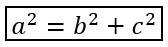
import jpype
import asposeslides

if not jpype.isJVMStarted():
    jpype.startJVM()

from asposeslides.api import MathBlock, MathematicalText, Presentation, SaveFormat

presentation = Presentation()
try:
    slide = presentation.getSlides().get_Item(0)

    math_shape = slide.getShapes().addMathShape(20, 20, 700, 100)
    math_paragraph = math_shape.getTextFrame().getParagraphs().get_Item(0).getPortions().get_Item(0).getMathParagraph()

    b_squared = MathematicalText("b").setSuperscript("2")
    c_squared = MathematicalText("c").setSuperscript("2")
    boxed_equation = MathematicalText("a").setSuperscript("2").join("=").join(b_squared).join("+").join(c_squared).toBorderBox()

    math_block = MathBlock(boxed_equation)
    math_paragraph.add(math_block)

    presentation.save("border-box.pptx", SaveFormat.Pptx)
finally:
    presentation.dispose()
項のグループ化
group を使用して、式の上または下にグループ文字を配置します。ラベルとしてリミットを追加して項を示すことができます。

import jpype
import asposeslides

if not jpype.isJVMStarted():
    jpype.startJVM()

from asposeslides.api import MathBlock, MathTopBotPositions, MathematicalText, Presentation, SaveFormat

presentation = Presentation()
try:
    slide = presentation.getSlides().get_Item(0)

    math_shape = slide.getShapes().addMathShape(20, 20, 700, 120)
    math_paragraph = math_shape.getTextFrame().getParagraphs().get_Item(0).getPortions().get_Item(0).getMathParagraph()

    grouped = MathematicalText("x + y").group('\u23DF', MathTopBotPositions.Bottom, MathTopBotPositions.Top).setLowerLimit("any text")

    math_block = MathBlock(grouped)
    math_paragraph.add(math_block)

    presentation.save("grouped-terms.pptx", SaveFormat.Pptx)
finally:
    presentation.dispose()
数式要素の書式設定
書式設定ヘルパーは式の可読性が向上する場合にのみ使用してください。例えば、overbar は数式要素の上にバーを配置します。

import jpype
import asposeslides

if not jpype.isJVMStarted():
    jpype.startJVM()

from asposeslides.api import MathBlock, MathematicalText, Presentation, SaveFormat

presentation = Presentation()
try:
    slide = presentation.getSlides().get_Item(0)

    math_shape = slide.getShapes().addMathShape(20, 20, 700, 100)
    math_paragraph = math_shape.getTextFrame().getParagraphs().get_Item(0).getPortions().get_Item(0).getMathParagraph()

    overbar = MathematicalText("ABC").overbar()

    math_block = MathBlock(overbar)
    math_paragraph.add(math_block)

    presentation.save("overbar.pptx", SaveFormat.Pptx)
finally:
    presentation.dispose()
クイックリファレンス
| タスク | メイン API |
|---|---|
| 数式テキストの作成 | MathematicalText |
| 要素の結合 | MathElementBase.join |
| 分数の作成 | MathElementBase.divide |
| 上付きまたは下付きの追加 | setSuperscript, setSubscript |
| 関数の追加 | function, asArgumentOfFunction |
| 根号の追加 | MathElementBase.radical |
| リミットの追加 | setLowerLimit, setUpperLimit |
| 左側スクリプトの追加 | setSubSuperscriptOnTheLeft |
| 総和と積分の追加 | nary, integral |
| 行列の追加 | MathMatrix |
| 方程式配列の追加 | toMathArray |
| デリミタの追加 | enclose |
| バーと枠の追加 | overbar, toBorderBox |
| 項のグループ化 | group |
よくある質問
既存の PowerPoint 数式を編集できますか?
はい。プレゼンテーションを開き、MathPortion を含むシェイプを見つけ、その MathParagraph を取得し、段落内の数式ブロックを更新します。
数式は編集可能な PowerPoint 数式として保存されますか?
はい。PPTX 形式で保存すると、Aspose.Slides は方程式を編集可能な Office 数式コンテンツとして書き込みます。
数式を LaTeX にエクスポートできますか?
はい。対象の MathParagraph を、対応する MathPortion から取得し、MathParagraph.toLatex を呼び出すだけで直接エクスポートできます。完全なサンプルについては、Export Math Equations from Presentations in Python を参照してください。