
Python में PowerPoint प्रस्तुतियों में गणितीय समीकरण जोड़ें
अवलोकन
PowerPoint समीकरणों को Office Math Markup Language (OMML) के रूप में संग्रहीत करता है। Aspose.Slides for Python via Java के साथ, आप प्रोग्रामेटिक रूप से वही प्रकार की गणितीय सामग्री बना सकते हैं: भिन्न, मूल, फ़ंक्शन, सीमाएँ, N-ary ऑपरेटर्स, मैट्रिसेज़, एरेज़, और स्वरूपित गणित ब्लॉक्स।
PowerPoint में, उपयोगकर्ता सामान्यतः Insert > Equation से समीकरण जोड़ते हैं:
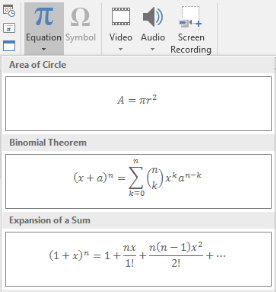
एक PowerPoint स्लाइड जिसमें संपादन योग्य गणितीय समीकरण है:

Aspose.Slides तीन मुख्य ऑब्जेक्ट्स के माध्यम से वह गणितीय टेक्स्ट बनाता है:
- एक गणितीय शैल, जिसे addMathShape से बनाया जाता है, वह शैल है जिसमें समीकरण रहता है।
- MathPortion शैल के टेक्स्ट फ्रेम के भीतर गणितीय सामग्री संग्रहीत करता है।
- MathParagraph में एक या अधिक MathBlock ऑब्जेक्ट्स होते हैं।
नीचे के अधिकांश उदाहरण MathematicalText और कोड को छोटा और पठनीय रखने के लिए MathElementBase की फ़्लूएंट मेथड्स का उपयोग करते हैं।
MathML निर्यात परिदृश्यों के लिए, देखें Python में प्रस्तुतियों से गणितीय समीकरण निर्यात।
एक समीकरण बनाएं
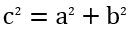
यह उदाहरण एक गणितीय शैल बनाता है और पाइथागोरस प्रमेय जोड़ता है:
import jpype
import asposeslides

if not jpype.isJVMStarted():
    jpype.startJVM()

from asposeslides.api import MathematicalText, Presentation, SaveFormat

presentation = Presentation()
try:
    slide = presentation.getSlides().get_Item(0)

    math_shape = slide.getShapes().addMathShape(20, 20, 700, 120)
    math_paragraph = math_shape.getTextFrame().getParagraphs().get_Item(0).getPortions().get_Item(0).getMathParagraph()

    a_squared = MathematicalText("a").setSuperscript("2")
    b_squared = MathematicalText("b").setSuperscript("2")
    equation = MathematicalText("c").setSuperscript("2").join("=").join(a_squared).join("+").join(b_squared)

    math_paragraph.add(equation)

    presentation.save("pythagorean-theorem.pptx", SaveFormat.Pptx)
finally:
    presentation.dispose()
ध्यान दें
addMathShape एक शैल बनाता है जिसमें पहले से एक गणितीय पैराग्राफ मौजूद होता है। पहली MathPortion प्राप्त करें, उसका MathParagraph लें, और उसमें गणितीय ब्लॉक्स या गणितीय तत्व जोड़ें।भिन्न जोड़ें
भिन्न बनाने के लिए divide का उपयोग करें। आप MathFractionTypes के साथ भिन्न शैली चुन सकते हैं।

import jpype
import asposeslides

if not jpype.isJVMStarted():
    jpype.startJVM()

from asposeslides.api import MathBlock, MathFractionTypes, MathematicalText, Presentation, SaveFormat

presentation = Presentation()
try:
    slide = presentation.getSlides().get_Item(0)

    math_shape = slide.getShapes().addMathShape(20, 20, 700, 100)
    math_paragraph = math_shape.getTextFrame().getParagraphs().get_Item(0).getPortions().get_Item(0).getMathParagraph()

    fraction = MathematicalText("1").divide("x", MathFractionTypes.Skewed)

    math_block = MathBlock(fraction)
    math_paragraph.add(math_block)

    presentation.save("fraction.pptx", SaveFormat.Pptx)
finally:
    presentation.dispose()
स्टैक्ड (ऊपर-नीचे) भिन्न के लिए, MathFractionTypes.Bar का उपयोग करें:
import jpype
import asposeslides

if not jpype.isJVMStarted():
    jpype.startJVM()

from asposeslides.api import MathFractionTypes, MathematicalText

stacked_fraction = MathematicalText("x + 1").divide("y - 1", MathFractionTypes.Bar)
रैडिकल जोड़ें
एक वर्गमूल, क्यूब रूट या अन्य मूल बनाने के लिए radical का उपयोग करें। वर्तमान तत्व आधार बन जाता है, और आर्ग्युमेंट डिग्री बन जाता है।

import jpype
import asposeslides

if not jpype.isJVMStarted():
    jpype.startJVM()

from asposeslides.api import MathBlock, MathematicalText, Presentation, SaveFormat

presentation = Presentation()
try:
    slide = presentation.getSlides().get_Item(0)

    math_shape = slide.getShapes().addMathShape(20, 20, 700, 100)
    math_paragraph = math_shape.getTextFrame().getParagraphs().get_Item(0).getPortions().get_Item(0).getMathParagraph()

    radical = MathematicalText("x").radical("n")

    math_block = MathBlock(radical)
    math_paragraph.add(math_block)

    presentation.save("radical.pptx", SaveFormat.Pptx)
finally:
    presentation.dispose()
फ़ंक्शन और सीमाएँ जोड़ें
फ़ंक्शन जैसे sin(x), log(x) या कस्टम फ़ंक्शन नामों के लिए asArgumentOfFunction या function का उपयोग करें। सीमाओं के लिए, lim को एक MathLimit में रखें या setLowerLimit का उपयोग करें।

import jpype
import asposeslides

if not jpype.isJVMStarted():
    jpype.startJVM()

from asposeslides.api import MathBlock, MathematicalText, Presentation, SaveFormat

presentation = Presentation()
try:
    slide = presentation.getSlides().get_Item(0)

    math_shape = slide.getShapes().addMathShape(20, 20, 700, 100)
    math_paragraph = math_shape.getTextFrame().getParagraphs().get_Item(0).getPortions().get_Item(0).getMathParagraph()

    limit = MathematicalText("lim").setLowerLimit("x\u2192\u221E").function("x")

    math_block = MathBlock(limit)
    math_paragraph.add(math_block)

    presentation.save("functions-and-limits.pptx", SaveFormat.Pptx)
finally:
    presentation.dispose()
कस्टम फ़ंक्शन नाम के लिए, फ़ंक्शन नाम को वर्तमान तत्व बनाएं:
import jpype
import asposeslides

if not jpype.isJVMStarted():
    jpype.startJVM()

from asposeslides.api import MathematicalText

custom_function = MathematicalText("f").function("x + 1")
N-ary ऑपरेटर और इंटीग्रल जोड़ें
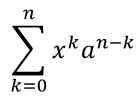
समेशन, यूनियन, इंटरसेक्शन और अन्य बड़े ऑपरेटर्स के लिए nary का उपयोग करें। इंटीग्रल के लिए integral उपयोग करें। दोनों तरीकों से आप निचली और ऊपरी सीमाएँ सेट कर सकते हैं।
import jpype
import asposeslides

if not jpype.isJVMStarted():
    jpype.startJVM()

from asposeslides.api import MathBlock, MathNaryOperatorTypes, MathematicalText, Presentation, SaveFormat

presentation = Presentation()
try:
    slide = presentation.getSlides().get_Item(0)

    math_shape = slide.getShapes().addMathShape(20, 20, 700, 120)
    math_paragraph = math_shape.getTextFrame().getParagraphs().get_Item(0).getPortions().get_Item(0).getMathParagraph()

    a_power = MathematicalText("a").setSuperscript("n-k")
    summation_base = MathematicalText("x").setSuperscript("k").join(a_power)

    summation = summation_base.nary(MathNaryOperatorTypes.Summation, "k=0", "n")

    math_block = MathBlock(summation)
    math_paragraph.add(math_block)

    presentation.save("nary-operators.pptx", SaveFormat.Pptx)
finally:
    presentation.dispose()
N-ary ऑपरेटर बड़े ऑपरेटर्स के लिए होते हैं जिसमें वैकल्पिक सीमाएँ होती हैं। सरल ऑपरेटर्स जैसे +, -, और = आमतौर पर MathematicalText के रूप में जोड़े जाते हैं और अभिव्यक्ति में सम्मिलित होते हैं।
इंटीग्रल के लिए, integral का उपयोग करें:
import jpype
import asposeslides

if not jpype.isJVMStarted():
    jpype.startJVM()

from asposeslides.api import MathIntegralTypes, MathematicalText

differential = MathematicalText("dx").toBox()
integral_base = MathematicalText("x").join(differential)
integral = integral_base.integral(MathIntegralTypes.Simple, "0", "1")
मैट्रिसेज़ जोड़ें
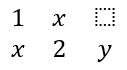
पंक्तियों और स्तंभों के लिए MathMatrix का उपयोग करें। मैट्रिसेज़ डिफ़ॉल्ट रूप से कोष्ठक शामिल नहीं करतीं, इसलिए जब आपको कोष्ठक, ब्रैकेट या ब्रेसेस की आवश्यकता हो तो मैट्रिक्स को घेरें।
import jpype
import asposeslides

if not jpype.isJVMStarted():
    jpype.startJVM()

from asposeslides.api import MathBlock, MathMatrix, MathematicalText, Presentation, SaveFormat

presentation = Presentation()
try:
    slide = presentation.getSlides().get_Item(0)

    math_shape = slide.getShapes().addMathShape(20, 20, 700, 120)
    math_paragraph = math_shape.getTextFrame().getParagraphs().get_Item(0).getPortions().get_Item(0).getMathParagraph()

    matrix = MathMatrix(2, 3)
    cell_0_0 = MathematicalText("1")
    matrix.set_Item(0, 0, cell_0_0)
    cell_0_1 = MathematicalText("x")
    matrix.set_Item(0, 1, cell_0_1)
    cell_1_0 = MathematicalText("x")
    matrix.set_Item(1, 0, cell_1_0)
    cell_1_1 = MathematicalText("2")
    matrix.set_Item(1, 1, cell_1_1)
    cell_1_2 = MathematicalText("y")
    matrix.set_Item(1, 2, cell_1_2)

    math_block = MathBlock(matrix)
    math_paragraph.add(math_block)

    presentation.save("matrix.pptx", SaveFormat.Pptx)
finally:
    presentation.dispose()
समीकरण एरेज़ जोड़ें
सभी संरेखित समीकरणों या अभिव्यक्तियों की लंबवत स्टैक की आवश्यकता होने पर toMathArray का उपयोग करें।

import jpype
import asposeslides

if not jpype.isJVMStarted():
    jpype.startJVM()

from asposeslides.api import MathBlock, MathematicalText, Presentation, SaveFormat

presentation = Presentation()
try:
    slide = presentation.getSlides().get_Item(0)

    math_shape = slide.getShapes().addMathShape(20, 20, 700, 140)
    math_paragraph = math_shape.getTextFrame().getParagraphs().get_Item(0).getPortions().get_Item(0).getMathParagraph()

    equation_array = MathematicalText("x").join("y").toMathArray()

    math_block = MathBlock(equation_array)
    math_paragraph.add(math_block)

    presentation.save("equation-array.pptx", SaveFormat.Pptx)
finally:
    presentation.dispose()
त्रिकोणमितीय फ़ंक्शन जोड़ें
जब आर्ग्युमेंट वर्तमान तत्व हो और फ़ंक्शन नाम ज्ञात हो, तब asArgumentOfFunction का उपयोग करें।

import jpype
import asposeslides

if not jpype.isJVMStarted():
    jpype.startJVM()

from asposeslides.api import MathBlock, MathFunctionsOfOneArgument, MathematicalText, Presentation, SaveFormat

presentation = Presentation()
try:
    slide = presentation.getSlides().get_Item(0)

    math_shape = slide.getShapes().addMathShape(20, 20, 700, 100)
    math_paragraph = math_shape.getTextFrame().getParagraphs().get_Item(0).getPortions().get_Item(0).getMathParagraph()

    cosine = MathematicalText("2x").asArgumentOfFunction(MathFunctionsOfOneArgument.Cos)

    math_block = MathBlock(cosine)
    math_paragraph.add(math_block)

    presentation.save("trigonometric-function.pptx", SaveFormat.Pptx)
finally:
    presentation.dispose()
सबस्क्रिप्ट और सुपरस्क्रिप्ट जोड़ें
सूचकांकों और घातों के लिए सबस्क्रिप्ट और सुपरस्क्रिप्ट हेल्पर का उपयोग करें। जब सूचकांक बेस के बाएँ पक्ष पर दिखना हो, तो setSubSuperscriptOnTheLeft का उपयोग करें।

import jpype
import asposeslides

if not jpype.isJVMStarted():
    jpype.startJVM()

from asposeslides.api import MathBlock, MathematicalText, Presentation, SaveFormat

presentation = Presentation()
try:
    slide = presentation.getSlides().get_Item(0)

    math_shape = slide.getShapes().addMathShape(20, 20, 700, 100)
    math_paragraph = math_shape.getTextFrame().getParagraphs().get_Item(0).getPortions().get_Item(0).getMathParagraph()

    scripts = MathematicalText("Y").setSubSuperscriptOnTheLeft("1", "n")

    math_block = MathBlock(scripts)
    math_paragraph.add(math_block)

    presentation.save("subscript-superscript.pptx", SaveFormat.Pptx)
finally:
    presentation.dispose()
डिलिमीटर जोड़ें
एक अभिव्यक्ति को डिलिमीटर के भीतर रखने के लिए enclose का उपयोग करें। आप कई तत्वों वाली डिलिमीटर अभिव्यक्तियों के लिए एक सेपरेटर कैरेक्टर भी सेट कर सकते हैं।

import jpype
import asposeslides

if not jpype.isJVMStarted():
    jpype.startJVM()

from asposeslides.api import MathBlock, MathematicalText, Presentation, SaveFormat

presentation = Presentation()
try:
    slide = presentation.getSlides().get_Item(0)

    math_shape = slide.getShapes().addMathShape(20, 20, 700, 100)
    math_paragraph = math_shape.getTextFrame().getParagraphs().get_Item(0).getPortions().get_Item(0).getMathParagraph()

    delimiter = MathematicalText("x").join("y").join("z").enclose('<', '>')
    delimiter.setSeparatorCharacter('|')

    math_block = MathBlock(delimiter)
    math_paragraph.add(math_block)

    presentation.save("delimiters.pptx", SaveFormat.Pptx)
finally:
    presentation.dispose()
बॉर्डर बॉक्स जोड़ें
जब समीकरण को बॉर्डर बॉक्स में फ्रेम करने की आवश्यकता हो, तब toBorderBox का उपयोग करें।
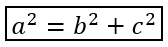
import jpype
import asposeslides

if not jpype.isJVMStarted():
    jpype.startJVM()

from asposeslides.api import MathBlock, MathematicalText, Presentation, SaveFormat

presentation = Presentation()
try:
    slide = presentation.getSlides().get_Item(0)

    math_shape = slide.getShapes().addMathShape(20, 20, 700, 100)
    math_paragraph = math_shape.getTextFrame().getParagraphs().get_Item(0).getPortions().get_Item(0).getMathParagraph()

    b_squared = MathematicalText("b").setSuperscript("2")
    c_squared = MathematicalText("c").setSuperscript("2")
    boxed_equation = MathematicalText("a").setSuperscript("2").join("=").join(b_squared).join("+").join(c_squared).toBorderBox()

    math_block = MathBlock(boxed_equation)
    math_paragraph.add(math_block)

    presentation.save("border-box.pptx", SaveFormat.Pptx)
finally:
    presentation.dispose()
टर्म्स को समूहित करें
एक अभिव्यक्ति के ऊपर या नीचे समूहित कैरेक्टर रखने के लिए group का उपयोग करें। समूहित टर्म्स को लेबल करने के लिए एक सीमा जोड़ें।

import jpype
import asposeslides

if not jpype.isJVMStarted():
    jpype.startJVM()

from asposeslides.api import MathBlock, MathTopBotPositions, MathematicalText, Presentation, SaveFormat

presentation = Presentation()
try:
    slide = presentation.getSlides().get_Item(0)

    math_shape = slide.getShapes().addMathShape(20, 20, 700, 120)
    math_paragraph = math_shape.getTextFrame().getParagraphs().get_Item(0).getPortions().get_Item(0).getMathParagraph()

    grouped = MathematicalText("x + y").group('\u23DF', MathTopBotPositions.Bottom, MathTopBotPositions.Top).setLowerLimit("any text")

    math_block = MathBlock(grouped)
    math_paragraph.add(math_block)

    presentation.save("grouped-terms.pptx", SaveFormat.Pptx)
finally:
    presentation.dispose()
गणितीय तत्वों को फॉर्मेट करें
फ़ॉर्मेटिंग हेल्पर केवल तब उपयोग करें जब वे सूत्र को स्पष्ट करें। उदाहरण के लिए, overbar एक गणितीय तत्व के ऊपर बार रखता है।

import jpype
import asposeslides

if not jpype.isJVMStarted():
    jpype.startJVM()

from asposeslides.api import MathBlock, MathematicalText, Presentation, SaveFormat

presentation = Presentation()
try:
    slide = presentation.getSlides().get_Item(0)

    math_shape = slide.getShapes().addMathShape(20, 20, 700, 100)
    math_paragraph = math_shape.getTextFrame().getParagraphs().get_Item(0).getPortions().get_Item(0).getMathParagraph()

    overbar = MathematicalText("ABC").overbar()

    math_block = MathBlock(overbar)
    math_paragraph.add(math_block)

    presentation.save("overbar.pptx", SaveFormat.Pptx)
finally:
    presentation.dispose()
त्वरित संदर्भ
| कार्य | मुख्य API |
|---|---|
| गणितीय टेक्स्ट बनाएं | MathematicalText |
| तत्वों को संयोजित करें | MathElementBase.join |
| भिन्न बनाएं | MathElementBase.divide |
| सुपरस्क्रिप्ट या सबस्क्रिप्ट जोड़ें | setSuperscript, setSubscript |
| फ़ंक्शन जोड़ें | function, asArgumentOfFunction |
| रैडिकल जोड़ें | MathElementBase.radical |
| सीमाएँ जोड़ें | setLowerLimit, setUpperLimit |
| बाएँ-साइड स्क्रिप्ट जोड़ें | setSubSuperscriptOnTheLeft |
| समेशन और इंटीग्रल जोड़ें | nary, integral |
| मैट्रिसेज़ जोड़ें | MathMatrix |
| समीकरण एरेज़ जोड़ें | toMathArray |
| डिलिमीटर जोड़ें | enclose |
| बार और बॉर्डर जोड़ें | overbar, toBorderBox |
| टर्म्स को समूहित करें | group |
अक्सर पूछे जाने वाले प्रश्न
क्या मैं मौजूदा PowerPoint समीकरण को संपादित कर सकता हूँ?
हां। प्रस्तुति खोलें, उस शैल को खोजें जिसमें एक MathPortion हो, उसका MathParagraph प्राप्त करें, और उस पैराग्राफ में गणितीय ब्लॉक्स को अपडेट करें।
क्या समीकरण संपादन योग्य PowerPoint गणित के रूप में सहेजे जाते हैं?
हां। जब आप PPTX में सहेजते हैं, तो Aspose.Slides समीकरण को संपादन योग्य Office गणित सामग्री के रूप में लिखता है।
क्या मैं समीकरणों को LaTeX में निर्यात कर सकता हूँ?
हां। समीकरण के MathParagraph को प्राप्त करें और सीधे निर्यात करने के लिए MathParagraph.toLatex को कॉल करें। पूर्ण उदाहरण के लिए, देखें Python में प्रस्तुतियों से गणितीय समीकरण निर्यात।