
Añadir ecuaciones matemáticas a presentaciones PowerPoint en Python
Resumen
PowerPoint almacena ecuaciones como Office Math Markup Language (OMML). Con Aspose.Slides for Python via Java, puedes crear el mismo tipo de contenido matemático mediante programación: fracciones, radicales, funciones, límites, operadores N-arios, matrices, arreglos y bloques matemáticos con formato.
En PowerPoint, los usuarios normalmente añaden ecuaciones desde Insertar > Ecuación:
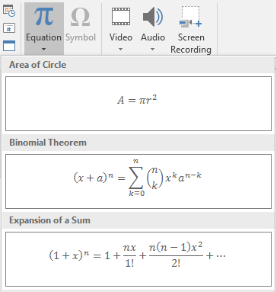
El resultado es texto matemático editable en la diapositiva:

Aspose.Slides construye ese texto matemático mediante tres objetos principales:
- Una forma matemática, creada con addMathShape, es la forma que contiene la ecuación.
- MathPortion almacena contenido matemático dentro del marco de texto de la forma.
- MathParagraph contiene uno o más objetos MathBlock.
La mayoría de los ejemplos a continuación utilizan MathematicalText y los métodos fluidos de MathElementBase para mantener el código corto y legible.
Para escenarios de exportación a MathML, consulte Export Math Equations from Presentations in Python.
Crear una ecuación
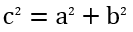
Este ejemplo crea una forma matemática y añade el teorema de Pitágoras:
import jpype
import asposeslides

if not jpype.isJVMStarted():
    jpype.startJVM()

from asposeslides.api import MathematicalText, Presentation, SaveFormat

presentation = Presentation()
try:
    slide = presentation.getSlides().get_Item(0)

    math_shape = slide.getShapes().addMathShape(20, 20, 700, 120)
    math_paragraph = math_shape.getTextFrame().getParagraphs().get_Item(0).getPortions().get_Item(0).getMathParagraph()

    a_squared = MathematicalText("a").setSuperscript("2")
    b_squared = MathematicalText("b").setSuperscript("2")
    equation = MathematicalText("c").setSuperscript("2").join("=").join(a_squared).join("+").join(b_squared)

    math_paragraph.add(equation)

    presentation.save("pythagorean-theorem.pptx", SaveFormat.Pptx)
finally:
    presentation.dispose()
Nota
addMathShape crea una forma que ya contiene un párrafo matemático. Accede al primer MathPortion, obtén su MathParagraph, y añade bloques o elementos matemáticos a él.Añadir fracciones
Utiliza divide para crear una fracción. Puedes elegir un estilo de fracción con MathFractionTypes.

import jpype
import asposeslides

if not jpype.isJVMStarted():
    jpype.startJVM()

from asposeslides.api import MathBlock, MathFractionTypes, MathematicalText, Presentation, SaveFormat

presentation = Presentation()
try:
    slide = presentation.getSlides().get_Item(0)

    math_shape = slide.getShapes().addMathShape(20, 20, 700, 100)
    math_paragraph = math_shape.getTextFrame().getParagraphs().get_Item(0).getPortions().get_Item(0).getMathParagraph()

    fraction = MathematicalText("1").divide("x", MathFractionTypes.Skewed)

    math_block = MathBlock(fraction)
    math_paragraph.add(math_block)

    presentation.save("fraction.pptx", SaveFormat.Pptx)
finally:
    presentation.dispose()
Para una fracción apilada, usa MathFractionTypes.Bar:
import jpype
import asposeslides

if not jpype.isJVMStarted():
    jpype.startJVM()

from asposeslides.api import MathFractionTypes, MathematicalText

stacked_fraction = MathematicalText("x + 1").divide("y - 1", MathFractionTypes.Bar)
Añadir radicales
Utiliza radical para crear una raíz cuadrada, cúbica u otra raíz. El elemento actual se convierte en la base y el argumento en el grado.

import jpype
import asposeslides

if not jpype.isJVMStarted():
    jpype.startJVM()

from asposeslides.api import MathBlock, MathematicalText, Presentation, SaveFormat

presentation = Presentation()
try:
    slide = presentation.getSlides().get_Item(0)

    math_shape = slide.getShapes().addMathShape(20, 20, 700, 100)
    math_paragraph = math_shape.getTextFrame().getParagraphs().get_Item(0).getPortions().get_Item(0).getMathParagraph()

    radical = MathematicalText("x").radical("n")

    math_block = MathBlock(radical)
    math_paragraph.add(math_block)

    presentation.save("radical.pptx", SaveFormat.Pptx)
finally:
    presentation.dispose()
Añadir funciones y límites
Utiliza asArgumentOfFunction o function para funciones como sin(x), log(x) o nombres de funciones personalizados. Para límites, coloca lim en un MathLimit o usa setLowerLimit.

import jpype
import asposeslides

if not jpype.isJVMStarted():
    jpype.startJVM()

from asposeslides.api import MathBlock, MathematicalText, Presentation, SaveFormat

presentation = Presentation()
try:
    slide = presentation.getSlides().get_Item(0)

    math_shape = slide.getShapes().addMathShape(20, 20, 700, 100)
    math_paragraph = math_shape.getTextFrame().getParagraphs().get_Item(0).getPortions().get_Item(0).getMathParagraph()

    limit = MathematicalText("lim").setLowerLimit("x\u2192\u221E").function("x")

    math_block = MathBlock(limit)
    math_paragraph.add(math_block)

    presentation.save("functions-and-limits.pptx", SaveFormat.Pptx)
finally:
    presentation.dispose()
Para un nombre de función personalizado, haz que el nombre de la función sea el elemento actual:
import jpype
import asposeslides

if not jpype.isJVMStarted():
    jpype.startJVM()

from asposeslides.api import MathematicalText

custom_function = MathematicalText("f").function("x + 1")
Añadir operadores N-arios e integrales
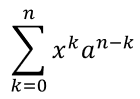
Utiliza nary para sumas, uniones, intersecciones y otros operadores grandes. Usa integral para integrales. Ambos métodos permiten establecer límites inferior y superior.
import jpype
import asposeslides

if not jpype.isJVMStarted():
    jpype.startJVM()

from asposeslides.api import MathBlock, MathNaryOperatorTypes, MathematicalText, Presentation, SaveFormat

presentation = Presentation()
try:
    slide = presentation.getSlides().get_Item(0)

    math_shape = slide.getShapes().addMathShape(20, 20, 700, 120)
    math_paragraph = math_shape.getTextFrame().getParagraphs().get_Item(0).getPortions().get_Item(0).getMathParagraph()

    a_power = MathematicalText("a").setSuperscript("n-k")
    summation_base = MathematicalText("x").setSuperscript("k").join(a_power)

    summation = summation_base.nary(MathNaryOperatorTypes.Summation, "k=0", "n")

    math_block = MathBlock(summation)
    math_paragraph.add(math_block)

    presentation.save("nary-operators.pptx", SaveFormat.Pptx)
finally:
    presentation.dispose()
Los operadores N-arios son para operadores grandes con límites opcionales. Los operadores simples como +, - y = normalmente se añaden como MathematicalText y se unen a la expresión.
Para una integral, usa integral:
import jpype
import asposeslides

if not jpype.isJVMStarted():
    jpype.startJVM()

from asposeslides.api import MathIntegralTypes, MathematicalText

differential = MathematicalText("dx").toBox()
integral_base = MathematicalText("x").join(differential)
integral = integral_base.integral(MathIntegralTypes.Simple, "0", "1")
Añadir matrices
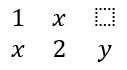
Utiliza MathMatrix para filas y columnas. Las matrices no incluyen corchetes por defecto, por lo que debes encerrar la matriz cuando necesites paréntesis, corchetes o llaves.
import jpype
import asposeslides

if not jpype.isJVMStarted():
    jpype.startJVM()

from asposeslides.api import MathBlock, MathMatrix, MathematicalText, Presentation, SaveFormat

presentation = Presentation()
try:
    slide = presentation.getSlides().get_Item(0)

    math_shape = slide.getShapes().addMathShape(20, 20, 700, 120)
    math_paragraph = math_shape.getTextFrame().getParagraphs().get_Item(0).getPortions().get_Item(0).getMathParagraph()

    matrix = MathMatrix(2, 3)
    cell_0_0 = MathematicalText("1")
    matrix.set_Item(0, 0, cell_0_0)
    cell_0_1 = MathematicalText("x")
    matrix.set_Item(0, 1, cell_0_1)
    cell_1_0 = MathematicalText("x")
    matrix.set_Item(1, 0, cell_1_0)
    cell_1_1 = MathematicalText("2")
    matrix.set_Item(1, 1, cell_1_1)
    cell_1_2 = MathematicalText("y")
    matrix.set_Item(1, 2, cell_1_2)

    math_block = MathBlock(matrix)
    math_paragraph.add(math_block)

    presentation.save("matrix.pptx", SaveFormat.Pptx)
finally:
    presentation.dispose()
Añadir arreglos de ecuaciones
Utiliza toMathArray cuando necesites ecuaciones alineadas o una pila vertical de expresiones.

import jpype
import asposeslides

if not jpype.isJVMStarted():
    jpype.startJVM()

from asposeslides.api import MathBlock, MathematicalText, Presentation, SaveFormat

presentation = Presentation()
try:
    slide = presentation.getSlides().get_Item(0)

    math_shape = slide.getShapes().addMathShape(20, 20, 700, 140)
    math_paragraph = math_shape.getTextFrame().getParagraphs().get_Item(0).getPortions().get_Item(0).getMathParagraph()

    equation_array = MathematicalText("x").join("y").toMathArray()

    math_block = MathBlock(equation_array)
    math_paragraph.add(math_block)

    presentation.save("equation-array.pptx", SaveFormat.Pptx)
finally:
    presentation.dispose()
Añadir funciones trigonométricas
Utiliza asArgumentOfFunction cuando el argumento sea el elemento actual y el nombre de la función sea conocido.

import jpype
import asposeslides

if not jpype.isJVMStarted():
    jpype.startJVM()

from asposeslides.api import MathBlock, MathFunctionsOfOneArgument, MathematicalText, Presentation, SaveFormat

presentation = Presentation()
try:
    slide = presentation.getSlides().get_Item(0)

    math_shape = slide.getShapes().addMathShape(20, 20, 700, 100)
    math_paragraph = math_shape.getTextFrame().getParagraphs().get_Item(0).getPortions().get_Item(0).getMathParagraph()

    cosine = MathematicalText("2x").asArgumentOfFunction(MathFunctionsOfOneArgument.Cos)

    math_block = MathBlock(cosine)
    math_paragraph.add(math_block)

    presentation.save("trigonometric-function.pptx", SaveFormat.Pptx)
finally:
    presentation.dispose()
Añadir subíndices y superíndices
Usa los auxiliares de subíndice y superíndice para índices y potencias. Cuando los índices deben aparecer a la izquierda de la base, usa setSubSuperscriptOnTheLeft.

import jpype
import asposeslides

if not jpype.isJVMStarted():
    jpype.startJVM()

from asposeslides.api import MathBlock, MathematicalText, Presentation, SaveFormat

presentation = Presentation()
try:
    slide = presentation.getSlides().get_Item(0)

    math_shape = slide.getShapes().addMathShape(20, 20, 700, 100)
    math_paragraph = math_shape.getTextFrame().getParagraphs().get_Item(0).getPortions().get_Item(0).getMathParagraph()

    scripts = MathematicalText("Y").setSubSuperscriptOnTheLeft("1", "n")

    math_block = MathBlock(scripts)
    math_paragraph.add(math_block)

    presentation.save("subscript-superscript.pptx", SaveFormat.Pptx)
finally:
    presentation.dispose()
Añadir delimitadores
Utiliza enclose para colocar una expresión dentro de delimitadores. También puedes establecer un carácter separador para expresiones delimitadas que contengan varios elementos.

import jpype
import asposeslides

if not jpype.isJVMStarted():
    jpype.startJVM()

from asposeslides.api import MathBlock, MathematicalText, Presentation, SaveFormat

presentation = Presentation()
try:
    slide = presentation.getSlides().get_Item(0)

    math_shape = slide.getShapes().addMathShape(20, 20, 700, 100)
    math_paragraph = math_shape.getTextFrame().getParagraphs().get_Item(0).getPortions().get_Item(0).getMathParagraph()

    delimiter = MathematicalText("x").join("y").join("z").enclose('<', '>')
    delimiter.setSeparatorCharacter('|')

    math_block = MathBlock(delimiter)
    math_paragraph.add(math_block)

    presentation.save("delimiters.pptx", SaveFormat.Pptx)
finally:
    presentation.dispose()
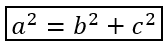
Añadir un cuadro con borde
Utiliza toBorderBox cuando la propia ecuación debe estar enmarcada.
import jpype
import asposeslides

if not jpype.isJVMStarted():
    jpype.startJVM()

from asposeslides.api import MathBlock, MathematicalText, Presentation, SaveFormat

presentation = Presentation()
try:
    slide = presentation.getSlides().get_Item(0)

    math_shape = slide.getShapes().addMathShape(20, 20, 700, 100)
    math_paragraph = math_shape.getTextFrame().getParagraphs().get_Item(0).getPortions().get_Item(0).getMathParagraph()

    b_squared = MathematicalText("b").setSuperscript("2")
    c_squared = MathematicalText("c").setSuperscript("2")
    boxed_equation = MathematicalText("a").setSuperscript("2").join("=").join(b_squared).join("+").join(c_squared).toBorderBox()

    math_block = MathBlock(boxed_equation)
    math_paragraph.add(math_block)

    presentation.save("border-box.pptx", SaveFormat.Pptx)
finally:
    presentation.dispose()
Agrupar términos
Utiliza group para colocar un carácter de agrupación encima o debajo de una expresión. Añade un límite para etiquetar los términos agrupados.

import jpype
import asposeslides

if not jpype.isJVMStarted():
    jpype.startJVM()

from asposeslides.api import MathBlock, MathTopBotPositions, MathematicalText, Presentation, SaveFormat

presentation = Presentation()
try:
    slide = presentation.getSlides().get_Item(0)

    math_shape = slide.getShapes().addMathShape(20, 20, 700, 120)
    math_paragraph = math_shape.getTextFrame().getParagraphs().get_Item(0).getPortions().get_Item(0).getMathParagraph()

    grouped = MathematicalText("x + y").group('\u23DF', MathTopBotPositions.Bottom, MathTopBotPositions.Top).setLowerLimit("any text")

    math_block = MathBlock(grouped)
    math_paragraph.add(math_block)

    presentation.save("grouped-terms.pptx", SaveFormat.Pptx)
finally:
    presentation.dispose()
Dar formato a los elementos matemáticos
Utiliza los auxiliares de formato solo donde clarifiquen la fórmula. Por ejemplo, overbar coloca una barra sobre un elemento matemático.

import jpype
import asposeslides

if not jpype.isJVMStarted():
    jpype.startJVM()

from asposeslides.api import MathBlock, MathematicalText, Presentation, SaveFormat

presentation = Presentation()
try:
    slide = presentation.getSlides().get_Item(0)

    math_shape = slide.getShapes().addMathShape(20, 20, 700, 100)
    math_paragraph = math_shape.getTextFrame().getParagraphs().get_Item(0).getPortions().get_Item(0).getMathParagraph()

    overbar = MathematicalText("ABC").overbar()

    math_block = MathBlock(overbar)
    math_paragraph.add(math_block)

    presentation.save("overbar.pptx", SaveFormat.Pptx)
finally:
    presentation.dispose()
Referencia rápida
| Tarea | API principal |
|---|---|
| Crear texto matemático | MathematicalText |
| Combinar elementos | MathElementBase.join |
| Crear fracciones | MathElementBase.divide |
| Añadir superíndice o subíndice | setSuperscript, setSubscript |
| Añadir funciones | function, asArgumentOfFunction |
| Añadir radicales | MathElementBase.radical |
| Añadir límites | setLowerLimit, setUpperLimit |
| Añadir scripts a la izquierda | setSubSuperscriptOnTheLeft |
| Añadir sumas e integrales | nary, integral |
| Añadir matrices | MathMatrix |
| Añadir arreglos de ecuaciones | toMathArray |
| Añadir delimitadores | enclose |
| Añadir barras y bordes | overbar, toBorderBox |
| Agrupar términos | group |
Preguntas frecuentes
¿Puedo editar una ecuación existente de PowerPoint?
Sí. Abre la presentación, localiza la forma que contiene un MathPortion, obtén su MathParagraph, y actualiza los bloques matemáticos en ese párrafo.
¿Las ecuaciones se guardan como matemáticas editables de PowerPoint?
Sí. Al guardar en PPTX, Aspose.Slides escribe la ecuación como contenido matemático de Office editable.
¿Puedo exportar ecuaciones a LaTeX?
Sí. Obtén el MathParagraph de su MathPortion, y llama a MathParagraph.toLatex para exportarla directamente. Para un ejemplo completo, consulta Export Math Equations from Presentations in Python.