
Adicionar Equações Matemáticas a Apresentações do PowerPoint em Python
Visão geral
PowerPoint armazena equações como Office Math Markup Language (OMML). Com Aspose.Slides for Python via Java, você pode criar o mesmo tipo de conteúdo matemático programaticamente: frações, radicais, funções, limites, operadores N‑ários, matrizes, arrays e blocos de matemática formatados.
No PowerPoint, os usuários normalmente adicionam equações a partir de Inserir > Equação:
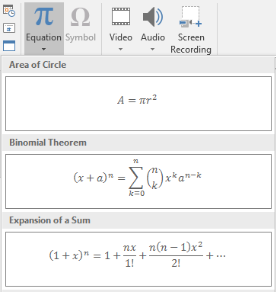
O resultado é texto matemático editável no slide:

Aspose.Slides constrói esse texto matemático por meio de três objetos principais:
- Uma forma matemática, criada com addMathShape, é a forma que contém a equação.
- MathPortion armazena o conteúdo matemático dentro da moldura de texto da forma.
- MathParagraph contém um ou mais objetos MathBlock.
A maioria dos exemplos abaixo usa MathematicalText e os métodos fluent de MathElementBase para manter o código curto e legível.
Para cenários de exportação MathML, veja Export Math Equations from Presentations in Python.
Criar uma Equação
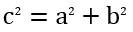
Este exemplo cria uma forma matemática e adiciona o teorema de Pitágoras:
import jpype
import asposeslides

if not jpype.isJVMStarted():
    jpype.startJVM()

from asposeslides.api import MathematicalText, Presentation, SaveFormat

presentation = Presentation()
try:
    slide = presentation.getSlides().get_Item(0)

    math_shape = slide.getShapes().addMathShape(20, 20, 700, 120)
    math_paragraph = math_shape.getTextFrame().getParagraphs().get_Item(0).getPortions().get_Item(0).getMathParagraph()

    a_squared = MathematicalText("a").setSuperscript("2")
    b_squared = MathematicalText("b").setSuperscript("2")
    equation = MathematicalText("c").setSuperscript("2").join("=").join(a_squared).join("+").join(b_squared)

    math_paragraph.add(equation)

    presentation.save("pythagorean-theorem.pptx", SaveFormat.Pptx)
finally:
    presentation.dispose()
Note
addMathShape cria uma forma que já contém um parágrafo matemático. Acesse o primeiro MathPortion, obtenha seu MathParagraph, e adicione blocos matemáticos ou elementos matemáticos a ele.Adicionar Frações
Use divide para criar uma fração. Você pode escolher um estilo de fração com MathFractionTypes.

import jpype
import asposeslides

if not jpype.isJVMStarted():
    jpype.startJVM()

from asposeslides.api import MathBlock, MathFractionTypes, MathematicalText, Presentation, SaveFormat

presentation = Presentation()
try:
    slide = presentation.getSlides().get_Item(0)

    math_shape = slide.getShapes().addMathShape(20, 20, 700, 100)
    math_paragraph = math_shape.getTextFrame().getParagraphs().get_Item(0).getPortions().get_Item(0).getMathParagraph()

    fraction = MathematicalText("1").divide("x", MathFractionTypes.Skewed)

    math_block = MathBlock(fraction)
    math_paragraph.add(math_block)

    presentation.save("fraction.pptx", SaveFormat.Pptx)
finally:
    presentation.dispose()
Para uma fração empilhada, use MathFractionTypes.Bar:
import jpype
import asposeslides

if not jpype.isJVMStarted():
    jpype.startJVM()

from asposeslides.api import MathFractionTypes, MathematicalText

stacked_fraction = MathematicalText("x + 1").divide("y - 1", MathFractionTypes.Bar)
Adicionar Radicais
Use radical para criar uma raiz quadrada, raiz cúbica ou outra raiz. O elemento atual torna‑se a base, e o argumento torna‑se o grau.

import jpype
import asposeslides

if not jpype.isJVMStarted():
    jpype.startJVM()

from asposeslides.api import MathBlock, MathematicalText, Presentation, SaveFormat

presentation = Presentation()
try:
    slide = presentation.getSlides().get_Item(0)

    math_shape = slide.getShapes().addMathShape(20, 20, 700, 100)
    math_paragraph = math_shape.getTextFrame().getParagraphs().get_Item(0).getPortions().get_Item(0).getMathParagraph()

    radical = MathematicalText("x").radical("n")

    math_block = MathBlock(radical)
    math_paragraph.add(math_block)

    presentation.save("radical.pptx", SaveFormat.Pptx)
finally:
    presentation.dispose()
Adicionar Funções e Limites
Use asArgumentOfFunction ou function para funções como sin(x), log(x), ou nomes de funções personalizados. Para limites, coloque lim em um MathLimit ou use setLowerLimit.

import jpype
import asposeslides

if not jpype.isJVMStarted():
    jpype.startJVM()

from asposeslides.api import MathBlock, MathematicalText, Presentation, SaveFormat

presentation = Presentation()
try:
    slide = presentation.getSlides().get_Item(0)

    math_shape = slide.getShapes().addMathShape(20, 20, 700, 100)
    math_paragraph = math_shape.getTextFrame().getParagraphs().get_Item(0).getPortions().get_Item(0).getMathParagraph()

    limit = MathematicalText("lim").setLowerLimit("x\u2192\u221E").function("x")

    math_block = MathBlock(limit)
    math_paragraph.add(math_block)

    presentation.save("functions-and-limits.pptx", SaveFormat.Pptx)
finally:
    presentation.dispose()
Para um nome de função personalizado, torne o nome da função o elemento atual:
import jpype
import asposeslides

if not jpype.isJVMStarted():
    jpype.startJVM()

from asposeslides.api import MathematicalText

custom_function = MathematicalText("f").function("x + 1")
Adicionar Operadores N‑arios e Integrais
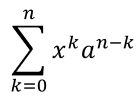
Use nary para somatórios, uniões, interseções e outros operadores grandes. Use integral para integrais. Ambos os métodos permitem definir limites inferior e superior.
import jpype
import asposeslides

if not jpype.isJVMStarted():
    jpype.startJVM()

from asposeslides.api import MathBlock, MathNaryOperatorTypes, MathematicalText, Presentation, SaveFormat

presentation = Presentation()
try:
    slide = presentation.getSlides().get_Item(0)

    math_shape = slide.getShapes().addMathShape(20, 20, 700, 120)
    math_paragraph = math_shape.getTextFrame().getParagraphs().get_Item(0).getPortions().get_Item(0).getMathParagraph()

    a_power = MathematicalText("a").setSuperscript("n-k")
    summation_base = MathematicalText("x").setSuperscript("k").join(a_power)

    summation = summation_base.nary(MathNaryOperatorTypes.Summation, "k=0", "n")

    math_block = MathBlock(summation)
    math_paragraph.add(math_block)

    presentation.save("nary-operators.pptx", SaveFormat.Pptx)
finally:
    presentation.dispose()
Operadores N‑ários são para operadores grandes com limites opcionais. Operadores simples como +, - e = geralmente são adicionados como MathematicalText e concatenados na expressão.
Para uma integral, use integral:
import jpype
import asposeslides

if not jpype.isJVMStarted():
    jpype.startJVM()

from asposeslides.api import MathIntegralTypes, MathematicalText

differential = MathematicalText("dx").toBox()
integral_base = MathematicalText("x").join(differential)
integral = integral_base.integral(MathIntegralTypes.Simple, "0", "1")
Adicionar Matrizes
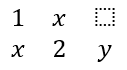
Use MathMatrix para linhas e colunas. Matrizes não incluem colchetes por padrão, portanto envolva a matriz quando precisar de parênteses, colchetes ou chaves.
import jpype
import asposeslides

if not jpype.isJVMStarted():
    jpype.startJVM()

from asposeslides.api import MathBlock, MathMatrix, MathematicalText, Presentation, SaveFormat

presentation = Presentation()
try:
    slide = presentation.getSlides().get_Item(0)

    math_shape = slide.getShapes().addMathShape(20, 20, 700, 120)
    math_paragraph = math_shape.getTextFrame().getParagraphs().get_Item(0).getPortions().get_Item(0).getMathParagraph()

    matrix = MathMatrix(2, 3)
    cell_0_0 = MathematicalText("1")
    matrix.set_Item(0, 0, cell_0_0)
    cell_0_1 = MathematicalText("x")
    matrix.set_Item(0, 1, cell_0_1)
    cell_1_0 = MathematicalText("x")
    matrix.set_Item(1, 0, cell_1_0)
    cell_1_1 = MathematicalText("2")
    matrix.set_Item(1, 1, cell_1_1)
    cell_1_2 = MathematicalText("y")
    matrix.set_Item(1, 2, cell_1_2)

    math_block = MathBlock(matrix)
    math_paragraph.add(math_block)

    presentation.save("matrix.pptx", SaveFormat.Pptx)
finally:
    presentation.dispose()
Adicionar Arrays de Equações
Use toMathArray quando precisar de equações alinhadas ou de uma pilha vertical de expressões.

import jpype
import asposeslides

if not jpype.isJVMStarted():
    jpype.startJVM()

from asposeslides.api import MathBlock, MathematicalText, Presentation, SaveFormat

presentation = Presentation()
try:
    slide = presentation.getSlides().get_Item(0)

    math_shape = slide.getShapes().addMathShape(20, 20, 700, 140)
    math_paragraph = math_shape.getTextFrame().getParagraphs().get_Item(0).getPortions().get_Item(0).getMathParagraph()

    equation_array = MathematicalText("x").join("y").toMathArray()

    math_block = MathBlock(equation_array)
    math_paragraph.add(math_block)

    presentation.save("equation-array.pptx", SaveFormat.Pptx)
finally:
    presentation.dispose()
Adicionar Funções Trigonométricas
Use asArgumentOfFunction quando o argumento é o elemento atual e o nome da função é conhecido.

import jpype
import asposeslides

if not jpype.isJVMStarted():
    jpype.startJVM()

from asposeslides.api import MathBlock, MathFunctionsOfOneArgument, MathematicalText, Presentation, SaveFormat

presentation = Presentation()
try:
    slide = presentation.getSlides().get_Item(0)

    math_shape = slide.getShapes().addMathShape(20, 20, 700, 100)
    math_paragraph = math_shape.getTextFrame().getParagraphs().get_Item(0).getPortions().get_Item(0).getMathParagraph()

    cosine = MathematicalText("2x").asArgumentOfFunction(MathFunctionsOfOneArgument.Cos)

    math_block = MathBlock(cosine)
    math_paragraph.add(math_block)

    presentation.save("trigonometric-function.pptx", SaveFormat.Pptx)
finally:
    presentation.dispose()
Adicionar Subscritos e Sobrescritos
Use os auxiliares de subscrito e sobrescrito para índices e potências. Quando os índices devem aparecer no lado esquerdo da base, use setSubSuperscriptOnTheLeft.

import jpype
import asposeslides

if not jpype.isJVMStarted():
    jpype.startJVM()

from asposeslides.api import MathBlock, MathematicalText, Presentation, SaveFormat

presentation = Presentation()
try:
    slide = presentation.getSlides().get_Item(0)

    math_shape = slide.getShapes().addMathShape(20, 20, 700, 100)
    math_paragraph = math_shape.getTextFrame().getParagraphs().get_Item(0).getPortions().get_Item(0).getMathParagraph()

    scripts = MathematicalText("Y").setSubSuperscriptOnTheLeft("1", "n")

    math_block = MathBlock(scripts)
    math_paragraph.add(math_block)

    presentation.save("subscript-superscript.pptx", SaveFormat.Pptx)
finally:
    presentation.dispose()
Adicionar Delimitadores
Use enclose para colocar uma expressão dentro de delimitadores. Você também pode definir um caractere separador para expressões delimitadoras que contenham vários elementos.

import jpype
import asposeslides

if not jpype.isJVMStarted():
    jpype.startJVM()

from asposeslides.api import MathBlock, MathematicalText, Presentation, SaveFormat

presentation = Presentation()
try:
    slide = presentation.getSlides().get_Item(0)

    math_shape = slide.getShapes().addMathShape(20, 20, 700, 100)
    math_paragraph = math_shape.getTextFrame().getParagraphs().get_Item(0).getPortions().get_Item(0).getMathParagraph()

    delimiter = MathematicalText("x").join("y").join("z").enclose('<', '>')
    delimiter.setSeparatorCharacter('|')

    math_block = MathBlock(delimiter)
    math_paragraph.add(math_block)

    presentation.save("delimiters.pptx", SaveFormat.Pptx)
finally:
    presentation.dispose()
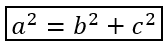
Adicionar uma Caixa de Borda
Use toBorderBox quando a própria equação deve ser enquadrada.
import jpype
import asposeslides

if not jpype.isJVMStarted():
    jpype.startJVM()

from asposeslides.api import MathBlock, MathematicalText, Presentation, SaveFormat

presentation = Presentation()
try:
    slide = presentation.getSlides().get_Item(0)

    math_shape = slide.getShapes().addMathShape(20, 20, 700, 100)
    math_paragraph = math_shape.getTextFrame().getParagraphs().get_Item(0).getPortions().get_Item(0).getMathParagraph()

    b_squared = MathematicalText("b").setSuperscript("2")
    c_squared = MathematicalText("c").setSuperscript("2")
    boxed_equation = MathematicalText("a").setSuperscript("2").join("=").join(b_squared).join("+").join(c_squared).toBorderBox()

    math_block = MathBlock(boxed_equation)
    math_paragraph.add(math_block)

    presentation.save("border-box.pptx", SaveFormat.Pptx)
finally:
    presentation.dispose()
Agrupar Termos
Use group para colocar um caractere de agrupamento acima ou abaixo de uma expressão. Adicione um limite para rotular os termos agrupados.

import jpype
import asposeslides

if not jpype.isJVMStarted():
    jpype.startJVM()

from asposeslides.api import MathBlock, MathTopBotPositions, MathematicalText, Presentation, SaveFormat

presentation = Presentation()
try:
    slide = presentation.getSlides().get_Item(0)

    math_shape = slide.getShapes().addMathShape(20, 20, 700, 120)
    math_paragraph = math_shape.getTextFrame().getParagraphs().get_Item(0).getPortions().get_Item(0).getMathParagraph()

    grouped = MathematicalText("x + y").group('\u23DF', MathTopBotPositions.Bottom, MathTopBotPositions.Top).setLowerLimit("any text")

    math_block = MathBlock(grouped)
    math_paragraph.add(math_block)

    presentation.save("grouped-terms.pptx", SaveFormat.Pptx)
finally:
    presentation.dispose()
Formatar Elementos Matemáticos
Use auxiliares de formatação apenas onde eles esclarecem a fórmula. Por exemplo, overbar coloca uma barra acima de um elemento matemático.

import jpype
import asposeslides

if not jpype.isJVMStarted():
    jpype.startJVM()

from asposeslides.api import MathBlock, MathematicalText, Presentation, SaveFormat

presentation = Presentation()
try:
    slide = presentation.getSlides().get_Item(0)

    math_shape = slide.getShapes().addMathShape(20, 20, 700, 100)
    math_paragraph = math_shape.getTextFrame().getParagraphs().get_Item(0).getPortions().get_Item(0).getMathParagraph()

    overbar = MathematicalText("ABC").overbar()

    math_block = MathBlock(overbar)
    math_paragraph.add(math_block)

    presentation.save("overbar.pptx", SaveFormat.Pptx)
finally:
    presentation.dispose()
Referência Rápida
| Tarefa | API Principal |
|---|---|
| Criar texto matemático | MathematicalText |
| Combinar elementos | MathElementBase.join |
| Criar frações | MathElementBase.divide |
| Adicionar sobrescrito ou subscrito | setSuperscript, setSubscript |
| Adicionar funções | function, asArgumentOfFunction |
| Adicionar radicais | MathElementBase.radical |
| Adicionar limites | setLowerLimit, setUpperLimit |
| Adicionar scripts do lado esquerdo | setSubSuperscriptOnTheLeft |
| Adicionar somatórios e integrais | nary, integral |
| Adicionar matrizes | MathMatrix |
| Adicionar arrays de equações | toMathArray |
| Adicionar delimitadores | enclose |
| Adicionar barras e bordas | overbar, toBorderBox |
| Agrupar termos | group |
Perguntas Frequentes
Posso editar uma equação existente do PowerPoint?
Sim. Abra a apresentação, encontre a forma que contém um MathPortion, obtenha seu MathParagraph, e atualize os blocos matemáticos nesse parágrafo.
As equações são salvas como matemática editável do PowerPoint?
Sim. Ao salvar em PPTX, Aspose.Slides grava a equação como conteúdo de matemática do Office editável.
Posso exportar equações para LaTeX?
Sim. Obtenha o MathParagraph da equação a partir de seu MathPortion, e chame MathParagraph.toLatex para exportá‑lo diretamente. Para um exemplo completo, veja Export Math Equations from Presentations in Python.