
PHP का उपयोग करके प्रस्तुतियों में टेक्स्ट बॉक्स प्रबंधित करें
परिचय
Aspose.Slides for PHP via Java में, स्लाइड टेक्स्ट टेक्स्ट फ्रेम में संग्रहित होता है जो आकृतियों से संबंधित होते हैं। AutoShape क्लास सबसे सामान्य टेक्स्ट‑धारक आकृति को दर्शाती है और इसका टेक्स्ट AutoShape::getTextFrame मेथड के माध्यम से उपलब्ध कराती है।
ध्यान
हर ऑटो आकार Shape से व्युत्पन्न होता है, लेकिन सभी आकृतियाँ ऑटो आकार नहीं होतीं या टेक्स्ट फ्रेम का समर्थन नहीं करतीं। मौजूदा प्रस्तुति को प्रोसेस करते समय,java_instanceof का उपयोग करके यह जांचें कि कोई आकृति AutoShape है या नहीं, फिर उसके टेक्स्ट तक पहुँचें।
स्लाइड पर टेक्स्ट बॉक्स बनाना
टेक्स्ट बॉक्स बनाने के लिए, स्लाइड में एक ऑटो आकार जोड़ें, उसके टेक्स्ट फ्रेम में टेक्स्ट जोड़ें, और प्रस्तुति सहेजें। निम्न उदाहरण आयताकार टेक्स्ट बॉक्स बनाता है:
use aspose\slides\Presentation;
use aspose\slides\SaveFormat;
use aspose\slides\ShapeType;

$presentation = new Presentation();
try {
    $slide = $presentation->getSlides()->get_Item(0);
    $textBox = $slide->getShapes()->addAutoShape(ShapeType::Rectangle, 150, 75, 300, 50);
    $textBox->addTextFrame("Aspose TextBox");

    $presentation->save("TextBox.pptx", SaveFormat::Pptx);
} finally {
    $presentation->dispose();
}
ShapeCollection::addAutoShape को पास किए गए निर्देशांक और आयाम पॉइंट में मापे जाते हैं। AutoShape::addTextFrame प्रदान किए गए टेक्स्ट से टेक्स्ट फ्रेम को प्रारम्भ करता है।
टेक्स्ट बॉक्स आकृति की जाँच करना
AutoShape::isTextBox मेथड का उपयोग करके निर्धारित करें कि कोई ऑटो आकार टेक्स्ट बॉक्स के रूप में माना जाता है या नहीं। यह तब उपयोगी होता है जब प्रस्तुति में टेक्स्ट‑धारक और केवल ग्राफिकल ऑटो आकार दोनों हों।
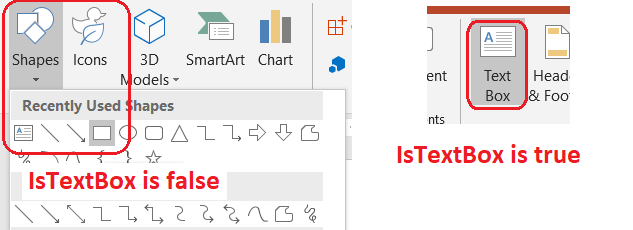
निम्न उदाहरण प्रस्तुति में प्रत्येक ऑटो आकार का निरीक्षण करता है:
use aspose\slides\Presentation;
use aspose\slides\ShapeType;

$presentation = new Presentation();
try {
    $slide = $presentation->getSlides()->get_Item(0);
    $textBox = $slide->getShapes()->addAutoShape(ShapeType::Rectangle, 10, 10, 120, 40);
    $textBox->addTextFrame("Text box");
    $slide->getShapes()->addAutoShape(ShapeType::Ellipse, 150, 10, 40, 40);

    $autoShapeClass = new JavaClass("com.aspose.slides.AutoShape");
    for ($slideIndex = 0; $slideIndex < java_values($presentation->getSlides()->size()); $slideIndex++) {
        $currentSlide = $presentation->getSlides()->get_Item($slideIndex);
        for ($shapeIndex = 0; $shapeIndex < java_values($currentSlide->getShapes()->size()); $shapeIndex++) {
            $shape = $currentSlide->getShapes()->get_Item($shapeIndex);
            if (java_instanceof($shape, $autoShapeClass)) {
                echo (java_is_true($shape->isTextBox()) ? "The shape is a text box." : "The shape is not a text box.") . PHP_EOL;
            }
        }
    }
} finally {
    $presentation->dispose();
}
एक नवीन जोड़ा गया ऑटो आकार तब तक टेक्स्ट बॉक्स माना नहीं जाता जब तक उसमें खाली‑नहीं‑हुआ टेक्स्ट न हो। आप वह टेक्स्ट AutoShape::addTextFrame या TextFrame::setText के माध्यम से प्रदान कर सकते हैं। खाली स्ट्रिंग जोड़ने या असाइन करने से AutoShape::isTextBox false लौटाता है:
use aspose\slides\Presentation;
use aspose\slides\ShapeType;

$presentation = new Presentation();
try {
    $slide = $presentation->getSlides()->get_Item(0);

    $shape1 = $slide->getShapes()->addAutoShape(ShapeType::Rectangle, 10, 10, 100, 40);
    $shape1->addTextFrame("Shape 1");
    echo (java_is_true($shape1->isTextBox()) ? "true" : "false") . PHP_EOL;

    $shape2 = $slide->getShapes()->addAutoShape(ShapeType::Rectangle, 10, 70, 100, 40);
    $shape2->getTextFrame()->setText("Shape 2");
    echo (java_is_true($shape2->isTextBox()) ? "true" : "false") . PHP_EOL;

    $shape3 = $slide->getShapes()->addAutoShape(ShapeType::Rectangle, 10, 130, 100, 40);
    $shape3->addTextFrame("");
    echo (java_is_true($shape3->isTextBox()) ? "true" : "false") . PHP_EOL;

    $shape4 = $slide->getShapes()->addAutoShape(ShapeType::Rectangle, 10, 190, 100, 40);
    $shape4->getTextFrame()->setText("");
    echo (java_is_true($shape4->isTextBox()) ? "true" : "false") . PHP_EOL;
} finally {
    $presentation->dispose();
}
पहली दो कॉल्स true प्रिंट करती हैं; अंतिम दो false प्रिंट करती हैं।
ऐसी आकृति ढूँढना जो टेक्स्ट फ्रेम का मालिक हो
जनरल टेक्स्ट‑प्रोसेसिंग कोड को एक TextFrame मिल सकता है बिना यह जाने कि कौन‑सी प्रस्तुति वस्तु उसे रखती है। केवल‑पढ़ने योग्य TextFrame::getParentShape मेथड का उपयोग करके आप उसकी मालिक Shape तक वापस जा सकते हैं।
ऑटो आकार या अन्य टेक्स्ट‑धारक आकृति द्वारा स्वामित्व वाले टेक्स्ट फ्रेम के लिए, TextFrame::getParentShape मालिक को लौटाता है और TextFrame::getParentCell null देता है। एक्सेस करने से पहले java_is_null से लौटाए गए मान की जाँच करें। आकृति और टेबल‑सेल दोनों मालिकों की पहचान करने के लिए, जिसमें SmartArt नोड्स से जुड़े आकार भी शामिल हैं, देखें टेक्स्ट खोजें और बदलें (/slides/hi/php-java/search-and-replace-text/)।
टेक्स्ट बॉक्स में कॉलम जोड़ना
TextFrameFormat::setColumnCount मेथड टेक्स्ट फ्रेम को कॉलम में विभाजित करता है, जबकि TextFrameFormat::setColumnSpacing कॉलम के बीच की दूरी पॉइंट में सेट करता है। दोनों सेटिंग्स TextFrameFormat से संबंधित हैं और मौजूदा टेक्स्ट बॉक्स के टेक्स्ट फ्रेम के माध्यम से बदली जा सकती हैं। टेक्स्ट एक ही आकार के भीतर कॉलम के बीच पुनः‑फ़्लो होता है; यह किसी अन्य आकार में नहीं जारी रहता।
निम्न उदाहरण 10 पॉइंट के कॉलम गैप के साथ तीन‑कॉलम टेक्स्ट बॉक्स बनाता है, प्रस्तुति सहेजता है, और आउटपुट फ़ाइल से संग्रहीत सेटिंग्स को पढ़ता है:
use aspose\slides\Presentation;
use aspose\slides\SaveFormat;
use aspose\slides\ShapeType;

$presentation = new Presentation();
try {
    $slide = $presentation->getSlides()->get_Item(0);
    $textBox = $slide->getShapes()->addAutoShape(ShapeType::Rectangle, 100, 100, 300, 200);
    $textBox->addTextFrame("This text is distributed automatically across all columns in the text box.");

    $textFrameFormat = $textBox->getTextFrame()->getTextFrameFormat();
    $textFrameFormat->setColumnCount(3);
    $textFrameFormat->setColumnSpacing(10);

    $presentation->save("TextBoxColumns.pptx", SaveFormat::Pptx);

    $savedPresentation = new Presentation("TextBoxColumns.pptx");
    try {
        $savedTextBox = $savedPresentation->getSlides()->get_Item(0)->getShapes()->get_Item(0);
        $savedFormat = $savedTextBox->getTextFrame()->getTextFrameFormat();
        echo "Columns: " . java_values($savedFormat->getColumnCount()) . "; spacing: " . java_values($savedFormat->getColumnSpacing()) . " points" . PHP_EOL;
    } finally {
        $savedPresentation->dispose();
    }
} finally {
    $presentation->dispose();
}
व्यक्तिगत कॉलम से टेक्स्ट निकालना
TextFrame::splitTextByColumns का उपयोग करके किसी मौजूदा टेक्स्ट फ्रेम में प्रत्येक दृश्य कॉलम को असाइन किया गया टेक्स्ट प्राप्त किया जा सकता है। यह मेथड प्रत्येक कॉलम के लिए एक स्ट्रिंग लौटाता है, कॉलम‑आधारित पढ़ने के क्रम में। एक‑कॉलम टेक्स्ट फ्रेम एक तत्व वाला ऐरे उत्पन्न करता है, और खाली कॉलम को खाली स्ट्रिंग द्वारा दर्शाया जाता है। स्ट्रिंग्स केवल प्लेन टेक्स्ट रखती हैं; भाग‑स्तर फॉर्मेटिंग संरक्षित नहीं रहती।
यह तब उपयोगी है जब आपको चाहिए:
- टेक्स्ट निकालना जबकि उसके कॉलम‑आधारित पढ़ने के क्रम को बनाए रखें।
- मल्टी‑कॉलम स्लाइड्स की सामग्री का इंडेक्स या तुलना करना।
- प्रत्येक कॉलम को अलग फ़ाइल, डेटाबेस फ़ील्ड या अन्य गंतव्य में निर्यात करना।
- कॉलम की संख्या को बदलने, गैप को समायोजित करने, फ़ॉन्ट या टेक्स्ट‑फ्रेम आकार को बदलने के बाद टेक्स्ट कैसे पुनर्वितरित होता है, इसका निरीक्षण करना।
यह मेथड वर्तमान TextFrame के भीतर वितरित टेक्स्ट की रिपोर्ट करता है; यह अलग‑अलग आकार या टेक्स्ट बॉक्स के बीच स्वचालित रूप से टेक्स्ट प्रवाहित नहीं करता। कॉलम वितरण उपलब्ध फ़ॉन्ट्स और अन्य टेक्स्ट‑लेआउट सेटिंग्स पर निर्भर हो सकता है, इसलिए निरंतर परिणामों के लिए आवश्यक फ़ॉन्ट उपलब्ध हों यह सुनिश्चित करें।
निम्न उदाहरण एक प्रस्तुति लोड करता है, पहले मल्टी‑कॉलम ऑटो आकार को जिसके पास टेक्स्ट फ्रेम है खोजता है, उसकी कॉन्फ़िगर की गई कॉलम संख्या पढ़ता है, और प्रत्येक कॉलम के टेक्स्ट को अलग‑अलग फ़ाइल में लिखता है। जिन आकारों में टेक्स्ट फ्रेम नहीं है उन्हें छोड़ दिया जाता है।
use aspose\slides\Presentation;

$presentation = new Presentation("MultiColumnText.pptx");
try {
    $textBox = null;
    $autoShapeClass = new JavaClass("com.aspose.slides.AutoShape");
    $shapes = $presentation->getSlides()->get_Item(0)->getShapes();
    for ($shapeIndex = 0; $shapeIndex < java_values($shapes->size()); $shapeIndex++) {
        $shape = $shapes->get_Item($shapeIndex);
        if (java_instanceof($shape, $autoShapeClass)) {
            $textFrame = $shape->getTextFrame();
            if (!java_is_null($textFrame)) {
                $columnCount = java_values($textFrame->getTextFrameFormat()->getColumnCount());
                if ($columnCount > 1) {
                    $textBox = $shape;
                    break;
                }
            }
        }
    }

    if ($textBox === null) {
        echo "No multi-column text frame was found." . PHP_EOL;
    } else {
        $textFrame = $textBox->getTextFrame();
        $configuredColumnCount = java_values($textFrame->getTextFrameFormat()->getColumnCount());
        $columnTexts = java_values($textFrame->splitTextByColumns());

        echo "Configured columns: " . $configuredColumnCount . PHP_EOL;

        foreach ($columnTexts as $columnIndex => $columnText) {
            $columnNumber = $columnIndex + 1;
            echo "Column " . $columnNumber . ": " . $columnText . PHP_EOL;
            $outputPath = "Column-" . $columnNumber . ".txt";
            $bytesWritten = file_put_contents($outputPath, $columnText);
            if ($bytesWritten === false) {
                echo "Could not write column " . $columnNumber . " to " . $outputPath . PHP_EOL;
            }
        }
    }
} finally {
    $presentation->dispose();
}
टेक्स्ट अपडेट करना
पूरी प्रस्तुति में टेक्स्ट अपडेट करने के लिए, स्लाइड्स और आकारों पर इटररेट करें, ऑटो आकार चुनें, और फिर उनके टेक्स्ट भागों को संपादित करें। भाग‑स्तर पर काम करने से आप टेक्स्ट और कैरेक्टर फॉर्मेटिंग दोनों बदल सकते हैं।
निम्न उदाहरण years को months से बदलता है और प्रभावित प्रत्येक भाग को बोल्ड बनाता है:
use aspose\slides\NullableBool;
use aspose\slides\Presentation;
use aspose\slides\SaveFormat;

$presentation = new Presentation("Text.pptx");
try {
    $autoShapeClass = new JavaClass("com.aspose.slides.AutoShape");
    for ($slideIndex = 0; $slideIndex < java_values($presentation->getSlides()->size()); $slideIndex++) {
        $slide = $presentation->getSlides()->get_Item($slideIndex);
        for ($shapeIndex = 0; $shapeIndex < java_values($slide->getShapes()->size()); $shapeIndex++) {
            $shape = $slide->getShapes()->get_Item($shapeIndex);
            if (!java_instanceof($shape, $autoShapeClass)) {
                continue;
            }

            $textFrame = $shape->getTextFrame();
            if (java_is_null($textFrame)) {
                continue;
            }

            for ($paragraphIndex = 0; $paragraphIndex < java_values($textFrame->getParagraphs()->getCount()); $paragraphIndex++) {
                $paragraph = $textFrame->getParagraphs()->get_Item($paragraphIndex);
                for ($portionIndex = 0; $portionIndex < java_values($paragraph->getPortions()->getCount()); $portionIndex++) {
                    $portion = $paragraph->getPortions()->get_Item($portionIndex);
                    $text = java_values($portion->getText());
                    if ($text !== null && strpos($text, "years") !== false) {
                        $updatedText = str_replace("years", "months", $text);
                        $portion->setText($updatedText);
                        $portion->getPortionFormat()->setFontBold(NullableBool::True);
                    }
                }
            }
        }
    }

    $presentation->save("TextChanged.pptx", SaveFormat::Pptx);
} finally {
    $presentation->dispose();
}
यह ट्रैवर्सल केवल ऑटो आकारों में टेक्स्ट अपडेट करता है। टेबल, चार्ट, SmartArt या समूहित आकारों में संग्रहीत टेक्स्ट को अपडेट करने के लिए उन वस्तुओं के अपने संग्रहों को पार करना आवश्यक है।
हाइपरलिंक के साथ टेक्स्ट बॉक्स जोड़ना
हाइपरलिंक को किसी विशिष्ट टेक्स्ट भाग को असाइन किया जा सकता है, ताकि केवल वह टेक्स्ट क्लिक करने योग्य लिंक बन जाए। HyperlinkManager::setExternalHyperlinkClick का उपयोग करके भाग को बाहरी URL से जोड़ें।
निम्न उदाहरण लिंक्ड टेक्स्ट बनाता है और उसे प्रस्तुति में सहेजता है:
use aspose\slides\Presentation;
use aspose\slides\SaveFormat;
use aspose\slides\ShapeType;

$presentation = new Presentation();
try {
    $slide = $presentation->getSlides()->get_Item(0);
    $textBox = $slide->getShapes()->addAutoShape(ShapeType::Rectangle, 150, 150, 200, 50);
    $textBox->addTextFrame("Aspose.Slides");

    $textPortion = $textBox->getTextFrame()->getParagraphs()->get_Item(0)->getPortions()->get_Item(0);
    $textPortion->getPortionFormat()->getHyperlinkManager()->setExternalHyperlinkClick("https://www.aspose.com/");

    $presentation->save("Hyperlink.pptx", SaveFormat::Pptx);
} finally {
    $presentation->dispose();
}
FAQ
मास्टर या लेआउट स्लाइड पर टेक्स्ट बॉक्स और टेक्स्ट प्लेसहोल्डर में क्या अंतर है?
placeholder (/slides/hi/php-java/manage-placeholder/) अपनी स्थिति और फॉर्मेटिंग को master slide (https://reference.aspose.com/slides/hi/php-java/aspose.slides/masterslide/) या layout slide (https://reference.aspose.com/slides/hi/php-java/aspose.slides/layoutslide/) से विरासत में ले सकता है। सामान्य टेक्स्ट बॉक्स वह स्वतंत्र आकार है जो उसी स्लाइड पर बना होता है और लेआउट बदलने पर प्लेसहोल्डर व्यवहार नहीं अपनाता।
मैं कैसे टेक्स्ट बदलूं बिना चार्ट, टेबल या SmartArt में टेक्स्ट को प्रभावित किए?
Update Text उदाहरण में दिखाए अनुसार केवल AutoShape वस्तुओं तक ट्रैवर्सल को सीमित रखें। चार्ट, टेबल और SmartArt अपना टेक्स्ट अपने स्वयं के ऑब्जेक्ट मॉडल में रखते हैं, इसलिए यह लूप उन्हें संशोधित नहीं करता।