
Java에서 프레젠테이션의 글머리표 및 번호 매기기 목록 관리
개요
Aspose.Slides for Java은 PowerPoint 및 OpenDocument 프레젠테이션에서 글머리표와 번호 매기기 목록을 만들고 서식 지정할 수 있게 합니다. 목록 항목은 글머리표 설정이 해당 단락 서식을 통해 제어되는 단락입니다.
Use the IParagraph.getParagraphFormat method to access paragraph-level list settings. The main entry point is IParagraphFormat.getBullet, which returns an IBulletFormat object. With this object, you can set the bullet type, symbol, picture, color, size, numbering style, and starting number.
This article shows how to:
- 사용자 지정 기호가 있는 글머리표 목록 만들기
- 그림 글머리표 만들기
- 단락 깊이를 설정하여 다단계 목록 만들기
- 번호 매기기 목록 만들기
- 기존 프레젠테이션에서 목록 서식을 검사하고 변경하기
글머리표 목록 만들기
To create a bulleted list, add IParagraph objects to an ITextFrame and set IBulletFormat.setType to BulletType.Symbol. You can then set IBulletFormat.setChar, IBulletFormat.getColor, and IBulletFormat.setHeight to control the bullet appearance.
The following Java code demonstrates how to create a bulleted list in a slide:
Presentation presentation = new Presentation();
try {
    ISlide slide = presentation.getSlides().get_Item(0);
    IAutoShape autoShape = slide.getShapes().addAutoShape(ShapeType.Rectangle, 20, 20, 200, 50);

    ITextFrame textFrame = autoShape.getTextFrame();
    textFrame.getParagraphs().clear();

    Color bulletColor = new Color(205, 92, 92);

    Paragraph paragraph1 = new Paragraph();
    paragraph1.getParagraphFormat().getBullet().setType(BulletType.Symbol);
    paragraph1.getParagraphFormat().getBullet().setChar('*');
    paragraph1.getParagraphFormat().setIndent(15);
    paragraph1.getParagraphFormat().getBullet().setBulletHardColor(NullableBool.True);
    paragraph1.getParagraphFormat().getBullet().getColor().setColor(bulletColor);
    paragraph1.getParagraphFormat().getBullet().setHeight(100);
    paragraph1.setText("The first paragraph");
    textFrame.getParagraphs().add(paragraph1);

    Paragraph paragraph2 = new Paragraph();
    paragraph2.getParagraphFormat().getBullet().setType(BulletType.Symbol);
    paragraph2.getParagraphFormat().getBullet().setChar('*');
    paragraph2.getParagraphFormat().setIndent(15);
    paragraph2.getParagraphFormat().getBullet().setBulletHardColor(NullableBool.True);
    paragraph2.getParagraphFormat().getBullet().getColor().setColor(bulletColor);
    paragraph2.getParagraphFormat().getBullet().setHeight(100);
    paragraph2.setText("The second paragraph");
    textFrame.getParagraphs().add(paragraph2);

    presentation.save("symbol_bullets.pptx", SaveFormat.Pptx);
} finally {
    presentation.dispose();
}
결과:

번호 매기기 목록 만들기
Use numbered lists when the order of items matters. Set IBulletFormat.setType to BulletType.Numbered. You can also choose a numbering format with IBulletFormat.setNumberedBulletStyle or set IBulletFormat.setNumberedBulletStartWith when the list should start from a value other than 1.
The following Java code shows how to create a numbered list in a slide:
Presentation presentation = new Presentation();
try {
    ISlide slide = presentation.getSlides().get_Item(0);
    IAutoShape autoShape = slide.getShapes().addAutoShape(ShapeType.Rectangle, 20, 20, 90, 80);

    ITextFrame textFrame = autoShape.getTextFrame();
    textFrame.getParagraphs().clear();

    Paragraph paragraph1 = new Paragraph();
    paragraph1.getParagraphFormat().getBullet().setType(BulletType.Numbered);
    paragraph1.setText("Apple");
    textFrame.getParagraphs().add(paragraph1);

    Paragraph paragraph2 = new Paragraph();
    paragraph2.getParagraphFormat().getBullet().setType(BulletType.Numbered);
    paragraph2.setText("Orange");
    textFrame.getParagraphs().add(paragraph2);

    Paragraph paragraph3 = new Paragraph();
    paragraph3.getParagraphFormat().getBullet().setType(BulletType.Numbered);
    paragraph3.setText("Banana");
    textFrame.getParagraphs().add(paragraph3);

    presentation.save("numbered_bullets.pptx", SaveFormat.Pptx);
} finally {
    presentation.dispose();
}
결과:
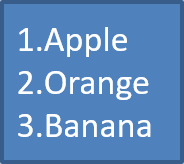
그림 글머리표 만들기
Aspose.Slides allows you to replace a regular bullet symbol with an image. Picture bullets work best with simple images that remain readable at a small size, such as icons or small transparent PNG files.
가능하면 일반 글머리표 기호를 이미지로 교체하려는 경우 투명 배경의 단순 그래픽을 선택하는 것이 가장 좋습니다. 이러한 이미지는 사용자 지정 글머리표 기호로 잘 작동합니다.
이미지는 매우 작은 크기로 축소됩니다. 따라서 리스트에서 글머리표로 사용할 때도 선명하고 시각적으로 효과적인 이미지를 선택하는 것이 좋습니다.
To create a picture bullet, add an image to Presentation.getImages and assign the returned image object to IBulletFormat.getPicture. Set IBulletFormat.setType to BulletType.Picture before assigning the image.
예를 들어 “image.png"라는 파일이 있다고 가정해 보겠습니다:

The following Java code shows how to create picture bullets in a slide:
Presentation presentation = new Presentation();
try {
    ISlide slide = presentation.getSlides().get_Item(0);
    IAutoShape autoShape = slide.getShapes().addAutoShape(ShapeType.Rectangle, 20, 20, 200, 50);

    ITextFrame textFrame = autoShape.getTextFrame();
    textFrame.getParagraphs().clear();

    IPPImage bulletImage = presentation.getImages().addImage(Images.fromFile("image.png"));

    Paragraph paragraph1 = new Paragraph();
    paragraph1.getParagraphFormat().getBullet().setType(BulletType.Picture);
    paragraph1.getParagraphFormat().getBullet().getPicture().setImage(bulletImage);
    paragraph1.getParagraphFormat().setIndent(15);
    paragraph1.getParagraphFormat().getBullet().setHeight(100);
    paragraph1.setText("The first paragraph");
    textFrame.getParagraphs().add(paragraph1);

    Paragraph paragraph2 = new Paragraph();
    paragraph2.getParagraphFormat().getBullet().setType(BulletType.Picture);
    paragraph2.getParagraphFormat().getBullet().getPicture().setImage(bulletImage);
    paragraph2.getParagraphFormat().setIndent(15);
    paragraph2.getParagraphFormat().getBullet().setHeight(100);
    paragraph2.setText("The second paragraph");
    textFrame.getParagraphs().add(paragraph2);

    presentation.save("picture_bullets.pptx", SaveFormat.Pptx);
} finally {
    presentation.dispose();
}
결과:

다단계 목록 만들기
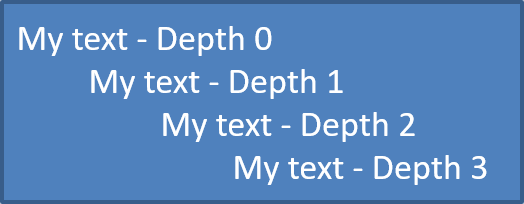
Use IParagraphFormat.setDepth to place list items on different levels. Level 0 is the top level, level 1 is nested below it, and so on.
The following Java code shows how to create a multilevel bulleted list:
Presentation presentation = new Presentation();
try {
    ISlide slide = presentation.getSlides().get_Item(0);
    IAutoShape autoShape = slide.getShapes().addAutoShape(ShapeType.Rectangle, 20, 20, 260, 110);

    ITextFrame textFrame = autoShape.getTextFrame();
    textFrame.getParagraphs().clear();

    Paragraph paragraph1 = new Paragraph();
    paragraph1.getParagraphFormat().setDepth((short) 0);
    paragraph1.setText("My text - Depth 0");
    textFrame.getParagraphs().add(paragraph1);

    Paragraph paragraph2 = new Paragraph();
    paragraph2.getParagraphFormat().setDepth((short) 1);
    paragraph2.setText("My text - Depth 1");
    textFrame.getParagraphs().add(paragraph2);

    Paragraph paragraph3 = new Paragraph();
    paragraph3.getParagraphFormat().setDepth((short) 2);
    paragraph3.setText("My text - Depth 2");
    textFrame.getParagraphs().add(paragraph3);

    Paragraph paragraph4 = new Paragraph();
    paragraph4.getParagraphFormat().setDepth((short) 3);
    paragraph4.setText("My text - Depth 3");
    textFrame.getParagraphs().add(paragraph4);

    presentation.save("multilevel_bullets.pptx", SaveFormat.Pptx);
} finally {
    presentation.dispose();
}
결과:
기존 목록 변경하기
To change list formatting in an existing presentation, access the target paragraph and update its IParagraphFormat.getBullet settings. The same properties used to create lists can be used to inspect or modify lists loaded from a PPT, PPTX, or ODP file.
The following Java code changes the first paragraph in a text frame to use a numbered list style:
Presentation presentation = new Presentation("input.pptx");
try {
    ISlide slide = presentation.getSlides().get_Item(0);
    IAutoShape autoShape = (IAutoShape) slide.getShapes().get_Item(0);
    IParagraph paragraph = autoShape.getTextFrame().getParagraphs().get_Item(0);

    paragraph.getParagraphFormat().getBullet().setType(BulletType.Numbered);
    paragraph.getParagraphFormat().getBullet().setNumberedBulletStyle(NumberedBulletStyle.BulletRomanUCPeriod);
    paragraph.getParagraphFormat().getBullet().setNumberedBulletStartWith((short) 1);
    paragraph.getParagraphFormat().setMarginLeft(30);
    paragraph.getParagraphFormat().setIndent(-20);

    presentation.save("updated_list.pptx", SaveFormat.Pptx);
} finally {
    presentation.dispose();
}
자주 묻는 질문
글머리표와 번호 매기기 목록을 PDF 또는 이미지로 내보낼 수 있나요?
예. 대상 형식이 해당 텍스트 레이아웃 및 글머리표 기능을 지원하면 Aspose.Slides는 목록 서식을 그대로 유지합니다.
기존 프레젠테이션에서 목록을 편집할 수 있나요?
예. 프레젠테이션을 로드한 후 대상 단락에 액세스하고 IParagraphFormat.getBullet 설정을 검사하거나 업데이트한 다음 프레젠테이션을 저장하면 됩니다.
목록에 비라틴 텍스트를 포함할 수 있나요?
예. 목록 항목 텍스트는 Unicode 문자를 포함할 수 있으므로 다국어 프레젠테이션에서도 목록을 만들 수 있습니다. 프레젠테이션에 사용된 글꼴이 필요한 문자를 지원하는지 확인하세요.