
จัดการรายการหัวข้อย่อยและรายการลำดับเลขในงานนำเสนอด้วย Java
ภาพรวม
Aspose.Slides สำหรับ Java ช่วยให้คุณสร้างและจัดรูปแบบรายการแบบหัวข้อย่อยและรายการลำดับเลขในงานนำเสนอ PowerPoint และ OpenDocument รายการแต่ละรายการเป็นย่อหน้าที่การตั้งค่าหัวข้อย่อยถูกควบคุมผ่านรูปแบบย่อหน้า
ใช้เมธอด IParagraph.getParagraphFormat เพื่อเข้าถึงการตั้งค่ารายการระดับย่อหน้า จุดเข้าถึงหลักคือ IParagraphFormat.getBullet, ซึ่งคืนค่าอ็อบเจกต์ IBulletFormat ด้วยอ็อบเจกต์นี้คุณสามารถตั้งค่าชนิดของหัวข้อย่อย, สัญลักษณ์, รูปภาพ, สี, ขนาด, สไตล์การนับเลข, และหมายเลขเริ่มต้น
บทความนี้แสดงวิธีการ:
- สร้างรายการหัวข้อย่อยด้วยสัญลักษณ์กำหนดเอง
- สร้างหัวข้อย่อยแบบรูปภาพ
- สร้างรายการหลายระดับโดยตั้งค่าความลึกของย่อหน้า
- สร้างรายการลำดับเลข
- ตรวจสอบและเปลี่ยนแปลงการจัดรูปแบบรายการในงานนำเสนอที่มีอยู่
สร้างรายการหัวข้อย่อย
เพื่อสร้างรายการหัวข้อย่อย ให้เพิ่มอ็อบเจกต์ IParagraph vào ITextFrame และตั้งค่า IBulletFormat.setType เป็น BulletType.Symbol จากนั้นคุณสามารถตั้งค่า IBulletFormat.setChar, IBulletFormat.getColor, และ IBulletFormat.setHeight เพื่อควบคุมลักษณะของหัวข้อย่อยได้
โค้ด Java ด้านล่างแสดงวิธีการสร้างรายการหัวข้อย่อยในสไลด์:
Presentation presentation = new Presentation();
try {
    ISlide slide = presentation.getSlides().get_Item(0);
    IAutoShape autoShape = slide.getShapes().addAutoShape(ShapeType.Rectangle, 20, 20, 200, 50);

    ITextFrame textFrame = autoShape.getTextFrame();
    textFrame.getParagraphs().clear();

    Color bulletColor = new Color(205, 92, 92);

    Paragraph paragraph1 = new Paragraph();
    paragraph1.getParagraphFormat().getBullet().setType(BulletType.Symbol);
    paragraph1.getParagraphFormat().getBullet().setChar('*');
    paragraph1.getParagraphFormat().setIndent(15);
    paragraph1.getParagraphFormat().getBullet().setBulletHardColor(NullableBool.True);
    paragraph1.getParagraphFormat().getBullet().getColor().setColor(bulletColor);
    paragraph1.getParagraphFormat().getBullet().setHeight(100);
    paragraph1.setText("The first paragraph");
    textFrame.getParagraphs().add(paragraph1);

    Paragraph paragraph2 = new Paragraph();
    paragraph2.getParagraphFormat().getBullet().setType(BulletType.Symbol);
    paragraph2.getParagraphFormat().getBullet().setChar('*');
    paragraph2.getParagraphFormat().setIndent(15);
    paragraph2.getParagraphFormat().getBullet().setBulletHardColor(NullableBool.True);
    paragraph2.getParagraphFormat().getBullet().getColor().setColor(bulletColor);
    paragraph2.getParagraphFormat().getBullet().setHeight(100);
    paragraph2.setText("The second paragraph");
    textFrame.getParagraphs().add(paragraph2);

    presentation.save("symbol_bullets.pptx", SaveFormat.Pptx);
} finally {
    presentation.dispose();
}
ผลลัพธ์:

สร้างรายการลำดับเลข
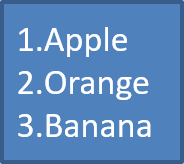
ใช้รายการลำดับเลขเมื่อลำดับของรายการมีความสำคัญ ตั้งค่า IBulletFormat.setType เป็น BulletType.Numbered คุณยังสามารถเลือกรูปแบบการนับเลขด้วย IBulletFormat.setNumberedBulletStyle หรือกำหนดค่าเริ่มต้นด้วย IBulletFormat.setNumberedBulletStartWith เมื่อรายการควรเริ่มจากค่าที่ไม่ใช่ 1
โค้ด Java ด้านล่างแสดงวิธีการสร้างรายการลำดับเลขในสไลด์:
Presentation presentation = new Presentation();
try {
    ISlide slide = presentation.getSlides().get_Item(0);
    IAutoShape autoShape = slide.getShapes().addAutoShape(ShapeType.Rectangle, 20, 20, 90, 80);

    ITextFrame textFrame = autoShape.getTextFrame();
    textFrame.getParagraphs().clear();

    Paragraph paragraph1 = new Paragraph();
    paragraph1.getParagraphFormat().getBullet().setType(BulletType.Numbered);
    paragraph1.setText("Apple");
    textFrame.getParagraphs().add(paragraph1);

    Paragraph paragraph2 = new Paragraph();
    paragraph2.getParagraphFormat().getBullet().setType(BulletType.Numbered);
    paragraph2.setText("Orange");
    textFrame.getParagraphs().add(paragraph2);

    Paragraph paragraph3 = new Paragraph();
    paragraph3.getParagraphFormat().getBullet().setType(BulletType.Numbered);
    paragraph3.setText("Banana");
    textFrame.getParagraphs().add(paragraph3);

    presentation.save("numbered_bullets.pptx", SaveFormat.Pptx);
} finally {
    presentation.dispose();
}
ผลลัพธ์:
สร้างหัวข้อย่อยแบบรูปภาพ
Aspose.Slides อนุญาตให้คุณแทนที่สัญลักษณ์หัวข้อย่อยทั่วไปด้วยรูปภาพ หัวข้อย่อยแบบรูปภาพทำงานได้ดีที่สุดกับรูปภาพที่เรียบง่ายและยังคงอ่านได้เมื่อลดขนาดลงเล็ก เช่น ไอคอนหรือไฟล์ PNG โปร่งใสขนาดเล็ก
โดยอุดมคติ หากคุณวางแผนจะแทนที่สัญลักษณ์หัวข้อย่อยทั่วไปด้วยรูปภาพ ควรเลือกกราฟิกที่เรียบง่ายพร้อมพื้นหลังโปร่งใส รูปภาพเช่นนี้ทำงานได้ดีในฐานะสัญลักษณ์หัวข้อย่อยกำหนดเอง
ควรจำไว้ว่ารูปภาพจะถูกย่อขนาดลงเป็นขนาดเล็กมาก ดังนั้นเราขอแนะนำให้เลือกรูปภาพที่ยังคงชัดเจนและมีประสิทธิภาพทางสายตาเมื่อใช้เป็นหัวข้อย่อยในรายการ
ในการสร้างหัวข้อย่อยแบบรูปภาพ ให้เพิ่มรูปภาพไปยัง Presentation.getImages และกำหนดอ็อบเจกต์รูปภาพที่คืนค่าให้กับ IBulletFormat.getPicture ตั้งค่า IBulletFormat.setType เป็น BulletType.Picture ก่อนกำหนดรูปภาพ
สมมติว่าเรามีไฟล์ “image.png”:

โค้ด Java ด้านล่างแสดงวิธีการสร้างหัวข้อย่อยแบบรูปภาพในสไลด์:
Presentation presentation = new Presentation();
try {
    ISlide slide = presentation.getSlides().get_Item(0);
    IAutoShape autoShape = slide.getShapes().addAutoShape(ShapeType.Rectangle, 20, 20, 200, 50);

    ITextFrame textFrame = autoShape.getTextFrame();
    textFrame.getParagraphs().clear();

    IPPImage bulletImage = presentation.getImages().addImage(Images.fromFile("image.png"));

    Paragraph paragraph1 = new Paragraph();
    paragraph1.getParagraphFormat().getBullet().setType(BulletType.Picture);
    paragraph1.getParagraphFormat().getBullet().getPicture().setImage(bulletImage);
    paragraph1.getParagraphFormat().setIndent(15);
    paragraph1.getParagraphFormat().getBullet().setHeight(100);
    paragraph1.setText("The first paragraph");
    textFrame.getParagraphs().add(paragraph1);

    Paragraph paragraph2 = new Paragraph();
    paragraph2.getParagraphFormat().getBullet().setType(BulletType.Picture);
    paragraph2.getParagraphFormat().getBullet().getPicture().setImage(bulletImage);
    paragraph2.getParagraphFormat().setIndent(15);
    paragraph2.getParagraphFormat().getBullet().setHeight(100);
    paragraph2.setText("The second paragraph");
    textFrame.getParagraphs().add(paragraph2);

    presentation.save("picture_bullets.pptx", SaveFormat.Pptx);
} finally {
    presentation.dispose();
}
ผลลัพธ์:

สร้างรายการหลายระดับ
ใช้เมธอด IParagraphFormat.setDepth เพื่อวางรายการบนระดับที่แตกต่างกัน ระดับ 0 คือระดับบนสุด, ระดับ 1 อยู่ด้านล่างของระดับ 0, เป็นต้น
โค้ด Java ด้านล่างแสดงวิธีการสร้างรายการหัวข้อย่อยหลายระดับ:
Presentation presentation = new Presentation();
try {
    ISlide slide = presentation.getSlides().get_Item(0);
    IAutoShape autoShape = slide.getShapes().addAutoShape(ShapeType.Rectangle, 20, 20, 260, 110);

    ITextFrame textFrame = autoShape.getTextFrame();
    textFrame.getParagraphs().clear();

    Paragraph paragraph1 = new Paragraph();
    paragraph1.getParagraphFormat().setDepth((short) 0);
    paragraph1.setText("My text - Depth 0");
    textFrame.getParagraphs().add(paragraph1);

    Paragraph paragraph2 = new Paragraph();
    paragraph2.getParagraphFormat().setDepth((short) 1);
    paragraph2.setText("My text - Depth 1");
    textFrame.getParagraphs().add(paragraph2);

    Paragraph paragraph3 = new Paragraph();
    paragraph3.getParagraphFormat().setDepth((short) 2);
    paragraph3.setText("My text - Depth 2");
    textFrame.getParagraphs().add(paragraph3);

    Paragraph paragraph4 = new Paragraph();
    paragraph4.getParagraphFormat().setDepth((short) 3);
    paragraph4.setText("My text - Depth 3");
    textFrame.getParagraphs().add(paragraph4);

    presentation.save("multilevel_bullets.pptx", SaveFormat.Pptx);
} finally {
    presentation.dispose();
}
ผลลัพธ์:

เปลี่ยนรายการที่มีอยู่
เพื่อเปลี่ยนการจัดรูปแบบรายการในงานนำเสนอที่มีอยู่ ให้เข้าถึงย่อหน้าย่อยเป้าหมายและอัปเดตการตั้งค่า IParagraphFormat.getBullet ของมัน คุณสามารถใช้คุณสมบัติเดียวกับที่ใช้สร้างรายการเพื่อทำการตรวจสอบหรือปรับแก้รายการที่โหลดจากไฟล์ PPT, PPTX หรือ ODP ได้
โค้ด Java ด้านล่างเปลี่ยนย่อหน้าแรกใน TextFrame ให้ใช้สไตล์รายการลำดับเลข:
Presentation presentation = new Presentation("input.pptx");
try {
    ISlide slide = presentation.getSlides().get_Item(0);
    IAutoShape autoShape = (IAutoShape) slide.getShapes().get_Item(0);
    IParagraph paragraph = autoShape.getTextFrame().getParagraphs().get_Item(0);

    paragraph.getParagraphFormat().getBullet().setType(BulletType.Numbered);
    paragraph.getParagraphFormat().getBullet().setNumberedBulletStyle(NumberedBulletStyle.BulletRomanUCPeriod);
    paragraph.getParagraphFormat().getBullet().setNumberedBulletStartWith((short) 1);
    paragraph.getParagraphFormat().setMarginLeft(30);
    paragraph.getParagraphFormat().setIndent(-20);

    presentation.save("updated_list.pptx", SaveFormat.Pptx);
} finally {
    presentation.dispose();
}
คำถามที่พบบ่อย
รายการหัวข้อย่อยและรายการลำดับเลขสามารถส่งออกเป็น PDF หรือรูปภาพได้หรือไม่?
ได้ Aspose.Slides จะรักษาการจัดรูปแบบรายการเมื่อรูปแบบเป้าหมายสนับสนุนการจัดวางข้อความและคุณสมบัติดังกล่าว
ฉันสามารถแก้ไขรายการในงานนำเสนอที่มีอยู่ได้หรือไม่?
ได้ โหลดงานนำเสนอ, เข้าถึงย่อหน้าย่อยเป้าหมาย, ตรวจสอบหรืออัปเดตการตั้งค่า IParagraphFormat.getBullet ของมัน แล้วบันทึกงานนำเสนอ
รายการสามารถมีข้อความที่ไม่ใช้อักษรละตินได้หรือไม่?
ได้ ข้อความของรายการสามารถมีอักขระ Unicode ได้ ดังนั้นคุณสามารถสร้างรายการในงานนำเสนอหลายภาษาได้ ตรวจสอบให้แน่ใจว่าแบบอักษรที่ใช้ในงานนำเสนอสนับสนุนอักขระที่คุณต้องการ