
Manage Presentation Shapes in .NET
Overview
Aspose.Slides for .NET represents the shapes on a slide as an ordered IShapeCollection. The collection is both the place where you find and modify shapes and the source of their stacking order: index 0 is the backmost shape, while the last index is the frontmost shape.
This article follows that model. It first explains how to identify a shape reliably and modify preset shape adjustment points, then shows how to clone, remove, hide, and reorder shapes. The final sections cover layout-level formatting, SVG export, alignment, and flip settings. Each example is independent, so you can use only the operations your workflow requires.
Identify and Find Shapes
Collection indexes are convenient while processing a known file, but they are not stable identifiers. Adding, removing, or reordering a shape can change its index. Choose an identifier according to how the presentation is authored and maintained:
- Name is useful for developer-controlled templates and is easy to inspect in PowerPoint’s Selection Pane. Names can be edited and are not guaranteed to be unique, so establish a naming convention if code depends on them.
- AlternativeText is useful when an accessibility description or an author-supplied tag already identifies the shape. It is visible to users, may be localized or rewritten for accessibility, and is not guaranteed to be unique. Do not silently repurpose meaningful accessibility text as a database key.
- OfficeInteropShapeId is a read-only identifier that is unique within a slide and corresponds to the shape ID used by PowerPoint interop. Use it when integrating with PowerPoint or when you need an unambiguous reference during the lifetime of a shape. A cloned or recreated shape is a different shape and receives its own ID.
The related UniqueId property has presentation scope, but it is intended for add-ins and can be reassigned. It should not be treated as a permanent external key. If long-term identity is essential, keep the mapping in application data and validate that the expected shape still exists.
For a practical example of reading and updating both the alternative text title and description, see Manage Alternative Text Titles and Descriptions. Use alternative text to explain the visual’s meaning to readers, and keep it separate from shape names used by code to find shapes.
The following example searches by Name with an ordinal comparison and reports the slide-scoped interop ID. When the template does not contain the expected shape, the code reports that result instead of continuing with the wrong object.
using System;
using Aspose.Slides;

using var presentation = new Presentation("input.pptx");
var slide = presentation.Slides[0];

IShape? targetShape = null;
foreach (var shape in slide.Shapes)
{
    if (string.Equals(shape.Name, "RevenueChart", StringComparison.Ordinal))
    {
        targetShape = shape;
        break;
    }
}

if (targetShape is null)
{
    Console.WriteLine("The shape 'RevenueChart' was not found on slide 1.");
}
else
{
    Console.WriteLine($"Found {targetShape.Name}; interop ID: {targetShape.OfficeInteropShapeId}");
}
When an operation is specific to a shape type, check the interface before using type-specific members. This example updates text and alternative text only if the named object is an IAutoShape.
using System;
using Aspose.Slides;
using Aspose.Slides.Export;

using var presentation = new Presentation("input.pptx");
var slide = presentation.Slides[0];

IShape? candidate = null;
foreach (var shape in slide.Shapes)
{
    if (string.Equals(shape.Name, "StatusLabel", StringComparison.Ordinal))
    {
        candidate = shape;
        break;
    }
}

if (candidate is IAutoShape autoShape)
{
    autoShape.TextFrame.Text = "Approved";
    autoShape.AlternativeText = "Approval status: approved";
    presentation.Save("identified-shape.pptx", SaveFormat.Pptx);
}
else
{
    Console.WriteLine("'StatusLabel' is missing or is not an AutoShape.");
}
Identify and Modify Preset Shape Adjustments
Preset geometry shapes can expose adjustment points that control features such as corner size, arrow proportions, or arc angles. Access them through the read-only IGeometryShape.Adjustments collection. The collection itself is supplied by the shape, but each IAdjustValue contains a value that can be changed.
Do not rely only on a fixed collection index. Iterate through the adjustments and inspect the read-only Type property, whose ShapeAdjustmentType value describes what the adjustment controls. The read-only Name property provides additional identification information and is especially useful when a preset contains more than one adjustment with the same semantic type.
Use the value property that matches the adjustment’s meaning:
| Adjustment type | Purpose | Value to change |
|---|---|---|
CornerSize |
Size of rounded corners | RawValue |
ArrowTailThickness |
Thickness of an arrow tail | RawValue |
ArrowheadLength |
Length of an arrowhead | RawValue |
ArrowheadWidth |
Width of an arrowhead | RawValue |
StartAngle |
Start angle of a pie or arc | AngleValue |
EndAngle |
End angle of a pie or arc | AngleValue |
Type and Name cannot be assigned. RawValue is a read/write integer in the preset’s native geometry units, while AngleValue is a read/write angle in degrees. The number, order, meaning, and valid range of adjustments depend on the preset ShapeType. A value that is valid for one preset may be invalid or have a different effect for another.
When Type is ShapeAdjustmentType.Custom, the API does not recognize a standard semantic meaning. Inspect Name, the preset type, and the existing value, and leave the adjustment unchanged unless the expected meaning and range are known. Even for recognized types, check whether the same type occurs more than once before selecting a value. The Connector article shows this situation with connector bend adjustments.
The following complete example creates default and modified versions of three preset shapes. It iterates through every adjustment, reports its Name and Type, changes size-related values through RawValue, changes angles through AngleValue, and saves the result. The left column retains the default geometry; the right column shows the adjusted rounded rectangle, four-way arrow, and pie.
using System;
using Aspose.Slides;
using Aspose.Slides.Export;

using var presentation = new Presentation();
var slide = presentation.Slides[0];

// Adds headers for the default and adjusted shape columns.
var defaultColumnLabel = slide.Shapes.AddAutoShape(ShapeType.Rectangle, 40, 20, 250, 30);
defaultColumnLabel.TextFrame.Text = "Default preset geometry";
var adjustedColumnLabel = slide.Shapes.AddAutoShape(ShapeType.Rectangle, 390, 20, 250, 30);
adjustedColumnLabel.TextFrame.Text = "Modified adjustment values";

slide.Shapes.AddAutoShape(ShapeType.RoundCornerRectangle, 80, 70, 160, 70);
var modifiedRoundedRectangle = slide.Shapes.AddAutoShape(ShapeType.RoundCornerRectangle, 430, 70, 160, 70);
modifiedRoundedRectangle.Name = "ModifiedRoundedRectangle";

slide.Shapes.AddAutoShape(ShapeType.QuadArrow, 80, 180, 160, 110);
var modifiedArrow = slide.Shapes.AddAutoShape(ShapeType.QuadArrow, 430, 180, 160, 110);
modifiedArrow.Name = "ModifiedQuadArrow";

slide.Shapes.AddAutoShape(ShapeType.Pie, 95, 330, 130, 130);
var modifiedPie = slide.Shapes.AddAutoShape(ShapeType.Pie, 445, 330, 130, 130);
modifiedPie.Name = "ModifiedPie";

var shapesToAdjust = new IGeometryShape[]
{
    modifiedRoundedRectangle,
    modifiedArrow,
    modifiedPie
};

foreach (var shape in shapesToAdjust)
{
    for (var adjustmentIndex = 0; adjustmentIndex < shape.Adjustments.Count; adjustmentIndex++)
    {
        var adjustment = shape.Adjustments[adjustmentIndex];
        Console.WriteLine($"{shape.Name} / {adjustment.Name}: {adjustment.Type}");

        switch (adjustment.Type)
        {
            case ShapeAdjustmentType.CornerSize:
                adjustment.RawValue = 5000;
                break;
            case ShapeAdjustmentType.ArrowTailThickness:
                adjustment.RawValue = 25000;
                break;
            case ShapeAdjustmentType.ArrowheadLength:
                adjustment.RawValue = 30000;
                break;
            case ShapeAdjustmentType.ArrowheadWidth:
                adjustment.RawValue = 40000;
                break;
            case ShapeAdjustmentType.StartAngle:
                adjustment.AngleValue = 30;
                break;
            case ShapeAdjustmentType.EndAngle:
                adjustment.AngleValue = 300;
                break;
            case ShapeAdjustmentType.Custom:
                Console.WriteLine($"Custom adjustment '{adjustment.Name}' was not changed.");
                break;
        }
    }
}

presentation.Save("preset-shape-adjustments.pptx", SaveFormat.Pptx);
Checking the semantic type before changing a value makes the code explicit about its intent and avoids assuming that a particular collection index has the same meaning across different preset shapes.
Modify the Shape Collection
The add, clone, remove, and reorder methods operate on the collection immediately. If an operation changes the number or order of shapes, do not continue to rely on indexes captured before that operation.
Clone a Shape
AddClone creates an independent copy and appends it to the target collection. InsertClone also creates a copy but places it at a specified z-order index. The overloads that accept coordinates move the clone without changing its size; overloads with width and height can resize it as well.
The example creates a destination slide, clones a labeled rectangle to the front, and inserts a second clone at the back. Changes to either clone do not modify the source shape.
using System;
using Aspose.Slides;
using Aspose.Slides.Export;

using var presentation = new Presentation();
var sourceSlide = presentation.Slides[0];
var sourceShape = sourceSlide.Shapes.AddAutoShape(ShapeType.Rectangle, 40, 40, 180, 60);
sourceShape.Name = "SourceLabel";
sourceShape.TextFrame.Text = "Source";

var blankLayout = presentation.Masters[0].LayoutSlides.GetByType(SlideLayoutType.Blank);
var destinationSlide = presentation.Slides.AddEmptySlide(blankLayout);

var frontCloneShape = destinationSlide.Shapes.AddClone(sourceShape, 80, 80);
frontCloneShape.Name = "FrontClone";
if (frontCloneShape is IAutoShape frontClone)
{
    frontClone.TextFrame.Text = "Front clone";
}
else
{
    Console.WriteLine("The front clone is not an AutoShape; its text was not changed.");
}

var backCloneShape = destinationSlide.Shapes.InsertClone(0, sourceShape, 80, 180);
backCloneShape.Name = "BackClone";
if (backCloneShape is IAutoShape backClone)
{
    backClone.TextFrame.Text = "Back clone";
}
else
{
    Console.WriteLine("The back clone is not an AutoShape; its text was not changed.");
}

presentation.Save("cloned-shapes.pptx", SaveFormat.Pptx);
Cloning copies the shape’s content and formatting, including its name and alternative text. Assign new logical identifiers to the clone when those values must be unique. Resources used by complex shapes are handled by the presentation, but a clone remains a new collection item with a new shape identity.
Remove Shapes
Remove deletes a specific shape object from its collection. When removing multiple matches during indexed iteration, traverse from the end so that each remaining index stays valid.
This example removes every shape with a designated name. It reads slide.Shapes[i], not a fixed collection item, and it does not cast the shape unnecessarily.
using System;
using Aspose.Slides;
using Aspose.Slides.Export;

using var presentation = new Presentation();
var slide = presentation.Slides[0];

var keepShape = slide.Shapes.AddAutoShape(ShapeType.Rectangle, 40, 40, 140, 60);
keepShape.Name = "Keep";

var firstTemporaryShape = slide.Shapes.AddAutoShape(ShapeType.Ellipse, 220, 40, 80, 80);
firstTemporaryShape.Name = "Temporary";

var secondTemporaryShape = slide.Shapes.AddAutoShape(ShapeType.Triangle, 340, 40, 100, 80);
secondTemporaryShape.Name = "Temporary";

for (var i = slide.Shapes.Count - 1; i >= 0; i--)
{
    var shape = slide.Shapes[i];
    if (string.Equals(shape.Name, "Temporary", StringComparison.Ordinal))
    {
        slide.Shapes.Remove(shape);
    }
}

presentation.Save("removed-shapes.pptx", SaveFormat.Pptx);
After removal, the shape count and the indexes of later shapes change. References to unaffected shapes remain more reliable than saved indexes. Also consider connectors, animations, and other presentation features that may refer to the removed object; removing a visible shape can change more than the slide’s appearance.
Hide a Shape
Setting Hidden to true keeps the shape in the collection but prevents it from appearing in the normal slide show. Its index, formatting, and content remain available to code, so hiding is appropriate for optional elements that may be restored later.
using System;
using Aspose.Slides;
using Aspose.Slides.Export;

using var presentation = new Presentation();
var slide = presentation.Slides[0];

var visibleShape = slide.Shapes.AddAutoShape(ShapeType.Rectangle, 40, 40, 160, 60);
visibleShape.Name = "VisibleLabel";

var optionalShape = slide.Shapes.AddAutoShape(ShapeType.Moon, 240, 40, 100, 100);
optionalShape.Name = "OptionalDecoration";

foreach (var shape in slide.Shapes)
{
    if (string.Equals(shape.Name, "OptionalDecoration", StringComparison.Ordinal))
    {
        shape.Hidden = true;
    }
}

presentation.Save("hidden-shape.pptx", SaveFormat.Pptx);
Hiding is not deletion or security. The object can still be discovered and unhidden by a user or by code, and it remains part of the presentation file.
Change the Z-Order
Overlapping shapes are painted in collection order. Reorder moves an existing shape to a target index without cloning it. Index 0 is the back; Count - 1 is the front.
using System.Drawing;
using Aspose.Slides;
using Aspose.Slides.Export;

using var presentation = new Presentation();
var slide = presentation.Slides[0];

var blueRectangle = slide.Shapes.AddAutoShape(ShapeType.Rectangle, 100, 100, 220, 120);
blueRectangle.Name = "BlueRectangle";
blueRectangle.FillFormat.FillType = FillType.Solid;
blueRectangle.FillFormat.SolidFillColor.Color = Color.SteelBlue;

var orangeEllipse = slide.Shapes.AddAutoShape(ShapeType.Ellipse, 180, 140, 220, 120);
orangeEllipse.Name = "OrangeEllipse";
orangeEllipse.FillFormat.FillType = FillType.Solid;
orangeEllipse.FillFormat.SolidFillColor.Color = Color.Orange;

slide.Shapes.Reorder(slide.Shapes.Count - 1, blueRectangle);
presentation.Save("reordered-shapes.pptx", SaveFormat.Pptx);
The rectangle is created first and initially sits behind the ellipse. Moving it to the final index puts it in front. Finalize z-order after adding or cloning all related shapes, because those operations append or insert new collection items and can alter the intended stack.
Inspect Shapes on Layout Slides
Normal slides, layout slides, and master slides have separate shape collections. A shape in a layout collection is not the same object as a similarly positioned shape on a normal slide. Inspect layout shapes when you need to understand or change formatting supplied by a layout.
The following example reads each layout shape’s FillFormat and LineFormat without assuming that every shape is an AutoShape.
using System;
using Aspose.Slides;

using var presentation = new Presentation("input.pptx");

foreach (var layoutSlide in presentation.LayoutSlides)
{
    foreach (var shape in layoutSlide.Shapes)
    {
        var fillType = shape.FillFormat.FillType;
        var lineWidth = shape.LineFormat.Width;
        Console.WriteLine($"{layoutSlide.Name} / {shape.Name}: fill={fillType}, line width={lineWidth}");
    }
}
Editing a layout can affect multiple slides that use it. Before changing a layout shape, determine whether a normal slide inherits the object or contains a local override, and test every slide that uses that layout.
Export a Shape to SVG
WriteAsSvg writes one shape’s rendered content to a stream. The result contains the shape, not the entire slide background or neighboring shapes.
using System;
using System.IO;
using Aspose.Slides;

using var presentation = new Presentation("input.pptx");
var slide = presentation.Slides[0];

if (slide.Shapes.Count == 0)
{
    Console.WriteLine("Slide 1 does not contain a shape to export.");
}
else
{
    var shape = slide.Shapes[0];
    using var svgStream = File.Create("shape.svg");
    shape.WriteAsSvg(svgStream);
}
Keep the presentation open while rendering. The output depends on the shape’s formatting and on resources such as fonts and images. If you need the whole composition, export the slide rather than an individual shape. The caller owns the stream and must dispose it.
Align Shapes
The SlideUtil.AlignShapes overloads align either all shapes or selected collection indexes. ShapesAlignmentType specifies the edge, center line, or distribution mode. Set alignToSlide to true to use the slide edges; set it to false to align the selected shapes relative to one another.
This example aligns three shapes to the top edge of the slide. The returned shape references are converted to their current indexes immediately before alignment.
using Aspose.Slides;
using Aspose.Slides.Export;
using Aspose.Slides.Util;

using var presentation = new Presentation();
var slide = presentation.Slides[0];

var firstShape = slide.Shapes.AddAutoShape(ShapeType.Rectangle, 60, 80, 120, 50);
var secondShape = slide.Shapes.AddAutoShape(ShapeType.Ellipse, 240, 160, 120, 50);
var thirdShape = slide.Shapes.AddAutoShape(ShapeType.Triangle, 420, 240, 120, 50);
firstShape.Name = "FirstAlignedShape";
secondShape.Name = "SecondAlignedShape";
thirdShape.Name = "ThirdAlignedShape";

var shapeIndexes = new[]
{
    slide.Shapes.IndexOf(firstShape),
    slide.Shapes.IndexOf(secondShape),
    slide.Shapes.IndexOf(thirdShape)
};

SlideUtil.AlignShapes(ShapesAlignmentType.AlignTop, true, slide, shapeIndexes);
presentation.Save("aligned-shapes.pptx", SaveFormat.Pptx);
Alignment changes positions, not z-order. Relative alignment normally needs at least two shapes, while horizontal or vertical distribution needs enough shapes to define spacing. Recompute indexes if you modify the collection before calling the method.
Flip a Shape
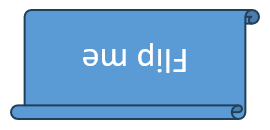
The ShapeFrame class stores position, size, horizontal and vertical flip settings, and rotation. Its FlipH and FlipV values use NullableBool: True enables the flip, False disables it, and NotDefined preserves the unspecified/default state.
The input presentation below contains one unflipped shape.

The example preserves every other frame value and replaces only the two flip settings. This is important because assigning a new Frame replaces the complete frame.
using System;
using Aspose.Slides;
using Aspose.Slides.Export;

using var presentation = new Presentation("sample.pptx");
var shape = presentation.Slides[0].Shapes[0];
var frame = shape.Frame;

Console.WriteLine($"Horizontal flip before change: {frame.FlipH}");
Console.WriteLine($"Vertical flip before change: {frame.FlipV}");

shape.Frame = new ShapeFrame(
    frame.X, frame.Y, frame.Width, frame.Height,
    NullableBool.True, NullableBool.True, frame.Rotation);

presentation.Save("flipped-shape.pptx", SaveFormat.Pptx);
The saved shape is mirrored horizontally and vertically while keeping its position, size, and rotation.
FAQ
Should I use a collection index as a shape identifier?
Only for short-lived processing when the collection will not change before the index is used. Prefer a validated Name or AlternativeText convention for authored templates, or OfficeInteropShapeId for slide-scoped interop work.
Does hiding a shape remove it from the z-order?
No. A hidden shape remains in the collection at the same index. It can be found, reordered, edited, or made visible again.
Why did a cloned shape appear in front of another shape?
AddClone appends the clone to the end of the collection, which is the front of the z-order. Use InsertClone to choose the initial index or Reorder after all shapes have been added.
Can I use a fixed index to identify a preset shape adjustment?
Only after validating the exact preset and collection layout. Prefer iterating through IGeometryShape.Adjustments and checking IAdjustValue.Type; use IAdjustValue.Name as additional information when the same semantic type appears more than once.