
Apply or Change Slide Layouts in .NET
Overview
A slide layout defines the positions and formatting of placeholders such as titles, text, pictures, charts, and tables. Applying a layout gives slides a consistent structure while allowing each slide to contain its own content.
The most common layouts include:
- Title Slide: Contains title and subtitle placeholders.
- Title and Content: Contains a title placeholder and a general-purpose content placeholder.
- Blank: Contains no content placeholders and is useful when every shape will be positioned manually.
Understand Layout Inheritance
A presentation has three related levels:
- A master slide defines the theme, shared formatting, backgrounds, and common objects.
- A layout slide belongs to a master and defines a particular arrangement of placeholders.
- A normal slide uses one layout and stores the content entered for that slide.
A normal slide inherits theme and formatting from its layout, and the layout inherits from its master. A value set directly on a normal slide overrides the inherited value at that level. When a normal slide is created, its placeholder shapes are generated from the selected layout, while the content entered into those placeholders belongs to the normal slide.
Add required placeholders to a layout before creating slides from it. Adding another placeholder to a layout later does not automatically add a corresponding placeholder shape to existing normal slides.
This relationship has two important consequences:
- Changing inherited formatting or existing placeholder geometry on a layout can update every slide that depends on it. Before editing a layout that is already in use, inspect its dependent slides and review the resulting presentation.
- A layout that is still used by a slide cannot be removed. Reassign its dependent slides to another layout first, or remove only unused layouts.
For more information about the top level of this hierarchy, see Slide Master.
To hide inherited logos or decorative master shapes on one slide or through a shared layout, see Control the Visibility of Master Graphics. The example compares two slides using the same master.
Select and Apply a Slide Layout
Use a layout type when the presentation follows standard PowerPoint layout definitions. Layout names are user-editable and can be localized, so name-based selection is less reliable unless you control the source template.
The following example looks for Title and Content on the first master. If that layout is unavailable, it deliberately falls back to Blank. The second null check is necessary because a presentation can contain only custom layouts. The selected layout is then applied to the first normal slide through the ISlide.LayoutSlide property.
using System;
using Aspose.Slides;
using Aspose.Slides.Export;

using var presentation = new Presentation("input.pptx");

var layoutSlides = presentation.Masters[0].LayoutSlides;
var targetLayout = layoutSlides.GetByType(SlideLayoutType.TitleAndObject) ?? layoutSlides.GetByType(SlideLayoutType.Blank);

if (targetLayout == null)
{
    throw new InvalidOperationException("The first master does not contain a suitable layout slide.");
}

presentation.Slides[0].LayoutSlide = targetLayout;
presentation.Save("output-with-new-layout.pptx", SaveFormat.Pptx);
Changing a slide’s layout does not remove ordinary shapes added directly to the slide. However, placeholder positions, inherited formatting, and the correspondence between existing placeholders and the new layout can change, so inspect the output when switching between substantially different layouts.
Add a Layout Slide
Selection and creation are separate operations. The previous example selects an existing layout; it does not create one. To create a layout, call the IMasterLayoutSlideCollection.Add method on the target master’s layout collection.
The following example always adds a new Title and Content layout named Report Title and Content, then adds a normal slide based on it. Layout names must be unique within the collection.
using Aspose.Slides;
using Aspose.Slides.Export;

using var presentation = new Presentation("input.pptx");

var masterSlide = presentation.Masters[0];
var reportLayout = masterSlide.LayoutSlides.Add(SlideLayoutType.TitleAndObject, "Report Title and Content");
presentation.Slides.AddEmptySlide(reportLayout);

presentation.Save("output-with-report-layout.pptx", SaveFormat.Pptx);
Add a layout only when the template genuinely needs another reusable structure. If a suitable layout already exists, select and reuse it instead of creating a duplicate.
Add Placeholders to a Layout Slide
The ILayoutSlide.PlaceholderManager property provides an ILayoutPlaceholderManager for adding placeholder shapes to a layout.


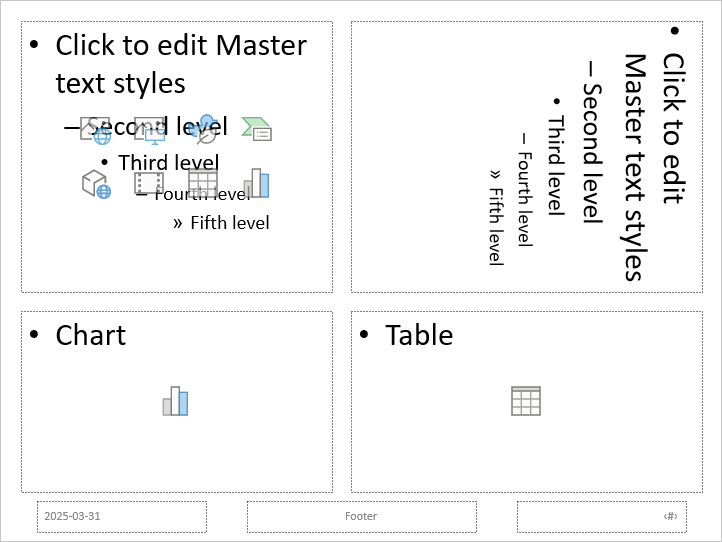
The following example verifies that the Blank layout exists, adds four placeholders to it, and then creates a normal slide that uses the modified layout. The order is intentional: the placeholders are added before the normal slide is created, so Aspose.Slides can generate the corresponding placeholder shapes on that slide.
using System;
using Aspose.Slides;
using Aspose.Slides.Export;

using var presentation = new Presentation();

var blankLayout = presentation.LayoutSlides.GetByType(SlideLayoutType.Blank);

if (blankLayout == null)
{
    throw new InvalidOperationException("The presentation does not contain a Blank layout slide.");
}

var placeholderManager = blankLayout.PlaceholderManager;
placeholderManager.AddContentPlaceholder(20, 20, 310, 270);
placeholderManager.AddVerticalTextPlaceholder(350, 20, 350, 270);
placeholderManager.AddChartPlaceholder(20, 310, 310, 180);
placeholderManager.AddTablePlaceholder(350, 310, 350, 180);

presentation.Slides.AddEmptySlide(blankLayout);
presentation.Save("output-with-placeholders.pptx", SaveFormat.Pptx);
The result:
Warning
Changing inherited formatting or the geometry of existing layout placeholders can affect dependent slides. A newly added layout placeholder is not backfilled into existing normal slides. Test layout changes on a copy of the presentation and inspect every dependent slide.Remove Unused Layout Slides
Use the Compress.RemoveUnusedLayoutSlides method to remove layouts that no normal slide references. The method leaves layouts that are still in use intact.
using Aspose.Slides;
using Aspose.Slides.Export;
using Aspose.Slides.LowCode;

using var presentation = new Presentation("input.pptx");

Compress.RemoveUnusedLayoutSlides(presentation);
presentation.Save("output-without-unused-layouts.pptx", SaveFormat.Pptx);
To remove one specific layout, first use its HasDependingSlides property or GetDependingSlides method. Reassign any dependent slides before calling ILayoutSlide.Remove. Attempting to remove a used layout raises a PptxEditException.
Control Footer Visibility on a Layout Slide
A layout has its own footer, slide-number, and date-time placeholders. Use the ILayoutSlide.HeaderFooterManager property to control those placeholders for one layout. This is useful when, for example, content layouts should show footers but title layouts should not.
The following example selects a layout safely and makes its footer elements visible:
using System;
using Aspose.Slides;
using Aspose.Slides.Export;

using var presentation = new Presentation("input.pptx");

var layoutSlide = presentation.LayoutSlides.GetByType(SlideLayoutType.TitleAndObject) ?? presentation.LayoutSlides.GetByType(SlideLayoutType.Blank);

if (layoutSlide == null)
{
    throw new InvalidOperationException("The presentation does not contain a suitable layout slide.");
}

var headerFooterManager = layoutSlide.HeaderFooterManager;
headerFooterManager.SetFooterVisibility(true);
headerFooterManager.SetSlideNumberVisibility(true);
headerFooterManager.SetDateTimeVisibility(true);
headerFooterManager.SetFooterText("Footer text");
headerFooterManager.SetDateTimeText("Date and time text");

presentation.Save("output-with-layout-footers.pptx", SaveFormat.Pptx);
Control Footer Visibility on a Master and Its Child Layouts
To apply consistent footer settings across a master hierarchy, use the IMasterSlide.HeaderFooterManager property. The propagation methods of IMasterSlideHeaderFooterManager operate on the master and its dependent layout slides and normal slides; they do not target just one normal slide.
using Aspose.Slides;
using Aspose.Slides.Export;

using var presentation = new Presentation("input.pptx");

var headerFooterManager = presentation.Masters[0].HeaderFooterManager;
headerFooterManager.SetFooterAndChildFootersVisibility(true);
headerFooterManager.SetSlideNumberAndChildSlideNumbersVisibility(true);
headerFooterManager.SetDateTimeAndChildDateTimesVisibility(true);
headerFooterManager.SetFooterAndChildFootersText("Footer text");
headerFooterManager.SetDateTimeAndChildDateTimesText("Date and time text");

presentation.Save("output-with-master-footers.pptx", SaveFormat.Pptx);
FAQ
What Is the Difference Between a Master Slide and a Layout Slide?
A master slide defines the presentation’s theme and shared formatting. A layout slide belongs to a master and defines one reusable arrangement of placeholders. Normal slides use those layouts and store slide-specific content.
Can I Copy a Layout Slide from One Presentation to Another?
Yes. Add a copy to the destination collection with the AddClone method. When copying between presentations, also verify fonts, themes, images, and other resources used by the source layout.
What Happens When I Modify a Layout That Is Already in Use?
Dependent slides inherit the layout changes unless they override the affected formatting or objects locally. Placeholder geometry and inherited styling can therefore change on many slides at once. Use GetDependingSlides to identify the affected slides before editing the layout.
What Happens If I Remove a Layout That Is Still in Use?
Aspose.Slides throws a PptxEditException. Reassign the dependent slides first, or use RemoveUnusedLayoutSlides to remove only unreferenced layouts.