
Manage Audio in Presentations Using Python
Overview
This article explains how to work with audio frames in Aspose.Slides. It shows how to add embedded audio to slides, customize the audio frame thumbnail, configure playback options such as volume, looping, hiding, trimming, and fade durations, and extract audio used in slide show transitions.
Create Audio Frames
Aspose.Slides for Python via Java allows you to add audio files to slides. The audio files are embedded in slides as audio frames.
- Create an instance of the Presentation class.
- Get a reference to a slide by its index.
- Read the audio file you want to embed in the slide.
- Add the embedded audio frame (containing the audio file) to the slide.
- Use setPlayMode and setVolume exposed by the AudioFrame object.
- Save the modified presentation.
This Python code shows you how to add an embedded audio frame to a slide:
from pathlib import Path

import jpype
import asposeslides

if not jpype.isJVMStarted():
    jpype.startJVM()

from asposeslides.api import AudioPlayModePreset, AudioVolumeMode, Presentation, SaveFormat

presentation = Presentation()
try:
    slide = presentation.getSlides().get_Item(0)
    audio_data = Path("audio.wav").read_bytes()
    java_audio_data = jpype.JArray(jpype.JByte)(audio_data)
    audio = presentation.getAudios().addAudio(java_audio_data)
    audio_frame = slide.getShapes().addAudioFrameEmbedded(50, 150, 100, 100, audio)

    audio_frame.setPlayMode(AudioPlayModePreset.Auto)
    audio_frame.setVolume(AudioVolumeMode.Loud)
    presentation.save("AudioFrameEmbed_out.pptx", SaveFormat.Pptx)
finally:
    presentation.dispose()
Change the Audio Frame Thumbnail
When you add an audio file to a presentation, the audio appears as a frame with a standard default image (see the image in the section below). You can change the audio frame’s preview image to an image of your choice.
This Python code shows you how to change an audio frame’s thumbnail or preview image:
from pathlib import Path

import jpype
import asposeslides

if not jpype.isJVMStarted():
    jpype.startJVM()

from asposeslides.api import Images, Presentation, SaveFormat

presentation = Presentation()
try:
    slide = presentation.getSlides().get_Item(0)
    audio_data = Path("sample2.mp3").read_bytes()
    java_audio_data = jpype.JArray(jpype.JByte)(audio_data)
    audio = presentation.getAudios().addAudio(java_audio_data)
    audio_frame = slide.getShapes().addAudioFrameEmbedded(150, 100, 50, 50, audio)

    image = Images.fromFile("eagle.jpeg")
    try:
        picture = presentation.getImages().addImage(image)
    finally:
        image.dispose()

    audio_frame.getPictureFormat().getPicture().setImage(picture)
    presentation.save("example_out.pptx", SaveFormat.Pptx)
finally:
    presentation.dispose()
Change Audio Play Options
Aspose.Slides for Python via Java allows you to change options that control audio playback or properties. For example, you can adjust the audio volume, set the audio to loop, or even hide the audio icon.
The Audio Options pane in Microsoft PowerPoint:
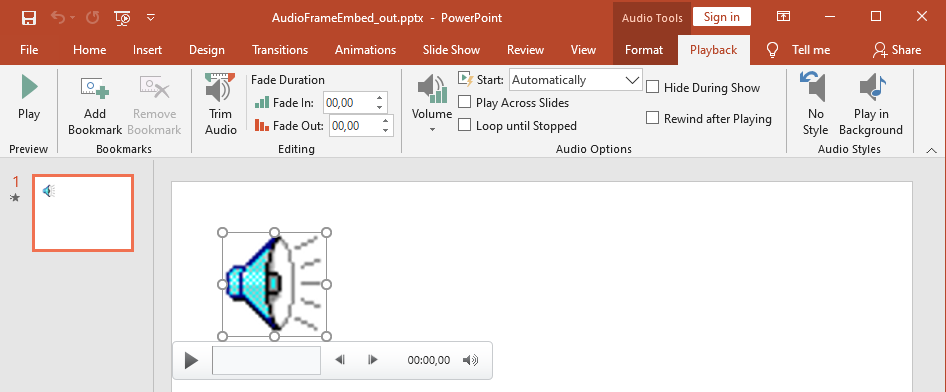
PowerPoint Audio Options that correspond to Aspose.Slides AudioFrame properties:
- Start drop-down list matches the setPlayMode method
- Volume matches the setVolume method
- Play Across Slides matches the setPlayAcrossSlides method
- Loop until Stopped matches the setPlayLoopMode method
- Hide During Show matches the setHideAtShowing method
- Rewind after Playing matches the setRewindAudio method
PowerPoint Editing options that correspond to Aspose.Slides AudioFrame properties:
- Fade In matches the setFadeInDuration method
- Fade Out matches the setFadeOutDuration method
- Trim Audio Start Time matches the setTrimFromStart method
- Trim Audio End Time value equals the audio duration minus the value set by the setTrimFromEnd method
The PowerPoint Volume control on the audio control panel corresponds to the setVolumeValue method. It lets you change the audio volume as a percentage.
This is how you change the Audio Play options:
- Create or get the audio frame.
- Set new values for the audio frame properties you want to adjust.
- Save the modified PowerPoint file.
This Python code demonstrates an operation in which audio options are adjusted:
import jpype
import asposeslides

if not jpype.isJVMStarted():
    jpype.startJVM()

from asposeslides.api import AudioFrame, AudioPlayModePreset, AudioVolumeMode, Presentation, SaveFormat

presentation = Presentation("AudioFrameEmbed_out.pptx")
try:
    audio_frame = presentation.getSlides().get_Item(0).getShapes().get_Item(0)
    if isinstance(audio_frame, AudioFrame):
        # Play on click at low volume, across slides, without looping.
        audio_frame.setPlayMode(AudioPlayModePreset.OnClick)
        audio_frame.setVolume(AudioVolumeMode.Low)
        audio_frame.setPlayAcrossSlides(True)
        audio_frame.setPlayLoopMode(False)
        # Hide the frame during the slide show and rewind after playing.
        audio_frame.setHideAtShowing(True)
        audio_frame.setRewindAudio(True)
        presentation.save("AudioFrameEmbed_changed.pptx", SaveFormat.Pptx)
    else:
        print("The shape is not an audio frame.")
finally:
    presentation.dispose()
This Python example shows how to add a new audio frame with embedded audio, trim it, and set the fade durations:
from pathlib import Path

import jpype
import asposeslides

if not jpype.isJVMStarted():
    jpype.startJVM()

from asposeslides.api import Presentation, SaveFormat

presentation = Presentation()
try:
    slide = presentation.getSlides().get_Item(0)
    audio_data = Path("sampleaudio.mp3").read_bytes()
    java_audio_data = jpype.JArray(jpype.JByte)(audio_data)
    audio = presentation.getAudios().addAudio(java_audio_data)
    audio_frame = slide.getShapes().addAudioFrameEmbedded(50, 50, 100, 100, audio)

    # Trim 1.5 seconds from the start and 2 seconds from the end.
    audio_frame.setTrimFromStart(1500.0)
    audio_frame.setTrimFromEnd(2000.0)
    # Set fade-in to 200 ms and fade-out to 500 ms.
    audio_frame.setFadeInDuration(200.0)
    audio_frame.setFadeOutDuration(500.0)
    presentation.save("AudioFrameTrimFade_out.pptx", SaveFormat.Pptx)
finally:
    presentation.dispose()
The following code sample shows how to retrieve an audio frame with embedded audio and set its volume to 85%:
import jpype
import asposeslides

if not jpype.isJVMStarted():
    jpype.startJVM()

from asposeslides.api import AudioFrame, Presentation, SaveFormat

presentation = Presentation("AudioFrameEmbed_out.pptx")
try:
    slide = presentation.getSlides().get_Item(0)
    audio_frame = slide.getShapes().get_Item(0)
    if isinstance(audio_frame, AudioFrame):
        audio_frame.setVolumeValue(85.0)
        presentation.save("AudioFrameValue_out.pptx", SaveFormat.Pptx)
    else:
        print("The shape is not an audio frame.")
finally:
    presentation.dispose()
Manage Audio Captions
Aspose.Slides allows you to add closed captions to an audio frame through the getCaptionTracks method. This method returns a CaptionsCollection, which lets you add WebVTT caption tracks, iterate through existing tracks, and remove them when necessary.
Add Audio Captions
Use the getCaptionTracks method to attach one or more caption tracks to an audio frame. In the following example, an audio file is added to a slide, and then a new caption track is loaded from a .vtt file.
from pathlib import Path

import jpype
import asposeslides

if not jpype.isJVMStarted():
    jpype.startJVM()

from asposeslides.api import Presentation, SaveFormat

presentation = Presentation()
try:
    audio_data = Path("audio.mp3").read_bytes()
    java_audio_data = jpype.JArray(jpype.JByte)(audio_data)
    audio = presentation.getAudios().addAudio(java_audio_data)
    slide = presentation.getSlides().get_Item(0)
    audio_frame = slide.getShapes().addAudioFrameEmbedded(10, 10, 50, 50, audio)

    # Add a new caption track from a WebVTT file.
    audio_frame.getCaptionTracks().add("New track", "track.vtt")
    presentation.save("audio_with_captions.pptx", SaveFormat.Pptx)
finally:
    presentation.dispose()
Extract Audio Captions
You can iterate through the caption tracks associated with an audio frame and save them as .vtt files. Each caption track exposes its binary data and unique identifier, which can be used when exporting captions.
from pathlib import Path

import jpype
import asposeslides

if not jpype.isJVMStarted():
    jpype.startJVM()

from asposeslides.api import AudioFrame, Presentation

presentation = Presentation("audio_with_captions.pptx")
try:
    slide = presentation.getSlides().get_Item(0)
    for shape in slide.getShapes():
        if isinstance(shape, AudioFrame):
            for caption_track in shape.getCaptionTracks():
                # Save the caption track as a .vtt file.
                file_path = Path(str(caption_track.getCaptionId()) + ".vtt")
                caption_data = bytes(caption_track.getBinaryData())
                file_path.write_bytes(caption_data)
finally:
    presentation.dispose()
Remove Audio Captions
To remove captions from an audio frame, use the methods provided by CaptionsCollection, such as clear, remove, or removeAt. The following example removes all caption tracks from an audio frame.
import jpype
import asposeslides

if not jpype.isJVMStarted():
    jpype.startJVM()

from asposeslides.api import AudioFrame, Presentation, SaveFormat

presentation = Presentation("audio_with_captions.pptx")
try:
    slide = presentation.getSlides().get_Item(0)
    audio_frame = slide.getShapes().get_Item(0)
    if isinstance(audio_frame, AudioFrame):
        audio_frame.getCaptionTracks().clear()
        presentation.save("audio_without_captions.pptx", SaveFormat.Pptx)
    else:
        print("The shape is not an audio frame.")
finally:
    presentation.dispose()
Extract Audio
Aspose.Slides for Python via Java allows you to extract the sound used in slide show transitions. For example, you can extract the sound used in a specific slide.
- Create an instance of the Presentation class and load the presentation containing the audio.
- Get a reference to the relevant slide by its index.
- Access the slideshow transitions for the slide.
- Extract the sound as byte data.
This code in Python shows you how to extract the audio used in a slide:
import jpype
import asposeslides

if not jpype.isJVMStarted():
    jpype.startJVM()

from asposeslides.api import Presentation

presentation = Presentation("AudioSlide.pptx")
try:
    slide = presentation.getSlides().get_Item(0)
    transition = slide.getSlideShowTransition()
    sound = transition.getSound()
    if sound is not None:
        audio_data = sound.getBinaryData()
        print("Length:", len(audio_data))
    else:
        print("The slide transition has no sound.")
finally:
    presentation.dispose()
FAQ
Can I reuse the same audio asset across multiple slides without inflating the file size?
Yes. Add the audio once to the presentation’s shared audio collection and create additional audio frames that reference that existing asset. This avoids duplicating media data and keeps the presentation size under control.
Can I replace the sound in an existing audio frame without recreating the shape?
Yes. For a linked sound, update the link path to point to the new file. For an embedded sound, swap the embedded audio object with another one from the presentation’s audio collection. The frame’s formatting and most playback settings remain intact.
Does trimming change the underlying audio data stored in the presentation?
No. Trimming adjusts only the playback boundaries. The original audio bytes remain untouched and accessible through the embedded audio or the presentation’s audio collection.