
Enhance Your Presentations with AutoFit in Python
Introduction
By default, when you add a text box, Microsoft PowerPoint uses the Resize shape to fit text setting for the text box—it automatically resizes the text box to ensure its text always fits into it.
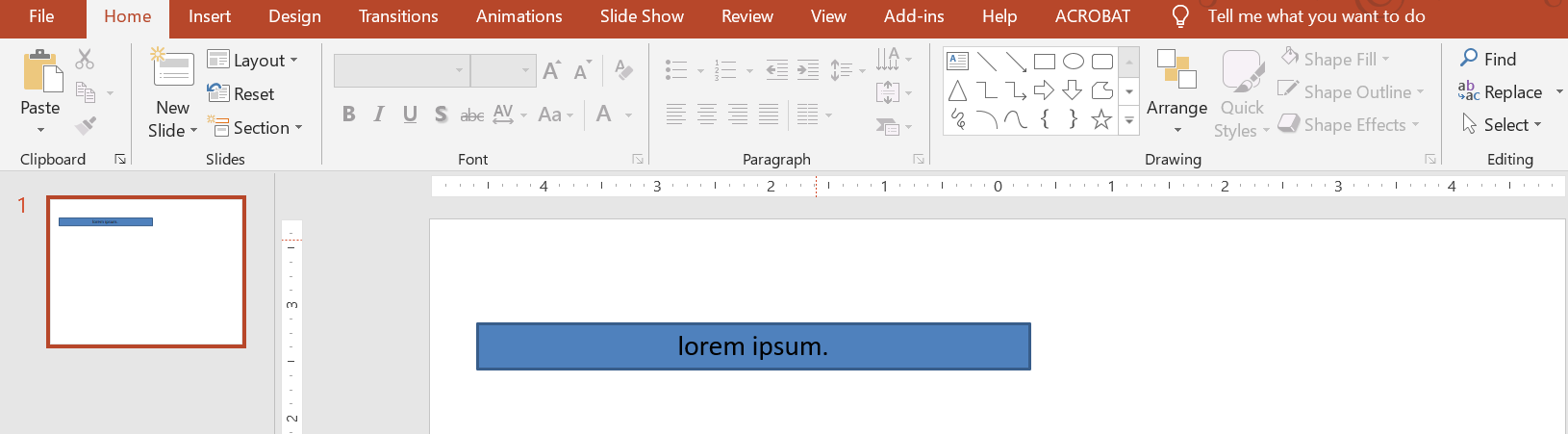
- When the text in the text box becomes longer or bigger, PowerPoint automatically enlarges the text box—increases its height—to allow it to hold more text.
- When the text in the text box becomes shorter or smaller, PowerPoint automatically reduces the text box—decreases its height—to remove excess space.
In PowerPoint, these are the 4 important parameters or options that control the autofit behavior for a text box:
- Do not Autofit
- Shrink text on overflow
- Resize shape to fit text
- Wrap text in shape.
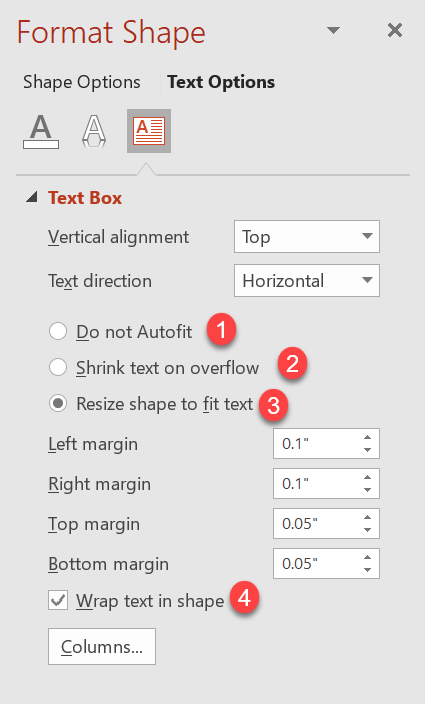
Aspose.Slides for Python via Java provides similar options—some properties under the TextFrameFormat class—that allow you to control the autofit behavior for text boxes in presentations.
Resize a Shape to Fit Text
If you want the text in a box to always fit into that box after changes are made to the text, you have to use the Resize shape to fit text option. To specify this setting, use the setAutofitType method (from the TextFrameFormat class) with Shape.
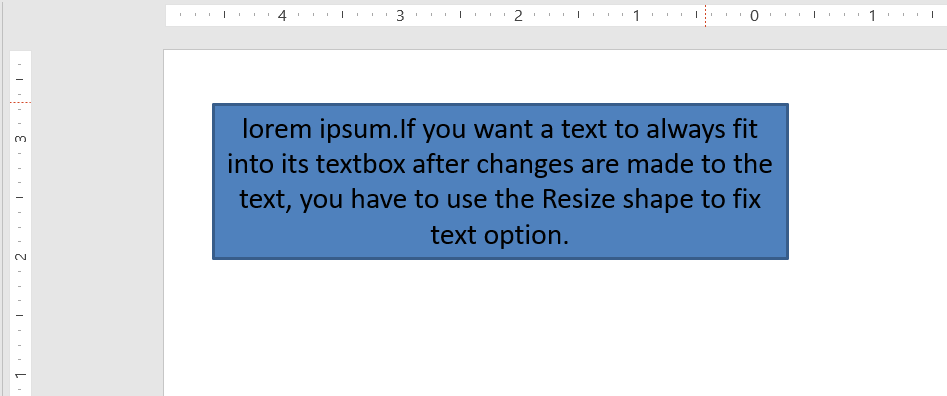
This Python code shows you how to specify that text must always fit into its box in a PowerPoint presentation:
import jpype
import asposeslides

if not jpype.isJVMStarted():
    jpype.startJVM()

from asposeslides.api import Presentation, ShapeType, Portion, FillType, TextAutofitType, SaveFormat
from java.awt import Color

presentation = Presentation()
try:
    slide = presentation.getSlides().get_Item(0)
    auto_shape = slide.getShapes().addAutoShape(ShapeType.Rectangle, 30, 30, 350, 100)

    portion = Portion("lorem ipsum...")
    portion.getPortionFormat().getFillFormat().getSolidFillColor().setColor(Color.BLACK)
    portion.getPortionFormat().getFillFormat().setFillType(FillType.Solid)
    auto_shape.getTextFrame().getParagraphs().get_Item(0).getPortions().add(portion)

    text_frame_format = auto_shape.getTextFrame().getTextFrameFormat()
    text_frame_format.setAutofitType(TextAutofitType.Shape)

    presentation.save("Output-presentation.pptx", SaveFormat.Pptx)
finally:
    presentation.dispose()
If the text becomes longer or bigger, the text box will be automatically resized (increase in height) to ensure all the text fits into it. If the text becomes shorter, the reverse occurs.
Do Not Autofit
If you want a text box or shape to retain its dimensions regardless of changes to the text it contains, you have to use the Do not Autofit option. To specify this setting, use the setAutofitType method (from the TextFrameFormat class) with None.
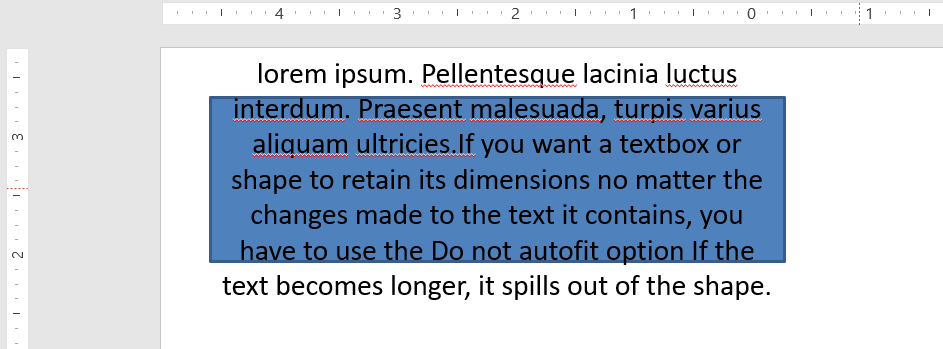
This Python code shows you how to specify that a text box must always retain its dimensions in a PowerPoint presentation:
import jpype
import asposeslides

if not jpype.isJVMStarted():
    jpype.startJVM()

from asposeslides.api import Presentation, ShapeType, Portion, FillType, TextAutofitType, SaveFormat
from java.awt import Color

presentation = Presentation()
try:
    slide = presentation.getSlides().get_Item(0)
    auto_shape = slide.getShapes().addAutoShape(ShapeType.Rectangle, 30, 30, 350, 100)

    portion = Portion("lorem ipsum...")
    portion.getPortionFormat().getFillFormat().getSolidFillColor().setColor(Color.BLACK)
    portion.getPortionFormat().getFillFormat().setFillType(FillType.Solid)
    auto_shape.getTextFrame().getParagraphs().get_Item(0).getPortions().add(portion)

    text_frame_format = auto_shape.getTextFrame().getTextFrameFormat()
    text_frame_format.setAutofitType(TextAutofitType.None_)

    presentation.save("Output-presentation.pptx", SaveFormat.Pptx)
finally:
    presentation.dispose()
When the text becomes too long for its box, it spills out.
Shrink Text on Overflow
If text becomes too long for its box, you can use the Shrink text on overflow option to specify that the text’s size and spacing must be reduced to make it fit into its box. To specify this setting, use the setAutofitType method (from the TextFrameFormat class) with Normal.
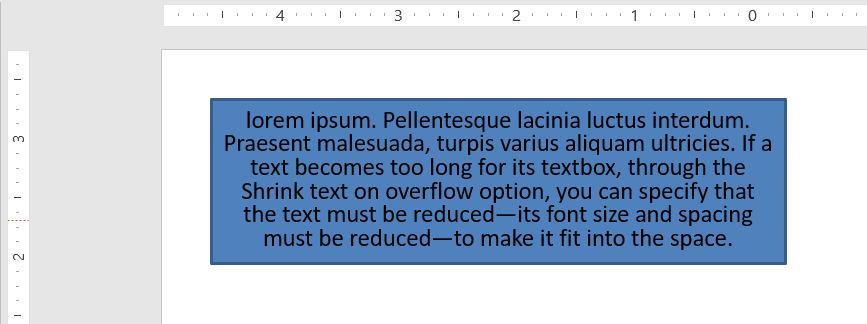
This Python code shows you how to specify that text must be shrunk on overflow in a PowerPoint presentation:
import jpype
import asposeslides

if not jpype.isJVMStarted():
    jpype.startJVM()

from asposeslides.api import Presentation, ShapeType, Portion, FillType, TextAutofitType, SaveFormat
from java.awt import Color

presentation = Presentation()
try:
    slide = presentation.getSlides().get_Item(0)
    auto_shape = slide.getShapes().addAutoShape(ShapeType.Rectangle, 30, 30, 350, 100)

    portion = Portion("lorem ipsum...")
    portion.getPortionFormat().getFillFormat().getSolidFillColor().setColor(Color.BLACK)
    portion.getPortionFormat().getFillFormat().setFillType(FillType.Solid)
    auto_shape.getTextFrame().getParagraphs().get_Item(0).getPortions().add(portion)

    text_frame_format = auto_shape.getTextFrame().getTextFrameFormat()
    text_frame_format.setAutofitType(TextAutofitType.Normal)

    presentation.save("Output-presentation.pptx", SaveFormat.Pptx)
finally:
    presentation.dispose()
Note
When the Shrink text on overflow option is used, the setting gets applied only when the text becomes too long for its box.Wrap Text
If you want the text in a shape to wrap inside that shape when the text goes beyond the shape’s border (width only), you have to use the Wrap text in shape parameter. To specify this setting, you have to use the setWrapText method (from the TextFrameFormat class) with NullableBool.True_.
This Python code shows you how to use the Wrap Text setting in a PowerPoint presentation:
import jpype
import asposeslides

if not jpype.isJVMStarted():
    jpype.startJVM()

from asposeslides.api import Presentation, ShapeType, Portion, FillType, NullableBool, SaveFormat
from java.awt import Color

presentation = Presentation()
try:
    slide = presentation.getSlides().get_Item(0)
    auto_shape = slide.getShapes().addAutoShape(ShapeType.Rectangle, 30, 30, 350, 100)

    portion = Portion("lorem ipsum...")
    portion.getPortionFormat().getFillFormat().getSolidFillColor().setColor(Color.BLACK)
    portion.getPortionFormat().getFillFormat().setFillType(FillType.Solid)
    auto_shape.getTextFrame().getParagraphs().get_Item(0).getPortions().add(portion)

    text_frame_format = auto_shape.getTextFrame().getTextFrameFormat()
    text_frame_format.setWrapText(NullableBool.True_)

    presentation.save("Output-presentation.pptx", SaveFormat.Pptx)
finally:
    presentation.dispose()
Warning
If you use the setWrapText method with NullableBool.False for a shape, when the text inside the shape becomes longer than the shape’s width, the text extends beyond the shape’s borders along a single line.FAQ
Do the text frame’s internal margins affect AutoFit?
Yes. Padding (internal margins) reduces the usable area for text, so AutoFit will kick in earlier—shrinking the font or resizing the shape sooner. Check and adjust margins before tuning AutoFit.
How does AutoFit interact with manual and soft line breaks?
Forced breaks remain in place, and AutoFit adapts font size and spacing around them. Removing unnecessary breaks often reduces how aggressively AutoFit needs to shrink the text.
Does changing the theme font or triggering font substitution affect AutoFit results?
Yes. Substituting a font with different glyph metrics changes text width/height, which can alter final font size and line wrapping. After any font change or substitution, re-check the slides.