
เพิ่มประสิทธิภาพการนำเสนอของคุณด้วย AutoFit ใน Python
บทนำ
โดยค่าเริ่มต้นเมื่อคุณเพิ่มกล่องข้อความ Microsoft PowerPoint จะใช้การตั้งค่า Resize shape to fit text สำหรับกล่องข้อความ — มันจะปรับขนาดกล่องข้อความโดยอัตโนมัติเพื่อให้ข้อความอยู่ภายในกล่องเสมอ
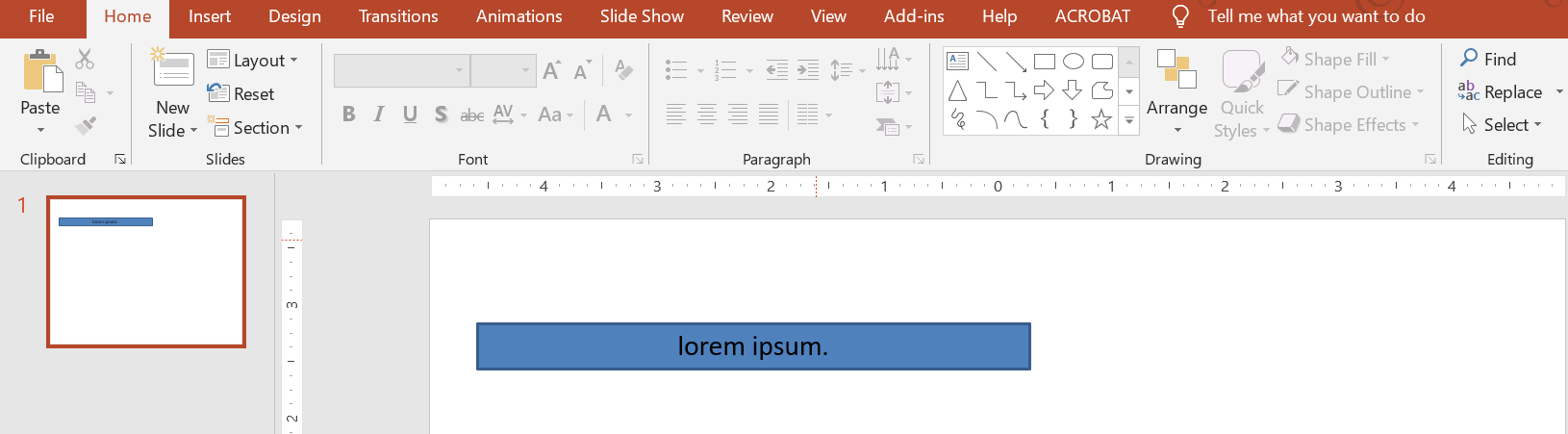
- เมื่อข้อความในกล่องข้อความยาวขึ้นหรือใหญ่ขึ้น PowerPoint จะขยายกล่องข้อความโดยเพิ่มความสูงเพื่อให้สามารถใส่ข้อความได้มากขึ้น
- เมื่อข้อความในกล่องข้อความสั้นลงหรือเล็กลง PowerPoint จะลดขนาดกล่องข้อความโดยลดความสูงเพื่อกำจัดพื้นที่ว่างส่วนเกิน
ใน PowerPoint มี 4 พารามิเตอร์หรือทางเลือกสำคัญที่ควบคุมพฤติกรรม autofit ของกล่องข้อความ:
- Do not Autofit
- Shrink text on overflow
- Resize shape to fit text
- Wrap text in shape.
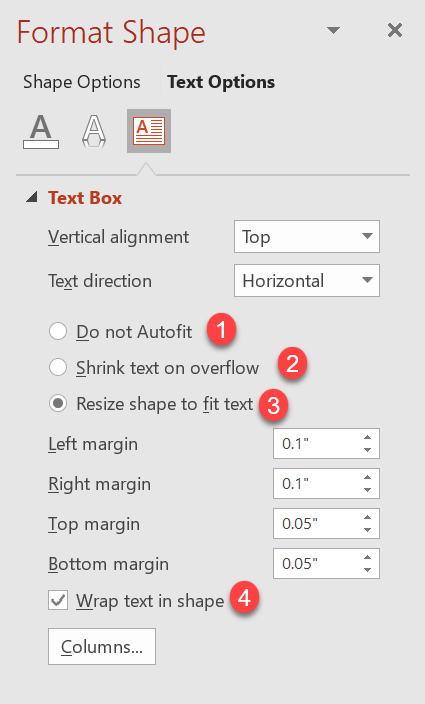
Aspose.Slides for Python via Java มีตัวเลือกคล้ายกัน — คุณสมบัติบางส่วนในคลาส TextFrameFormat — ที่ให้คุณควบคุมพฤติกรรม autofit ของกล่องข้อความในงานนำเสนอ
Resize a Shape to Fit Text
หากคุณต้องการให้ข้อความในกล่องพอดีเสมอหลังจากมีการเปลี่ยนแปลงข้อความ คุณต้องใช้ตัวเลือก Resize shape to fit text ระบุการตั้งค่านี้ด้วยวิธี setAutofitType (จากคลาส TextFrameFormat) พร้อมค่าพารามิเตอร์ Shape
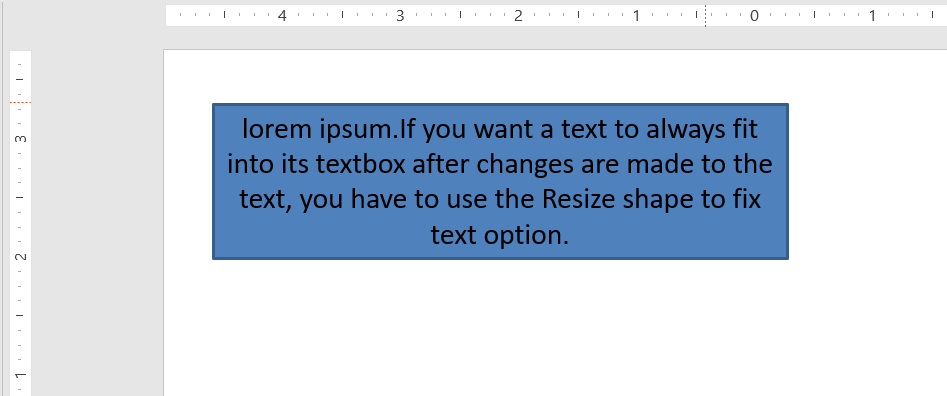
โค้ด Python นี้แสดงวิธีกำหนดให้ข้อความต้องพอดีกับกล่องเสมอในงานนำเสนอ PowerPoint:
import jpype
import asposeslides

if not jpype.isJVMStarted():
    jpype.startJVM()

from asposeslides.api import Presentation, ShapeType, Portion, FillType, TextAutofitType, SaveFormat
from java.awt import Color

presentation = Presentation()
try:
    slide = presentation.getSlides().get_Item(0)
    auto_shape = slide.getShapes().addAutoShape(ShapeType.Rectangle, 30, 30, 350, 100)

    portion = Portion("lorem ipsum...")
    portion.getPortionFormat().getFillFormat().getSolidFillColor().setColor(Color.BLACK)
    portion.getPortionFormat().getFillFormat().setFillType(FillType.Solid)
    auto_shape.getTextFrame().getParagraphs().get_Item(0).getPortions().add(portion)

    text_frame_format = auto_shape.getTextFrame().getTextFrameFormat()
    text_frame_format.setAutofitType(TextAutofitType.Shape)

    presentation.save("Output-presentation.pptx", SaveFormat.Pptx)
finally:
    presentation.dispose()
หากข้อความยาวหรือใหญ่ขึ้น กล่องข้อความจะปรับขนาดโดยอัตโนมัติ (เพิ่มความสูง) เพื่อให้ข้อความทั้งหมดพอดี หากข้อความสั้นลง จะเกิดการย้อนกลับ
Do Not Autofit
หากคุณต้องการให้กล่องข้อความหรือรูปร่างคงขนาดเดิมไม่ว่าข้อความในนั้นจะเปลี่ยนแปลงอย่างไร คุณต้องใช้ตัวเลือก Do not Autofit ระบุการตั้งค่านี้ด้วยวิธี setAutofitType (จากคลาส TextFrameFormat) พร้อมค่าพารามิเตอร์ None
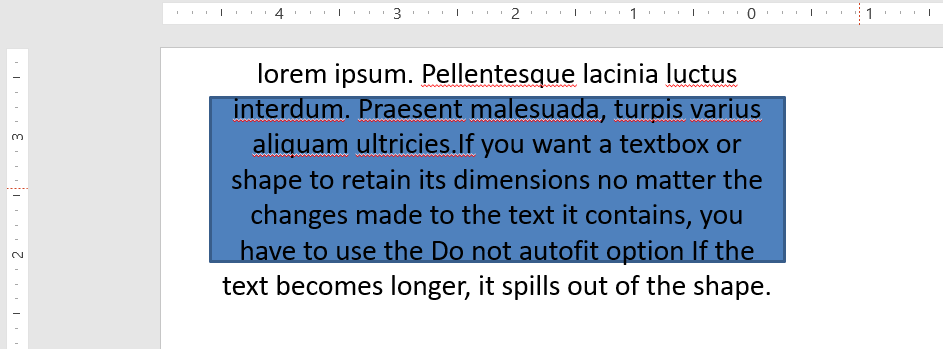
โค้ด Python นี้แสดงวิธีกำหนดให้กล่องข้อความคงขนาดเดิมในงานนำเสนอ PowerPoint:
import jpype
import asposeslides

if not jpype.isJVMStarted():
    jpype.startJVM()

from asposeslides.api import Presentation, ShapeType, Portion, FillType, TextAutofitType, SaveFormat
from java.awt import Color

presentation = Presentation()
try:
    slide = presentation.getSlides().get_Item(0)
    auto_shape = slide.getShapes().addAutoShape(ShapeType.Rectangle, 30, 30, 350, 100)

    portion = Portion("lorem ipsum...")
    portion.getPortionFormat().getFillFormat().getSolidFillColor().setColor(Color.BLACK)
    portion.getPortionFormat().getFillFormat().setFillType(FillType.Solid)
    auto_shape.getTextFrame().getParagraphs().get_Item(0).getPortions().add(portion)

    text_frame_format = auto_shape.getTextFrame().getTextFrameFormat()
    text_frame_format.setAutofitType(TextAutofitType.None_)

    presentation.save("Output-presentation.pptx", SaveFormat.Pptx)
finally:
    presentation.dispose()
เมื่อข้อความยาวเกินขนาดกล่อง มันจะล้นออกมานอกกล่อง
Shrink Text on Overflow
หากข้อความยาวเกินขนาดกล่อง คุณสามารถใช้ตัวเลือก Shrink text on overflow เพื่อกำหนดให้ขนาดและระยะห่างของข้อความถูกลดลงเพื่อให้พอดีกับกล่อง ระบุการตั้งค่านี้ด้วยวิธี setAutofitType (จากคลาส TextFrameFormat) พร้อมค่าพารามิเตอร์ Normal
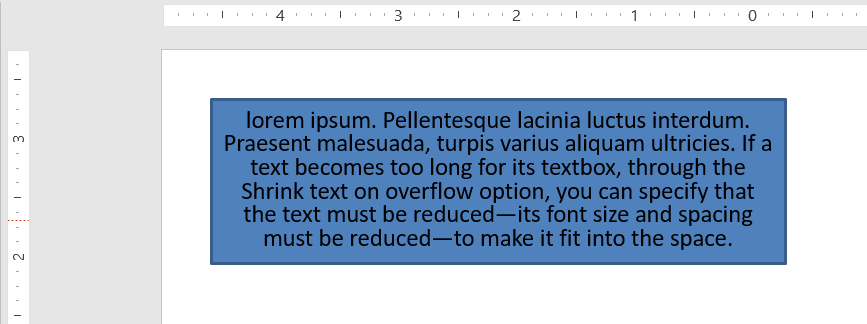
โค้ด Python นี้แสดงวิธีกำหนดให้ข้อความต้องหดลงเมื่อเกิด overflow ในงานนำเสนอ PowerPoint:
import jpype
import asposeslides

if not jpype.isJVMStarted():
    jpype.startJVM()

from asposeslides.api import Presentation, ShapeType, Portion, FillType, TextAutofitType, SaveFormat
from java.awt import Color

presentation = Presentation()
try:
    slide = presentation.getSlides().get_Item(0)
    auto_shape = slide.getShapes().addAutoShape(ShapeType.Rectangle, 30, 30, 350, 100)

    portion = Portion("lorem ipsum...")
    portion.getPortionFormat().getFillFormat().getSolidFillColor().setColor(Color.BLACK)
    portion.getPortionFormat().getFillFormat().setFillType(FillType.Solid)
    auto_shape.getTextFrame().getParagraphs().get_Item(0).getPortions().add(portion)

    text_frame_format = auto_shape.getTextFrame().getTextFrameFormat()
    text_frame_format.setAutofitType(TextAutofitType.Normal)

    presentation.save("Output-presentation.pptx", SaveFormat.Pptx)
finally:
    presentation.dispose()
Note
เมื่อใช้ตัวเลือก Shrink text on overflow การตั้งค่าจะถูกนำไปใช้เฉพาะเมื่ข้อความยาวเกินขนาดกล่องเท่านั้นWrap Text
หากคุณต้องการให้ข้อความในรูปร่างห่อหุ้มภายในรูปร่างเมื่อข้อความเกินขอบเขตของรูปร่าง (เฉพาะความกว้าง) คุณต้องใช้พารามิเตอร์ Wrap text in shape ระบุการตั้งค่านี้ด้วยวิธี setWrapText (จากคลาส TextFrameFormat) พร้อมค่าพารามิเตอร์ NullableBool.True_
โค้ด Python นี้แสดงวิธีใช้การตั้งค่า Wrap Text ในงานนำเสนอ PowerPoint:
import jpype
import asposeslides

if not jpype.isJVMStarted():
    jpype.startJVM()

from asposeslides.api import Presentation, ShapeType, Portion, FillType, NullableBool, SaveFormat
from java.awt import Color

presentation = Presentation()
try:
    slide = presentation.getSlides().get_Item(0)
    auto_shape = slide.getShapes().addAutoShape(ShapeType.Rectangle, 30, 30, 350, 100)

    portion = Portion("lorem ipsum...")
    portion.getPortionFormat().getFillFormat().getSolidFillColor().setColor(Color.BLACK)
    portion.getPortionFormat().getFillFormat().setFillType(FillType.Solid)
    auto_shape.getTextFrame().getParagraphs().get_Item(0).getPortions().add(portion)

    text_frame_format = auto_shape.getTextFrame().getTextFrameFormat()
    text_frame_format.setWrapText(NullableBool.True_)

    presentation.save("Output-presentation.pptx", SaveFormat.Pptx)
finally:
    presentation.dispose()
Warning
หากคุณใช้วิธี setWrapText พร้อมค่าพารามิเตอร์ NullableBool.False สำหรับรูปแบบใดรูปแบบหนึ่ง เมื่อข้อความภายในรูปร่างยาวกว่าความกว้างของรูปร่าง ข้อความจะล้นออกมานอกขอบเขตของรูปร่างในบรรทัดเดียวFAQ
Do the text frame’s internal margins affect AutoFit?
ใช่ ระยะห่างภายใน (padding) ลดพื้นที่ใช้ได้สำหรับข้อความ ดังนั้น AutoFit จะทำงานเร็วขึ้นโดยการหดขนาดฟอนต์หรือปรับขนาดรูปร่างเร็วขึ้น ตรวจสอบและปรับระยะห่างก่อนทำการปรับ AutoFit
How does AutoFit interact with manual and soft line breaks?
การแบ่งบรรทัดที่บังคับไว้จะคงอยู่และ AutoFit จะปรับขนาดฟอนต์และระยะห่างรอบ ๆ การแบ่งบรรทัดนั้น การลบการแบ่งบรรทัดที่ไม่จำเป็นมักช่วยลดการหดขนาดข้อความของ AutoFit
Does changing the theme font or triggering font substitution affect AutoFit results?
ใช่ การแทนที่ฟอนต์ด้วยฟอนต์ที่มีเมตริกซ์ glyph ต่างกันจะเปลี่ยนความกว้าง/สูงของข้อความ ซึ่งอาจทำให้ขนาดฟอนต์สุดท้ายและการห่อบรรทัดเปลี่ยนแปลง หลังจากเปลี่ยนฟอนต์หรือทำการแทนที่ฟอนต์ ควรตรวจสอบสไลด์อีกครั้ง