
Manage Text Boxes in Presentations Using Python via Java
Introduction
In Aspose.Slides for Python via Java, slide text is stored in text frames that belong to shapes. The AutoShape class represents the most common text-bearing shape and exposes its text through the AutoShape.getTextFrame method.
Note
Every auto shape inherits from Shape, but not every shape is an auto shape or supports a text frame. When processing an existing presentation, check that a shape is an instance of AutoShape before accessing its text.Create a Text Box on a Slide
To create a text box, add an auto shape to a slide, add text to its text frame, and save the presentation. The following example creates a rectangular text box:
import jpype
import asposeslides

if not jpype.isJVMStarted():
    jpype.startJVM()

from asposeslides.api import Presentation, SaveFormat, ShapeType

presentation = Presentation()
try:
    slide = presentation.getSlides().get_Item(0)
    text_box = slide.getShapes().addAutoShape(ShapeType.Rectangle, 150, 75, 300, 50)
    text_box.addTextFrame("Aspose TextBox")

    presentation.save("TextBox.pptx", SaveFormat.Pptx)
finally:
    presentation.dispose()
The coordinates and dimensions passed to ShapeCollection.addAutoShape are measured in points. AutoShape.addTextFrame initializes the text frame with the supplied text.
Check for a Text Box Shape
Use the AutoShape.isTextBox method to determine whether an auto shape is treated as a text box. This is useful when a presentation contains both text-bearing and purely graphical auto shapes.
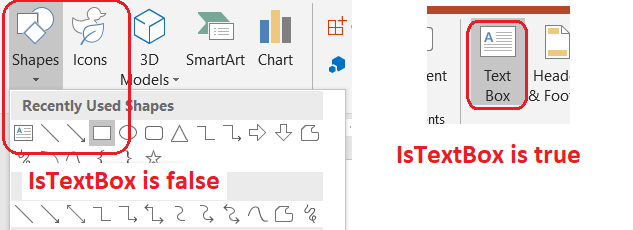
The following example inspects every auto shape in a presentation:
import jpype
import asposeslides

if not jpype.isJVMStarted():
    jpype.startJVM()

from asposeslides.api import AutoShape, Presentation, ShapeType

presentation = Presentation()
try:
    slide = presentation.getSlides().get_Item(0)
    text_box = slide.getShapes().addAutoShape(ShapeType.Rectangle, 10, 10, 120, 40)
    text_box.addTextFrame("Text box")
    slide.getShapes().addAutoShape(ShapeType.Ellipse, 150, 10, 40, 40)

    for current_slide in presentation.getSlides():
        for shape in current_slide.getShapes():
            if isinstance(shape, AutoShape):
                print("The shape is a text box." if shape.isTextBox() else "The shape is not a text box.")
finally:
    presentation.dispose()
A newly added auto shape is not considered a text box until it contains non-empty text. You can supply that text through AutoShape.addTextFrame or TextFrame.setText. Adding or assigning an empty string leaves AutoShape.isTextBox returning False:
import jpype
import asposeslides

if not jpype.isJVMStarted():
    jpype.startJVM()

from asposeslides.api import Presentation, ShapeType

presentation = Presentation()
try:
    slide = presentation.getSlides().get_Item(0)

    added_text_shape = slide.getShapes().addAutoShape(ShapeType.Rectangle, 10, 10, 100, 40)
    added_text_shape.addTextFrame("Shape 1")
    print(added_text_shape.isTextBox())

    assigned_text_shape = slide.getShapes().addAutoShape(ShapeType.Rectangle, 10, 70, 100, 40)
    assigned_text_shape.getTextFrame().setText("Shape 2")
    print(assigned_text_shape.isTextBox())

    added_empty_text_shape = slide.getShapes().addAutoShape(ShapeType.Rectangle, 10, 130, 100, 40)
    added_empty_text_shape.addTextFrame("")
    print(added_empty_text_shape.isTextBox())

    assigned_empty_text_shape = slide.getShapes().addAutoShape(ShapeType.Rectangle, 10, 190, 100, 40)
    assigned_empty_text_shape.getTextFrame().setText("")
    print(assigned_empty_text_shape.isTextBox())
finally:
    presentation.dispose()
The first two calls print True; the last two print False.
Find the Shape That Owns a Text Frame
Generic text-processing code may receive a TextFrame without knowing which presentation object contains it. Use the read-only TextFrame.getParentShape method to navigate back to its owning Shape.
For a text frame owned by an auto shape or another text-bearing shape, TextFrame.getParentShape returns the owner and TextFrame.getParentCell returns None. Check the returned value before accessing it. To identify both shape and table-cell owners, including shapes associated with SmartArt nodes, see Search and Replace Text.
Add Columns to a Text Box
The TextFrameFormat.setColumnCount method divides the text frame into columns, while TextFrameFormat.setColumnSpacing sets the gap between columns in points. Both settings belong to TextFrameFormat and can be changed through the text frame of an existing text box. Text reflows between columns inside the same shape; it does not continue into another shape.
The following example creates a three-column text box with 10 points between columns, saves the presentation, and reads the stored settings back from the output file:
import jpype
import asposeslides

if not jpype.isJVMStarted():
    jpype.startJVM()

from asposeslides.api import Presentation, SaveFormat, ShapeType

presentation = Presentation()
try:
    slide = presentation.getSlides().get_Item(0)
    text_box = slide.getShapes().addAutoShape(ShapeType.Rectangle, 100, 100, 300, 200)
    text_box.addTextFrame("This text is distributed automatically across all columns in the text box.")

    text_frame_format = text_box.getTextFrame().getTextFrameFormat()
    text_frame_format.setColumnCount(3)
    text_frame_format.setColumnSpacing(10)

    presentation.save("TextBoxColumns.pptx", SaveFormat.Pptx)

    saved_presentation = Presentation("TextBoxColumns.pptx")
    try:
        saved_text_box = saved_presentation.getSlides().get_Item(0).getShapes().get_Item(0)
        saved_format = saved_text_box.getTextFrame().getTextFrameFormat()
        print(f"Columns: {saved_format.getColumnCount()}; spacing: {saved_format.getColumnSpacing()} points")
    finally:
        saved_presentation.dispose()
finally:
    presentation.dispose()
Extract Text from Individual Columns
Use TextFrame.splitTextByColumns to retrieve the text assigned to each visual column in an existing text frame. The method returns one string for each column, in column-based reading order. A single-column text frame produces an array with one element, and an empty column is represented by an empty string. The strings contain plain text only; portion-level formatting is not preserved.
This is useful when you need to:
- Extract text while preserving its column-based reading order.
- Index or compare the content of multi-column slides.
- Export each column to a separate file, database field, or other destination.
- Inspect how text is redistributed after changing the column count with TextFrameFormat.setColumnCount, the spacing with TextFrameFormat.setColumnSpacing, the font, or the text-frame size.
The method reports the text distributed within the current TextFrame; it does not automatically flow text between separate shapes or text boxes. Column distribution can depend on available fonts and other text-layout settings, so make sure that the required fonts are available when consistent results are important.
The following example loads a presentation, finds the first multi-column auto shape with a text frame, reads its configured column count, and writes the text from every column to a separate file. Shapes that do not provide a text frame are skipped.
import jpype
import asposeslides

if not jpype.isJVMStarted():
    jpype.startJVM()

from pathlib import Path
from asposeslides.api import AutoShape, Presentation

presentation = Presentation("MultiColumnText.pptx")
try:
    text_box = None
    for shape in presentation.getSlides().get_Item(0).getShapes():
        if isinstance(shape, AutoShape):
            if shape.getTextFrame() is not None:
                column_count = shape.getTextFrame().getTextFrameFormat().getColumnCount()
                if column_count > 1:
                    text_box = shape
                    break

    if text_box is None:
        print("No multi-column text frame was found.")
    else:
        text_frame = text_box.getTextFrame()
        configured_column_count = text_frame.getTextFrameFormat().getColumnCount()
        column_texts = text_frame.splitTextByColumns()

        print(f"Configured columns: {configured_column_count}")

        for column_number, column_text in enumerate(column_texts, start=1):
            print(f"Column {column_number}: {column_text}")
            output_path = Path(f"Column-{column_number}.txt")
            try:
                output_path.write_text(str(column_text), encoding="utf-8")
            except OSError as exception:
                print(f"Could not write column {column_number}: {exception}")
finally:
    presentation.dispose()
Update Text
To update text throughout a presentation, iterate through the slides and shapes, select auto shapes, and then edit their text portions. Working at the portion level lets you change both text and character formatting.
The following example replaces every occurrence of years with months in auto-shape text and makes each affected portion bold:
import jpype
import asposeslides

if not jpype.isJVMStarted():
    jpype.startJVM()

from asposeslides.api import AutoShape, NullableBool, Presentation, SaveFormat

presentation = Presentation("Text.pptx")
try:
    for slide in presentation.getSlides():
        for shape in slide.getShapes():
            if not isinstance(shape, AutoShape):
                continue

            text_frame = shape.getTextFrame()
            if text_frame is None:
                continue

            for paragraph in text_frame.getParagraphs():
                for portion in paragraph.getPortions():
                    text = portion.getText()
                    if text is not None and "years" in str(text):
                        portion.setText(str(text).replace("years", "months"))
                        portion.getPortionFormat().setFontBold(NullableBool.True_)

    presentation.save("TextChanged.pptx", SaveFormat.Pptx)
finally:
    presentation.dispose()
This traversal updates text only in auto shapes. Text stored in tables, charts, SmartArt, or grouped shapes requires traversal of those objects' own collections.
Add a Text Box with a Hyperlink
A hyperlink can be assigned to a specific text portion, so only that text acts as the clickable link. Use HyperlinkManager.setExternalHyperlinkClick to associate the portion with an external URL.
The following example creates linked text and saves it to a presentation:
import jpype
import asposeslides

if not jpype.isJVMStarted():
    jpype.startJVM()

from asposeslides.api import Presentation, SaveFormat, ShapeType

presentation = Presentation()
try:
    slide = presentation.getSlides().get_Item(0)
    text_box = slide.getShapes().addAutoShape(ShapeType.Rectangle, 150, 150, 200, 50)
    text_box.addTextFrame("Aspose.Slides")

    text_portion = text_box.getTextFrame().getParagraphs().get_Item(0).getPortions().get_Item(0)
    text_portion.getPortionFormat().getHyperlinkManager().setExternalHyperlinkClick("https://www.aspose.com/")

    presentation.save("Hyperlink.pptx", SaveFormat.Pptx)
finally:
    presentation.dispose()
FAQ
What is the difference between a text box and a text placeholder on a master or layout slide?
A placeholder can inherit its position and formatting from a master slide or layout slide. A regular text box is an independent shape on the slide where it was created and does not acquire placeholder behavior when the layout changes.
How can I replace text without changing text in charts, tables, or SmartArt?
Limit the traversal to shapes that are instances of AutoShape, as shown in the Update Text example. Charts, tables, and SmartArt store text in their own object models, so they are not modified by that loop.