
Format Presentation Text in Python via Java
Overview
This article shows how to format text in PowerPoint and OpenDocument presentations using Aspose.Slides for Python via Java. It covers background colors, transparency, character spacing, font properties, rotation, paragraph spacing, autofit behavior, text anchoring, tab stops, and language settings.
Unless stated otherwise, the examples use sample.pptx. The first shape on its first slide is a text box, and its first paragraph contains the text shown below. Both slide and shape indices are zero-based. Examples that select bold portions use effective formatting, including inherited bold formatting:

To find and highlight literal text or regular-expression matches, see Search and Replace Text.
Set Text Background Color
Use ParagraphFormat.getDefaultPortionFormat to set the default highlight color for a paragraph, or use BasePortionFormat.getHighlightColor for individual text portions.
The following example sets a light gray highlight as the default for the first paragraph. Explicit highlight colors on individual portions take precedence over this default:
import jpype
import asposeslides

if not jpype.isJVMStarted():
    jpype.startJVM()

from asposeslides.api import Presentation, SaveFormat
from java.awt import Color

presentation = Presentation("sample.pptx")
try:
    slide = presentation.getSlides().get_Item(0)

    auto_shape = slide.getShapes().get_Item(0)
    paragraph = auto_shape.getTextFrame().getParagraphs().get_Item(0)

    # Set the highlight color for the entire paragraph.
    paragraph.getParagraphFormat().getDefaultPortionFormat().getHighlightColor().setColor(Color.LIGHT_GRAY)

    presentation.save("gray_paragraph.pptx", SaveFormat.Pptx)
finally:
    presentation.dispose()
The result:

The code example below demonstrates how to set the background color for text portions with a bold font:
import jpype
import asposeslides

if not jpype.isJVMStarted():
    jpype.startJVM()

from asposeslides.api import Presentation, SaveFormat
from java.awt import Color

presentation = Presentation("sample.pptx")
try:
    slide = presentation.getSlides().get_Item(0)

    auto_shape = slide.getShapes().get_Item(0)
    paragraph = auto_shape.getTextFrame().getParagraphs().get_Item(0)

    for portion in paragraph.getPortions():
        if portion.getPortionFormat().getEffective().getFontBold():
            # Set the highlight color for the text portion.
            portion.getPortionFormat().getHighlightColor().setColor(Color.LIGHT_GRAY)

    presentation.save("gray_text_portions.pptx", SaveFormat.Pptx)
finally:
    presentation.dispose()
The result:

Align Text Paragraphs
Use ParagraphFormat.setAlignment to set paragraph alignment within a text frame. The value can be centered, left-aligned, right-aligned, justified, and so on.
The following code example shows how to align the paragraph to the center:
import jpype
import asposeslides

if not jpype.isJVMStarted():
    jpype.startJVM()

from asposeslides.api import Presentation, SaveFormat, TextAlignment

presentation = Presentation("sample.pptx")
try:
    slide = presentation.getSlides().get_Item(0)

    auto_shape = slide.getShapes().get_Item(0)
    paragraph = auto_shape.getTextFrame().getParagraphs().get_Item(0)

    # Set the alignment of the paragraph to center.
    paragraph.getParagraphFormat().setAlignment(TextAlignment.Center)

    presentation.save("aligned_paragraph.pptx", SaveFormat.Pptx)
finally:
    presentation.dispose()
The result:

Align Fonts Within a Line
Use ParagraphFormat.setFontAlignment to vertically align text portions of different font sizes within a line. This setting applies to the entire paragraph and controls alignment within each of its lines.
The following self-contained example creates four labeled text boxes on one slide. Each paragraph contains the same text at 18, 36, and 54 points, with a different font alignment. It uses Arial, disables autofit and wrapping, and keeps the text frames large enough for a single line.
import jpype
import asposeslides

if not jpype.isJVMStarted():
    jpype.startJVM()

from asposeslides.api import FillType, FontAlignment, FontData, NullableBool, Paragraph, Portion, Presentation, SaveFormat, ShapeType, TextAlignment, TextAnchorType, TextAutofitType
from java.awt import Color

presentation = Presentation()
try:
    slide = presentation.getSlides().get_Item(0)

    alignments = [FontAlignment.Baseline, FontAlignment.Top, FontAlignment.Center, FontAlignment.Bottom]
    alignment_names = ["Baseline", "Top", "Center", "Bottom"]
    font_sizes = [18.0, 36.0, 54.0]
    font = FontData("Arial")

    for i, alignment in enumerate(alignments):
        shape = slide.getShapes().addAutoShape(ShapeType.Rectangle, 30, 20 + i * 130, 660, 120)
        shape.getFillFormat().setFillType(FillType.NoFill)
        shape.getLineFormat().getFillFormat().setFillType(FillType.NoFill)

        text_frame = shape.getTextFrame()
        text_frame.getTextFrameFormat().setAnchoringType(TextAnchorType.Top)
        text_frame.getTextFrameFormat().setAutofitType(TextAutofitType.None_)
        text_frame.getTextFrameFormat().setWrapText(NullableBool.False_)

        label = text_frame.getParagraphs().get_Item(0)
        label.setText(alignment_names[i])
        label.getParagraphFormat().setAlignment(TextAlignment.Left)
        label.getParagraphFormat().getDefaultPortionFormat().setFontHeight(14)
        label.getParagraphFormat().getDefaultPortionFormat().setLatinFont(font)
        label.getParagraphFormat().getDefaultPortionFormat().getFillFormat().setFillType(FillType.Solid)
        label.getParagraphFormat().getDefaultPortionFormat().getFillFormat().getSolidFillColor().setColor(Color.GRAY)

        paragraph = Paragraph()
        paragraph.getParagraphFormat().setFontAlignment(alignment)
        paragraph.getParagraphFormat().setAlignment(TextAlignment.Left)
        paragraph.getParagraphFormat().getDefaultPortionFormat().setLatinFont(font)
        paragraph.getParagraphFormat().getDefaultPortionFormat().getFillFormat().setFillType(FillType.Solid)
        paragraph.getParagraphFormat().getDefaultPortionFormat().getFillFormat().getSolidFillColor().setColor(Color.BLACK)

        for font_size in font_sizes:
            portion = Portion("Ag ")
            portion.getPortionFormat().setFontHeight(font_size)
            paragraph.getPortions().add(portion)

        text_frame.getParagraphs().add(paragraph)

    presentation.save("font_alignment.pptx", SaveFormat.Pptx)
finally:
    presentation.dispose()
The result:
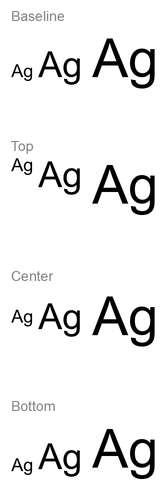
Font alignment uses font metrics, so the visible edges of individual letters do not necessarily line up exactly. The example includes both an uppercase letter and a descender to help show the difference between baseline and bottom alignment. Font availability and substitution, the characters used, and the difference in font sizes affect the result. Frame dimensions, margins, line spacing, wrapping, and autofit also affect layout; use the same fonts and layout settings when comparing modes.
This setting differs from ParagraphFormat.setAlignment, which controls horizontal paragraph alignment, and TextFrameFormat.setAnchoringType, which positions the text block vertically within its shape. Superscript and subscript formatting through BasePortionFormat.setEscapement shifts individual portions relative to the baseline instead of setting font alignment for the paragraph’s lines.
Set Transparency for Text
Text transparency is controlled through the alpha component of the color assigned to BasePortionFormat.getFillFormat. In the examples below, alpha = 50 is an ARGB alpha-channel value on the 0–255 scale, not a transparency percentage.
The code example below shows how to apply transparency to the entire paragraph:
import jpype
import asposeslides

if not jpype.isJVMStarted():
    jpype.startJVM()

from asposeslides.api import FillType, Presentation, SaveFormat
from java.awt import Color

alpha = 50
text_color = Color(0, 0, 0, alpha)

presentation = Presentation("sample.pptx")
try:
    slide = presentation.getSlides().get_Item(0)

    auto_shape = slide.getShapes().get_Item(0)
    paragraph = auto_shape.getTextFrame().getParagraphs().get_Item(0)

    # Set the fill color of the text to transparent color.
    paragraph.getParagraphFormat().getDefaultPortionFormat().getFillFormat().setFillType(FillType.Solid)
    paragraph.getParagraphFormat().getDefaultPortionFormat().getFillFormat().getSolidFillColor().setColor(text_color)

    presentation.save("transparent_paragraph.pptx", SaveFormat.Pptx)
finally:
    presentation.dispose()
The result:

The following code example shows how to apply transparency to text portions with a bold font:
import jpype
import asposeslides

if not jpype.isJVMStarted():
    jpype.startJVM()

from asposeslides.api import FillType, Presentation, SaveFormat
from java.awt import Color

alpha = 50
text_color = Color(0, 0, 0, alpha)

presentation = Presentation("sample.pptx")
try:
    slide = presentation.getSlides().get_Item(0)

    auto_shape = slide.getShapes().get_Item(0)
    paragraph = auto_shape.getTextFrame().getParagraphs().get_Item(0)

    for portion in paragraph.getPortions():
        if portion.getPortionFormat().getEffective().getFontBold():
            # Set the transparency of the text portion.
            portion.getPortionFormat().getFillFormat().setFillType(FillType.Solid)
            portion.getPortionFormat().getFillFormat().getSolidFillColor().setColor(text_color)

    presentation.save("transparent_text_portions.pptx", SaveFormat.Pptx)
finally:
    presentation.dispose()
The result:

Set Character Spacing for Text
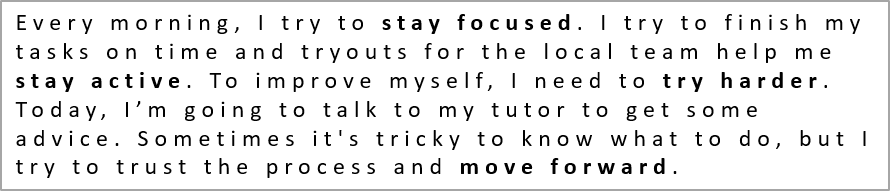
Use BasePortionFormat.setSpacing to expand or condense spacing between characters in a text box. The examples add 3 points of spacing; negative values condense the text.
The following Python code shows how to expand the character spacing in the entire paragraph:
import jpype
import asposeslides

if not jpype.isJVMStarted():
    jpype.startJVM()

from asposeslides.api import Presentation, SaveFormat

presentation = Presentation("sample.pptx")
try:
    slide = presentation.getSlides().get_Item(0)

    auto_shape = slide.getShapes().get_Item(0)
    paragraph = auto_shape.getTextFrame().getParagraphs().get_Item(0)

    # Note: Use negative values to compress the character spacing.
    paragraph.getParagraphFormat().getDefaultPortionFormat().setSpacing(3) # Expand character spacing.

    presentation.save("character_spacing_in_paragraph.pptx", SaveFormat.Pptx)
finally:
    presentation.dispose()
The result:
The code example below shows how to expand the character spacing in text portions with a bold font:
import jpype
import asposeslides

if not jpype.isJVMStarted():
    jpype.startJVM()

from asposeslides.api import Presentation, SaveFormat

presentation = Presentation("sample.pptx")
try:
    slide = presentation.getSlides().get_Item(0)

    auto_shape = slide.getShapes().get_Item(0)
    paragraph = auto_shape.getTextFrame().getParagraphs().get_Item(0)

    for portion in paragraph.getPortions():
        if portion.getPortionFormat().getEffective().getFontBold():
            # Note: Use negative values to compress the character spacing.
            portion.getPortionFormat().setSpacing(3) # Expand character spacing.

    presentation.save("character_spacing_in_text_portions.pptx", SaveFormat.Pptx)
finally:
    presentation.dispose()
The result:

Disable Kerning for Specific Fonts
In some cases, text rendered by Aspose.Slides may look slightly tighter than the same text displayed in PowerPoint. This can happen because PowerPoint may ignore kerning data for certain fonts, even when the font contains valid kerning information and kerning is enabled in PowerPoint settings.
To make the rendered output closer to PowerPoint in such cases, you can disable kerning for text portions that use the affected font. Set BasePortionFormat.setKerningMinimalSize to a value larger than the actual font size. This example requires “presentation.pptx” with a text box as the first shape on the first slide. It checks effective font names, including inherited fonts, and sets a 100-point threshold for portions that use Roboto. This disables kerning for matching portions with a font size below 100 points:
import jpype
import asposeslides

if not jpype.isJVMStarted():
    jpype.startJVM()

from asposeslides.api import Presentation, SaveFormat

presentation = Presentation("presentation.pptx")
try:
    slide = presentation.getSlides().get_Item(0)

    auto_shape = slide.getShapes().get_Item(0)
    target_font = "Roboto"

    for paragraph in auto_shape.getTextFrame().getParagraphs():
        for portion in paragraph.getPortions():
            portion_format = portion.getPortionFormat().getEffective()
            fonts = (portion_format.getLatinFont(), portion_format.getEastAsianFont(), portion_format.getComplexScriptFont())
            if any(font is not None and font.getFontName() == target_font for font in fonts):
                portion.getPortionFormat().setKerningMinimalSize(100)

    presentation.save("output.pptx", SaveFormat.Pptx)
finally:
    presentation.dispose()
For matching text below the threshold, this setting prevents kerning and can help align Aspose.Slides rendering with PowerPoint’s visual output for fonts affected by this PowerPoint-specific behavior.
Manage Text Font Properties
Font properties can be set at the paragraph level through ParagraphFormat.getDefaultPortionFormat or on individual portions through PortionFormat.
The following example sets the first paragraph’s default font to 12-point Times New Roman with bold, italic, and dotted underline formatting. Explicit formatting on individual portions takes precedence over these defaults.
import jpype
import asposeslides

if not jpype.isJVMStarted():
    jpype.startJVM()

from asposeslides.api import FontData, NullableBool, Presentation, SaveFormat, TextUnderlineType

presentation = Presentation("sample.pptx")
try:
    slide = presentation.getSlides().get_Item(0)

    auto_shape = slide.getShapes().get_Item(0)
    paragraph = auto_shape.getTextFrame().getParagraphs().get_Item(0)

    # Set the font properties for the paragraph.
    paragraph.getParagraphFormat().getDefaultPortionFormat().setFontHeight(12)
    paragraph.getParagraphFormat().getDefaultPortionFormat().setFontBold(NullableBool.True_)
    paragraph.getParagraphFormat().getDefaultPortionFormat().setFontItalic(NullableBool.True_)
    paragraph.getParagraphFormat().getDefaultPortionFormat().setFontUnderline(TextUnderlineType.Dotted)
    font = FontData("Times New Roman")
    paragraph.getParagraphFormat().getDefaultPortionFormat().setLatinFont(font)

    presentation.save("font_properties_for_paragraph.pptx", SaveFormat.Pptx)
finally:
    presentation.dispose()
The result:

The following example applies 13-point Times New Roman, italic formatting, and a dotted underline to portions whose effective formatting is bold:
import jpype
import asposeslides

if not jpype.isJVMStarted():
    jpype.startJVM()

from asposeslides.api import FontData, NullableBool, Presentation, SaveFormat, TextUnderlineType

presentation = Presentation("sample.pptx")
try:
    slide = presentation.getSlides().get_Item(0)

    auto_shape = slide.getShapes().get_Item(0)
    paragraph = auto_shape.getTextFrame().getParagraphs().get_Item(0)

    for portion in paragraph.getPortions():
        if portion.getPortionFormat().getEffective().getFontBold():
            # Set the font properties for the text portion.
            portion.getPortionFormat().setFontHeight(13)
            portion.getPortionFormat().setFontItalic(NullableBool.True_)
            portion.getPortionFormat().setFontUnderline(TextUnderlineType.Dotted)
            font = FontData("Times New Roman")
            portion.getPortionFormat().setLatinFont(font)

    presentation.save("font_properties_for_text_portions.pptx", SaveFormat.Pptx)
finally:
    presentation.dispose()
The result:

Apply and Remove Strikethrough
Use BasePortionFormat.setStrikethroughType on a text portion to display corrections, cancelled terms, or previous prices without deleting the original text. Set it to TextStrikethroughType.Single or Double for one or two lines through the text.
To remove strikethrough, pass TextStrikethroughType.None_. This explicitly disables the effect, even if the surrounding formatting specifies strikethrough. By contrast, TextStrikethroughType.NotDefined leaves the local setting undefined, allowing the portion to inherit formatting, for example, from the paragraph. It does not guarantee that strikethrough is removed. Use PortionFormat.getEffective to read the resulting formatting, including inherited values.
The following self-contained example creates three price comparisons. Each paragraph has separate portions for the label, previous price, and current price, so only the previous price is affected. The first row applies and then removes strikethrough; the other rows retain single and double strikethrough. Changing this setting preserves the text and its other formatting, including the bold previous price.
import jpype
import asposeslides

if not jpype.isJVMStarted():
    jpype.startJVM()

from asposeslides.api import FillType, FontData, NullableBool, Paragraph, Portion, Presentation, SaveFormat, ShapeType, TextAlignment, TextStrikethroughType
from java.awt import Color

presentation = Presentation()
try:
    slide = presentation.getSlides().get_Item(0)

    shape = slide.getShapes().addAutoShape(ShapeType.Rectangle, 50, 50, 620, 220)
    shape.getFillFormat().setFillType(FillType.NoFill)
    shape.getLineFormat().getFillFormat().setFillType(FillType.NoFill)
    shape.getTextFrame().getParagraphs().clear()

    labels = ["None: ", "Single: ", "Double: "]

    for label in labels:
        paragraph = Paragraph()
        paragraph.getParagraphFormat().setAlignment(TextAlignment.Left)
        paragraph.getParagraphFormat().setSpaceAfter(20)

        portion_format = paragraph.getParagraphFormat().getDefaultPortionFormat()
        portion_format.setFontHeight(28)
        font = FontData("Arial")
        portion_format.setLatinFont(font)
        portion_format.getFillFormat().setFillType(FillType.Solid)
        portion_format.getFillFormat().getSolidFillColor().setColor(Color.BLACK)

        label_portion = Portion(label)
        paragraph.getPortions().add(label_portion)

        previous_price = Portion("$100")
        previous_price.getPortionFormat().setFontBold(NullableBool.True_)
        paragraph.getPortions().add(previous_price)
        current_price = Portion(" → $80")
        paragraph.getPortions().add(current_price)

        shape.getTextFrame().getParagraphs().add(paragraph)

    paragraphs = shape.getTextFrame().getParagraphs()

    # Apply strikethrough, then explicitly remove it from the first previous price.
    paragraphs.get_Item(0).getPortions().get_Item(1).getPortionFormat().setStrikethroughType(TextStrikethroughType.Single)
    paragraphs.get_Item(0).getPortions().get_Item(1).getPortionFormat().setStrikethroughType(TextStrikethroughType.None_)

    paragraphs.get_Item(1).getPortions().get_Item(1).getPortionFormat().setStrikethroughType(TextStrikethroughType.Single)
    paragraphs.get_Item(2).getPortions().get_Item(1).getPortionFormat().setStrikethroughType(TextStrikethroughType.Double)

    presentation.save("strikethrough.pptx", SaveFormat.Pptx)
finally:
    presentation.dispose()
The result, from top to bottom: no strikethrough, single strikethrough, and double strikethrough.

Set Text Rotation
Use TextFrameFormat.setTextVerticalType to set a predefined text orientation within a shape.
The following code example sets the text orientation in the shape to TextVerticalType.Vertical270, which rotates the text 90 degrees counterclockwise:
import jpype
import asposeslides

if not jpype.isJVMStarted():
    jpype.startJVM()

from asposeslides.api import Presentation, SaveFormat, TextVerticalType

presentation = Presentation("sample.pptx")
try:
    slide = presentation.getSlides().get_Item(0)

    auto_shape = slide.getShapes().get_Item(0)
    auto_shape.getTextFrame().getTextFrameFormat().setTextVerticalType(TextVerticalType.Vertical270)

    presentation.save("text_rotation.pptx", SaveFormat.Pptx)
finally:
    presentation.dispose()
The result:

Set Custom Rotation for Text Frames
Use TextFrameFormat.setRotationAngle to set a custom rotation angle for a TextFrame.
The code example below rotates the text frame by 3 degrees clockwise within the shape:
import jpype
import asposeslides

if not jpype.isJVMStarted():
    jpype.startJVM()

from asposeslides.api import Presentation, SaveFormat

presentation = Presentation("sample.pptx")
try:
    slide = presentation.getSlides().get_Item(0)

    auto_shape = slide.getShapes().get_Item(0)
    auto_shape.getTextFrame().getTextFrameFormat().setRotationAngle(3)

    presentation.save("custom_text_rotation.pptx", SaveFormat.Pptx)
finally:
    presentation.dispose()
The result:

Set Line Spacing of Paragraphs
Aspose.Slides provides ParagraphFormat.setSpaceAfter, ParagraphFormat.setSpaceBefore, and ParagraphFormat.setSpaceWithin to control paragraph spacing. These properties are used as follows:
- Use a positive value to specify line spacing as a percentage of the line height.
- Use a negative value to specify line spacing in points.
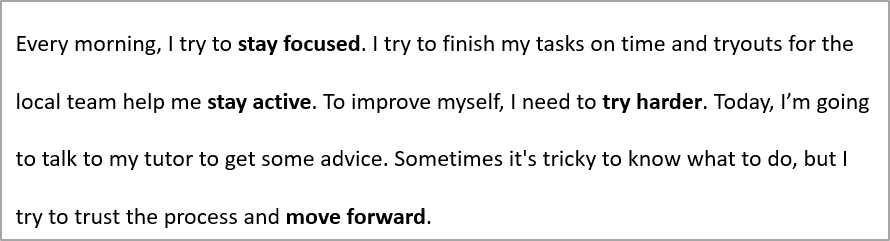
The following example sets spacing within the first paragraph to 200% of the line height (double spacing):
import jpype
import asposeslides

if not jpype.isJVMStarted():
    jpype.startJVM()

from asposeslides.api import Presentation, SaveFormat

presentation = Presentation("sample.pptx")
try:
    slide = presentation.getSlides().get_Item(0)

    auto_shape = slide.getShapes().get_Item(0)

    paragraph = auto_shape.getTextFrame().getParagraphs().get_Item(0)
    paragraph.getParagraphFormat().setSpaceWithin(200)

    presentation.save("line_spacing.pptx", SaveFormat.Pptx)
finally:
    presentation.dispose()
The result:
Control Line Breaking
Paragraph line-breaking rules are useful in narrow text blocks and presentations that mix Latin and East Asian text. The following methods belong to ParagraphFormat, so they apply to an entire paragraph:
- setLatinLineBreak controls Latin line-breaking rules. In mixed text, changing it can also change where adjacent East Asian text and punctuation wrap.
- setEastAsianLineBreak controls East Asian line-breaking rules, including restrictions on characters at the beginning and end of a line.
These rules do not replace TextFrameFormat.setWrapText, which enables automatic wrapping within a text frame. They influence the layout when wrapping occurs; they do not insert line-break characters. An explicit line break forces a new line within the paragraph independently of the available width.
The following self-contained example creates a narrow text block containing Chinese and Latin text. It sets both line-breaking options explicitly and saves “line_breaking.pptx”. To experiment with either rule, change the corresponding value while keeping the other settings fixed. The example uses 24-point Arial and SimSun with a 160-point frame width and zero horizontal text-frame margins. TextFrameFormat.setAutofitType is called with TextAutofitType.None_ so that text size and frame dimensions remain fixed.
import jpype
import asposeslides

if not jpype.isJVMStarted():
    jpype.startJVM()

from asposeslides.api import FillType, FontData, NullableBool, Presentation, SaveFormat, ShapeType, TextAlignment, TextAutofitType
from java.awt import Color

presentation = Presentation()
try:
    slide = presentation.getSlides().get_Item(0)

    shape = slide.getShapes().addAutoShape(ShapeType.Rectangle, 50, 50, 160, 300)
    shape.getFillFormat().setFillType(FillType.NoFill)

    text_frame = shape.getTextFrame()
    text_frame.getTextFrameFormat().setWrapText(NullableBool.True_)
    text_frame.getTextFrameFormat().setAutofitType(TextAutofitType.None_)
    text_frame.getTextFrameFormat().setMarginLeft(0)
    text_frame.getTextFrameFormat().setMarginRight(0)

    paragraph = text_frame.getParagraphs().get_Item(0)
    paragraph.setText("中文排版测试,PowerPoint 中文演示。")

    paragraph_format = paragraph.getParagraphFormat()
    paragraph_format.setAlignment(TextAlignment.Left)
    paragraph_format.getDefaultPortionFormat().setFontHeight(24)
    latin_font = FontData("Arial")
    paragraph_format.getDefaultPortionFormat().setLatinFont(latin_font)
    east_asian_font = FontData("SimSun")
    paragraph_format.getDefaultPortionFormat().setEastAsianFont(east_asian_font)
    paragraph_format.getDefaultPortionFormat().getFillFormat().setFillType(FillType.Solid)
    paragraph_format.getDefaultPortionFormat().getFillFormat().getSolidFillColor().setColor(Color.BLACK)
    paragraph_format.setLatinLineBreak(NullableBool.False_)
    paragraph_format.setEastAsianLineBreak(NullableBool.True_)

    presentation.save("line_breaking.pptx", SaveFormat.Pptx)
finally:
    presentation.dispose()
Control Hanging Punctuation
ParagraphFormat.setHangingPunctuation allows eligible punctuation to extend beyond the text line’s right edge instead of occupying the next line. It applies to the entire paragraph and is different from a hanging indent.
The following self-contained example enables hanging punctuation in a 100-point-wide text frame and saves “hanging_punctuation.pptx”. With 24-point Arial and zero horizontal text-frame margins, the final period stays after “sentence” and extends beyond the right text edge. Set the property to NullableBool.False_ to compare: with these settings, the period occupies a separate line. Wrapping is enabled and autofit is disabled to keep the available width fixed.
import jpype
import asposeslides

if not jpype.isJVMStarted():
    jpype.startJVM()

from asposeslides.api import FillType, FontData, NullableBool, Presentation, SaveFormat, ShapeType, TextAlignment, TextAutofitType
from java.awt import Color

presentation = Presentation()
try:
    slide = presentation.getSlides().get_Item(0)

    shape = slide.getShapes().addAutoShape(ShapeType.Rectangle, 50, 50, 100, 200)
    shape.getFillFormat().setFillType(FillType.NoFill)

    text_frame = shape.getTextFrame()
    text_frame.getTextFrameFormat().setWrapText(NullableBool.True_)
    text_frame.getTextFrameFormat().setAutofitType(TextAutofitType.None_)
    text_frame.getTextFrameFormat().setMarginLeft(0)
    text_frame.getTextFrameFormat().setMarginRight(0)

    paragraph = text_frame.getParagraphs().get_Item(0)
    paragraph.setText("Simple text, next sentence.")

    paragraph_format = paragraph.getParagraphFormat()
    paragraph_format.setAlignment(TextAlignment.Left)
    paragraph_format.getDefaultPortionFormat().setFontHeight(24)
    latin_font = FontData("Arial")
    paragraph_format.getDefaultPortionFormat().setLatinFont(latin_font)
    paragraph_format.getDefaultPortionFormat().getFillFormat().setFillType(FillType.Solid)
    paragraph_format.getDefaultPortionFormat().getFillFormat().getSolidFillColor().setColor(Color.BLACK)
    paragraph_format.setHangingPunctuation(NullableBool.True_)

    presentation.save("hanging_punctuation.pptx", SaveFormat.Pptx)
finally:
    presentation.dispose()
Not every punctuation mark can hang. The font and layout conditions described above also apply to this comparison: changing the font, available width, margins, or autofit settings can remove the visible difference.
Set Autofit Type for Text Frames
TextFrameFormat.setAutofitType determines how text behaves when it exceeds the boundaries of its container. Use it to control whether the text shrinks, overflows, or resizes the shape automatically. The following example configures the shape to resize to fit its text and saves the result to “autofit_type.pptx”.
import jpype
import asposeslides

if not jpype.isJVMStarted():
    jpype.startJVM()

from asposeslides.api import Presentation, SaveFormat, TextAutofitType

presentation = Presentation("sample.pptx")
try:
    slide = presentation.getSlides().get_Item(0)

    auto_shape = slide.getShapes().get_Item(0)
    auto_shape.getTextFrame().getTextFrameFormat().setAutofitType(TextAutofitType.Shape)

    presentation.save("autofit_type.pptx", SaveFormat.Pptx)
finally:
    presentation.dispose()
To count lines after automatic wrapping and see how text or shape width changes the result, see Count Rendered Lines. Line count alone does not indicate whether text overflows its container.
Set Anchor of Text Frames
TextFrameFormat.setAnchoringType defines how text is positioned vertically inside a shape, for example, at the top, middle, or bottom. The following example anchors the text to the bottom of the first shape and saves the result to “text_anchor.pptx”.
import jpype
import asposeslides

if not jpype.isJVMStarted():
    jpype.startJVM()

from asposeslides.api import Presentation, SaveFormat, TextAnchorType

presentation = Presentation("sample.pptx")
try:
    slide = presentation.getSlides().get_Item(0)

    auto_shape = slide.getShapes().get_Item(0)
    auto_shape.getTextFrame().getTextFrameFormat().setAnchoringType(TextAnchorType.Bottom)

    presentation.save("text_anchor.pptx", SaveFormat.Pptx)
finally:
    presentation.dispose()
Set Text Tabulation
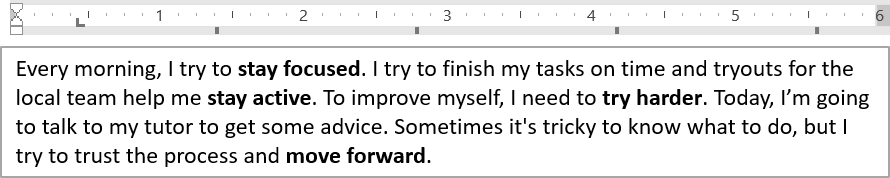
Use ParagraphFormat.setDefaultTabSize and ParagraphFormat.getTabs to configure tab stops in a paragraph. The following example sets the default tab interval to 100 points and adds a left-aligned tab stop at 30 points. These settings affect text containing tab characters.
import jpype
import asposeslides

if not jpype.isJVMStarted():
    jpype.startJVM()

from asposeslides.api import Presentation, SaveFormat, TabAlignment

presentation = Presentation("sample.pptx")
try:
    slide = presentation.getSlides().get_Item(0)

    auto_shape = slide.getShapes().get_Item(0)

    paragraph = auto_shape.getTextFrame().getParagraphs().get_Item(0)
    paragraph.getParagraphFormat().setDefaultTabSize(100)
    paragraph.getParagraphFormat().getTabs().add(30, TabAlignment.Left)

    presentation.save("paragraph_tabs.pptx", SaveFormat.Pptx)
finally:
    presentation.dispose()
The result:
Set Proofing Language
Aspose.Slides provides BasePortionFormat.setLanguageId, which allows you to set the proofing language for a text portion. The proofing language determines the language used for spelling and grammar checks in PowerPoint.
The following example requires “presentation.pptx” with a text box as the first shape on the first slide and at least one paragraph. It replaces the first paragraph’s contents with “1。”, sets SimSun as its font, and assigns the Simplified Chinese proofing language (zh-CN). It saves the result to “proofing_language.pptx”:
import jpype
import asposeslides

if not jpype.isJVMStarted():
    jpype.startJVM()

from asposeslides.api import FontData, Portion, Presentation, SaveFormat

presentation = Presentation("presentation.pptx")
try:
    slide = presentation.getSlides().get_Item(0)

    auto_shape = slide.getShapes().get_Item(0)

    paragraph = auto_shape.getTextFrame().getParagraphs().get_Item(0)
    paragraph.getPortions().clear()

    font = FontData("SimSun")

    text_portion = Portion()
    text_portion.getPortionFormat().setComplexScriptFont(font)
    text_portion.getPortionFormat().setEastAsianFont(font)
    text_portion.getPortionFormat().setLatinFont(font)

    # Set the Id of a proofing language.
    text_portion.getPortionFormat().setLanguageId("zh-CN")

    text_portion.setText("1。")
    paragraph.getPortions().add(text_portion)

    presentation.save("proofing_language.pptx", SaveFormat.Pptx)
finally:
    presentation.dispose()
Set Default Language
Use LoadOptions.setDefaultTextLanguage to define the default language for text created while loading or creating a presentation. The following example creates a presentation with US English as the default text language, adds a text box, and prints en-US for its first text portion.
import jpype
import asposeslides

if not jpype.isJVMStarted():
    jpype.startJVM()

from asposeslides.api import LoadOptions, Presentation, ShapeType

load_options = LoadOptions()
load_options.setDefaultTextLanguage("en-US")

presentation = Presentation(load_options)
try:
    slide = presentation.getSlides().get_Item(0)

    # Add a rectangle shape with text.
    shape = slide.getShapes().addAutoShape(ShapeType.Rectangle, 20, 20, 150, 50)
    shape.getTextFrame().setText("Sample text")

    # Check the first portion language.
    portion = shape.getTextFrame().getParagraphs().get_Item(0).getPortions().get_Item(0)
    print(portion.getPortionFormat().getLanguageId())
finally:
    presentation.dispose()
Set Default Text Style
To apply default text formatting at the presentation level, use Presentation.getDefaultTextStyle.
The following example sets a 14-point bold font as the default for top-level paragraphs in a new presentation and saves it to “default_text_style.pptx”. Text can inherit these defaults unless more specific formatting overrides them.
import jpype
import asposeslides

if not jpype.isJVMStarted():
    jpype.startJVM()

from asposeslides.api import NullableBool, Presentation, SaveFormat

presentation = Presentation()
try:
    # Get the top level paragraph format.
    paragraph_format = presentation.getDefaultTextStyle().getLevel(0)

    if paragraph_format is not None:
        paragraph_format.getDefaultPortionFormat().setFontHeight(14)
        paragraph_format.getDefaultPortionFormat().setFontBold(NullableBool.True_)

    presentation.save("default_text_style.pptx", SaveFormat.Pptx)
finally:
    presentation.dispose()
Extract Text with the All-Caps Effect
In PowerPoint, applying the All Caps font effect makes text appear in uppercase on the slide even when it was originally typed in lowercase. When you retrieve such a text portion with Aspose.Slides, the library returns the text exactly as it was entered. To match the displayed text, check TextCapType and convert the returned string to uppercase when the value is All.
This example requires “sample2.pptx” with a text box as the first shape on the first slide. Its first paragraph’s first portion contains “Hello, Aspose!” with the All Caps effect applied, as shown below.
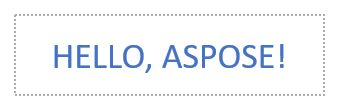
The code example below shows how to extract the text with the All Caps effect applied:
import jpype
import asposeslides

if not jpype.isJVMStarted():
    jpype.startJVM()

from asposeslides.api import Presentation, TextCapType

presentation = Presentation("sample2.pptx")
try:
    slide = presentation.getSlides().get_Item(0)

    auto_shape = slide.getShapes().get_Item(0)
    text_portion = auto_shape.getTextFrame().getParagraphs().get_Item(0).getPortions().get_Item(0)

    print("Original text: " + str(text_portion.getText()))

    text_format = text_portion.getPortionFormat().getEffective()
    if text_format.getTextCapType() == TextCapType.All:
        text = str(text_portion.getText()).upper()
        print("All-Caps effect: " + text)
finally:
    presentation.dispose()
Output:
Original text: Hello, Aspose!
All-Caps effect: HELLO, ASPOSE!
FAQ
How do I modify text in a table on a slide?
To modify text in a table on a slide, use Table. Iterate through the cells and update each cell through Cell.getTextFrame and paragraph formatting through Paragraph.getParagraphFormat.
How do I apply a gradient color to text on a PowerPoint slide?
To apply a gradient color to text, use BasePortionFormat.getFillFormat. Set FillFormat.setFillType to FillType.Gradient and configure the gradient stops, direction, and transparency.