
使用 Python 的 AutoFit 增强您的演示文稿
简介
默认情况下,当您添加文本框时,Microsoft PowerPoint 使用 Resize shape to fit text 设置——它会自动调整文本框大小,以确保文本始终能适应其中。
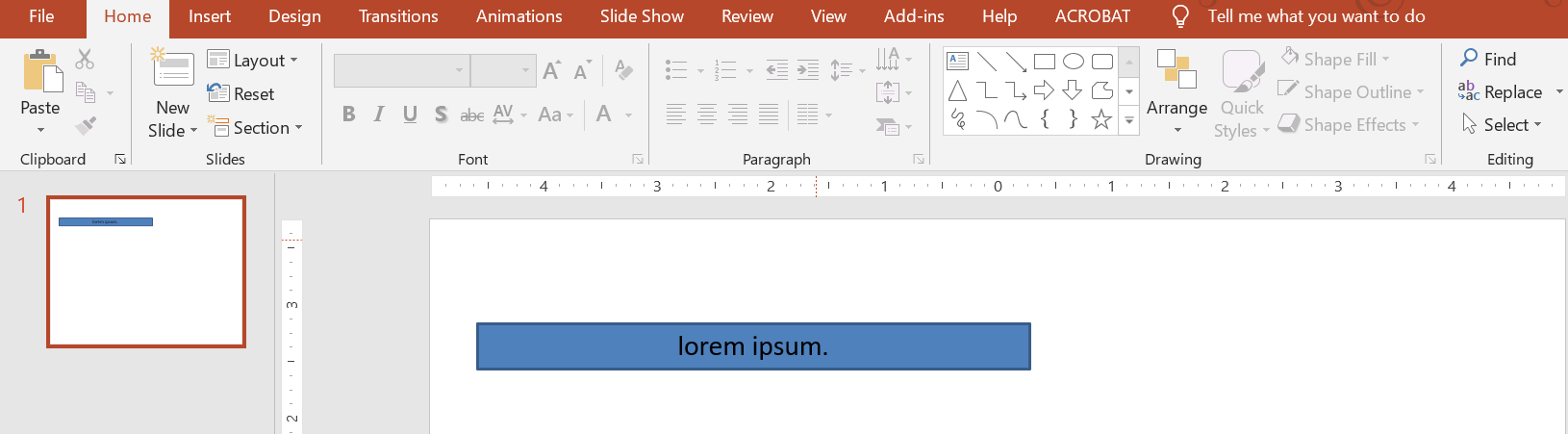
- 当文本框中的文字变长或变大时,PowerPoint 会自动放大文本框——增加其高度——以容纳更多文字。
- 当文本框中的文字变短或变小时,PowerPoint 会自动缩小文本框——减小其高度——以去除多余空间。
在 PowerPoint 中,有 4 个重要的参数或选项控制文本框的自动适应行为:
- Do not Autofit
- Shrink text on overflow
- Resize shape to fit text
- Wrap text in shape.
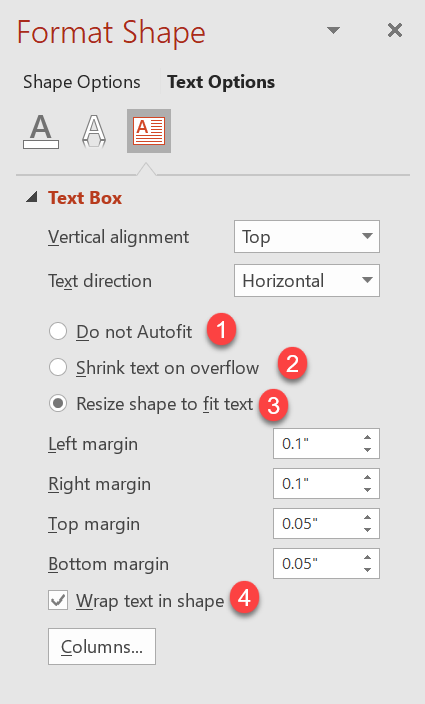
Aspose.Slides for Python via Java 提供了类似的选项——在 TextFrameFormat 类下的某些属性——允许您控制演示文稿中文本框的自动适应行为。
将形状调整为适合文本
如果希望在对文本进行更改后文本始终适应其所在的框,需要使用 Resize shape to fit text 选项。要指定此设置,请使用来自 TextFrameFormat 类的 setAutofitType 方法,并传入 Shape。
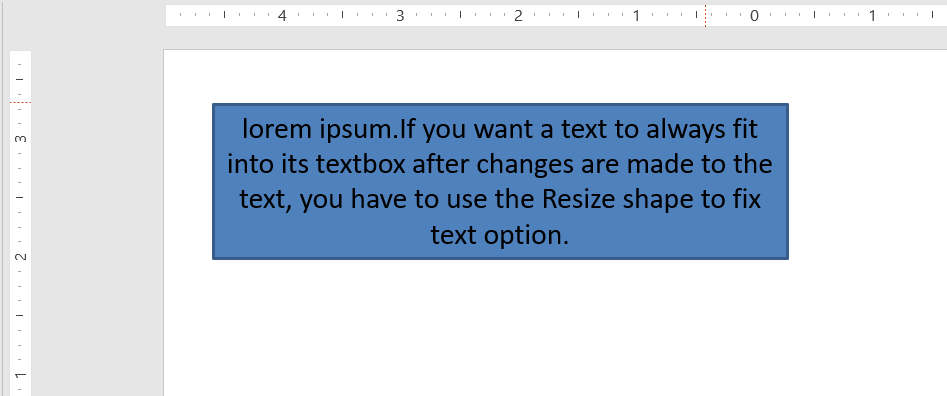
以下 Python 代码演示如何在 PowerPoint 演示文稿中指定文本必须始终适应其框:
import jpype
import asposeslides

if not jpype.isJVMStarted():
    jpype.startJVM()

from asposeslides.api import Presentation, ShapeType, Portion, FillType, TextAutofitType, SaveFormat
from java.awt import Color

presentation = Presentation()
try:
    slide = presentation.getSlides().get_Item(0)
    auto_shape = slide.getShapes().addAutoShape(ShapeType.Rectangle, 30, 30, 350, 100)

    portion = Portion("lorem ipsum...")
    portion.getPortionFormat().getFillFormat().getSolidFillColor().setColor(Color.BLACK)
    portion.getPortionFormat().getFillFormat().setFillType(FillType.Solid)
    auto_shape.getTextFrame().getParagraphs().get_Item(0).getPortions().add(portion)

    text_frame_format = auto_shape.getTextFrame().getTextFrameFormat()
    text_frame_format.setAutofitType(TextAutofitType.Shape)

    presentation.save("Output-presentation.pptx", SaveFormat.Pptx)
finally:
    presentation.dispose()
如果文字变长或变大,文本框将自动调整大小(增加高度),以确保所有文字全部显示。如果文字变短,则相反。
不自动适应
如果希望文本框或形状在文字内容变化时保持其尺寸不变,需要使用 Do not Autofit 选项。要指定此设置,请使用来自 TextFrameFormat 类的 setAutofitType 方法,并传入 None。

以下 Python 代码演示如何在 PowerPoint 演示文稿中指定文本框必须始终保持其尺寸:
import jpype
import asposeslides

if not jpype.isJVMStarted():
    jpype.startJVM()

from asposeslides.api import Presentation, ShapeType, Portion, FillType, TextAutofitType, SaveFormat
from java.awt import Color

presentation = Presentation()
try:
    slide = presentation.getSlides().get_Item(0)
    auto_shape = slide.getShapes().addAutoShape(ShapeType.Rectangle, 30, 30, 350, 100)

    portion = Portion("lorem ipsum...")
    portion.getPortionFormat().getFillFormat().getSolidFillColor().setColor(Color.BLACK)
    portion.getPortionFormat().getFillFormat().setFillType(FillType.Solid)
    auto_shape.getTextFrame().getParagraphs().get_Item(0).getPortions().add(portion)

    text_frame_format = auto_shape.getTextFrame().getTextFrameFormat()
    text_frame_format.setAutofitType(TextAutofitType.None_)

    presentation.save("Output-presentation.pptx", SaveFormat.Pptx)
finally:
    presentation.dispose()
当文字超出框的容量时,会溢出显示。
文字溢出时收缩
如果文字超出框的容量,可以使用 Shrink text on overflow 选项,使文字的大小和间距缩小以适应框内。要指定此设置,请使用来自 TextFrameFormat 类的 setAutofitType 方法,并传入 Normal。
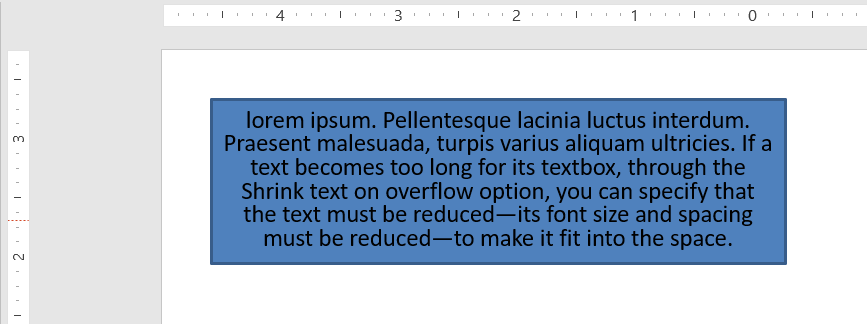
以下 Python 代码演示如何在 PowerPoint 演示文稿中指定文字在溢出时收缩:
import jpype
import asposeslides

if not jpype.isJVMStarted():
    jpype.startJVM()

from asposeslides.api import Presentation, ShapeType, Portion, FillType, TextAutofitType, SaveFormat
from java.awt import Color

presentation = Presentation()
try:
    slide = presentation.getSlides().get_Item(0)
    auto_shape = slide.getShapes().addAutoShape(ShapeType.Rectangle, 30, 30, 350, 100)

    portion = Portion("lorem ipsum...")
    portion.getPortionFormat().getFillFormat().getSolidFillColor().setColor(Color.BLACK)
    portion.getPortionFormat().getFillFormat().setFillType(FillType.Solid)
    auto_shape.getTextFrame().getParagraphs().get_Item(0).getPortions().add(portion)

    text_frame_format = auto_shape.getTextFrame().getTextFrameFormat()
    text_frame_format.setAutofitType(TextAutofitType.Normal)

    presentation.save("Output-presentation.pptx", SaveFormat.Pptx)
finally:
    presentation.dispose()
Note
使用 Shrink text on overflow 选项时,只有当文字超出框的容量时才会应用此设置。换行文字
如果希望文字在超出形状宽度时在形状内部换行,需要使用 Wrap text in shape 参数。要指定此设置,请使用来自 TextFrameFormat 类的 setWrapText 方法,并传入 NullableBool.True_。
以下 Python 代码演示如何在 PowerPoint 演示文稿中使用换行文字设置:
import jpype
import asposeslides

if not jpype.isJVMStarted():
    jpype.startJVM()

from asposeslides.api import Presentation, ShapeType, Portion, FillType, NullableBool, SaveFormat
from java.awt import Color

presentation = Presentation()
try:
    slide = presentation.getSlides().get_Item(0)
    auto_shape = slide.getShapes().addAutoShape(ShapeType.Rectangle, 30, 30, 350, 100)

    portion = Portion("lorem ipsum...")
    portion.getPortionFormat().getFillFormat().getSolidFillColor().setColor(Color.BLACK)
    portion.getPortionFormat().getFillFormat().setFillType(FillType.Solid)
    auto_shape.getTextFrame().getParagraphs().get_Item(0).getPortions().add(portion)

    text_frame_format = auto_shape.getTextFrame().getTextFrameFormat()
    text_frame_format.setWrapText(NullableBool.True_)

    presentation.save("Output-presentation.pptx", SaveFormat.Pptx)
finally:
    presentation.dispose()
FAQ
文本框的内部边距会影响 AutoFit 吗?
会。内边距会减少可用的文字区域,因此 AutoFit 会更早触发——更早缩小字体或调整形状大小。请在调节 AutoFit 之前检查并调整边距。
AutoFit 如何与手动换行和软换行交互?
强制换行会保留下来,AutoFit 会围绕这些换行调整字体大小和间距。删除不必要的换行通常可以减小 AutoFit 对文字收缩的力度。
更改主题字体或触发字体替换会影响 AutoFit 结果吗?
会。使用度量不同的字体替换会改变文字的宽度/高度,从而可能改变最终的字体大小和换行方式。任何字体更改或替换后,请重新检查幻灯片的显示效果。