
Python via Java を使用してプレゼンテーションのテキストボックスを管理する
概要
Aspose.Slides for Python via Java では、スライドのテキストはシェイプに属するテキストフレームに格納されます。 AutoShape クラスは、最も一般的なテキストを含むシェイプを表し、テキストは AutoShape.getTextFrame メソッドを通じて取得できます。
Note
すべての AutoShape は Shape から継承されますが、すべてのシェイプが AutoShape であるわけでも、テキストフレームをサポートしているわけでもありません。既存のプレゼンテーションを処理する際は、テキストにアクセスする前に対象のシェイプが AutoShape のインスタンスであることを確認してください。スライドにテキストボックスを作成する
テキストボックスを作成するには、スライドに AutoShape を追加し、そのテキストフレームにテキストを設定してプレゼンテーションを保存します。次の例は矩形のテキストボックスを作成します。
import jpype
import asposeslides

if not jpype.isJVMStarted():
    jpype.startJVM()

from asposeslides.api import Presentation, SaveFormat, ShapeType

presentation = Presentation()
try:
    slide = presentation.getSlides().get_Item(0)
    text_box = slide.getShapes().addAutoShape(ShapeType.Rectangle, 150, 75, 300, 50)
    text_box.addTextFrame("Aspose TextBox")

    presentation.save("TextBox.pptx", SaveFormat.Pptx)
finally:
    presentation.dispose()
ShapeCollection.addAutoShape に渡す座標とサイズはポイント単位で測定されます。 AutoShape.addTextFrame は指定されたテキストでテキストフレームを初期化します。
テキストボックスシェイプかどうかを確認する
AutoShape.isTextBox メソッドを使用して、AutoShape がテキストボックスとして扱われるかどうかを判定できます。プレゼンテーションにテキストを含むシェイプと純粋なグラフィックの AutoShape が混在している場合に便利です。
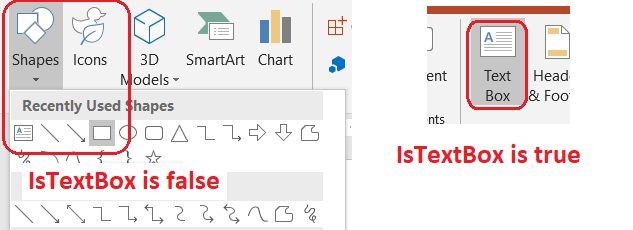
次の例はプレゼンテーション内のすべての AutoShape を調査します。
import jpype
import asposeslides

if not jpype.isJVMStarted():
    jpype.startJVM()

from asposeslides.api import AutoShape, Presentation, ShapeType

presentation = Presentation()
try:
    slide = presentation.getSlides().get_Item(0)
    text_box = slide.getShapes().addAutoShape(ShapeType.Rectangle, 10, 10, 120, 40)
    text_box.addTextFrame("Text box")
    slide.getShapes().addAutoShape(ShapeType.Ellipse, 150, 10, 40, 40)

    for current_slide in presentation.getSlides():
        for shape in current_slide.getShapes():
            if isinstance(shape, AutoShape):
                print("The shape is a text box." if shape.isTextBox() else "The shape is not a text box.")
finally:
    presentation.dispose()
新しく追加された AutoShape は、空でないテキストが含まれるまでテキストボックスと見なされません。テキストは AutoShape.addTextFrame または TextFrame.setText で設定できます。空文字列を設定すると、AutoShape.isTextBox は False を返します。
import jpype
import asposeslides

if not jpype.isJVMStarted():
    jpype.startJVM()

from asposeslides.api import Presentation, ShapeType

presentation = Presentation()
try:
    slide = presentation.getSlides().get_Item(0)

    added_text_shape = slide.getShapes().addAutoShape(ShapeType.Rectangle, 10, 10, 100, 40)
    added_text_shape.addTextFrame("Shape 1")
    print(added_text_shape.isTextBox())

    assigned_text_shape = slide.getShapes().addAutoShape(ShapeType.Rectangle, 10, 70, 100, 40)
    assigned_text_shape.getTextFrame().setText("Shape 2")
    print(assigned_text_shape.isTextBox())

    added_empty_text_shape = slide.getShapes().addAutoShape(ShapeType.Rectangle, 10, 130, 100, 40)
    added_empty_text_shape.addTextFrame("")
    print(added_empty_text_shape.isTextBox())

    assigned_empty_text_shape = slide.getShapes().addAutoShape(ShapeType.Rectangle, 10, 190, 100, 40)
    assigned_empty_text_shape.getTextFrame().setText("")
    print(assigned_empty_text_shape.isTextBox())
finally:
    presentation.dispose()
最初の 2 回の呼び出しは True、残りの 2 回は False を出力します。
テキストフレームを所有するシェイプを取得する
汎用的なテキスト処理コードは、どのプレゼンテーションオブジェクトが所有しているか分からないまま TextFrame を受け取ることがあります。読み取り専用の TextFrame.getParentShape メソッドを使用して、所有シェイプに遡ります。
AutoShape やその他のテキストを保持するシェイプが所有者である場合、TextFrame.getParentShape は所有シェイプを返し、TextFrame.getParentCell は None を返します。取得した値が None でないことを確認してから使用してください。シェイプとテーブルセルの両方の所有者、さらには SmartArt ノードに関連付けられたシェイプを特定する方法については、Search and Replace Text を参照してください。
テキストボックスに列を追加する
TextFrameFormat.setColumnCount メソッドはテキストフレームを列に分割し、TextFrameFormat.setColumnSpacing は列間の間隔(ポイント)を設定します。これらの設定は TextFrameFormat に属し、既存のテキストボックスのテキストフレームを介して変更できます。列間のテキストは同一シェイプ内で再配置され、別のシェイプへは流れません。
次の例は 3 列のテキストボックスを作成し、列間を 10 ポイントに設定してプレゼンテーションを保存し、出力ファイルから設定を読み戻します。
import jpype
import asposeslides

if not jpype.isJVMStarted():
    jpype.startJVM()

from asposeslides.api import Presentation, SaveFormat, ShapeType

presentation = Presentation()
try:
    slide = presentation.getSlides().get_Item(0)
    text_box = slide.getShapes().addAutoShape(ShapeType.Rectangle, 100, 100, 300, 200)
    text_box.addTextFrame("This text is distributed automatically across all columns in the text box.")

    text_frame_format = text_box.getTextFrame().getTextFrameFormat()
    text_frame_format.setColumnCount(3)
    text_frame_format.setColumnSpacing(10)

    presentation.save("TextBoxColumns.pptx", SaveFormat.Pptx)

    saved_presentation = Presentation("TextBoxColumns.pptx")
    try:
        saved_text_box = saved_presentation.getSlides().get_Item(0).getShapes().get_Item(0)
        saved_format = saved_text_box.getTextFrame().getTextFrameFormat()
        print(f"Columns: {saved_format.getColumnCount()}; spacing: {saved_format.getColumnSpacing()} points")
    finally:
        saved_presentation.dispose()
finally:
    presentation.dispose()
個々の列からテキストを抽出する
TextFrame.splitTextByColumns を使用すると、既存のテキストフレーム内の各視覚的列に割り当てられたテキストを取得できます。このメソッドは列ごとに 1 つの文字列を返し、列ベースの読み順で配列に格納します。1 列テキストフレームは要素が 1 つの配列を返し、空の列は空文字列で表されます。返される文字列はプレーンテキストのみで、部分レベルの書式情報は保持されません。
この機能は次のようなシナリオで有用です。
- 列ベースの読み順を保持したままテキストを抽出したい。
- マルチ列スライドの内容をインデックス付けまたは比較したい。
- 各列を別々のファイル、データベースフィールド、またはその他の宛先にエクスポートしたい。
- TextFrameFormat.setColumnCount や TextFrameFormat.setColumnSpacing、フォント、テキストフレームのサイズを変更した際に、テキストがどのように再配置されるかを検証したい。
このメソッドは現在の TextFrame 内に配置されたテキストを報告するだけで、別々のシェイプやテキストボックス間で自動的にテキストが流れることはありません。列の配分は利用可能なフォントや他のレイアウト設定に依存するため、結果の一貫性が重要な場合は必要なフォントが環境にインストールされていることを確認してください。
次の例はプレゼンテーションを読み込み、テキストフレームを持つ最初のマルチ列 AutoShape を検索し、設定された列数を取得して、各列のテキストを別々のファイルに書き出します。テキストフレームを持たないシェイプはスキップされます。
import jpype
import asposeslides

if not jpype.isJVMStarted():
    jpype.startJVM()

from pathlib import Path
from asposeslides.api import AutoShape, Presentation

presentation = Presentation("MultiColumnText.pptx")
try:
    text_box = None
    for shape in presentation.getSlides().get_Item(0).getShapes():
        if isinstance(shape, AutoShape):
            if shape.getTextFrame() is not None:
                column_count = shape.getTextFrame().getTextFrameFormat().getColumnCount()
                if column_count > 1:
                    text_box = shape
                    break

    if text_box is None:
        print("No multi-column text frame was found.")
    else:
        text_frame = text_box.getTextFrame()
        configured_column_count = text_frame.getTextFrameFormat().getColumnCount()
        column_texts = text_frame.splitTextByColumns()

        print(f"Configured columns: {configured_column_count}")

        for column_number, column_text in enumerate(column_texts, start=1):
            print(f"Column {column_number}: {column_text}")
            output_path = Path(f"Column-{column_number}.txt")
            try:
                output_path.write_text(str(column_text), encoding="utf-8")
            except OSError as exception:
                print(f"Could not write column {column_number}: {exception}")
finally:
    presentation.dispose()
テキストを更新する
プレゼンテーション全体のテキストを更新するには、スライドとシェイプを走査し、AutoShape を選択してテキスト部分を編集します。部分単位で操作することで、テキストと文字書式の両方を変更できます。
次の例は、AutoShape のテキスト内に出現するすべての years を months に置換し、対象となった部分を太字にします。
import jpype
import asposeslides

if not jpype.isJVMStarted():
    jpype.startJVM()

from asposeslides.api import AutoShape, NullableBool, Presentation, SaveFormat

presentation = Presentation("Text.pptx")
try:
    for slide in presentation.getSlides():
        for shape in slide.getShapes():
            if not isinstance(shape, AutoShape):
                continue

            text_frame = shape.getTextFrame()
            if text_frame is None:
                continue

            for paragraph in text_frame.getParagraphs():
                for portion in paragraph.getPortions():
                    text = portion.getText()
                    if text is not None and "years" in str(text):
                        portion.setText(str(text).replace("years", "months"))
                        portion.getPortionFormat().setFontBold(NullableBool.True_)

    presentation.save("TextChanged.pptx", SaveFormat.Pptx)
finally:
    presentation.dispose()
この走査は AutoShape のみのテキストを更新します。テーブル、チャート、SmartArt、またはグループ化されたシェイプに格納されたテキストを変更するには、該当オブジェクト固有のコレクションを走査する必要があります。
ハイパーリンク付きテキストボックスを追加する
ハイパーリンクは特定のテキスト部分に割り当てることができ、その部分だけがクリック可能になります。外部 URL と部分を関連付けるには、HyperlinkManager.setExternalHyperlinkClick を使用します。
次の例はリンク付きテキストを作成し、プレゼンテーションに保存します。
import jpype
import asposeslides

if not jpype.isJVMStarted():
    jpype.startJVM()

from asposeslides.api import Presentation, SaveFormat, ShapeType

presentation = Presentation()
try:
    slide = presentation.getSlides().get_Item(0)
    text_box = slide.getShapes().addAutoShape(ShapeType.Rectangle, 150, 150, 200, 50)
    text_box.addTextFrame("Aspose.Slides")

    text_portion = text_box.getTextFrame().getParagraphs().get_Item(0).getPortions().get_Item(0)
    text_portion.getPortionFormat().getHyperlinkManager().setExternalHyperlinkClick("https://www.aspose.com/")

    presentation.save("Hyperlink.pptx", SaveFormat.Pptx)
finally:
    presentation.dispose()
FAQ
テキストボックスとマスタまたはレイアウトスライド上のプレースホルダーの違いは何ですか?
プレースホルダー は、マスタースライド または レイアウトスライド から位置と書式を継承できます。通常のテキストボックスは作成されたスライド上の独立したシェイプであり、レイアウトが変更されてもプレースホルダーのような動作は取得しません。
チャート、テーブル、SmartArt のテキストを変更せずにテキストだけを置換するにはどうすればよいですか?
Update Text の例に示したように、AutoShape のインスタンスであるシェイプに限定して走査してください。チャート、テーブル、SmartArt はそれぞれ独自のオブジェクトモデルでテキストを保持しているため、このループでは変更されません。