
จัดการกล่องข้อความในงานนำเสนอโดยใช้ Python ผ่าน Java
บทนำ
ใน Aspose.Slides สำหรับ Python ผ่าน Java ข้อความบนสไลด์จะถูกเก็บไว้ในกรอบข้อความซึ่งเป็นส่วนหนึ่งของรูปทรง คลาส AutoShape แทนรูปทรงที่บรรจุข้อความที่พบบ่อยที่สุดและให้เข้าถึงข้อความผ่านเมธอด AutoShape.getTextFrame
Note
รูปทรงอัตโนมัติทุกอันสืบทอดมาจาก Shape, แต่ไม่ได้ทุกรูปทรงเป็นรูปทรงอัตโนมัติหรือรองรับกรอบข้อความ เมื่อประมวลผลงานนำเสนอที่มีอยู่ ให้ตรวจสอบว่ารูปทรงเป็นอินสแตนซ์ของ AutoShape ก่อนเข้าถึงข้อความของมันสร้างกล่องข้อความบนสไลด์
เพื่อสร้างกล่องข้อความ ให้เพิ่มรูปทรงอัตโนมัติลงในสไลด์ เพิ่มข้อความลงในกรอบข้อความของมันและบันทึกงานนำเสนอ ตัวอย่างต่อไปนี้สร้างกล่องข้อความสี่เหลี่ยมผืนผ้า:
import jpype
import asposeslides

if not jpype.isJVMStarted():
    jpype.startJVM()

from asposeslides.api import Presentation, SaveFormat, ShapeType

presentation = Presentation()
try:
    slide = presentation.getSlides().get_Item(0)
    text_box = slide.getShapes().addAutoShape(ShapeType.Rectangle, 150, 75, 300, 50)
    text_box.addTextFrame("Aspose TextBox")

    presentation.save("TextBox.pptx", SaveFormat.Pptx)
finally:
    presentation.dispose()
พิกัดและขนาดที่ส่งให้ ShapeCollection.addAutoShape จะวัดเป็นหน่วยจุด AutoShape.addTextFrame จะเริ่มต้นกรอบข้อความด้วยข้อความที่ระบุ
ตรวจสอบรูปทรงกล่องข้อความ
ใช้เมธอด AutoShape.isTextBox เพื่อตรวจสอบว่ารูปทรงอัตโนมัติได้รับการจัดเป็นกล่องข้อความหรือไม่ สิ่งนี้เป็นประโยชน์เมื่อในงานนำเสนอมีรูปทรงอัตโนมัติที่บรรจุข้อความและรูปทรงกราฟิกอย่างเดียวอยู่ด้วย
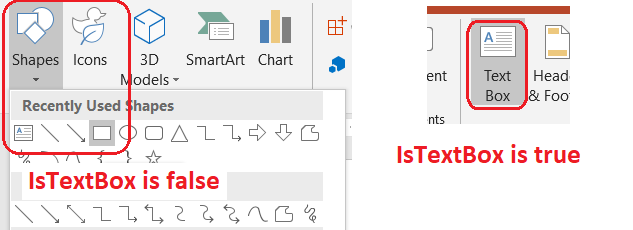
ตัวอย่างต่อไปนี้ตรวจสอบรูปทรงอัตโนมัติทุกอันในงานนำเสนอ:
import jpype
import asposeslides

if not jpype.isJVMStarted():
    jpype.startJVM()

from asposeslides.api import AutoShape, Presentation, ShapeType

presentation = Presentation()
try:
    slide = presentation.getSlides().get_Item(0)
    text_box = slide.getShapes().addAutoShape(ShapeType.Rectangle, 10, 10, 120, 40)
    text_box.addTextFrame("Text box")
    slide.getShapes().addAutoShape(ShapeType.Ellipse, 150, 10, 40, 40)

    for current_slide in presentation.getSlides():
        for shape in current_slide.getShapes():
            if isinstance(shape, AutoShape):
                print("The shape is a text box." if shape.isTextBox() else "The shape is not a text box.")
finally:
    presentation.dispose()
รูปทรงอัตโนมัติที่เพิ่งเพิ่มจะไม่ถือว่าเป็นกล่องข้อความจนกว่าจะมีข้อความที่ไม่ว่างเปล่า คุณสามารถกำหนดข้อความนั้นผ่าน AutoShape.addTextFrame หรือ TextFrame.setText การเพิ่มหรือกำหนดสตริงว่างทำให้ AutoShape.isTextBox คืนค่า False:
import jpype
import asposeslides

if not jpype.isJVMStarted():
    jpype.startJVM()

from asposeslides.api import Presentation, ShapeType

presentation = Presentation()
try:
    slide = presentation.getSlides().get_Item(0)

    added_text_shape = slide.getShapes().addAutoShape(ShapeType.Rectangle, 10, 10, 100, 40)
    added_text_shape.addTextFrame("Shape 1")
    print(added_text_shape.isTextBox())

    assigned_text_shape = slide.getShapes().addAutoShape(ShapeType.Rectangle, 10, 70, 100, 40)
    assigned_text_shape.getTextFrame().setText("Shape 2")
    print(assigned_text_shape.isTextBox())

    added_empty_text_shape = slide.getShapes().addAutoShape(ShapeType.Rectangle, 10, 130, 100, 40)
    added_empty_text_shape.addTextFrame("")
    print(added_empty_text_shape.isTextBox())

    assigned_empty_text_shape = slide.getShapes().addAutoShape(ShapeType.Rectangle, 10, 190, 100, 40)
    assigned_empty_text_shape.getTextFrame().setText("")
    print(assigned_empty_text_shape.isTextBox())
finally:
    presentation.dispose()
การเรียกสองครั้งแรกพิมพ์ True; สองครั้งสุดท้ายพิมพ์ False
ค้นหารูปทรงที่เป็นเจ้าของกรอบข้อความ
โค้ดประมวลผลข้อความทั่วไปอาจได้รับอ็อบเจ็กต์ TextFrame โดยไม่รู่ว่ามาจากงานนำเสนอใด ใช้เมธอดอ่านอย่างเดียว TextFrame.getParentShape เพื่อย้อนไปยัง Shape ที่เป็นเจ้าของ
สำหรับกรอบข้อความที่เป็นของรูปทรงอัตโนมัติหรือรูปทรงที่บรรจุข้อความอื่น ๆ TextFrame.getParentShape จะคืนค่าเจ้าของและ TextFrame.getParentCell จะคืนค่า None ตรวจสอบค่าที่คืนมาก่อนเข้าถึง หากต้องการระบุทั้งเจ้าของรูปทรงและเซลล์ตาราง รวมถึงรูปทรงที่เชื่อมกับโหนด SmartArt ให้ดูที่ Search and Replace Text
เพิ่มคอลัมน์ให้กับกล่องข้อความ
เมธอด TextFrameFormat.setColumnCount จะแบ่งกรอบข้อความเป็นคอลัมน์ ส่วน TextFrameFormat.setColumnSpacing กำหนดช่องว่างระหว่างคอลัมน์เป็นหน่วยจุด ทั้งสองตั้งค่าอยู่ใน TextFrameFormat และสามารถเปลี่ยนได้ผ่านกรอบข้อความของกล่องข้อความที่มีอยู่แล้ว ข้อความจะไหลภายในคอลัมน์ของรูปทรงเดียวกัน ไม่ต่อเนื่องไปยังรูปทรงอื่น
ตัวอย่างต่อไปนี้สร้างกล่องข้อความสามคอลัมน์โดยมีช่องว่าง 10 จุดระหว่างคอลัมน์ บันทึกงานนำเสนอและอ่านค่าการตั้งค่าที่เก็บไว้จากไฟล์ผลลัพธ์:
import jpype
import asposeslides

if not jpype.isJVMStarted():
    jpype.startJVM()

from asposeslides.api import Presentation, SaveFormat, ShapeType

presentation = Presentation()
try:
    slide = presentation.getSlides().get_Item(0)
    text_box = slide.getShapes().addAutoShape(ShapeType.Rectangle, 100, 100, 300, 200)
    text_box.addTextFrame("This text is distributed automatically across all columns in the text box.")

    text_frame_format = text_box.getTextFrame().getTextFrameFormat()
    text_frame_format.setColumnCount(3)
    text_frame_format.setColumnSpacing(10)

    presentation.save("TextBoxColumns.pptx", SaveFormat.Pptx)

    saved_presentation = Presentation("TextBoxColumns.pptx")
    try:
        saved_text_box = saved_presentation.getSlides().get_Item(0).getShapes().get_Item(0)
        saved_format = saved_text_box.getTextFrame().getTextFrameFormat()
        print(f"Columns: {saved_format.getColumnCount()}; spacing: {saved_format.getColumnSpacing()} points")
    finally:
        saved_presentation.dispose()
finally:
    presentation.dispose()
ดึงข้อความจากแต่ละคอลัมน์
ใช้เมธอด TextFrame.splitTextByColumns เพื่อรับข้อความที่กำหนดให้แต่ละคอลัมน์ที่มองเห็นได้ในกรอบข้อความที่มีอยู่ วิธีนี้คืนสตริงหนึ่งค่าให้กับแต่ละคอลัมน์โดยเรียงตามลำดับการอ่านของคอลัมน์ กรอบข้อความแบบคอลัมน์เดียวจะให้แอเรย์ที่มีองค์ประกอบหนึ่งค่า ส่วนคอลัมน์ที่ว่างเปล่าจะเป็นสตริงว่าง สตริงที่ได้มีแต่ข้อความธรรมดา ไม่เก็บการจัดรูปแบบระดับส่วน
สิ่งนี้มีประโยชน์เมื่อคุณต้องการ:
- ดึงข้อความพร้อมคงลำดับการอ่านตามคอลัมน์
- ทำดัชนีหรือเปรียบเทียบเนื้อหาของสไลด์หลายคอลัมน์
- ส่งออกแต่ละคอลัมน์ไปยังไฟล์ แหล่งข้อมูลฐานข้อมูล หรือปลายทางอื่น
- ตรวจสอบว่าข้อความกระจายใหม่อย่างไรหลังจากเปลี่ยนจำนวนคอลัมน์ด้วย TextFrameFormat.setColumnCount ช่องว่างด้วย TextFrameFormat.setColumnSpacing ฟอนต์ หรือขนาดกรอบข้อความ
เมธอดนี้รายงานข้อความที่กระจายภายใน TextFrame ปัจจุบัน ไม่ไหลอัตโนมัติระหว่างรูปทรงหรือกล่องข้อความแยกต่างหาก การกระจายคอลัมน์อาจขึ้นกับฟอนต์ที่มีและการตั้งค่าเลย์เอาต์ข้อความอื่น ๆ ดังนั้นให้ตรวจสอบว่าฟอนต์ที่ต้องการพร้อมใช้งานเมื่อผลลัพธ์ที่สอดคล้องกันเป็นเรื่องสำคัญ
ตัวอย่างต่อไปนี้โหลดงานนำเสนอ ค้นหา AutoShape หลายคอลัมน์ตัวแรกที่มีกรอบข้อความ อ่านจำนวนคอลัมน์ที่ตั้งค่าไว้ และเขียนข้อความจากทุกคอลัมน์ไปยังไฟล์แยกกัน รูปทรงที่ไม่มีกรอบข้อความจะถูกข้ามไป
import jpype
import asposeslides

if not jpype.isJVMStarted():
    jpype.startJVM()

from pathlib import Path
from asposeslides.api import AutoShape, Presentation

presentation = Presentation("MultiColumnText.pptx")
try:
    text_box = None
    for shape in presentation.getSlides().get_Item(0).getShapes():
        if isinstance(shape, AutoShape):
            if shape.getTextFrame() is not None:
                column_count = shape.getTextFrame().getTextFrameFormat().getColumnCount()
                if column_count > 1:
                    text_box = shape
                    break

    if text_box is None:
        print("No multi-column text frame was found.")
    else:
        text_frame = text_box.getTextFrame()
        configured_column_count = text_frame.getTextFrameFormat().getColumnCount()
        column_texts = text_frame.splitTextByColumns()

        print(f"Configured columns: {configured_column_count}")

        for column_number, column_text in enumerate(column_texts, start=1):
            print(f"Column {column_number}: {column_text}")
            output_path = Path(f"Column-{column_number}.txt")
            try:
                output_path.write_text(str(column_text), encoding="utf-8")
            except OSError as exception:
                print(f"Could not write column {column_number}: {exception}")
finally:
    presentation.dispose()
อัปเดตข้อความ
เพื่ออัปเดตข้อความทั่วงานนำเสนอ ให้วนลูปผ่านสไลด์และรูปทรง เลือกรูปทรงอัตโนมัติ แล้วแก้ไขส่วนข้อความของมัน การทำงานในระดับส่วนทำให้คุณสามารถเปลี่ยนได้ทั้งข้อความและการจัดรูปแบบอักขรวิธี
ตัวอย่างต่อไปนี้แทนที่ทุกการปรากฏของ years ด้วย months ในข้อความของรูปทรงอัตโนมัติและทำให้ส่วนที่ได้รับผลกระทบเป็นตัวหนา:
import jpype
import asposeslides

if not jpype.isJVMStarted():
    jpype.startJVM()

from asposeslides.api import AutoShape, NullableBool, Presentation, SaveFormat

presentation = Presentation("Text.pptx")
try:
    for slide in presentation.getSlides():
        for shape in slide.getShapes():
            if not isinstance(shape, AutoShape):
                continue

            text_frame = shape.getTextFrame()
            if text_frame is None:
                continue

            for paragraph in text_frame.getParagraphs():
                for portion in paragraph.getPortions():
                    text = portion.getText()
                    if text is not None and "years" in str(text):
                        portion.setText(str(text).replace("years", "months"))
                        portion.getPortionFormat().setFontBold(NullableBool.True_)

    presentation.save("TextChanged.pptx", SaveFormat.Pptx)
finally:
    presentation.dispose()
การวนลูปนี้อัปเดตข้อความเพียงในรูปทรงอัตโนมัติ ข้อความที่เก็บอยู่ในตาราง แผนภูมิ SmartArt หรือรูปทรงที่จัดกลุ่มต้องวนลูปผ่านคอลเลกชันของอ็อบเจ็กต์เหล่านั้นแยกต่างหาก
เพิ่มกล่องข้อความพร้อมลิงก์
ลิงก์สามารถกำหนดให้กับส่วนข้อความเฉพาะได้ ดังนั้นข้อความส่วนนั้นเท่านั้นจะทำหน้าที่เป็นลิงก์ที่คลิกได้ ใช้เมธอด HyperlinkManager.setExternalHyperlinkClick เพื่อเชื่อมโยงส่วนกับ URL ภายนอก
ตัวอย่างต่อไปนี้สร้างข้อความที่มีลิงก์และบันทึกลงในงานนำเสนอ:
import jpype
import asposeslides

if not jpype.isJVMStarted():
    jpype.startJVM()

from asposeslides.api import Presentation, SaveFormat, ShapeType

presentation = Presentation()
try:
    slide = presentation.getSlides().get_Item(0)
    text_box = slide.getShapes().addAutoShape(ShapeType.Rectangle, 150, 150, 200, 50)
    text_box.addTextFrame("Aspose.Slides")

    text_portion = text_box.getTextFrame().getParagraphs().get_Item(0).getPortions().get_Item(0)
    text_portion.getPortionFormat().getHyperlinkManager().setExternalHyperlinkClick("https://www.aspose.com/")

    presentation.save("Hyperlink.pptx", SaveFormat.Pptx)
finally:
    presentation.dispose()
FAQ
ความแตกต่างระหว่างกล่องข้อความและตัวจับตำแหน่งข้อความบนมาสเตอร์หรือเลย์เอาต์สไลด์คืออะไร?
placeholder สามารถสืบทอดตำแหน่งและการจัดรูปแบบจาก master slide หรือ layout slide กล่องข้อความทั่วไปเป็นรูปทรงอิสระบนสไลด์ที่สร้างและไม่ได้รับพฤติกรรมตัวจับตำแหน่งเมื่อเลย์เอาต์เปลี่ยนแปลง
ฉันจะแทนที่ข้อความโดยไม่เปลี่ยนข้อความในแผนภูมิ ตาราง หรือ SmartArt ได้อย่างไร?
จำกัดการวนลูปให้กับรูปทรงที่เป็นอินสแตนซ์ของ AutoShape ตามที่แสดงในตัวอย่างอัปเดตข้อความ แผนภูมิ ตาราง และ SmartArt เก็บข้อความในโมเดลอ็อบเจ็กต์ของตนเอง ดังนั้นจึงไม่ถูกแก้ไขโดยลูปนั้น