
จัดรูปแบบข้อความการนำเสนอใน Python ผ่าน Java
ภาพรวม
บทความนี้แสดงวิธีจัดรูปแบบข้อความในงานนำเสนอ PowerPoint และ OpenDocument ด้วย Aspose.Slides for Python via Java ครอบคลุมสีพื้นหลัง, ความโปร่งแสง, ระยะห่างระหว่างอักษร, คุณสมบัติฟอนต์, การหมุน, ระยะห่างระหว่างย่อหน้า, พฤติกรรม autofit, การยึดข้อความ, จุดหยุดแท็บ, และการตั้งค่าภาษา
ยกเว้นที่ระบุเป็นอย่างอื่น ตัวอย่างจะใช้ sample.pptx รูปร่างแรกในสไลด์แรกเป็นกล่องข้อความและย่อหน้าแรกมีข้อความตามด้านล่าง ดัชนีของสไลด์และรูปร่างเริ่มจากศูนย์ ตัวอย่างที่เลือกส่วนที่เป็นตัวหนาจะใช้การจัดรูปแบบที่มีผลรวม, รวมถึงการสืบทอดการจัดรูปแบบตัวหนา:

เพื่อค้นหาและเน้นข้อความตัวอักษรหรือการจับคู่แบบ regular-expression ดูที่ Search and Replace Text
ตั้งค่าสีพื้นหลังของข้อความ
ใช้ ParagraphFormat.getDefaultPortionFormat เพื่อตั้งค่าสีไฮไลท์เริ่มต้นสำหรับย่อหน้า หรือใช้ BasePortionFormat.getHighlightColor สำหรับส่วนข้อความแต่ละส่วน
ตัวอย่างต่อไปนี้ตั้งค่าไฮไลท์สีเทาอ่อนเป็นค่าเริ่มต้นสำหรับย่อหน้าแรก สีไฮไลท์ที่กำหนดโดยตรงบนส่วนข้อความแต่ละส่วนจะมีลำดับความสำคัญเหนือค่าเริ่มต้นนี้:
import jpype
import asposeslides

if not jpype.isJVMStarted():
    jpype.startJVM()

from asposeslides.api import Presentation, SaveFormat
from java.awt import Color

presentation = Presentation("sample.pptx")
try:
    slide = presentation.getSlides().get_Item(0)

    auto_shape = slide.getShapes().get_Item(0)
    paragraph = auto_shape.getTextFrame().getParagraphs().get_Item(0)

    # ตั้งค่าสีไฮไลต์สำหรับย่อหน้าทั้งหมด.
    paragraph.getParagraphFormat().getDefaultPortionFormat().getHighlightColor().setColor(Color.LIGHT_GRAY)

    presentation.save("gray_paragraph.pptx", SaveFormat.Pptx)
finally:
    presentation.dispose()
ผลลัพธ์:

ตัวอย่างโค้ดด้านล่างแสดงวิธีตั้งค่าสีพื้นหลังสำหรับ ส่วนข้อความที่มีฟอนต์ตัวหนา:
import jpype
import asposeslides

if not jpype.isJVMStarted():
    jpype.startJVM()

from asposeslides.api import Presentation, SaveFormat
from java.awt import Color

presentation = Presentation("sample.pptx")
try:
    slide = presentation.getSlides().get_Item(0)

    auto_shape = slide.getShapes().get_Item(0)
    paragraph = auto_shape.getTextFrame().getParagraphs().get_Item(0)

    for portion in paragraph.getPortions():
        if portion.getPortionFormat().getEffective().getFontBold():
            # ตั้งค่าสีไฮไลท์สำหรับส่วนข้อความ.
            portion.getPortionFormat().getHighlightColor().setColor(Color.LIGHT_GRAY)

    presentation.save("gray_text_portions.pptx", SaveFormat.Pptx)
finally:
    presentation.dispose()
ผลลัพธ์:

จัดแนวย่อหน้าข้อความ
ใช้ ParagraphFormat.setAlignment เพื่อตั้งค่าการจัดแนวย่อหน้าในกรอบข้อความ ค่าอาจเป็น centered, left-aligned, right-aligned, justified ฯลฯ
ตัวอย่างโค้ดต่อไปนี้แสดงวิธีจัดแนวย่อหน้าให้อยู่ กึ่งกลาง:
import jpype
import asposeslides

if not jpype.isJVMStarted():
    jpype.startJVM()

from asposeslides.api import Presentation, SaveFormat, TextAlignment

presentation = Presentation("sample.pptx")
try:
    slide = presentation.getSlides().get_Item(0)

    auto_shape = slide.getShapes().get_Item(0)
    paragraph = auto_shape.getTextFrame().getParagraphs().get_Item(0)

    # ตั้งค่าการจัดแนวของย่อหน้าให้เป็นกึ่งกลาง.
    paragraph.getParagraphFormat().setAlignment(TextAlignment.Center)

    presentation.save("aligned_paragraph.pptx", SaveFormat.Pptx)
finally:
    presentation.dispose()
ผลลัพธ์:

จัดแนวฟอนต์ภายในบรรทัด
ใช้ ParagraphFormat.setFontAlignment เพื่อจัดแนวแนวตั้งของส่วนข้อความที่มีขนาดฟอนต์ต่างกันภายในบรรทัด การตั้งค่านี้ใช้กับย่อหน้าทั้งหมดและควบคุมการจัดแนวภายในแต่ละบรรทัดของย่อหน้า
ตัวอย่างต่อไปนี้สร้างกล่องข้อความที่มีป้ายกำกับสี่ช่องบนสไลด์เดียว แต่ละย่อหน้ามีข้อความเดียวกันที่ขนาด 18, 36, และ 54 จุด พร้อมการจัดแนวฟอนต์ที่แตกต่างกัน ใช้ Arial ปิดการ autofit และการห่อข้อความ และทำให้กรอบข้อความใหญ่พอสำหรับบรรทัดเดียว:
import jpype
import asposeslides

if not jpype.isJVMStarted():
    jpype.startJVM()

from asposeslides.api import FillType, FontAlignment, FontData, NullableBool, Paragraph, Portion, Presentation, SaveFormat, ShapeType, TextAlignment, TextAnchorType, TextAutofitType
from java.awt import Color

presentation = Presentation()
try:
    slide = presentation.getSlides().get_Item(0)

    alignments = [FontAlignment.Baseline, FontAlignment.Top, FontAlignment.Center, FontAlignment.Bottom]
    alignment_names = ["Baseline", "Top", "Center", "Bottom"]
    font_sizes = [18.0, 36.0, 54.0]
    font = FontData("Arial")

    for i, alignment in enumerate(alignments):
        shape = slide.getShapes().addAutoShape(ShapeType.Rectangle, 30, 20 + i * 130, 660, 120)
        shape.getFillFormat().setFillType(FillType.NoFill)
        shape.getLineFormat().getFillFormat().setFillType(FillType.NoFill)

        text_frame = shape.getTextFrame()
        text_frame.getTextFrameFormat().setAnchoringType(TextAnchorType.Top)
        text_frame.getTextFrameFormat().setAutofitType(TextAutofitType.None_)
        text_frame.getTextFrameFormat().setWrapText(NullableBool.False_)

        label = text_frame.getParagraphs().get_Item(0)
        label.setText(alignment_names[i])
        label.getParagraphFormat().setAlignment(TextAlignment.Left)
        label.getParagraphFormat().getDefaultPortionFormat().setFontHeight(14)
        label.getParagraphFormat().getDefaultPortionFormat().setLatinFont(font)
        label.getParagraphFormat().getDefaultPortionFormat().getFillFormat().setFillType(FillType.Solid)
        label.getParagraphFormat().getDefaultPortionFormat().getFillFormat().getSolidFillColor().setColor(Color.GRAY)

        paragraph = Paragraph()
        paragraph.getParagraphFormat().setFontAlignment(alignment)
        paragraph.getParagraphFormat().setAlignment(TextAlignment.Left)
        paragraph.getParagraphFormat().getDefaultPortionFormat().setLatinFont(font)
        paragraph.getParagraphFormat().getDefaultPortionFormat().getFillFormat().setFillType(FillType.Solid)
        paragraph.getParagraphFormat().getDefaultPortionFormat().getFillFormat().getSolidFillColor().setColor(Color.BLACK)

        for font_size in font_sizes:
            portion = Portion("Ag ")
            portion.getPortionFormat().setFontHeight(font_size)
            paragraph.getPortions().add(portion)

        text_frame.getParagraphs().add(paragraph)

    presentation.save("font_alignment.pptx", SaveFormat.Pptx)
finally:
    presentation.dispose()
ผลลัพธ์:
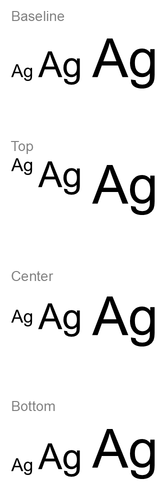
การจัดแนวฟอนต์ใช้เมตริกของฟอนต์ ดังนั้นขอบด้านมองเห็นของอักษรแต่ละตัวอาจไม่ตรงกันอย่างสมบูรณ์ ตัวอย่างรวมอักษรตัวพิมพ์ใหญ่และตัวลงเพื่อแสดงความแตกต่างระหว่าง baseline และ bottom การมีฟอนต์และการทดแทน, ตัวอักษรที่ใช้, และความแตกต่างของขนาดฟอนต์มีผลต่อผลลัพธ์ ขนาดกรอบ, ระยะขอบ, ระยะบรรทัด, การห่อข้อความและการ autofit ยังมีผลต่อการจัดวาง; ควรใช้ฟอนต์และการตั้งค่าเลย์เอาต์เดียวกันเมือเปรียบเทียบโหมดต่าง ๆ
การตั้งค่านี้แตกต่างจาก ParagraphFormat.setAlignment ซึ่งควบคุมการจัดแนวนอนของย่อหน้า, และ TextFrameFormat.setAnchoringType ซึ่งกำหนดตำแหน่งบล็อกข้อความในแนวตั้งภายในรูปร่าง การจัดรูปแบบตัวชี้บนหรือล่างผ่าน BasePortionFormat.setEscapement จะย้ายส่วนข้อความแต่ละส่วนสัมพันธ์กับ baseline แทนการตั้งค่าการจัดแนวฟอนต์สำหรับบรรทัดของย่อหน้า
ตั้งค่าความโปร่งแสงสำหรับข้อความ
ความโปร่งแสงของข้อความถูกควบคุมโดยคอมโพเนนต์อัลฟาของสีที่กำหนดให้กับ BasePortionFormat.getFillFormat ในตัวอย่างด้านล่าง alpha = 50 คือค่าช่องอัลฟา ARGB บนสเกล 0–255 ไม่ใช่เปอร์เซ็นต์ความโปร่งแสง
ตัวอย่างโค้ดต่อไปนี้แสดงวิธีใช้ความโปร่งแสงกับ ย่อหน้าทั้งหมด:
import jpype
import asposeslides

if not jpype.isJVMStarted():
    jpype.startJVM()

from asposeslides.api import FillType, Presentation, SaveFormat
from java.awt import Color

alpha = 50
text_color = Color(0, 0, 0, alpha)

presentation = Presentation("sample.pptx")
try:
    slide = presentation.getSlides().get_Item(0)

    auto_shape = slide.getShapes().get_Item(0)
    paragraph = auto_shape.getTextFrame().getParagraphs().get_Item(0)

    # ตั้งค่าสีเติมของข้อความเป็นสีโปร่งใส.
    paragraph.getParagraphFormat().getDefaultPortionFormat().getFillFormat().setFillType(FillType.Solid)
    paragraph.getParagraphFormat().getDefaultPortionFormat().getFillFormat().getSolidFillColor().setColor(text_color)

    presentation.save("transparent_paragraph.pptx", SaveFormat.Pptx)
finally:
    presentation.dispose()
ผลลัพธ์:

ตัวอย่างโค้ดต่อไปนี้แสดงวิธีใช้ความโปร่งแสงกับ ส่วนข้อความที่มีฟอนต์ตัวหนา:
import jpile
import asposeslides

if not jpype.isJVMStarted():
    jpype.startJVM()

from asposeslides.api import FillType, Presentation, SaveFormat
from java.awt import Color

alpha = 50
text_color = Color(0, 0, 0, alpha)

presentation = Presentation("sample.pptx")
try:
    slide = presentation.getSlides().get_Item(0)

    auto_shape = slide.getShapes().get_Item(0)
    paragraph = auto_shape.getTextFrame().getParagraphs().get_Item(0)

    for portion in paragraph.getPortions():
        if portion.getPortionFormat().getEffective().getFontBold():
            # ตั้งค่าความโปร่งใสของส่วนข้อความ.
            portion.getPortionFormat().getFillFormat().setFillType(FillType.Solid)
            portion.getPortionFormat().getFillFormat().getSolidFillColor().setColor(text_color)

    presentation.save("transparent_text_portions.pptx", SaveFormat.Pptx)
finally:
    presentation.dispose()
ผลลัพธ์:

ตั้งค่าระยะห่างระหว่างตัวอักษรสำหรับข้อความ
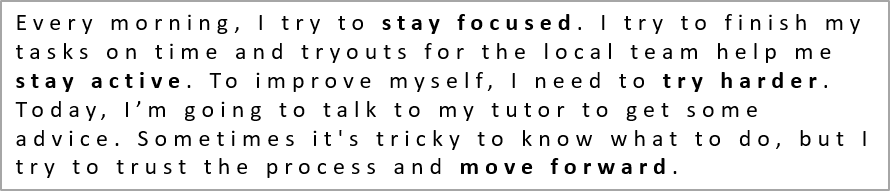
ใช้ BasePortionFormat.setSpacing เพื่อขยายหรือบีบอัดระยะห่างระหว่างอักษรในกล่องข้อความ ตัวอย่างเพิ่มระยะห่าง 3 จุด; ค่าติดลบจะบีบอัดข้อความ
โค้ด Python ต่อไปนี้แสดงวิธีขยายระยะห่างระหว่างอักษรใน ย่อหน้าทั้งหมด:
import jpype
import asposeslides

if not jpype.isJVMStarted():
    jpype.startJVM()

from asposeslides.api import Presentation, SaveFormat

presentation = Presentation("sample.pptx")
try:
    slide = presentation.getSlides().get_Item(0)

    auto_shape = slide.getShapes().get_Item(0)
    paragraph = auto_shape.getTextFrame().getParagraphs().get_Item(0)

    # หมายเหตุ: ใช้ค่าติดลบเพื่อลดระยะห่างระหว่างอักขระ.
    paragraph.getParagraphFormat().getDefaultPortionFormat().setSpacing(3) # ขยายระยะห่างระหว่างอักขระ.

    presentation.save("character_spacing_in_paragraph.pptx", SaveFormat.Pptx)
finally:
    presentation.dispose()
ผลลัพธ์:
ตัวอย่างโค้ดต่อไปนี้แสดงวิธีขยายระยะห่างระหว่างอักษรใน ส่วนข้อความที่มีฟอนต์ตัวหนา:
import jpype
import asposeslides

if not jpype.isJVMStarted():
    jpype.startJVM()

from asposeslides.api import Presentation, SaveFormat

presentation = Presentation("sample.pptx")
try:
    slide = presentation.getSlides().get_Item(0)

    auto_shape = slide.getShapes().get_Item(0)
    paragraph = auto_shape.getTextFrame().getParagraphs().get_Item(0)

    for portion in paragraph.getPortions():
        if portion.getPortionFormat().getEffective().getFontBold():
            # หมายเหตุ: ใช้ค่าติดลบเพื่อลดระยะห่างระหว่างอักขระ.
            portion.getPortionFormat().setSpacing(3) # ขยายระยะห่างระหว่างอักขระ.

    presentation.save("character_spacing_in_text_portions.pptx", SaveFormat.Pptx)
finally:
    presentation.dispose()
ผลลัพธ์:

ปิดการใช้ Kerning สำหรับฟอนต์เฉพาะ
ในบางกรณีข้อความที่แสดงโดย Aspose.Slides อาจดูแคบกว่าข้อความเดียวกันใน PowerPoint เนื่องจาก PowerPoint อาจละเลยข้อมูล kerning ของฟอนต์บางตัว แม้ว่าฟอนต์จะมีข้อมูล kerning ที่ถูกต้องและเปิดใช้งานในการตั้งค่าของ PowerPoint
เพื่อให้ผลลัพธ์ที่แสดงใกล้เคียงกับ PowerPoint มากขึ้น คุณสามารถปิดการใช้ kerning สำหรับส่วนข้อความที่ใช้ฟอนต์ที่ได้รับผลกระทบ ตั้งค่า BasePortionFormat.setKerningMinimalSize ให้มีค่ามากกว่าขนาดฟอนต์จริง ตัวอย่างนี้ต้องใช้ไฟล์ “presentation.pptx” ที่มีกล่องข้อความเป็นรูปร่างแรกในสไลด์แรก ตรวจสอบชื่อฟอนต์ที่มีผลรวมรวมถึงฟอนต์ที่สืบทอด และตั้งค่าเกณฑ์ 100 จุดสำหรับส่วนที่ใช้ Roboto การตั้งค่านี้จะปิดการใช้ kerning สำหรับส่วนที่ใช้ฟอนต์ขนาดต่ำกว่า 100 จุด:
import jpype
import asposeslides

if not jpype.isJVMStarted():
    jpype.startJVM()

from asposeslides.api import Presentation, SaveFormat

presentation = Presentation("presentation.pptx")
try:
    slide = presentation.getSlides().get_Item(0)

    auto_shape = slide.getShapes().get_Item(0)
    target_font = "Roboto"

    for paragraph in auto_shape.getTextFrame().getParagraphs():
        for portion in paragraph.getPortions():
            portion_format = portion.getPortionFormat().getEffective()
            fonts = (portion_format.getLatinFont(), portion_format.getEastAsianFont(), portion_format.getComplexScriptFont())
            if any(font is not None and font.getFontName() == target_font for font in fonts):
                portion.getPortionFormat().setKerningMinimalSize(100)

    presentation.save("output.pptx", SaveFormat.Pptx)
finally:
    presentation.dispose()
สำหรับข้อความที่ตรงกับเกณฑ์นี้ การตั้งค่านี้จะป้องกัน kerning และช่วยให้การแสดงผลของ Aspose.Slides ใกล้เคียงกับผลลัพธ์ที่ PowerPoint แสดงสำหรับฟอนต์ที่ได้รับผลจากพฤติกรรมเฉพาะของ PowerPoint นี้
จัดการคุณสมบัติฟอนต์ของข้อความ
คุณสมบัติฟอนต์สามารถตั้งค่าที่ระดับย่อหน้าได้ผ่าน ParagraphFormat.getDefaultPortionFormat หรือบนส่วนข้อความแต่ละส่วนผ่าน PortionFormat
ตัวอย่างต่อไปนี้ตั้งค่าฟอนต์เริ่มต้นของย่อหน้าแรกเป็น Times New Roman ขนาด 12 จุด พร้อมการทำตัวหนา, ตัวเอียง, และขีดเส้นใต้แบบจุดสี ดำเนินการจัดรูปแบบโดยตรงบนส่วนข้อความแต่ละส่วนจะมีลำดับความสำคัญเหนือค่าเริ่มต้นเหล่านี้:
import jpype
import asposeslides

if not jpype.isJVMStarted():
    jpype.startJVM()

from asposeslides.api import FontData, NullableBool, Presentation, SaveFormat, TextUnderlineType

presentation = Presentation("sample.pptx")
try:
    slide = presentation.getSlides().get_Item(0)

    auto_shape = slide.getShapes().get_Item(0)
    paragraph = auto_shape.getTextFrame().getParagraphs().get_Item(0)

    # ตั้งค่าคุณสมบัติโฟอนต์สำหรับย่อหน้า.
    paragraph.getParagraphFormat().getDefaultPortionFormat().setFontHeight(12)
    paragraph.getParagraphFormat().getDefaultPortionFormat().setFontBold(NullableBool.True_)
    paragraph.getParagraphFormat().getDefaultPortionFormat().setFontItalic(NullableBool.True_)
    paragraph.getParagraphFormat().getDefaultPortionFormat().setFontUnderline(TextUnderlineType.Dotted)
    font = FontData("Times New Roman")
    paragraph.getParagraphFormat().getDefaultPortionFormat().setLatinFont(font)

    presentation.save("font_properties_for_paragraph.pptx", SaveFormat.Pptx)
finally:
    presentation.dispose()
ผลลัพธ์:

ตัวอย่างต่อไปนี้ใช้ Times New Roman ขนาด 13 จุด, ทำตัวเอียง, และขีดเส้นใต้แบบจุดสำหรับส่วนข้อความที่มีการจัดรูปแบบตัวหนา:
import jpype
import asposeslides

if not jpype.isJVMStarted():
    jpype.startJVM()

from asposeslides.api import FontData, NullableBool, Presentation, SaveFormat, TextUnderlineType

presentation = Presentation("sample.pptx")
try:
    slide = presentation.getSlides().get_Item(0)

    auto_shape = slide.getShapes().get_Item(0)
    paragraph = auto_shape.getTextFrame().getParagraphs().get_Item(0)

    for portion in paragraph.getPortions():
        if portion.getPortionFormat().getEffective().getFontBold():
            # ตั้งค่าคุณสมบัติโฟอนต์สำหรับส่วนข้อความ.
            portion.getPortionFormat().setFontHeight(13)
            portion.getPortionFormat().setFontItalic(NullableBool.True_)
            portion.getPortionFormat().setFontUnderline(TextUnderlineType.Dotted)
            font = FontData("Times New Roman")
            portion.getPortionFormat().setLatinFont(font)

    presentation.save("font_properties_for_text_portions.pptx", SaveFormat.Pptx)
finally:
    presentation.dispose()
ผลลัพธ์:

ตั้งค่าการหมุนของข้อความ
ใช้ TextFrameFormat.setTextVerticalType เพื่อกำหนดทิศทางข้อความที่กำหนดล่วงหน้าในรูปร่าง
ตัวอย่างโค้ดต่อไปนี้ตั้งค่าการวางแนวข้อความในรูปร่างเป็น TextVerticalType.Vertical270 ซึ่งทำให้ข้อความ หมุน 90 องศาตามเข็มนาฬิกา:
import jpype
import asposeslides

if not jpype.isJVMStarted():
    jpype.startJVM()

from asposeslides.api import Presentation, SaveFormat, TextVerticalType

presentation = Presentation("sample.pptx")
try:
    slide = presentation.getSlides().get_Item(0)

    auto_shape = slide.getShapes().get_Item(0)
    auto_shape.getTextFrame().getTextFrameFormat().setTextVerticalType(TextVerticalType.Vertical270)

    presentation.save("text_rotation.pptx", SaveFormat.Pptx)
finally:
    presentation.dispose()
ผลลัพธ์:

ตั้งค่าการหมุนแบบกำหนดเองสำหรับกรอบข้อความ
ใช้ TextFrameFormat.setRotationAngle เพื่อกำหนดมุมการหมุนแบบกำหนดเองสำหรับ TextFrame
โค้ดต่อไปนี้หมุนกรอบข้อความ 3 องศาตามเข็มนาฬิกาในรูปร่าง:
import jpype
import asposeslides

if not jpype.isJVMStarted():
    jpype.startJVM()

from asposeslides.api import Presentation, SaveFormat

presentation = Presentation("sample.pptx")
try:
    slide = presentation.getSlides().get_Item(0)

    auto_shape = slide.getShapes().get_Item(0)
    auto_shape.getTextFrame().getTextFrameFormat().setRotationAngle(3)

    presentation.save("custom_text_rotation.pptx", SaveFormat.Pptx)
finally:
    presentation.dispose()
ผลลัพธ์:

ตั้งค่าระยะห่างบรรทัดของย่อหน้า
Aspose.Slides มี ParagraphFormat.setSpaceAfter, ParagraphFormat.setSpaceBefore, และ ParagraphFormat.setSpaceWithin เพื่อควบคุมระยะห่างของย่อหน้า คุณสมบัติเหล่านี้ใช้ดังนี้
- ใช้ค่าบวกเพื่อระบุระยะห่างบรรทัดเป็นเปอร์เซ็นต์ของความสูงบรรทัด
- ใช้ค่าลบเพื่อระบุระยะห่างบรรทัดเป็นหน่วยจุด
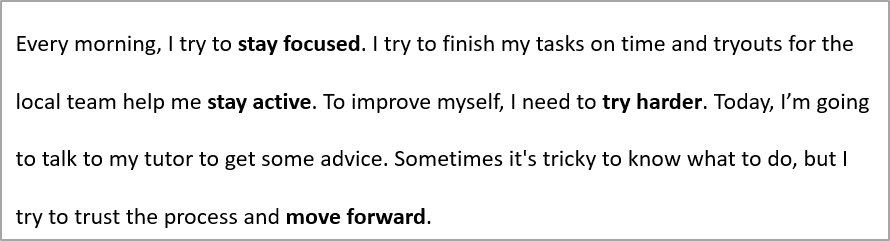
ตัวอย่างต่อไปนี้ตั้งค่าระยะห่างภายในย่อหน้าแรกเป็น 200 % ของความสูงบรรทัด (สองเท่า):
import jpype
import asposeslides

if not jpype.isJVMStarted():
    jpype.startJVM()

from asposeslides.api import Presentation, SaveFormat

presentation = Presentation("sample.pptx")
try:
    slide = presentation.getSlides().get_Item(0)

    auto_shape = slide.getShapes().get_Item(0)

    paragraph = auto_shape.getTextFrame().getParagraphs().get_Item(0)
    paragraph.getParagraphFormat().setSpaceWithin(200)

    presentation.save("line_spacing.pptx", SaveFormat.Pptx)
finally:
    presentation.dispose()
ผลลัพธ์:
ควบคุมการตัดบรรทัด
กฎการตัดบรรทัดของย่อหน้าเป็นประโยชน์ในบล็อกข้อความแคบและการนำเสนอที่ผสมข้อความละตินและเอเชียตะวันออก วิธีต่อไปนี้เป็นของ ParagraphFormat จึงใช้กับย่อหน้าเต็ม:
- setLatinLineBreak ควบคุมกฎการตัดบรรทัดละติน ในข้อความผสม การเปลี่ยนค่านี้อาจทำให้ตำแหน่งการตัดบรรทัดของข้อความเอเชียตะวันออกและเครื่องหมายวรรคตอนเปลี่ยนไป
- setEastAsianLineBreak ควบคุมกฎการตัดบรรทัดเอเชียตะวันออก รวมถึงข้อจำกัดของอักขระที่อยู่ต้นหรือท้ายบรรทัด
กฎเหล่านี้ไม่ทดแทน TextFrameFormat.setWrapText ซึ่งเปิดใช้งานการห่อข้อความอัตโนมัติในกรอบข้อความ พวกมันส่งผลต่อการจัดวางเมื่อมีการห่อข้อความ; ไม่ได้ใส่ตัวอักษรตัดบรรทัด การตัดบรรทัดแบบชัดเจนจะทำให้เกิดบรรทัดใหม่ภายในย่อหน้าโดยอิสระจากความกว้างที่มี
ตัวอย่างต่อไปนี้สร้างบล็อกข้อความแคบที่มีข้อความจีนและละติน ตั้งค่าทั้งสองตัวเลือกการตัดบรรทัดอย่างชัดเจนและบันทึกเป็น “line_breaking.pptx” เพื่อลองใช้แต่ละกฎ ให้เปลี่ยนค่าที่สอดคล้องในขณะรักษาการตั้งค่าอื่นคงที่ ตัวอย่างใช้ Arial ขนาด 24 จุดและ SimSun พร้อมความกว้างกรอบ 160 จุดและไม่มีระยะขอบแนวนอนของกรอบข้อความ TextFrameFormat.setAutofitType ถูกเรียกด้วย TextAutofitType.None_ เพื่อให้ขนาดข้อความและขนาดกรอบคงที่:
import jpype
import asposeslides

if not jpype.isJVMStarted():
    jpype.startJVM()

from asposeslides.api import FillType, FontData, NullableBool, Presentation, SaveFormat, ShapeType, TextAlignment, TextAutofitType
from java.awt import Color

presentation = Presentation()
try:
    slide = presentation.getSlides().get_Item(0)

    shape = slide.getShapes().addAutoShape(ShapeType.Rectangle, 50, 50, 160, 300)
    shape.getFillFormat().setFillType(FillType.NoFill)

    text_frame = shape.getTextFrame()
    text_frame.getTextFrameFormat().setWrapText(NullableBool.True_)
    text_frame.getTextFrameFormat().setAutofitType(TextAutofitType.None_)
    text_frame.getTextFrameFormat().setMarginLeft(0)
    text_frame.getTextFrameFormat().setMarginRight(0)

    paragraph = text_frame.getParagraphs().get_Item(0)
    paragraph.setText("中文排版测试,PowerPoint 中文演示。")

    paragraph_format = paragraph.getParagraphFormat()
    paragraph_format.setAlignment(TextAlignment.Left)
    paragraph_format.getDefaultPortionFormat().setFontHeight(24)
    latin_font = FontData("Arial")
    paragraph_format.getDefaultPortionFormat().setLatinFont(latin_font)
    east_asian_font = FontData("SimSun")
    paragraph_format.getDefaultPortionFormat().setEastAsianFont(east_asian_font)
    paragraph_format.getDefaultPortionFormat().getFillFormat().setFillType(FillType.Solid)
    paragraph_format.getDefaultPortionFormat().getFillFormat().getSolidFillColor().setColor(Color.BLACK)
    paragraph_format.setLatinLineBreak(NullableBool.False_)
    paragraph_format.setEastAsianLineBreak(NullableBool.True_)

    presentation.save("line_breaking.pptx", SaveFormat.Pptx)
finally:
    presentation.dispose()
ควบคุมการจัดวางเครื่องหมายวรรคตอนแบบห้อย
ParagraphFormat.setHangingPunctuation อนุญาตให้เครื่องหมายวรรคตอนที่เหมาะสมลอนออกไปเกินขอบขวาของบรรทัดแทนที่จะอยู่บนบรรทัดถัดไป ใช้กับย่อหน้าเต็มและแตกต่างจากการเยื้องแบบห้อย
ตัวอย่างต่อไปนี้เปิดใช้การลอยเครื่องหมายวรรคตอนในกรอบข้อความกว้าง 100 จุดและบันทึกเป็น “hanging_punctuation.pptx” ด้วย Arial ขนาด 24 จุดและไม่มีระยะขอบแนวนอน เครื่องหมายจุดสุดท้ายจะอยู่หลังคำ “sentence” และล่อนออกเกินขอบขวา ตั้งค่าคุณสมบัติเป็น NullableBool.False_ เพื่อเปรียบเทียบ: ในการตั้งค่านี้ จุดจบจะอยู่บนบรรทัดแยก การห่อข้อความเปิดใช้งานและ autofit ปิดเพื่อคงความกว้างที่มี
import jpype
import asposeslides

if not jpype.isJVMStarted():
    jpype.startJVM()

from asposeslides.api import FillType, FontData, NullableBool, Presentation, SaveFormat, ShapeType, TextAlignment, TextAutofitType
from java.awt import Color

presentation = Presentation()
try:
    slide = presentation.getSlides().get_Item(0)

    shape = slide.getShapes().addAutoShape(ShapeType.Rectangle, 50, 50, 100, 200)
    shape.getFillFormat().setFillType(FillType.NoFill)

    text_frame = shape.getTextFrame()
    text_frame.getTextFrameFormat().setWrapText(NullableBool.True_)
    text_frame.getTextFrameFormat().setAutofitType(TextAutofitType.None_)
    text_frame.getTextFrameFormat().setMarginLeft(0)
    text_frame.getTextFrameFormat().setMarginRight(0)

    paragraph = text_frame.getParagraphs().get_Item(0)
    paragraph.setText("Simple text, next sentence.")

    paragraph_format = paragraph.getParagraphFormat()
    paragraph_format.setAlignment(TextAlignment.Left)
    paragraph_format.getDefaultPortionFormat().setFontHeight(24)
    latin_font = FontData("Arial")
    paragraph_format.getDefaultPortionFormat().setLatinFont(latin_font)
    paragraph_format.getDefaultPortionFormat().getFillFormat().setFillType(FillType.Solid)
    paragraph_format.getDefaultPortionFormat().getFillFormat().getSolidFillColor().setColor(Color.BLACK)
    paragraph_format.setHangingPunctuation(NullableBool.True_)

    presentation.save("hanging_punctuation.pptx", SaveFormat.Pptx)
finally:
    presentation.dispose()
ไม่ใช่เครื่องหมายวรรคตอนทุกตัวที่สามารถลอยได้ เงื่อนไขของฟอนต์และการจัดวางที่อธิบายไว้ข้างต้น (ควบคุมการตัดบรรทัด) ก็มีผลต่อการเปรียบเทียบนี้: การเปลี่ยนฟอนต์, ความกว้างที่มี, ระยะขอบ, หรือการตั้งค่า autofit สามารถทำให้ความแตกต่างที่มองเห็นหายไป
ตั้งค่าชนิด Autofit สำหรับกรอบข้อความ
TextFrameFormat.setAutofitType กำหนดวิธีที่ข้อความทำงานเมื่อเกินขอบเขตของภาชนะ ใช้เพื่อควบคุมว่าข้อความจะย่อ, ล้นออก, หรือปรับขนาดรูปร่างโดยอัตโนมัติ ตัวอย่างต่อไปนี้ตั้งค่าให้รูปร่างปรับขนาดตามข้อความและบันทึกผลลัพธ์เป็น “autofit_type.pptx”
import jpype
import asposeslides

if not jpype.isJVMStarted():
    jpype.startJVM()

from asposeslides.api import Presentation, SaveFormat, TextAutofitType

presentation = Presentation("sample.pptx")
try:
    slide = presentation.getSlides().get_Item(0)

    auto_shape = slide.getShapes().get_Item(0)
    auto_shape.getTextFrame().getTextFrameFormat().setAutofitType(TextAutofitType.Shape)

    presentation.save("autofit_type.pptx", SaveFormat.Pptx)
finally:
    presentation.dispose()
หากต้องการนับจำนวนบรรทัดหลังจากการห่ออัตโนมัติและดูว่าขนาดข้อความหรือความกว้างรูปร่างเปลี่ยนผลลัพธ์อย่างไร ดูที่ Count Rendered Lines จำนวนบรรทัดเพียงอย่างเดียวไม่บ่งบอกว่าข้อความล้นภาชนะหรือไม่
ตั้งค่า Anchor ของกรอบข้อความ
TextFrameFormat.setAnchoringType กำหนดวิธีที่ข้อความจัดตำแหน่งในแนวตั้งภายในรูปร่าง เช่น อยู่ด้านบน, กลาง, หรือด้านล่าง ตัวอย่างต่อไปนี้ยึดข้อความไว้ที่ด้านล่างของรูปร่างแรกและบันทึกผลเป็น “text_anchor.pptx”
import jpype
import asposeslides

if not jpype.isJVMStarted():
    jpype.startJVM()

from asposeslides.api import Presentation, SaveFormat, TextAnchorType

presentation = Presentation("sample.pptx")
try:
    slide = presentation.getSlides().get_Item(0)

    auto_shape = slide.getShapes().get_Item(0)
    auto_shape.getTextFrame().getTextFrameFormat().setAnchoringType(TextAnchorType.Bottom)

    presentation.save("text_anchor.pptx", SaveFormat.Pptx)
finally:
    presentation.dispose()
ตั้งค่าการจัดตำแหน่งแท็บของข้อความ
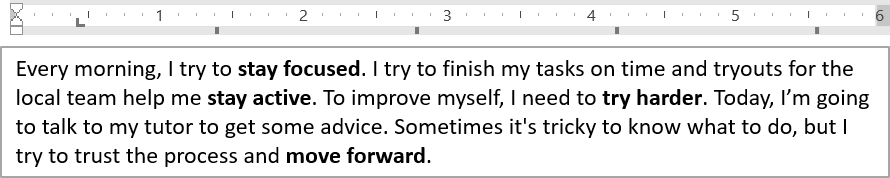
ใช้ ParagraphFormat.setDefaultTabSize และ ParagraphFormat.getTabs เพื่อกำหนดจุดหยุดแท็บในย่อหน้า ตัวอย่างต่อไปนี้ตั้งค่าช่วงแท็บเริ่มต้นเป็น 100 จุดและเพิ่มจุดหยุดแท็บแบบซ้ายที่ตำแหน่ง 30 จุด การตั้งค่าเหล่านี้ส่งผลต่อข้อความที่มีอักขระแท็บ
import jpype
import asposeslides

if not jpype.isJVMStarted():
    jpype.startJVM()

from asposeslides.api import Presentation, SaveFormat, TabAlignment

presentation = Presentation("sample.pptx")
try:
    slide = presentation.getSlides().get_Item(0)

    auto_shape = slide.getShapes().get_Item(0)

    paragraph = auto_shape.getTextFrame().getParagraphs().get_Item(0)
    paragraph.getParagraphFormat().setDefaultTabSize(100)
    paragraph.getParagraphFormat().getTabs().add(30, TabAlignment.Left)

    presentation.save("paragraph_tabs.pptx", SaveFormat.Pptx)
finally:
    presentation.dispose()
ผลลัพธ์:
ตั้งค่าภาษา Proofing
Aspose.Slides มี BasePortionFormat.setLanguageId ให้คุณตั้งค่าภาษา proofing สำหรับส่วนข้อความ ภาษา proofing กำหนดภาษาที่ใช้สำหรับการตรวจสอบการสะกดและไวยากรณ์ใน PowerPoint
ตัวอย่างต่อไปนี้ต้องใช้ “presentation.pptx” ที่มีกล่องข้อความเป็นรูปร่างแรกในสไลด์แรกและมีอย่างน้อยหนึ่งย่อหน้า แทนที่เนื้อหาของย่อหน้าแรกด้วย “1。”, ตั้งค่า SimSun เป็นฟอนต์ และกำหนดภาษา proofing Simplified Chinese (zh-CN) บันทึกผลเป็น “proofing_language.pptx”
import jpype
import asposeslides

if not jpype.isJVMStarted():
    jpype.startJVM()

from asposeslides.api import FontData, Portion, Presentation, SaveFormat

presentation = Presentation("presentation.pptx")
try:
    slide = presentation.getSlides().get_Item(0)

    auto_shape = slide.getShapes().get_Item(0)

    paragraph = auto_shape.getTextFrame().getParagraphs().get_Item(0)
    paragraph.getPortions().clear()

    font = FontData("SimSun")

    text_portion = Portion()
    text_portion.getPortionFormat().setComplexScriptFont(font)
    text_portion.getPortionFormat().setEastAsianFont(font)
    text_portion.getPortionFormat().setLatinFont(font)

    # ตั้งค่า Id ของภาษาการตรวจสอบ
    text_portion.getPortionFormat().setLanguageId("zh-CN")

    text_portion.setText("1。")
    paragraph.getPortions().add(text_portion)

    presentation.save("proofing_language.pptx", SaveFormat.Pptx)
finally:
    presentation.dispose()
ตั้งค่าภาษาเริ่มต้น
ใช้ LoadOptions.setDefaultTextLanguage เพื่อกำหนดภาษาที่ใช้เป็นค่าเริ่มต้นสำหรับข้อความที่สร้างขณะโหลดหรือสร้างงานนำเสนอ ตัวอย่างต่อไปนี้สร้างงานนำเสนอที่กำหนด US English เป็นภาษาเริ่มต้นของข้อความ, เพิ่มกล่องข้อความ, และพิมพ์ en-US สำหรับส่วนข้อความแรก
import jpype
import asposeslides

if not jpype.isJVMStarted():
    jpype.startJVM()

from asposeslides.api import LoadOptions, Presentation, ShapeType

load_options = LoadOptions()
load_options.setDefaultTextLanguage("en-US")

presentation = Presentation(load_options)
try:
    slide = presentation.getSlides().get_Item(0)

    # เพิ่มรูปร่างสี่เหลี่ยมพร้อมข้อความ.
    shape = slide.getShapes().addAutoShape(ShapeType.Rectangle, 20, 20, 150, 50)
    shape.getTextFrame().setText("Sample text")

    # ตรวจสอบภาษาของส่วนข้อความแรก.
    portion = shape.getTextFrame().getParagraphs().get_Item(0).getPortions().get_Item(0)
    print(portion.getPortionFormat().getLanguageId())
finally:
    presentation.dispose()
ตั้งค่ารูปแบบข้อความเริ่มต้น
เพื่อใช้การจัดรูปแบบข้อความเริ่มต้นในระดับงานนำเสนอ ให้ใช้ Presentation.getDefaultTextStyle
ตัวอย่างต่อไปนี้ตั้งค่าฟอนต์ตัวหนาขนาด 14 จุดเป็นค่าเริ่มต้นสำหรับย่อหน้าในระดับบนของงานนำเสนอใหม่และบันทึกเป็น “default_text_style.pptx” ข้อความสามารถสืบทอดค่าเริ่มต้นเหล่านี้ได้ เว้นแต่การจัดรูปแบบที่เฉพาะเจาะจงมากกว่าจะทับ
import jpype
import asposeslides

if not jpype.isJVMStarted():
    jpype.startJVM()

from asposeslides.api import NullableBool, Presentation, SaveFormat

presentation = Presentation()
try:
    # ดึงรูปแบบย่อหน้าระดับบนสุด.
    paragraph_format = presentation.getDefaultTextStyle().getLevel(0)

    if paragraph_format is not None:
        paragraph_format.getDefaultPortionFormat().setFontHeight(14)
        paragraph_format.getDefaultPortionFormat().setFontBold(NullableBool.True_)

    presentation.save("default_text_style.pptx", SaveFormat.Pptx)
finally:
    presentation.dispose()
สกัดข้อความด้วยเอฟเฟกต์ All‑Caps
ใน PowerPoint การใช้เอฟเฟกต์ฟอนต์ All Caps ทำให้ข้อความปรากฏเป็นตัวพิมพ์ใหญ่บนสไลด์ แม้ว่าจะพิมพ์เป็นตัวพิมพ์เล็กเดิม เมื่อคุณดึงส่วนข้อความดังกล่าวด้วย Aspose.Slides ไลบรารีจะคืนค่าข้อความตามที่ป้อนไว้ เพื่อตรงกับข้อความที่แสดง ตรวจสอบ TextCapType และแปลงสตริงที่คืนค่าเป็นตัวพิมพ์ใหญ่เมื่อค่าคือ All
ตัวอย่างนี้ต้องใช้ “sample2.pptx” ที่มีกล่องข้อความเป็นรูปร่างแรกในสไลด์แรก ย่อหน้าแรกของมันมีส่วนข้อความแรกเป็น “Hello, Aspose!” พร้อมเอฟเฟกต์ All Caps ตามภาพด้านล่าง
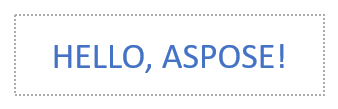
โค้ดต่อไปนี้แสดงวิธีสกัดข้อความพร้อมเอฟเฟกต์ All Caps ที่ถูกนำไปใช้:
import jpype
import asposeslides

if not jpype.isJVMStarted():
    jpype.startJVM()

from asposeslides.api import Presentation, TextCapType

presentation = Presentation("sample2.pptx")
try:
    slide = presentation.getSlides().get_Item(0)

    auto_shape = slide.getShapes().get_Item(0)
    text_portion = auto_shape.getTextFrame().getParagraphs().get_Item(0).getPortions().get_Item(0)

    print("Original text: " + str(text_portion.getText()))

    text_format = text_portion.getPortionFormat().getEffective()
    if text_format.getTextCapType() == TextCapType.All:
        text = str(text_portion.getText()).upper()
        print("All-Caps effect: " + text)
finally:
    presentation.dispose()
ผลลัพธ์:
Original text: Hello, Aspose!
All-Caps effect: HELLO, ASPOSE!
คำถามที่พบบ่อย
ฉันจะแก้ไขข้อความในตารางบนสไลด์ได้อย่างไร?
เพื่อแก้ไขข้อความในตารางบนสไลด์ ให้ใช้ Table วนลูปผ่านเซลล์และอัปเดตแต่ละเซลล์โดยใช้ Cell.getTextFrame และจัดรูปแบบย่อหน้าผ่าน Paragraph.getParagraphFormat
ฉันจะใส่สีไล่ระดับสีให้กับข้อความบนสไลด์ PowerPoint ได้อย่างไร?
เพื่อใส่สีไล่ระดับสีให้กับข้อความ ให้ใช้ BasePortionFormat.getFillFormat ตั้งค่า FillFormat.setFillType เป็น FillType.Gradient และกำหนดจุดหยุดไล่ระดับสี, ทิศทาง, และความโปร่งแสง