
Quản lý các đoạn văn bản PowerPoint trong Python
Tổng quan
Aspose.Slides for Python via .NET biểu diễn văn bản dưới dạng một cấu trúc phân cấp của khung văn bản, đoạn văn và phần:
- TextFrame đại diện cho vùng chứa văn bản trong một hình dạng và cung cấp quyền truy cập vào bộ sưu tập đoạn văn của nó.
- Paragraph đại diện cho một đoạn văn trong khung văn bản và cung cấp quyền truy cập vào các phần và định dạng ở mức độ đoạn.
- Portion đại diện cho một dải văn bản trong một đoạn. Mỗi phần có thể có văn bản và định dạng ký tự riêng.
Do đó một đoạn có thể chứa văn bản với các phông chữ, màu sắc, kích thước và các định dạng khác nhau bằng cách sử dụng nhiều phần.
Tạo và Định dạng Đoạn văn
Tạo đoạn trong khung văn bản của một hình dạng và sử dụng các phần để định dạng các dải văn bản riêng lẻ. Phần này cho thấy cách kết hợp nhiều phần trong mỗi đoạn và áp dụng các màu, kích thước phông chữ và kiểu khác nhau.
Tạo Đoạn với Nhiều Phần
Ví dụ Python dưới đây tạo ba đoạn, mỗi đoạn chứa ba dải văn bản trong bộ sưu tập Paragraph.portions. Nó tái sử dụng đoạn mặc định và phần rỗng, sau đó thêm các đoạn và phần còn lại. Định dạng được áp dụng qua Portion.portion_format: phần đầu tiên trong mỗi đoạn có màu đỏ, in đậm và 15 điểm; phần thứ hai có màu xanh, in nghiêng và 18 điểm. Phần thứ ba giữ định dạng mặc định:
import aspose.pydrawing as draw
import aspose.slides as slides

with slides.Presentation() as presentation:
    slide = presentation.slides[0]

    shape = slide.shapes.add_auto_shape(slides.ShapeType.RECTANGLE, 50, 150, 300, 150)
    text_frame = shape.text_frame

    first_paragraph = text_frame.paragraphs[0]
    first_paragraph.portions.add(slides.Portion())
    first_paragraph.portions.add(slides.Portion())

    second_paragraph = slides.Paragraph()
    second_paragraph.portions.add(slides.Portion())
    second_paragraph.portions.add(slides.Portion())
    second_paragraph.portions.add(slides.Portion())
    text_frame.paragraphs.add(second_paragraph)

    third_paragraph = slides.Paragraph()
    third_paragraph.portions.add(slides.Portion())
    third_paragraph.portions.add(slides.Portion())
    third_paragraph.portions.add(slides.Portion())
    text_frame.paragraphs.add(third_paragraph)

    for paragraph_index in range(text_frame.paragraphs.count):
        paragraph = text_frame.paragraphs[paragraph_index]
        for portion_index in range(paragraph.portions.count):
            portion = paragraph.portions[portion_index]
            portion.text = f"Portion {paragraph_index + 1}.{portion_index + 1}"

            if portion_index == 0:
                portion.portion_format.fill_format.fill_type = slides.FillType.SOLID
                portion.portion_format.fill_format.solid_fill_color.color = draw.Color.red
                portion.portion_format.font_bold = slides.NullableBool.TRUE
                portion.portion_format.font_height = 15
            elif portion_index == 1:
                portion.portion_format.fill_format.fill_type = slides.FillType.SOLID
                portion.portion_format.fill_format.solid_fill_color.color = draw.Color.blue
                portion.portion_format.font_italic = slides.NullableBool.TRUE
                portion.portion_format.font_height = 18

    presentation.save("paragraphs_with_portions.pptx", slides.export.SaveFormat.PPTX)
Tạo Danh sách Đánh dấu và Đánh số
Sắp xếp văn bản đoạn thành các danh sách với ký hiệu, số hoặc hình ảnh tùy chỉnh. Các ví dụ trong phần này bao gồm định dạng dấu chấm đầu dòng, danh sách đa cấp và số bắt đầu tùy chỉnh.
Tạo Danh sách Đánh dấu hoặc Đánh số
Dấu chấm đầu dòng và đánh số giúp người đọc nhanh chóng nhận diện các mục liên quan. Trong Aspose.Slides, cài đặt danh sách được định nghĩa qua BulletFormat.
Ví dụ Python này thêm một dấu chấm đầu dòng ký hiệu và một mục đánh số vào cùng một khung văn bản. BulletFormat.type chọn kiểu dấu chấm, trong khi BulletFormat.char cung cấp ký hiệu và BulletFormat.numbered_bullet_style chọn kiểu đánh số. Cả hai mục đều dùng dấu chấm màu đen với độ cao 100 % và thụt lề đoạn 25 điểm:
import aspose.pydrawing as draw
import aspose.slides as slides

with slides.Presentation() as presentation:
    slide = presentation.slides[0]

    shape = slide.shapes.add_auto_shape(slides.ShapeType.RECTANGLE, 200, 200, 400, 200)
    text_frame = shape.text_frame
    text_frame.paragraphs.clear()

    symbol_paragraph = slides.Paragraph()
    symbol_paragraph.text = "Welcome to Aspose.Slides"
    symbol_paragraph.paragraph_format.bullet.type = slides.BulletType.SYMBOL
    symbol_paragraph.paragraph_format.bullet.char = chr(0x2022)
    symbol_paragraph.paragraph_format.indent = 25
    symbol_paragraph.paragraph_format.bullet.color.color_type = slides.ColorType.RGB
    symbol_paragraph.paragraph_format.bullet.color.color = draw.Color.black
    symbol_paragraph.paragraph_format.bullet.is_bullet_hard_color = slides.NullableBool.TRUE
    symbol_paragraph.paragraph_format.bullet.height = 100
    text_frame.paragraphs.add(symbol_paragraph)

    numbered_paragraph = slides.Paragraph()
    numbered_paragraph.text = "This is a numbered item"
    numbered_paragraph.paragraph_format.bullet.type = slides.BulletType.NUMBERED
    numbered_paragraph.paragraph_format.bullet.numbered_bullet_style = slides.NumberedBulletStyle.BULLET_CIRCLE_NUM_WD_BLACK_PLAIN
    numbered_paragraph.paragraph_format.indent = 25
    numbered_paragraph.paragraph_format.bullet.color.color_type = slides.ColorType.RGB
    numbered_paragraph.paragraph_format.bullet.color.color = draw.Color.black
    numbered_paragraph.paragraph_format.bullet.is_bullet_hard_color = slides.NullableBool.TRUE
    numbered_paragraph.paragraph_format.bullet.height = 100
    text_frame.paragraphs.add(numbered_paragraph)

    presentation.save("bulleted_and_numbered_list.pptx", slides.export.SaveFormat.PPTX)
Sử dụng Dấu chấm đầu dòng Hình ảnh
Dấu chấm đầu dòng hình ảnh cho phép bạn dùng một hình ảnh tùy chỉnh thay cho ký hiệu hoặc số.
Ví dụ yêu cầu bullets.png trong thư mục làm việc. Ví dụ Python này thêm một hình ảnh vào bộ sưu tập hình ảnh của bản trình chiếu dưới dạng một PPImage và sử dụng nó làm dấu chấm đầu dòng cho đoạn. Nó đặt BulletFormat.type để sử dụng dấu chấm đầu dòng hình ảnh và gán hình ảnh qua BulletFormat.picture. BulletFormat.height được đặt là 100 % để kích thước dấu chấm tương đối so với văn bản đoạn:
import aspose.slides as slides

with slides.Presentation() as presentation:
    slide = presentation.slides[0]

    with slides.Images.from_file("bullets.png") as bullet_image:
        presentation_image = presentation.images.add_image(bullet_image)

    shape = slide.shapes.add_auto_shape(slides.ShapeType.RECTANGLE, 200, 200, 400, 200)
    text_frame = shape.text_frame
    text_frame.paragraphs.clear()

    paragraph = slides.Paragraph()
    paragraph.text = "Welcome to Aspose.Slides"
    paragraph.paragraph_format.bullet.type = slides.BulletType.PICTURE
    paragraph.paragraph_format.bullet.picture.image = presentation_image
    paragraph.paragraph_format.bullet.height = 100
    text_frame.paragraphs.add(paragraph)

    presentation.save("picture_bullet.pptx", slides.export.SaveFormat.PPTX)
    presentation.save("picture_bullet.ppt", slides.export.SaveFormat.PPT)
Tạo Danh sách Đa cấp
Đặt ParagraphFormat.depth để đặt các đoạn ở các cấp độ khác nhau của một danh sách. Cấp cao nhất có độ sâu 0.
Ví dụ Python này gán các giá trị ParagraphFormat.depth từ 0 tới 3 cho bốn đoạn, tạo một cấu trúc phân cấp trong một khung văn bản. Mỗi đoạn sử dụng dấu chấm đầu dòng ký hiệu, với BulletFormat.char xen kẽ giữa dấu chấm tròn và dấu gạch nối để phân biệt các cấp liền kề:
import aspose.pydrawing as draw
import aspose.slides as slides

with slides.Presentation() as presentation:
    slide = presentation.slides[0]

    shape = slide.shapes.add_auto_shape(slides.ShapeType.RECTANGLE, 200, 200, 400, 200)
    text_frame = shape.text_frame
    text_frame.paragraphs.clear()

    first_paragraph = slides.Paragraph()
    first_paragraph.text = "Content"
    first_paragraph.paragraph_format.bullet.type = slides.BulletType.SYMBOL
    first_paragraph.paragraph_format.bullet.char = chr(0x2022)
    first_paragraph.paragraph_format.default_portion_format.fill_format.fill_type = slides.FillType.SOLID
    first_paragraph.paragraph_format.default_portion_format.fill_format.solid_fill_color.color = draw.Color.black
    first_paragraph.paragraph_format.depth = 0

    second_paragraph = slides.Paragraph()
    second_paragraph.text = "Second level"
    second_paragraph.paragraph_format.bullet.type = slides.BulletType.SYMBOL
    second_paragraph.paragraph_format.bullet.char = "-"
    second_paragraph.paragraph_format.default_portion_format.fill_format.fill_type = slides.FillType.SOLID
    second_paragraph.paragraph_format.default_portion_format.fill_format.solid_fill_color.color = draw.Color.black
    second_paragraph.paragraph_format.depth = 1

    third_paragraph = slides.Paragraph()
    third_paragraph.text = "Third level"
    third_paragraph.paragraph_format.bullet.type = slides.BulletType.SYMBOL
    third_paragraph.paragraph_format.bullet.char = chr(0x2022)
    third_paragraph.paragraph_format.default_portion_format.fill_format.fill_type = slides.FillType.SOLID
    third_paragraph.paragraph_format.default_portion_format.fill_format.solid_fill_color.color = draw.Color.black
    third_paragraph.paragraph_format.depth = 2

    fourth_paragraph = slides.Paragraph()
    fourth_paragraph.text = "Fourth level"
    fourth_paragraph.paragraph_format.bullet.type = slides.BulletType.SYMBOL
    fourth_paragraph.paragraph_format.bullet.char = "-"
    fourth_paragraph.paragraph_format.default_portion_format.fill_format.fill_type = slides.FillType.SOLID
    fourth_paragraph.paragraph_format.default_portion_format.fill_format.solid_fill_color.color = draw.Color.black
    fourth_paragraph.paragraph_format.depth = 3

    text_frame.paragraphs.add(first_paragraph)
    text_frame.paragraphs.add(second_paragraph)
    text_frame.paragraphs.add(third_paragraph)
    text_frame.paragraphs.add(fourth_paragraph)

    presentation.save("multilevel_list.pptx", slides.export.SaveFormat.PPTX)
Bắt đầu Các mục Đánh số với Giá trị Tùy chỉnh
Sử dụng BulletFormat.numbered_bullet_start_with để đặt số ban đầu hiển thị cho một đoạn được đánh số.
Ví dụ Python này đặt BulletFormat.type để sử dụng đánh số cho ba đoạn và gán các giá trị BulletFormat.numbered_bullet_start_with là 2, 3 và 7. Giá trị bắt đầu được cấu hình riêng cho mỗi đoạn, cho phép các số hiển thị bỏ qua một số giá trị:
import aspose.slides as slides

with slides.Presentation() as presentation:
    slide = presentation.slides[0]

    shape = slide.shapes.add_auto_shape(slides.ShapeType.RECTANGLE, 200, 200, 400, 200)
    text_frame = shape.text_frame
    text_frame.paragraphs.clear()

    first_paragraph = slides.Paragraph()
    first_paragraph.text = "Start at 2"
    first_paragraph.paragraph_format.bullet.type = slides.BulletType.NUMBERED
    first_paragraph.paragraph_format.bullet.numbered_bullet_start_with = 2
    text_frame.paragraphs.add(first_paragraph)

    second_paragraph = slides.Paragraph()
    second_paragraph.text = "Start at 3"
    second_paragraph.paragraph_format.bullet.type = slides.BulletType.NUMBERED
    second_paragraph.paragraph_format.bullet.numbered_bullet_start_with = 3
    text_frame.paragraphs.add(second_paragraph)

    third_paragraph = slides.Paragraph()
    third_paragraph.text = "Start at 7"
    third_paragraph.paragraph_format.bullet.type = slides.BulletType.NUMBERED
    third_paragraph.paragraph_format.bullet.numbered_bullet_start_with = 7
    text_frame.paragraphs.add(third_paragraph)

    presentation.save("custom_numbered_list.pptx", slides.export.SaveFormat.PPTX)
Kiểm soát Bố cục Đoạn và Thuộc tính Kết thúc
Điều chỉnh lề và thụt lề đoạn để kiểm soát vị trí của dòng đầu và các dòng gói. Bạn cũng có thể định dạng ký tự kết thúc đoạn riêng biệt so với các phần văn bản hiển thị.
Đặt Thụt lề Dòng Đầu
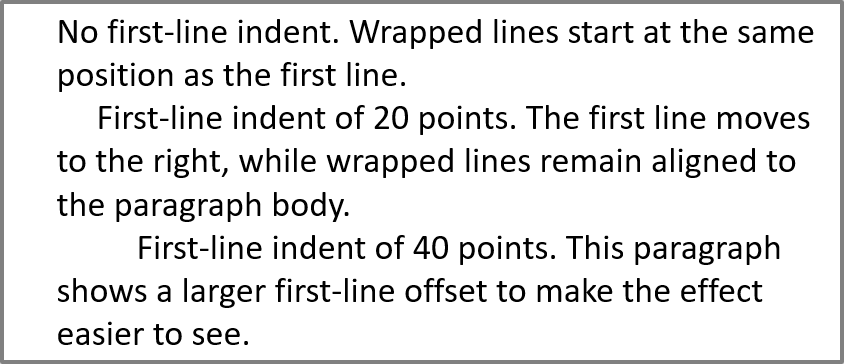
Sử dụng thuộc tính ParagraphFormat.indent để kiểm soát thụt lề dòng đầu của một đoạn. Thuộc tính này chỉ di chuyển dòng đầu so với lề trái của đoạn. Giá trị dương dịch dòng đầu sang phải, trong khi các dòng còn lại vẫn căn chỉnh với thân đoạn.
Sử dụng ParagraphFormat.margin_left khi bạn cần di chuyển toàn bộ đoạn. Sử dụng ParagraphFormat.indent khi bạn chỉ muốn di chuyển dòng đầu.
Ví dụ dưới đây đặt ba đoạn cùng một ParagraphFormat.margin_left là 20 điểm và các giá trị ParagraphFormat.indent là 0, 20 và 40 điểm. Các dòng đầu bắt đầu ở các khoảng cách ngày càng lớn, trong khi các dòng gói vẫn giữ cùng lề trái:
import aspose.pydrawing as draw
import aspose.slides as slides

with slides.Presentation() as presentation:
    slide = presentation.slides[0]

    shape = slide.shapes.add_auto_shape(slides.ShapeType.RECTANGLE, 50, 50, 420, 220)
    shape.fill_format.fill_type = slides.FillType.NO_FILL
    shape.line_format.fill_format.fill_type = slides.FillType.SOLID
    shape.line_format.fill_format.solid_fill_color.color = draw.Color.gray

    text_frame = shape.text_frame
    text_frame.text_frame_format.autofit_type = slides.TextAutofitType.SHAPE
    text_frame.paragraphs.clear()

    first_paragraph = slides.Paragraph()
    first_paragraph.text = "No first-line indent. Wrapped lines start at the same position as the first line."
    first_paragraph.paragraph_format.default_portion_format.fill_format.fill_type = slides.FillType.SOLID
    first_paragraph.paragraph_format.default_portion_format.fill_format.solid_fill_color.color = draw.Color.black
    first_paragraph.paragraph_format.margin_left = 20
    first_paragraph.paragraph_format.indent = 0

    second_paragraph = slides.Paragraph()
    second_paragraph.text = "First-line indent of 20 points. The first line moves to the right, while wrapped lines remain aligned to the paragraph body."
    second_paragraph.paragraph_format.default_portion_format.fill_format.fill_type = slides.FillType.SOLID
    second_paragraph.paragraph_format.default_portion_format.fill_format.solid_fill_color.color = draw.Color.black
    second_paragraph.paragraph_format.margin_left = 20
    second_paragraph.paragraph_format.indent = 20

    third_paragraph = slides.Paragraph()
    third_paragraph.text = "First-line indent of 40 points. This paragraph shows a larger first-line offset to make the effect easier to see."
    third_paragraph.paragraph_format.default_portion_format.fill_format.fill_type = slides.FillType.SOLID
    third_paragraph.paragraph_format.default_portion_format.fill_format.solid_fill_color.color = draw.Color.black
    third_paragraph.paragraph_format.margin_left = 20
    third_paragraph.paragraph_format.indent = 40

    text_frame.paragraphs.add(first_paragraph)
    text_frame.paragraphs.add(second_paragraph)
    text_frame.paragraphs.add(third_paragraph)

    presentation.save("paragraph_indent.pptx", slides.export.SaveFormat.PPTX)
Kết quả:
Đặt Thụt lề Treo
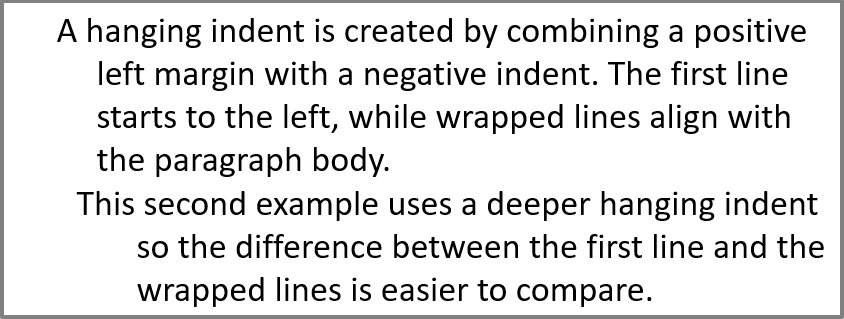
Thụt lề treo là bố cục đoạn mà trong đó dòng đầu bắt đầu ở phía trái hơn các dòng còn lại. Trong Aspose.Slides, bạn tạo hiệu ứng này bằng thuộc tính ParagraphFormat.indent. Đặt indent thành giá trị âm để di chuyển dòng đầu sang trái so với thân đoạn.
Thực tế, ParagraphFormat.margin_left xác định vị trí trái của thân đoạn, và ParagraphFormat.indent xác định vị trí của dòng đầu so với lề đó. Để tạo thụt lề treo, đặt giá trị margin_left dương và indent âm.
Định dạng này hữu ích cho thư mục, tài liệu tham khảo, mục từ điển và các đoạn khác mà các dòng gói phải căn dưới thân đoạn thay vì dưới ký tự đầu của dòng đầu.
Ví dụ Python dưới đây ghép các giá trị ParagraphFormat.margin_left 40 và 60 điểm với các giá trị ParagraphFormat.indent -20 và -30 điểm. Trong mỗi đoạn, dòng đầu bắt đầu ở bên trái các dòng gói; đoạn thứ hai có thụt lề treo sâu hơn:
import aspose.pydrawing as draw
import aspose.slides as slides

with slides.Presentation() as presentation:
    slide = presentation.slides[0]

    shape = slide.shapes.add_auto_shape(slides.ShapeType.RECTANGLE, 50, 50, 420, 220)
    shape.fill_format.fill_type = slides.FillType.NO_FILL
    shape.line_format.fill_format.fill_type = slides.FillType.SOLID
    shape.line_format.fill_format.solid_fill_color.color = draw.Color.gray

    text_frame = shape.text_frame
    text_frame.text_frame_format.autofit_type = slides.TextAutofitType.SHAPE
    text_frame.paragraphs.clear()

    first_paragraph = slides.Paragraph()
    first_paragraph.text = "A hanging indent is created by combining a positive left margin with a negative indent. The first line starts to the left, while wrapped lines align with the paragraph body."
    first_paragraph.paragraph_format.default_portion_format.fill_format.fill_type = slides.FillType.SOLID
    first_paragraph.paragraph_format.default_portion_format.fill_format.solid_fill_color.color = draw.Color.black
    first_paragraph.paragraph_format.margin_left = 40
    first_paragraph.paragraph_format.indent = -20

    second_paragraph = slides.Paragraph()
    second_paragraph.text = "This second example uses a deeper hanging indent so the difference between the first line and the wrapped lines is easier to compare."
    second_paragraph.paragraph_format.default_portion_format.fill_format.fill_type = slides.FillType.SOLID
    second_paragraph.paragraph_format.default_portion_format.fill_format.solid_fill_color.color = draw.Color.black
    second_paragraph.paragraph_format.margin_left = 60
    second_paragraph.paragraph_format.indent = -30

    text_frame.paragraphs.add(first_paragraph)
    text_frame.paragraphs.add(second_paragraph)

    presentation.save("hanging_indent.pptx", slides.export.SaveFormat.PPTX)
Kết quả:
Đặt Thuộc tính Kết thúc Đoạn
Thuộc tính Paragraph.end_paragraph_portion_format kiểm soát định dạng của ký tự kết thúc đoạn. Ví dụ tải Test.pptx, phải chứa ít nhất một slide, và tạo một PortionFormat với PortionFormat.font_height đặt thành 48 điểm và PortionFormat.latin_font đặt thành Times New Roman. Nó gán định dạng này cho ký tự kết thúc của đoạn thứ hai, trong khi các phần văn bản hiển thị không thay đổi:
import aspose.slides as slides

with slides.Presentation("Test.pptx") as presentation:
    slide = presentation.slides[0]

    shape = slide.shapes.add_auto_shape(slides.ShapeType.RECTANGLE, 10, 10, 200, 250)
    text_frame = shape.text_frame
    text_frame.paragraphs.clear()

    first_paragraph = slides.Paragraph()
    first_paragraph.portions.add(slides.Portion("Sample text"))

    second_paragraph = slides.Paragraph()
    second_paragraph.portions.add(slides.Portion("Sample text 2"))

    end_paragraph_format = slides.PortionFormat()
    end_paragraph_format.font_height = 48
    end_paragraph_format.latin_font = slides.FontData("Times New Roman")
    second_paragraph.end_paragraph_portion_format = end_paragraph_format

    text_frame.paragraphs.add(first_paragraph)
    text_frame.paragraphs.add(second_paragraph)

    presentation.save("end_paragraph_format.pptx", slides.export.SaveFormat.PPTX)
Đếm Số Dòng Được Render
Đối với các quy tắc đoạn ảnh hưởng đến việc gói tự động và dấu câu ở cuối dòng, xem Control Line Breaking và Control Hanging Punctuation.
Sử dụng Paragraph.get_lines_count để đếm số dòng mà một đoạn chiếm sau khi bố trí văn bản, bao gồm gói tự động. Điều này hữu ích khi kiểm tra độ dài và bố cục văn bản trong mẫu trình chiếu.
Một đoạn là một mục trong TextFrame.paragraphs, và nó có thể chiếm nhiều dòng được render. Một ngắt dòng tường minh trong đoạn buộc tạo một dòng mới mà không tạo đoạn mới. Việc gói tự động tạo dòng dựa trên chiều rộng có sẵn mà không chèn ký tự ngắt dòng vào văn bản. Do đó, đếm các đoạn hoặc ký tự ngắt dòng không cho biết số dòng đã render.
Ví dụ dưới đây tạo một hình dạng văn bản, đếm các dòng của nó, thu hẹp hình dạng, rồi thay thế văn bản bằng một chuỗi ngắn hơn. Ví dụ bật TextFrameFormat.wrap_text và tắt TextFrameFormat.autofit_type để chiều rộng hình dạng kiểm soát việc gói mà không tự động thu nhỏ văn bản hay thay đổi kích thước hình dạng. Mỗi phép đo sử dụng Paragraph.get_lines_count. Kích thước hình dạng tính bằng điểm. Cuối cùng, ví dụ thêm một đoạn nữa và tổng hợp số dòng qua khung văn bản.
import aspose.slides as slides

with slides.Presentation() as presentation:
    slide = presentation.slides[0]

    shape = slide.shapes.add_auto_shape(slides.ShapeType.RECTANGLE, 50, 50, 400, 200)
    text_frame = shape.text_frame
    text_frame.text_frame_format.wrap_text = slides.NullableBool.TRUE
    text_frame.text_frame_format.autofit_type = slides.TextAutofitType.NONE

    paragraph = text_frame.paragraphs[0]
    paragraph.paragraph_format.default_portion_format.font_height = 20
    paragraph.text = "This text demonstrates how automatic wrapping changes the number of rendered lines."
    print(f"Original width: {paragraph.get_lines_count()}")

    shape.width = 150
    print(f"Narrower shape: {paragraph.get_lines_count()}")

    paragraph.text = "Short text."
    print(f"Shorter text: {paragraph.get_lines_count()}")

    second_paragraph = slides.Paragraph()
    second_paragraph.text = "Another paragraph."
    second_paragraph.paragraph_format.default_portion_format.font_height = 20
    text_frame.paragraphs.add(second_paragraph)

    total_line_count = 0
    for current_paragraph in text_frame.paragraphs:
        total_line_count += current_paragraph.get_lines_count()
    print(f"Total lines in the text frame: {total_line_count}")
Với văn bản và các kích thước này, việc thu hẹp hình dạng làm tăng số dòng, trong khi thay thế bằng chuỗi ngắn làm giảm số dòng. Các số đếm chính xác có thể thay đổi tùy thuộc vào khả năng cung cấp phông chữ và sự thay thế, kích thước phông, lề, thụt lề, gói và cài đặt autofit. Hãy sử dụng phông và cài đặt bố cục dự kiến cho môi trường mục tiêu khi kiểm tra mẫu.
Số dòng một mình không quyết định liệu văn bản có tràn ra khỏi vùng chứa hay không. Chiều cao có sẵn, độ cao dòng, khoảng cách đoạn và dòng, và hành vi autofit cũng quan trọng; ngay cả một dòng duy nhất cũng có thể vượt quá chiều rộng khi tắt gói.
Nhập và Xuất Nội dung Đoạn
Sử dụng HTML để đưa văn bản vào bản trình chiếu hoặc xuất các đoạn hiện có để sử dụng bên ngoài. Phần này cũng cho thấy cách render các đoạn riêng lẻ thành hình ảnh, bao gồm các đoạn trong ô bảng.
Nhập Văn bản HTML vào Đoạn
Sử dụng ParagraphCollection.add_from_html để chuyển đổi markup HTML thành các đoạn và phần trong một khung văn bản.
Ví dụ Python này đọc HTML từ file.html trong thư mục làm việc và truyền markup cho ParagraphCollection.add_from_html. Nó xóa đoạn mặc định của khung văn bản để khung chỉ chứa nội dung đã nhập. Hình chữ nhật để lại lề 10 điểm ở mỗi bên của slide:
import aspose.slides as slides

with slides.Presentation() as presentation:
    slide = presentation.slides[0]

    shape_width = presentation.slide_size.size.width - 20
    shape_height = presentation.slide_size.size.height - 20
    shape = slide.shapes.add_auto_shape(slides.ShapeType.RECTANGLE, 10, 10, shape_width, shape_height)
    shape.fill_format.fill_type = slides.FillType.NO_FILL
    shape.text_frame.paragraphs.clear()

    with open("file.html", "r", encoding="utf-8") as html_stream:
        html = html_stream.read()

    shape.text_frame.paragraphs.add_from_html(html)
    presentation.save("html_text.pptx", slides.export.SaveFormat.PPTX)
Xuất Văn bản Đoạn ra HTML
Sử dụng ParagraphCollection.export_to_html để xuất một dải đoạn được chọn dưới dạng HTML. Khi tái sử dụng văn bản bản trình chiếu trên website, bạn có thể muốn giữ lại nhấn mạnh cục bộ mà không mang theo phông, kích thước hoặc kiểu hộp văn bản của bản trình chiếu. Đặt TextToHtmlConversionOptions.text_inheritance_limit để kiểm soát mức độ exporter tuân theo kế thừa định dạng.
Tải xuống bản trình chiếu mẫu và đặt nó trong thư mục làm việc của ứng dụng. Slide đầu tiên của nó chứa một hình dạng văn bản với văn bản “Inherited text; explicit red 18pt”. Đầu vào cố ý sử dụng nhiều mức định dạng:
- Kiểu văn bản mặc định của bản trình chiếu cung cấp Calibri và kích thước 28 pt.
- Kiểu văn bản cấp một của khung cung cấp màu xanh và in nghiêng.
- Đoạn đặt rõ ràng văn bản in đậm.
- Phần thứ hai, “explicit red 18pt”, đặt rõ màu đỏ và kích thước 18 pt.
Ví dụ hoàn chỉnh dưới đây xuất cùng các đoạn ba lần. Nó truyền TextToHtmlConversionOptions vào phương pháp xuất và ghi mỗi kết quả thành một tệp HTML UTF‑8 riêng:
import aspose.slides as slides

with slides.Presentation("text-inheritance.pptx") as presentation:
    text_shape = presentation.slides[0].shapes[0]
    paragraphs = text_shape.text_frame.paragraphs

    modes = {
        "All": slides.export.TextInheritanceLimit.ALL,
        "TextBox": slides.export.TextInheritanceLimit.TEXT_BOX,
        "ParagraphOnly": slides.export.TextInheritanceLimit.PARAGRAPH_ONLY,
    }

    for name, mode in modes.items():
        options = slides.export.TextToHtmlConversionOptions()
        options.text_inheritance_limit = mode

        html = paragraphs.export_to_html(0, paragraphs.count, options)
        with open(f"{name}.html", "w", encoding="utf-8") as html_stream:
            html_stream.write(html)
HTML được tạo chứa CSS sau cho phần đầu tiên, “Inherited text; “. Bảng liệt kê các khai báo liên quan; các thuộc tính được tạo khác bị bỏ qua để rõ ràng.
| Output | CSS liên quan cho phần đầu tiên | Appearance |
|---|---|---|
All.html |
font-family:'Calibri'; font-size:28pt; color:#0000ff; font-style:italic; font-weight:bold |
Văn bản màu xanh, in đậm, in nghiêng, 28 pt trong Calibri, nếu phông đó khả dụng. |
TextBox.html |
color:#0000ff; font-style:italic; font-weight:bold |
Văn bản màu xanh, in đậm, in nghiêng; trang hoặc trình duyệt cung cấp phông và kích thước. |
ParagraphOnly.html |
font-weight:bold |
Văn bản in đậm; trang hoặc trình duyệt cung cấp phông, kích thước, màu và kiểu nghiêng. |
Phần thứ hai giữ color:#ff0000, font-size:18pt và font-weight:bold trong cả ba kết quả. Nó cũng giữ in nghiêng với ALL và TEXT_BOX, nhưng không giữ với PARAGRAPH_ONLY. Hạn chế kế thừa do đó không loại bỏ định dạng được gán trực tiếp cho đoạn hoặc phần.
Mở các tệp trong cùng một trình duyệt để so sánh. Trong hai chế độ giới hạn, các thuộc tính CSS bị bỏ qua sẽ được giải quyết bởi kiểu của trang đích hoặc mặc định của trình duyệt, vì vậy kết quả hiển thị phụ thuộc vào nơi HTML được sử dụng.
Render Đoạn dưới dạng Hình ảnh
Paragraph.get_image render một đoạn riêng lẻ trực tiếp và trả về một IImage. Lưu kết quả vào tệp hoặc stream bằng IImage.save. Bạn không cần render hình dạng chứa hoặc cắt bitmap bằng tay.
Paragraph.get_image có thể trả về None nếu không tìm thấy đoạn trong bộ sưu tập cha, không có rìa render hợp lệ, hoặc không thể render. Kiểm tra kết quả trước khi lưu và giải phóng hình ảnh trả về sau khi dùng.
Render Đoạn ở Tỷ lệ Mặc định
Ví dụ sử dụng sample.pptx, một bản trình chiếu có một slide mà hình dạng đầu tiên là một hộp văn bản chứa ba đoạn.
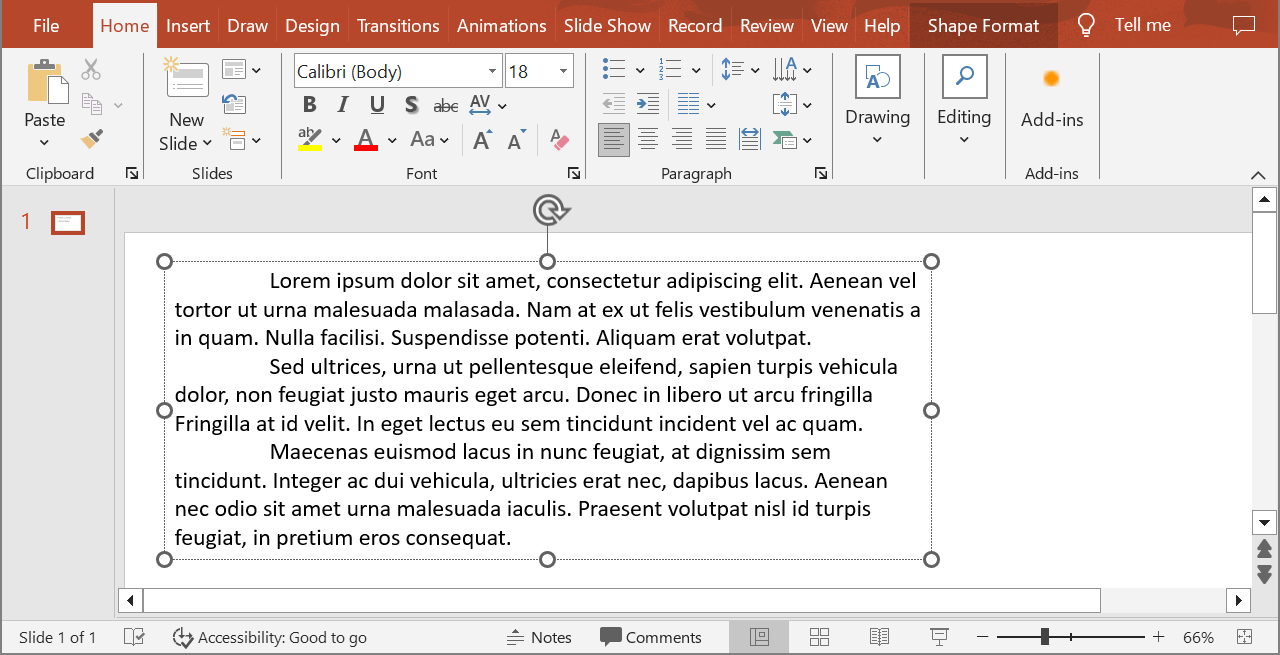
Ví dụ dưới đây chọn đoạn thứ hai tại chỉ mục 1 và gọi Paragraph.get_image mà không truyền tham số tỷ lệ. Nó kiểm tra rằng hình dạng chứa đoạn yêu cầu và render trả về hình ảnh trước khi gọi IImage.save để lưu dưới dạng PNG. Trình quản lý ngữ cảnh giải phóng tài nguyên hình ảnh sau khi dùng.
import aspose.slides as slides

with slides.Presentation("sample.pptx") as presentation:
    shape = presentation.slides[0].shapes[0]

    if isinstance(shape, slides.AutoShape) and shape.text_frame is not None and shape.text_frame.paragraphs.count > 1:
        paragraph = shape.text_frame.paragraphs[1]
        paragraph_image = paragraph.get_image()

        if paragraph_image is not None:
            with paragraph_image:
                paragraph_image.save("paragraph.png", slides.ImageFormat.PNG)
        else:
            print("The paragraph could not be rendered.")
    else:
        print("The expected text shape or paragraph was not found.")
Kết quả:

Render Đoạn trong Ô Bảng với Tỷ lệ
Sử dụng phương thức overload của Paragraph.get_image cho phép truyền tham số scale_x và scale_y để đặt hệ số tỷ lệ ngang và dọc. Ví dụ dưới đây tạo một bảng, render đoạn trong ô đầu tiên với độ rộng và chiều cao gấp đôi mặc định, và lưu kết quả dưới dạng PNG.
import aspose.slides as slides

scale_x = 2
scale_y = 2

with slides.Presentation() as presentation:
    slide = presentation.slides[0]

    table = slide.shapes.add_table(50, 50, [300], [80])
    paragraph = table.rows[0][0].text_frame.paragraphs[0]
    paragraph.text = "Text in a table cell"

    paragraph_image = paragraph.get_image(scale_x, scale_y)
    if paragraph_image is not None:
        with paragraph_image:
            paragraph_image.save("table_paragraph.png", slides.ImageFormat.PNG)
    else:
        print("The paragraph could not be rendered.")
Hệ số 1 giữ trục ở kích thước pixel mặc định. Ví dụ, 2 cho cả hai trục tạo ra hình ảnh có chiều rộng và chiều cao khoảng gấp đôi kích thước mặc định, tương đương với bốn lần số pixel. Các hệ số lớn hơn thường cho văn bản sắc nét hơn cho việc phóng to hoặc xuất độ phân giải cao, nhưng cũng tăng bộ nhớ và kích thước tệp. Hệ số dưới 1 tạo hình ảnh nhỏ hơn với ít chi tiết hơn. Sử dụng các hệ số bằng nhau để giữ tỷ lệ khung hình của đoạn; các hệ số khác nhau sẽ kéo dãn đầu ra theo chiều ngang hoặc dọc riêng biệt.
Render toàn bộ hình dạng bằng Shape.get_image vẫn hữu ích khi đầu ra cần bao gồm nền, viền hoặc ngữ cảnh hình ảnh khác. Đối với hình ảnh chỉ chứa đoạn, hãy dùng Paragraph.get_image.
Câu hỏi thường gặp
Tôi có thể tắt hoàn toàn việc gói dòng trong khung văn bản không?
Có. Đặt TextFrameFormat.wrap_text để tắt gói để các dòng không ngắt tại cạnh khung văn bản.
Làm sao tôi lấy được giới hạn trên slide chính xác của một đoạn cụ thể?
Sử dụng Paragraph.get_rect để lấy hình chữ nhật bao quanh đoạn. Portion.get_rect cung cấp giới hạn của một phần riêng lẻ.
Độ căn chỉnh đoạn (trái, phải, giữa hoặc căn đều) được điều khiển ở đâu?
ParagraphFormat.alignment là cài đặt mức độ đoạn và áp dụng cho toàn bộ đoạn bất kể định dạng phần riêng lẻ.
Để căn dọc các phần có kích thước phông chữ khác nhau trong mỗi dòng, xem Align Fonts Within a Line.
Tôi có thể đặt ngôn ngữ kiểm tra chính tả cho một phần của đoạn không?
Có. Đặt PortionFormat.language_id cho các phần riêng lẻ, để một đoạn có thể chứa văn bản bằng nhiều ngôn ngữ.