
將簡報文字格式化於 C++
概觀
本文說明如何使用 Aspose.Slides for C++ 在 PowerPoint 和 OpenDocument 簡報中格式化文字。內容涵蓋背景色、透明度、字元間距、字型屬性、旋轉、段落間距、自動調整行為、文字錨點、定位點以及語言設定。
除非另有說明,範例皆使用 sample.pptx。第一張投影片的第一個圖案是文字方塊,其第一段落包含以下顯示的文字。投影片與圖案的索引皆以零為起點。選取粗體部分的範例使用有效的格式化,包括繼承的粗體格式:

若要尋找並標示文字字面值或正規表達式匹配項目,請參閱 搜尋與取代文字。
設定文字背景顏色
使用 IParagraphFormat::get_DefaultPortionFormat 以設定段落的預設醒目標記顏色,或使用 IBasePortionFormat::get_HighlightColor 針對個別文字部分設定。
以下範例將淡灰色醒目標記設定為第一段落的預設。個別部分的醒目顏色會優先於此預設:
#include <DOM/IAutoShape.h>
#include <DOM/IColorFormat.h>
#include <DOM/IParagraph.h>
#include <DOM/IParagraphFormat.h>
#include <DOM/IPortionFormat.h>
#include <DOM/ISlide.h>
#include <DOM/ITextFrame.h>
#include <DOM/Presentation.h>
#include <Export/SaveFormat.h>
#include <drawing/color.h>

using namespace Aspose::Slides;
using namespace Aspose::Slides::Export;

auto presentation = System::MakeObject<Presentation>(u"sample.pptx");
auto firstShape = presentation->get_Slide(0)->get_Shape(0);

auto autoShape = System::ExplicitCast<IAutoShape>(firstShape);

auto paragraph = autoShape->get_TextFrame()->get_Paragraph(0);
auto defaultPortionFormat = paragraph->get_ParagraphFormat()->get_DefaultPortionFormat();
auto highlightColor = System::Drawing::Color::get_LightGray();

// Set the highlight color for the entire paragraph.
defaultPortionFormat->get_HighlightColor()->set_Color(highlightColor);

presentation->Save(u"gray_paragraph.pptx", SaveFormat::Pptx);
presentation->Dispose();
結果:

以下程式碼示範如何為 粗體字型的文字部分 設定背景顏色:
#include <DOM/IAutoShape.h>
#include <DOM/IColorFormat.h>
#include <DOM/IParagraph.h>
#include <DOM/IPortion.h>
#include <DOM/IPortionCollection.h>
#include <DOM/IPortionFormat.h>
#include <DOM/IPortionFormatEffectiveData.h>
#include <DOM/ISlide.h>
#include <DOM/ITextFrame.h>
#include <DOM/Presentation.h>
#include <Export/SaveFormat.h>
#include <drawing/color.h>

using namespace Aspose::Slides;
using namespace Aspose::Slides::Export;

auto presentation = System::MakeObject<Presentation>(u"sample.pptx");
auto firstShape = presentation->get_Slide(0)->get_Shape(0);

auto autoShape = System::ExplicitCast<IAutoShape>(firstShape);

auto paragraph = autoShape->get_TextFrame()->get_Paragraph(0);
auto portions = paragraph->get_Portions();
int portionCount = portions->get_Count();
auto highlightColor = System::Drawing::Color::get_LightGray();

for (int portionIndex = 0; portionIndex < portionCount; portionIndex++)
{
    auto portion = paragraph->get_Portion(portionIndex);
    auto portionFormat = portion->get_PortionFormat();
    if (portionFormat->GetEffective()->get_FontBold())
    {
        // 設定文字部分的醒目顏色。
        portionFormat->get_HighlightColor()->set_Color(highlightColor);
    }
}

presentation->Save(u"gray_text_portions.pptx", SaveFormat::Pptx);
presentation->Dispose();
結果:

對齊文字段落
使用 IParagraphFormat::set_Alignment 以設定文字框內段落的水平對齊方式。可設定為置中、左對齊、右對齊、兩端對齊等。
以下程式碼示範如何將段落對齊至 置中:
#include <DOM/IAutoShape.h>
#include <DOM/IParagraph.h>
#include <DOM/IParagraphFormat.h>
#include <DOM/ISlide.h>
#include <DOM/ITextFrame.h>
#include <DOM/Presentation.h>
#include <DOM/TextAlignment.h>
#include <Export/SaveFormat.h>

using namespace Aspose::Slides;
using namespace Aspose::Slides::Export;

auto presentation = System::MakeObject<Presentation>(u"sample.pptx");
auto firstShape = presentation->get_Slide(0)->get_Shape(0);

auto autoShape = System::ExplicitCast<IAutoShape>(firstShape);
auto paragraph = autoShape->get_TextFrame()->get_Paragraph(0);

// 設定段落的對齊方式為置中。
paragraph->get_ParagraphFormat()->set_Alignment(TextAlignment::Center);

presentation->Save(u"aligned_paragraph.pptx", SaveFormat::Pptx);
presentation->Dispose();
結果:

在同一行內對齊字型
使用 IParagraphFormat::set_FontAlignment 以在同一行內垂直對齊不同字型大小的文字部分。此設定套用於整段落,並控制每行內的對齊方式。
以下獨立範例於同一投影片上建立四個帶標籤的文字方塊。每個段落以 18、36、54 點大小顯示相同文字,且字型對齊方式不同。範例使用 Arial,停用自動調整大小與換行,並保持文字框足以容納單行文字。
#include <DOM/FontAlignment.h>
#include <DOM/Fonts/FontData.h>
#include <DOM/IAutoShape.h>
#include <DOM/IColorFormat.h>
#include <DOM/IFillFormat.h>
#include <DOM/ILineFormat.h>
#include <DOM/IParagraph.h>
#include <DOM/IParagraphCollection.h>
#include <DOM/IParagraphFormat.h>
#include <DOM/IPortionCollection.h>
#include <DOM/IPortionFormat.h>
#include <DOM/IShapeCollection.h>
#include <DOM/ISlide.h>
#include <DOM/ITextFrame.h>
#include <DOM/ITextFrameFormat.h>
#include <DOM/FillType.h>
#include <DOM/NullableBool.h>
#include <DOM/Paragraph.h>
#include <DOM/Portion.h>
#include <DOM/Presentation.h>
#include <DOM/ShapeType.h>
#include <DOM/TextAlignment.h>
#include <DOM/TextAnchorType.h>
#include <DOM/TextAutofitType.h>
#include <Export/SaveFormat.h>
#include <drawing/color.h>

using namespace Aspose::Slides;
using namespace Aspose::Slides::Export;
using namespace System;
using namespace System::Drawing;

auto presentation = MakeObject<Presentation>();
auto slide = presentation->get_Slide(0);

FontAlignment alignments[] = { FontAlignment::Baseline, FontAlignment::Top, FontAlignment::Center, FontAlignment::Bottom };
String labels[] = { u"Baseline", u"Top", u"Center", u"Bottom" };
float fontSizes[] = { 18.0f, 36.0f, 54.0f };
auto font = MakeObject<FontData>(u"Arial");

for (auto i = 0; i < 4; i++)
{
    auto shape = slide->get_Shapes()->AddAutoShape(ShapeType::Rectangle, 30, 20 + i * 130, 660, 120);
    shape->get_FillFormat()->set_FillType(FillType::NoFill);
    shape->get_LineFormat()->get_FillFormat()->set_FillType(FillType::NoFill);

    auto textFrame = shape->get_TextFrame();
    textFrame->get_TextFrameFormat()->set_AnchoringType(TextAnchorType::Top);
    textFrame->get_TextFrameFormat()->set_AutofitType(TextAutofitType::None);
    textFrame->get_TextFrameFormat()->set_WrapText(NullableBool::False);

    auto label = textFrame->get_Paragraph(0);
    label->set_Text(labels[i]);
    label->get_ParagraphFormat()->set_Alignment(TextAlignment::Left);
    auto labelFormat = label->get_ParagraphFormat()->get_DefaultPortionFormat();
    labelFormat->set_FontHeight(14);
    labelFormat->set_LatinFont(font);
    labelFormat->get_FillFormat()->set_FillType(FillType::Solid);
    labelFormat->get_FillFormat()->get_SolidFillColor()->set_Color(Color::get_Gray());

    auto paragraph = MakeObject<Paragraph>();
    paragraph->get_ParagraphFormat()->set_FontAlignment(alignments[i]);
    paragraph->get_ParagraphFormat()->set_Alignment(TextAlignment::Left);
    auto portionFormat = paragraph->get_ParagraphFormat()->get_DefaultPortionFormat();
    portionFormat->set_LatinFont(font);
    portionFormat->get_FillFormat()->set_FillType(FillType::Solid);
    portionFormat->get_FillFormat()->get_SolidFillColor()->set_Color(Color::get_Black());

    for (auto fontSize : fontSizes)
    {
        auto portion = MakeObject<Portion>(u"Ag ");
        portion->get_PortionFormat()->set_FontHeight(fontSize);
        paragraph->get_Portions()->Add(portion);
    }

    textFrame->get_Paragraphs()->Add(paragraph);
}

presentation->Save(u"font_alignment.pptx", SaveFormat::Pptx);
presentation->Dispose();
結果:
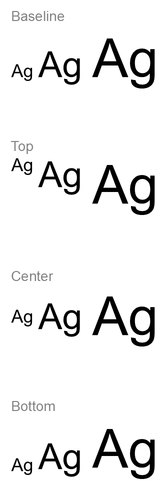
字型對齊使用字型度量,因此個別字母的可見邊緣不一定完全對齊。範例同時包含大寫字母與下滑字,以協助說明基線與底部對齊的差異。字型的可用性與替代、使用的字元以及字型大小差異都會影響結果。框架尺寸、邊距、行距、換行與自動調整大小亦會影響版面配置;比較模式時請使用相同的字型與版面設定。
此設定與 IParagraphFormat::set_Alignment 不同,後者控制水平段落對齊;亦不同於 ITextFrameFormat::set_AnchoringType,後者在形狀內垂直定位文字區塊。透過 IBasePortionFormat::set_Escapement 所做的上標與下標格式化,會相對基線移動單一部分,而非為段落的行設定字型對齊。
設定文字透明度
文字透明度透過 IBasePortionFormat::get_FillFormat 指定的顏色之 alpha 成分控制。以下範例中,alpha = 50 為 0–255 之間的 ARGB alpha 通道值,並非透明度百分比。
以下程式碼示範如何將 整段文字 設定為透明:
#include <DOM/FillType.h>
#include <DOM/IAutoShape.h>
#include <DOM/IColorFormat.h>
#include <DOM/IFillFormat.h>
#include <DOM/IParagraph.h>
#include <DOM/IParagraphFormat.h>
#include <DOM/IPortionFormat.h>
#include <DOM/ISlide.h>
#include <DOM/ITextFrame.h>
#include <DOM/Presentation.h>
#include <Export/SaveFormat.h>
#include <drawing/color.h>

using namespace Aspose::Slides;
using namespace Aspose::Slides::Export;

int alpha = 50;

auto presentation = System::MakeObject<Presentation>(u"sample.pptx");
auto firstShape = presentation->get_Slide(0)->get_Shape(0);

auto autoShape = System::ExplicitCast<IAutoShape>(firstShape);

auto paragraph = autoShape->get_TextFrame()->get_Paragraph(0);
auto defaultPortionFormat = paragraph->get_ParagraphFormat()->get_DefaultPortionFormat();

// 設定文字的填充顏色為透明顏色。
defaultPortionFormat->get_FillFormat()->set_FillType(FillType::Solid);
auto baseColor = System::Drawing::Color::get_Black();
auto transparentColor = System::Drawing::Color::FromArgb(alpha, baseColor);
defaultPortionFormat->get_FillFormat()->get_SolidFillColor()->set_Color(transparentColor);

presentation->Save(u"transparent_paragraph.pptx", SaveFormat::Pptx);
presentation->Dispose();
結果:

以下程式碼示範如何將 粗體字型的文字部分 設定為透明:
#include <DOM/FillType.h>
#include <DOM/IAutoShape.h>
#include <DOM/IColorFormat.h>
#include <DOM/IFillFormat.h>
#include <DOM/IParagraph.h>
#include <DOM/IPortion.h>
#include <DOM/IPortionCollection.h>
#include <DOM/IPortionFormat.h>
#include <DOM/IPortionFormatEffectiveData.h>
#include <DOM/ISlide.h>
#include <DOM/ITextFrame.h>
#include <DOM/Presentation.h>
#include <Export/SaveFormat.h>
#include <drawing/color.h>

using namespace Aspose::Slides;
using namespace Aspose::Slides::Export;

int alpha = 50;

auto presentation = System::MakeObject<Presentation>(u"sample.pptx");
auto firstShape = presentation->get_Slide(0)->get_Shape(0);

auto autoShape = System::ExplicitCast<IAutoShape>(firstShape);

auto paragraph = autoShape->get_TextFrame()->get_Paragraph(0);
auto portions = paragraph->get_Portions();
int portionCount = portions->get_Count();

for (int portionIndex = 0; portionIndex < portionCount; portionIndex++)
{
    auto portion = paragraph->get_Portion(portionIndex);
    auto portionFormat = portion->get_PortionFormat();
    if (portionFormat->GetEffective()->get_FontBold())
    {
        // 設定文字部分的透明度。
        portionFormat->get_FillFormat()->set_FillType(FillType::Solid);
        auto baseColor = System::Drawing::Color::get_Black();
        auto transparentColor = System::Drawing::Color::FromArgb(alpha, baseColor);
        portionFormat->get_FillFormat()->get_SolidFillColor()->set_Color(transparentColor);
    }
}

presentation->Save(u"transparent_text_portions.pptx", SaveFormat::Pptx);
presentation->Dispose();
結果:

設定文字字元間距
使用 IBasePortionFormat::set_Spacing 可在文字方塊內擴大或縮小字元之間的間距。以下範例加入 3 點間距;負值則會壓縮文字。
以下 C++ 程式碼示範如何在 整段文字 中擴大字元間距:
#include <DOM/IAutoShape.h>
#include <DOM/IParagraph.h>
#include <DOM/IParagraphFormat.h>
#include <DOM/IPortionFormat.h>
#include <DOM/ISlide.h>
#include <DOM/ITextFrame.h>
#include <DOM/Presentation.h>
#include <Export/SaveFormat.h>

using namespace Aspose::Slides;
using namespace Aspose::Slides::Export;

auto presentation = System::MakeObject<Presentation>(u"sample.pptx");
auto firstShape = presentation->get_Slide(0)->get_Shape(0);

auto autoShape = System::ExplicitCast<IAutoShape>(firstShape);
auto paragraph = autoShape->get_TextFrame()->get_Paragraph(0);

// Note: Use negative values to compress the character spacing.
paragraph->get_ParagraphFormat()->get_DefaultPortionFormat()->set_Spacing(3.0f); // Expand character spacing.

presentation->Save(u"character_spacing_in_paragraph.pptx", SaveFormat::Pptx);
presentation->Dispose();
結果:

以下程式碼示範如何在 粗體字型的文字部分 中擴大字元間距:
#include <DOM/IAutoShape.h>
#include <DOM/IParagraph.h>
#include <DOM/IPortion.h>
#include <DOM/IPortionCollection.h>
#include <DOM/IPortionFormat.h>
#include <DOM/IPortionFormatEffectiveData.h>
#include <DOM/ISlide.h>
#include <DOM/ITextFrame.h>
#include <DOM/Presentation.h>
#include <Export/SaveFormat.h>

using namespace Aspose::Slides;
using namespace Aspose::Slides::Export;

auto presentation = System::MakeObject<Presentation>(u"sample.pptx");
auto firstShape = presentation->get_Slide(0)->get_Shape(0);

auto autoShape = System::ExplicitCast<IAutoShape>(firstShape);

auto paragraph = autoShape->get_TextFrame()->get_Paragraph(0);
auto portions = paragraph->get_Portions();
int portionCount = portions->get_Count();

for (int portionIndex = 0; portionIndex < portionCount; portionIndex++)
{
    auto portion = paragraph->get_Portion(portionIndex);
    auto portionFormat = portion->get_PortionFormat();
    if (portionFormat->GetEffective()->get_FontBold())
    {
        // 注意:使用負值來壓縮字元間距。
        portionFormat->set_Spacing(3.0f); // 展開字元間距。
    }
}

presentation->Save(u"character_spacing_in_text_portions.pptx", SaveFormat::Pptx);
presentation->Dispose();
結果:

針對特定字型停用字距微調
在某些情況下,Aspose.Slides 產生的文字渲染可能比 PowerPoint 中的同一文字稍微緊密。這可能是因為 PowerPoint 會忽略某些字型的字距微調資料,即使該字型本身含有有效的字距微調資訊且在 PowerPoint 設定中已啟用。
為使渲染輸出更接近 PowerPoint,您可以對使用受影響字型的文字部分停用字距微調。使用 IBasePortionFormat::set_KerningMinimalSize 設定大於實際字型大小的值。本範例需要「presentation.pptx」且其第一張投影片的第一個圖案為文字方塊。它會檢查有效的字型名稱(包括繼承字型),並對使用 Roboto 且字型大小低於 100 點的部分設定 100 點的門檻,從而停用這些部分的字距微調:
#include <DOM/IAutoShape.h>
#include <DOM/IFontData.h>
#include <DOM/IPortionFormatEffectiveData.h>
#include <DOM/IParagraph.h>
#include <DOM/IParagraphCollection.h>
#include <DOM/IPortion.h>
#include <DOM/IPortionCollection.h>
#include <DOM/IPortionFormat.h>
#include <DOM/ISlide.h>
#include <DOM/ITextFrame.h>
#include <DOM/Presentation.h>
#include <Export/SaveFormat.h>

using namespace Aspose::Slides;
using namespace Aspose::Slides::Export;

auto presentation = System::MakeObject<Presentation>(u"presentation.pptx");
auto firstShape = presentation->get_Slide(0)->get_Shape(0);

auto autoShape = System::ExplicitCast<IAutoShape>(firstShape);
System::String targetFont = u"Roboto";
auto textFrame = autoShape->get_TextFrame();
auto paragraphs = textFrame->get_Paragraphs();
int paragraphCount = paragraphs->get_Count();

for (int paragraphIndex = 0; paragraphIndex < paragraphCount; paragraphIndex++)
{
    auto paragraph = textFrame->get_Paragraph(paragraphIndex);
    auto portions = paragraph->get_Portions();
    int portionCount = portions->get_Count();

    for (int portionIndex = 0; portionIndex < portionCount; portionIndex++)
    {
        auto portion = paragraph->get_Portion(portionIndex);
        auto portionFormat = portion->get_PortionFormat();
        auto textFormat = portionFormat->GetEffective();
        auto latinFont = textFormat->get_LatinFont();
        auto eastAsianFont = textFormat->get_EastAsianFont();
        auto complexScriptFont = textFormat->get_ComplexScriptFont();

        bool isLatinFont = latinFont != nullptr && latinFont->get_FontName() == targetFont;
        bool isEastAsianFont = eastAsianFont != nullptr && eastAsianFont->get_FontName() == targetFont;
        bool isComplexScriptFont = complexScriptFont != nullptr && complexScriptFont->get_FontName() == targetFont;

        if (isLatinFont || isEastAsianFont || isComplexScriptFont)
        {
            portionFormat->set_KerningMinimalSize(100.0f);
        }
    }
}

presentation->Save(u"output.pptx", SaveFormat::Pptx);
presentation->Dispose();
對於低於門檻的匹配文字,此設定會阻止字距微調,並有助於使 Aspose.Slides 的渲染與受此 PowerPoint 專屬行為影響的字型之視覺輸出更為一致。
管理文字字型屬性
可透過 IParagraphFormat::get_DefaultPortionFormat 在段落層級設定字型屬性,或透過 IPortionFormat 在個別文字部分設定。
以下範例將第一段落的預設字型設定為 12 點 Times New Roman,並套用粗體、斜體與點狀底線。對個別文字部分的明確格式會優先於這些預設:
#include <DOM/Fonts/FontData.h>
#include <DOM/IAutoShape.h>
#include <DOM/IParagraph.h>
#include <DOM/IParagraphFormat.h>
#include <DOM/IPortionFormat.h>
#include <DOM/ISlide.h>
#include <DOM/ITextFrame.h>
#include <DOM/NullableBool.h>
#include <DOM/Presentation.h>
#include <DOM/TextUnderlineType.h>
#include <Export/SaveFormat.h>

using namespace Aspose::Slides;
using namespace Aspose::Slides::Export;

auto presentation = System::MakeObject<Presentation>(u"sample.pptx");
auto firstShape = presentation->get_Slide(0)->get_Shape(0);

auto autoShape = System::ExplicitCast<IAutoShape>(firstShape);
auto paragraph = autoShape->get_TextFrame()->get_Paragraph(0);
auto defaultPortionFormat = paragraph->get_ParagraphFormat()->get_DefaultPortionFormat();

// 設定段落的字型屬性。
defaultPortionFormat->set_FontHeight(12.0f);
defaultPortionFormat->set_FontBold(NullableBool::True);
defaultPortionFormat->set_FontItalic(NullableBool::True);
defaultPortionFormat->set_FontUnderline(TextUnderlineType::Dotted);
auto font = System::MakeObject<FontData>(u"Times New Roman");
defaultPortionFormat->set_LatinFont(font);

presentation->Save(u"font_properties_for_paragraph.pptx", SaveFormat::Pptx);
presentation->Dispose();
結果:

以下範例對有效格式為粗體的文字部分套用 13 點 Times New Roman、斜體與點狀底線:
#include <DOM/Fonts/FontData.h>
#include <DOM/IAutoShape.h>
#include <DOM/IParagraph>
#include <DOM/IPortion.h>
#include <DOM/IPortionCollection.h>
#include <DOM/IPortionFormat.h>
#include <DOM/IPortionFormatEffectiveData.h>
#include <DOM/ISlide.h>
#include <DOM/ITextFrame.h>
#include <DOM/NullableBool.h>
#include <DOM/Presentation.h>
#include <DOM/TextUnderlineType.h>
#include <Export/SaveFormat.h>

using namespace Aspose::Slides;
using namespace Aspose::Slides::Export;

auto presentation = System::MakeObject<Presentation>(u"sample.pptx";
auto firstShape = presentation->get_Slide(1); //
auto autoShape = System::ExplicitCast<IAutoShape> (...);
</</?>
結果:

設定文字旋轉
使用 ITextFrameFormat::set_TextVerticalType 可在形狀內設定預定義的文字方向。
以下程式碼將文字方向設定為 TextVerticalType::Vertical270,使文字 逆時針旋轉 90 度:
#include <DOM/IAutoShape.h>
#include <DOM/ISlide.h>
#include <DOM/ITextFrame.h>
#include <DOM/ITextFrameFormat.h>
#include <DOM/Presentation.h>
#include <DOM/TextVerticalType.h>
#include <Export/SaveFormat.h>

using namespace Aspose::Slides;
using namespace Aspose::Slides::Export;

auto presentation = System::MakeObject<Presentation>(u"sample.pptx");
auto firstShape = presentation->get_Slide(0)->get_Shape(0);

auto autoShape = System::ExplicitCast<IAutoShape>(firstShape);
autoShape->get_TextFrame()->get_TextFrameFormat()->set_TextVerticalType(TextVerticalType::Vertical270);

presentation->Save(u"text_rotation.pptx", SaveFormat::Pptx);
presentation->Dispose();
結果:

為文字框設定自訂旋轉
使用 ITextFrameFormat::set_RotationAngle 可為 ITextFrame 設定自訂旋轉角度。
以下程式碼將文字框在形狀內順時針旋轉 3 度:
#include <DOM/IAutoShape.h>
#include <DOM/ISlide.h>
#include <DOM/ITextFrame.h>
#include <DOM/ITextFrameFormat.h>
#include <DOM/Presentation.h>
#include <Export/SaveFormat.h>

using namespace Aspose::Slides;
using namespace Aspose::Slides::Export;

auto presentation = System::MakeObject<Presentation>(u"sample.pptx");
auto firstShape = presentation->get_Slide(0)->get_Shape(0);

auto autoShape = System::ExplicitCast<IAutoShape>(firstShape);
autoShape->get_TextFrame()->get_TextFrameFormat()->set_RotationAngle(3.0f);

presentation->Save(u"custom_text_rotation.pptx", SaveFormat::Pptx);
presentation->Dispose();
結果:

設定段落行間距
Aspose.Slides 提供 IParagraphFormat::set_SpaceAfter、IParagraphFormat::set_SpaceBefore 與 IParagraphFormat::set_SpaceWithin 以控制段落間距。用法如下:
- 使用正值以百分比方式指定行距(相對於行高)。
- 使用負值以點數方式指定行距。
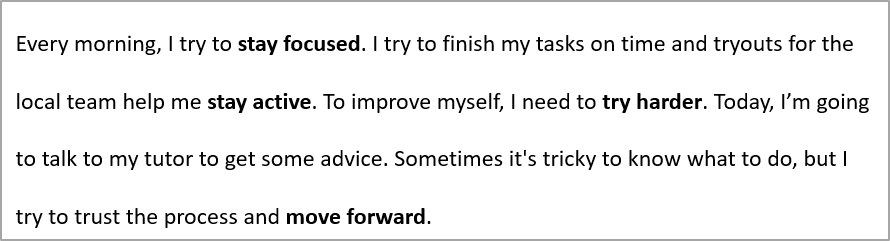
以下範例將第一段落的行內間距設定為行高的 200%(雙倍行距):
#include <DOM/IAutoShape.h>
#include <DOM/IParagraph.h>
#include <DOM/IParagraphFormat.h>
#include <DOM/ISlide.h>
#include <DOM/ITextFrame.h>
#include <DOM/Presentation.h>
#include <Export/SaveFormat.h>

using namespace Aspose::Slides;
using namespace Aspose::Slides::Export;

auto presentation = System::MakeObject<Presentation>(u"sample.pptx");
auto firstShape = presentation->get_Slide(0)->get_Shape(0);

auto autoShape = System::ExplicitCast<IAutoShape>(firstShape);

auto paragraph = autoShape->get_TextFrame()->get_Paragraph(0);
paragraph->get_ParagraphFormat()->set_SpaceWithin(200.0f);

presentation->Save(u"line_spacing.pptx", SaveFormat::Pptx);
presentation->Dispose();
結果:
控制換行規則
段落換行規則在窄文字區塊以及混合拉丁與東亞文字的簡報中相當有用。以下方法屬於 IParagraphFormat,因此會套用於整段落:
- IParagraphFormat::set_LatinLineBreak 控制拉丁文字的換行規則。在混合文字情況下,變更此設定亦可能影響相鄰東亞文字與標點的換行位置。
- IParagraphFormat::set_EastAsianLineBreak 控制東亞文字的換行規則,包含行首與行尾字元的限制。
這些規則並不取代 ITextFrameFormat::set_WrapText,後者啟用文字框內的自動換行。它們會在換行發生時影響版面配置;不會插入換行字元。明確的換行會強制段落在可用寬度之外換至新行。
以下獨立範例建立包含中文與拉丁文字的窄文字區塊,明確設定兩項換行規則,並儲存為「line_breaking.pptx」。若要實驗任一規則,只需變更對應 setter 的值,同時保留其他設定不變。範例使用 24 點 Arial 與 SimSun,框寬 160 點,水平文字框邊距為 0。呼叫 ITextFrameFormat::set_AutofitType,並傳入 TextAutofitType::None,使文字大小與框架尺寸保持固定:
#include <DOM/Fonts/FontData.h>
#include <DOM/IAutoShape.h>
#include <DOM/IColorFormat.h>
#include <DOM/IFillFormat.h>
#include <DOM/IParagraph.h>
#include <DOM/IParagraphFormat.h>
#include <DOM/IPortionFormat.h>
#include <DOM/IShapeCollection.h>
#include <DOM/ISlide.h>
#include <DOM/ITextFrame.h>
#include <DOM/ITextFrameFormat.h>
#include <DOM/FillType.h>
#include <DOM/NullableBool.h>
#include <DOM/Presentation.h>
#include <DOM/ShapeType.h>
#include <DOM/TextAlignment.h>
#include <DOM/TextAutofitType.h>
#include <Export/SaveFormat.h>
#include <drawing/color.h>

using namespace Aspose::Slides;
using namespace Aspose::Slides::Export;

auto presentation = System::MakeObject<Presentation>();
auto slide = presentation->get_Slide(0);

auto shape = slide->get_Shapes()->AddAutoShape(ShapeType::Rectangle, 50.0f, 50.0f, 160.0f, 300.0f);
shape->get_FillFormat()->set_FillType(FillType::NoFill);

auto textFrame = shape->get_TextFrame();
textFrame->get_TextFrameFormat()->set_WrapText(NullableBool::True);
textFrame->get_TextFrameFormat()->set_AutofitType(TextAutofitType::None);
textFrame->get_TextFrameFormat()->set_MarginLeft(0);
textFrame->get_TextFrameFormat()->set_MarginRight(0);

auto paragraph = textFrame->get_Paragraph(0);
paragraph->set_Text(u"中文排版测试,PowerPoint 中文演示。");

auto format = paragraph->get_ParagraphFormat();
format->set_Alignment(TextAlignment::Left);
auto portionFormat = format->get_DefaultPortionFormat();
portionFormat->set_FontHeight(24.0f);
auto latinFont = System::MakeObject<FontData>(u"Arial");
portionFormat->set_LatinFont(latinFont);
auto eastAsianFont = System::MakeObject<FontData>(u"SimSun");
portionFormat->set_EastAsianFont(eastAsianFont);
portionFormat->get_FillFormat()->set_FillType(FillType::Solid);
portionFormat->get_FillFormat()->get_SolidFillColor()->set_Color(System::Drawing::Color::get_Black());
format->set_LatinLineBreak(NullableBool::False);
format->set_EastAsianLineBreak(NullableBool::True);

presentation->Save(u"line_breaking.pptx", SaveFormat::Pptx);
presentation->Dispose();
控制懸掛標點
IParagraphFormat::set_HangingPunctuation 可讓符合條件的標點超出文字行的右邊緣,而非占據下一行。此設定套用於整段落,且不同於懸掛縮排。
以下獨立範例在寬度為 100 點的文字框中啟用懸掛標點,並儲存為「hanging_punctuation.pptx」。使用 24 點 Arial 與水平文字框邊距為 0,最終的句點會留在「sentence」之後,並延伸至文字右邊緣。若傳入 NullableBool::False 作為參數,可比較:此設定下句點會占據獨立一行。換行已啟用且自動調整已停用,以保持可用寬度固定。
#include <DOM/Fonts/FontData.h>
#include <DOM/IAutoShape.h>
#include <DOM/IColorFormat.h>
#include <DOM/IFillFormat.h>
#include <DOM/IParagraph.h>
#include <DOM/IParagraphFormat.h>
#include <DOM/IPortionFormat.h>
#include <DOM/IShapeCollection.h>
#include <DOM/ISlide.h>
#include <DOM/ITextFrame.h>
#include <DOM/ITextFrameFormat.h>
#include <DOM/FillType.h>
#include <DOM/NullableBool.h>
#include <DOM/Presentation.h>
#include <DOM/ShapeType.h>
#include <DOM/TextAlignment.h>
#include <DOM/TextAutofitType.h>
#include <Export/SaveFormat.h>
#include <drawing/color.h>

using namespace Aspose::Slides;
using namespace Aspose::Slides::Export;

auto presentation = System::MakeObject<Presentation>();
auto slide = presentation->get_Slide(0);

auto shape = slide->get_Shapes()->AddAutoShape(ShapeType::Rectangle, 50.0f, 50.0f, 100.0f, 200.0f);
shape->get_FillFormat()->set_FillType(FillType::NoFill);

auto textFrame = shape->get_TextFrame();
textFrame->get_TextFrameFormat()->set_WrapText(NullableBool::True);
textFrame->get_TextFrameFormat()->set_AutofitType(TextAutofitType::None);
textFrame->get_TextFrameFormat()->set_MarginLeft(0);
textFrame->get_TextFrameFormat()->set_MarginRight(0);

auto paragraph = textFrame->get_Paragraph(0);
paragraph->set_Text(u"Simple text, next sentence.");

auto format = paragraph->get_ParagraphFormat();
format->set_Alignment(TextAlignment::Left);
auto portionFormat = format->get_DefaultPortionFormat();
portionFormat->set_FontHeight(24.0f);
auto latinFont = System::MakeObject<FontData>(u"Arial");
portionFormat->set_LatinFont(latinFont);
portionFormat->get_FillFormat()->set_FillType(FillType::Solid);
portionFormat->get_FillFormat()->get_SolidFillColor()->set_Color(System::Drawing::Color::get_Black());
format->set_HangingPunctuation(NullableBool::True);

presentation->Save(u"hhanging_punctuation.pptx", SaveFormat::Pptx);
presentation->Dispose();
並非所有標點都能懸掛。上述 字型與版面條件 同樣適用於此比較:變更字型、可用寬度、邊距或自動調整設定皆可能使可見差異消失。
設定文字框的自動調整類型
ITextFrameFormat::set_AutofitType 決定文字超出容器邊界時的行為。可用它控制文字是縮小、溢出,或自動調整形狀大小。以下範例將形狀設定為依文字自動調整大小,並將結果儲存為「autofit_type.pptx」。
#include <DOM/IAutoShape>
#include <DOM/ISlide>
#include <DOM/ITextFrame>
#include <DOM/ITextFrameFormat>
#include <DOM/Presentation>
#include <DOM/TextAutofitType>
#include <Export/SaveFormat>

using namespace Aspose::
若要在自動換行後計算行數並觀察文字或形狀寬度變化的結果,請參閱 計算呈現行數。僅行數不足以判斷文字是否溢出容器。
設定文字框的錨點
ITextFrameFormat::set_AnchoringType 定義文字在形狀內的垂直定位方式,例如置頂、置中或置底。以下範例將文字錨點設為第一個圖案的底部,並將結果儲存為「text_anchor.pptx」。
#include <DOM/IAutoShape.h>
#include <DOM/ISlide.h>
#include <DOM/ITextFrame.h>
#include <DOM/ITextFrameFormat.h>
#include <DOM/Presentation.h>
#include <DOM/TextAnchorType.h>
#include <Export/SaveFormat.h>

using namespace Aspose::Slides;
using namespace Aspose::Slides::Export;

auto presentation = System::MakeObject<Presentation>(u"sample.pptx");
auto firstShape = presentation->get_Slide(0)->get_Shape(0);

auto autoShape = System::ExplicitCast<IAutoShape>(firstShape);
autoShape->get_TextFrame()->get_TextFrameFormat()->set_AnchoringType(TextAnchorType::Bottom);

presentation->Save(u"text_anchor.pptx", SaveFormat::Pptx);
presentation->Dispose();
設定文字定位點
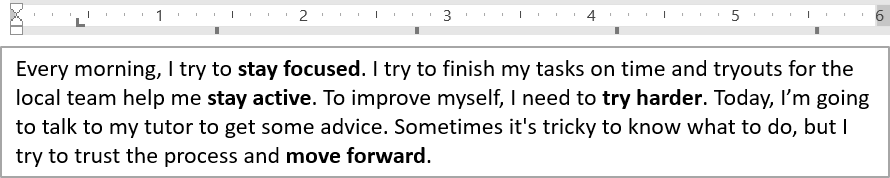
使用 IParagraphFormat::set_DefaultTabSize 與 IParagraphFormat::get_Tabs 以設定段落中的定位點。以下範例將預設定位間距設為 100 點,並在 30 點處加入左對齊定位點。此設定會影響含有定位字元的文字。
#include <DOM/IAutoShape.h>
#include <DOM/IParagraph.h>
#include <DOM/IParagraphFormat.h>
#include <DOM/ISlide.h>
#include <DOM/ITabCollection.h>
#include <DOM/ITextFrame.h>
#include <DOM/Presentation.h>
#include <DOM/TabAlignment.h>
#include <Export/SaveFormat.h>

using namespace Aspose::Slides;
using namespace Aspose::Slides::Export;

auto presentation = System::MakeObject<Presentation>(u"sample.pptx");
auto firstShape = presentation->get_Slide(0)->get_Shape(0);

auto autoShape = System::ExplicitCast<IAutoShape>(firstShape);

auto paragraph = autoShape->get_TextFrame()->get_Paragraph(0);
paragraph->get_ParagraphFormat()->set_DefaultTabSize(100.0f);
paragraph->get_ParagraphFormat()->get_Tabs()->Add(30.0f, TabAlignment::Left);

presentation->Save(u"paragraph_tabs.pptx", SaveFormat::Pptx);
presentation->Dispose();
結果:
設定校對語言
Aspose.Slides 提供 IBasePortionFormat::set_LanguageId,可為文字部分設定校對語言。校對語言決定 PowerPoint 進行拼寫與文法檢查時使用的語言。
以下範例需要「presentation.pptx」且其第一張投影片的第一個圖案為文字方塊,且至少有一個段落。它會將第一段落的內容取代為「1。」、將字型設定為 SimSun,並指派簡體中文校對語言 (zh-CN)。結果儲存為「proofing_language.pptx」:
#include <DOM/Fonts/FontData.h>
#include <DOM/IAutoShape.h>
#include <DOM/IParagraph.h>
#include <DOM/IPortionCollection.h>
#include <DOM/IPortionFormat.h>
#include <DOM/ISlide.h>
#include <DOM/ITextFrame.h>
#include <DOM/Portion.h>
#include <DOM/Presentation.h>
#include <Export/SaveFormat.h>

using namespace Aspose::Slides;
using namespace Aspose::Slides::Export;

auto presentation = System::MakeObject<Presentation>(u"presentation.pptx");
auto firstShape = presentation->get_Slide(0)->get_Shape(0);

auto autoShape = System::ExplicitCast<IAutoShape>(firstShape);

auto paragraph = autoShape->get_TextFrame()->get_Paragraph(0);
paragraph->get_Portions()->Clear();

auto font = System::MakeObject<FontData>(u"SimSun");

auto textPortion = System::MakeObject<Portion>();
auto portionFormat = textPortion->get_PortionFormat();
portionFormat->set_ComplexScriptFont(font);
portionFormat->set_EastAsianFont(font);
portionFormat->set_LatinFont(font);

// 設定校對語言為簡體中文。
portionFormat->set_LanguageId(u"zh-CN");

textPortion->set_Text(u"1。");
paragraph->get_Portions()->Add(textPortion);

presentation->Save(u"proofing_language.pptx", SaveFormat::Pptx);
presentation->Dispose();
設定預設語言
使用 LoadOptions::set_DefaultTextLanguage 可定義在載入或建立簡報時所建立文字的預設語言。以下範例建立一個預設文字語言為美式英語的簡報,加入文字方塊,並印出其第一個文字部分的語言代碼 en-US。
#include <DOM/IAutoShape.h>
#include <DOM/IParagraph.h>
#include <DOM/IPortion.h>
#include <DOM/IPortionFormat.h>
#include <DOM/IShapeCollection.h>
#include <DOM/ISlide.h>
#include <DOM/ITextFrame.h>
#include <DOM/LoadOptions.h>
#include <DOM/Presentation.h>
#include <DOM/ShapeType.h>
#include <system/console.h>

using namespace Aspose::Slides;

auto loadOptions = System::MakeObject<LoadOptions>();
loadOptions->set_DefaultTextLanguage(u"en-US");

auto presentation = System::MakeObject<Presentation>(loadOptions);
auto slide = presentation->get_Slide(0);

// Add a new rectangle shape with text.
auto shape = slide->get_Shapes()->AddAutoShape(ShapeType::Rectangle, 20.0f, 20.0f, 150.0f, 50.0f);
shape->get_TextFrame()->set_Text(u"Sample text");

// Check the first portion language.
auto portion = shape->get_TextFrame()->get_Paragraph(0)->get_Portion(0);
auto languageId = portion->get_PortionFormat()->get_LanguageId();
System::Console::WriteLine(languageId);

presentation->Dispose();
設定預設文字樣式
若要在簡報層級套用預設文字格式,請使用 IPresentation::get_DefaultTextStyle。
以下範例將新簡報中頂層段落的預設字型設定為 14 點粗體,並將其儲存為「default_text_style.pptx」。文字可以繼承這些預設,除非有更具體的格式覆寫。
#include <DOM/IParagraphFormat.h>
#include <DOM/IPortionFormat.h>
#include <DOM/ITextStyle.h>
#include <DOM/NullableBool.h>
#include <DOM/Presentation.h>
#include <Export/SaveFormat.h>

using namespace Aspose::Slides;
using namespace Aspose::Slides::Export;

auto presentation = System::MakeObject<Presentation>();

// 取得頂層段落格式。
auto paragraphFormat = presentation->get_DefaultTextStyle()->GetLevel(0);

if (paragraphFormat != nullptr)
{
    auto defaultPortionFormat = paragraphFormat->get_DefaultPortionFormat();
    defaultPortionFormat->set_FontHeight(14.0f);
    defaultPortionFormat->set_FontBold(NullableBool::True);
}

presentation->Save(u"default_text_style.pptx", SaveFormat::Pptx);
presentation->Dispose();
擷取套用全大寫效果的文字
在 PowerPoint 中,套用 All Caps 字型效果會讓文字在投影片上以大寫形式顯示,即使原始輸入為小寫。當您使用 Aspose.Slides 取得此類文字部分時,函式庫會返回原始輸入的文字。若要匹配顯示的文字,請檢查 TextCapType,在值為 TextCapType::All 時,將返回的字串轉為大寫。
此範例需要「sample2.pptx」且其第一張投影片的第一個圖案為文字方塊。其第一段落的第一部分包含「Hello, Aspose!」且套用了全大寫效果,如下圖所示。

以下程式碼示範如何擷取套用 All Caps 效果的文字:
#include <DOM/IAutoShape.h>
#include <DOM/IParagraph.h>
#include <DOM/IPortion.h>
#include <DOM/IPortionFormat.h>
#include <DOM/IPortionFormatEffectiveData.h>
#include <DOM/ISlide.h>
#include <DOM/ITextFrame.h>
#include <DOM/Presentation.h>
#include <DOM/TextCapType.h>
#include <system/console.h>

using namespace Aspose::Slides;

auto presentation = System::MakeObject<Presentation>(u"sample2.pptx");
auto firstShape = presentation->get_Slide(0)->get_Shape(0);

auto autoShape = System::ExplicitCast<IAutoShape>(firstShape);
auto textPortion = autoShape->get_TextFrame()->get_Paragraph(0)->get_Portion(0);

auto originalText = textPortion->get_Text();
System::Console::WriteLine(u"Original text: " + originalText);

auto textFormat = textPortion->get_PortionFormat()->GetEffective();
if (textFormat->get_TextCapType() == TextCapType::All)
{
    auto uppercaseText = originalText.ToUpper();
    System::Console::WriteLine(u"All-Caps effect: " + uppercaseText);
}

presentation->Dispose();
輸出:
Original text: Hello, Aspose!
All-Caps effect: HELLO, ASPOSE!
常見問題集
如何修改投影片上表格中的文字?
要修改投影片上表格中的文字,請使用 ITable。遍歷每個儲存格,並透過 ICell::get_TextFrame 取得文字框,使用 IParagraph::get_ParagraphFormat 進行段落格式設定。
如何在 PowerPoint 投影片的文字上套用漸層色彩?
要在文字上套用漸層色彩,請使用 IBasePortionFormat::get_FillFormat。將 IFillFormat::set_FillType 設為 FillType::Gradient,並配置漸層停止點、方向與透明度。