
管理 C++ 簡報背景
Contents
[
Hide
]
簡介
純色、漸層和圖像通常用於投影片背景。您可以設定 普通投影片(單一投影片)或 母片投影片(一次套用至多張投影片)的背景。
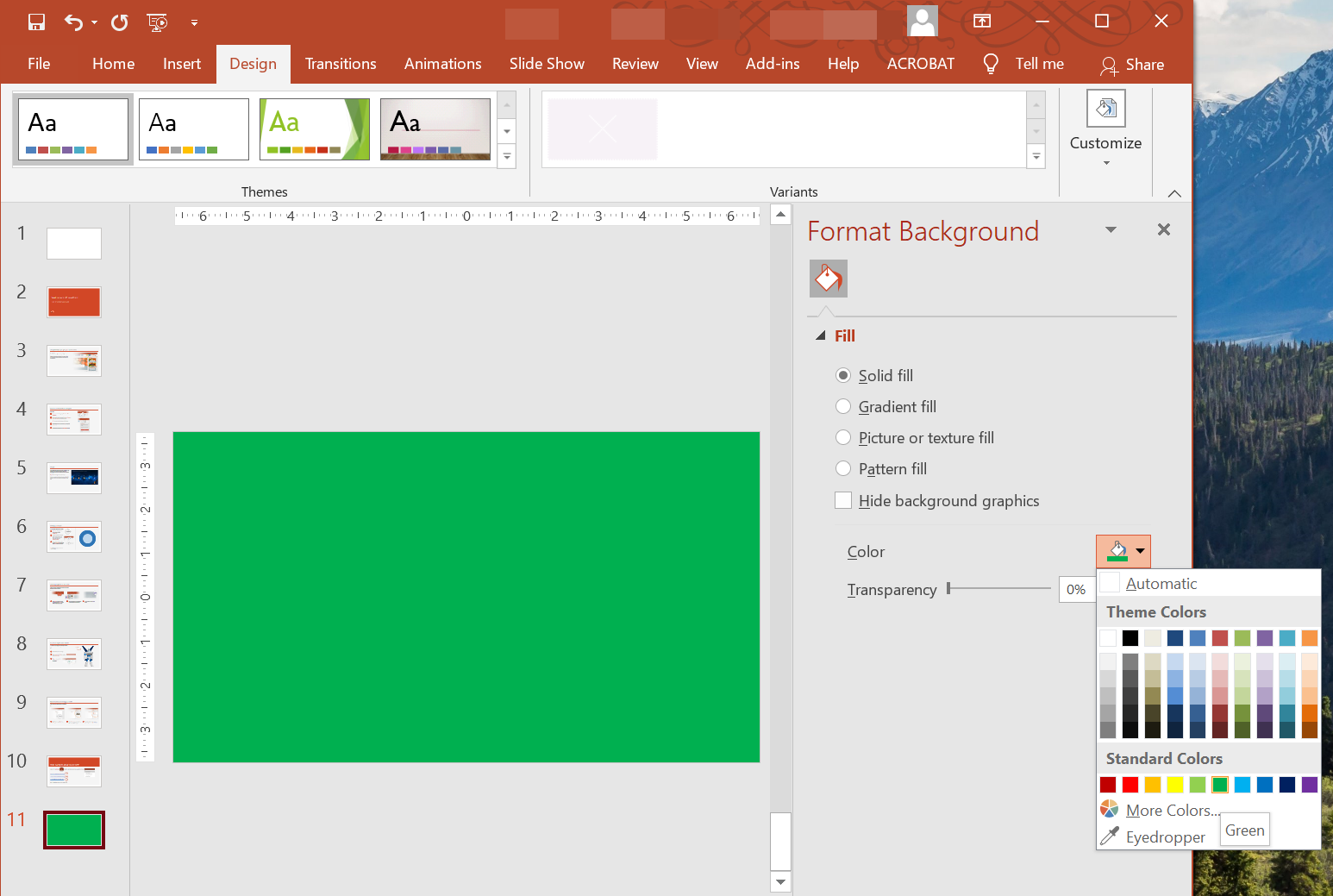
為普通投影片設定純色背景
Aspose.Slides 允許您在簡報中為特定投影片設定純色背景——即使簡報使用母片。此變更僅套用於所選投影片。
- 建立 Presentation 類別的實例。
- 將投影片的 BackgroundType 設為
OwnBackground。 - 將投影片背景的 FillType 設為
Solid。 - 使用 FillFormat 上的 get_SolidFillColor 方法來指定純色背景顏色。
- 儲存已修改的簡報。
// 建立 Presentation 類別的實例。
auto presentation = MakeObject<Presentation>();

auto slide = presentation->get_Slide(0);

// 將投影片的背景顏色設定為藍色。
slide->get_Background()->set_Type(BackgroundType::OwnBackground);
slide->get_Background()->get_FillFormat()->set_FillType(FillType::Solid);
slide->get_Background()->get_FillFormat()->get_SolidFillColor()->set_Color(Color::get_Blue());

// 將簡報儲存至磁碟。
presentation->Save(u"SolidColorBackground.pptx", SaveFormat::Pptx);
presentation->Dispose();
為母片投影片設定純色背景
Aspose.Slides 允許您在簡報中為母片投影片設定純色背景。母片投影片充當範本,控制所有投影片的格式,所以當您為母片投影片的背景選擇純色時,它會套用至每張投影片。
- 建立 Presentation 類別的實例。
- 將母片投影片的 BackgroundType(透過
get_Masters)設為OwnBackground。 - 將母片投影片的背景 FillType 設為
Solid。 - 使用 FillFormat 上的 get_SolidFillColor 方法來指定純色背景顏色。
- 儲存已修改的簡報。
// 建立 Presentation 類別的實例。
auto presentation = MakeObject<Presentation>();

auto masterSlide = presentation->get_Master(0);

// 將母片投影片的背景顏色設定為森林綠。
masterSlide->get_Background()->set_Type(BackgroundType::OwnBackground);
masterSlide->get_Background()->get_FillFormat()->set_FillType(FillType::Solid);
masterSlide->get_Background()->get_FillFormat()->get_SolidFillColor()->set_Color(Color::get_ForestGreen());

// 將簡報儲存至磁碟。
presentation->Save(u"MasterSlideBackground.pptx", SaveFormat::Pptx);
presentation->Dispose();
為投影片設定漸層背景
漸層是透過顏色逐漸變化所產生的圖形效果。作為投影片背景時,漸層可以讓簡報看起來更具藝術感和專業感。Aspose.Slides 允許您為投影片設定漸層顏色作為背景。
- 建立 Presentation 類別的實例。
- 將投影片的 BackgroundType 設為
OwnBackground。 - 將投影片背景的 FillType 設為
Gradient。 - 使用 FillFormat 上的 get_GradientFormat 方法來設定您偏好的漸層參數。
- 儲存已修改的簡報。
// 建立 Presentation 類別的實例。
auto presentation = MakeObject<Presentation>();

auto slide = presentation->get_Slide(0);

// 將漸層效果套用至背景。
slide->get_Background()->set_Type(BackgroundType::OwnBackground);
slide->get_Background()->get_FillFormat()->set_FillType(FillType::Gradient);
slide->get_Background()->get_FillFormat()->get_GradientFormat()->set_TileFlip(TileFlip::FlipBoth);

// 將簡報儲存至磁碟。
presentation->Save(u"GradientBackground.pptx", SaveFormat::Pptx);
presentation->Dispose();
將圖像設定為投影片背景
除了純色與漸層填充外,Aspose.Slides 也允許您使用圖像作為投影片背景。
- 建立 Presentation 類別的實例。
- 將投影片的 BackgroundType 設為
OwnBackground。 - 將投影片背景的 FillType 設為
Picture。 - 載入您想用作投影片背景的圖像。
- 將圖像加入簡報的圖像集合中。
- 使用 FillFormat 上的 get_PictureFillFormat 方法將圖像指定為背景。
- 儲存已修改的簡報。
// 建立 Presentation 類別的實例。
auto presentation = MakeObject<Presentation>();

auto slide = presentation->get_Slide(0);

// 設定背景圖像屬性。
slide->get_Background()->set_Type(BackgroundType::OwnBackground);
slide->get_Background()->get_FillFormat()->set_FillType(FillType::Picture);
slide->get_Background()->get_FillFormat()->get_PictureFillFormat()->set_PictureFillMode(PictureFillMode::Stretch);

// 載入圖像。
auto image = Images::FromFile(u"Tulips.jpg");
// 將圖像加入簡報的圖像集合中。
auto ppImage = presentation->get_Images()->AddImage(image);
image->Dispose();

slide->get_Background()->get_FillFormat()->get_PictureFillFormat()->get_Picture()->set_Image(ppImage);

// 將簡報儲存至磁碟。
presentation->Save(u"ImageAsBackground.pptx", SaveFormat::Pptx);
presentation->Dispose();
以下程式碼範例示範如何將背景填充類型設定為平鋪圖片,並修改平鋪屬性:
auto presentation = MakeObject<Presentation>();

auto firstSlide = presentation->get_Slide(0);

auto background = firstSlide->get_Background();

background->set_Type(BackgroundType::OwnBackground);
background->get_FillFormat()->set_FillType(FillType::Picture);

auto newImage = Images::FromFile(u"image.png");
auto ppImage = presentation->get_Images()->AddImage(newImage);
newImage->Dispose();

// Set the image used for the background fill.
auto backPictureFillFormat = background->get_FillFormat()->get_PictureFillFormat();
backPictureFillFormat->get_Picture()->set_Image(ppImage);

// Set the picture fill mode to Tile and adjust the tile properties.
backPictureFillFormat->set_PictureFillMode(PictureFillMode::Tile);
backPictureFillFormat->set_TileOffsetX(15.0);
backPictureFillFormat->set_TileOffsetY(15.0);
backPictureFillFormat->set_TileScaleX(46.0);
backPictureFillFormat->set_TileScaleY(87.0);
backPictureFillFormat->set_TileAlignment(RectangleAlignment::Center);
backPictureFillFormat->set_TileFlip(TileFlip::FlipY);

presentation->Save(u"TileBackground.pptx", SaveFormat::Pptx);
presentation->Dispose();
閱讀更多:平鋪圖片作為紋理。
變更背景圖像透明度
您可能需要調整投影片背景圖像的透明度,以使投影片內容更突出。以下 C++ 程式碼示範如何變更投影片背景圖像的透明度:
auto transparencyValue = 30; // 例如。

// 取得圖片變換操作的集合。
auto imageTransform = slide->get_Background()->get_FillFormat()->get_PictureFillFormat()->get_Picture()->get_ImageTransform();

// 查找現有的固定百分比透明度效果。
SharedPtr<IAlphaModulateFixed> transparencyOperation;
for (auto&& operation : imageTransform)
{
    if (ObjectExt::Is<IAlphaModulateFixed>(operation))
    {
        transparencyOperation = ExplicitCast<IAlphaModulateFixed>(operation);
        break;
    }
}

// 設定新的透明度值。
if (transparencyOperation == nullptr)
{
    imageTransform->AddAlphaModulateFixedEffect(100.0f - transparencyValue);
}
else
{
    transparencyOperation->set_Amount(100.0f - transparencyValue);
}
取得投影片背景值
Aspose.Slides 提供 IBackgroundEffectiveData 介面,用於取得投影片的有效背景值。此介面會公開有效的 FillFormat 和 EffectFormat。
使用 BaseSlide 類別的 get_Background 方法,您可以取得投影片的有效背景。
以下 C++ 範例示範如何取得投影片的有效背景值:
// 建立 Presentation 類別的實例。
auto presentation = MakeObject<Presentation>(u"Sample.pptx");

auto slide = presentation->get_Slide(0);

// Retrieve the effective background, taking into account master, layout, and theme.
auto effBackground = slide->get_Background()->GetEffective();

if (effBackground->get_FillFormat()->get_FillType() == FillType::Solid)
{
    Console::WriteLine(u"Fill color: {0}", effBackground->get_FillFormat()->get_SolidFillColor());
}
else
{
    Console::WriteLine(u"Fill type: {0}", ObjectExt::ToString(effBackground->get_FillFormat()->get_FillType()));
}
常見問題
我可以重設自訂背景並還原主題/版面配置背景嗎?
可以。移除投影片的自訂填充,背景將再次從相應的 layout/master 投影片(即 theme background)繼承。
如果之後變更簡報的主題,背景會發生什麼變化?