
在 Android 上的演示文稿中自定义图表坐标轴
概述
本文介绍了如何通过 Java 使用 Aspose.Slides for Android 自定义图表坐标轴。内容包括计算坐标轴值、交换图表行列、坐标轴可见性、类别标签和刻度间隔、日期类别及格式设置、标题旋转、坐标轴定位、显示单位以及对数刻度。
获取图表垂直坐标轴的最大值
创建一个Presentation,并添加一个带默认数据的面积图。在读取计算后的坐标轴值之前,调用validateChartLayout以确保图表布局是最新的。
读取getActualMaxValue和getActualMinValue以获取坐标轴的上下限,并读取getActualMajorUnit和getActualMinorUnit以获取刻度间隔。getActualMajorUnitScale和getActualMinorUnitScale提供时间单位比例,这与日期坐标轴相关。示例将这些值存入局部变量并保存图表。
import com.aspose.slides.*;

Presentation presentation = new Presentation();
try {
    ISlide slide = presentation.getSlides().get_Item(0);

    IChart chart = slide.getShapes().addChart(ChartType.Area, 100, 100, 500, 350);
    chart.validateChartLayout();

    double maxValue = chart.getAxes().getVerticalAxis().getActualMaxValue();
    double minValue = chart.getAxes().getVerticalAxis().getActualMinValue();

    double majorUnit = chart.getAxes().getVerticalAxis().getActualMajorUnit();
    double minorUnit = chart.getAxes().getVerticalAxis().getActualMinorUnit();

    int majorUnitScale = chart.getAxes().getVerticalAxis().getActualMajorUnitScale();
    int minorUnitScale = chart.getAxes().getVerticalAxis().getActualMinorUnitScale();

    presentation.save("AxisValues_out.pptx", SaveFormat.Pptx);
} finally {
    presentation.dispose();
}
交换坐标轴之间的数据
使用switchRowColumn交换图表数据中系列和类别的角色。每个原来的类别变为系列,每个原来的系列变为类别。这会改变数据的分组方式,但不会交换水平和垂直坐标轴。示例在交换行列之前使用setRange将默认数据绑定到Sheet1!A1:D5,包括标题行和类别列。它保存了一个包含四个系列和三个类别的图表。
import com.aspose.slides.*;

Presentation presentation = new Presentation();
try {
    ISlide slide = presentation.getSlides().get_Item(0);

    IChart chart = slide.getShapes().addChart(ChartType.ClusteredColumn, 100, 100, 400, 300);
    chart.getChartData().setRange("Sheet1!A1:D5");
    chart.getChartData().switchRowColumn();

    presentation.save("SwitchChartRowColumns_out.pptx", SaveFormat.Pptx);
} finally {
    presentation.dispose();
}
反转坐标轴的绘图顺序
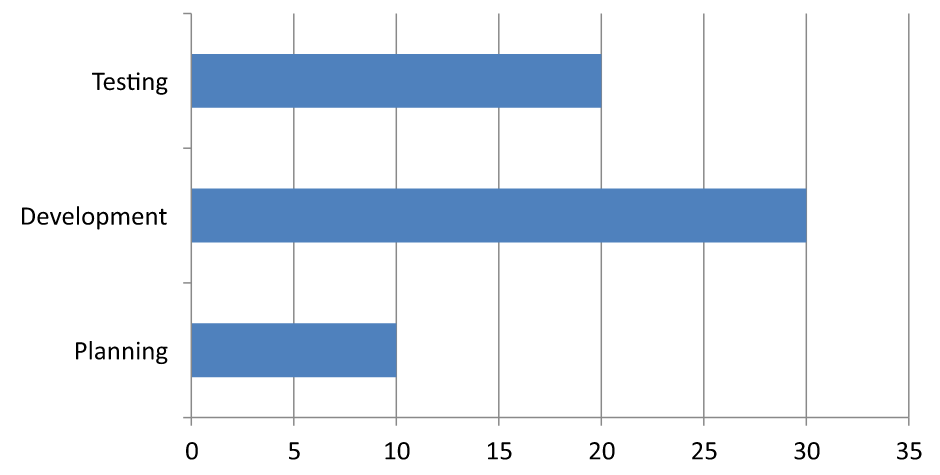
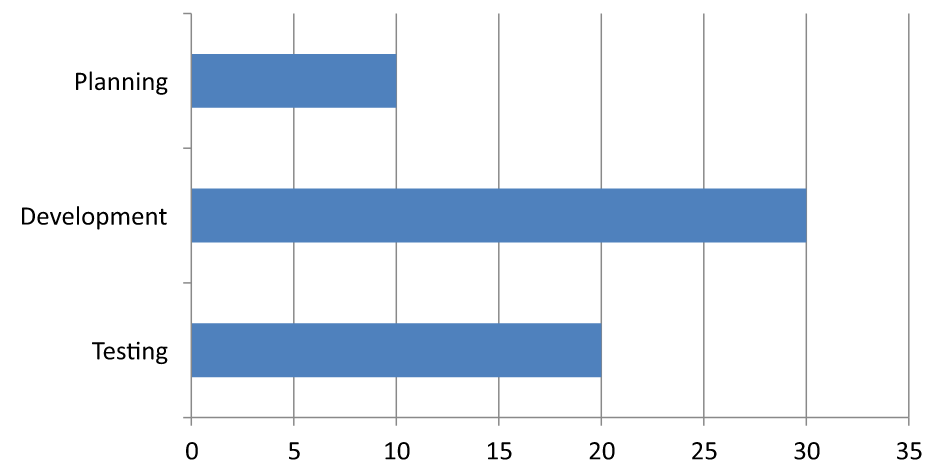
使用setPlotOrderReversed可以反转类别坐标轴或数值坐标轴。例如,水平条形图可以按照工作表中的顺序从上到下显示项目阶段:Planning、Development、Testing。反转坐标轴会改变绘图方向,但不会对工作簿数据进行排序或重新排列。相比之下,switchRowColumn交换系列和类别的角色。
以下示例创建了一个包含三个阶段和一个系列的水平条形图。它保存了一个包含三张幻灯片的演示文稿:正常顺序、类别反转和数值反转。每个副本使用相同的数据集,且每个副本只反转一个坐标轴。
import com.aspose.slides.*;

Presentation presentation = new Presentation();
try {
    ISlide slide = presentation.getSlides().get_Item(0);

    IChart chart = slide.getShapes().addChart(ChartType.ClusteredBar, 50, 40, 620, 320);
    chart.setLegend(false);

    chart.getChartData().getCategories().clear();
    chart.getChartData().getSeries().clear();

    IChartDataWorkbook workbook = chart.getChartData().getChartDataWorkbook();
    workbook.clear(0);

    IChartSeries series = chart.getChartData().getSeries().add(ChartType.ClusteredBar);
    String[] stages = { "Planning", "Development", "Testing" };
    int[] values = { 10, 30, 20 };
    for (int i = 0; i < stages.length; i++) {
        IChartDataCell categoryCell = workbook.getCell(0, i + 1, 0, stages[i]);
        chart.getChartData().getCategories().add(categoryCell);
        IChartDataCell valueCell = workbook.getCell(0, i + 1, 1, values[i]);
        series.getDataPoints().addDataPointForBarSeries(valueCell);
    }

    // 幻灯片 2:在顶部显示第一个类别。
    ISlide categorySlide = presentation.getSlides().addClone(slide);
    IChart categoryChart = (IChart)categorySlide.getShapes().get_Item(0);
    categoryChart.getAxes().getVerticalAxis().setPlotOrderReversed(true);
    // 保持水平数值坐标轴在底部。
    categoryChart.getAxes().getVerticalAxis().setCrossType(CrossesType.Maximum);

    // 幻灯片 3:仅反转水平数值刻度。
    ISlide valueSlide = presentation.getSlides().addClone(slide);
    IChart valueChart = (IChart)valueSlide.getShapes().get_Item(0);
    valueChart.getAxes().getHorizontalAxis().setPlotOrderReversed(true);

    presentation.save("ReversedAxes.pptx", SaveFormat.Pptx);
} finally {
    presentation.dispose();
}
反转坐标轴还可以将垂直坐标轴移动到绘图的另一侧。setCrossType控制另一坐标轴在被配置坐标轴上的交叉位置。在第2张幻灯片中,对反转的类别坐标轴使用CrossesType.Maximum可以保持水平数值坐标轴位于底部。如需指定特定交叉点,请使用setCrossAt。在改变方向时检查交叉设置,尤其是图表已设置自定义交叉点的情况下。调用setPlotOrderReversed并传入false可恢复正常绘图方向;交叉设置是独立的。
| 正常顺序(幻灯片 1) | 类别反转(幻灯片 2) | 数值反转(幻灯片 3) |
|---|---|---|
 |
 |
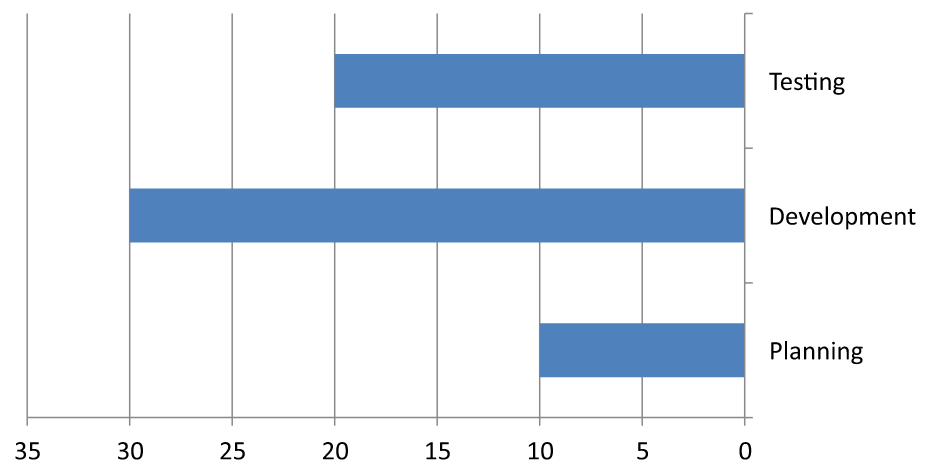 |
| 类别从底部到顶部;数值从左向右递增。 | Planning、Development 和 Testing 从上到下排列。数值和工作表行顺序保持不变。 | 类别保持正常顺序;数值从右向左递增。类别坐标轴在右侧零点交叉。 |
禁用折线图的垂直坐标轴
在垂直坐标轴上调用setVisible并传入false以隐藏它。示例创建了一个带默认数据的折线图,并在隐藏垂直坐标轴的情况下保存。
import com.aspose.slides.*;

Presentation presentation = new Presentation();
try {
    ISlide slide = presentation.getSlides().get_Item(0);

    IChart chart = slide.getShapes().addChart(ChartType.Line, 100, 100, 400, 300);
    chart.getAxes().getVerticalAxis().setVisible(false);

    presentation.save("HiddenVerticalAxis.pptx", SaveFormat.Pptx);
} finally {
    presentation.dispose();
}
禁用折线图的水平坐标轴
在水平坐标轴上调用setVisible并传入false以隐藏它。示例创建了一个带默认数据的折线图,并在隐藏水平坐标轴的情况下保存。
import com.aspose.slides.*;

Presentation presentation = new Presentation();
try {
    ISlide slide = presentation.getSlides().get_Item(0);

    IChart chart = slide.getShapes().addChart(ChartType.Line, 100, 100, 400, 300);
    chart.getAxes().getHorizontalAxis().setVisible(false);

    presentation.save("HiddenHorizontalAxis.pptx", SaveFormat.Pptx);
} finally {
    presentation.dispose();
}
更改类别坐标轴
使用setCategoryAxisType来选择日期或文本类别坐标轴。此示例需要ExistingChart.pptx,其中第一张幻灯片的首个形状是图表,且类别单元格包含数值型 Excel 日期。它将水平坐标轴更改为日期坐标轴。将setAutomaticMajorUnit设为false、setMajorUnit设为1、setMajorUnitScale设为TimeUnitType.Months,会使主刻度以一个月为间隔。
import com.aspose.slides.*;

Presentation presentation = new Presentation("ExistingChart.pptx");
try {
    ISlide slide = presentation.getSlides().get_Item(0);

    IChart chart = (IChart) slide.getShapes().get_Item(0);
    chart.getAxes().getHorizontalAxis().setCategoryAxisType(CategoryAxisType.Date);
    chart.getAxes().getHorizontalAxis().setAutomaticMajorUnit(false);
    chart.getAxes().getHorizontalAxis().setMajorUnit(1);
    chart.getAxes().getHorizontalAxis().setMajorUnitScale(TimeUnitType.Months);

    presentation.save("ChangeChartCategoryAxis_out.pptx", SaveFormat.Pptx);
} finally {
    presentation.dispose();
}
控制类别坐标轴标签间隔
当图表拥有大量类别时,可在不删除类别或数据点的前提下降低可见轴标签的数量。调用setAutomaticTickLabelSpacing并传入false,随后将所需的类别间隔传递给setTickLabelSpacing。对于按正常顺序排列的文本类别,计数从第一个类别开始:
| 间隔 | 示例中显示的标签 |
|---|---|
1 |
类别 1, 类别 2, 类别 3, … 类别 24 |
2 |
类别 1, 类别 3, 类别 5, … 类别 23 |
3 |
类别 1, 类别 4, 类别 7, … 类别 22 |
间隔为3时每三个标签显示一次,之间的两个标签被隐藏。它不会删除相应的列。自动间距会根据可用空间选择间隔;并不一定显示所有标签。
刻度线有单独的控制。调用setAutomaticTickMarksSpacing并传入false,再使用setTickMarksSpacing设置其间隔。例如,1会在每个类别间隔保留一个刻度线,而标签仅每第三个类别显示一次。使用setMajorTickMark并设为可见样式,以便看到效果。再次将任一自动间距设置器设为true,图表会重新选择间隔。
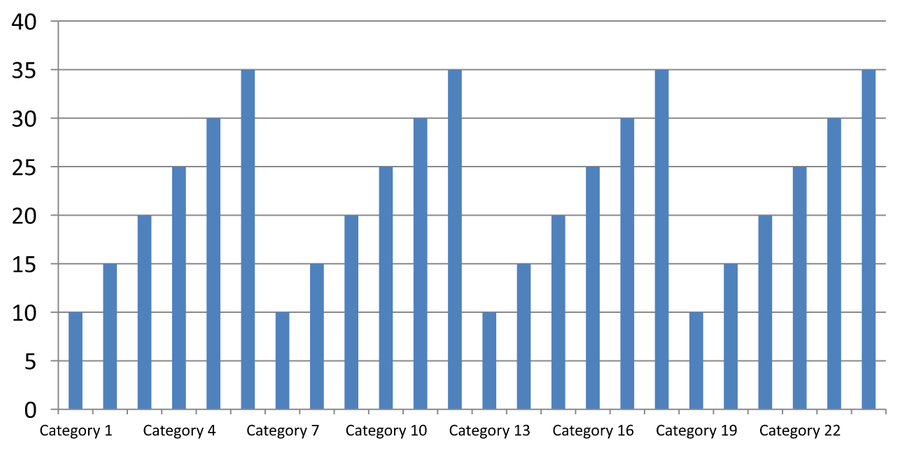
下面的独立示例创建了 24 个类别和一个系列,然后在 CategoryAxisIntervals.pptx 中保存三个幻灯片:自动间距、手动标签间距且刻度线独立,以及恢复自动间距。这两个副本保留原始图表数据。无需输入演示文稿。水平标签文本使密度差异一目了然。
import com.aspose.slides.*;

Presentation presentation = new Presentation();
try {
    ISlide slide = presentation.getSlides().get_Item(0);

    IChart chart = slide.getShapes().addChart(ChartType.ClusteredColumn, 30, 40, 660, 320);

    chart.setLegend(false);
    chart.getChartData().getCategories().clear();
    chart.getChartData().getSeries().clear();

    IChartDataWorkbook workbook = chart.getChartData().getChartDataWorkbook();
    workbook.clear(0);

    IChartSeries series = chart.getChartData().getSeries().add(ChartType.ClusteredColumn);
    for (int i = 0; i < 24; i++) {
        IChartDataCell categoryCell = workbook.getCell(0, i + 1, 0, "Category " + (i + 1));
        chart.getChartData().getCategories().add(categoryCell);
        IChartDataCell valueCell = workbook.getCell(0, i + 1, 1, 10 + i % 6 * 5);
        series.getDataPoints().addDataPointForBarSeries(valueCell);
    }

    IAxis axis = chart.getAxes().getHorizontalAxis();
    axis.setCategoryAxisType(CategoryAxisType.Text);
    axis.getTextFormat().getTextBlockFormat().setRotationAngle(0);
    axis.getTextFormat().getPortionFormat().setFontHeight(12);
    axis.setMajorTickMark(TickMarkType.Outside);
    axis.setAutomaticTickLabelSpacing(true);
    axis.setAutomaticTickMarksSpacing(true);

    // 幻灯片 2:显示每第三个标签,但保持每个类别都有刻度线。
    ISlide manualSlide = presentation.getSlides().addClone(slide);
    IChart manualChart = (IChart)manualSlide.getShapes().get_Item(0);
    IAxis manualAxis = manualChart.getAxes().getHorizontalAxis();
    manualAxis.setAutomaticTickLabelSpacing(false);
    manualAxis.setTickLabelSpacing(3);
    manualAxis.setAutomaticTickMarksSpacing(false);
    manualAxis.setTickMarksSpacing(1);

    // 幻灯片 3:让图表再次选择两个间隔。
    ISlide restoredSlide = presentation.getSlides().addClone(manualSlide);
    IChart restoredChart = (IChart)restoredSlide.getShapes().get_Item(0);
    restoredChart.getAxes().getHorizontalAxis().setAutomaticTickLabelSpacing(true);
    restoredChart.getAxes().getHorizontalAxis().setAutomaticTickMarksSpacing(true);

    presentation.save("CategoryAxisIntervals.pptx", SaveFormat.Pptx);
} finally {
    presentation.dispose();
}
自动间距(幻灯片 1): 在此渲染中,每隔一个类别标签会显示一次,并换成两行。自动结果会随图表大小、字体和渲染器而变化。
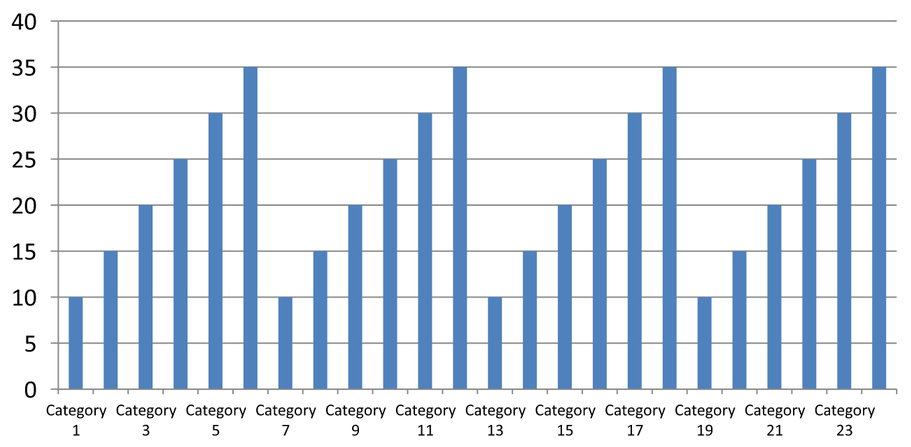
手动间距(幻灯片 2): 每隔三个标签显示一次,且刻度线仍保留在每个类别间隔。所有 24 列(包括没有标签的列)仍然可见且数值相同。幻灯片 3 恢复上述的自动外观。
选择正确的坐标轴和间隔
对于文本类别坐标轴(例如柱形图、折线图、面积图或条形图的类别坐标轴),使用此类别计数间隔。在柱形图中,它是水平坐标轴;在水平条形图中,类别坐标轴为垂直坐标轴,因此将这些设置应用于getVerticalAxis返回的坐标轴。刻度间距同样适用于具有系列坐标轴的图表。
不要使用类别标签间隔来设置数值坐标轴的数值刻度。在数值坐标轴上,setMajorUnit指定数值差异,例如,当坐标轴起始于零时,主单位为10会在 0、10、20 等位置生成刻度。类别标签间隔3则是按照类别位置计数, 与其数据值无关。散点图和气泡图使用数值坐标轴而非文本类别坐标轴。对于日期坐标轴,请使用基于时间的主单位和比例,如Change a Category Axis中所述。
设置类别坐标轴值的日期格式
示例用四个年度值替换默认图表数据。日期以 OLE 自动化序列号存储在第一个工作表(索引 0)中,计算方式为自 1899 年 12 月 30 日起的天数。两个日历均使用 UTC,并在设置日期前清除,以免夏令时和当前时间影响计算。使用setCategoryAxisType并传入CategoryAxisType.Date,调用setNumberFormatLinkedToSource并设为false,再将yyyy传给setNumberFormat,使类别标签独立于单元格格式显示四位年份。
import com.aspose.slides.*;
import java.util.Calendar;
import java.util.GregorianCalendar;
import java.util.TimeZone;

Presentation presentation = new Presentation();
try {
    ISlide slide = presentation.getSlides().get_Item(0);

    IChart chart = slide.getShapes().addChart(ChartType.Line, 50, 50, 450, 300);

    chart.getChartData().getCategories().clear();
    chart.getChartData().getSeries().clear();

    IChartDataWorkbook workbook = chart.getChartData().getChartDataWorkbook();
    workbook.clear(0);

    TimeZone timeZone = TimeZone.getTimeZone("UTC");
    Calendar baseDate = new GregorianCalendar(timeZone);
    baseDate.clear();
    baseDate.set(1899, Calendar.DECEMBER, 30);

    IChartSeries series = chart.getChartData().getSeries().add(ChartType.Line);
    for (int i = 0; i < 4; i++) {
        Calendar date = new GregorianCalendar(timeZone);
        date.clear();
        date.set(2015 + i, Calendar.JANUARY, 1);
        double serialDate = (date.getTimeInMillis() - baseDate.getTimeInMillis()) / 86400000.0;
        IChartDataCell categoryCell = workbook.getCell(0, i + 1, 0, serialDate);
        chart.getChartData().getCategories().add(categoryCell);

        IChartDataCell valueCell = workbook.getCell(0, i + 1, 1, i + 1);
        series.getDataPoints().addDataPointForLineSeries(valueCell);
    }

    chart.getAxes().getHorizontalAxis().setCategoryAxisType(CategoryAxisType.Date);
    chart.getAxes().getHorizontalAxis().setNumberFormatLinkedToSource(false);
    chart.getAxes().getHorizontalAxis().setNumberFormat("yyyy");

    presentation.save("DateAxisFormat.pptx", SaveFormat.Pptx);
} finally {
    presentation.dispose();
}
为图表坐标轴标题设置旋转角度
在垂直坐标轴上调用setTitle并传入true,提供标题文本,然后使用setRotationAngle对标题进行旋转。角度以度为单位;本示例保存了一个柱形图,其数值坐标轴标题旋转了 90 度。
import com.aspose.slides.*;

Presentation presentation = new Presentation();
try {
    ISlide slide = presentation.getSlides().get_Item(0);

    IChart chart = slide.getShapes().addChart(ChartType.ClusteredColumn, 50, 50, 450, 300);
    chart.getAxes().getVerticalAxis().setTitle(true);
    chart.getAxes().getVerticalAxis().getTitle().addTextFrameForOverriding("Value");
    chart.getAxes().getVerticalAxis().getTitle().getTextFormat().getTextBlockFormat().setRotationAngle(90);

    presentation.save("RotatedAxisTitle.pptx", SaveFormat.Pptx);
} finally {
    presentation.dispose();
}
设置类别或数值坐标轴的位置
使用setAxisBetweenCategories控制数值坐标轴是穿过类别坐标轴的类别之间还是在类别刻度线上。此设置适用于类别坐标轴。示例在柱形图的水平类别坐标轴上将其设为true并保存结果。
import com.aspose.slides.*;

Presentation presentation = new Presentation();
try {
    ISlide slide = presentation.getSlides().get_Item(0);

    IChart chart = slide.getShapes().addChart(ChartType.ClusteredColumn, 50, 50, 450, 300);
    chart.getAxes().getHorizontalAxis().setAxisBetweenCategories(true);

    presentation.save("AxisBetweenCategories.pptx", SaveFormat.Pptx);
} finally {
    presentation.dispose();
}
为图表数值坐标轴设置显示单位
使用setDisplayUnit可在不更改底层数据的情况下缩放数值坐标轴上的标签。将DisplayUnitType设为Millions时,60000000 的数值会显示为 60。示例创建了一个柱形图,并将其垂直坐标轴的显示单位设置为百万。
import com.aspose.slides.*;

Presentation presentation = new Presentation();
try {
    ISlide slide = presentation.getSlides().get_Item(0);

    IChart chart = slide.getShapes().addChart(ChartType.ClusteredColumn, 50, 50, 450, 300);
    chart.getAxes().getVerticalAxis().setDisplayUnit(DisplayUnitType.Millions);

    presentation.save("Result.pptx", SaveFormat.Pptx);
} finally {
    presentation.dispose();
}
配置对数数值坐标轴
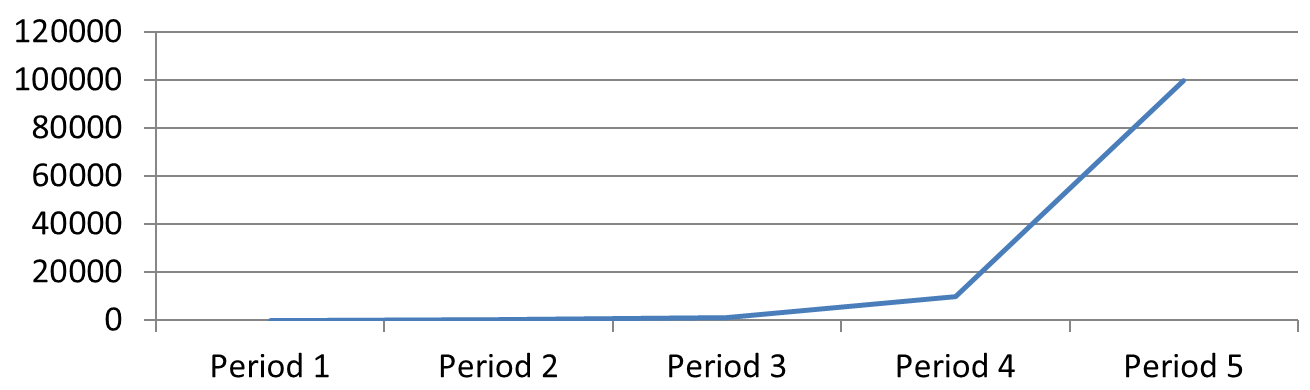
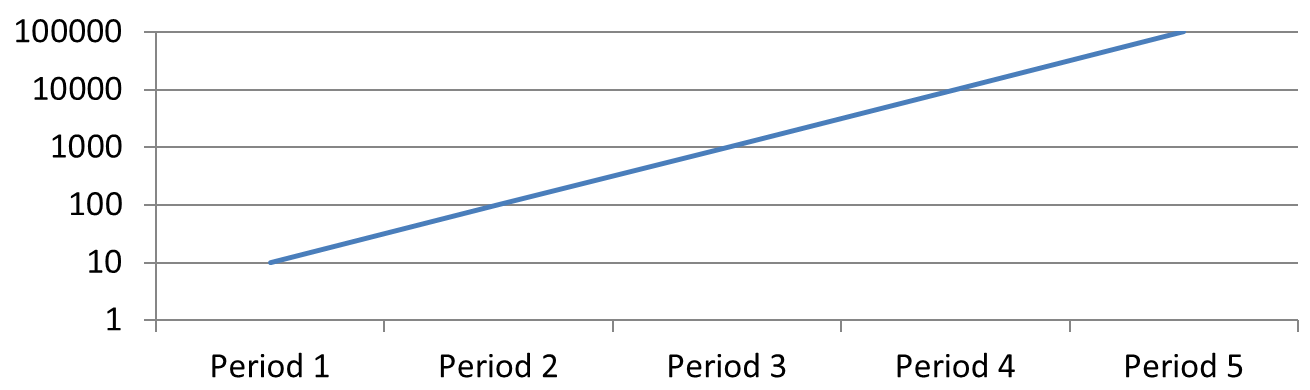
当正值跨越多个数量级时,对数数值坐标轴非常有用。例如,一个服务在五个周期内可能收到 10、100、1,000、10,000 和 100,000 次请求。在线性尺度下,较小的数值会在接近零的地方聚集。对数尺度则更易于比较它们的相对增长:相等的距离表示相等的比例,而非相等的差值。
在数值坐标轴上调用setLogarithmic并传入true,并使用setLogBase选择基数。这会改变现有数值的显示方式;不会修改数据或添加对数趋势线。趋势线表示数据中的拟合关系,是独立的功能。
选择数值坐标轴和基数
对于折线图或柱形图,数值坐标轴由getVerticalAxis返回。对于水平条形图,数值坐标轴由getHorizontalAxis返回。散点图和气泡图有两个数值坐标轴,因此可为 X 值选择水平坐标轴,为 Y 值选择垂直坐标轴,或两者皆选。不要对类别坐标轴应用对数刻度。
默认的对数基数为10。对于 PPTX 图表,基数可使用 2 到 1000(含)之间的整数;也支持诸如2.5的分数基数。使用基数10时,后续的幂次如 10、100、1,000、10,000 等间距相等。
比较线性和对数刻度
下面的独立示例在第一张幻灯片创建了一个包含五个请求计数的折线图,然后克隆该幻灯片并在第二张幻灯片启用基数为 10 的对数数值坐标轴。两张幻灯片均保留相同的数据。
import com.aspose.slides.*;

Presentation presentation = new Presentation();
try {
    ISlide slide = presentation.getSlides().get_Item(0);

    IChart chart = slide.getShapes().addChart(ChartType.Line, 30, 40, 660, 200);

    chart.setLegend(false);

    chart.getChartData().getCategories().clear();
    chart.getChartData().getSeries().clear();

    IChartDataWorkbook workbook = chart.getChartData().getChartDataWorkbook();
    workbook.clear(0);

    IChartSeries series = chart.getChartData().getSeries().add(ChartType.Line);
    double[] values = { 10, 100, 1000, 10000, 100000 };

    for (int i = 0; i < values.length; i++) {
        IChartDataCell categoryCell = workbook.getCell(0, i + 1, 0, "Period " + (i + 1));
        chart.getChartData().getCategories().add(categoryCell);

        IChartDataCell valueCell = workbook.getCell(0, i + 1, 1, values[i]);
        series.getDataPoints().addDataPointForLineSeries(valueCell);
    }

    // 保持第一张幻灯片为线性,仅更改复制幻灯片的数值坐标轴刻度。
    ISlide logarithmicSlide = presentation.getSlides().addClone(slide);
    IChart logarithmicChart = (IChart)logarithmicSlide.getShapes().get_Item(0);
    IAxis valueAxis = logarithmicChart.getAxes().getVerticalAxis();
    valueAxis.setLogarithmic(true);
    valueAxis.setLogBase(10);

    presentation.save("LogarithmicAxis.pptx", SaveFormat.Pptx);
} finally {
    presentation.dispose();
}
线性尺度(幻灯片 1): 相等的垂直距离代表请求计数的相等差异。最大值主导图表,导致较小的数值难以区分。
对数尺度(幻灯片 2): 相等的垂直距离代表相等的比例。每个周期的请求量是前一个的十倍,因此在基数为 10 的尺度上点形成一条直线上升线。坐标轴标签仍显示原始的请求计数。
处理零值和负值
对数尺度只能显示严格正值。启用前请检查数据。如果零值或负值有实际意义,请保持线性尺度或单独显示它们。如果在分析中排除这些值是合适的,请说明省略原因。不要悄悄将其替换为小的正数,因为这会改变数据的含义。对数坐标轴的任何手动设置的最小值或最大值也必须为正。
常见问题
如何设置坐标轴交叉的数值(坐标轴交叉点)?
使用setCrossType选择交叉行为。若要指定数值交叉点,请使用setCrossAt。这些设置可将坐标轴交叉移动到合适的基准线。
如何相对于坐标轴定位刻度标签?
调用setTickLabelPosition并使用TickLabelPositionType:Low、High、NextTo或None。若要控制刻度线本身,请使用setMajorTickMark或setMinorTickMark;这些与标签定位是分开的。