
C++ में प्रस्तुतियों में बुलेटेड और क्रमांकित सूचियों का प्रबंधन
परिचय
Aspose.Slides for C++ आपको PowerPoint और OpenDocument प्रस्तुतियों में बुलेटेड और क्रमांकित सूचियों को बनाने और फ़ॉर्मेट करने की सुविधा देता है। एक सूची आइटम वह पैराग्राफ है जिसका बुलेट सेटिंग उसके पैराग्राफ फ़ॉर्मेट द्वारा नियंत्रित किया जाता है।
पराग्राफ‑स्तर की सूची सेटिंग्स तक पहुँचने के लिए IParagraph::get_ParagraphFormat मेथड का उपयोग करें। मुख्य प्रवेश बिंदु है IParagraphFormat::get_Bullet, जो एक IBulletFormat ऑब्जेक्ट लौटाता है। इस ऑब्जेक्ट के साथ आप बुलेट प्रकार, प्रतीक, चित्र, रंग, आकार, क्रमांकन शैली, और प्रारंभिक संख्या सेट कर सकते हैं।
यह लेख दिखाता है कि कैसे:
- कस्टम प्रतीक के साथ बुलेटेड सूची बनाएं
- चित्र बुलेट बनाएं
- पैराग्राफ गहराई सेट करके मल्टी‑लेवल सूची बनाएं
- क्रमांकित सूची बनाएं
- मौजूदा प्रस्तुति में सूची फ़ॉर्मेटिंग का निरीक्षण और संशोधन करें
बुलेटेड सूची बनाएं
बुलेटेड सूची बनाने के लिए, एक ITextFrame में Paragraph ऑब्जेक्ट जोड़ें और IBulletFormat::set_Type को BulletType::Symbol पर सेट करें। फिर आप बुलेट की उपस्थिति को नियंत्रित करने के लिये IBulletFormat::set_Char, IBulletFormat::get_Color और IBulletFormat::set_Height सेट कर सकते हैं।
निम्नलिखित C++ कोड एक स्लाइड में बुलेटेड सूची बनाने का प्रदर्शन करता है:
auto createParagraph = [](System::String text)
{
    auto paragraph = System::MakeObject<Paragraph>();
    auto paragraphFormat = paragraph->get_ParagraphFormat();
    auto bulletFormat = paragraphFormat->get_Bullet();

    bulletFormat->set_Type(BulletType::Symbol);
    bulletFormat->set_Char(u'*');
    paragraphFormat->set_Indent(15);
    bulletFormat->set_IsBulletHardColor(NullableBool::True);
    bulletFormat->get_Color()->set_Color(System::Drawing::Color::get_IndianRed());
    bulletFormat->set_Height(100);
    paragraph->set_Text(text);

    return paragraph;
};

auto presentation = System::MakeObject<Presentation>();
auto slide = presentation->get_Slide(0);
auto autoShape = slide->get_Shapes()->AddAutoShape(ShapeType::Rectangle, 20, 20, 200, 50);

auto textFrame = autoShape->get_TextFrame();
textFrame->get_Paragraphs()->Clear();

auto paragraph1 = createParagraph(u"The first paragraph");
textFrame->get_Paragraphs()->Add(paragraph1);

auto paragraph2 = createParagraph(u"The second paragraph");
textFrame->get_Paragraphs()->Add(paragraph2);

presentation->Save(u"symbol_bullets.pptx", SaveFormat::Pptx);
presentation->Dispose();
परिणाम:

क्रमांकित सूची बनाएं
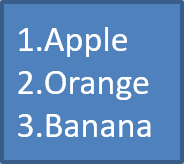
जब आइटम क्रम महत्वपूर्ण हो तो क्रमांकित सूचियों का उपयोग करें। IBulletFormat::set_Type को BulletType::Numbered पर सेट करें। आप IBulletFormat::set_NumberedBulletStyle के साथ क्रमांकन प्रारूप चुन सकते हैं या जब सूची 1 से शुरू नहीं होनी चाहिए तो IBulletFormat::set_NumberedBulletStartWith सेट कर सकते हैं।
निम्नलिखित C++ कोड एक स्लाइड में क्रमांकित सूची बनाने का प्रदर्शन करता है:
auto presentation = System::MakeObject<Presentation>();
auto slide = presentation->get_Slide(0);
auto autoShape = slide->get_Shapes()->AddAutoShape(ShapeType::Rectangle, 20, 20, 90, 80);

auto textFrame = autoShape->get_TextFrame();
textFrame->get_Paragraphs()->Clear();

auto paragraph1 = System::MakeObject<Paragraph>();
paragraph1->get_ParagraphFormat()->get_Bullet()->set_Type(BulletType::Numbered);
paragraph1->set_Text(u"Apple");
textFrame->get_Paragraphs()->Add(paragraph1);

auto paragraph2 = System::MakeObject<Paragraph>();
paragraph2->get_ParagraphFormat()->get_Bullet()->set_Type(BulletType::Numbered);
paragraph2->set_Text(u"Orange");
textFrame->get_Paragraphs()->Add(paragraph2);

auto paragraph3 = System::MakeObject<Paragraph>();
paragraph3->get_ParagraphFormat()->get_Bullet()->set_Type(BulletType::Numbered);
paragraph3->set_Text(u"Banana");
textFrame->get_Paragraphs()->Add(paragraph3);

presentation->Save(u"numbered_bullets.pptx", SaveFormat::Pptx);
presentation->Dispose();
परिणाम:
चित्र बुलेट बनाएं
Aspose.Slides आपको सामान्य बुलेट प्रतीक को किसी छवि से बदलने की अनुमति देता है। चित्र बुलेट्स सबसे बेहतर तब काम करते हैं जब वे सरल छवियां हों जो छोटे आकार में भी पढ़े जा सकें, जैसे आइकन या छोटे पारदर्शी PNG फ़ाइलें।
आदर्श रूप से, यदि आप सामान्य बुलेट प्रतीक को किसी छवि से बदलने की योजना बनाते हैं, तो पारदर्शी पृष्ठभूमि वाली सरल ग्राफ़िक चुनना सबसे अच्छा रहता है। ऐसी छवियां कस्टम बुलेट प्रतीकों के रूप में अच्छी तरह काम करती हैं।
ध्यान रखें कि छवि को बहुत छोटे आकार में स्केल किया जाएगा। इसलिए हम दृढ़ता से अनुशंसा करते हैं कि आप ऐसी छवि चुनें जो बुलेट के रूप में उपयोग होने पर भी स्पष्ट और दृश्य रूप से प्रभावी बनी रहे।
चित्र बुलेट बनाने के लिए, पहले एक छवि को IPresentation::get_Images में जोड़ें और लौटाए गए IPPImage ऑब्जेक्ट को IBulletFormat::get_Picture को असाइन करें। असाइन करने से पहले IBulletFormat::set_Type को BulletType::Picture पर सेट करना न भूलें।
मान लीजिए हमारे पास “image.png” है:

निम्नलिखित C++ कोड स्लाइड में चित्र बुलेट बनाने का प्रदर्शन करता है:
auto createParagraph = [](System::String text, System::SharedPtr<IPPImage> image)
{
    auto paragraph = System::MakeObject<Paragraph>();
    auto paragraphFormat = paragraph->get_ParagraphFormat();
    auto bulletFormat = paragraphFormat->get_Bullet();

    bulletFormat->set_Type(BulletType::Picture);
    bulletFormat->get_Picture()->set_Image(image);
    paragraphFormat->set_Indent(15);
    bulletFormat->set_Height(100);
    paragraph->set_Text(text);

    return paragraph;
};

auto presentation = System::MakeObject<Presentation>();
auto slide = presentation->get_Slide(0);
auto autoShape = slide->get_Shapes()->AddAutoShape(ShapeType::Rectangle, 20, 20, 200, 50);

auto textFrame = autoShape->get_TextFrame();
textFrame->get_Paragraphs()->Clear();

auto sourceImage = Images::FromFile(u"image.png");
auto bulletImage = presentation->get_Images()->AddImage(sourceImage);
sourceImage->Dispose();

auto paragraph1 = createParagraph(u"The first paragraph", bulletImage);
textFrame->get_Paragraphs()->Add(paragraph1);

auto paragraph2 = createParagraph(u"The second paragraph", bulletImage);
textFrame->get_Paragraphs()->Add(paragraph2);

presentation->Save(u"picture_bullets.pptx", SaveFormat::Pptx);
presentation->Dispose();
परिणाम:

मल्टीलेवल सूची बनाएं
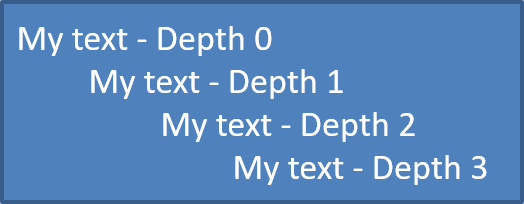
सूची आइटमों को विभिन्न स्तरों पर रखने के लिये IParagraphFormat::set_Depth का उपयोग करें। स्तर 0 शीर्ष स्तर है, स्तर 1 उसके नीचे नेस्टेड होता है, और आगे इसी प्रकार।
निम्नलिखित C++ कोड मल्टीलेवल बुलेटेड सूची बनाने का प्रदर्शन करता है:
auto presentation = System::MakeObject<Presentation>();
auto slide = presentation->get_Slide(0);
auto autoShape = slide->get_Shapes()->AddAutoShape(ShapeType::Rectangle, 20, 20, 260, 110);

auto textFrame = autoShape->get_TextFrame();
textFrame->get_Paragraphs()->Clear();

auto paragraph1 = System::MakeObject<Paragraph>();
paragraph1->get_ParagraphFormat()->set_Depth(0);
paragraph1->set_Text(u"My text - Depth 0");
textFrame->get_Paragraphs()->Add(paragraph1);

auto paragraph2 = System::MakeObject<Paragraph>();
paragraph2->get_ParagraphFormat()->set_Depth(1);
paragraph2->set_Text(u"My text - Depth 1");
textFrame->get_Paragraphs()->Add(paragraph2);

auto paragraph3 = System::MakeObject<Paragraph>();
paragraph3->get_ParagraphFormat()->set_Depth(2);
paragraph3->set_Text(u"My text - Depth 2");
textFrame->get_Paragraphs()->Add(paragraph3);

auto paragraph4 = System::MakeObject<Paragraph>();
paragraph4->get_ParagraphFormat()->set_Depth(3);
paragraph4->set_Text(u"My text - Depth 3");
textFrame->get_Paragraphs()->Add(paragraph4);

presentation->Save(u"multilevel_bullets.pptx", SaveFormat::Pptx);
presentation->Dispose();
परिणाम:
मौजूदा सूची बदलें
मौजूदा प्रस्तुति में सूची फ़ॉर्मेटिंग बदलने के लिये लक्ष्य पैराग्राफ तक पहुँचें और उसके IParagraphFormat::get_Bullet सेटिंग्स को अपडेट करें। सूचनाओं को लोड किए गए PPT, PPTX, या ODP फ़ाइल से सूची को निरीक्षण या संशोधित करने के लिये वही प्रॉपर्टी उपयोग की जा सकती हैं जो सूचियों को बनाने के लिये उपयोग हुई थीं।
निम्नलिखित C++ कोड टेक्स्ट फ़्रेम में पहले पैराग्राफ को क्रमांकित सूची शैली में बदलता है:
auto presentation = System::MakeObject<Presentation>(u"input.pptx");
auto slide = presentation->get_Slide(0);
auto autoShape = System::ExplicitCast<IAutoShape>(slide->get_Shape(0));
auto paragraph = autoShape->get_TextFrame()->get_Paragraph(0);

auto paragraphFormat = paragraph->get_ParagraphFormat();
auto bulletFormat = paragraphFormat->get_Bullet();

bulletFormat->set_Type(BulletType::Numbered);
bulletFormat->set_NumberedBulletStyle(NumberedBulletStyle::BulletRomanUCPeriod);
bulletFormat->set_NumberedBulletStartWith(1);
paragraphFormat->set_MarginLeft(30);
paragraphFormat->set_Indent(-20);

presentation->Save(u"updated_list.pptx", SaveFormat::Pptx);
presentation->Dispose();
अक्सर पूछे जाने वाले प्रश्न
क्या बुलेटेड और क्रमांकित सूचियों को PDF या छवियों में निर्यात किया जा सकता है?
हाँ। Aspose.Slides सूची फ़ॉर्मेटिंग को संरक्षित रखता है जब लक्ष्य प्रारूप संबंधित टेक्स्ट लेआउट और बुलेट सुविधाओं को समर्थन देता है।
क्या मैं मौजूदा प्रस्तुतियों में सूचियों को संपादित कर सकता हूँ?
हाँ। प्रस्तुति लोड करें, लक्ष्य पैराग्राफ तक पहुँचें, उसके IParagraphFormat::get_Bullet सेटिंग्स का निरीक्षण या अपडेट करें, और प्रस्तुति को सहेजें।
क्या सूचियों में गैर‑लैटिन पाठ हो सकता है?
हाँ। सूची आइटम का पाठ Unicode अक्षरों को शामिल कर सकता है, इसलिए आप बहुभाषी प्रस्तुतियों में सूचियाँ बना सकते हैं। सुनिश्चित करें कि प्रस्तुति में प्रयुक्त फ़ॉन्ट्स उन अक्षरों को समर्थन देते हों जिनकी आपको आवश्यकता है।