
Zarządzanie listami wypunktowanymi i numerowanymi w prezentacjach w C++
Przegląd
Aspose.Slides for C++ umożliwia tworzenie i formatowanie list wypunktowanych i numerowanych w prezentacjach PowerPoint i OpenDocument. Element listy jest akapitem, którego ustawienia wypunktowania są kontrolowane poprzez formatowanie akapitu.
Użyj metody IParagraph::get_ParagraphFormat , aby uzyskać dostęp do ustawień listy na poziomie akapitu. Głównym punktem wejścia jest IParagraphFormat::get_Bullet , który zwraca obiekt IBulletFormat . Za pomocą tego obiektu możesz ustawić typ wypunktowania, symbol, obraz, kolor, rozmiar, styl numeracji oraz numer początkowy.
Ten artykuł pokazuje, jak:
- utworzyć listę wypunktowaną z własnym symbolem
- utworzyć wypunktowanie obrazkowe
- utworzyć listę wielopoziomową, ustawiając głębokość akapitu
- utworzyć listę numerowaną
- sprawdzić i zmienić formatowanie listy w istniejącej prezentacji
Utworzenie listy wypunktowanej
Aby utworzyć listę wypunktowaną, dodaj obiekty Paragraph do ITextFrame i ustaw IBulletFormat::set_Type na BulletType::Symbol . Następnie możesz ustawić IBulletFormat::set_Char , IBulletFormat::get_Color oraz IBulletFormat::set_Height , aby kontrolować wygląd wypunktowania.
Poniższy kod C++ demonstruje, jak utworzyć listę wypunktowaną na slajdzie:
auto createParagraph = [](System::String text)
{
    auto paragraph = System::MakeObject<Paragraph>();
    auto paragraphFormat = paragraph->get_ParagraphFormat();
    auto bulletFormat = paragraphFormat->get_Bullet();

    bulletFormat->set_Type(BulletType::Symbol);
    bulletFormat->set_Char(u'*');
    paragraphFormat->set_Indent(15);
    bulletFormat->set_IsBulletHardColor(NullableBool::True);
    bulletFormat->get_Color()->set_Color(System::Drawing::Color::get_IndianRed());
    bulletFormat->set_Height(100);
    paragraph->set_Text(text);

    return paragraph;
};

auto presentation = System::MakeObject<Presentation>();
auto slide = presentation->get_Slide(0);
auto autoShape = slide->get_Shapes()->AddAutoShape(ShapeType::Rectangle, 20, 20, 200, 50);

auto textFrame = autoShape->get_TextFrame();
textFrame->get_Paragraphs()->Clear();

auto paragraph1 = createParagraph(u"The first paragraph");
textFrame->get_Paragraphs()->Add(paragraph1);

auto paragraph2 = createParagraph(u"The second paragraph");
textFrame->get_Paragraphs()->Add(paragraph2);

presentation->Save(u"symbol_bullets.pptx", SaveFormat::Pptx);
presentation->Dispose();
Wynik:

Utworzenie listy numerowanej
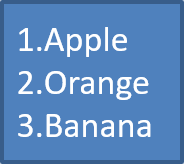
Używaj list numerowanych, gdy kolejność elementów ma znaczenie. Ustaw IBulletFormat::set_Type na BulletType::Numbered . Możesz także wybrać format numeracji za pomocą IBulletFormat::set_NumberedBulletStyle lub ustawić IBulletFormat::set_NumberedBulletStartWith , gdy lista ma zaczynać się od innej wartości niż 1.
Poniższy kod C++ pokazuje, jak utworzyć listę numerowaną na slajdzie:
auto presentation = System::MakeObject<Presentation>();
auto slide = presentation->get_Slide(0);
auto autoShape = slide->get_Shapes()->AddAutoShape(ShapeType::Rectangle, 20, 20, 90, 80);

auto textFrame = autoShape->get_TextFrame();
textFrame->get_Paragraphs()->Clear();

auto paragraph1 = System::MakeObject<Paragraph>();
paragraph1->get_ParagraphFormat()->get_Bullet()->set_Type(BulletType::Numbered);
paragraph1->set_Text(u"Apple");
textFrame->get_Paragraphs()->Add(paragraph1);

auto paragraph2 = System::MakeObject<Paragraph>();
paragraph2->get_ParagraphFormat()->get_Bullet()->set_Type(BulletType::Numbered);
paragraph2->set_Text(u"Orange");
textFrame->get_Paragraphs()->Add(paragraph2);

auto paragraph3 = System::MakeObject<Paragraph>();
paragraph3->get_ParagraphFormat()->get_Bullet()->set_Type(BulletType::Numbered);
paragraph3->set_Text(u"Banana");
textFrame->get_Paragraphs()->Add(paragraph3);

presentation->Save(u"numbered_bullets.pptx", SaveFormat::Pptx);
presentation->Dispose();
Wynik:
Utworzenie wypunktowania obrazkowego
Aspose.Slides pozwala zastąpić zwykły symbol wypunktowania obrazem. Wypunktowanie obrazkowe najlepiej działa z prostymi obrazami, które pozostają czytelne w małym rozmiarze, takimi jak ikony lub małe przezroczyste pliki PNG.
Idealnie, jeśli planujesz zastąpić zwykły symbol wypunktowania obrazem, należy wybrać prostą grafikę z przezroczystym tłem. Takie obrazy dobrze sprawdzają się jako własne symbole wypunktowania.
Pamiętaj, że obraz zostanie zmniejszony do bardzo małego rozmiaru. Z tego powodu zdecydowanie rekomendujemy wybór obrazu, który pozostaje wyraźny i wizualnie skuteczny jako wypunktowanie w liście.
Aby utworzyć wypunktowanie obrazkowe, dodaj obraz do IPresentation::get_Images i przypisz zwrócony obiekt IPPImage do IBulletFormat::get_Picture . Ustaw IBulletFormat::set_Type na BulletType::Picture przed przypisaniem obrazu.
Załóżmy, że mamy plik “image.png”:

Poniższy kod C++ pokazuje, jak utworzyć wypunktowanie obrazkowe na slajdzie:
auto createParagraph = [](System::String text, System::SharedPtr<IPPImage> image)
{
    auto paragraph = System::MakeObject<Paragraph>();
    auto paragraphFormat = paragraph->get_ParagraphFormat();
    auto bulletFormat = paragraphFormat->get_Bullet();

    bulletFormat->set_Type(BulletType::Picture);
    bulletFormat->get_Picture()->set_Image(image);
    paragraphFormat->set_Indent(15);
    bulletFormat->set_Height(100);
    paragraph->set_Text(text);

    return paragraph;
};

auto presentation = System::MakeObject<Presentation>();
auto slide = presentation->get_Slide(0);
auto autoShape = slide->get_Shapes()->AddAutoShape(ShapeType::Rectangle, 20, 20, 200, 50);

auto textFrame = autoShape->get_TextFrame();
textFrame->get_Paragraphs()->Clear();

auto sourceImage = Images::FromFile(u"image.png");
auto bulletImage = presentation->get_Images()->AddImage(sourceImage);
sourceImage->Dispose();

auto paragraph1 = createParagraph(u"The first paragraph", bulletImage);
textFrame->get_Paragraphs()->Add(paragraph1);

auto paragraph2 = createParagraph(u"The second paragraph", bulletImage);
textFrame->get_Paragraphs()->Add(paragraph2);

presentation->Save(u"picture_bullets.pptx", SaveFormat::Pptx);
presentation->Dispose();
Wynik:

Utworzenie listy wielopoziomowej
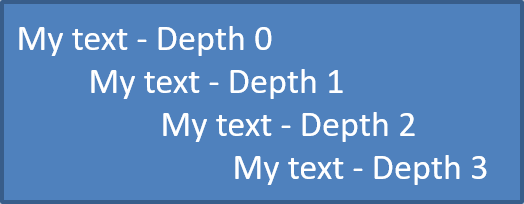
Użyj IParagraphFormat::set_Depth , aby umieścić elementy listy na różnych poziomach. Poziom 0 to poziom najwyższy, poziom 1 jest zagnieżdżony pod nim itd.
Poniższy kod C++ pokazuje, jak utworzyć wielopoziomową listę wypunktowaną:
auto presentation = System::MakeObject<Presentation>();
auto slide = presentation->get_Slide(0);
auto autoShape = slide->get_Shapes()->AddAutoShape(ShapeType::Rectangle, 20, 20, 260, 110);

auto textFrame = autoShape->get_TextFrame();
textFrame->get_Paragraphs()->Clear();

auto paragraph1 = System::MakeObject<Paragraph>();
paragraph1->get_ParagraphFormat()->set_Depth(0);
paragraph1->set_Text(u"My text - Depth 0");
textFrame->get_Paragraphs()->Add(paragraph1);

auto paragraph2 = System::MakeObject<Paragraph>();
paragraph2->get_ParagraphFormat()->set_Depth(1);
paragraph2->set_Text(u"My text - Depth 1");
textFrame->get_Paragraphs()->Add(paragraph2);

auto paragraph3 = System::MakeObject<Paragraph>();
paragraph3->get_ParagraphFormat()->set_Depth(2);
paragraph3->set_Text(u"My text - Depth 2");
textFrame->get_Paragraphs()->Add(paragraph3);

auto paragraph4 = System::MakeObject<Paragraph>();
paragraph4->get_ParagraphFormat()->set_Depth(3);
paragraph4->set_Text(u"My text - Depth 3");
textFrame->get_Paragraphs()->Add(paragraph4);

presentation->Save(u"multilevel_bullets.pptx", SaveFormat::Pptx);
presentation->Dispose();
Wynik:
Zmiana istniejącej listy
Aby zmienić formatowanie listy w istniejącej prezentacji, uzyskaj dostęp do docelowego akapitu i zaktualizuj jego ustawienia IParagraphFormat::get_Bullet . Te same właściwości używane do tworzenia list można wykorzystać do przeglądania lub modyfikowania list załadowanych z pliku PPT, PPTX lub ODP.
auto presentation = System::MakeObject<Presentation>(u"input.pptx");
auto slide = presentation->get_Slide(0);
auto autoShape = System::ExplicitCast<IAutoShape>(slide->get_Shape(0));
auto paragraph = autoShape->get_TextFrame()->get_Paragraph(0);

auto paragraphFormat = paragraph->get_ParagraphFormat();
auto bulletFormat = paragraphFormat->get_Bullet();

bulletFormat->set_Type(BulletType::Numbered);
bulletFormat->set_NumberedBulletStyle(NumberedBulletStyle::BulletRomanUCPeriod);
bulletFormat->set_NumberedBulletStartWith(1);
paragraphFormat->set_MarginLeft(30);
paragraphFormat->set_Indent(-20);

presentation->Save(u"updated_list.pptx", SaveFormat::Pptx);
presentation->Dispose();
FAQ
Czy listy wypunktowane i numerowane mogą być eksportowane do PDF lub obrazów?
Tak. Aspose.Slides zachowuje formatowanie list, gdy docelowy format wspiera odpowiednie układy tekstu i funkcje wypunktowania.
Czy mogę edytować listy w istniejących prezentacjach?
Tak. Załaduj prezentację, uzyskaj dostęp do docelowego akapitu, przejrzyj lub zaktualizuj jego ustawienia IParagraphFormat::get_Bullet i zapisz prezentację.
Czy listy mogą zawierać tekst niełaciński?
Tak. Tekst elementu listy może zawierać znaki Unicode, więc możesz tworzyć listy w wielojęzycznych prezentacjach. Upewnij się, że czcionki użyte w prezentacji obsługują potrzebne znaki.