
จัดการรายการแบบมีหัวข้อและลำดับเลขในงานนำเสนอด้วย C++
ภาพรวม
Aspose.Slides for C++ ช่วยให้คุณสร้างและจัดรูปแบบรายการแบบมีหัวข้อและรายการลำดับเลขในงานนำเสนอ PowerPoint และ OpenDocument รายการหนึ่งเป็นย่อหน้าที่การตั้งค่าหัวข้อถูกควบคุมผ่านรูปแบบย่อหน้า
ใช้เมธอด IParagraph::get_ParagraphFormat เพื่อเข้าถึงการตั้งค่ารายการระดับย่อหน้า จุดเริ่มต้นหลักคือ IParagraphFormat::get_Bullet, ซึ่งจะส่งกลับอ็อบเจ็กต์ IBulletFormat ด้วยอ็อบเจ็กต์นี้ คุณสามารถตั้งค่าชนิดหัวข้อ สัญลักษณ์ รูปภาพ สี ขนาด รูปแบบการนับเลข และหมายเลขเริ่มต้น
บทความนี้จะแสดงวิธี:
- สร้างรายการแบบมีหัวข้อด้วยสัญลักษณ์ที่กำหนดเอง
- สร้างหัวข้อแบบรูปภาพ
- สร้างรายการหลายระดับโดยตั้งค่าความลึกของย่อหน้า
- สร้างรายการลำดับเลข
- ตรวจสอบและเปลี่ยนแปลงการจัดรูปแบบรายการในงานนำเสนอที่มีอยู่
สร้างรายการแบบมีหัวข้อ
เพื่อสร้างรายการแบบมีหัวข้อ ให้เพิ่มอ็อบเจ็กต์ Paragraph ไปยัง ITextFrame และตั้งค่า IBulletFormat::set_Type เป็น BulletType::Symbol. จากนั้นคุณสามารถตั้งค่า IBulletFormat::set_Char, IBulletFormat::get_Color, และ IBulletFormat::set_Height เพื่อควบคุมรูปลักษณ์ของหัวข้อ
โค้ด C++ ต่อไปนี้แสดงวิธีสร้างรายการแบบมีหัวข้อในสไลด์:
auto createParagraph = [](System::String text)
{
    auto paragraph = System::MakeObject<Paragraph>();
    auto paragraphFormat = paragraph->get_ParagraphFormat();
    auto bulletFormat = paragraphFormat->get_Bullet();

    bulletFormat->set_Type(BulletType::Symbol);
    bulletFormat->set_Char(u'*');
    paragraphFormat->set_Indent(15);
    bulletFormat->set_IsBulletHardColor(NullableBool::True);
    bulletFormat->get_Color()->set_Color(System::Drawing::Color::get_IndianRed());
    bulletFormat->set_Height(100);
    paragraph->set_Text(text);

    return paragraph;
};

auto presentation = System::MakeObject<Presentation>();
auto slide = presentation->get_Slide(0);
auto autoShape = slide->get_Shapes()->AddAutoShape(ShapeType::Rectangle, 20, 20, 200, 50);

auto textFrame = autoShape->get_TextFrame();
textFrame->get_Paragraphs()->Clear();

auto paragraph1 = createParagraph(u"The first paragraph");
textFrame->get_Paragraphs()->Add(paragraph1);

auto paragraph2 = createParagraph(u"The second paragraph");
textFrame->get_Paragraphs()->Add(paragraph2);

presentation->Save(u"symbol_bullets.pptx", SaveFormat::Pptx);
presentation->Dispose();
ผลลัพธ์:

สร้างรายการลำดับเลข
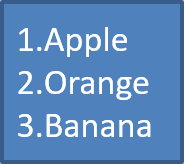
ใช้รายการลำดับเลขเมื่อลำดับของรายการมีความสำคัญ ตั้งค่า IBulletFormat::set_Type เป็น BulletType::Numbered. คุณยังสามารถเลือกรูปแบบการนับเลขด้วย IBulletFormat::set_NumberedBulletStyle หรือกำหนดค่าเริ่มต้นด้วย IBulletFormat::set_NumberedBulletStartWith เมื่อรายการควรเริ่มจากค่าที่ไม่ใช่ 1
โค้ด C++ ต่อไปนี้แสดงวิธีสร้างรายการลำดับเลขในสไลด์:
auto presentation = System::MakeObject<Presentation>();
auto slide = presentation->get_Slide(0);
auto autoShape = slide->get_Shapes()->AddAutoShape(ShapeType::Rectangle, 20, 20, 90, 80);

auto textFrame = autoShape->get_TextFrame();
textFrame->get_Paragraphs()->Clear();

auto paragraph1 = System::MakeObject<Paragraph>();
paragraph1->get_ParagraphFormat()->get_Bullet()->set_Type(BulletType::Numbered);
paragraph1->set_Text(u"Apple");
textFrame->get_Paragraphs()->Add(paragraph1);

auto paragraph2 = System::MakeObject<Paragraph>();
paragraph2->get_ParagraphFormat()->get_Bullet()->set_Type(BulletType::Numbered);
paragraph2->set_Text(u"Orange");
textFrame->get_Paragraphs()->Add(paragraph2);

auto paragraph3 = System::MakeObject<Paragraph>();
paragraph3->get_ParagraphFormat()->get_Bullet()->set_Type(BulletType::Numbered);
paragraph3->set_Text(u"Banana");
textFrame->get_Paragraphs()->Add(paragraph3);

presentation->Save(u"numbered_bullets.pptx", SaveFormat::Pptx);
presentation->Dispose();
ผลลัพธ์:
สร้างหัวข้อรูปภาพ
Aspose.Slides ให้คุณเปลี่ยนสัญลักษณ์หัวข้อทั่วไปเป็นภาพ หัวข้อรูปภาพทำงานได้ดีที่สุดกับภาพที่เรียบง่ายและยังคงอ่านได้เมื่อลดขนาดลง เช่น ไอคอนหรือไฟล์ PNG โปร่งใสขนาดเล็ก
เพื่อสร้างหัวข้อรูปภาพ ให้เพิ่มภาพไปยัง IPresentation::get_Images และกำหนดอ็อบเจ็กต์ IPPImage ที่คืนค่าให้กับ IBulletFormat::get_Picture. ตั้งค่า IBulletFormat::set_Type เป็น BulletType::Picture ก่อนกำหนดภาพ
สมมติว่ามีไฟล์ “image.png”:

โค้ด C++ ต่อไปนี้แสดงวิธีสร้างหัวข้อรูปภาพในสไลด์:
auto createParagraph = [](System::String text, System::SharedPtr<IPPImage> image)
{
    auto paragraph = System::MakeObject<Paragraph>();
    auto paragraphFormat = paragraph->get_ParagraphFormat();
    auto bulletFormat = paragraphFormat->get_Bullet();

    bulletFormat->set_Type(BulletType::Picture);
    bulletFormat->get_Picture()->set_Image(image);
    paragraphFormat->set_Indent(15);
    bulletFormat->set_Height(100);
    paragraph->set_Text(text);

    return paragraph;
};

auto presentation = System::MakeObject<Presentation>();
auto slide = presentation->get_Slide(0);
auto autoShape = slide->get_Shapes()->AddAutoShape(ShapeType::Rectangle, 20, 20, 200, 50);

auto textFrame = autoShape->get_TextFrame();
textFrame->get_Paragraphs()->Clear();

auto sourceImage = Images::FromFile(u"image.png");
auto bulletImage = presentation->get_Images()->AddImage(sourceImage);
sourceImage->Dispose();

auto paragraph1 = createParagraph(u"The first paragraph", bulletImage);
textFrame->get_Paragraphs()->Add(paragraph1);

auto paragraph2 = createParagraph(u"The second paragraph", bulletImage);
textFrame->get_Paragraphs()->Add(paragraph2);

presentation->Save(u"picture_bullets.pptx", SaveFormat::Pptx);
presentation->Dispose();
ผลลัพธ์:

สร้างรายการหลายระดับ
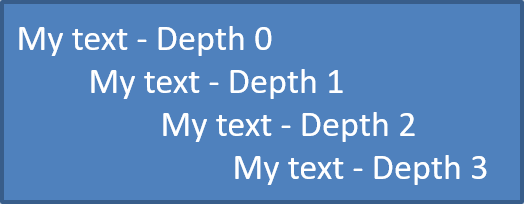
ใช้ IParagraphFormat::set_Depth เพื่อวางรายการในระดับที่ต่างกัน ระดับ 0 คือระดับบนสุด ระดับ 1 อยู่ด้านล่างของมัน และต่อไป
โค้ด C++ ต่อไปนี้แสดงวิธีสร้างรายการแบบมีหัวข้อหลายระดับ:
auto presentation = System::MakeObject<Presentation>();
auto slide = presentation->get_Slide(0);
auto autoShape = slide->get_Shapes()->AddAutoShape(ShapeType::Rectangle, 20, 20, 260, 110);

auto textFrame = autoShape->get_TextFrame();
textFrame->get_Paragraphs()->Clear();

auto paragraph1 = System::MakeObject<Paragraph>();
paragraph1->get_ParagraphFormat()->set_Depth(0);
paragraph1->set_Text(u"My text - Depth 0");
textFrame->get_Paragraphs()->Add(paragraph1);

auto paragraph2 = System::MakeObject<Paragraph>();
paragraph2->get_ParagraphFormat()->set_Depth(1);
paragraph2->set_Text(u"My text - Depth 1");
textFrame->get_Paragraphs()->Add(paragraph2);

auto paragraph3 = System::MakeObject<Paragraph>();
paragraph3->get_ParagraphFormat()->set_Depth(2);
paragraph3->set_Text(u"My text - Depth 2");
textFrame->get_Paragraphs()->Add(paragraph3);

auto paragraph4 = System::MakeObject<Paragraph>();
paragraph4->get_ParagraphFormat()->set_Depth(3);
paragraph4->set_Text(u"My text - Depth 3");
textFrame->get_Paragraphs()->Add(paragraph4);

presentation->Save(u"multilevel_bullets.pptx", SaveFormat::Pptx);
presentation->Dispose();
ผลลัพธ์:
เปลี่ยนรายการที่มีอยู่
เพื่อเปลี่ยนการจัดรูปแบบรายการในงานนำเสนอที่มีอยู่ ให้เข้าถึงย่อหน้าที่ต้องการและอัปเดตการตั้งค่า IParagraphFormat::get_Bullet คุณสามารถใช้คุณสมบัติเช่นเดียวกับที่ใช้สร้างรายการเพื่อตรวจสอบหรือแก้ไขรายการที่โหลดจากไฟล์ PPT, PPTX หรือ ODP
โค้ด C++ ต่อไปนี้เปลี่ยนย่อหน้าแรกในกรอบข้อความให้ใช้สไตล์รายการลำดับเลข:
auto presentation = System::MakeObject<Presentation>(u"input.pptx");
auto slide = presentation->get_Slide(0);
auto autoShape = System::ExplicitCast<IAutoShape>(slide->get_Shape(0));
auto paragraph = autoShape->get_TextFrame()->get_Paragraph(0);

auto paragraphFormat = paragraph->get_ParagraphFormat();
auto bulletFormat = paragraphFormat->get_Bullet();

bulletFormat->set_Type(BulletType::Numbered);
bulletFormat->set_NumberedBulletStyle(NumberedBulletStyle::BulletRomanUCPeriod);
bulletFormat->set_NumberedBulletStartWith(1);
paragraphFormat->set_MarginLeft(30);
paragraphFormat->set_Indent(-20);

presentation->Save(u"updated_list.pptx", SaveFormat::Pptx);
presentation->Dispose();
คำถามที่พบบ่อย
สามารถส่งออกรายการแบบมีหัวข้อและลำดับเลขเป็น PDF หรือรูปภาพได้หรือไม่?
ได้ Aspose.Slides รักษาการจัดรูปแบบรายการเมื่อรูปแบบปลายทางรองรับการจัดวางข้อความและคุณลักษณะหัวข้อที่สอดคล้องกัน
ฉันสามารถแก้ไขรายการในงานนำเสนอที่มีอยู่ได้หรือไม่?
ได้ โหลดงานนำเสนอ เข้าถึงย่อหน้าที่ต้องการ ตรวจสอบหรืออัปเดตการตั้งค่า IParagraphFormat::get_Bullet แล้วบันทึกงานนำเสนอ
รายการสามารถมีข้อความที่ไม่ใช่ละตินได้หรือไม่?
ได้ ข้อความของรายการสามารถมีอักขระ Unicode ทำให้คุณสร้างรายการในงานนำเสนอหลายภาษาได้ ตรวจสอบให้แน่ใจว่าแบบอักษรที่ใช้ในงานนำเสนอรองรับอักขระที่คุณต้องการ