
Gestire elenchi puntati e numerati nelle presentazioni in C++
Panoramica
Aspose.Slides for C++ consente di creare e formattare elenchi puntati e numerati in presentazioni PowerPoint e OpenDocument. Un elemento dell’elenco è un paragrafo le cui impostazioni di puntatore sono controllate tramite il formato del paragrafo.
Utilizza il metodo IParagraph::get_ParagraphFormat per accedere alle impostazioni dell’elenco a livello di paragrafo. Il punto di ingresso principale è IParagraphFormat::get_Bullet, che restituisce un oggetto IBulletFormat. Con questo oggetto, è possibile impostare il tipo di puntatore, simbolo, immagine, colore, dimensione, stile di numerazione e numero di partenza.
Questo articolo mostra come:
- creare un elenco puntato con un simbolo personalizzato
- creare un puntatore immagine
- creare un elenco multi‑livello impostando la profondità del paragrafo
- creare un elenco numerato
- esaminare e modificare la formattazione dell’elenco in una presentazione esistente
Creare un elenco puntato
Per creare un elenco puntato, aggiungi oggetti Paragraph a un ITextFrame e imposta IBulletFormat::set_Type su BulletType::Symbol. È quindi possibile impostare IBulletFormat::set_Char, IBulletFormat::get_Color e IBulletFormat::set_Height per controllare l’aspetto del puntatore.
Il seguente codice C++ dimostra come creare un elenco puntato in una diapositiva:
auto createParagraph = [](System::String text)
{
    auto paragraph = System::MakeObject<Paragraph>();
    auto paragraphFormat = paragraph->get_ParagraphFormat();
    auto bulletFormat = paragraphFormat->get_Bullet();

    bulletFormat->set_Type(BulletType::Symbol);
    bulletFormat->set_Char(u'*');
    paragraphFormat->set_Indent(15);
    bulletFormat->set_IsBulletHardColor(NullableBool::True);
    bulletFormat->get_Color()->set_Color(System::Drawing::Color::get_IndianRed());
    bulletFormat->set_Height(100);
    paragraph->set_Text(text);

    return paragraph;
};

auto presentation = System::MakeObject<Presentation>();
auto slide = presentation->get_Slide(0);
auto autoShape = slide->get_Shapes()->AddAutoShape(ShapeType::Rectangle, 20, 20, 200, 50);

auto textFrame = autoShape->get_TextFrame();
textFrame->get_Paragraphs()->Clear();

auto paragraph1 = createParagraph(u"The first paragraph");
textFrame->get_Paragraphs()->Add(paragraph1);

auto paragraph2 = createParagraph(u"The second paragraph");
textFrame->get_Paragraphs()->Add(paragraph2);

presentation->Save(u"symbol_bullets.pptx", SaveFormat::Pptx);
presentation->Dispose();
Il risultato:

Creare un elenco numerato
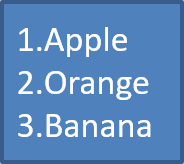
Utilizza gli elenchi numerati quando l’ordine degli elementi è importante. Imposta IBulletFormat::set_Type su BulletType::Numbered. È inoltre possibile scegliere un formato di numerazione con IBulletFormat::set_NumberedBulletStyle o impostare IBulletFormat::set_NumberedBulletStartWith quando l’elenco deve iniziare da un valore diverso da 1.
Il seguente codice C++ mostra come creare un elenco numerato in una diapositiva:
auto presentation = System::MakeObject<Presentation>();
auto slide = presentation->get_Slide(0);
auto autoShape = slide->get_Shapes()->AddAutoShape(ShapeType::Rectangle, 20, 20, 90, 80);

auto textFrame = autoShape->get_TextFrame();
textFrame->get_Paragraphs()->Clear();

auto paragraph1 = System::MakeObject<Paragraph>();
paragraph1->get_ParagraphFormat()->get_Bullet()->set_Type(BulletType::Numbered);
paragraph1->set_Text(u"Apple");
textFrame->get_Paragraphs()->Add(paragraph1);

auto paragraph2 = System::MakeObject<Paragraph>();
paragraph2->get_ParagraphFormat()->get_Bullet()->set_Type(BulletType::Numbered);
paragraph2->set_Text(u"Orange");
textFrame->get_Paragraphs()->Add(paragraph2);

auto paragraph3 = System::MakeObject<Paragraph>();
paragraph3->get_ParagraphFormat()->get_Bullet()->set_Type(BulletType::Numbered);
paragraph3->set_Text(u"Banana");
textFrame->get_Paragraphs()->Add(paragraph3);

presentation->Save(u"numbered_bullets.pptx", SaveFormat::Pptx);
presentation->Dispose();
Il risultato:
Creare un puntatore immagine
Aspose.Slides consente di sostituire un simbolo di puntatore normale con un’immagine. I puntatori immagine funzionano meglio con immagini semplici che rimangono leggibili a piccole dimensioni, come icone o piccoli file PNG trasparenti.
Per creare un puntatore immagine, aggiungi un’immagine a IPresentation::get_Images e assegna l’oggetto IPPImage restituito a IBulletFormat::get_Picture. Imposta IBulletFormat::set_Type su BulletType::Picture prima di assegnare l’immagine.
Supponiamo di avere un “image.png”:

Il seguente codice C++ mostra come creare puntatori immagine in una diapositiva:
auto createParagraph = [](System::String text, System::SharedPtr<IPPImage> image)
{
    auto paragraph = System::MakeObject<Paragraph>();
    auto paragraphFormat = paragraph->get_ParagraphFormat();
    auto bulletFormat = paragraphFormat->get_Bullet();

    bulletFormat->set_Type(BulletType::Picture);
    bulletFormat->get_Picture()->set_Image(image);
    paragraphFormat->set_Indent(15);
    bulletFormat->set_Height(100);
    paragraph->set_Text(text);

    return paragraph;
};

auto presentation = System::MakeObject<Presentation>();
auto slide = presentation->get_Slide(0);
auto autoShape = slide->get_Shapes()->AddAutoShape(ShapeType::Rectangle, 20, 20, 200, 50);

auto textFrame = autoShape->get_TextFrame();
textFrame->get_Paragraphs()->Clear();

auto sourceImage = Images::FromFile(u"image.png");
auto bulletImage = presentation->get_Images()->AddImage(sourceImage);
sourceImage->Dispose();

auto paragraph1 = createParagraph(u"The first paragraph", bulletImage);
textFrame->get_Paragraphs()->Add(paragraph1);

auto paragraph2 = createParagraph(u"The second paragraph", bulletImage);
textFrame->get_Paragraphs()->Add(paragraph2);

presentation->Save(u"picture_bullets.pptx", SaveFormat::Pptx);
presentation->Dispose();
Il risultato:

Creare un elenco multi‑livello
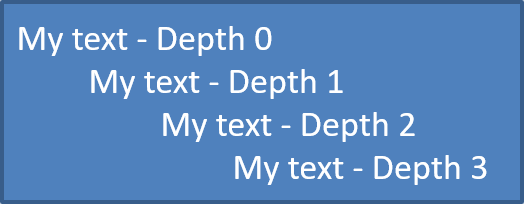
Utilizza IParagraphFormat::set_Depth per posizionare gli elementi dell’elenco a diversi livelli. Il livello 0 è il livello più alto, il livello 1 è annidato sotto di esso e così via.
Il seguente codice C++ mostra come creare un elenco puntato multlivello:
auto presentation = System::MakeObject<Presentation>();
auto slide = presentation->get_Slide(0);
auto autoShape = slide->get_Shapes()->AddAutoShape(ShapeType::Rectangle, 20, 20, 260, 110);

auto textFrame = autoShape->get_TextFrame();
textFrame->get_Paragraphs()->Clear();

auto paragraph1 = System::MakeObject<Paragraph>();
paragraph1->get_ParagraphFormat()->set_Depth(0);
paragraph1->set_Text(u"My text - Depth 0");
textFrame->get_Paragraphs()->Add(paragraph1);

auto paragraph2 = System::MakeObject<Paragraph>();
paragraph2->get_ParagraphFormat()->set_Depth(1);
paragraph2->set_Text(u"My text - Depth 1");
textFrame->get_Paragraphs()->Add(paragraph2);

auto paragraph3 = System::MakeObject<Paragraph>();
paragraph3->get_ParagraphFormat()->set_Depth(2);
paragraph3->set_Text(u"My text - Depth 2");
textFrame->get_Paragraphs()->Add(paragraph3);

auto paragraph4 = System::MakeObject<Paragraph>();
paragraph4->get_ParagraphFormat()->set_Depth(3);
paragraph4->set_Text(u"My text - Depth 3");
textFrame->get_Paragraphs()->Add(paragraph4);

presentation->Save(u"multilevel_bullets.pptx", SaveFormat::Pptx);
presentation->Dispose();
Il risultato:
Modificare un elenco esistente
Per modificare la formattazione dell’elenco in una presentazione esistente, accedi al paragrafo di destinazione e aggiorna le sue impostazioni IParagraphFormat::get_Bullet. Le stesse proprietà utilizzate per creare gli elenchi possono essere usate per esaminare o modificare gli elenchi caricati da un file PPT, PPTX o ODP.
Il seguente codice C++ modifica il primo paragrafo in un text frame per utilizzare lo stile di elenco numerato:
auto presentation = System::MakeObject<Presentation>(u"input.pptx");
auto slide = presentation->get_Slide(0);
auto autoShape = System::ExplicitCast<IAutoShape>(slide->get_Shape(0));
auto paragraph = autoShape->get_TextFrame()->get_Paragraph(0);

auto paragraphFormat = paragraph->get_ParagraphFormat();
auto bulletFormat = paragraphFormat->get_Bullet();

bulletFormat->set_Type(BulletType::Numbered);
bulletFormat->set_NumberedBulletStyle(NumberedBulletStyle::BulletRomanUCPeriod);
bulletFormat->set_NumberedBulletStartWith(1);
paragraphFormat->set_MarginLeft(30);
paragraphFormat->set_Indent(-20);

presentation->Save(u"updated_list.pptx", SaveFormat::Pptx);
presentation->Dispose();
FAQ
È possibile esportare gli elenchi puntati e numerati in PDF o immagini?
Sì. Aspose.Slides conserva la formattazione dell’elenco quando il formato di destinazione supporta la disposizione del testo e le funzionalità di puntatore corrispondenti.
Posso modificare gli elenchi in presentazioni esistenti?
Sì. Carica la presentazione, accedi al paragrafo di destinazione, esamina o aggiorna le sue impostazioni IParagraphFormat::get_Bullet e salva la presentazione.
Gli elenchi possono contenere testo non latino?
Sì. Il testo degli elementi dell’elenco può contenere caratteri Unicode, così puoi creare elenchi in presentazioni multilingue. Assicurati che i caratteri usati nella presentazione supportino i caratteri di cui hai bisogno.