
Gestisci le caselle di testo nelle presentazioni usando C++
Introduzione
In Aspose.Slides per C++, il testo delle diapositive è memorizzato in frame di testo che appartengono a forme. L’interfaccia IAutoShape rappresenta la forma più comune contenente testo e espone il suo testo tramite il metodo IAutoShape::get_TextFrame.
Note
Ogni forma automatica implementa IShape, ma non tutte le forme sono forme automatiche o supportano un frame di testo. Quando si elabora una presentazione esistente, verificare che una forma implementi IAutoShape prima di accedere al suo testo.Crea una casella di testo su una diapositiva
Per creare una casella di testo, aggiungere una forma automatica a una diapositiva, aggiungere testo al suo frame di testo e salvare la presentazione. Il seguente esempio crea una casella di testo rettangolare:
#include <DOM/IAutoShape.h>
#include <DOM/IShapeCollection.h>
#include <DOM/ISlide.h>
#include <DOM/Presentation.h>
#include <DOM/ShapeType.h>
#include <Export/SaveFormat.h>
#include <system/shared_ptr.h>

using namespace Aspose::Slides;
using namespace Aspose::Slides::Export;
using namespace System;

auto presentation = MakeObject<Presentation>();
auto slide = presentation->get_Slide(0);
auto textBox = slide->get_Shapes()->AddAutoShape(ShapeType::Rectangle, 150, 75, 300, 50);
textBox->AddTextFrame(u"Aspose TextBox");

presentation->Save(u"TextBox.pptx", SaveFormat::Pptx);
Le coordinate e le dimensioni passate a IShapeCollection::AddAutoShape sono misurate in punti. IAutoShape::AddTextFrame inizializza il frame di testo con il testo fornito.
Verifica una casella di testo
Utilizzare il metodo IAutoShape::get_IsTextBox per determinare se una forma automatica è considerata una casella di testo. Questo è utile quando una presentazione contiene sia forme automatiche con testo sia forme grafiche puramente.
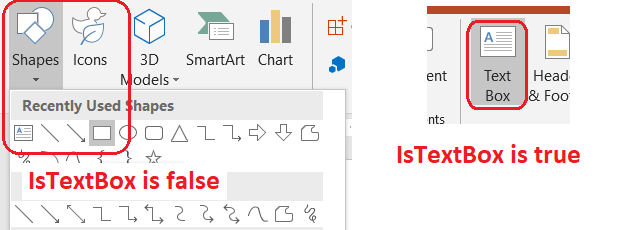
Il seguente esempio ispeziona ogni forma automatica in una presentazione:
#include <DOM/IAutoShape.h>
#include <DOM/IShapeCollection.h>
#include <DOM/ISlide.h>
#include <DOM/ISlideCollection.h>
#include <DOM/Presentation.h>
#include <DOM/ShapeType.h>
#include <system/console.h>
#include <system/enumerator_adapter.h>
#include <system/object_ext.h>
#include <system/shared_ptr.h>

using namespace Aspose::Slides;
using namespace System;

auto presentation = MakeObject<Presentation>();
auto slide = presentation->get_Slide(0);
auto textBox = slide->get_Shapes()->AddAutoShape(ShapeType::Rectangle, 10, 10, 120, 40);
textBox->AddTextFrame(u"Text box");
slide->get_Shapes()->AddAutoShape(ShapeType::Ellipse, 150, 10, 40, 40);

for (const auto& currentSlide : IterateOver(presentation->get_Slides()))
{
    for (const auto& shape : IterateOver(currentSlide->get_Shapes()))
    {
        auto autoShape = AsCast<IAutoShape>(shape);
        if (autoShape != nullptr)
        {
            Console::WriteLine(autoShape->get_IsTextBox() ? u"The shape is a text box." : u"The shape is not a text box.");
        }
    }
}
Una forma automatica appena aggiunta non è considerata una casella di testo finché non contiene testo non vuoto. È possibile fornire quel testo tramite IAutoShape::AddTextFrame o ITextFrame::set_Text. Aggiungere o assegnare una stringa vuota fa sì che IAutoShape::get_IsTextBox restituisca false:
#include <DOM/IAutoShape.h>
#include <DOM/IShapeCollection.h>
#include <DOM/ISlide.h>
#include <DOM/ITextFrame.h>
#include <DOM/Presentation.h>
#include <DOM/ShapeType.h>
#include <system/console.h>
#include <system/shared_ptr.h>

using namespace Aspose::Slides;
using namespace System;

auto presentation = MakeObject<Presentation>();
auto slide = presentation->get_Slide(0);

auto shape1 = slide->get_Shapes()->AddAutoShape(ShapeType::Rectangle, 10, 10, 100, 40);
shape1->AddTextFrame(u"Shape 1");
Console::WriteLine(shape1->get_IsTextBox());

auto shape2 = slide->get_Shapes()->AddAutoShape(ShapeType::Rectangle, 10, 70, 100, 40);
shape2->get_TextFrame()->set_Text(u"Shape 2");
Console::WriteLine(shape2->get_IsTextBox());

auto shape3 = slide->get_Shapes()->AddAutoShape(ShapeType::Rectangle, 10, 130, 100, 40);
shape3->AddTextFrame(u"");
Console::WriteLine(shape3->get_IsTextBox());

auto shape4 = slide->get_Shapes()->AddAutoShape(ShapeType::Rectangle, 10, 190, 100, 40);
shape4->get_TextFrame()->set_Text(u"");
Console::WriteLine(shape4->get_IsTextBox());
I primi due controlli restituiscono true; gli ultimi due restituiscono false.
Trova la forma che possiede un frame di testo
Il codice generico di elaborazione del testo può ricevere un ITextFrame senza conoscere quale oggetto della presentazione lo contiene. Utilizzare il metodo ITextFrame::get_ParentShape per tornare alla sua IShape proprietaria.
Per un frame di testo posseduto da una forma automatica o da un’altra forma contenente testo, ITextFrame::get_ParentShape restituisce il proprietario e ITextFrame::get_ParentCell restituisce nullptr. Entrambi i metodi forniscono navigazione in sola lettura. Verificare il valore restituito per nullptr prima di accedervi. Per identificare sia i proprietari della forma sia della cella di tabella, incluse le forme associate a nodi SmartArt, vedere Search and Replace Text.
Aggiungi colonne a una casella di testo
Il metodo ITextFrameFormat::set_ColumnCount divide il frame di testo in colonne, mentre ITextFrameFormat::set_ColumnSpacing imposta lo spazio tra le colonne in punti. Entrambi i metodi appartengono a ITextFrameFormat e possono essere chiamati attraverso il frame di testo di una casella di testo esistente. Il testo viene ridistribuito tra le colonne all’interno della stessa forma; non prosegue in un’altra forma.
Il seguente esempio crea una casella di testo a tre colonne con 10 punti tra le colonne, salva la presentazione e legge le impostazioni memorizzate dal file di output:
#include <DOM/IAutoShape.h>
#include <DOM/IShapeCollection.h>
#include <DOM/ISlide.h>
#include <DOM/ITextFrame.h>
#include <DOM/ITextFrameFormat.h>
#include <DOM/Presentation.h>
#include <DOM/ShapeType.h>
#include <Export/SaveFormat.h>
#include <system/console.h>
#include <system/object_ext.h>
#include <system/shared_ptr.h>

using namespace Aspose::Slides;
using namespace Aspose::Slides::Export;
using namespace System;

auto presentation = MakeObject<Presentation>();
auto slide = presentation->get_Slide(0);
auto textBox = slide->get_Shapes()->AddAutoShape(ShapeType::Rectangle, 100, 100, 300, 200);
textBox->AddTextFrame(u"This text is distributed automatically across all columns in the text box.");

auto textFrameFormat = textBox->get_TextFrame()->get_TextFrameFormat();
textFrameFormat->set_ColumnCount(3);
textFrameFormat->set_ColumnSpacing(10);

presentation->Save(u"TextBoxColumns.pptx", SaveFormat::Pptx);

auto savedPresentation = MakeObject<Presentation>(u"TextBoxColumns.pptx");
auto savedTextBox = ExplicitCast<IAutoShape>(savedPresentation->get_Slide(0)->get_Shape(0));
auto savedFormat = savedTextBox->get_TextFrame()->get_TextFrameFormat();
Console::WriteLine(u"Columns: {0}; spacing: {1} points", savedFormat->get_ColumnCount(), savedFormat->get_ColumnSpacing());
Estrai testo da colonne individuali
Utilizzare ITextFrame::SplitTextByColumns per recuperare il testo assegnato a ciascuna colonna visiva in un frame di testo esistente. Il metodo restituisce una stringa per ogni colonna, nell’ordine di lettura basato sulle colonne. Un frame di testo a colonna singola produce un array con un elemento, e una colonna vuota è rappresentata da una stringa vuota. Le stringhe contengono solo testo semplice; la formattazione a livello di porzione non viene conservata.
Questo è utile quando è necessario:
- Estrarre il testo mantenendo l’ordine di lettura basato sulle colonne.
- Indicizzare o confrontare il contenuto di diapositive multicolonna.
- Esportare ogni colonna in un file separato, campo di database o altra destinazione.
- Verificare come il testo viene ridistribuito dopo aver impostato il numero di colonne con ITextFrameFormat::set_ColumnCount o la spaziatura con ITextFrameFormat::set_ColumnSpacing, o modificato il font o la dimensione del frame di testo.
Il metodo segnala il testo distribuito all’interno dell’attuale ITextFrame; non trasferisce automaticamente il testo tra forme o caselle di testo separate. La distribuzione delle colonne può dipendere dai font disponibili e da altre impostazioni di layout del testo, quindi assicurarsi che i font richiesti siano disponibili quando è importante ottenere risultati coerenti.
Il seguente esempio carica una presentazione, trova la prima forma automatica multicolonna con un frame di testo sulla prima diapositiva, legge il suo conteggio di colonne configurato e scrive il testo di ogni colonna in un file separato. Le forme che non forniscono un frame di testo vengono ignorate.
#include <DOM/IAutoShape.h>
#include <DOM/IShapeCollection.h>
#include <DOM/ISlide.h>
#include <DOM/ITextFrame.h>
#include <DOM/ITextFrameFormat.h>
#include <DOM/Presentation.h>
#include <system/array.h>
#include <system/console.h>
#include <system/enumerator_adapter.h>
#include <system/io/file.h>
#include <system/object_ext.h>
#include <system/shared_ptr.h>
#include <system/string.h>

using namespace Aspose::Slides;
using namespace System;
using namespace System::IO;

auto presentation = MakeObject<Presentation>(u"MultiColumnText.pptx");

SharedPtr<IAutoShape> textBox = nullptr;
for (const auto& shape : IterateOver(presentation->get_Slide(0)->get_Shapes()))
{
    auto autoShape = AsCast<IAutoShape>(shape);
    if (autoShape != nullptr && autoShape->get_TextFrame() != nullptr)
    {
        auto columnCount = autoShape->get_TextFrame()->get_TextFrameFormat()->get_ColumnCount();
        if (columnCount > 1)
        {
            textBox = autoShape;
            break;
        }
    }
}

if (textBox == nullptr)
{
    Console::WriteLine(u"No multi-column text frame was found.");
}
else
{
    auto textFrame = textBox->get_TextFrame();
    auto configuredColumnCount = textFrame->get_TextFrameFormat()->get_ColumnCount();
    auto columnTexts = textFrame->SplitTextByColumns();

    Console::WriteLine(u"Configured columns: {0}", configuredColumnCount);

    for (auto columnIndex = 0; columnIndex < columnTexts->get_Length(); columnIndex++)
    {
        auto columnNumber = columnIndex + 1;
        auto columnText = columnTexts->idx_get(columnIndex);
        Console::WriteLine(u"Column {0}: {1}", columnNumber, columnText);
        auto fileName = String::Format(u"Column-{0}.txt", columnNumber);
        File::WriteAllText(fileName, columnText);
    }
}
Aggiorna testo
Per aggiornare il testo in tutta la presentazione, iterare tra le diapositive e le forme, selezionare le forme automatiche e quindi modificare le loro porzioni di testo. Lavorare a livello di porzione consente di modificare sia il testo sia la formattazione dei caratteri.
Il seguente esempio sostituisce ogni occorrenza di years con months all’interno delle singole porzioni di testo delle forme automatiche e rende ogni porzione interessata in grassetto:
#include <DOM/IAutoShape.h>
#include <DOM/IParagraph.h>
#include <DOM/IParagraphCollection.h>
#include <DOM/IPortion.h>
#include <DOM/IPortionCollection.h>
#include <DOM/IPortionFormat.h>
#include <DOM/IShapeCollection.h>
#include <DOM/ISlide.h>
#include <DOM/ISlideCollection.h>
#include <DOM/ITextFrame.h>
#include <DOM/NullableBool.h>
#include <DOM/Presentation.h>
#include <Export/SaveFormat.h>
#include <system/enumerator_adapter.h>
#include <system/object_ext.h>
#include <system/shared_ptr.h>
#include <system/string.h>

using namespace Aspose::Slides;
using namespace Aspose::Slides::Export;
using namespace System;

auto presentation = MakeObject<Presentation>(u"Text.pptx");

for (const auto& slide : IterateOver(presentation->get_Slides()))
{
    for (const auto& shape : IterateOver(slide->get_Shapes()))
    {
        auto autoShape = AsCast<IAutoShape>(shape);
        if (autoShape == nullptr || autoShape->get_TextFrame() == nullptr)
        {
            continue;
        }

        for (const auto& paragraph : IterateOver(autoShape->get_TextFrame()->get_Paragraphs()))
        {
            for (const auto& portion : IterateOver(paragraph->get_Portions()))
            {
                auto text = portion->get_Text();
                if (!String::IsNullOrEmpty(text) && text.Contains(u"years"))
                {
                    portion->set_Text(text.Replace(u"years", u"months"));
                    portion->get_PortionFormat()->set_FontBold(NullableBool::True);
                }
            }
        }
    }
}

presentation->Save(u"TextChanged.pptx", SaveFormat::Pptx);
Questo attraversamento aggiorna il testo solo nelle forme automatiche. Il testo memorizzato in tabelle, grafici, SmartArt o forme raggruppate richiede l’attraversamento delle relative collezioni di quegli oggetti.
Aggiungi una casella di testo con un collegamento ipertestuale
È possibile assegnare un collegamento ipertestuale a una specifica porzione di testo, così solo quel testo agisce come collegamento cliccabile. Utilizzare IHyperlinkManager::SetExternalHyperlinkClick per associare la porzione a un URL esterno.
Il seguente esempio crea testo collegato e lo salva in una presentazione:
#include <DOM/IAutoShape.h>
#include <DOM/IHyperlinkManager.h>
#include <DOM/IParagraph.h>
#include <DOM/IPortion.h>
#include <DOM/IPortionFormat.h>
#include <DOM/IShapeCollection.h>
#include <DOM/ISlide.h>
#include <DOM/ITextFrame.h>
#include <DOM/Presentation.h>
#include <DOM/ShapeType.h>
#include <Export/SaveFormat.h>
#include <system/shared_ptr.h>

using namespace Aspose::Slides;
using namespace Aspose::Slides::Export;
using namespace System;

auto presentation = MakeObject<Presentation>();
auto slide = presentation->get_Slide(0);
auto textBox = slide->get_Shapes()->AddAutoShape(ShapeType::Rectangle, 150, 150, 200, 50);
textBox->AddTextFrame(u"Aspose.Slides");

auto textPortion = textBox->get_TextFrame()->get_Paragraph(0)->get_Portion(0);
textPortion->get_PortionFormat()->get_HyperlinkManager()->SetExternalHyperlinkClick(u"https://www.aspose.com/");

presentation->Save(u"Hyperlink.pptx", SaveFormat::Pptx);
FAQ
Qual è la differenza tra una casella di testo e un segnaposto di testo su una diapositiva master o layout?
Un placeholder può ereditare la sua posizione e formattazione da una master slide o da una layout slide. Una casella di testo normale è una forma indipendente sulla diapositiva in cui è stata creata e non acquisisce il comportamento di placeholder quando il layout cambia.
Come posso sostituire il testo senza modificare il testo in grafici, tabelle o SmartArt?
Limitare l’attraversamento alle forme che implementano IAutoShape, come mostrato nell’esempio Aggiorna testo. Grafici, tabelle e SmartArt memorizzano il testo nei propri modelli di oggetti, quindi non vengono modificati da quel ciclo.