
Aggiungi equazioni matematiche alle presentazioni PowerPoint in C++
Panoramica
PowerPoint memorizza le equazioni come Office Math Markup Language (OMML). Con Aspose.Slides per C++, è possibile creare lo stesso tipo di contenuto matematico in modo programmatico: frazioni, radicali, funzioni, limiti, operatori N-ari, matrici, array e blocchi matematici formattati.
In PowerPoint, gli utenti normalmente aggiungono equazioni da Insert > Equation:
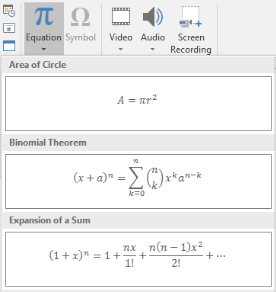
Il risultato è testo matematico modificabile nella diapositiva:

Aspose.Slides genera quel testo matematico attraverso tre oggetti principali:
- Una forma matematica, creata con AddMathShape, è la forma che contiene l’equazione.
- MathPortion memorizza il contenuto matematico all’interno del riquadro di testo della forma.
- MathParagraph contiene uno o più oggetti MathBlock.
La maggior parte degli esempi seguenti utilizza MathematicalText e i metodi fluenti di IMathElement per mantenere il codice breve e leggibile.
Per scenari di esportazione MathML, vedere Export Math Equations from Presentations in C++.
Crea un’equazione
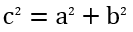
Questo esempio crea una forma matematica e aggiunge il teorema di Pitagora:
auto presentation = System::MakeObject<Presentation>();
auto slide = presentation->get_Slide(0);

auto mathShape = slide->get_Shapes()->AddMathShape(20.0f, 20.0f, 700.0f, 120.0f);
auto mathPortion = System::ExplicitCast<MathPortion>(mathShape->get_TextFrame()->get_Paragraph(0)->get_Portion(0));
auto mathParagraph = mathPortion->get_MathParagraph();

auto equation = System::MakeObject<MathematicalText>(u"c")
        - >SetSuperscript(u"2")
        - >Join(u"=")
        - >Join(System::MakeObject<MathematicalText>(u"a")->SetSuperscript(u"2"))
        - >Join(u"+")
        - >Join(System::MakeObject<MathematicalText>(u"b")->SetSuperscript(u"2"));

mathParagraph->Add(equation);

presentation->Save(u"pythagorean-theorem.pptx", SaveFormat::Pptx);
presentation->Dispose();
AddMathShape crea una forma che contiene già un paragrafo matematico. Accedi al primo MathPortion, ottieni il suo MathParagraph e aggiungi blocchi matematici o elementi matematici.
Aggiungi frazioni
Usa Divide per creare una frazione. È possibile scegliere uno stile di frazione con MathFractionTypes.

auto presentation = System::MakeObject<Presentation>();
auto slide = presentation->get_Slide(0);

auto mathShape = slide->get_Shapes()->AddMathShape(20.0f, 20.0f, 700.0f, 100.0f);
auto mathPortion = System::ExplicitCast<MathPortion>(mathShape->get_TextFrame()->get_Paragraph(0)->get_Portion(0));
auto mathParagraph = mathPortion->get_MathParagraph();

auto fraction = System::MakeObject<MathematicalText>(u"1")
        - >Divide(u"x", MathFractionTypes::Skewed);

mathParagraph->Add(System::MakeObject<MathBlock>(fraction));

presentation->Save(u"fraction.pptx", SaveFormat::Pptx);
presentation->Dispose();
Per una frazione impilata, usa MathFractionTypes::Bar:
auto stackedFraction = System::MakeObject<MathematicalText>(u"x + 1")->Divide(u"y - 1", MathFractionTypes::Bar);
Aggiungi radicali
Usa Radical per creare una radice quadrata, radice cubica o altra radice. L’elemento corrente diventa la base, e l’argomento diventa il grado.

auto presentation = System::MakeObject<Presentation>();
auto slide = presentation->get_Slide(0);

auto mathShape = slide->get_Shapes()->AddMathShape(20.0f, 20.0f, 700.0f, 100.0f);
auto mathPortion = System::ExplicitCast<MathPortion>(mathShape->get_TextFrame()->get_Paragraph(0)->get_Portion(0));
auto mathParagraph = mathPortion->get_MathParagraph();

auto radical = System::MakeObject<MathematicalText>(u"x")
        - >Radical(u"n");

mathParagraph->Add(System::MakeObject<MathBlock>(radical));

presentation->Save(u"radical.pptx", SaveFormat::Pptx);
presentation->Dispose();
Aggiungi funzioni e limiti
Usa AsArgumentOfFunction o Function per funzioni come sin(x), log(x) o nomi di funzioni personalizzate. Per i limiti, inserisci lim in un MathLimit o usa SetLowerLimit.

auto presentation = System::MakeObject<Presentation>();
auto slide = presentation->get_Slide(0);

auto mathShape = slide->get_Shapes()->AddMathShape(20.0f, 20.0f, 700.0f, 100.0f);
auto mathPortion = System::ExplicitCast<MathPortion>(mathShape->get_TextFrame()->get_Paragraph(0)->get_Portion(0));
auto mathParagraph = mathPortion->get_MathParagraph();

auto limit = System::MakeObject<MathematicalText>(u"lim")
        - >SetLowerLimit(u"x→∞")
        - >Function(u"x");

mathParagraph->Add(System::MakeObject<MathBlock>(limit));

presentation->Save(u"functions-and-limits.pptx", SaveFormat::Pptx);
presentation->Dispose();
Per un nome di funzione personalizzato, rendi il nome della funzione l’elemento corrente:
auto customFunction = System::MakeObject<MathematicalText>(u"f")->Function(u"x + 1");
Aggiungi operatori N-ari e integrali
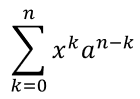
Usa Nary per somme, unioni, intersezioni e altri grandi operatori. Usa Integral per gli integrali. Entrambi i metodi consentono di impostare i limiti inferiori e superiori.
auto presentation = System::MakeObject<Presentation>();
auto slide = presentation->get_Slide(0);

auto mathShape = slide->get_Shapes()->AddMathShape(20.0f, 20.0f, 700.0f, 120.0f);
auto mathPortion = System::ExplicitCast<MathPortion>(mathShape->get_TextFrame()->get_Paragraph(0)->get_Portion(0));
auto mathParagraph = mathPortion->get_MathParagraph();

auto summationBase = System::MakeObject<MathematicalText>(u"x")
        - >SetSuperscript(u"k")
        - >Join(System::MakeObject<MathematicalText>(u"a")->SetSuperscript(u"n-k"));

auto summation = summationBase->Nary(MathNaryOperatorTypes::Summation, u"k=0", u"n");

mathParagraph->Add(System::MakeObject<MathBlock>(summation));

presentation->Save(u"nary-operators.pptx", SaveFormat::Pptx);
presentation->Dispose();
Gli operatori N-ari sono per grandi operatori con limiti opzionali. Operatori semplici come +, - e = vengono solitamente aggiunti come MathematicalText e uniti nell’espressione.
Per un integrale, usa Integral:
auto integralBase = System::MakeObject<MathematicalText>(u"x")->Join(System::MakeObject<MathematicalText>(u"dx")->ToBox());
auto integral = integralBase->Integral(MathIntegralTypes::Simple, u"0", u"1");
Aggiungi matrici
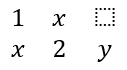
Usa MathMatrix per righe e colonne. Le matrici non includono parentesi quadre per impostazione predefinita, quindi racchiudi la matrice quando sono necessarie parentesi tonde, quadre o graffe.
auto presentation = System::MakeObject<Presentation>();
auto slide = presentation->get_Slide(0);

auto mathShape = slide->get_Shapes()->AddMathShape(20.0f, 20.0f, 700.0f, 120.0f);
auto mathPortion = System::ExplicitCast<MathPortion>(mathShape->get_TextFrame()->get_Paragraph(0)->get_Portion(0));
auto mathParagraph = mathPortion->get_MathParagraph();

auto matrix = System::MakeObject<MathMatrix>(2, 3);
matrix->idx_set(0, 0, System::MakeObject<MathematicalText>(u"1"));
matrix->idx_set(0, 1, System::MakeObject<MathematicalText>(u"x"));
matrix->idx_set(1, 0, System::MakeObject<MathematicalText>(u"x"));
matrix->idx_set(1, 1, System::MakeObject<MathematicalText>(u"2"));
matrix->idx_set(1, 2, System::MakeObject<MathematicalText>(u"y"));

mathParagraph->Add(System::MakeObject<MathBlock>(matrix));

presentation->Save(u"matrix.pptx", SaveFormat::Pptx);
presentation->Dispose();
Aggiungi array di equazioni
Usa ToMathArray quando ti servono equazioni allineate o una pila verticale di espressioni.

auto presentation = System::MakeObject<Presentation>();
auto slide = presentation->get_Slide(0);

auto mathShape = slide->get_Shapes()->AddMathShape(20.0f, 20.0f, 700.0f, 140.0f);
auto mathPortion = System::ExplicitCast<MathPortion>(mathShape->get_TextFrame()->get_Paragraph(0)->get_Portion(0));
auto mathParagraph = mathPortion->get_MathParagraph();

auto equationArray = System::MakeObject<MathematicalText>(u"x")
        - >Join(u"y")
        - >ToMathArray();

mathParagraph->Add(System::MakeObject<MathBlock>(equationArray));

presentation->Save(u"equation-array.pptx", SaveFormat::Pptx);
presentation->Dispose();
Aggiungi funzioni trigonometriche
Usa AsArgumentOfFunction quando l’argomento è l’elemento corrente e il nome della funzione è noto.

auto presentation = System::MakeObject<Presentation>();
auto slide = presentation->get_Slide(0);

auto mathShape = slide->get_Shapes()->AddMathShape(20.0f, 20.0f, 700.0f, 100.0f);
auto mathPortion = System::ExplicitCast<MathPortion>(mathShape->get_TextFrame()->get_Paragraph(0)->get_Portion(0));
auto mathParagraph = mathPortion->get_MathParagraph();

auto cosine = System::MakeObject<MathematicalText>(u"2x")
        - >AsArgumentOfFunction(MathFunctionsOfOneArgument::Cos);

mathParagraph->Add(System::MakeObject<MathBlock>(cosine));

presentation->Save(u"trigonometric-function.pptx", SaveFormat::Pptx);
presentation->Dispose();
Aggiungi pedici e apici
Usa gli assistenti per pedici e apici per indici e potenze. Quando gli indici devono apparire sul lato sinistro della base, usa SetSubSuperscriptOnTheLeft.

auto presentation = System::MakeObject<Presentation>();
auto slide = presentation->get_Slide(0);

auto mathShape = slide->get_Shapes()->AddMathShape(20.0f, 20.0f, 700.0f, 100.0f);
auto mathPortion = System::ExplicitCast<MathPortion>(mathShape->get_TextFrame()->get_Paragraph(0)->get_Portion(0));
auto mathParagraph = mathPortion->get_MathParagraph();

auto scripts = System::MakeObject<MathematicalText>(u"Y")
        - >SetSubSuperscriptOnTheLeft(u"1", u"n");

mathParagraph->Add(System::MakeObject<MathBlock>(scripts));

presentation->Save(u"subscript-superscript.pptx", SaveFormat::Pptx);
presentation->Dispose();
Aggiungi delimitatori
Usa Enclose per inserire un’espressione all’interno di delimitatori. Puoi anche impostare un carattere separatore per le espressioni delimitate che contengono più elementi.

auto presentation = System::MakeObject<Presentation>();
auto slide = presentation->get_Slide(0);

auto mathShape = slide->get_Shapes()->AddMathShape(20.0f, 20.0f, 700.0f, 100.0f);
auto mathPortion = System::ExplicitCast<MathPortion>(mathShape->get_TextFrame()->get_Paragraph(0)->get_Portion(0));
auto mathParagraph = mathPortion->get_MathParagraph();

auto delimiter = System::MakeObject<MathematicalText>(u"x")
        - >Join(u"y")
        - >Join(u"z")
        - >Enclose(u'<', u'>', u'|');

mathParagraph->Add(System::MakeObject<MathBlock>(delimiter));

presentation->Save(u"delimiters.pptx", SaveFormat::Pptx);
presentation->Dispose();
Aggiungi un riquadro bordato
Usa ToBorderBox quando l’equazione stessa deve essere incorniciata.
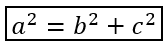
auto presentation = System::MakeObject<Presentation>();
auto slide = presentation->get_Slide(0);

auto mathShape = slide->get_Shapes()->AddMathShape(20.0f, 20.0f, 700.0f, 100.0f);
auto mathPortion = System::ExplicitCast<MathPortion>(mathShape->get_TextFrame()->get_Paragraph(0)->get_Portion(0));
auto mathParagraph = mathPortion->get_MathParagraph();

auto boxedEquation = System::MakeObject<MathematicalText>(u"a")
        - >SetSuperscript(u"2")
        - >Join(u"=")
        - >Join(System::MakeObject<MathematicalText>(u"b")->SetSuperscript(u"2"))
        - >Join(u"+")
        - >Join(System::MakeObject<MathematicalText>(u"c")->SetSuperscript(u"2"))
        - >ToBorderBox();

mathParagraph->Add(System::MakeObject<MathBlock>(boxedEquation));

presentation->Save(u"border-box.pptx", SaveFormat::Pptx);
presentation->Dispose();
Raggruppa termini
Usa Group per posizionare un carattere di raggruppamento sopra o sotto un’espressione. Aggiungi un limite per etichettare i termini raggruppati.

auto presentation = System::MakeObject<Presentation>();
auto slide = presentation->get_Slide(0);

auto mathShape = slide->get_Shapes()->AddMathShape(20.0f, 20.0f, 700.0f, 120.0f);
auto mathPortion = System::ExplicitCast<MathPortion>(mathShape->get_TextFrame()->get_Paragraph(0)->get_Portion(0));
auto mathParagraph = mathPortion->get_MathParagraph();

auto grouped = System::MakeObject<MathematicalText>(u"x + y")
        - >Group(u'\u23DF', MathTopBotPositions::Bottom, MathTopBotPositions::Top)
        - >SetLowerLimit(u"any text");

mathParagraph->Add(System::MakeObject<MathBlock>(grouped));

presentation->Save(u"grouped-terms.pptx", SaveFormat::Pptx);
presentation->Dispose();
Formatta elementi matematici
Usa gli assistenti di formattazione solo dove chiariscono la formula. Ad esempio, Overbar posiziona una barra sopra un elemento matematico.

auto presentation = System::MakeObject<Presentation>();
auto slide = presentation->get_Slide(0);

auto mathShape = slide->get_Shapes()->AddMathShape(20.0f, 20.0f, 700.0f, 100.0f);
auto mathPortion = System::ExplicitCast<MathPortion>(mathShape->get_TextFrame()->get_Paragraph(0)->get_Portion(0));
auto mathParagraph = mathPortion->get_MathParagraph();

auto overbar = System::MakeObject<MathematicalText>(u"ABC")->Overbar();

mathParagraph->Add(System::MakeObject<MathBlock>(overbar));

presentation->Save(u"overbar.pptx", SaveFormat::Pptx);
presentation->Dispose();
Riferimento rapido
| Attività | API principale |
|---|---|
| Crea testo matematico | MathematicalText |
| Combina elementi | IMathElement.Join |
| Crea frazioni | IMathElement.Divide |
| Aggiungi apice o pedice | SetSuperscript, SetSubscript |
| Aggiungi funzioni | Function, AsArgumentOfFunction |
| Aggiungi radicali | IMathElement.Radical |
| Aggiungi limiti | SetLowerLimit, SetUpperLimit |
| Aggiungi script sul lato sinistro | SetSubSuperscriptOnTheLeft |
| Aggiungi somme e integrali | Nary, Integral |
| Aggiungi matrici | MathMatrix |
| Aggiungi array di equazioni | ToMathArray |
| Aggiungi delimitatori | Enclose |
| Aggiungi barre e bordi | Overbar, ToBorderBox |
| Raggruppa termini | Group |
FAQ
Posso modificare un’equazione PowerPoint esistente?
Sì. Apri la presentazione, trova la forma che contiene un MathPortion, ottieni il suo MathParagraph e aggiorna i blocchi matematici in quel paragrafo.
Le equazioni vengono salvate come matematica PowerPoint modificabile?
Sì. Quando si salva in PPTX, Aspose.Slides scrive l’equazione come contenuto matematico Office modificabile.
Posso esportare le equazioni in LaTeX?
Sì. Ottieni il IMathParagraph dell’equazione dal suo IMathPortion, e chiama IMathParagraph::ToLatex per esportarlo direttamente. Per un esempio completo, vedere Export Math Equations from Presentations in C++.