
使用 C++ 管理簡報中的文字方塊
簡介
在 Aspose.Slides for C++ 中,投影片文字儲存在屬於圖形的文字框中。 IAutoShape 介面代表最常見的含文字圖形,並透過 IAutoShape::get_TextFrame 方法取得其文字。
在投影片上建立文字方塊
若要建立文字方塊,請在投影片上新增自動圖形、向其文字框加入文字,然後儲存簡報。以下範例會建立一個矩形文字方塊:
#include <DOM/IAutoShape.h>
#include <DOM/IShapeCollection.h>
#include <DOM/ISlide.h>
#include <DOM/Presentation.h>
#include <DOM/ShapeType.h>
#include <Export/SaveFormat.h>
#include <system/shared_ptr.h>

using namespace Aspose::Slides;
using namespace Aspose::Slides::Export;
using namespace System;

auto presentation = MakeObject<Presentation>();
auto slide = presentation->get_Slide(0);
auto textBox = slide->get_Shapes()->AddAutoShape(ShapeType::Rectangle, 150, 75, 300, 50);
textBox->AddTextFrame(u"Aspose TextBox");

presentation->Save(u"TextBox.pptx", SaveFormat::Pptx);
傳遞給 IShapeCollection::AddAutoShape 的座標與尺寸以點為單位。 IAutoShape::AddTextFrame 會以提供的文字初始化文字框。
檢查是否為文字方塊圖形
使用 IAutoShape::get_IsTextBox 方法判斷自動圖形是否被視為文字方塊。此功能在簡報同時包含含文字與純圖形的自動圖形時很有用。
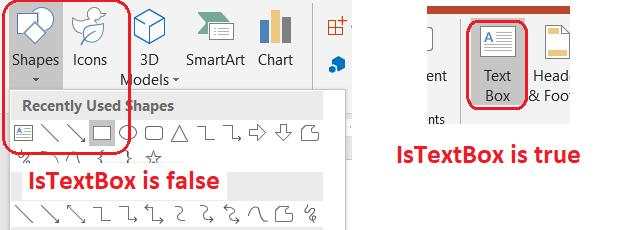
以下範例會檢查簡報中的每個自動圖形:
#include <DOM/IAutoShape.h>
#include <DOM/IShapeCollection.h>
#include <DOM/ISlide.h>
#include <DOM/ISlideCollection.h>
#include <DOM/Presentation.h>
#include <DOM/ShapeType.h>
#include <system/console.h>
#include <system/enumerator_adapter.h>
#include <system/object_ext.h>
#include <system/shared_ptr.h>

using namespace Aspose::Slides;
using namespace System;

auto presentation = MakeObject<Presentation>();
auto slide = presentation->get_Slide(0);
auto textBox = slide->get_Shapes()->AddAutoShape(ShapeType::Rectangle, 10, 10, 120, 40);
textBox->AddTextFrame(u"Text box");
slide->get_Shapes()->AddAutoShape(ShapeType::Ellipse, 150, 10, 40, 40);

for (const auto& currentSlide : IterateOver(presentation->get_Slides()))
{
    for (const auto& shape : IterateOver(currentSlide->get_Shapes()))
    {
        auto autoShape = AsCast<IAutoShape>(shape);
        if (autoShape != nullptr)
        {
            Console::WriteLine(autoShape->get_IsTextBox() ? u"The shape is a text box." : u"The shape is not a text box.");
        }
    }
}
新加入的自動圖形在未包含非空文字前不會被視為文字方塊。您可以透過 IAutoShape::AddTextFrame 或 ITextFrame::set_Text 提供文字。將空字串設定或指派給它會使 IAutoShape::get_IsTextBox 回傳 false:
#include <DOM/IAutoShape.h>
#include <DOM/IShapeCollection.h>
#include <DOM/ISlide.h>
#include <DOM/ITextFrame.h>
#include <DOM/Presentation.h>
#include <DOM/ShapeType.h>
#include <system/console.h>
#include <system/shared_ptr.h>

using namespace Aspose::Slides;
using namespace System;

auto presentation = MakeObject<Presentation>();
auto slide = presentation->get_Slide(0);

auto shape1 = slide->get_Shapes()->AddAutoShape(ShapeType::Rectangle, 10, 10, 100, 40);
shape1->AddTextFrame(u"Shape 1");
Console::WriteLine(shape1->get_IsTextBox());

auto shape2 = slide->get_Shapes()->AddAutoShape(ShapeType::Rectangle, 10, 70, 100, 40);
shape2->get_TextFrame()->set_Text(u"Shape 2");
Console::WriteLine(shape2->get_IsTextBox());

auto shape3 = slide->get_Shapes()->AddAutoShape(ShapeType::Rectangle, 10, 130, 100, 40);
shape3->AddTextFrame(u"");
Console::WriteLine(shape3->get_IsTextBox());

auto shape4 = slide->get_Shapes()->AddAutoShape(ShapeType::Rectangle, 10, 190, 100, 40);
shape4->get_TextFrame()->set_Text(u"");
Console::WriteLine(shape4->get_IsTextBox());
前兩個檢查回傳 true,最後兩個回傳 false。
找出擁有文字框的圖形
通用的文字處理程式碼可能會收到一個 ITextFrame,卻不知道它屬於哪個簡報物件。使用 ITextFrame::get_ParentShape 方法即可回溯至其擁有者 IShape。
對於由自動圖形或其他含文字圖形擁有的文字框,ITextFrame::get_ParentShape 會回傳擁有者,而 ITextFrame::get_ParentCell 則回傳 nullptr。兩者皆提供唯讀的導向功能。在存取前請檢查回傳值是否為 nullptr。若要同時識別圖形與表格儲存格的擁有者(包括與 SmartArt 節點相關的圖形),請參閱 Search and Replace Text。
為文字方塊新增欄位
ITextFrameFormat::set_ColumnCount 方法會將文字框分割成多個欄位,而 ITextFrameFormat::set_ColumnSpacing 則設定欄位之間的間距(單位為點)。這兩個方法屬於 ITextFrameFormat,可透過現有文字方塊的文字框呼叫。文字會在同一圖形內的欄位間重新排列,不會流入其他圖形。
以下範例會建立一個三欄文字方塊,欄位之間間距為 10 點,儲存簡報,並從輸出檔案讀回設定:
#include <DOM/IAutoShape.h>
#include <DOM/IShapeCollection.h>
#include <DOM/ISlide.h>
#include <DOM/ITextFrame.h>
#include <DOM/ITextFrameFormat.h>
#include <DOM/Presentation.h>
#include <DOM/ShapeType.h>
#include <Export/SaveFormat.h>
#include <system/console.h>
#include <system/object_ext.h>
#include <system/shared_ptr.h>

using namespace Aspose::Slides;
using namespace Aspose::Slides::Export;
using namespace System;

auto presentation = MakeObject<Presentation>();
auto slide = presentation->get_Slide(0);
auto textBox = slide->get_Shapes()->AddAutoShape(ShapeType::Rectangle, 100, 100, 300, 200);
textBox->AddTextFrame(u"This text is distributed automatically across all columns in the text box.");

auto textFrameFormat = textBox->get_TextFrame()->get_TextFrameFormat();
textFrameFormat->set_ColumnCount(3);
textFrameFormat->set_ColumnSpacing(10);

presentation->Save(u"TextBoxColumns.pptx", SaveFormat::Pptx);

auto savedPresentation = MakeObject<Presentation>(u"TextBoxColumns.pptx");
auto savedTextBox = ExplicitCast<IAutoShape>(savedPresentation->get_Slide(0)->get_Shape(0));
auto savedFormat = savedTextBox->get_TextFrame()->get_TextFrameFormat();
Console::WriteLine(u"Columns: {0}; spacing: {1} points", savedFormat->get_ColumnCount(), savedFormat->get_ColumnSpacing());
從個別欄位擷取文字
使用 ITextFrame::SplitTextByColumns 可取得既有文字框中每個可視欄位所對應的文字。此方法會依欄位閱讀順序回傳每個欄位的一個字串。單欄文字框會產生只有一個元素的陣列,空欄位則以空字串表示。回傳的字串僅包含純文字;不保留段落層級的格式資訊。
此功能在以下情境中很有用:
- 在保留欄位閱讀順序的前提下擷取文字。
- 索引或比較多欄投影片的內容。
- 將每個欄位匯出至不同檔案、資料庫欄位或其他目的地。
- 檢查在使用 ITextFrameFormat::set_ColumnCount 或 ITextFrameFormat::set_ColumnSpacing、變更字型或文字框大小後,文字如何重新分配。
此方法僅回報目前 ITextFrame 內的文字分佈;不會自動在不同圖形或文字方塊之間流動文字。欄位分配可能受可用字型與其他排版設定影響,若結果的一致性很重要,請確保所需字型已安裝。
以下範例會載入簡報,找出第一張投影片上第一個具有多欄文字框的自動圖形,讀取其欄位數,並將每個欄位的文字寫入各自的檔案。未提供文字框的圖形會被跳過。
#include <DOM/IAutoShape.h>
#include <DOM/IShapeCollection.h>
#include <DOM/ISlide.h>
#include <DOM/ITextFrame.h>
#include <DOM/ITextFrameFormat.h>
#include <DOM/Presentation.h>
#include <system/array.h>
#include <system/console.h>
#include <system/enumerator_adapter.h>
#include <system/io/file.h>
#include <system/object_ext.h>
#include <system/shared_ptr.h>
#include <system/string.h>

using namespace Aspose::Slides;
using namespace System;
using namespace System::IO;

auto presentation = MakeObject<Presentation>(u"MultiColumnText.pptx");

SharedPtr<IAutoShape> textBox = nullptr;
for (const auto& shape : IterateOver(presentation->get_Slide(0)->get_Shapes()))
{
    auto autoShape = AsCast<IAutoShape>(shape);
    if (autoShape != nullptr && autoShape->get_TextFrame() != nullptr)
    {
        auto columnCount = autoShape->get_TextFrame()->get_TextFrameFormat()->get_ColumnCount();
        if (columnCount > 1)
        {
            textBox = autoShape;
            break;
        }
    }
}

if (textBox == nullptr)
{
    Console::WriteLine(u"No multi-column text frame was found.");
}
else
{
    auto textFrame = textBox->get_TextFrame();
    auto configuredColumnCount = textFrame->get_TextFrameFormat()->get_ColumnCount();
    auto columnTexts = textFrame->SplitTextByColumns();

    Console::WriteLine(u"Configured columns: {0}", configuredColumnCount);

    for (auto columnIndex = 0; columnIndex < columnTexts->get_Length(); columnIndex++)
    {
        auto columnNumber = columnIndex + 1;
        auto columnText = columnTexts->idx_get(columnIndex);
        Console::WriteLine(u"Column {0}: {1}", columnNumber, columnText);
        auto fileName = String::Format(u"Column-{0}.txt", columnNumber);
        File::WriteAllText(fileName, columnText);
    }
}
更新文字
若要在整個簡報中更新文字,請遍歷投影片與圖形,挑選自動圖形,然後編輯其文字段落。於段落層級進行操作可同時變更文字與字元格式。
以下範例會將每個自動圖形文字段落中的 years 替換為 months,並將受影響的段落加粗:
#include <DOM/IAutoShape.h>
#include <DOM/IParagraph.h>
#include <DOM/IParagraphCollection.h>
#include <DOM/IPortion.h>
#include <DOM/IPortionCollection.h>
#include <DOM/IPortionFormat.h>
#include <DOM/IShapeCollection.h>
#include <DOM/ISlide.h>
#include <DOM/ISlideCollection.h>
#include <DOM/ITextFrame.h>
#include <DOM/NullableBool.h>
#include <DOM/Presentation.h>
#include <Export/SaveFormat.h>
#include <system/enumerator_adapter.h>
#include <system/object_ext.h>
#include <system/shared_ptr.h>
#include <system/string.h>

using namespace Aspose::Slides;
using namespace Aspose::Slides::Export;
using namespace System;

auto presentation = MakeObject<Presentation>(u"Text.pptx");

for (const auto& slide : IterateOver(presentation->get_Slides()))
{
    for (const auto& shape : IterateOver(slide->get_Shapes()))
    {
        auto autoShape = AsCast<IAutoShape>(shape);
        if (autoShape == nullptr || autoShape->get_TextFrame() == nullptr)
        {
            continue;
        }

        for (const auto& paragraph : IterateOver(autoShape->get_TextFrame()->get_Paragraphs()))
        {
            for (const auto& portion : IterateOver(paragraph->get_Portions()))
            {
                auto text = portion->get_Text();
                if (!String::IsNullOrEmpty(text) && text.Contains(u"years"))
                {
                    portion->set_Text(text.Replace(u"years", u"months"));
                    portion->get_PortionFormat()->set_FontBold(NullableBool::True);
                }
            }
        }
    }
}

presentation->Save(u"TextChanged.pptx", SaveFormat::Pptx);
此遍歷僅會更新自動圖形中的文字。儲存在表格、圖表、SmartArt 或群組圖形中的文字需另外遍歷這些物件的集合。
新增帶有超連結的文字方塊
超連結可以指派給特定文字段落,只有該段文字會成為可點擊的連結。使用 IHyperlinkManager::SetExternalHyperlinkClick 將段落與外部 URL 相關聯。
以下範例會建立帶有連結的文字,並將其儲存至簡報:
#include <DOM/IAutoShape.h>
#include <DOM/IHyperlinkManager.h>
#include <DOM/IParagraph.h>
#include <DOM/IPortion.h>
#include <DOM/IPortionFormat.h>
#include <DOM/IShapeCollection.h>
#include <DOM/ISlide.h>
#include <DOM/ITextFrame.h>
#include <DOM/Presentation.h>
#include <DOM/ShapeType.h>
#include <Export/SaveFormat.h>
#include <system/shared_ptr.h>

using namespace Aspose::Slides;
using namespace Aspose::Slides::Export;
using namespace System;

auto presentation = MakeObject<Presentation>();
auto slide = presentation->get_Slide(0);
auto textBox = slide->get_Shapes()->AddAutoShape(ShapeType::Rectangle, 150, 150, 200, 50);
textBox->AddTextFrame(u"Aspose.Slides");

auto textPortion = textBox->get_TextFrame()->get_Paragraph(0)->get_Portion(0);
textPortion->get_PortionFormat()->get_HyperlinkManager()->SetExternalHyperlinkClick(u"https://www.aspose.com/");

presentation->Save(u"Hyperlink.pptx", SaveFormat::Pptx);
常見問答
文字方塊與母版或版面投影片上的文字佔位符有何差異?
placeholder 可以從 master slide 或 layout slide 繼承其位置與格式。一般的文字方塊則是建立於當前投影片的獨立圖形,版面變更時不會自動取得佔位符的行為。
如何在不更改圖表、表格或 SmartArt 文字的情況下替換文字?
如同「更新文字」範例所示,將遍歷限制在實作 IAutoShape 的圖形上。圖表、表格與 SmartArt 皆在各自的物件模型中儲存文字,所以不會被該迴圈修改。