
Formattare il testo della presentazione in C++
Panoramica
Questo articolo mostra come formattare il testo in presentazioni PowerPoint e OpenDocument utilizzando Aspose.Slides per C++. Copre colori di sfondo, trasparenza, spaziatura dei caratteri, proprietà dei caratteri, rotazione, spaziatura dei paragrafi, comportamento di autofit, ancoraggio del testo, tabulazioni e impostazioni della lingua.
Salvo diversa indicazione, gli esempi utilizzano sample.pptx. La prima forma nella sua prima diapositiva è una casella di testo, e il suo primo paragrafo contiene il testo mostrato di seguito. Sia gli indici delle diapositive sia quelli delle forme sono basati su zero. Gli esempi che selezionano parti in grassetto utilizzano la formattazione efficace, includendo la formattazione in grassetto ereditata:

Per trovare e evidenziare testo letterale o corrispondenze di espressioni regolari, vedi Cerca e sostituisci testo.
Imposta colore di sfondo del testo
Utilizza IParagraphFormat::get_DefaultPortionFormat per impostare il colore di evidenziazione predefinito per un paragrafo, o utilizza IBasePortionFormat::get_HighlightColor per porzioni di testo individuali.
Il seguente esempio imposta un’evidenziazione grigio chiaro come predefinita per il primo paragrafo. I colori di evidenziazione espliciti sulle singole porzioni hanno la precedenza su questa impostazione predefinita:
#include <DOM/IAutoShape.h>
#include <DOM/IColorFormat.h>
#include <DOM/IParagraph.h>
#include <DOM/IParagraphFormat.h>
#include <DOM/IPortionFormat.h>
#include <DOM/ISlide.h>
#include <DOM/ITextFrame.h>
#include <DOM/Presentation.h>
#include <Export/SaveFormat.h>
#include <drawing/color.h>

using namespace Aspose::Slides;
using namespace Aspose::Slides::Export;

auto presentation = System::MakeObject<Presentation>(u"sample.pptx");
auto firstShape = presentation->get_Slide(0)->get_Shape(0);

auto autoShape = System::ExplicitCast<IAutoShape>(firstShape);

auto paragraph = autoShape->get_TextFrame()->get_Paragraph(0);
auto defaultPortionFormat = paragraph->get_ParagraphFormat()->get_DefaultPortionFormat();
auto highlightColor = System::Drawing::Color::get_LightGray();

// Imposta il colore di evidenziazione per l'intero paragrafo.
defaultPortionFormat->get_HighlightColor()->set_Color(highlightColor);

presentation->Save(u"gray_paragraph.pptx", SaveFormat::Pptx);
presentation->Dispose();
Il risultato:

L’esempio di codice seguente dimostra come impostare il colore di sfondo per porzioni di testo con un carattere grassetto:
#include <DOM/IAutoShape.h>
#include <DOM/IColorFormat.h>
#include <DOM/IParagraph.h>
#include <DOM/IPortion.h>
#include <DOM/IPortionCollection.h>
#include <DOM/IPortionFormat.h>
#include <DOM/IPortionFormatEffectiveData.h>
#include <DOM/ISlide.h>
#include <DOM/ITextFrame.h>
#include <DOM/Presentation.h>
#include <Export/SaveFormat.h>
#include <drawing/color.h>

using namespace Aspose::Slides;
using namespace Aspose::Slides::Export;

auto presentation = System::MakeObject<Presentation>(u"sample.pptx");
auto firstShape = presentation->get_Slide(0)->get_Shape(0);

auto autoShape = System::ExplicitCast<IAutoShape>(firstShape);

auto paragraph = autoShape->get_TextFrame()->get_Paragraph(0);
auto portions = paragraph->get_Portions();
int portionCount = portions->get_Count();
auto highlightColor = System::Drawing::Color::get_LightGray();

for (int portionIndex = 0; portionIndex < portionCount; portionIndex++)
{
    auto portion = paragraph->get_Portion(portionIndex);
    auto portionFormat = portion->get_PortionFormat();
    if (portionFormat->GetEffective()->get_FontBold())
    {
        // Imposta il colore di evidenziazione per la porzione di testo.
        portionFormat->get_HighlightColor()->set_Color(highlightColor);
    }
}

presentation->Save(u"gray_text_portions.pptx", SaveFormat::Pptx);
presentation->Dispose();
Il risultato:

Allinea paragrafi di testo
Utilizza IParagraphFormat::set_Alignment per impostare l’allineamento del paragrafo all’interno di un riquadro di testo. Il valore può essere centrato, allineato a sinistra, allineato a destra, giustificato, ecc.
Il seguente esempio di codice mostra come allineare il paragrafo al centro:
#include <DOM/IAutoShape.h>
#include <DOM/IParagraph.h>
#include <DOM/IParagraphFormat.h>
#include <DOM/ISlide.h>
#include <DOM/ITextFrame.h>
#include <DOM/Presentation.h>
#include <DOM/TextAlignment.h>
#include <Export/SaveFormat.h>

using namespace Aspose::Slides;
using namespace Aspose::Slides::Export;

auto presentation = System::MakeObject<Presentation>(u"sample.pptx");
auto firstShape = presentation->get_Slide(0)->get_Shape(0);

auto autoShape = System::ExplicitCast<IAutoShape>(firstShape);
auto paragraph = autoShape->get_TextFrame()->get_Paragraph(0);

// Imposta l'allineamento del paragrafo al centro.
paragraph->get_ParagraphFormat()->set_Alignment(TextAlignment::Center);

presentation->Save(u"aligned_paragraph.pptx", SaveFormat::Pptx);
presentation->Dispose();
Il risultato:

Allinea i caratteri all’interno di una linea
Utilizza IParagraphFormat::set_FontAlignment per allineare verticalmente le porzioni di testo di diverse dimensioni di carattere all’interno di una linea. Questa impostazione si applica all’intero paragrafo e controlla l’allineamento all’interno di ciascuna delle sue linee.
Il seguente esempio autonomo crea quattro caselle di testo etichettate su una diapositiva. Ogni paragrafo contiene lo stesso testo a 18, 36 e 54 punti, con un diverso allineamento del carattere. Utilizza Arial, disabilita l’autofit e l’andare a capo, e mantiene i riquadri di testo abbastanza grandi per una singola linea.
#include <DOM/FontAlignment.h>
#include <DOM/Fonts/FontData.h>
#include <DOM/IAutoShape.h>
#include <DOM/IColorFormat.h>
#include <DOM/IFillFormat.h>
#include <DOM/ILineFormat.h>
#include <DOM/IParagraph.h>
#include <DOM/IParagraphCollection.h>
#include <DOM/IParagraphFormat.h>
#include <DOM/IPortionCollection.h>
#include <DOM/IPortionFormat.h>
#include <DOM/IShapeCollection.h>
#include <DOM/ISlide.h>
#include <DOM/ITextFrame.h>
#include <DOM/ITextFrameFormat.h>
#include <DOM/FillType.h>
#include <DOM/NullableBool.h>
#include <DOM/Paragraph.h>
#include <DOM/Portion.h>
#include <DOM/Presentation.h>
#include <DOM/ShapeType.h>
#include <DOM/TextAlignment.h>
#include <DOM/TextAnchorType.h>
#include <DOM/TextAutofitType.h>
#include <Export/SaveFormat.h>
#include <drawing/color.h>

using namespace Aspose::Slides;
using namespace Aspose::Slides::Export;
using namespace System;
using namespace System::Drawing;

auto presentation = MakeObject<Presentation>();
auto slide = presentation->get_Slide(0);

FontAlignment alignments[] = { FontAlignment::Baseline, FontAlignment::Top, FontAlignment::Center, FontAlignment::Bottom };
String labels[] = { u"Baseline", u"Top", u"Center", u"Bottom" };
float fontSizes[] = { 18.0f, 36.0f, 54.0f };
auto font = MakeObject<FontData>(u"Arial");

for (auto i = 0; i < 4; i++)
{
    auto shape = slide->get_Shapes()->AddAutoShape(ShapeType::Rectangle, 30, 20 + i * 130, 660, 120);
    shape->get_FillFormat()->set_FillType(FillType::NoFill);
    shape->get_LineFormat()->get_FillFormat()->set_FillType(FillType::NoFill);

    auto textFrame = shape->get_TextFrame();
    textFrame->get_TextFrameFormat()->set_AnchoringType(TextAnchorType::Top);
    textFrame->get_TextFrameFormat()->set_AutofitType(TextAutofitType::None);
    textFrame->get_TextFrameFormat()->set_WrapText(NullableBool::False);

    auto label = textFrame->get_Paragraph(0);
    label->set_Text(labels[i]);
    label->get_ParagraphFormat()->set_Alignment(TextAlignment::Left);
    auto labelFormat = label->get_ParagraphFormat()->get_DefaultPortionFormat();
    labelFormat->set_FontHeight(14);
    labelFormat->set_LatinFont(font);
    labelFormat->get_FillFormat()->set_FillType(FillType::Solid);
    labelFormat->get_FillFormat()->get_SolidFillColor()->set_Color(Color::get_Gray());

    auto paragraph = MakeObject<Paragraph>();
    paragraph->get_ParagraphFormat()->set_FontAlignment(alignments[i]);
    paragraph->get_ParagraphFormat()->set_Alignment(TextAlignment::Left);
    auto portionFormat = paragraph->get_ParagraphFormat()->get_DefaultPortionFormat();
    portionFormat->set_LatinFont(font);
    portionFormat->get_FillFormat()->set_FillType(FillType::Solid);
    portionFormat->get_FillFormat()->get_SolidFillColor()->set_Color(Color::get_Black());

    for (auto fontSize : fontSizes)
    {
        auto portion = MakeObject<Portion>(u"Ag ");
        portion->get_PortionFormat()->set_FontHeight(fontSize);
        paragraph->get_Portions()->Add(portion);
    }

    textFrame->get_Paragraphs()->Add(paragraph);
}

presentation->Save(u"font_alignment.pptx", SaveFormat::Pptx);
presentation->Dispose();
Il risultato:
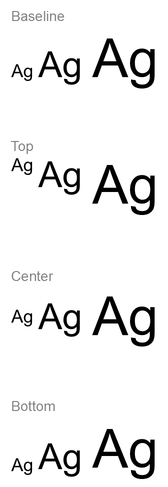
L’allineamento dei caratteri utilizza le metriche del carattere, quindi i bordi visibili delle singole lettere non coincidono necessariamente esattamente. L’esempio include sia una lettera maiuscola che un discendente per mostrare la differenza tra allineamento baseline e bottom. La disponibilità e la sostituzione del carattere, i caratteri usati e la differenza di dimensioni influenzano il risultato. Le dimensioni del riquadro, i margini, l’interlinea, l’andare a capo e l’autofit influenzano anch’essi il layout; usa gli stessi caratteri e impostazioni di layout quando confronti le modalità.
Questa impostazione differisce da IParagraphFormat::set_Alignment, che controlla l’allineamento orizzontale del paragrafo, e da ITextFrameFormat::set_AnchoringType, che posiziona il blocco di testo verticalmente all’interno della sua forma. La formattazione apice e pedice tramite IBasePortionFormat::set_Escapement sposta le singole porzioni rispetto alla baseline invece di impostare l’allineamento dei caratteri per le linee del paragrafo.
Imposta trasparenza per il testo
La trasparenza del testo è controllata attraverso il componente alfa del colore assegnato tramite IBasePortionFormat::get_FillFormat. Negli esempi seguenti, alpha = 50 è un valore alfa ARGB su scala 0–255, non una percentuale di trasparenza.
L’esempio di codice seguente mostra come applicare la trasparenza all'intero paragrafo:
#include <DOM/FillType.h>
#include <DOM/IAutoShape.h>
#include <DOM/IColorFormat.h>
#include <DOM/IFillFormat.h>
#include <DOM/IParagraph.h>
#include <DOM/IParagraphFormat.h>
#include <DOM/IPortionFormat.h>
#include <DOM/ISlide.h>
#include <DOM/ITextFrame.h>
#include <DOM/Presentation.h>
#include <Export/SaveFormat.h>
#include <drawing/color.h>

using namespace Aspose::Slides;
using namespace Aspose::Slides::Export;

int alpha = 50;

auto presentation = System::MakeObject<Presentation>(u"sample.pptx");
auto firstShape = presentation->get_Slide(0)->get_Shape(0);

auto autoShape = System::ExplicitCast<IAutoShape>(firstShape);

auto paragraph = autoShape->get_TextFrame()->get_Paragraph(0);
auto defaultPortionFormat = paragraph->get_ParagraphFormat()->get_DefaultPortionFormat();

// Imposta il colore di riempimento del testo su colore trasparente.
defaultPortionFormat->get_FillFormat()->set_FillType(FillType::Solid);
auto baseColor = System::Drawing::Color::get_Black();
auto transparentColor = System::Drawing::Color::FromArgb(alpha, baseColor);
defaultPortionFormat->get_FillFormat()->get_SolidFillColor()->set_Color(transparentColor);

presentation->Save(u"transparent_paragraph.pptx", SaveFormat::Pptx);
presentation->Dispose();
Il risultato:

Il seguente esempio di codice mostra come applicare la trasparenza a porzioni di testo con un carattere grassetto:
#include <DOM/FillType.h>
#include <DOM/IAutoShape.h>
#include <DOM/IColorFormat.h>
#include <DOM/IFillFormat.h>
#include <DOM/IParagraph.h>
#include <DOM/IPortion.h>
#include <DOM/IPortionCollection.h>
#include <DOM/IPortionFormat.h>
#include <DOM/IPortionFormatEffectiveData.h>
#include <DOM/ISlide.h>
#include <DOM/ITextFrame.h>
#include <DOM/Presentation.h>
#include <Export/SaveFormat.h>
#include <drawing/color.h>

using namespace Aspose::Slides;
using namespace Aspose::Slides::Export;

int alpha = 50;

auto presentation = System::MakeObject<Presentation>(u"sample.pptx");
auto firstShape = presentation->get_Slide(0)->get_Shape(0);

auto autoShape = System::ExplicitCast<IAutoShape>(firstShape);

auto paragraph = autoShape->get_TextFrame()->get_Paragraph(0);
auto portions = paragraph->get_Portions();
int portionCount = portions->get_Count();

for (int portionIndex = 0; portionIndex < portionCount; portionIndex++)
{
    auto portion = paragraph->get_Portion(portionIndex);
    auto portionFormat = portion->get_PortionFormat();
    if (portionFormat->GetEffective()->get_FontBold())
    {
        // Imposta la trasparenza della porzione di testo.
        portionFormat->get_FillFormat()->set_FillType(FillType::Solid);
        auto baseColor = System::Drawing::Color::get_Black();
        auto transparentColor = System::Drawing::Color::FromArgb(alpha, baseColor);
        portionFormat->get_FillFormat()->get_SolidFillColor()->set_Color(transparentColor);
    }
}

presentation->Save(u"transparent_text_portions.pptx", SaveFormat::Pptx);
presentation->Dispose();
Il risultato:

Imposta spaziatura dei caratteri per il testo
Utilizza IBasePortionFormat::set_Spacing per espandere o comprimere la spaziatura tra i caratteri in una casella di testo. Gli esempi aggiungono 3 punti di spaziatura; valori negativi comprimono il testo.
Il seguente codice C++ mostra come espandere la spaziatura dei caratteri nell'intero paragrafo:
#include <DOM/IAutoShape.h>
#include <DOM/IParagraph.h>
#include <DOM/IParagraphFormat.h>
#include <DOM/IPortionFormat.h>
#include <DOM/ISlide.h>
#include <DOM/ITextFrame.h>
#include <DOM/Presentation.h>
#include <Export/SaveFormat.h>

using namespace Aspose::Slides;
using namespace Aspose::Slides::Export;

auto presentation = System::MakeObject<Presentation>(u"sample.pptx");
auto firstShape = presentation->get_Slide(0)->get_Shape(0);

auto autoShape = System::ExplicitCast<IAutoShape>(firstShape);
auto paragraph = autoShape->get_TextFrame()->get_Paragraph(0);

// Nota: Usa valori negativi per comprimere la spaziatura dei caratteri.
paragraph->get_ParagraphFormat()->get_DefaultPortionFormat()->set_Spacing(3.0f); // Espandi la spaziatura dei caratteri.

presentation->Save(u"character_spacing_in_paragraph.pptx", SaveFormat::Pptx);
presentation->Dispose();
Il risultato:

L’esempio di codice seguente mostra come espandere la spaziatura dei caratteri in porzioni di testo con un carattere grassetto:
#include <DOM/IAutoShape.h>
#include <DOM/IParagraph.h>
#include <DOM/IPortion.h>
#include <DOM/IPortionCollection.h>
#include <DOM/IPortionFormat.h>
#include <DOM/IPortionFormatEffectiveData.h>
#include <DOM/ISlide.h>
#include <DOM/ITextFrame.h>
#include <DOM/Presentation.h>
#include <Export/SaveFormat.h>

using namespace Aspose::Slides;
using namespace Aspose::Slides::Export;

auto presentation = System::MakeObject<Presentation>(u"sample.pptx");
auto firstShape = presentation->get_Slide(0)->get_Shape(0);

auto autoShape = System::ExplicitCast<IAutoShape>(firstShape);

auto paragraph = autoShape->get_TextFrame()->get_Paragraph(0);
auto portions = paragraph->get_Portions();
int portionCount = portions->get_Count();

for (int portionIndex = 0; portionIndex < portionCount; portionIndex++)
{
    auto portion = paragraph->get_Portion(portionIndex);
    auto portionFormat = portion->get_PortionFormat();
    if (portionFormat->GetEffective()->get_FontBold())
    {
        // Nota: Usa valori negativi per comprimere la spaziatura dei caratteri.
        portionFormat->set_Spacing(3.0f); // Espandi la spaziatura dei caratteri.
    }
}

presentation->Save(u"character_spacing_in_text_portions.pptx", SaveFormat::Pptx);
presentation->Dispose();
Il risultato:

Disabilita il kerning per caratteri specifici
In alcuni casi, il testo renderizzato da Aspose.Slides può apparire leggermente più stretto rispetto allo stesso testo mostrato in PowerPoint. Ciò può accadere perché PowerPoint può ignorare i dati di kerning per alcuni caratteri, anche quando il carattere contiene informazioni di kerning valide e il kerning è abilitato nelle impostazioni di PowerPoint.
Per avvicinare l’output renderizzato a quello di PowerPoint in questi casi, è possibile disabilitare il kerning per le porzioni di testo che usano il carattere interessato. Utilizza IBasePortionFormat::set_KerningMinimalSize per impostare un valore maggiore della dimensione reale del carattere. Questo esempio richiede “presentation.pptx” con una casella di testo come prima forma sulla prima diapositiva. Controlla i nomi dei caratteri efficaci, includendo i caratteri ereditati, e imposta una soglia di 100 punti per le porzioni che usano Roboto. Ciò disabilita il kerning per le porzioni corrispondenti con una dimensione del carattere inferiore a 100 punti:
#include <DOM/IAutoShape.h>
#include <DOM/IFontData.h>
#include <DOM/IPortionFormatEffectiveData.h>
#include <DOM/IParagraph.h>
#include <DOM/IParagraphCollection.h>
#include <DOM/IPortion.h>
#include <DOM/IPortionCollection.h>
#include <DOM/IPortionFormat.h>
#include <DOM/ISlide.h>
#include <DOM/ITextFrame.h>
#include <DOM/Presentation.h>
#include <Export/SaveFormat.h>

using namespace Aspose::Slides;
using namespace Aspose::Slides::Export;

auto presentation = System::MakeObject<Presentation>(u"presentation.pptx");
auto firstShape = presentation->get_Slide(0)->get_Shape(0);

auto autoShape = System::ExplicitCast<IAutoShape>(firstShape);
System::String targetFont = u"Roboto";
auto textFrame = autoShape->get_TextFrame();
auto paragraphs = textFrame->get_Paragraphs();
int paragraphCount = paragraphs->get_Count();

for (int paragraphIndex = 0; paragraphIndex < paragraphCount; paragraphIndex++)
{
    auto paragraph = textFrame->get_Paragraph(paragraphIndex);
    auto portions = paragraph->get_Portions();
    int portionCount = portions->get_Count();

    for (int portionIndex = 0; portionIndex < portionCount; portionIndex++)
    {
        auto portion = paragraph->get_Portion(portionIndex);
        auto portionFormat = portion->get_PortionFormat();
        auto textFormat = portionFormat->GetEffective();
        auto latinFont = textFormat->get_LatinFont();
        auto eastAsianFont = textFormat->get_EastAsianFont();
        auto complexScriptFont = textFormat->get_ComplexScriptFont();

        bool isLatinFont = latinFont != nullptr && latinFont->get_FontName() == targetFont;
        bool isEastAsianFont = eastAsianFont != nullptr && eastAsianFont->get_FontName() == targetFont;
        bool isComplexScriptFont = complexScriptFont != nullptr && complexScriptFont->get_FontName() == targetFont;

        if (isLatinFont || isEastAsianFont || isComplexScriptFont)
        {
            portionFormat->set_KerningMinimalSize(100.0f);
        }
    }
}

presentation->Save(u"output.pptx", SaveFormat::Pptx);
presentation->Dispose();
Per il testo corrispondente al di sotto della soglia, questa impostazione impedisce il kerning e può aiutare ad allineare il rendering di Aspose.Slides all’output visivo di PowerPoint per i caratteri influenzati da questo comportamento specifico di PowerPoint.
Gestisci proprietà del carattere del testo
Le proprietà del carattere possono essere impostate a livello di paragrafo tramite IParagraphFormat::get_DefaultPortionFormat o su singole porzioni tramite IPortionFormat.
L’esempio seguente imposta il carattere predefinito del primo paragrafo a Times New Roman 12 punti con formattazione in grassetto, corsivo e sottolineatura punteggiata. La formattazione esplicita su singole porzioni ha la precedenza su questi valori predefiniti:
#include <DOM/Fonts/FontData.h>
#include <DOM/IAutoShape.h>
#include <DOM/IParagraph.h>
#include <DOM/IParagraphFormat.h>
#include <DOM/IPortionFormat.h>
#include <DOM/ISlide.h>
#include <DOM/ITextFrame.h>
#include <DOM/NullableBool.h>
#include <DOM/Presentation.h>
#include <DOM/TextUnderlineType.h>
#include <Export/SaveFormat.h>

using namespace Aspose::Slides;
using namespace Aspose::Slides::Export;

auto presentation = System::MakeObject<Presentation>(u"sample.pptx");
auto firstShape = presentation->get_Slide(0)->get_Shape(0);

auto autoShape = System::ExplicitCast<IAutoShape>(firstShape);
auto paragraph = autoShape->get_TextFrame()->get_Paragraph(0);
auto defaultPortionFormat = paragraph->get_ParagraphFormat()->get_DefaultPortionFormat();

// Imposta le proprietà del carattere per il paragrafo.
defaultPortionFormat->set_FontHeight(12.0f);
defaultPortionFormat->set_FontBold(NullableBool::True);
defaultPortionFormat->set_FontItalic(NullableBool::True);
defaultPortionFormat->set_FontUnderline(TextUnderlineType::Dotted);
auto font = System::MakeObject<FontData>(u"Times New Roman");
defaultPortionFormat->set_LatinFont(font);

presentation->Save(u"font_properties_for_paragraph.pptx", SaveFormat::Pptx);
presentation->Dispose();
Il risultato:

L’esempio seguente applica Times New Roman 13 punti, formattazione corsiva e una sottolineatura punteggiata a porzioni la cui formattazione efficace è in grassetto:
#include <DOM/Fonts/FontData.h>
#include <DOM/IAutoShape.h>
#include <DOM/IParagraph.h>
#include <DOM/IPortion.h>
#include <DOM/IPortionCollection.h>
#include <DOM/IPortionFormat.h>
#include <DOM/IPortionFormatEffectiveData.h>
#include <DOM/ISlide.h>
#include <DOM/ITextFrame.h>
#include <DOM/NullableBool.h>
#include <DOM/Presentation.h>
#include <DOM/TextUnderlineType.h>
#include <Export/SaveFormat.h>

using namespace Aspose::Slides;
using namespace Aspose::Slides::Export;

auto presentation = System::MakeObject<Presentation>(u"sample.pptx");
auto firstShape = presentation->get_Slide(0)->get_Shape(0);

auto autoShape = System::ExplicitCast<IAutoShape>(firstShape);
auto paragraph = autoShape->get_TextFrame()->get_Paragraph(0);
auto portions = paragraph->get_Portions();
int portionCount = portions->get_Count();
auto font = System::MakeObject<FontData>(u"Times New Roman");

for (int portionIndex = 0; portionIndex < portionCount; portionIndex++)
{
    auto portion = paragraph->get_Portion(portionIndex);
    auto portionFormat = portion->get_PortionFormat();
    if (portionFormat->GetEffective()->get_FontBold())
    {
        // Imposta le proprietà del carattere per la porzione di testo.
        portionFormat->set_FontHeight(13.0f);
        portionFormat->set_FontItalic(NullableBool::True);
        portionFormat->set_FontUnderline(TextUnderlineType::Dotted);
        portionFormat->set_LatinFont(font);
    }
}

presentation->Save(u"font_properties_for_text_portions.pptx", SaveFormat::Pptx);
presentation->Dispose();
Il risultato:

Imposta rotazione del testo
Utilizza ITextFrameFormat::set_TextVerticalType per impostare un’orientazione del testo predefinita all’interno di una forma.
Il seguente esempio di codice imposta l’orientazione del testo nella forma a TextVerticalType::Vertical270, che ruota il testo di 90 gradi in senso antiorario:
#include <DOM/IAutoShape.h>
#include <DOM/ISlide.h>
#include <DOM/ITextFrame.h>
#include <DOM/ITextFrameFormat.h>
#include <DOM/Presentation.h>
#include <DOM/TextVerticalType.h>
#include <Export/SaveFormat.h>

using namespace Aspose::Slides;
using namespace Aspose::Slides::Export;

auto presentation = System::MakeObject<Presentation>(u"sample.pptx");
auto firstShape = presentation->get_Slide(0)->get_Shape(0);

auto autoShape = System::ExplicitCast<IAutoShape>(firstShape);
autoShape->get_TextFrame()->get_TextFrameFormat()->set_TextVerticalType(TextVerticalType::Vertical270);

presentation->Save(u"text_rotation.pptx", SaveFormat::Pptx);
presentation->Dispose();
Il risultato:

Imposta rotazione personalizzata per i riquadri di testo
Utilizza ITextFrameFormat::set_RotationAngle per impostare un angolo di rotazione personalizzato per un ITextFrame.
L’esempio di codice seguente ruota il riquadro di testo di 3 gradi in senso orario all’interno della forma:
#include <DOM/IAutoShape.h>
#include <DOM/ISlide.h>
#include <DOM/ITextFrame.h>
#include <DOM/ITextFrameFormat.h>
#include <DOM/Presentation.h>
#include <Export/SaveFormat.h>

using namespace Aspose::Slides;
using namespace Aspose::Slides::Export;

auto presentation = System::MakeObject<Presentation>(u"sample.pptx");
auto firstShape = presentation->get_Slide(0)->get_Shape(0);

auto autoShape = System::ExplicitCast<IAutoShape>(firstShape);
autoShape->get_TextFrame()->get_TextFrameFormat()->set_RotationAngle(3.0f);

presentation->Save(u"custom_text_rotation.pptx", SaveFormat::Pptx);
presentation->Dispose();
Il risultato:

Imposta interlinea dei paragrafi
Aspose.Slides fornisce IParagraphFormat::set_SpaceAfter, IParagraphFormat::set_SpaceBefore, e IParagraphFormat::set_SpaceWithin per controllare lo spazio del paragrafo. Questi metodi sono usati come segue:
- Usa un valore positivo per specificare l’interlinea come percentuale dell’altezza della linea.
- Usa un valore negativo per specificare l’interlinea in punti.
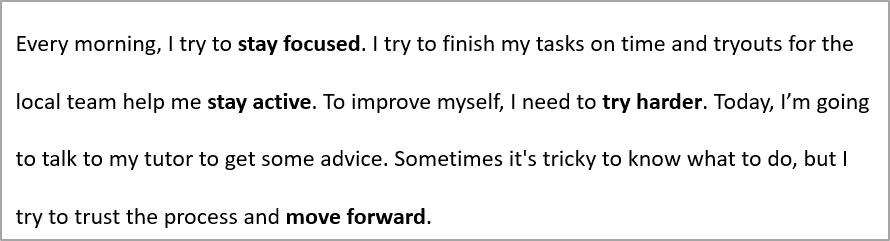
L’esempio seguente imposta la spaziatura all’interno del primo paragrafo al 200% dell’altezza della linea (interlinea doppia):
#include <DOM/IAutoShape.h>
#include <DOM/IParagraph.h>
#include <DOM/IParagraphFormat.h>
#include <DOM/ISlide.h>
#include <DOM/ITextFrame.h>
#include <DOM/Presentation.h>
#include <Export/SaveFormat.h>

using namespace Aspose::Slides;
using namespace Aspose::Slides::Export;

auto presentation = System::MakeObject<Presentation>(u"sample.pptx");
auto firstShape = presentation->get_Slide(0)->get_Shape(0);

auto autoShape = System::ExplicitCast<IAutoShape>(firstShape);

auto paragraph = autoShape->get_TextFrame()->get_Paragraph(0);
paragraph->get_ParagraphFormat()->set_SpaceWithin(200.0f);

presentation->Save(u"line_spacing.pptx", SaveFormat::Pptx);
presentation->Dispose();
Il risultato:
Controlla interruzione di linea
Le regole di interruzione di linea dei paragrafi sono utili in blocchi di testo stretti e presentazioni che mescolano testo latino e asiatico orientale. I seguenti metodi appartengono a IParagraphFormat, quindi si applicano all’intero paragrafo:
- IParagraphFormat::set_LatinLineBreak controlla le regole di interruzione di linea per il latino. In testo misto, cambiarlo può anche modificare dove il testo e la punteggiatura asiatica orientale adiacenti vanno a capo.
- IParagraphFormat::set_EastAsianLineBreak controlla le regole di interruzione di linea per l’Asia orientale, incluse le restrizioni sui caratteri all’inizio e alla fine di una linea.
Queste regole non sostituiscono ITextFrameFormat::set_WrapText, che abilita l’andare a capo automatico all’interno di un riquadro di testo. Influenzano il layout quando avviene l’andare a capo; non inseriscono caratteri di interruzione di linea. Un’interruzione di linea esplicita forza una nuova linea all’interno del paragrafo indipendentemente dalla larghezza disponibile.
Il seguente esempio autonomo crea un blocco di testo stretto contenente cinese e latino. Imposta entrambe le regole di interruzione di linea esplicitamente e salva “line_breaking.pptx”. Per sperimentare una delle regole, cambia il valore passato al suo setter mantenendo le altre impostazioni fisse. L’esempio utilizza Arial 24 punti e SimSun con una larghezza del riquadro di 160 punti e zero margini orizzontali del riquadro di testo. ITextFrameFormat::set_AutofitType è chiamato con TextAutofitType::None in modo che la dimensione del testo e le dimensioni del riquadro rimangano fisse.
#include <DOM/Fonts/FontData.h>
#include <DOM/IAutoShape.h>
#include <DOM/IColorFormat.h>
#include <DOM/IFillFormat.h>
#include <DOM/IParagraph.h>
#include <DOM/IParagraphFormat.h>
#include <DOM/IPortionFormat.h>
#include <DOM/IShapeCollection.h>
#include <DOM/ISlide.h>
#include <DOM/ITextFrame.h>
#include <DOM/ITextFrameFormat.h>
#include <DOM/FillType.h>
#include <DOM/NullableBool.h>
#include <DOM/Presentation.h>
#include <DOM/ShapeType.h>
#include <DOM/TextAlignment.h>
#include <DOM/TextAutofitType.h>
#include <Export/SaveFormat.h>
#include <drawing/color.h>

using namespace Aspose::Slides;
using namespace Aspose::Slides::Export;

auto presentation = System::MakeObject<Presentation>();
auto slide = presentation->get_Slide(0);

auto shape = slide->get_Shapes()->AddAutoShape(ShapeType::Rectangle, 50.0f, 50.0f, 160.0f, 300.0f);
shape->get_FillFormat()->set_FillType(FillType::NoFill);

auto textFrame = shape->get_TextFrame();
textFrame->get_TextFrameFormat()->set_WrapText(NullableBool::True);
textFrame->get_TextFrameFormat()->set_AutofitType(TextAutofitType::None);
textFrame->get_TextFrameFormat()->set_MarginLeft(0);
textFrame->get_TextFrameFormat()->set_MarginRight(0);

auto paragraph = textFrame->get_Paragraph(0);
paragraph->set_Text(u"中文排版测试,PowerPoint 中文演示。");

auto format = paragraph->get_ParagraphFormat();
format->set_Alignment(TextAlignment::Left);
auto portionFormat = format->get_DefaultPortionFormat();
portionFormat->set_FontHeight(24.0f);
auto latinFont = System::MakeObject<FontData>(u"Arial");
portionFormat->set_LatinFont(latinFont);
auto eastAsianFont = System::MakeObject<FontData>(u"SimSun");
portionFormat->set_EastAsianFont(eastAsianFont);
portionFormat->get_FillFormat()->set_FillType(FillType::Solid);
portionFormat->get_FillFormat()->get_SolidFillColor()->set_Color(System::Drawing::Color::get_Black());
format->set_LatinLineBreak(NullableBool::False);
format->set_EastAsianLineBreak(NullableBool::True);

presentation->Save(u"line_breaking.pptx", SaveFormat::Pptx);
presentation->Dispose();
Controlla punteggiatura sospesa
IParagraphFormat::set_HangingPunctuation consente alla punteggiatura idonea di estendersi oltre il bordo destro della linea di testo invece di occupare la linea successiva. Si applica all’intero paragrafo ed è diverso da un rientro sospeso.
Il seguente esempio autonomo abilita la punteggiatura sospesa in un riquadro di testo largo 100 punti e salva “hanging_punctuation.pptx”. Con Arial 24 punti e zero margini orizzontali del riquadro di testo, il punto finale rimane dopo “sentence” e si estende oltre il bordo destro del testo. Passa NullableBool::False al setter per confrontare: con queste impostazioni, il punto occupa una linea separata. L’andare a capo è abilitato e l’autofit è disabilitato per mantenere fissa la larghezza disponibile.
#include <DOM/Fonts/FontData.h>
#include <DOM/IAutoShape.h>
#include <DOM/IColorFormat.h>
#include <DOM/IFillFormat.h>
#include <DOM/IParagraph.h>
#include <DOM/IParagraphFormat.h>
#include <DOM/IPortionFormat.h>
#include <DOM/IShapeCollection.h>
#include <DOM/ISlide.h>
#include <DOM/ITextFrame.h>
#include <DOM/ITextFrameFormat.h>
#include <DOM/FillType.h>
#include <DOM/NullableBool.h>
#include <DOM/Presentation.h>
#include <DOM/ShapeType.h>
#include <DOM/TextAlignment.h>
#include <DOM/TextAutofitType.h>
#include <Export/SaveFormat.h>
#include <drawing/color.h>

using namespace Aspose::Slides;
using namespace Aspose::Slides::Export;

auto presentation = System::MakeObject<Presentation>();
auto slide = presentation->get_Slide(0);

auto shape = slide->get_Shapes()->AddAutoShape(ShapeType::Rectangle, 50.0f, 50.0f, 100.0f, 200.0f);
shape->get_FillFormat()->set_FillType(FillType::NoFill);

auto textFrame = shape->get_TextFrame();
textFrame->get_TextFrameFormat()->set_WrapText(NullableBool::True);
textFrame->get_TextFrameFormat()->set_AutofitType(TextAutofitType::None);
textFrame->get_TextFrameFormat()->set_MarginLeft(0);
textFrame->get_TextFrameFormat()->set_MarginRight(0);

auto paragraph = textFrame->get_Paragraph(0);
paragraph->set_Text(u"Simple text, next sentence.");

auto format = paragraph->get_ParagraphFormat();
format->set_Alignment(TextAlignment::Left);
auto portionFormat = format->get_DefaultPortionFormat();
portionFormat->set_FontHeight(24.0f);
auto latinFont = System::MakeObject<FontData>(u"Arial");
portionFormat->set_LatinFont(latinFont);
portionFormat->get_FillFormat()->set_FillType(FillType::Solid);
portionFormat->get_FillFormat()->get_SolidFillColor()->set_Color(System::Drawing::Color::get_Black());
format->set_HangingPunctuation(NullableBool::True);

presentation->Save(u"hanging_punctuation.pptx", SaveFormat::Pptx);
presentation->Dispose();
Non tutti i segni di punteggiatura possono sospendere. Le condizioni di carattere e layout descritte sopra si applicano anche a questo confronto: cambiare il carattere, la larghezza disponibile, i margini o le impostazioni di autofit può rimuovere la differenza visibile.
Imposta tipo Autofit per i riquadri di testo
ITextFrameFormat::set_AutofitType determina come il testo si comporta quando supera i confini del suo contenitore. Usalo per controllare se il testo si riduce, trabocca o ridimensiona automaticamente la forma. L’esempio seguente configura la forma per ridimensionarsi in modo da adattarsi al suo testo e salva il risultato in “autofit_type.pptx”.
#include <DOM/IAutoShape.h>
#include <DOM/ISlide.h>
#include <DOM/ITextFrame.h>
#include <DOM/ITextFrameFormat.h>
#include <DOM/Presentation.h>
#include <DOM/TextAutofitType.h>
#include <Export/SaveFormat.h>

using namespace Aspose::Slides;
using namespace Aspose::Slides::Export;

auto presentation = System::MakeObject<Presentation>(u"sample.pptx");
auto firstShape = presentation->get_Slide(0)->get_Shape(0);

auto autoShape = System::ExplicitCast<IAutoShape>(firstShape);
autoShape->get_TextFrame()->get_TextFrameFormat()->set_AutofitType(TextAutofitType::Shape);

presentation->Save(u"autofit_type.pptx", SaveFormat::Pptx);
presentation->Dispose();
Per contare le linee dopo l’andare a capo automatico e vedere come la larghezza del testo o della forma modifica il risultato, vedi Conta le linee renderizzate. Il solo conteggio delle linee non indica se il testo trabocca dal contenitore.
Imposta ancoraggio dei riquadri di testo
ITextFrameFormat::set_AnchoringType definisce come il testo è posizionato verticalmente all’interno di una forma, ad esempio in alto, al centro o in basso. L’esempio seguente ancora il testo al fondo della prima forma e salva il risultato in “text_anchor.pptx”.
#include <DOM/IAutoShape.h>
#include <DOM/ISlide.h>
#include <DOM/ITextFrame.h>
#include <DOM/ITextFrameFormat.h>
#include <DOM/Presentation.h>
#include <DOM/TextAnchorType.h>
#include <Export/SaveFormat.h>

using namespace Aspose::Slides;
using namespace Aspose::Slides::Export;

auto presentation = System::MakeObject<Presentation>(u"sample.pptx");
auto firstShape = presentation->get_Slide(0)->get_Shape(0);

auto autoShape = System::ExplicitCast<IAutoShape>(firstShape);
autoShape->get_TextFrame()->get_TextFrameFormat()->set_AnchoringType(TextAnchorType::Bottom);

presentation->Save(u"text_anchor.pptx", SaveFormat::Pptx);
presentation->Dispose();
Imposta tabulazione del testo
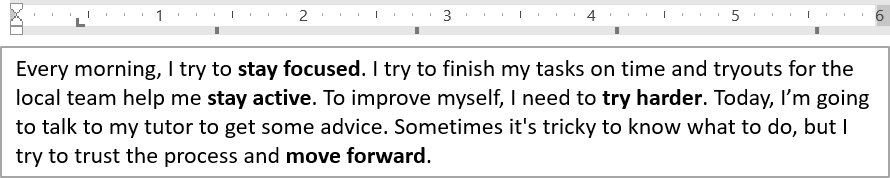
Utilizza IParagraphFormat::set_DefaultTabSize e IParagraphFormat::get_Tabs per configurare le tabulazioni in un paragrafo. Il seguente esempio imposta l’intervallo di tabulazione predefinito a 100 punti e aggiunge una tabulazione allineata a sinistra a 30 punti. Queste impostazioni influenzano il testo contenente caratteri di tabulazione.
#include <DOM/IAutoShape.h>
#include <DOM/IParagraph.h>
#include <DOM/IParagraphFormat.h>
#include <DOM/ISlide.h>
#include <DOM/ITabCollection.h>
#include <DOM/ITextFrame.h>
#include <DOM/Presentation.h>
#include <DOM/TabAlignment.h>
#include <Export/SaveFormat.h>

using namespace Aspose::Slides;
using namespace Aspose::Slides::Export;

auto presentation = System::MakeObject<Presentation>(u"sample.pptx");
auto firstShape = presentation->get_Slide(0)->get_Shape(0);

auto autoShape = System::ExplicitCast<IAutoShape>(firstShape);

auto paragraph = autoShape->get_TextFrame()->get_Paragraph(0);
paragraph->get_ParagraphFormat()->set_DefaultTabSize(100.0f);
paragraph->get_ParagraphFormat()->get_Tabs()->Add(30.0f, TabAlignment::Left);

presentation->Save(u"paragraph_tabs.pptx", SaveFormat::Pptx);
presentation->Dispose();
Il risultato:
Imposta lingua di correzione
Aspose.Slides fornisce IBasePortionFormat::set_LanguageId, che consente di impostare la lingua di correzione per una porzione di testo. La lingua di correzione determina la lingua usata per i controlli ortografici e grammaticali in PowerPoint.
L’esempio seguente richiede “presentation.pptx” con una casella di testo come prima forma sulla prima diapositiva e almeno un paragrafo. Sostituisce il contenuto del primo paragrafo con “1。”, imposta SimSun come carattere e assegna la lingua di correzione cinese semplificata (zh-CN). Salva il risultato in “proofing_language.pptx”:
#include <DOM/Fonts/FontData.h>
#include <DOM/IAutoShape.h>
#include <DOM/IParagraph.h>
#include <DOM/IPortionCollection.h>
#include <DOM/IPortionFormat.h>
#include <DOM/ISlide.h>
#include <DOM/ITextFrame.h>
#include <DOM/Portion.h>
#include <DOM/Presentation.h>
#include <Export/SaveFormat.h>

using namespace Aspose::Slides;
using namespace Aspose::Slides::Export;

auto presentation = System::MakeObject<Presentation>(u"presentation.pptx");
auto firstShape = presentation->get_Slide(0)->get_Shape(0);

auto autoShape = System::ExplicitCast<IAutoShape>(firstShape);

auto paragraph = autoShape->get_TextFrame()->get_Paragraph(0);
paragraph->get_Portions()->Clear();

auto font = System::MakeObject<FontData>(u"SimSun");

auto textPortion = System::MakeObject<Portion>();
auto portionFormat = textPortion->get_PortionFormat();
portionFormat->set_ComplexScriptFont(font);
portionFormat->set_EastAsianFont(font);
portionFormat->set_LatinFont(font);

// Imposta la lingua di correzione al cinese semplificato.
portionFormat->set_LanguageId(u"zh-CN");

textPortion->set_Text(u"1。");
paragraph->get_Portions()->Add(textPortion);

presentation->Save(u"proofing_language.pptx", SaveFormat::Pptx);
presentation->Dispose();
Imposta lingua predefinita
Utilizza LoadOptions::set_DefaultTextLanguage per definire la lingua predefinita per il testo creato durante il caricamento o la creazione di una presentazione. L’esempio seguente crea una presentazione con l’inglese USA come lingua predefinita del testo, aggiunge una casella di testo e stampa en-US per la sua prima porzione di testo.
#include <DOM/IAutoShape.h>
#include <DOM/IParagraph.h>
#include <DOM/IPortion.h>
#include <DOM/IPortionFormat.h>
#include <DOM/IShapeCollection.h>
#include <DOM/ISlide.h>
#include <DOM/ITextFrame.h>
#include <DOM/LoadOptions.h>
#include <DOM/Presentation.h>
#include <DOM/ShapeType.h>
#include <system/console.h>

using namespace Aspose::Slides;

auto loadOptions = System::MakeObject<LoadOptions>();
loadOptions->set_DefaultTextLanguage(u"en-US");

auto presentation = System::MakeObject<Presentation>(loadOptions);
auto slide = presentation->get_Slide(0);

// Aggiungi una nuova forma rettangolare con testo.
auto shape = slide->get_Shapes()->AddAutoShape(ShapeType::Rectangle, 20.0f, 20.0f, 150.0f, 50.0f);
shape->get_TextFrame()->set_Text(u"Sample text");

// Verifica la lingua della prima porzione.
auto portion = shape->get_TextFrame()->get_Paragraph(0)->get_Portion(0);
auto languageId = portion->get_PortionFormat()->get_LanguageId();
System::Console::WriteLine(languageId);

presentation->Dispose();
Imposta stile di testo predefinito
Per applicare la formattazione di testo predefinita a livello di presentazione, utilizza IPresentation::get_DefaultTextStyle.
L’esempio seguente imposta un carattere grassetto da 14 punti come predefinito per i paragrafi di livello superiore in una nuova presentazione e lo salva in “default_text_style.pptx”. Il testo può ereditare questi valori predefiniti a meno che una formattazione più specifica non li sovrascriva.
#include <DOM/IParagraphFormat.h>
#include <DOM/IPortionFormat.h>
#include <DOM/ITextStyle.h>
#include <DOM/NullableBool.h>
#include <DOM/Presentation.h>
#include <Export/SaveFormat.h>

using namespace Aspose::Slides;
using namespace Aspose::Slides::Export;

auto presentation = System::MakeObject<Presentation>();

// Ottieni il formato del paragrafo di livello superiore.
auto paragraphFormat = presentation->get_DefaultTextStyle()->GetLevel(0);

if (paragraphFormat != nullptr)
{
    auto defaultPortionFormat = paragraphFormat->get_DefaultPortionFormat();
    defaultPortionFormat->set_FontHeight(14.0f);
    defaultPortionFormat->set_FontBold(NullableBool::True);
}

presentation->Save(u"default_text_style.pptx", SaveFormat::Pptx);
presentation->Dispose();
Estrai testo con l’effetto tutto maiuscolo
In PowerPoint, applicare l’effetto All Caps al carattere fa apparire il testo in maiuscolo nella diapositiva anche se è stato digitato originariamente in minuscolo. Quando si recupera una tale porzione di testo con Aspose.Slides, la libreria restituisce il testo esattamente come è stato inserito. Per corrispondere al testo visualizzato, controlla TextCapType e converte la stringa restituita in maiuscolo quando il valore è TextCapType::All.
L’esempio richiede “sample2.pptx” con una casella di testo come prima forma sulla prima diapositiva. La prima porzione del primo paragrafo contiene “Hello, Aspose!” con l’effetto All Caps applicato, come mostrato di seguito.

L’esempio di codice seguente mostra come estrarre il testo con l’effetto All Caps applicato:
#include <DOM/IAutoShape.h>
#include <DOM/IParagraph.h>
#include <DOM/IPortion.h>
#include <DOM/IPortionFormat.h>
#include <DOM/IPortionFormatEffectiveData.h>
#include <DOM/ISlide.h>
#include <DOM/ITextFrame.h>
#include <DOM/Presentation.h>
#include <DOM/TextCapType.h>
#include <system/console.h>

using namespace Aspose::Slides;

auto presentation = System::MakeObject<Presentation>(u"sample2.pptx");
auto firstShape = presentation->get_Slide(0)->get_Shape(0);

auto autoShape = System::ExplicitCast<IAutoShape>(firstShape);
auto textPortion = autoShape->get_TextFrame()->get_Paragraph(0)->get_Portion(0);

auto originalText = textPortion->get_Text();
System::Console::WriteLine(u"Original text: " + originalText);

auto textFormat = textPortion->get_PortionFormat()->GetEffective();
if (textFormat->get_TextCapType() == TextCapType::All)
{
    auto uppercaseText = originalText.ToUpper();
    System::Console::WriteLine(u"All-Caps effect: " + uppercaseText);
}

presentation->Dispose();
Output:
Original text: Hello, Aspose!
All-Caps effect: HELLO, ASPOSE!
FAQ
Come modifico il testo in una tabella su una diapositiva?
Per modificare il testo in una tabella su una diapositiva, utilizza ITable. Itera le celle e aggiorna ciascuna cella attraverso ICell::get_TextFrame e la formattazione del paragrafo tramite IParagraph::get_ParagraphFormat.
Come applico un colore sfumato al testo su una diapositiva PowerPoint?
Per applicare un colore sfumato al testo, utilizza IBasePortionFormat::get_FillFormat. Imposta IFillFormat::set_FillType a FillType::Gradient e configura le fermate del gradiente, la direzione e la trasparenza.