
จัดการธีมงานนำเสนอ PowerPoint ใน Python
บทนำ
ธีมงานนำเสนอกำหนดชุดสี, แบบอักษร, สไตล์พื้นหลัง, การเติม, เส้น, และเอฟเฟกต์ที่สอดคล้องกัน. วัตถุที่รับรู้ธีมอ้างอิงถึงคำนิยามที่ใช้ร่วมกันเหล่านี้แทนการเก็บค่าคุณสมบัติกราฟิกแต่ละอย่างเป็นค่าคงที่, ดังนั้นการเปลี่ยนธีมจึงสามารถอัปเดตวัตถุหลาย ๆ ตัวพร้อมกัน.
ใน Aspose.Slides, ธีมระดับงานนำเสนอสามารถเข้าถึงได้ผ่านคุณสมบัติPresentation.master_theme. งานนำเสนอยังสามารถมีการ overriding ธีมในระดับล่างได้. มาสเตอร์สามารถ override ธีมงานนำเสนอได้ผ่านMasterThemeManager.override_theme, เลย์เอาต์สามารถ override ธีมที่สืบทอดมาผ่านBaseOverrideThemeManager.override_theme, และสไลด์เดี่ยวก็สามารถทำเช่นเดียวกัน. ในการปฏิบัติ, ธีมที่มีผลสำหรับสไลด์จะถูกแก้ไขตามสายการสืบทอดนี้: ธีมงานนำเสนอ, การ override ของมาสเตอร์, การ override ของเลย์เอาต์, และการ override ของสไลด์.
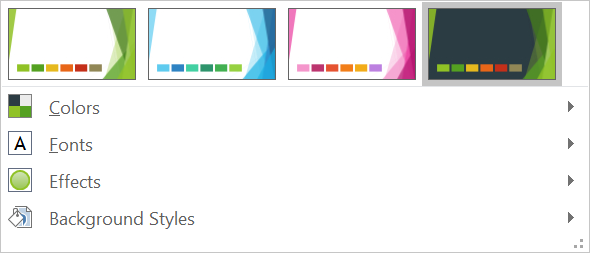
ส่วนต่อไปนี้แสดงเวิร์กโฟลว์ธีมที่พบบ่อยที่สุด: ตรวจสอบธีม, เปลี่ยนสีและแบบอักษร, คัดลอกหรือใช้ธีม, ปรับปรุงสไตล์พื้นหลังและเอฟเฟกต์, และอ่านค่าที่มีผลหลังจากการสืบทอดและการ override ถูกแก้ไขแล้ว.
ตรวจสอบธีม
อ็อบเจกต์MasterTheme เปิดเผยคุณสมบัติcolor_scheme,font_scheme,และformat_schemeของธีม. การตรวจสอบคอลเลกชันเหล่านี้ก่อนทำการเปลี่ยนแปลงเป็นประโยชน์โดยเฉพาะเมื่อแนวนำเสนอมาจากแหล่งภายนอกเนื่องจากจำนวนและเนื้อหาของรายการสไตล์อาจแตกต่างกัน.
ตัวอย่างต่อไปนี้อ่านคุณสมบัติหลักของธีมและรายงานจำนวนสไตล์พื้นหลัง, การเติม, เส้น, และเอฟเฟกต์ที่เก็บไว้ในธีม:
import aspose.slides as slides

with slides.Presentation("input.pptx") as presentation:
    theme = presentation.master_theme
    print(f"Theme name: {theme.name}")
    print(f"Accent 1: {theme.color_scheme.accent1.color}")
    print(f"Major Latin font: {theme.font_scheme.major.latin_font.font_name}")
    print(f"Minor Latin font: {theme.font_scheme.minor.latin_font.font_name}")
    print(f"Background fill styles: {len(theme.format_scheme.background_fill_styles)}")
    print(f"Fill styles: {len(theme.format_scheme.fill_styles)}")
    print(f"Line styles: {len(theme.format_scheme.line_styles)}")
    print(f"Effect styles: {len(theme.format_scheme.effect_styles)}")
หากไฟล์ใช้หลายมาสเตอร์, อย่าสันนิษฐานว่าทุกสไลด์มีธีมที่มีผลเดียวกัน. ตรวจสอบมาสเตอร์ที่สัมพันธ์กับสไลด์และใช้เวิร์กโฟลว์ธีมที่มีผลที่แสดงต่อไปในบทความเมื่ออาจมีการ override ที่ระดับเลย์เอาต์หรือสไลด์.
เปลี่ยนสีธีม
การเติม, เส้น, และข้อความที่รับรู้ธีมสามารถอ้างอิงถึงสีเชิงตรรกะจาก enumerationSchemeColor. เมื่อคุณเปลี่ยนรายการที่สอดคล้องในColorSchemeของธีม, ทุกอ็อบเจกต์ที่ยังอ้างอิงสีธีมนั้นจะได้รับการอัปเดตเป็นค่าที่ใหม่. อ็อบเจกต์ที่ใช้สี RGB โดยตรงจะไม่ถูกเปลี่ยนโดยการอัปเดตสีธีม.
ตัวอย่างต่อไปนี้เป็นการสร้างรูปร่างที่ใช้ ACCENT4, เปลี่ยนสี accent4 ของธีมเป็นสีแดง, บันทึกงานนำเสนอ, เปิดใหม่อีกครั้ง, แล้วพิมพ์สีการเติมที่มีผล:
import aspose.pydrawing as draw
import aspose.slides as slides

with slides.Presentation() as presentation:
    slide = presentation.slides[0]
    shape = slide.shapes.add_auto_shape(slides.ShapeType.RECTANGLE, 10, 10, 100, 100)
    shape.fill_format.fill_type = slides.FillType.SOLID
    shape.fill_format.solid_fill_color.scheme_color = slides.SchemeColor.ACCENT4
    presentation.master_theme.color_scheme.accent4.color = draw.Color.red
    presentation.save("theme-color.pptx", slides.export.SaveFormat.PPTX)

with slides.Presentation("theme-color.pptx") as saved_presentation:
    saved_slide = saved_presentation.slides[0]
    saved_shape = saved_slide.shapes[0]
    effective_fill = saved_shape.fill_format.get_effective()
    print(f"Effective fill color: {effective_fill.solid_fill_color}")
เนื่องจากสี่เหลี่ยมยังคงเชื่อมโยงกับ ACCENT4, สีที่มองเห็นจะกลายเป็นสีแดงหลังจากเปลี่ยนธีม. หากคุณแทนที่สีสกีมด้วยสีโดยตรงบนรูปร่าง, การเปลี่ยนแปลงต่อไปของ accent4 จะไม่ส่งผลต่อการเติมนั้นอีกต่อไป.
ใช้สีจากพาเลตเพิ่มเติม
PowerPoint สร้างรูปแบบสีอ่อนและเข้มจากสีธีมโดยการประยุกต์การแปลงสี. Aspose.Slides เปิดเผยการแปลงเหล่านี้ผ่าน enumerationColorTransformOperation.
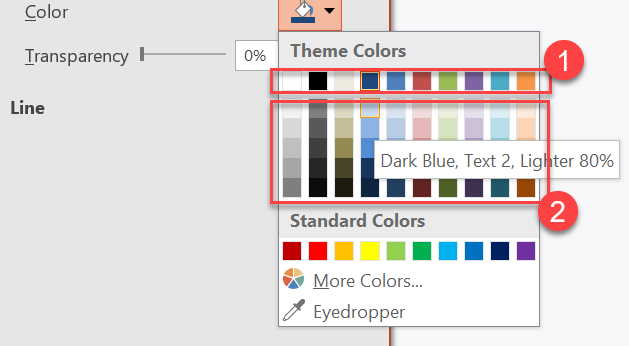
1 - สีธีมหลัก.
2 - รูปแบบสีอ่อนและเข้มที่สร้างจากสีธีมหลัก.
ตัวอย่างต่อไปนี้สร้างหกสี่เหลี่ยมอิงตาม ACCENT4, ประยุกต์การแปลงลูมินานซ์กับห้าสี่เหลี่ยม, แล้วบันทึกผลลัพธ์:
import aspose.slides as slides

with slides.Presentation() as presentation:
    slide = presentation.slides[0]
    shape1 = slide.shapes.add_auto_shape(slides.ShapeType.RECTANGLE, 10, 10, 50, 50)
    shape1.fill_format.fill_type = slides.FillType.SOLID
    shape1.fill_format.solid_fill_color.scheme_color = slides.SchemeColor.ACCENT4
    shape2 = slide.shapes.add_auto_shape(slides.ShapeType.RECTANGLE, 10, 70, 50, 50)
    shape2.fill_format.fill_type = slides.FillType.SOLID
    shape2.fill_format.solid_fill_color.scheme_color = slides.SchemeColor.ACCENT4
    shape2.fill_format.solid_fill_color.color_transform.add(slides.ColorTransformOperation.MULTIPLY_LUMINANCE, 0.2)
    shape2.fill_format.solid_fill_color.color_transform.add(slides.ColorTransformOperation.ADD_LUMINANCE, 0.8)
    shape3 = slide.shapes.add_auto_shape(slides.ShapeType.RECTANGLE, 10, 130, 50, 50)
    shape3.fill_format.fill_type = slides.FillType.SOLID
    shape3.fill_format.solid_fill_color.scheme_color = slides.SchemeColor.ACCENT4
    shape3.fill_format.solid_fill_color.color_transform.add(slides.ColorTransformOperation.MULTIPLY_LUMINANCE, 0.4)
    shape3.fill_format.solid_fill_color.color_transform.add(slides.ColorTransformOperation.ADD_LUMINANCE, 0.6)
    shape4 = slide.shapes.add_auto_shape(slides.ShapeType.RECTANGLE, 10, 190, 50, 50)
    shape4.fill_format.fill_type = slides.FillType.SOLID
    shape4.fill_format.solid_fill_color.scheme_color = slides.SchemeColor.ACCENT4
    shape4.fill_format.solid_fill_color.color_transform.add(slides.ColorTransformOperation.MULTIPLY_LUMINANCE, 0.6)
    shape4.fill_format.solid_fill_color.color_transform.add(slides.ColorTransformOperation.ADD_LUMINANCE, 0.4)
    shape5 = slide.shapes.add_auto_shape(slides.ShapeType.RECTANGLE, 10, 250, 50, 50)
    shape5.fill_format.fill_type = slides.FillType.SOLID
    shape5.fill_format.solid_fill_color.scheme_color = slides.SchemeColor.ACCENT4
    shape5.fill_format.solid_fill_color.color_transform.add(slides.ColorTransformOperation.MULTIPLY_LUMINANCE, 0.75)
    shape6 = slide.shapes.add_auto_shape(slides.ShapeType.RECTANGLE, 10, 310, 50, 50)
    shape6.fill_format.fill_type = slides.FillType.SOLID
    shape6.fill_format.solid_fill_color.scheme_color = slides.SchemeColor.ACCENT4
    shape6.fill_format.solid_fill_color.color_transform.add(slides.ColorTransformOperation.MULTIPLY_LUMINANCE, 0.5)
    presentation.save("theme-color-palette.pptx", slides.export.SaveFormat.PPTX)
รูปแบบเหล่านี้ยังคงอิงจากสีธีม. หาก accent4 เปลี่ยนในภายหลัง, สีที่แปลงจะถูกคำนวณใหม่จากค่าของ accent4 ที่ใหม่.
แมปค่า SchemeColor ไปยังสล็อตของ ColorScheme
enumerationSchemeColor ใช้ TEXT1, BACKGROUND1, TEXT2, และ BACKGROUND2, ในขณะที่ColorScheme เปิดเผยสล็อตธีมเดียวกันเป็น dark1, light1, dark2, และ light2. การแมปนี้คงที่:
TEXT1=dark1BACKGROUND1=light1TEXT2=dark2BACKGROUND2=light2
นี่เป็นชื่อทางเลือกของสล็อตธีมเดียวกัน; ไม่ได้เป็นค่าที่แปลงแบบไดนามิกจากรูปแบบหนึ่งเป็นอีกรูปแบบหนึ่ง.
เปลี่ยนแบบอักษรธีม
สกีมแบบอักษรของธีมประกอบด้วยชุดแบบอักษรหลักสำหรับหัวข้อและชุดแบบอักษรรองสำหรับเนื้อความ. คุณสมบัติFontScheme.majorและFontScheme.minorเปิดเผยชุดเหล่านั้น.
ตัวระบุแบบอักษรธีมที่เข้ากันกับ PowerPoint สามารถใช้ในการจัดรูปแบบข้อความได้:
+mn-lt- Body Font Latin (Minor Latin Font)+mj-lt- Heading Font Latin (Major Latin Font)+mn-ea- Body Font East Asian (Minor East Asian Font)+mj-ea- Heading Font East Asian (Major East Asian Font)
ตัวอย่างต่อไปนี้สร้างหัวข้อหนึ่งที่ใช้แบบอักษร Latin หลักของธีมและบรรทัดเนื้อความหนึ่งที่ใช้แบบอักษร Latin รองของธีม. จากนั้นเปลี่ยนแบบอักษรธีมและบันทึกผลลัพธ์:
import aspose.slides as slides

with slides.Presentation() as presentation:
    slide = presentation.slides[0]
    heading = slide.shapes.add_auto_shape(slides.ShapeType.RECTANGLE, 40, 40, 500, 60)
    heading.text_frame.text = "Theme heading"
    heading.text_frame.paragraphs[0].portions[0].portion_format.latin_font = slides.FontData("+mj-lt")
    body = slide.shapes.add_auto_shape(slides.ShapeType.RECTANGLE, 40, 120, 500, 60)
    body.text_frame.text = "Theme body text"
    body.text_frame.paragraphs[0].portions[0].portion_format.latin_font = slides.FontData("+mn-lt")
    presentation.master_theme.font_scheme.major.latin_font = slides.FontData("Aptos Display")
    presentation.master_theme.font_scheme.minor.latin_font = slides.FontData("Arial")
    presentation.save("theme-fonts.pptx", slides.export.SaveFormat.PPTX)
หัวข้อนั้นใช้แบบอักษรหลักและเนื้อความใช้แบบอักษรรอง. ข้อความที่มีชื่อแบบอักษรโดยตรงแทนตัวระบุธีมจะไม่สลับโดยอัตโนมัติเมื่อสกีมแบบอักษรธีมเปลี่ยน.
คอลเลกชันแบบอักษรหลักและรองยังสามารถบรรจุมapping แบบอักษรสำหรับระบบการเขียนแต่ละระบบได้, เช่น Cyrillic, Arabic, Japanese, Georgian, และ Thaana. เพื่อตรวจสอบ, เพิ่ม, แทนที่, หรือเอา mapping เหล่านี้ออก, ดูScript-Specific Theme Fonts.
Tip
สำหรับข้อมูลเพิ่มเติมเกี่ยวกับแบบอักษรในงานนำเสนอ, ดูPowerPoint Fonts.คัดลอกหรือใช้ธีม
เวิร์กโฟลว์ต่อไปนี้แก้ไขปัญหาที่เกี่ยวกับธีมต่างๆ.
ใช้ธีมนอกกับสไลด์ที่ขึ้นอยู่กับมาสเตอร์
ใช้IMasterSlide.apply_external_theme_to_depending_slidesเมื่อคุณมีไฟล์ธีม PowerPoint (.thmx) และต้องการปรับสไตล์ทุกสไลด์ที่ขึ้นอยู่กับมาสเตอร์ใดมาสเตอร์หนึ่ง. เลือกมาสเตอร์จากคอลเลกชันPresentation.mastersซึ่งเป็นMasterSlideCollection, แล้วส่งพาธไฟล์ธีมให้เมธอด.
เมธอดทำงานดังต่อไปนี้:
- สร้างมาสเตอร์สไลด์ใหม่จากมาสเตอร์ที่เลือก
- ใช้ธีมภายนอกกับมาสเตอร์ใหม่
- กำหนดมาสเตอร์ใหม่ให้กับสไลด์ทั้งหมดที่เคยขึ้นอยู่กับมาสเตอร์ที่เลือก
- คืนค่าIMasterSlideที่สร้างใหม่
ตัวอย่างต่อไปนี้ใช้ธีมนอกกับสไลด์ที่ขึ้นกับมาสเตอร์แรกและบันทึกงานนำเสนอ:
import aspose.slides as slides

with slides.Presentation("presentation.pptx") as presentation:
    selected_master = presentation.masters[0]
    themed_master = selected_master.apply_external_theme_to_depending_slides("corporate-theme.thmx")

    print(f"Created master: {themed_master.name}")
    presentation.save("presentation-with-external-theme.pptx", slides.export.SaveFormat.PPTX)
ธีมที่ไม่ถูกต้อง, เสียหาย, หรือไม่รองรับอาจทำให้เกิดPptxExceptionหรือคลาสย่อยที่เกี่ยวกับรูปแบบ. ตรวจสอบพาธที่ผู้ใช้ระบุ, จัดการความล้มเหลวของการเข้าถึงไฟล์ระบบ, และบันทึกงานนำเสนอเฉพาะหลังจากธีมถูกใช้สำเร็จ.
เฉพาะสไลด์ที่ขึ้นกับมาสเตอร์ที่เลือกเท่านั้นที่ถูกกำหนดใหม่. สไลด์ที่เชื่อมกับมาสเตอร์อื่นจะคงมาสเตอร์และธีมเดิม. สี, แบบอักษร, การเติม, เส้น, พื้นหลัง, และเอฟเฟกต์ที่รับรู้ธีมจะถูกแก้ไขตามธีมนอก. สี, แบบอักษร, การเติม, และการจัดรูปแบบที่กำหนดโดยตรงอาจคงเดิม. การ override ระดับเลย์เอาต์และสไลด์ก็อาจล้ำค่าที่สืบทอดจากมาสเตอร์ใหม่.
ธีมอาจอ้างอิงแบบอักษรที่ไม่มีในสภาพแวดล้อมการรัน. เพื่อให้การเรนเดอร์และส่งออกสอดคล้อง, ให้ติดตั้งแบบอักษรที่ต้องการ, จัดหาแบบอักษรผ่านcustom font sources, หรือกำหนดการfont substitution.
นี่เป็นเวิร์กโฟลว์ระดับมาสเตอร์โดยตรง: เมธอดรับพาธไฟล์ .thmx และไม่ต้องสร้างการ override ระดับสไลด์หรือเลย์เอาต์ด้วยตนเอง.
ใช้ธีมนอกที่ต่างกันในงานนำเสนอหลายมาสเตอร์
เมื่อมาสเตอร์ที่เกี่ยวข้องไม่ทราบล่วงหน้า, ให้ดึงมาสเตอร์จากสไลด์ตัวแทนผ่านSlide.layout_slideและLayoutSlide.master_slide. เก็บอ้างอิงมาสเตอร์ต้นฉบับไว้ก่อนใช้ธีมใดๆ เพราะแต่ละครั้งที่เรียกจะสร้างมาสเตอร์ใหม่ในงานนำเสนอ.
ตัวอย่างต่อไปนี้ใช้สไลด์จากสองส่วนเพื่อหามาสเตอร์ของพวกมันและใช้ธีมนอกที่ต่างกันสำหรับแต่ละกลุ่ม:
import aspose.slides as slides

with slides.Presentation("multi-master-presentation.pptx") as presentation:
    if len(presentation.slides) < 5:
        print("The presentation does not contain the expected representative slides.")
    else:
        first_group_master = presentation.slides[0].layout_slide.master_slide
        second_group_master = presentation.slides[4].layout_slide.master_slide

        if first_group_master.slide_id == second_group_master.slide_id:
            print("The representative slides use the same master.")
        else:
            first_themed_master = first_group_master.apply_external_theme_to_depending_slides("blue-theme.thmx")
            second_themed_master = second_group_master.apply_external_theme_to_depending_slides("green-theme.thmx")

            print(f"First themed master: {first_themed_master.name}")
            print(f"Second themed master: {second_themed_master.name}")
            presentation.save("multi-master-with-external-themes.pptx", slides.export.SaveFormat.PPTX)
การเรียกครั้งแรกส่งผลต่อสไลด์ที่ขึ้นกับ first_group_master เท่านั้น, การเรียกครั้งที่สองส่งผลต่อสไลด์ที่ขึ้นกับ second_group_master เท่านั้น. สไลด์ที่เป็นของมาสเตอร์อื่นจะไม่ถูกปรับสไตล์ใหม่.
คงธีมต้นฉบับเมื่อนำสไลด์ไปยังงานนำเสนออื่น
หากต้องการย้ายสไลด์ไปยังงานนำเสนออื่นและคงการออกแบบเดิม, ให้คัดลอกมาสเตอร์ต้นฉบับเข้าสู่เป้าหมายด้วยMasterSlideCollection.add_clone, แล้วคัดลอกสไลด์ด้วยSlideCollection.add_cloneพร้อมมาสเตอร์ที่คัดลอก. วิธีนี้ทำให้มาสเตอร์, เลย์เอาต์, และธีมที่สัมพันธ์กันไปด้วย.
import aspose.slides as slides

with slides.Presentation("source-theme.pptx") as source:
    with slides.Presentation("target.pptx") as target:
        source_slide = source.slides[0]
        source_master = source_slide.layout_slide.master_slide
        cloned_master = target.masters.add_clone(source_master)
        target.slides.add_clone(source_slide, cloned_master, True)
        target.save("theme-preserved.pptx", slides.export.SaveFormat.PPTX)
นี่เป็นเวิร์กโฟลว์ที่แนะนำเมื่อสไลด์ต้นฉบับต้องการดูเหมือนเดิมในปลายทาง. การคัดลอกเนื้อหาไปยังมาสเตอร์ปลายทางที่ไม่เกี่ยวข้องอาจทำให้สี, แบบอักษร, พื้นหลัง, และเอฟเฟกต์ที่ขับเคลื่อนด้วยธีมเปลี่ยนแปลง.
ใช้ค่าธีมกับสไลด์ที่มีอยู่
หากสไลด์เป้าหมายต้องคงอยู่บนมาสเตอร์และเลย์เอาต์ปัจจุบัน, เริ่มต้นการ override ระดับสไลด์จากธีมต้นฉบับ. เมธอดOverrideTheme.init_color_scheme_from,OverrideTheme.init_font_scheme_from,และOverrideTheme.init_format_scheme_fromคัดลอกสามส่วนหลักของธีมเข้าสู่การ override.
import aspose.slides as slides

with slides.Presentation("source-theme.pptx") as source:
    with slides.Presentation("target.pptx") as target:
        target_slide = target.slides[0]
        override_theme = target_slide.theme_manager.override_theme
        override_theme.init_color_scheme_from(source.master_theme.color_scheme)
        override_theme.init_font_scheme_from(source.master_theme.font_scheme)
        override_theme.init_format_scheme_from(source.master_theme.format_scheme)
        target.save("theme-applied-to-slide.pptx", slides.export.SaveFormat.PPTX)
วิธีนี้เปลี่ยนธีมที่สไลด์ใช้โดยไม่กระทบธีมที่สืบทอดจากสไลด์อื่น. เพื่อลบการ override ท้องถิ่นและคืนค่าเป็นค่าที่สืบทอด, เรียกOverrideTheme.clear.
ใช้การ override ธีมกับเลย์เอาต์
การ override ระดับเลย์เอาต์จะใช้กับสไลด์ที่ใช้เลย์เอาต์นั้น, ยกเว้นกรณีที่สไลด์ใดมีการ override ของตนเอง. วิธีการเริ่มต้นเดียวกันสามารถใช้ผ่านLayoutSlideThemeManager:
import aspose.slides as slides

with slides.Presentation("source-theme.pptx") as source:
    with slides.Presentation("target.pptx") as target:
        target_slide = target.slides[0]
        override_theme = target_slide.layout_slide.theme_manager.override_theme
        override_theme.init_color_scheme_from(source.master_theme.color_scheme)
        override_theme.init_font_scheme_from(source.master_theme.font_scheme)
        override_theme.init_format_scheme_from(source.master_theme.format_scheme)
        target.save("theme-applied-to-layout.pptx", slides.export.SaveFormat.PPTX)
ใช้ธีมระดับมาสเตอร์หรือระดับงานนำเสนอเมื่อหลายเลย์เอาต์และสไลด์ต้องแชร์การออกแบบฐานเดียวกัน, ใช้การ override ของเลย์เอาต์เมื่อครอบครัวเลย์เอาต์หนึ่งต้องการสไตล์ที่แตกต่าง, และใช้การ override ของสไลด์เฉพาะกรณีที่มีข้อยกเว้นจริง. การมีการ override ระดับสไลด์มากเกินไปทำให้การเปลี่ยนธีมทั่วโลกในภายหลังคาดเดาได้ยากขึ้น.
อัปเดตสไตล์พื้นหลังของธีม
การเติมพื้นหลังของธีมถูกเก็บในFormatScheme.background_fill_styles. PowerPoint สามารถแสดงตัวเลือกพื้นหลังได้มากกว่าจำนวนการกำหนดการเติมที่เก็บในคอลเลกชันนี้ เนื่องจาก UI สามารถรวมการเติมธีมกับสีธีมและอ้างอิงสไตล์อื่นๆ.
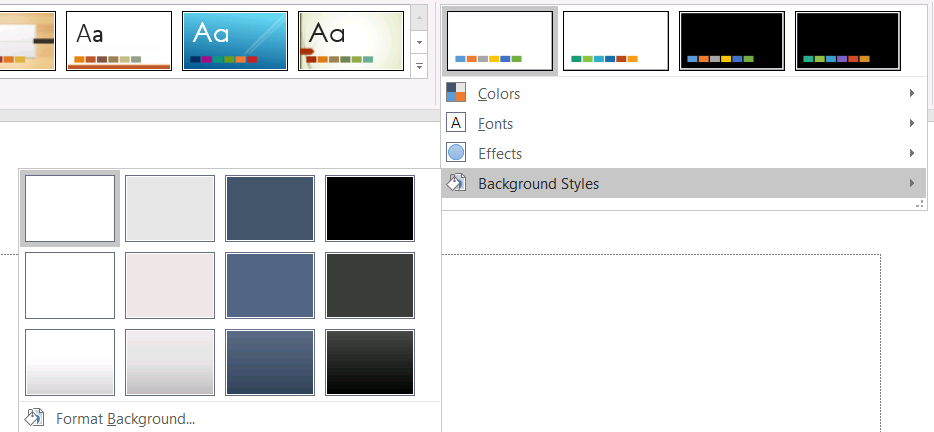
ก่อนใช้สไตล์พื้นหลัง, ตรวจสอบคอลเลกชันที่เก็บและค่าBackground.style_indexปัจจุบัน. style_index ใช้ค่า 0 สำหรับไม่มีการเติมธีม; ค่าบวกเป็นการอ้างอิงสไตล์พื้นหลังของธีม. สิ่งนี้แตกต่างจากการทำดัชนีคอลเลกชัน Python โดยตรง, ที่ [0] หมายถึงรายการแรกที่เก็บ. อย่าสันนิษฐานว่าทุกงานนำเสนอมีจำนวนสไตล์การเติมพื้นหลังเท่ากัน.
ตัวอย่างต่อไปนี้รายงานจำนวนการเติมพื้นหลังที่มีอยู่, กำหนดการอ้างอิงพื้นหลังของธีมให้กับมาสเตอร์แรก, แล้วบันทึกงานนำเสนอ:
import aspose.slides as slides

with slides.Presentation("input.pptx") as presentation:
    background_styles = presentation.master_theme.format_scheme.background_fill_styles
    print(f"Background fill styles: {len(background_styles)}")
    if len(background_styles) == 0:
        raise RuntimeError("The presentation theme does not contain background fill styles.")
    master_slide = presentation.masters[0]
    master_slide.background.type = slides.BackgroundType.THEMED
    master_slide.background.style_index = 1
    presentation.save("theme-background.pptx", slides.export.SaveFormat.PPTX)
ผลลัพธ์ที่มองเห็นขึ้นอยู่กับรายการธีมที่มาสเตอร์อ้างอิงและการ override พื้นหลังที่เลย์เอาต์หรือระดับสไลด์. หากสไลด์ใช้พื้นหลังของตนเอง, การเปลี่ยนพื้นหลังของมาสเตอร์เพียงอย่างเดียวอาจไม่กระทบสไลด์นั้น. ใช้Background.get_effectiveเมื่อคุณต้องการทราบพื้นหลังสุดท้ายหลังจากการสืบทอด.
Warning
อย่าปฏิบัติกับstyle_index ว่าเป็นดัชนีคอลเลกชันที่เริ่มจากศูนย์. อีกทั้งหลีกเลี่ยงการกำหนดค่าตัวเลขสไตล์จากไฟล์หนึ่งและสันนิษฐานว่ามีลักษณะเดียวกันในไฟล์อื่น; คำจำกัดความสไตล์ธีมเป็นแบบเฉพาะงานนำเสนอ.
Tip
สำหรับการจัดรูปแบบพื้นหลังโดยตรงและการสืบทอดพื้นหลัง, ดูPresentation Background.อัปเดตเอฟเฟกต์ของธีม
สกีมรูปแบบของธีมประกอบด้วยคอลเลกชันแยกต่างหากของFormatScheme.fill_styles,FormatScheme.line_styles,และFormatScheme.effect_styles. ธีม Office ที่ทั่วไปมักมีรายการสไตล์หลักสามรายการที่สอดคล้องกับการจัดรูปแบบแบบ Subtle, Moderate, และ Intense, แต่โค้ดควรตรวจสอบแต่ละคอลเลกชันแทนการสันนิษฐานว่าจำนวนคงที่.
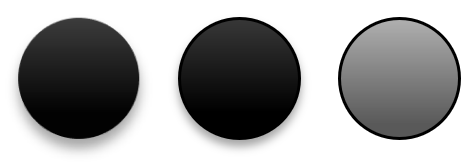
เมื่อเข้าถึงคอลเลกชันเหล่านี้ใน Python, ดัชนีของคอลเลกชันเริ่มจากศูนย์: [0] คือสไตล์แรกที่เก็บและ [2] คือสไตล์ที่สาม. ดัชนีอ้างอิงสไตล์ของรูปร่างเป็นแนวคิดแยก, เปิดเผยผ่านIShapeStyle. การแก้ไขสไตล์ธีมจะส่งผลต่อรูปร่างที่อ้างอิงสไตล์ธีมนั้น; รูปร่างที่มีการจัดรูปแบบโดยตรงอาจคงเดิม.
ตัวอย่างต่อไปนี้ตรวจสอบว่ามีรายการสไตล์ที่ต้องการหรือไม่, เปลี่ยนสไตล์เส้นแรก, เปลี่ยนสไตล์เติมที่สาม, เปิดเงานอกในสไตล์เอฟเฟกต์ที่สาม, แล้วบันทึกผลลัพธ์:
import aspose.pydrawing as draw
import aspose.slides as slides

with slides.Presentation("Subtle_Moderate_Intense.pptx") as presentation:
    format_scheme = presentation.master_theme.format_scheme
    if len(format_scheme.line_styles) < 1 or len(format_scheme.fill_styles) < 3 or len(format_scheme.effect_styles) < 3:
        raise RuntimeError("The theme does not contain the style entries required by this example.")
    format_scheme.line_styles[0].fill_format.fill_type = slides.FillType.SOLID
    format_scheme.line_styles[0].fill_format.solid_fill_color.color = draw.Color.red
    format_scheme.fill_styles[2].fill_type = slides.FillType.SOLID
    format_scheme.fill_styles[2].solid_fill_color.color = draw.Color.forest_green
    format_scheme.effect_styles[2].effect_format.enable_outer_shadow_effect()
    format_scheme.effect_styles[2].effect_format.outer_shadow_effect.distance = 10
    presentation.save("theme-effects.pptx", slides.export.SaveFormat.PPTX)
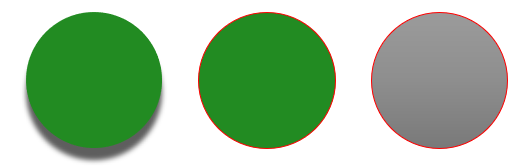
สำหรับรูปร่างที่อ้างอิงสล็อตเหล่านี้, สไตล์เส้นธีมแรกจะกลายเป็นสีแดง, สไตล์เติมธีมที่สามจะกลายเป็นสีเขียวป่าแบบทึบ, และสไตล์เอฟเฟกต์ที่สามจะเพิ่มเงานอกด้วยระยะ 10 จุด. ผลลัพธ์ภาพที่แน่นอนยังคงขึ้นอยู่กับสไตล์ที่แต่ละรูปร่างอ้างอิงและว่าการจัดรูปแบบโดยตรงได้ override ธีมหรือไม่.
กำหนดว่าการเติมแบบ Solid ที่มีผลใช้สีธีมหรือไม่
การเติมสามารถถูกเก็บโดยตรงบนอ็อบเจกต์หรือสืบทอดจากย่อหน้า, เลย์เอาต์, มาสเตอร์, สไตล์ธีม, หรือระดับการจัดรูปแบบอื่น. เรียกFillFormat.get_effectiveเพื่อแปลงลำดับชั้นนั้นเป็นIFillFormatEffectiveDataที่ไม่เปลี่ยนแปลง. ตรวจสอบIFillFormatEffectiveData.fill_typeก่อน. เฉพาะเมื่อเป็น FillType.SOLID จึงอ่านคุณสมบัติการเติมแบบ solid.
สำหรับการเติมแบบ solid, IFillFormatEffectiveData.solid_fill_colorคืนค่ารหัส RGB ที่เรนเดอร์สุดท้ายหลังจากสืบทอด, ค้นหาธีม, และการแปลงสี. IFillFormatEffectiveData.solid_fill_scheme_colorคืนสล็อตSchemeColorที่สอดคล้อง, เช่น TEXT1 หรือ ACCENT6. ค่า SchemeColor.NOT_DEFINED หมายความว่าการเติมแบบ solid ที่มีผลไม่ได้อิงจากสีสกีม. ในเวิร์กโฟลว์ที่การเติมเป็นสีธีมหรือสี RGB โดยตรง, ค่านี้บ่งชี้การเติม RGB โดยตรง.
อย่าอ้างอิงค่าIColorFormat.scheme_colorท้องถิ่นเพียงอย่างเดียวเพื่อจัดประเภทการเติม. ตัวอย่างเช่น, ส่วนข้อความอาจไม่มีสีสกีมที่กำหนดในระดับท้องถิ่น, ดังนั้นค่าท้องถิ่นเป็น NOT_DEFINED, ในขณะที่การเติมที่มีผลสืบทอดจากธีมและ resolve เป็น TEXT1 หรือ ACCENT6. ในทางกลับกัน, solid_fill_scheme_color บอกว่าสล็อตธีมเชิงตรรกะใดสร้างสีที่มีผล, แต่ไม่บอกว่ารากนั้นมาจากอ็อบเจกต์, ย่อหน้า, เลย์เอาต์, มาสเตอร์ หรือระดับอื่นของลำดับชั้นการจัดรูปแบบ.
ตัวอย่างต่อไปนี้โหลดงานนำเสนอ, ตรวจสอบการเติมของรูปร่างและส่วนข้อความ, พิมพ์ค่า RGB สุดท้ายและสีสกีมที่เกี่ยวข้อง, และทำเครื่องหมายการเติมแบบ solid ที่จะไม่ติดตามการเปลี่ยนแปลงสีธีม:
import aspose.slides as slides


def audit_fill(object_name, local_fill):
    effective_fill = local_fill.get_effective()

    if effective_fill.fill_type != slides.FillType.SOLID:
        print(f"{object_name}: fill type = {effective_fill.fill_type}; not a solid fill.")
        return

    rgb = effective_fill.solid_fill_color
    effective_scheme_color = effective_fill.solid_fill_scheme_color
    local_scheme_color = local_fill.solid_fill_color.scheme_color

    print(f"{object_name}: RGB = #{rgb.r:02X}{rgb.g:02X}{rgb.b:02X}")
    print(f"{object_name}: local scheme = {local_scheme_color}, effective scheme = {effective_scheme_color}")

    if effective_scheme_color == slides.SchemeColor.NOT_DEFINED:
        print(f"{object_name}: direct RGB or another non-scheme fill; audit as theme-independent.")
    else:
        print(f"{object_name}: theme-dependent through {effective_scheme_color}.")


with slides.Presentation("input.pptx") as presentation:
    for slide_index, slide in enumerate(presentation.slides):
        for shape_index, shape in enumerate(slide.shapes):
            shape_name = f"Slide {slide_index + 1}, shape {shape_index + 1}"
            audit_fill(shape_name, shape.fill_format)

            if isinstance(shape, slides.AutoShape):
                for paragraph_index, paragraph in enumerate(shape.text_frame.paragraphs):
                    for portion_index, portion in enumerate(paragraph.portions):
                        portion_name = f"{shape_name}, paragraph {paragraph_index + 1}, portion {portion_index + 1}"
                        audit_fill(portion_name, portion.portion_format.fill_format)
สาขา NOT_DEFINED ให้รายการตรวจสอบการเติมแบบ solid ที่จะไม่ตอบสนองต่อการเปลี่ยนแปลงในสล็อตสีธีม. ตรวจสอบอ็อบเจกต์เหล่านี้เมื่อการนำเสนอจำเป็นต้องปฏิบัติตามพาเลตใหม่ของแบรนด์. ค่ารหัส RGB ที่รายงานยังคงแสดงลักษณะที่เห็นอยู่, ขณะที่ค่าสตริงสกีมอธิบายว่าการแสดงนั้นเชื่อมต่อกับธีมหรือไม่.
วัตถุแบบ effective-format เป็นสแนปช็อต. หลังจากเปลี่ยนธีมงานนำเสนอ, การ override ธีม, หรือการจัดรูปแบบที่สืบทอด, เรียก get_effective อีกครั้งและอ่านอ็อบเจกต์ IFillFormatEffectiveData ใหม่ก่อนทำการเปรียบเทียบหรือรายงานสี.
อ่านค่าธีมที่มีผล
อ็อบเจกต์ธีมดิบบอกคุณว่าอะไรถูกกำหนดที่ระดับใดระดับหนึ่ง. ค่าที่มีผลบอกคุณว่าสไลด์หรือรูปร่างใช้อะไรจริงหลังจากสืบทอดและการ override ท้องถิ่นแก้ไขแล้ว. สำหรับสไลด์, เรียกBaseOverrideThemeManager.create_theme_effective. สำหรับพื้นหลัง, ใช้Background.get_effective, และสำหรับการเติม, ใช้FillFormat.get_effective.
ตัวอย่างต่อไปนี้อ่านธีมที่มีผล, พื้นหลัง, และการเติมรูปแรกจากสไลด์:
import aspose.slides as slides

with slides.Presentation("input.pptx") as presentation:
    slide = presentation.slides[0]
    effective_theme = slide.theme_manager.create_theme_effective()
    effective_background = slide.background.get_effective()
    print(f"Effective major Latin font: {effective_theme.font_scheme.major.latin_font.font_name}")
    print(f"Effective minor Latin font: {effective_theme.font_scheme.minor.latin_font.font_name}")
    print(f"Effective background fill type: {effective_background.fill_format.fill_type}")
    if len(slide.shapes) > 0:
        effective_fill = slide.shapes[0].fill_format.get_effective()
        print(f"First shape effective fill type: {effective_fill.fill_type}")
        if effective_fill.fill_type == slides.FillType.SOLID:
            print(f"First shape effective fill color: {effective_fill.solid_fill_color}")
ใช้ข้อมูลที่มีผลสำหรับการวิเคราะห์การเรนเดอร์, การตรวจสอบ, และการเปรียบเทียบ. หากคุณตรวจสอบเฉพาะPresentation.master_theme, คุณอาจพลาดมาสเตอร์, เลย์เอาต์, สไลด์, หรือการ override ของรูปร่างที่เปลี่ยนลักษณะสุดท้าย.
FAQ
การใช้ธีมนอกจะส่งผลต่อทุกสไลด์ในงานนำเสนอหรือไม่?
ไม่. IMasterSlide.apply_external_theme_to_depending_slides จะกำหนดสไลด์ใหม่เฉพาะสไลด์ที่ขึ้นกับมาสเตอร์ที่เลือก. สไลด์ที่ใช้มาสเตอร์อื่นจะคงธีมเดิมไว้.
ฉันสามารถใช้ธีมกับสไลด์เดียวโดยไม่เปลี่ยนมาสเตอร์ได้หรือไม่?
ได้. ใช้SlideThemeManagerของสไลด์และเริ่มต้นธีม override ของมัน. การเปลี่ยนแปลงจะอยู่เฉพาะสไลด์นั้น; สไลด์อื่นยังคงสืบทอดธีมเดิมต่อไป.
วิธีที่ปลอดภัยที่สุดในการย้ายธีมจากงานนำเสนอหนึ่งไปยังอีกงานนำเสนอหนึ่งคืออะไร?
เมื่อย้ายสไลด์และคงลักษณะต้นฉบับ, ให้คัดลอกมาสเตอร์ต้นฉบับไปยังปลายทางและคัดลอกสไลด์พร้อมมาสเตอร์นั้นโดยใช้MasterSlideCollection.add_cloneและSlideCollection.add_clone. วิธีนี้ทำให้มาสเตอร์, เลย์เอาต์, และธีมอยู่ด้วยกัน.
ฉันจะดูค่าที่มีผลหลังจากการสืบทอดและการ override ได้อย่างไร?
ใช้BaseOverrideThemeManager.create_theme_effectiveสำหรับสไลด์หรือธีมเลย์เอาต์และเมธอดข้อมูลที่มีผลที่สอดคล้องสำหรับอ็อบเจกต์รูปแบบเช่นBackground.get_effectiveและFillFormat.get_effective. API เหล่านี้จะคืนค่าที่ถูกแก้ไขหลังจากการสืบทอดและการ override ถูกนำไปใช้.