
Python via Java を使用したプレゼンテーションでのシェイプ エフェクトの適用
概要
PowerPoint のエフェクトは形状を目立たせるために使用できますが、塗りつぶしや輪郭とは異なります。PowerPoint のエフェクトを使用すると、形状にリアルな反射を作成したり、形状のグローを広げたりすることができます。
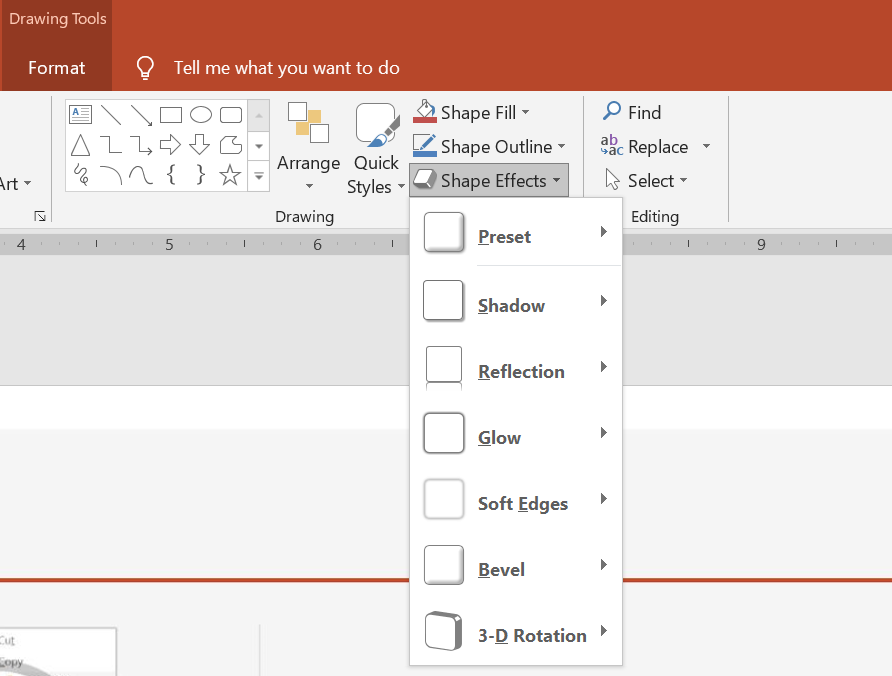
PowerPoint には、図形に適用できる 6 つのエフェクトが用意されています。1 つまたは複数のエフェクトを図形に適用できます。
エフェクトの組み合わせの中には、他よりも見栄えが良いものがあります。そのため、PowerPoint では Preset の下にオプションが用意されています。Preset オプションは、見栄えが良いと判明している 2 つ以上のエフェクトの組み合わせです。これにより、プリセットを選択するだけで、さまざまなエフェクトを試したり組み合わせたりして最適な組み合わせを見つける手間が省けます。
Aspose.Slides は、PowerPoint プレゼンテーションの図形に同じエフェクトを適用できるように、EffectFormat クラスのプロパティとメソッドを提供します。
影エフェクトの適用
Aspose.Slides for Python via Java は、図形に対して外側および内側の影をサポートしています。プレゼンテーションのデザインに合わせて、影の色、方向、距離、ぼかし半径をカスタマイズできます。
外側の影の適用
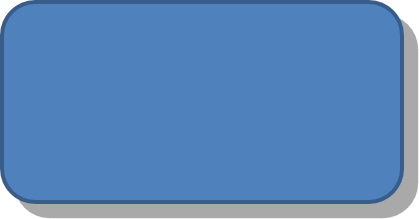
外側の影を使用すると、カードやパネルがスライドの背景に対して目立つようになります。影は図形のエッジの外側に広がり、図形がスライド上に浮き上がっているように見えます。テンプレートの照明やスタイルに合わせて、色、方向、距離、ぼかし半径を調整してください。
この Python コードは、矩形に 外側の影エフェクト を適用する方法を示しています。
import jpype
import asposeslides

if not jpype.isJVMStarted():
    jpype.startJVM()

from asposeslides.api import Presentation, SaveFormat, ShapeType
from java.awt import Color

presentation = Presentation()
try:
    slide = presentation.getSlides().get_Item(0)

    shape = slide.getShapes().addAutoShape(ShapeType.RoundCornerRectangle, 20, 20, 200, 100)
    shape.getEffectFormat().enableOuterShadowEffect()
    shape.getEffectFormat().getOuterShadowEffect().getShadowColor().setColor(Color(169, 169, 169))
    shape.getEffectFormat().getOuterShadowEffect().setDistance(10)
    shape.getEffectFormat().getOuterShadowEffect().setDirection(45)

    presentation.save("shadow_effect.pptx", SaveFormat.Pptx)
finally:
    presentation.dispose()
内側の影の適用
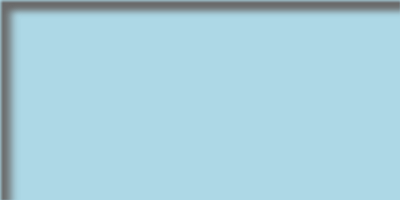
テンプレートのビジュアルスタイルを再現する際は、カードやパネルに凹んだ外観を与えるために内側の影を使用します。外側の影は図形の外側に広がり、浮き上がって見えるのに対し、内側の影はエッジの内部を陰影付けします。
まず enableInnerShadowEffect を呼び出し、次に getInnerShadowEffect が返す影を設定します。ぼかし半径の値を大きくすると、エッジがより柔らかくなります。
この Python の例は、薄い青色のカードに濃い灰色の内側の影を付け、PPTX ファイルとして保存します。影の方向は 225 度、距離は 7 ポイント、ぼかし半径は 6 ポイントです:
import jpype
import asposeslides

if not jpype.isJVMStarted():
    jpype.startJVM()

from asposeslides.api import FillType, Presentation, SaveFormat, ShapeType
from java.awt import Color

presentation = Presentation()
try:
    slide = presentation.getSlides().get_Item(0)

    shape = slide.getShapes().addAutoShape(ShapeType.Rectangle, 20, 20, 200, 100)
    shape.getFillFormat().setFillType(FillType.Solid)
    shape.getFillFormat().getSolidFillColor().setColor(Color(173, 216, 230))
    shape.getLineFormat().getFillFormat().setFillType(FillType.NoFill)

    shape.getEffectFormat().enableInnerShadowEffect()
    shadow = shape.getEffectFormat().getInnerShadowEffect()
    shadow.getShadowColor().setColor(Color(105, 105, 105))
    shadow.setDirection(225)
    shadow.setDistance(7)
    shadow.setBlurRadius(6)

    presentation.save("inner_shadow_effect.pptx", SaveFormat.Pptx)
finally:
    presentation.dispose()
内側の影を削除するには、シェイプの EffectFormat で disableInnerShadowEffect を呼び出します。
反射エフェクトの適用
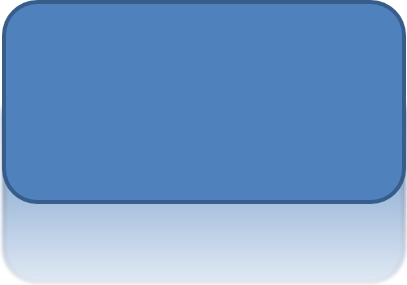
Aspose.Slides for Python via Java で反射エフェクトを適用するには、図形に鏡のような反射を追加し、距離、透明度、サイズなどのパラメータを調整します。このエフェクトは、図形により洗練された外観を与えることでプレゼンテーションの美観を向上させます。シンプルなコードで簡単に実装でき、複数の要素に素早く適用してデザインの一貫性を保てます。
この Python コードは、反射エフェクト をシェイプに適用する方法を示しています。
import jpype
import asposeslides

if not jpype.isJVMStarted():
    jpype.startJVM()

from asposeslides.api import Presentation, RectangleAlignment, SaveFormat, ShapeType

presentation = Presentation()
try:
    slide = presentation.getSlides().get_Item(0)

    shape = slide.getShapes().addAutoShape(ShapeType.RoundCornerRectangle, 20, 20, 200, 100)
    shape.getEffectFormat().enableReflectionEffect()
    shape.getEffectFormat().getReflectionEffect().setRectangleAlign(RectangleAlignment.Bottom)
    shape.getEffectFormat().getReflectionEffect().setDirection(90)
    shape.getEffectFormat().getReflectionEffect().setDistance(40)
    shape.getEffectFormat().getReflectionEffect().setBlurRadius(2)

    presentation.save("reflection_effect.pptx", SaveFormat.Pptx)
finally:
    presentation.dispose()
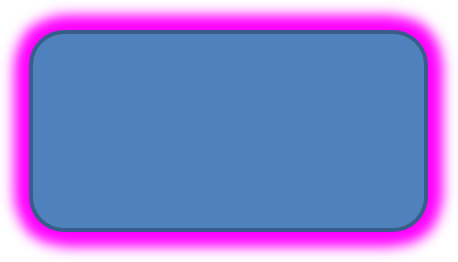
グローエフェクトの適用
Aspose.Slides for Python via Java で図形にグローエフェクトを適用するには、図形の周囲に柔らかく光るオーラを追加し、色やサイズなどのプロパティを調整します。このエフェクトは図形を際立たせ、プレゼンテーションに魅力的で目を引くビジュアル要素を加えます。最小限のコードで簡単に実装でき、スライド全体の外観を向上させます。
この Python コードは、グローエフェクト をシェイプに適用する方法を示しています。
import jpime
import asposeslides

if not jpype.isJVMStarted():
    jpype.startJVM()

from asposeslides.api import Presentation, SaveFormat, ShapeType
from java.awt import Color

presentation = Presentation()
try:
    slide = presentation.getSlides().get_Item(0)

    shape = slide.getShapes().addAutoShape(ShapeType.RoundCornerRectangle, 20, 20, 200, 100)
    shape.getEffectFormat().enableGlowEffect()
    shape.getEffectFormat().getGlowEffect().getColor().setColor(Color.MAGENTA)
    shape.getEffectFormat().getGlowEffect().setRadius(15)

    presentation.save("glow_effect.pptx", SaveFormat.Pptx)
finally:
    presentation.dispose()
ソフトエッジエフェクトの適用
Aspose.Slides for Python via Java でソフトエッジエフェクトを適用するには、図形のエッジ周辺に滑らかでぼやけた遷移を作り出せます。このエフェクトは、より控えめで洗練された外観を加え、柔らかく優しい外観が必要なデザインに最適です。半径などのパラメータを簡単に調整して、プレゼンテーション内のさまざまな図形に目的の効果を実現できます。
この Python コードは、ソフトエッジエフェクト をシェイプに適用する方法を示しています。
import jpype
import asposeslides

if not jpype.isJVMStarted():
    jpype.startJVM()

from asposeslides.api import Presentation, SaveFormat, ShapeType

presentation = Presentation()
try:
    slide = presentation.getSlides().get_Item(0)

    shape = slide.getShapes().addAutoShape(ShapeType.RoundCornerRectangle, 20, 20, 200, 150)
    shape.getEffectFormat().enableSoftEdgeEffect()
    shape.getEffectFormat().getSoftEdgeEffect().setRadius(8)

    presentation.save("soft_edges_effect.pptx", SaveFormat.Pptx)
finally:
    presentation.dispose()

よくある質問
同じシェイプに複数のエフェクトを適用できますか?
はい、影、反射、グローなどの異なるエフェクトを単一のシェイプに組み合わせて、よりダイナミックな外観を作成できます。
どのシェイプにエフェクトを適用できますか?
オートシェイプ、チャート、テーブル、画像、SmartArt オブジェクト、OLE オブジェクトなど、さまざまなシェイプにエフェクトを適用できます。
グループ化されたシェイプにエフェクトを適用できますか?
はい、グループ化されたシェイプにエフェクトを適用できます。エフェクトはグループ全体に適用されます。