
在演示文稿中使用 Python 管理连接器
概述
连接线是一种可以在任一形状移动时仍保持附着到两个形状的线。它的两端连接到连接点,在 PowerPoint 中表现为绿色圆点。某些弯曲和曲线连接线还会暴露调整点,表现为橙色圆点,用于控制各个连接线段的位置。
Aspose.Slides 通过 IConnector 接口表示连接线。您可以创建它们、将两端附着到形状、选择连接点、重新路由,并修改具有调整点的连接线的几何形状。
连接器类型
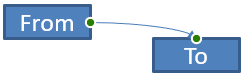
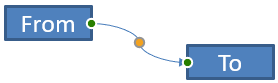
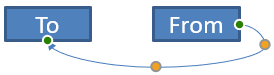
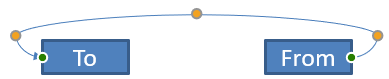
ShapeType 枚举包含直线、弯曲和曲线连接器预设。下表显示了可用的连接器几何形状以及每个预设定义的调整点数量。
| 连接器 | 图片 | 调整点数量 |
|---|---|---|
ShapeType.LINE |
 |
0 |
ShapeType.STRAIGHT_CONNECTOR1 |
 |
0 |
ShapeType.BENT_CONNECTOR2 |
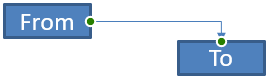 |
0 |
ShapeType.BENT_CONNECTOR3 |
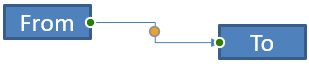 |
1 |
ShapeType.BENT_CONNECTOR4 |
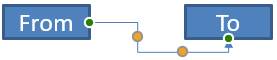 |
2 |
ShapeType.BENT_CONNECTOR5 |
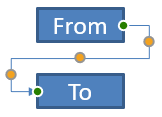 |
3 |
ShapeType.CURVED_CONNECTOR2 |
 |
0 |
ShapeType.CURVED_CONNECTOR3 |
 |
1 |
ShapeType.CURVED_CONNECTOR4 |
 |
2 |
ShapeType.CURVED_CONNECTOR5 |
 |
3 |
调整点的数量和含义是所选连接器预设的一部分。不要假设两种不同的连接器类型会暴露相同的集合布局。
连接两个形状
使用 IShapeCollection.add_connector 添加连接器,并为其分配 start_shape_connected_to 和 end_shape_connected_to 属性。两端都附着后,IConnector.reroute 会在形状之间选择一条短路径。
下面的示例使用弯曲连接器将椭圆和矩形连接起来:
import aspose.slides as slides

with slides.Presentation() as presentation:
    slide = presentation.slides[0]

    ellipse = slide.shapes.add_auto_shape(slides.ShapeType.ELLIPSE, 40, 80, 120, 80)
    rectangle = slide.shapes.add_auto_shape(slides.ShapeType.RECTANGLE, 320, 240, 140, 80)
    connector = slide.shapes.add_connector(slides.ShapeType.BENT_CONNECTOR2, 0, 0, 10, 10)

    connector.start_shape_connected_to = ellipse
    connector.end_shape_connected_to = rectangle
    connector.reroute()

    presentation.save("connected-shapes.pptx", slides.export.SaveFormat.PPTX)
警告
调用reroute 可能会更改 start_shape_connection_site_index 和 end_shape_connection_site_index 的值。如果这些站点必须保持固定,请在重新路由后分配特定的连接点。
选择连接点
每个可连接的形状通过 connection_site_count 报告其站点数量。将首选的零基站点索引分配给连接器两端之前,请先验证该索引;站点数量因形状几何而异。
下面的示例在椭圆上存在该站点时将连接器附着到特定站点:
import aspose.slides as slides

with slides.Presentation() as presentation:
    slide = presentation.slides[0]

    ellipse = slide.shapes.add_auto_shape(slides.ShapeType.ELLIPSE, 40, 80, 120, 80)
    rectangle = slide.shapes.add_auto_shape(slides.ShapeType.RECTANGLE, 320, 240, 140, 80)
    connector = slide.shapes.add_connector(slides.ShapeType.BENT_CONNECTOR3, 0, 0, 10, 10)

    connector.start_shape_connected_to = ellipse
    connector.end_shape_connected_to = rectangle

    preferred_site_index = 2
    if preferred_site_index < ellipse.connection_site_count:
        connector.start_shape_connection_site_index = preferred_site_index
    else:
        print(f"The ellipse has only {ellipse.connection_site_count} connection sites.")

    presentation.save("specific-connection-site.pptx", slides.export.SaveFormat.PPTX)
调整连接点
具有调整点的连接器通过 IGeometryShape.adjustments 暴露这些点。检查每个 IAdjustValue 并在更改其 raw_value 之前检查其 type。有关通用形状操作,请参见 Shape Manipulation。
调整点的数量、顺序、含义和有效值范围取决于连接器预设。type 属性为只读,而调整值可写。只读的 name 属性在连接器包含多个相同语义类型的调整时提供额外的标识。
绕过障碍物的路径
在下面的布局中,ShapeType.BENT_CONNECTOR5 连接器在两形状之间穿过第三个形状:
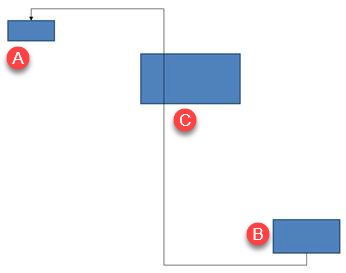
以下代码创建了受阻的连接器:
import aspose.slides as slides
import aspose.pydrawing as draw

with slides.Presentation() as presentation:
    slide = presentation.slides[0]

    slide.shapes.add_auto_shape(slides.ShapeType.RECTANGLE, 300, 150, 150, 75)
    source_shape = slide.shapes.add_auto_shape(slides.ShapeType.RECTANGLE, 500, 400, 100, 50)
    target_shape = slide.shapes.add_auto_shape(slides.ShapeType.RECTANGLE, 100, 100, 70, 30)
    connector = slide.shapes.add_connector(slides.ShapeType.BENT_CONNECTOR5, 20, 20, 400, 300)

    connector.line_format.end_arrowhead_style = slides.LineArrowheadStyle.TRIANGLE
    connector.line_format.fill_format.fill_type = slides.FillType.SOLID
    connector.line_format.fill_format.solid_fill_color.color = draw.Color.black
    connector.start_shape_connected_to = source_shape
    connector.end_shape_connected_to = target_shape
    connector.start_shape_connection_site_index = 2

    presentation.save("connector-obstruction.pptx", slides.export.SaveFormat.PPTX)
移动垂直弯曲会改变路径,使连接器绕过障碍物:
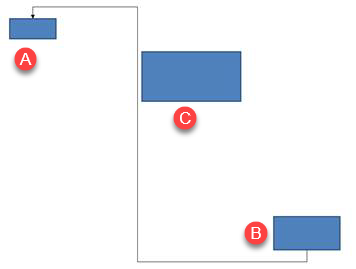
本例不假设集合索引 1 始终代表垂直弯曲,而是搜索 ShapeAdjustmentType.CONNECTOR_BEND_POSITION_Y,仅在出现预期语义类型时进行更改:
import aspose.slides as slides
import aspose.pydrawing as draw

with slides.Presentation() as presentation:
    slide = presentation.slides[0]

    slide.shapes.add_auto_shape(slides.ShapeType.RECTANGLE, 300, 150, 150, 75)
    source_shape = slide.shapes.add_auto_shape(slides.ShapeType.RECTANGLE, 500, 400, 100, 50)
    target_shape = slide.shapes.add_auto_shape(slides.ShapeType.RECTANGLE, 100, 100, 70, 30)
    connector = slide.shapes.add_connector(slides.ShapeType.BENT_CONNECTOR5, 20, 20, 400, 300)

    connector.line_format.end_arrowhead_style = slides.LineArrowheadStyle.TRIANGLE
    connector.line_format.fill_format.fill_type = slides.FillType.SOLID
    connector.line_format.fill_format.solid_fill_color.color = draw.Color.black
    connector.start_shape_connected_to = source_shape
    connector.end_shape_connected_to = target_shape
    connector.start_shape_connection_site_index = 2

    vertical_bend = None
    for adjustment_index in range(len(connector.adjustments)):
        adjustment = connector.adjustments[adjustment_index]
        print(f"{adjustment.name}: {adjustment.type}, raw value = {adjustment.raw_value}")
        if adjustment.type == slides.ShapeAdjustmentType.CONNECTOR_BEND_POSITION_Y:
            vertical_bend = adjustment
            break

    if vertical_bend is None:
        print("The connector does not expose a vertical bend adjustment.")
    else:
        vertical_bend.raw_value = 60000
        presentation.save("connector-obstruction-fixed.pptx", slides.export.SaveFormat.PPTX)
ShapeType.BENT_CONNECTOR5 包含两个 ShapeAdjustmentType.CONNECTOR_BEND_POSITION_X 调整和一个 ShapeAdjustmentType.CONNECTOR_BEND_POSITION_Y 调整。如果所需类型出现多次,请在选择之前检查 name 并结合该预设已知的几何信息。如果某个调整报告为 ShapeAdjustmentType.CUSTOM,则将其含义和范围视为特定预设,除非明确了解其约定,否则不要更改。
将调整值关联到连接器几何
对于弯曲连接器,调整值可用于估算各段的位置。这些计算特定于连接器预设:
ShapeType.BENT_CONNECTOR4通常暴露一个ShapeAdjustmentType.CONNECTOR_BEND_POSITION_X调整和一个ShapeAdjustmentType.CONNECTOR_BEND_POSITION_Y调整。- 对于这些弯曲位置,
raw_value / 100000产生示例中使用的连接器框宽度或高度的比例。 - 连接器框可以旋转或翻转,因此在将框坐标与幻灯片坐标比较之前必须进行坐标变换。
下面的示例首先使用 type 标识调整,然后进行处理。它们不将集合索引视为可移植标识符。
未旋转的连接器
初始布局包含两个文本形状,由 ShapeType.BENT_CONNECTOR4 连接:
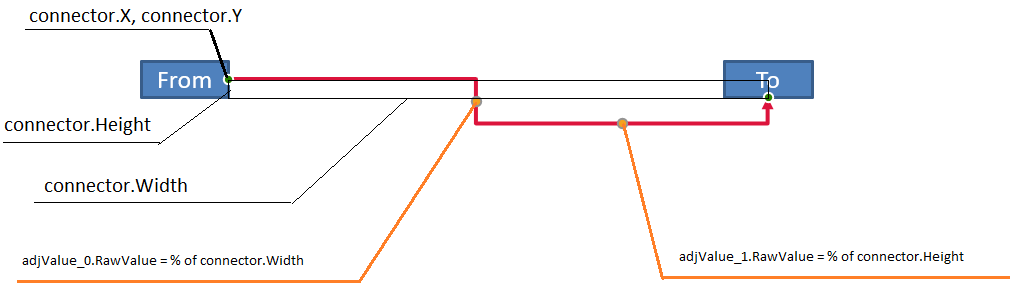
本例检查连接器并获取水平和垂直弯曲调整:
import aspose.slides as slides
import aspose.pydrawing as draw

with slides.Presentation() as presentation:
    slide = presentation.slides[0]

    source_shape = slide.shapes.add_auto_shape(slides.ShapeType.RECTANGLE, 100, 100, 60, 25)
    source_shape.text_frame.text = "From"
    target_shape = slide.shapes.add_auto_shape(slides.ShapeType.RECTANGLE, 500, 100, 60, 25)
    target_shape.text_frame.text = "To"
    connector = slide.shapes.add_connector(slides.ShapeType.BENT_CONNECTOR4, 20, 20, 400, 300)

    connector.line_format.end_arrowhead_style = slides.LineArrowheadStyle.TRIANGLE
    connector.line_format.fill_format.fill_type = slides.FillType.SOLID
    connector.line_format.fill_format.solid_fill_color.color = draw.Color.crimson
    connector.line_format.width = 3
    connector.start_shape_connected_to = source_shape
    connector.start_shape_connection_site_index = 3
    connector.end_shape_connected_to = target_shape
    connector.end_shape_connection_site_index = 2

    for adjustment_index in range(len(connector.adjustments)):
        adjustment = connector.adjustments[adjustment_index]
        print(f"{adjustment.name}: {adjustment.type}, raw value = {adjustment.raw_value}")
要更改两段弯曲,请定位每个预期类型并在找到两者后再修改值:
import aspose.slides as slides

with slides.Presentation() as presentation:
    slide = presentation.slides[0]

    source_shape = slide.shapes.add_auto_shape(slides.ShapeType.RECTANGLE, 100, 100, 60, 25)
    target_shape = slide.shapes.add_auto_shape(slides.ShapeType.RECTANGLE, 500, 100, 60, 25)
    connector = slide.shapes.add_connector(slides.ShapeType.BENT_CONNECTOR4, 20, 20, 400, 300)
    connector.start_shape_connected_to = source_shape
    connector.start_shape_connection_site_index = 3
    connector.end_shape_connected_to = target_shape
    connector.end_shape_connection_site_index = 2

    horizontal_bend = None
    vertical_bend = None
    for adjustment_index in range(len(connector.adjustments)):
        adjustment = connector.adjustments[adjustment_index]
        if adjustment.type == slides.ShapeAdjustmentType.CONNECTOR_BEND_POSITION_X:
            horizontal_bend = adjustment
        elif adjustment.type == slides.ShapeAdjustmentType.CONNECTOR_BEND_POSITION_Y:
            vertical_bend = adjustment

    if horizontal_bend is None or vertical_bend is None:
        print("The connector does not expose the expected bend adjustments.")
    else:
        horizontal_bend.raw_value += 20000
        vertical_bend.raw_value += 200000
        presentation.save("connector-adjusted.pptx", slides.export.SaveFormat.PPTX)
结果是水平和垂直段都已移动的连接器:

一旦确定语义类型,可将其值转换为连接器框坐标。本例在由两个弯曲调整控制的垂直段上绘制一个细矩形:
import aspose.slides as slides

with slides.Presentation() as presentation:
    slide = presentation.slides[0]

    source_shape = slide.shapes.add_auto_shape(slides.ShapeType.RECTANGLE, 100, 100, 60, 25)
    target_shape = slide.shapes.add_auto_shape(slides.ShapeType.RECTANGLE, 500, 100, 60, 25)
    connector = slide.shapes.add_connector(slides.ShapeType.BENT_CONNECTOR4, 20, 20, 400, 300)
    connector.start_shape_connected_to = source_shape
    connector.start_shape_connection_site_index = 3
    connector.end_shape_connected_to = target_shape
    connector.end_shape_connection_site_index = 2

    horizontal_bend = None
    vertical_bend = None
    for adjustment_index in range(len(connector.adjustments)):
        adjustment = connector.adjustments[adjustment_index]
        if adjustment.type == slides.ShapeAdjustmentType.CONNECTOR_BEND_POSITION_X:
            horizontal_bend = adjustment
        elif adjustment.type == slides.ShapeAdjustmentType.CONNECTOR_BEND_POSITION_Y:
            vertical_bend = adjustment

    if horizontal_bend is None or vertical_bend is None:
        print("The connector does not expose the expected bend adjustments.")
    else:
        x = connector.x + connector.width * horizontal_bend.raw_value / 100000
        y = connector.y
        height = connector.height * vertical_bend.raw_value / 100000
        slide.shapes.add_auto_shape(slides.ShapeType.RECTANGLE, x, y, 1, height)
        presentation.save("connector-segment-guide.pptx", slides.export.SaveFormat.PPTX)
该引导形状标记了计算得到的段落:

旋转或翻转的连接器
当相同的几何形状竖直放置时,其 frame、flip_h 和 flip_v 值会影响从连接器框坐标到幻灯片坐标的转换。
本例创建并调整竖直方向的连接器:
import aspose.slides as slides
import aspose.pydrawing as draw

with slides.Presentation() as presentation:
    slide = presentation.slides[0]

    source_shape = slide.shapes.add_auto_shape(slides.ShapeType.RECTANGLE, 100, 100, 60, 25)
    source_shape.text_frame.text = "From"
    target_shape = slide.shapes.add_auto_shape(slides.ShapeType.RECTANGLE, 100, 400, 60, 25)
    target_shape.text_frame.text = "To 1"
    connector = slide.shapes.add_connector(slides.ShapeType.BENT_CONNECTOR4, 20, 20, 400, 300)

    connector.line_format.end_arrowhead_style = slides.LineArrowheadStyle.TRIANGLE
    connector.line_format.fill_format.fill_type = slides.FillType.SOLID
    connector.line_format.fill_format.solid_fill_color.color = draw.Color.medium_aquamarine
    connector.line_format.width = 3
    connector.start_shape_connected_to = source_shape
    connector.start_shape_connection_site_index = 2
    connector.end_shape_connected_to = target_shape
    connector.end_shape_connection_site_index = 3

    for adjustment_index in range(len(connector.adjustments)):
        adjustment = connector.adjustments[adjustment_index]
        if adjustment.type == slides.ShapeAdjustmentType.CONNECTOR_BEND_POSITION_X:
            adjustment.raw_value += 20000
        elif adjustment.type == slides.ShapeAdjustmentType.CONNECTOR_BEND_POSITION_Y:
            adjustment.raw_value += 200000

    presentation.save("vertical-connector-adjusted.pptx", slides.export.SaveFormat.PPTX)
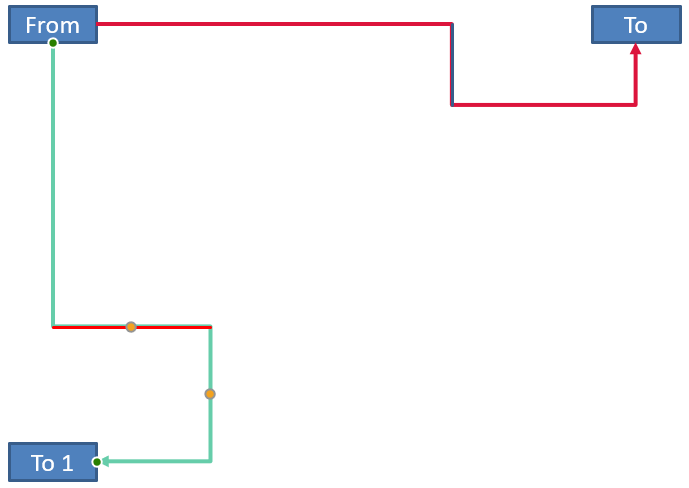
调整后的连接器垂直位于两个形状之间:
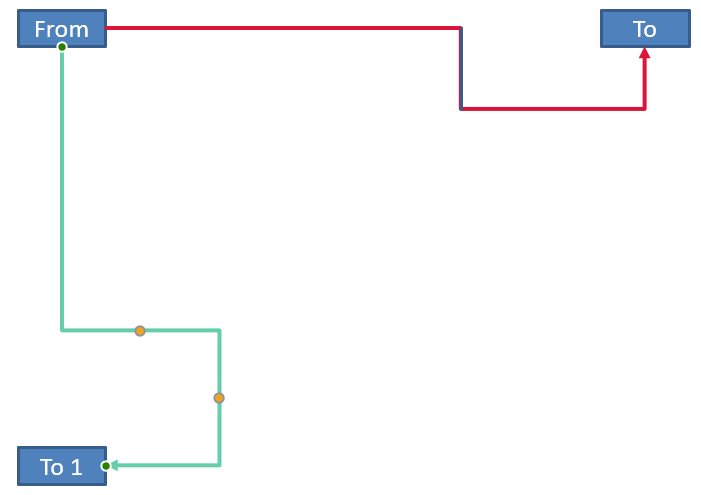
对于任意旋转角度 alpha,将连接器框点 (x, y) 绕框中心 (x0, y0) 旋转:
X = (x - x0) * cos(alpha) - (y - y0) * sin(alpha) + x0
Y = (x - x0) * sin(alpha) + (y - y0) * cos(alpha) + y0
下面的代码处理本例使用的 90 度方向,并在相应的连接器段上绘制红色引导线:
import aspose.slides as slides
import aspose.pydrawing as draw

with slides.Presentation() as presentation:
    slide = presentation.slides[0]

    source_shape = slide.shapes.add_auto_shape(slides.ShapeType.RECTANGLE, 100, 100, 60, 25)
    target_shape = slide.shapes.add_auto_shape(slides.ShapeType.RECTANGLE, 100, 400, 60, 25)
    connector = slide.shapes.add_connector(slides.ShapeType.BENT_CONNECTOR4, 20, 20, 400, 300)
    connector.start_shape_connected_to = source_shape
    connector.start_shape_connection_site_index = 2
    connector.end_shape_connected_to = target_shape
    connector.end_shape_connection_site_index = 3

    horizontal_bend = None
    vertical_bend = None
    for adjustment_index in range(len(connector.adjustments)):
        adjustment = connector.adjustments[adjustment_index]
        if adjustment.type == slides.ShapeAdjustmentType.CONNECTOR_BEND_POSITION_X:
            horizontal_bend = adjustment
        elif adjustment.type == slides.ShapeAdjustmentType.CONNECTOR_BEND_POSITION_Y:
            vertical_bend = adjustment

    if horizontal_bend is None or vertical_bend is None:
        print("The connector does not expose the expected bend adjustments.")
    else:
        horizontal_bend.raw_value += 20000
        vertical_bend.raw_value += 200000

        x = connector.x
        y = connector.y
        if connector.frame.flip_h == slides.NullableBool.TRUE:
            x += connector.width
        if connector.frame.flip_v == slides.NullableBool.TRUE:
            y += connector.height

        x += connector.width * horizontal_bend.raw_value / 100000
        rotated_x = connector.frame.center_x - y + connector.frame.center_y
        rotated_y = x - connector.frame.center_x + connector.frame.center_y
        segment_width = connector.height * vertical_bend.raw_value / 100000
        guide = slide.shapes.add_auto_shape(slides.ShapeType.RECTANGLE, rotated_x, rotated_y, segment_width, 1)
        guide.line_format.fill_format.fill_type = slides.FillType.SOLID
        guide.line_format.fill_format.solid_fill_color.color = draw.Color.red

        presentation.save("rotated-connector-segment-guide.pptx", slides.export.SaveFormat.PPTX)
红色引导线在坐标变换后标记了计算得到的段落:
这些公式描述了示例中使用的预设,而非通用的连接器模型。在将相同计算应用于不同预设之前,请验证调整类型、框方向以及数值范围。
查找连接器方向角
直线连接器的方向可以根据其宽度和高度计算,并考虑水平和垂直翻转。下面的示例报告幻灯片坐标系中正水平轴的顺时针角度:
import math
import aspose.slides as slides

with slides.Presentation() as presentation:
    slide = presentation.slides[0]
    connector = slide.shapes.add_connector(slides.ShapeType.STRAIGHT_CONNECTOR1, 100, 100, 200, 100)

    flip_h = connector.frame.flip_h == slides.NullableBool.TRUE
    flip_v = connector.frame.flip_v == slides.NullableBool.TRUE
    delta_x = connector.width * (-1 if flip_h else 1)
    delta_y = connector.height * (-1 if flip_v else 1)
    angle = math.atan2(delta_y, delta_x) * 180.0 / math.pi

    if angle < 0:
        angle += 360

    print(f"Connector direction: {angle:.2f} degrees")
常见问题
如何判断连接器是否能够附着到形状上?
检查形状的 connection_site_count。正数计数表示该形状提供连接点。将站点索引分配给任一连接器端之前,请先验证所选索引。
我可以通过集合索引识别连接器的调整吗?
索引仅在已知的连接器预设和集合布局下才有意义。在修改值之前,请检查 IAdjustValue.type,并在同一语义类型出现多次时使用 IAdjustValue.name 作为补充信息。
当已连接的形状被删除时会发生什么?
相应的连接器端会被分离。连接器仍保留在幻灯片上,您可以将其删除、作为自由线定位,或重新附着到其他形状。
在复制幻灯片时连接器的绑定会被保留吗?
当与幻灯片一起复制已连接的形状时,绑定通常会被保留。如果仅复制了连接器而未复制其目标形状,则必须重新附着受影响的端。