
在 Python 中为 PowerPoint 演示文稿添加数学公式
概述
PowerPoint 将公式存储为 Office Math Markup Language(OMML)。使用 Aspose.Slides for Python via .NET,您可以以编程方式创建相同类型的数学内容:分数、根式、函数、极限、N 元运算符、矩阵、数组以及格式化的数学块。
在 PowerPoint 中,用户通常通过 插入 > 公式 添加公式:
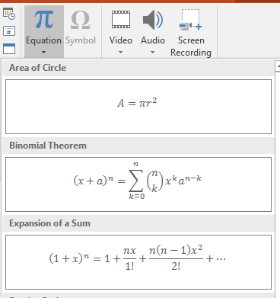
结果是在幻灯片上可编辑的数学文本:

Aspose.Slides 通过三个主要对象构建该数学文本:
- 使用 add_math_shape 创建的数学形状,是包含公式的形状。
- MathPortion 在形状文本框中存储数学内容。
- MathParagraph 包含一个或多个 MathBlock 对象。
下面的大多数示例使用 MathematicalText 和来自 IMathElement 的流式方法,以保持代码简短且易读。
有关 MathML 导出场景,请参阅 Export Math Equations from Presentations in Python via .NET。
创建公式
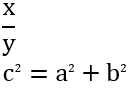
此示例创建一个数学形状并添加勾股定理:
import aspose.slides as slides
import aspose.slides.mathtext as math

with slides.Presentation() as presentation:
    slide = presentation.slides[0]

    math_shape = slide.shapes.add_math_shape(20, 20, 700, 120)
    math_paragraph = math_shape.text_frame.paragraphs[0].portions[0].math_paragraph

    equation = (
        math.MathematicalText("c")
        .set_superscript("2")
        .join("=")
        .join(math.MathematicalText("a").set_superscript("2"))
        .join("+")
        .join(math.MathematicalText("b").set_superscript("2"))
    )

    math_paragraph.add(equation)

    presentation.save("pythagorean-theorem.pptx", slides.export.SaveFormat.PPTX)
add_math_shape 创建一个已经包含数学段落的形状。访问第一个 MathPortion,获取其 MathParagraph,并向其添加数学块或数学元素。
添加分数
使用 divide 创建分数。您可以使用 MathFractionTypes 选择分数样式。

import aspose.slides as slides
import aspose.slides.mathtext as math

with slides.Presentation() as presentation:
    slide = presentation.slides[0]

    math_shape = slide.shapes.add_math_shape(20, 20, 700, 100)
    math_paragraph = math_shape.text_frame.paragraphs[0].portions[0].math_paragraph

    fraction = math.MathematicalText("1").divide("x", math.MathFractionTypes.SKEWED)

    math_paragraph.add(math.MathBlock(fraction))

    presentation.save("fraction.pptx", slides.export.SaveFormat.PPTX)
要创建堆叠式分数,请使用 MathFractionTypes.BAR:
stacked_fraction = math.MathematicalText("x + 1").divide("y - 1", math.MathFractionTypes.BAR)
添加根式
使用 radical 创建平方根、立方根或其他根。当前元素成为基底,参数成为指数。

import aspose.slides as slides
import aspose.slides.mathtext as math

with slides.Presentation() as presentation:
    slide = presentation.slides[0]

    math_shape = slide.shapes.add_math_shape(20, 20, 700, 100)
    math_paragraph = math_shape.text_frame.paragraphs[0].portions[0].math_paragraph

    radical = math.MathematicalText("x").radical("n")

    math_paragraph.add(math.MathBlock(radical))

    presentation.save("radical.pptx", slides.export.SaveFormat.PPTX)
添加函数和极限
使用 as_argument_of_function 或 function 来处理诸如 sin(x)、log(x) 或自定义函数名的函数。对于极限,将 lim 放入 MathLimit 或使用 set_lower_limit。

import aspose.slides as slides
import aspose.slides.mathtext as math

with slides.Presentation() as presentation:
    slide = presentation.slides[0]

    math_shape = slide.shapes.add_math_shape(20, 20, 700, 100)
    math_paragraph = math_shape.text_frame.paragraphs[0].portions[0].math_paragraph

    limit = (
        math.MathematicalText("lim")
        .set_lower_limit("x\u2192\u221E")
        .function("x")
    )

    math_paragraph.add(math.MathBlock(limit))

    presentation.save("functions-and-limits.pptx", slides.export.SaveFormat.PPTX)
对于自定义函数名,请将函数名设为当前元素:
custom_function = math.MathematicalText("f").function("x + 1")
添加 N 元运算符和积分
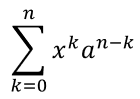
使用 nary 进行求和、并集、交集以及其他大型运算符。使用 integral 处理积分。这两种方法都可以设置上下限。
import aspose.slides as slides
import aspose.slides.mathtext as math

with slides.Presentation() as presentation:
    slide = presentation.slides[0]

    math_shape = slide.shapes.add_math_shape(20, 20, 700, 120)
    math_paragraph = math_shape.text_frame.paragraphs[0].portions[0].math_paragraph

    summation_base = (
        math.MathematicalText("x")
        .set_superscript("k")
        .join(math.MathematicalText("a").set_superscript("n-k"))
    )

    summation = summation_base.nary(math.MathNaryOperatorTypes.SUMMATION, "k=0", "n")

    math_paragraph.add(math.MathBlock(summation))

    presentation.save("nary-operators.pptx", slides.export.SaveFormat.PPTX)
N 元运算符用于带可选上下限的大型运算符。诸如 +、-、= 等简单运算符通常作为 MathematicalText 添加并拼接到表达式中。
对于积分,请使用 integral:
integral_base = math.MathematicalText("x").join(math.MathematicalText("dx").to_box())
integral = integral_base.integral(math.MathIntegralTypes.SIMPLE, "0", "1")
添加矩阵
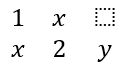
使用 MathMatrix 来定义行和列。矩阵默认不包含括号,如需圆括号、方括号或大括号,请自行包裹矩阵。
import aspose.slides as slides
import aspose.slides.mathtext as math

with slides.Presentation() as presentation:
    slide = presentation.slides[0]

    math_shape = slide.shapes.add_math_shape(20, 20, 700, 120)
    math_paragraph = math_shape.text_frame.paragraphs[0].portions[0].math_paragraph

    matrix = math.MathMatrix(2, 3)
    matrix[0, 0] = math.MathematicalText("1")
    matrix[0, 1] = math.MathematicalText("x")
    matrix[1, 0] = math.MathematicalText("x")
    matrix[1, 1] = math.MathematicalText("2")
    matrix[1, 2] = math.MathematicalText("y")

    math_paragraph.add(math.MathBlock(matrix))

    presentation.save("matrix.pptx", slides.export.SaveFormat.PPTX)
添加方程数组
当需要对齐的方程或垂直堆叠的表达式时,使用 to_math_array。

import aspose.slides as slides
import aspose.slides.mathtext as math

with slides.Presentation() as presentation:
    slide = presentation.slides[0]

    math_shape = slide.shapes.add_math_shape(20, 20, 700, 140)
    math_paragraph = math_shape.text_frame.paragraphs[0].portions[0].math_paragraph

    equation_array = (
        math.MathematicalText("x")
        .join("y")
        .to_math_array()
    )

    math_paragraph.add(math.MathBlock(equation_array))

    presentation.save("equation-array.pptx", slides.export.SaveFormat.PPTX)
添加三角函数
当参数是当前元素且函数名已知时,使用 as_argument_of_function。

import aspose.slides as slides
import aspose.slides.mathtext as math

with slides.Presentation() as presentation:
    slide = presentation.slides[0]

    math_shape = slide.shapes.add_math_shape(20, 20, 700, 100)
    math_paragraph = math_shape.text_frame.paragraphs[0].portions[0].math_paragraph

    cosine = math.MathematicalText("2x").as_argument_of_function(
        math.MathFunctionsOfOneArgument.COS
    )

    math_paragraph.add(math.MathBlock(cosine))

    presentation.save("trigonometric-function.pptx", slides.export.SaveFormat.PPTX)
添加下标和上标
使用下标和上标辅助函数来处理指数和幂。当下标必须出现在基底左侧时,使用 set_sub_superscript_on_the_left。

import aspose.slides as slides
import aspose.slides.mathtext as math

with slides.Presentation() as presentation:
    slide = presentation.slides[0]

    math_shape = slide.shapes.add_math_shape(20, 20, 700, 100)
    math_paragraph = math_shape.text_frame.paragraphs[0].portions[0].math_paragraph

    scripts = math.MathematicalText("Y").set_sub_superscript_on_the_left("1", "n")

    math_paragraph.add(math.MathBlock(scripts))

    presentation.save("subscript-superscript.pptx", slides.export.SaveFormat.PPTX)
添加分隔符
使用 enclose 将表达式放入分隔符中。对于包含多个元素的分隔表达式,还可以设置分隔字符。

import aspose.slides as slides
import aspose.slides.mathtext as math

with slides.Presentation() as presentation:
    slide = presentation.slides[0]

    math_shape = slide.shapes.add_math_shape(20, 20, 700, 100)
    math_paragraph = math_shape.text_frame.paragraphs[0].portions[0].math_paragraph

    delimiter = (
        math.MathematicalText("x")
        .join("y")
        .join("z")
        .enclose("<", ">")
    )
    delimiter.separator_character = "|"

    math_paragraph.add(math.MathBlock(delimiter))

    presentation.save("delimiters.pptx", slides.export.SaveFormat.PPTX)
添加边框框
当公式本身需要加框时,使用 to_border_box。
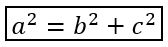
import aspose.slides as slides
import aspose.slides.mathtext as math

with slides.Presentation() as presentation:
    slide = presentation.slides[0]

    math_shape = slide.shapes.add_math_shape(20, 20, 700, 100)
    math_paragraph = math_shape.text_frame.paragraphs[0].portions[0].math_paragraph

    boxed_equation = (
        math.MathematicalText("a")
        .set_superscript("2")
        .join("=")
        .join(math.MathematicalText("b").set_superscript("2"))
        .join("+")
        .join(math.MathematicalText("c").set_superscript("2"))
        .to_border_box()
    )

    math_paragraph.add(math.MathBlock(boxed_equation))

    presentation.save("border-box.pptx", slides.export.SaveFormat.PPTX)
分组项
使用 group 在表达式上方或下方放置分组字符。添加上下限来标记分组项。

import aspose.slides as slides
import aspose.slides.mathtext as math

with slides.Presentation() as presentation:
    slide = presentation.slides[0]

    math_shape = slide.shapes.add_math_shape(20, 20, 700, 120)
    math_paragraph = math_shape.text_frame.paragraphs[0].portions[0].math_paragraph

    grouped = (
        math.MathematicalText("x + y")
        .group(chr(0x23DF), math.MathTopBotPositions.BOTTOM, math.MathTopBotPositions.TOP)
        .set_lower_limit("any text")
    )

    math_paragraph.add(math.MathBlock(grouped))

    presentation.save("grouped-terms.pptx", slides.export.SaveFormat.PPTX)
格式化数学元素
仅在有助于公式清晰时使用格式化助手。例如,overbar 在数学元素上方加一条横线。

import aspose.slides as slides
import aspose.slides.mathtext as math

with slides.Presentation() as presentation:
    slide = presentation.slides[0]

    math_shape = slide.shapes.add_math_shape(20, 20, 700, 100)
    math_paragraph = math_shape.text_frame.paragraphs[0].portions[0].math_paragraph

    overbar = math.MathematicalText("ABC").overbar()

    math_paragraph.add(math.MathBlock(overbar))

    presentation.save("overbar.pptx", slides.export.SaveFormat.PPTX)
快速参考
| 任务 | 主要 API |
|---|---|
| 创建数学文本 | MathematicalText |
| 组合元素 | IMathElement.join |
| 创建分数 | IMathElement.divide |
| 添加上标或下标 | set_superscript, set_subscript |
| 添加函数 | function, as_argument_of_function |
| 添加根式 | radical |
| 添加极限 | set_lower_limit, set_upper_limit |
| 添加左侧脚本 | set_sub_superscript_on_the_left |
| 添加求和和积分 | nary, integral |
| 添加矩阵 | MathMatrix |
| 添加方程数组 | to_math_array |
| 添加分隔符 | enclose |
| 添加横线和边框 | overbar, to_border_box |
| 分组项 | group |
常见问题
我可以编辑现有的 PowerPoint 公式吗?
可以。打开演示文稿,找到包含 MathPortion 的形状,获取其 MathParagraph,并更新该段落中的数学块。
公式是否以可编辑的 PowerPoint 数学形式保存?
是的。保存为 PPTX 时,Aspose.Slides 会将公式写入为可编辑的 Office 数学内容。
我可以将公式导出为 LaTeX 吗?
可以。通过其 MathPortion 获取公式的 MathParagraph,然后调用 MathParagraph.to_latex 直接导出。完整示例请参阅 Export Math Equations from Presentations in Python via .NET。