
Přidat matematické rovnice do prezentací PowerPoint v Pythonu
Přehled
PowerPoint ukládá rovnice jako Office Math Markup Language (OMML). S Aspose.Slides pro Python přes .NET můžete programově vytvářet stejný typ matematického obsahu: zlomky, odmocniny, funkce, limity, N-ární operátory, matice, pole a formátované matematické bloky.
V PowerPointu uživatelé obvykle přidávají rovnice pomocí Vložení > Rovnice:
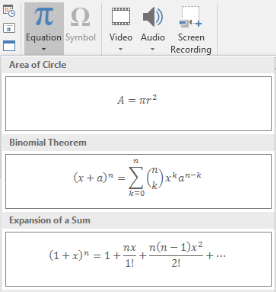
Výsledkem je editovatelný matematický text na snímku:

Aspose.Slides vytváří tento matematický text pomocí tří hlavních objektů:
- Matematický tvar, vytvořený pomocí add_math_shape, je tvar, který obsahuje rovnici.
- MathPortion ukládá matematický obsah do textového rámce tvaru.
- MathParagraph obsahuje jeden nebo více objektů MathBlock.
Většina níže uvedených příkladů používá MathematicalText a plynulé metody z IMathElement k tomu, aby byl kód stručný a čitelný.
Pro scénáře exportu MathML, viz Export rovnic z prezentací v Pythonu přes .NET.
Vytvořit rovnici
Tento příklad vytvoří matematický tvar a přidá Pythagorovu větu:
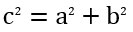
import aspose.slides as slides
import aspose.slides.mathtext as math

with slides.Presentation() as presentation:
    slide = presentation.slides[0]

    math_shape = slide.shapes.add_math_shape(20, 20, 700, 120)
    math_paragraph = math_shape.text_frame.paragraphs[0].portions[0].math_paragraph

    equation = (
        math.MathematicalText("c")
        .set_superscript("2")
        .join("=")
        .join(math.MathematicalText("a").set_superscript("2"))
        .join("+")
        .join(math.MathematicalText("b").set_superscript("2"))
    )

    math_paragraph.add(equation)

    presentation.save("pythagorean-theorem.pptx", slides.export.SaveFormat.PPTX)
add_math_shape vytváří tvar, který již obsahuje matematický odstavec. Získejte první MathPortion, jeho MathParagraph a přidejte do něj matematické bloky nebo matematické elementy.
Přidat zlomky
Použijte divide k vytvoření zlomku. Styl zlomku můžete zvolit pomocí MathFractionTypes.

import aspose.slides as slides
import aspose.slides.mathtext as math

with slides.Presentation() as presentation:
    slide = presentation.slides[0]

    math_shape = slide.shapes.add_math_shape(20, 20, 700, 100)
    math_paragraph = math_shape.text_frame.paragraphs[0].portions[0].math_paragraph

    fraction = math.MathematicalText("1").divide("x", math.MathFractionTypes.SKEWED)

    math_paragraph.add(math.MathBlock(fraction))

    presentation.save("fraction.pptx", slides.export.SaveFormat.PPTX)
Pro svislý (stacked) zlomek použijte MathFractionTypes.BAR:
stacked_fraction = math.MathematicalText("x + 1").divide("y - 1", math.MathFractionTypes.BAR)
Přidat odmocniny
Použijte radical k vytvoření druhé odmocniny, třetí odmocniny nebo jiné odmocniny. Aktuální element se stane základem a argument se stane stupněm.

import aspose.slides as slides
import aspose.slides.mathtext as math

with slides.Presentation() as presentation:
    slide = presentation.slides[0]

    math_shape = slide.shapes.add_math_shape(20, 20, 700, 100)
    math_paragraph = math_shape.text_frame.paragraphs[0].portions[0].math_paragraph

    radical = math.MathematicalText("x").radical("n")

    math_paragraph.add(math.MathBlock(radical))

    presentation.save("radical.pptx", slides.export.SaveFormat.PPTX)
Přidat funkce a limity
Použijte as_argument_of_function nebo function pro funkce jako sin(x), log(x) nebo vlastní názvy funkcí. Pro limity vložte lim do MathLimit nebo použijte set_lower_limit.

import aspose.slides as slides
import aspose.slides.mathtext as math

with slides.Presentation() as presentation:
    slide = presentation.slides[0]

    math_shape = slide.shapes.add_math_shape(20, 20, 700, 100)
    math_paragraph = math_shape.text_frame.paragraphs[0].portions[0].math_paragraph

    limit = (
        math.MathematicalText("lim")
        .set_lower_limit("x\u2192\u221E")
        .function("x")
    )

    math_paragraph.add(math.MathBlock(limit))

    presentation.save("functions-and-limits.pptx", slides.export.SaveFormat.PPTX)
Pro vlastní název funkce udělejte název funkce aktuálním elementem:
custom_function = math.MathematicalText("f").function("x + 1")
Přidat N-ární operátory a integrály
Použijte nary pro součty, sjednocení, průniky a další velké operátory. Použijte integral pro integrály. Obě metody umožňují nastavit spodní a horní limity.
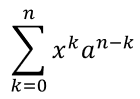
import aspose.slides as slides
import aspose.slides.mathtext as math

with slides.Presentation() as presentation:
    slide = presentation.slides[0]

    math_shape = slide.shapes.add_math_shape(20, 20, 700, 120)
    math_paragraph = math_shape.text_frame.paragraphs[0].portions[0].math_paragraph

    summation_base = (
        math.MathematicalText("x")
        .set_superscript("k")
        .join(math.MathematicalText("a").set_superscript("n-k"))
    )

    summation = summation_base.nary(math.MathNaryOperatorTypes.SUMMATION, "k=0", "n")

    math_paragraph.add(math.MathBlock(summation))

    presentation.save("nary-operators.pptx", slides.export.SaveFormat.PPTX)
N-ární operátory slouží k velkým operátorům s volitelnými limity. Jednoduché operátory jako +, - a = se obvykle přidávají jako MathematicalText a spojují se do výrazu.
Pro integrál použijte integral:
integral_base = math.MathematicalText("x").join(math.MathematicalText("dx").to_box())
integral = integral_base.integral(math.MathIntegralTypes.SIMPLE, "0", "1")
Přidat matice
Použijte MathMatrix k definování řádků a sloupců. Matice ve výchozím nastavení neobsahují závorky, takže je obalte, pokud potřebujete závorky, hranaté závorky nebo složené závorky.
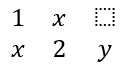
import aspose.slides as slides
import aspose.slides.mathtext as math

with slides.Presentation() as presentation:
    slide = presentation.slides[0]

    math_shape = slide.shapes.add_math_shape(20, 20, 700, 120)
    math_paragraph = math_shape.text_frame.paragraphs[0].portions[0].math_paragraph

    matrix = math.MathMatrix(2, 3)
    matrix[0, 0] = math.MathematicalText("1")
    matrix[0, 1] = math.MathematicalText("x")
    matrix[1, 0] = math.MathematicalText("x")
    matrix[1, 1] = math.MathematicalText("2")
    matrix[1, 2] = math.MathematicalText("y")

    math_paragraph.add(math.MathBlock(matrix))

    presentation.save("matrix.pptx", slides.export.SaveFormat.PPTX)
Přidat pole rovnic
Použijte to_math_array když potřebujete zarovnané rovnice nebo svislé seskupení výrazů.

import aspose.slides as slides
import aspose.slides.mathtext as math

with slides.Presentation() as presentation:
    slide = presentation.slides[0]

    math_shape = slide.shapes.add_math_shape(20, 20, 700, 140)
    math_paragraph = math_shape.text_frame.paragraphs[0].portions[0].math_paragraph

    equation_array = (
        math.MathematicalText("x")
        .join("y")
        .to_math_array()
    )

    math_paragraph.add(math.MathBlock(equation_array))

    presentation.save("equation-array.pptx", slides.export.SaveFormat.PPTX)
Přidat trigonometrické funkce
Použijte as_argument_of_function když je argument aktuálním elementem a název funkce je známý.

import aspose.slides as slides
import aspose.slides.mathtext as math

with slides.Presentation() as presentation:
    slide = presentation.slides[0]

    math_shape = slide.shapes.add_math_shape(20, 20, 700, 100)
    math_paragraph = math_shape.text_frame.paragraphs[0].portions[0].math_paragraph

    cosine = math.MathematicalText("2x").as_argument_of_function(
        math.MathFunctionsOfOneArgument.COS
    )

    math_paragraph.add(math.MathBlock(cosine))

    presentation.save("trigonometric-function.pptx", slides.export.SaveFormat.PPTX)
Přidat dolní a horní indexy
Použijte pomocníky pro dolní a horní indexy pro indexy a mocniny. Když se indexy musí zobrazit na levé straně základu, použijte set_sub_superscript_on_the_left.

import aspose.slides as slides
import aspose.slides.mathtext as math

with slides.Presentation() as presentation:
    slide = presentation.slides[0]

    math_shape = slide.shapes.add_math_shape(20, 20, 700, 100)
    math_paragraph = math_shape.text_frame.paragraphs[0].portions[0].math_paragraph

    scripts = math.MathematicalText("Y").set_sub_superscript_on_the_left("1", "n")

    math_paragraph.add(math.MathBlock(scripts))

    presentation.save("subscript-superscript.pptx", slides.export.SaveFormat.PPTX)
Přidat ohraničovače
Použijte enclose k vložení výrazu do ohraničovačů. Můžete také nastavit znak oddělovače pro výrazy v ohraničovačích, které obsahují několik elementů.

import aspose.slides as slides
import aspose.slides.mathtext as math

with slides.Presentation() as presentation:
    slide = presentation.slides[0]

    math_shape = slide.shapes.add_math_shape(20, 20, 700, 100)
    math_paragraph = math_shape.text_frame.paragraphs[0].portions[0].math_paragraph

    delimiter = (
        math.MathematicalText("x")
        .join("y")
        .join("z")
        .enclose("<", ">")
    )
    delimiter.separator_character = "|"

    math_paragraph.add(math.MathBlock(delimiter))

    presentation.save("delimiters.pptx", slides.export.SaveFormat.PPTX)
Přidat rámečkový box
Použijte to_border_box když má být samotná rovnice orámována.
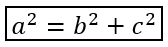
import aspose.slides as slides
import aspose.slides.mathtext as math

with slides.Presentation() as presentation:
    slide = presentation.slides[0]

    math_shape = slide.shapes.add_math_shape(20, 20, 700, 100)
    math_paragraph = math_shape.text_frame.paragraphs[0].portions[0].math_paragraph

    boxed_equation = (
        math.MathematicalText("a")
        .set_superscript("2")
        .join("=")
        .join(math.MathematicalText("b").set_superscript("2"))
        .join("+")
        .join(math.MathematicalText("c").set_superscript("2"))
        .to_border_box()
    )

    math_paragraph.add(math.MathBlock(boxed_equation))

    presentation.save("border-box.pptx", slides.export.SaveFormat.PPTX)
Seskupit výrazy
Použijte group abyste umístili znak seskupení nad nebo pod výraz. Přidejte limitu pro označení seskupených termínů.

import aspose.slides as slides
import aspose.slides.mathtext as math

with slides.Presentation() as presentation:
    slide = presentation.slides[0]

    math_shape = slide.shapes.add_math_shape(20, 20, 700, 120)
    math_paragraph = math_shape.text_frame.paragraphs[0].portions[0].math_paragraph

    grouped = (
        math.MathematicalText("x + y")
        .group(chr(0x23DF), math.MathTopBotPositions.BOTTOM, math.MathTopBotPositions.TOP)
        .set_lower_limit("any text")
    )

    math_paragraph.add(math.MathBlock(grouped))

    presentation.save("grouped-terms.pptx", slides.export.SaveFormat.PPTX)
Formátovat matematické elementy
Používejte pomocníky formátování pouze tam, kde objasňují vzorec. Například overbar umístí čáru nad matematický element.

import aspose.slides as slides
import aspose.slides.mathtext as math

with slides.Presentation() as presentation:
    slide = presentation.slides[0]

    math_shape = slide.shapes.add_math_shape(20, 20, 700, 100)
    math_paragraph = math_shape.text_frame.paragraphs[0].portions[0].math_paragraph

    overbar = math.MathematicalText("ABC").overbar()

    math_paragraph.add(math.MathBlock(overbar))

    presentation.save("overbar.pptx", slides.export.SaveFormat.PPTX)
Rychlý přehled
| Úkol | Hlavní API |
|---|---|
| Vytvořit matematický text | MathematicalText |
| Kombinovat elementy | IMathElement.join |
| Vytvořit zlomky | IMathElement.divide |
| Přidat horní nebo dolní index | set_superscript, set_subscript |
| Přidat funkce | function, as_argument_of_function |
| Přidat odmocniny | radical |
| Přidat limity | set_lower_limit, set_upper_limit |
| Přidat levostranné indexy | set_sub_superscript_on_the_left |
| Přidat součty a integrály | nary, integral |
| Přidat matice | MathMatrix |
| Přidat pole rovnic | to_math_array |
| Přidat ohraničovače | enclose |
| Přidat čáry a rámečky | overbar, to_border_box |
| Seskupit termíny | group |
Často kladené otázky
Mohu upravit existující rovnici v PowerPointu?
Ano. Otevřete prezentaci, najděte tvar, který obsahuje MathPortion, získejte jeho MathParagraph a aktualizujte matematické bloky v tomto odstavci.
Ukládají se rovnice jako editovatelná matematika v PowerPointu?
Ano. Když ukládáte do PPTX, Aspose.Slides zapíše rovnici jako editovatelný obsah Office Math.
Mohu exportovat rovnice do LaTeXu?
Ano. Získáte [MathParagraph] rovnice z jejího [MathPortion] a zavoláte [MathParagraph.to_latex] k přímému exportu. Kompletní příklad najdete v Export rovnic z prezentací v Pythonu přes .NET.