
Dodaj równania matematyczne do prezentacji PowerPoint w Pythonie
Przegląd
PowerPoint przechowuje równania w formacie Office Math Markup Language (OMML). Dzięki Aspose.Slides for Python via .NET możesz programowo tworzyć ten sam rodzaj treści matematycznej: ułamki, pierwiastki, funkcje, granice, operatory N‑ary, macierze, tablice oraz sformatowane bloki matematyczne.
W PowerPoint użytkownicy zazwyczaj dodają równania z Insert > Equation:
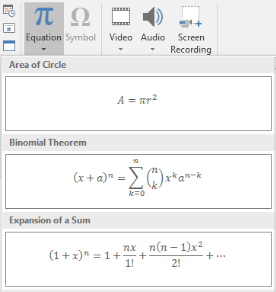
Wynikiem jest edytowalny tekst matematyczny na slajdzie:

Aspose.Slides buduje ten tekst matematyczny za pomocą trzech głównych obiektów:
- Kształt matematyczny, tworzony za pomocą add_math_shape, jest kształtem, który zawiera równanie.
- MathPortion przechowuje treść matematyczną w ramce tekstowej kształtu.
- MathParagraph zawiera jeden lub więcej obiektów MathBlock.
Większość przykładów poniżej używa MathematicalText oraz metod płynnych z IMathElement, aby kod był krótki i czytelny.
Scenariusze eksportu MathML znajdziesz w Export Math Equations from Presentations in Python via .NET.
Utworzenie równania
Ten przykład tworzy kształt matematyczny i dodaje twierdzenie Pitagorasa:
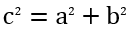
import aspose.slides as slides
import aspose.slides.mathtext as math

with slides.Presentation() as presentation:
    slide = presentation.slides[0]

    math_shape = slide.shapes.add_math_shape(20, 20, 700, 120)
    math_paragraph = math_shape.text_frame.paragraphs[0].portions[0].math_paragraph

    equation = (
        math.MathematicalText("c")
        .set_superscript("2")
        .join("=")
        .join(math.MathematicalText("a").set_superscript("2"))
        .join("+")
        .join(math.MathematicalText("b").set_superscript("2"))
    )

    math_paragraph.add(equation)

    presentation.save("pythagorean-theorem.pptx", slides.export.SaveFormat.PPTX)
add_math_shape tworzy kształt, który już zawiera paragraf matematyczny. Uzyskaj dostęp do pierwszego MathPortion, pobierz jego MathParagraph i dodaj bloki matematyczne lub elementy matematyczne.
Dodawanie ułamków
Użyj divide, aby utworzyć ułamek. Styl ułamka można wybrać przy pomocy MathFractionTypes.

import aspose.slides as slides
import aspose.slides.mathtext as math

with slides.Presentation() as presentation:
    slide = presentation.slides[0]

    math_shape = slide.shapes.add_math_shape(20, 20, 700, 100)
    math_paragraph = math_shape.text_frame.paragraphs[0].portions[0].math_paragraph

    fraction = math.MathematicalText("1").divide("x", math.MathFractionTypes.SKEWED)

    math_paragraph.add(math.MathBlock(fraction))

    presentation.save("fraction.pptx", slides.export.SaveFormat.PPTX)
Aby uzyskać ułamek kreskowy, użyj MathFractionTypes.BAR:
stacked_fraction = math.MathematicalText("x + 1").divide("y - 1", math.MathFractionTypes.BAR)
Dodawanie pierwiastków
Użyj radical, aby stworzyć pierwiastek kwadratowy, sześcienny lub inny. Aktualny element staje się podstawą, a argument określa stopień.

import aspose.slides as slides
import aspose.slides.mathtext as math

with slides.Presentation() as presentation:
    slide = presentation.slides[0]

    math_shape = slide.shapes.add_math_shape(20, 20, 700, 100)
    math_paragraph = math_shape.text_frame.paragraphs[0].portions[0].math_paragraph

    radical = math.MathematicalText("x").radical("n")

    math_paragraph.add(math.MathBlock(radical))

    presentation.save("radical.pptx", slides.export.SaveFormat.PPTX)
Dodawanie funkcji i granic
Użyj as_argument_of_function lub function dla funkcji takich jak sin(x), log(x) lub własnych nazw funkcji. Dla granic wstaw lim w MathLimit lub użyj set_lower_limit.

import aspose.slides as slides
import aspose.slides.mathtext as math

with slides.Presentation() as presentation:
    slide = presentation.slides[0]

    math_shape = slide.shapes.add_math_shape(20, 20, 700, 100)
    math_paragraph = math_shape.text_frame.paragraphs[0].portions[0].math_paragraph

    limit = (
        math.MathematicalText("lim")
        .set_lower_limit("x\u2192\u221E")
        .function("x")
    )

    math_paragraph.add(math.MathBlock(limit))

    presentation.save("functions-and-limits.pptx", slides.export.SaveFormat.PPTX)
Aby użyć własnej nazwy funkcji, ustaw nazwę funkcji jako aktualny element:
custom_function = math.MathematicalText("f").function("x + 1")
Dodawanie operatorów N‑ary i całek
Użyj nary dla sum, unii, przecięć i innych dużych operatorów. Użyj integral dla całek. Obie metody pozwalają ustawić limity dolny i górny.
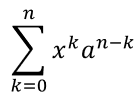
import aspose.slides as slides
import aspose.slides.mathtext as math

with slides.Presentation() as presentation:
    slide = presentation.slides[0]

    math_shape = slide.shapes.add_math_shape(20, 20, 700, 120)
    math_paragraph = math_shape.text_frame.paragraphs[0].portions[0].math_paragraph

    summation_base = (
        math.MathematicalText("x")
        .set_superscript("k")
        .join(math.MathematicalText("a").set_superscript("n-k"))
    )

    summation = summation_base.nary(math.MathNaryOperatorTypes.SUMMATION, "k=0", "n")

    math_paragraph.add(math.MathBlock(summation))

    presentation.save("nary-operators.pptx", slides.export.SaveFormat.PPTX)
Operatorzy N‑ary służą do dużych operatorów z opcjonalnymi limitami. Proste operatory takie jak +, - i = zwykle dodaje się jako MathematicalText i łączy w wyrażeniu.
Dla całki użyj integral:
integral_base = math.MathematicalText("x").join(math.MathematicalText("dx").to_box())
integral = integral_base.integral(math.MathIntegralTypes.SIMPLE, "0", "1")
Dodawanie macierzy
Użyj MathMatrix dla wierszy i kolumn. Domyślnie macierze nie zawierają nawiasów, więc otaczaj je nawiasami, kwadratowymi lub klamrowymi w razie potrzeby.
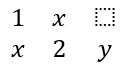
import aspose.slides as slides
import aspose.slides.mathtext as math

with slides.Presentation() as presentation:
    slide = presentation.slides[0]

    math_shape = slide.shapes.add_math_shape(20, 20, 700, 120)
    math_paragraph = math_shape.text_frame.paragraphs[0].portions[0].math_paragraph

    matrix = math.MathMatrix(2, 3)
    matrix[0, 0] = math.MathematicalText("1")
    matrix[0, 1] = math.MathematicalText("x")
    matrix[1, 0] = math.MathematicalText("x")
    matrix[1, 1] = math.MathematicalText("2")
    matrix[1, 2] = math.MathematicalText("y")

    math_paragraph.add(math.MathBlock(matrix))

    presentation.save("matrix.pptx", slides.export.SaveFormat.PPTX)
Dodawanie tablic równań
Użyj to_math_array gdy potrzebujesz wyrównanych równań lub pionowego stosu wyrażeń.

import aspose.slides as slides
import aspose.slides.mathtext as math

with slides.Presentation() as presentation:
    slide = presentation.slides[0]

    math_shape = slide.shapes.add_math_shape(20, 20, 700, 140)
    math_paragraph = math_shape.text_frame.paragraphs[0].portions[0].math_paragraph

    equation_array = (
        math.MathematicalText("x")
        .join("y")
        .to_math_array()
    )

    math_paragraph.add(math.MathBlock(equation_array))

    presentation.save("equation-array.pptx", slides.export.SaveFormat.PPTX)
Dodawanie funkcji trygonometrycznych
Użyj as_argument_of_function, gdy argumentem jest aktualny element, a nazwa funkcji jest znana.

import aspose.slides as slides
import aspose.slides.mathtext as math

with slides.Presentation() as presentation:
    slide = presentation.slides[0]

    math_shape = slide.shapes.add_math_shape(20, 20, 700, 100)
    math_paragraph = math_shape.text_frame.paragraphs[0].portions[0].math_paragraph

    cosine = math.MathematicalText("2x").as_argument_of_function(
        math.MathFunctionsOfOneArgument.COS
    )

    math_paragraph.add(math.MathBlock(cosine))

    presentation.save("trigonometric-function.pptx", slides.export.SaveFormat.PPTX)
Dodawanie indeksów dolnych i górnych
Użyj pomocników indeksu dolnego i górnego dla indeksów i potęg. Gdy indeksy mają znajdować się po lewej stronie podstawy, użyj set_sub_superscript_on_the_left.

import aspose.slides as slides
import aspose.slides.mathtext as math

with slides.Presentation() as presentation:
    slide = presentation.slides[0]

    math_shape = slide.shapes.add_math_shape(20, 20, 700, 100)
    math_paragraph = math_shape.text_frame.paragraphs[0].portions[0].math_paragraph

    scripts = math.MathematicalText("Y").set_sub_superscript_on_the_left("1", "n")

    math_paragraph.add(math.MathBlock(scripts))

    presentation.save("subscript-superscript.pptx", slides.export.SaveFormat.PPTX)
Dodawanie separatorów
Użyj enclose, aby umieścić wyrażenie w separatorach. Możesz także ustawić znak rozdzielający dla wyrażeń zawierających kilka elementów.

import aspose.slides as slides
import aspose.slides.mathtext as math

with slides.Presentation() as presentation:
    slide = presentation.slides[0]

    math_shape = slide.shapes.add_math_shape(20, 20, 700, 100)
    math_paragraph = math_shape.text_frame.paragraphs[0].portions[0].math_paragraph

    delimiter = (
        math.MathematicalText("x")
        .join("y")
        .join("z")
        .enclose("<", ">")
    )
    delimiter.separator_character = "|"

    math_paragraph.add(math.MathBlock(delimiter))

    presentation.save("delimiters.pptx", slides.export.SaveFormat.PPTX)
Dodawanie ramki obramowania
Użyj to_border_box, gdy równanie ma być otoczone ramką.
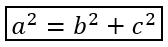
import aspose.slides as slides
import aspose.slides.mathtext as math

with slides.Presentation() as presentation:
    slide = presentation.slides[0]

    math_shape = slide.shapes.add_math_shape(20, 20, 700, 100)
    math_paragraph = math_shape.text_frame.paragraphs[0].portions[0].math_paragraph

    boxed_equation = (
        math.MathematicalText("a")
        .set_superscript("2")
        .join("=")
        .join(math.MathematicalText("b").set_superscript("2"))
        .join("+")
        .join(math.MathematicalText("c").set_superscript("2"))
        .to_border_box()
    )

    math_paragraph.add(math.MathBlock(boxed_equation))

    presentation.save("border-box.pptx", slides.export.SaveFormat.PPTX)
Grupowanie wyrazów
Użyj group, aby umieścić znak grupujący nad lub pod wyrażeniem. Dodaj limit, aby oznaczyć grupowane wyrazy.

import aspose.slides as slides
import aspose.slides.mathtext as math

with slides.Presentation() as presentation:
    slide = presentation.slides[0]

    math_shape = slide.shapes.add_math_shape(20, 20, 700, 120)
    math_paragraph = math_shape.text_frame.paragraphs[0].portions[0].math_paragraph

    grouped = (
        math.MathematicalText("x + y")
        .group(chr(0x23DF), math.MathTopBotPositions.BOTTOM, math.MathTopBotPositions.TOP)
        .set_lower_limit("any text")
    )

    math_paragraph.add(math.MathBlock(grouped))

    presentation.save("grouped-terms.pptx", slides.export.SaveFormat.PPTX)
Formatowanie elementów matematycznych
Używaj pomocników formatowania tylko tam, gdzie zwiększają czytelność formuły. Przykładowo, overbar umieszcza kreskę nad elementem matematycznym.

import aspose.slides as slides
import aspose.slides.mathtext as math

with slides.Presentation() as presentation:
    slide = presentation.slides[0]

    math_shape = slide.shapes.add_math_shape(20, 20, 700, 100)
    math_paragraph = math_shape.text_frame.paragraphs[0].portions[0].math_paragraph

    overbar = math.MathematicalText("ABC").overbar()

    math_paragraph.add(math.MathBlock(overbar))

    presentation.save("overbar.pptx", slides.export.SaveFormat.PPTX)
Szybkie odniesienie
| Zadanie | Główne API |
|---|---|
| Utworzenie tekstu matematycznego | MathematicalText |
| Łączenie elementów | IMathElement.join |
| Utworzenie ułamków | IMathElement.divide |
| Dodanie indeksu górnego lub dolnego | set_superscript, set_subscript |
| Dodanie funkcji | function, as_argument_of_function |
| Dodanie pierwiastków | radical |
| Dodanie granic | set_lower_limit, set_upper_limit |
| Dodanie indeksów po lewej stronie | set_sub_superscript_on_the_left |
| Dodanie sum i całek | nary, integral |
| Dodanie macierzy | MathMatrix |
| Dodanie tablic równań | to_math_array |
| Dodanie delimiterów | enclose |
| Dodanie kresek i ramek | overbar, to_border_box |
| Grupowanie wyrazów | group |
FAQ
Czy mogę edytować istniejące równanie w PowerPoint?
Tak. Otwórz prezentację, znajdź kształt zawierający MathPortion, pobierz jego MathParagraph i zaktualizuj bloki matematyczne w tym paragrafie.
Czy równania są zapisywane jako edytowalna matematyka PowerPoint?
Tak. Przy zapisie do PPTX Aspose.Slides zapisuje równanie jako edytowalną treść Office Math.
Czy mogę wyeksportować równania do LaTeX?
Tak. Pobierz MathParagraph z jego MathPortion i wywołaj MathParagraph.to_latex, aby wyeksportować je bezpośrednio. Kompletny przykład znajduje się w Export Math Equations from Presentations in Python via .NET.