
Добавить математические уравнения в презентации PowerPoint на Python
Обзор
PowerPoint хранит уравнения в формате Office Math Markup Language (OMML). С помощью Aspose.Slides for Python via .NET вы можете программно создавать такие же математические элементы: дроби, радикалы, функции, пределы, N‑арные операторы, матрицы, массивы и отформатированные блоки математики.
В PowerPoint пользователи обычно добавляют уравнения через Вставка > Уравнение:
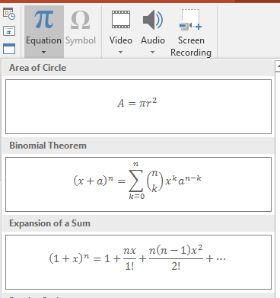
Результатом является редактируемый математический текст на слайде:

Aspose.Slides строит этот математический текст с помощью трёх основных объектов:
- Математическая фигура, создаваемая с помощью add_math_shape, является фигурой, содержащей уравнение.
- MathPortion хранит математическое содержимое внутри текстового фрейма фигуры.
- MathParagraph содержит один или несколько объектов MathBlock.
Большинство примеров ниже используют MathematicalText и плавные методы из IMathElement для короткого и читабельного кода.
Для сценариев экспорта MathML см. Export Math Equations from Presentations in Python via .NET.
Создать уравнение
Этот пример создаёт математическую фигуру и добавляет теорему Пифагора:
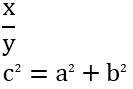
import aspose.slides as slides
import aspose.slides.mathtext as math

with slides.Presentation() as presentation:
    slide = presentation.slides[0]

    math_shape = slide.shapes.add_math_shape(20, 20, 700, 120)
    math_paragraph = math_shape.text_frame.paragraphs[0].portions[0].math_paragraph

    equation = (
        math.MathematicalText("c")
        .set_superscript("2")
        .join("=")
        .join(math.MathematicalText("a").set_superscript("2"))
        .join("+")
        .join(math.MathematicalText("b").set_superscript("2"))
    )

    math_paragraph.add(equation)

    presentation.save("pythagorean-theorem.pptx", slides.export.SaveFormat.PPTX)
add_math_shape создает фигуру, которая уже содержит математический абзац. Получите первый MathPortion, возьмите его MathParagraph и добавьте в него математические блоки или элементы.
Добавить дроби
Используйте divide для создания дроби. Вы можете выбрать стиль дроби с помощью MathFractionTypes.

import aspose.slides as slides
import aspose.slides.mathtext as math

with slides.Presentation() as presentation:
    slide = presentation.slides[0]

    math_shape = slide.shapes.add_math_shape(20, 20, 700, 100)
    math_paragraph = math_shape.text_frame.paragraphs[0].portions[0].math_paragraph

    fraction = math.MathematicalText("1").divide("x", math.MathFractionTypes.SKEWED)

    math_paragraph.add(math.MathBlock(fraction))

    presentation.save("fraction.pptx", slides.export.SaveFormat.PPTX)
Для обычной дроби используйте MathFractionTypes.BAR:
stacked_fraction = math.MathematicalText("x + 1").divide("y - 1", math.MathFractionTypes.BAR)
Добавить радикалы
Используйте radical для создания квадратного, кубического или другого корня. Текущий элемент становится основанием, а аргумент — степенью.

import aspose.slides as slides
import aspose.slides.mathtext as math

with slides.Presentation() as presentation:
    slide = presentation.slides[0]

    math_shape = slide.shapes.add_math_shape(20, 20, 700, 100)
    math_paragraph = math_shape.text_frame.paragraphs[0].portions[0].math_paragraph

    radical = math.MathematicalText("x").radical("n")

    math_paragraph.add(math.MathBlock(radical))

    presentation.save("radical.pptx", slides.export.SaveFormat.PPTX)
Добавить функции и пределы
Используйте as_argument_of_function или function для функций, таких как sin(x), log(x) или пользовательских названий функций. Для пределов поместите lim в MathLimit или используйте set_lower_limit.

import aspose.slides as slides
import aspose.slides.mathtext as math

with slides.Presentation() as presentation:
    slide = presentation.slides[0]

    math_shape = slide.shapes.add_math_shape(20, 20, 700, 100)
    math_paragraph = math_shape.text_frame.paragraphs[0].portions[0].math_paragraph

    limit = (
        math.MathematicalText("lim")
        .set_lower_limit("x\u2192\u221E")
        .function("x")
    )

    math_paragraph.add(math.MathBlock(limit))

    presentation.save("functions-and-limits.pptx", slides.export.SaveFormat.PPTX)
Для пользовательского имени функции сделайте имя функции текущим элементом:
custom_function = math.MathematicalText("f").function("x + 1")
Добавить N‑арные операторы и интегралы
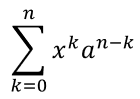
Используйте nary для суммирования, объединений, пересечений и других крупных операторов. Используйте integral для интегралов. Оба метода позволяют задавать нижний и верхний пределы.
import aspose.slides as slides
import aspose.slides.mathtext as math

with slides.Presentation() as presentation:
    slide = presentation.slides[0]

    math_shape = slide.shapes.add_math_shape(20, 20, 700, 120)
    math_paragraph = math_shape.text_frame.paragraphs[0].portions[0].math_paragraph

    summation_base = (
        math.MathematicalText("x")
        .set_superscript("k")
        .join(math.MathematicalText("a").set_superscript("n-k"))
    )

    summation = summation_base.nary(math.MathNaryOperatorTypes.SUMMATION, "k=0", "n")

    math_paragraph.add(math.MathBlock(summation))

    presentation.save("nary-operators.pptx", slides.export.SaveFormat.PPTX)
N‑арные операторы предназначены для крупных операторов с необязательными пределами. Простые операторы, такие как +, - и =, обычно добавляются как MathematicalText и объединяются в выражение.
Для интеграла используйте integral:
integral_base = math.MathematicalText("x").join(math.MathematicalText("dx").to_box())
integral = integral_base.integral(math.MathIntegralTypes.SIMPLE, "0", "1")
Добавить матрицы
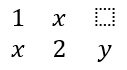
Используйте MathMatrix для строк и столбцов. По умолчанию матрицы не включают скобки, поэтому оборачивайте их, когда нужны круглые, квадратные или фигурные скобки.
import aspose.slides as slides
import aspose.slides.mathtext as math

with slides.Presentation() as presentation:
    slide = presentation.slides[0]

    math_shape = slide.shapes.add_math_shape(20, 20, 700, 120)
    math_paragraph = math_shape.text_frame.paragraphs[0].portions[0].math_paragraph

    matrix = math.MathMatrix(2, 3)
    matrix[0, 0] = math.MathematicalText("1")
    matrix[0, 1] = math.MathematicalText("x")
    matrix[1, 0] = math.MathematicalText("x")
    matrix[1, 1] = math.MathematicalText("2")
    matrix[1, 2] = math.MathematicalText("y")

    math_paragraph.add(math.MathBlock(matrix))

    presentation.save("matrix.pptx", slides.export.SaveFormat.PPTX)
Добавить массивы уравнений
Используйте to_math_array когда нужны выровненные уравнения или вертикальная стековая последовательность выражений.

import aspose.slides as slides
import aspose.slides.mathtext as math

with slides.Presentation() as presentation:
    slide = presentation.slides[0]

    math_shape = slide.shapes.add_math_shape(20, 20, 700, 140)
    math_paragraph = math_shape.text_frame.paragraphs[0].portions[0].math_paragraph

    equation_array = (
        math.MathematicalText("x")
        .join("y")
        .to_math_array()
    )

    math_paragraph.add(math.MathBlock(equation_array))

    presentation.save("equation-array.pptx", slides.export.SaveFormat.PPTX)
Добавить тригонометрические функции
Используйте as_argument_of_function когда аргумент является текущим элементом, а имя функции известно.

import aspose.slides as slides
import aspose.slides.mathtext as math

with slides.Presentation() as presentation:
    slide = presentation.slides[0]

    math_shape = slide.shapes.add_math_shape(20, 20, 700, 100)
    math_paragraph = math_shape.text_frame.paragraphs[0].portions[0].math_paragraph

    cosine = math.MathematicalText("2x").as_argument_of_function(
        math.MathFunctionsOfOneArgument.COS
    )

    math_paragraph.add(math.MathBlock(cosine))

    presentation.save("trigonometric-function.pptx", slides.export.SaveFormat.PPTX)
Добавить индексы и степени
Используйте вспомогательные функции для индексов и степеней. Когда индексы должны располагаться слева от основания, используйте set_sub_superscript_on_the_left.

import aspose.slides as slides
import aspose.slides.mathtext as math

with slides.Presentation() as presentation:
    slide = presentation.slides[0]

    math_shape = slide.shapes.add_math_shape(20, 20, 700, 100)
    math_paragraph = math_shape.text_frame.paragraphs[0].portions[0].math_paragraph

    scripts = math.MathematicalText("Y").set_sub_superscript_on_the_left("1", "n")

    math_paragraph.add(math.MathBlock(scripts))

    presentation.save("subscript-superscript.pptx", slides.export.SaveFormat.PPTX)
Добавить разделители
Используйте enclose чтобы поместить выражение в разделители. Вы также можете задать символ‑разделитель для выражений с несколькими элементами.

import aspose.slides as slides
import aspose.slides.mathtext as math

with slides.Presentation() as presentation:
    slide = presentation.slides[0]

    math_shape = slide.shapes.add_math_shape(20, 20, 700, 100)
    math_paragraph = math_shape.text_frame.paragraphs[0].portions[0].math_paragraph

    delimiter = (
        math.MathematicalText("x")
        .join("y")
        .join("z")
        .enclose("<", ">")
    )
    delimiter.separator_character = "|"

    math_paragraph.add(math.MathBlock(delimiter))

    presentation.save("delimiters.pptx", slides.export.SaveFormat.PPTX)
Добавить рамку
Используйте to_border_box когда уравнение должно быть обрамлено.
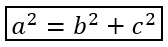
import aspose.slides as slides
import aspose.slides.mathtext as math

with slides.Presentation() as presentation:
    slide = presentation.slides[0]

    math_shape = slide.shapes.add_math_shape(20, 20, 700, 100)
    math_paragraph = math_shape.text_frame.paragraphs[0].portions[0].math_paragraph

    boxed_equation = (
        math.MathematicalText("a")
        .set_superscript("2")
        .join("=")
        .join(math.MathematicalText("b").set_superscript("2"))
        .join("+")
        .join(math.MathematicalText("c").set_superscript("2"))
        .to_border_box()
    )

    math_paragraph.add(math.MathBlock(boxed_equation))

    presentation.save("border-box.pptx", slides.export.SaveFormat.PPTX)
Группировать члены
Используйте group чтобы разместить символ группировки над или под выражением. Добавьте предел, чтобы отметить сгруппированные члены.

import aspose.slides as slides
import aspose.slides.mathtext as math

with slides.Presentation() as presentation:
    slide = presentation.slides[0]

    math_shape = slide.shapes.add_math_shape(20, 20, 700, 120)
    math_paragraph = math_shape.text_frame.paragraphs[0].portions[0].math_paragraph

    grouped = (
        math.MathematicalText("x + y")
        .group(chr(0x23DF), math.MathTopBotPositions.BOTTOM, math.MathTopBotPositions.TOP)
        .set_lower_limit("any text")
    )

    math_paragraph.add(math.MathBlock(grouped))

    presentation.save("grouped-terms.pptx", slides.export.SaveFormat.PPTX)
Форматировать математические элементы
Используйте вспомогательные функции форматирования только там, где они проясняют формулу. Например, overbar помещает линию над элементом.

import aspose.slides as slides
import aspose.slides.mathtext as math

with slides.Presentation() as presentation:
    slide = presentation.slides[0]

    math_shape = slide.shapes.add_math_shape(20, 20, 700, 100)
    math_paragraph = math_shape.text_frame.paragraphs[0].portions[0].math_paragraph

    overbar = math.MathematicalText("ABC").overbar()

    math_paragraph.add(math.MathBlock(overbar))

    presentation.save("overbar.pptx", slides.export.SaveFormat.PPTX)
Быстрая справка
| Задача | Основной API |
|---|---|
| Создать математический текст | MathematicalText |
| Объединить элементы | IMathElement.join |
| Создать дроби | IMathElement.divide |
| Добавить надстрочный или подстрочный индекс | set_superscript, set_subscript |
| Добавить функции | function, as_argument_of_function |
| Добавить радикалы | radical |
| Добавить пределы | set_lower_limit, set_upper_limit |
| Добавить индексы слева | set_sub_superscript_on_the_left |
| Добавить суммирование и интегралы | nary, integral |
| Добавить матрицы | MathMatrix |
| Добавить массивы уравнений | to_math_array |
| Добавить разделители | enclose |
| Добавить линии и рамки | overbar, to_border_box |
| Группировать члены | group |
FAQ
Можно ли отредактировать существующее уравнение PowerPoint?
Да. Откройте презентацию, найдите фигуру, содержащую MathPortion, получите её MathParagraph и обновите математические блоки в этом абзаце.
Сохраняются ли уравнения как редактируемая математическая часть PowerPoint?
Да. При сохранении в PPTX Aspose.Slides записывает уравнение как редактируемое содержимое Office Math.
Можно ли экспортировать уравнения в LaTeX?
Да. Получите MathParagraph уравнения из его MathPortion и вызовите MathParagraph.to_latex для прямого экспорта. Полный пример см. в Export Math Equations from Presentations in Python via .NET.