
اضافه کردن معادلات ریاضی به ارائههای PowerPoint در Python
مرور کلی
PowerPoint معادلات را به صورت Office Math Markup Language (OMML) ذخیره میکند. با Aspose.Slides برای Python از طریق .NET، میتوانید همان نوع محتوای ریاضی را بهصورت برنامهنویسی ایجاد کنید: کسرها، رادیکالها، توابع، حدها، عملگرهای N‑ary، ماتریکسها، آرایهها و بلوکهای ریاضی قالببندیشده.
در PowerPoint، کاربران معمولاً معادلات را از Insert > Equation اضافه میکنند:
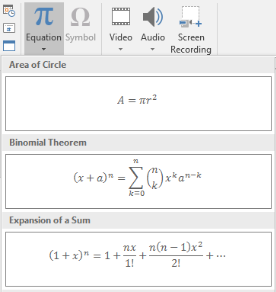
نتیجهٔ متن ریاضی قابل ویرایش روی اسلاید است:

Aspose.Slides این متن ریاضی را از طریق سه شیء اصلی میسازد:
- یک شکل ریاضی که با add_math_shape ایجاد میشود، شکل حاوی معادله است.
- MathPortion محتوای ریاضی را داخل قاب متن شکل ذخیره میکند.
- MathParagraph یک یا چند شیء MathBlock را شامل میشود.
اکثر مثالهای زیر از MathematicalText و متدهای fluent از IMathElement برای کوتاه و قابلخواندنبودن کد استفاده میکنند.
برای سناریوهای صادرات MathML، به Export Math Equations from Presentations in Python via .NET مراجعه کنید.
ایجاد معادله
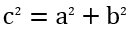
این مثال یک شکل ریاضی ایجاد میکند و قضیهٔ فیثاغورث را اضافه مینماید:
import aspose.slides as slides
import aspose.slides.mathtext as math

with slides.Presentation() as presentation:
    slide = presentation.slides[0]

    math_shape = slide.shapes.add_math_shape(20, 20, 700, 120)
    math_paragraph = math_shape.text_frame.paragraphs[0].portions[0].math_paragraph

    equation = (
        math.MathematicalText("c")
        .set_superscript("2")
        .join("=")
        .join(math.MathematicalText("a").set_superscript("2"))
        .join("+")
        .join(math.MathematicalText("b").set_superscript("2"))
    )

    math_paragraph.add(equation)

    presentation.save("pythagorean-theorem.pptx", slides.export.SaveFormat.PPTX)
add_math_shape شکلی را ایجاد میکند که از پیش شامل یک MathParagraph است. به اولین MathPortion دسترسی پیدا کنید، MathParagraph آن را بگیرید و بلوکها یا عناصر ریاضی را به آن اضافه کنید.
افزودن کسرها
از divide برای ایجاد یک کسر استفاده کنید. میتوانید سبک کسر را با MathFractionTypes انتخاب کنید.

import aspose.slides as slides
import aspose.slides.mathtext as math

with slides.Presentation() as presentation:
    slide = presentation.slides[0]

    math_shape = slide.shapes.add_math_shape(20, 20, 700, 100)
    math_paragraph = math_shape.text_frame.paragraphs[0].portions[0].math_paragraph

    fraction = math.MathematicalText("1").divide("x", math.MathFractionTypes.SKEWED)

    math_paragraph.add(math.MathBlock(fraction))

    presentation.save("fraction.pptx", slides.export.SaveFormat.PPTX)
برای یک کسر عمودی، از MathFractionTypes.BAR استفاده کنید:
stacked_fraction = math.MathematicalText("x + 1").divide("y - 1", math.MathFractionTypes.BAR)
افزودن رادیکالها
از radical برای ایجاد رادیکال درجهٔ دوم، سوم یا سایر رادیکالها استفاده کنید. عنصر جاری پایه میشود و آرگومان درجه رادیکال است.

import aspose.slides as slides
import aspose.slides.mathtext as math

with slides.Presentation() as presentation:
    slide = presentation.slides[0]

    math_shape = slide.shapes.add_math_shape(20, 20, 700, 100)
    math_paragraph = math_shape.text_frame.paragraphs[0].portions[0].math_paragraph

    radical = math.MathematicalText("x").radical("n")

    math_paragraph.add(math.MathBlock(radical))

    presentation.save("radical.pptx", slides.export.SaveFormat.PPTX)
افزودن توابع و حدها
از as_argument_of_function یا function برای توابعی مانند sin(x), log(x) یا نام توابع سفارشی استفاده کنید. برای حدها، lim را در یک MathLimit قرار دهید یا از set_lower_limit استفاده کنید.

import aspose.slides as slides
import aspose.slides.mathtext as math

with slides.Presentation() as presentation:
    slide = presentation.slides[0]

    math_shape = slide.shapes.add_math_shape(20, 20, 700, 100)
    math_paragraph = math_shape.text_frame.paragraphs[0].portions[0].math_paragraph

    limit = (
        math.MathematicalText("lim")
        .set_lower_limit("x\u2192\u221E")
        .function("x")
    )

    math_paragraph.add(math.MathBlock(limit))

    presentation.save("functions-and-limits.pptx", slides.export.SaveFormat.PPTX)
برای نام تابع سفارشی، نام تابع را به عنوان عنصر جاری تنظیم کنید:
custom_function = math.MathematicalText("f").function("x + 1")
افزودن عملگرهای N‑ary و انتگرالها
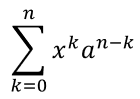
از nary برای جمعها، اتحادها، اشتراکها و سایر عملگرهای بزرگ استفاده کنید. برای انتگرالها از integral استفاده کنید. هر دو متد امکان تنظیم حدهای پایین و بالا را فراهم میکنند.
import aspose.slides as slides
import aspose.slides.mathtext as math

with slides.Presentation() as presentation:
    slide = presentation.slides[0]

    math_shape = slide.shapes.add_math_shape(20, 20, 700, 120)
    math_paragraph = math_shape.text_frame.paragraphs[0].portions[0].math_paragraph

    summation_base = (
        math.MathematicalText("x")
        .set_superscript("k")
        .join(math.MathematicalText("a").set_superscript("n-k"))
    )

    summation = summation_base.nary(math.MathNaryOperatorTypes.SUMMATION, "k=0", "n")

    math_paragraph.add(math.MathBlock(summation))

    presentation.save("nary-operators.pptx", slides.export.SaveFormat.PPTX)
عملگرهای N‑ary برای عملگرهای بزرگ با حدهای اختیاری هستند. عملگرهای ساده مانند +, -, = معمولاً بهعنوان MathematicalText اضافه میشوند و به عبارت پیوست میگردند.
برای یک انتگرال، از integral استفاده کنید:
integral_base = math.MathematicalText("x").join(math.MathematicalText("dx").to_box())
integral = integral_base.integral(math.MathIntegralTypes.SIMPLE, "0", "1")
افزودن ماتریکسها
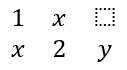
از MathMatrix برای ردیفها و ستونها استفاده کنید. ماتریکسها بهطور پیشفرض پرانتز ندارند، بنابراین هنگام نیاز به پرانتز، کروشه یا آکولاد، ماتریکس را درون آنها بپیچید.
import aspose.slides as slides
import aspose.slides.mathtext as math

with slides.Presentation() as presentation:
    slide = presentation.slides[0]

    math_shape = slide.shapes.add_math_shape(20, 20, 700, 120)
    math_paragraph = math_shape.text_frame.paragraphs[0].portions[0].math_paragraph

    matrix = math.MathMatrix(2, 3)
    matrix[0, 0] = math.MathematicalText("1")
    matrix[0, 1] = math.MathematicalText("x")
    matrix[1, 0] = math.MathematicalText("x")
    matrix[1, 1] = math.MathematicalText("2")
    matrix[1, 2] = math.MathematicalText("y")

    math_paragraph.add(math.MathBlock(matrix))

    presentation.save("matrix.pptx", slides.export.SaveFormat.PPTX)
افزودن آرایههای معادله
از to_math_array زمانی که به معادلات همتراز یا یک پشتهٔ عمودی از عبارات نیاز دارید، استفاده کنید.

import aspose.slides as slides
import aspose.slides.mathtext as math

with slides.Presentation() as presentation:
    slide = presentation.slides[0]

    math_shape = slide.shapes.add_math_shape(20, 20, 700, 140)
    math_paragraph = math_shape.text_frame.paragraphs[0].portions[0].math_paragraph

    equation_array = (
        math.MathematicalText("x")
        .join("y")
        .to_math_array()
    )

    math_paragraph.add(math.MathBlock(equation_array))

    presentation.save("equation-array.pptx", slides.export.SaveFormat.PPTX)
افزودن توابع مثلثاتی
از as_argument_of_function وقتی آرگومان عنصر جاری است و نام تابع شناختهشده است، استفاده کنید.

import aspose.slides as slides
import aspose.slides.mathtext as math

with slides.Presentation() as presentation:
    slide = presentation.slides[0]

    math_shape = slide.shapes.add_math_shape(20, 20, 700, 100)
    math_paragraph = math_shape.text_frame.paragraphs[0].portions[0].math_paragraph

    cosine = math.MathematicalText("2x").as_argument_of_function(
        math.MathFunctionsOfOneArgument.COS
    )

    math_paragraph.add(math.MathBlock(cosine))

    presentation.save("trigonometric-function.pptx", slides.export.SaveFormat.PPTX)
افزودن زیرنویس و بالانویس
از کمکیهای زیرنویس و بالانویس برای شاخصها و توانها استفاده کنید. وقتی شاخصها باید در سمت چپ پایه ظاهر شوند، از set_sub_superscript_on_the_left استفاده کنید.

import aspose.slides as slides
import aspose.slides.mathtext as math

with slides.Presentation() as presentation:
    slide = presentation.slides[0]

    math_shape = slide.shapes.add_math_shape(20, 20, 700, 100)
    math_paragraph = math_shape.text_frame.paragraphs[0].portions[0].math_paragraph

    scripts = math.MathematicalText("Y").set_sub_superscript_on_the_left("1", "n")

    math_paragraph.add(math.MathBlock(scripts))

    presentation.save("subscript-superscript.pptx", slides.export.SaveFormat.PPTX)
افزودن جداسازها
از enclose برای قرار دادن یک عبارت درون جداسازها استفاده کنید. میتوانید یک کاراکتر جداکننده برای عبارات جداساز که شامل چند عنصر هستند، تنظیم کنید.

import aspose.slides as slides
import aspose.slides.mathtext as math

with slides.Presentation() as presentation:
    slide = presentation.slides[0]

    math_shape = slide.shapes.add_math_shape(20, 20, 700, 100)
    math_paragraph = math_shape.text_frame.paragraphs[0].portions[0].math_paragraph

    delimiter = (
        math.MathematicalText("x")
        .join("y")
        .join("z")
        .enclose("<", ">")
    )
    delimiter.separator_character = "|"

    math_paragraph.add(math.MathBlock(delimiter))

    presentation.save("delimiters.pptx", slides.export.SaveFormat.PPTX)
افزودن جعبهٔ حاشیهدار
از to_border_box وقتی معادله باید در یک قاب قرار گیرد، استفاده کنید.
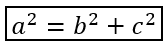
import aspose.slides as slides
import aspose.slides.mathtext as math

with slides.Presentation() as presentation:
    slide = presentation.slides[0]

    math_shape = slide.shapes.add_math_shape(20, 20, 700, 100)
    math_paragraph = math_shape.text_frame.paragraphs[0].portions[0].math_paragraph

    boxed_equation = (
        math.MathematicalText("a")
        .set_superscript("2")
        .join("=")
        .join(math.MathematicalText("b").set_superscript("2"))
        .join("+")
        .join(math.MathematicalText("c").set_superscript("2"))
        .to_border_box()
    )

    math_paragraph.add(math.MathBlock(boxed_equation))

    presentation.save("border-box.pptx", slides.export.SaveFormat.PPTX)
گروهبندی عبارات
از group برای قرار دادن یک کاراکتر گروهبندی فوق یا زیر یک عبارت استفاده کنید. برای برچسبگذاری عبارات گروهبندیشده میتوانید یک حد اضافه کنید.

import aspose.slides as slides
import aspose.slides.mathtext as math

with slides.Presentation() as presentation:
    slide = presentation.slides[0]

    math_shape = slide.shapes.add_math_shape(20, 20, 700, 120)
    math_paragraph = math_shape.text_frame.paragraphs[0].portions[0].math_paragraph

    grouped = (
        math.MathematicalText("x + y")
        .group(chr(0x23DF), math.MathTopBotPositions.BOTTOM, math.MathTopBotPositions.TOP)
        .set_lower_limit("any text")
    )

    math_paragraph.add(math.MathBlock(grouped))

    presentation.save("grouped-terms.pptx", slides.export.SaveFormat.PPTX)
فرمتدهی به عناصر ریاضی
از کمکیهای فرمتدهی فقط در جایی استفاده کنید که فرمول را واضحتر میکند. به عنوان مثال، overbar یک خط بالای عنصر ریاضی میگذارد.

import aspose.slides as slides
import aspose.slides.mathtext as math

with slides.Presentation() as presentation:
    slide = presentation.slides[0]

    math_shape = slide.shapes.add_math_shape(20, 20, 700, 100)
    math_paragraph = math_shape.text_frame.paragraphs[0].portions[0].math_paragraph

    overbar = math.MathematicalText("ABC").overbar()

    math_paragraph.add(math.MathBlock(overbar))

    presentation.save("overbar.pptx", slides.export.SaveFormat.PPTX)
مرجع سریع
| کار | API اصلی |
|---|---|
| ایجاد متن ریاضی | MathematicalText |
| ترکیب عناصر | IMathElement.join |
| ایجاد کسرها | IMathElement.divide |
| افزودن بالانویس یا زیرنویس | set_superscript, set_subscript |
| افزودن توابع | function, as_argument_of_function |
| افزودن رادیکالها | radical |
| افزودن حدها | set_lower_limit, set_upper_limit |
| افزودن اسکریپتهای سمت چپ | set_sub_superscript_on_the_left |
| افزودن جمعها و انتگرالها | nary, integral |
| افزودن ماتریکسها | MathMatrix |
| افزودن آرایههای معادله | to_math_array |
| افزودن جداسازها | enclose |
| افزودن نوارها و حاشیهها | overbar, to_border_box |
| گروهبندی عبارات | group |
سؤالات متداول
آیا میتوان معادلهٔ موجود در PowerPoint را ویرایش کرد؟
بله. ارائه را باز کنید، شکل حاوی MathPortion را پیدا کنید، MathParagraph آن را بگیرید و بلوکهای ریاضی در آن پاراگراف را بهروز کنید.
آیا معادلات بهصورت ریاضی قابل ویرایش PowerPoint ذخیره میشوند؟
بله. هنگام ذخیره به PPTX، Aspose.Slides معادله را بهعنوان محتوای Office Math قابل ویرایش مینویسد.
آیا میتوان معادلات را به LaTeX صادر کرد؟
بله. MathParagraph معادله را از MathPortion دریافت کنید و MathParagraph.to_latex را صدا بزنید تا مستقیماً صادر شود. برای یک مثال کامل، به Export Math Equations from Presentations in Python via .NET مراجعه کنید.