
PythonでPowerPointプレゼンテーションに数式を追加
概要
PowerPoint は数式を Office Math Markup Language (OMML) として保存します。Aspose.Slides for Python via .NET を使用すると、分数、根号、関数、極限、N 進演算子、行列、配列、書式設定された数式ブロックなど、同様の数式コンテンツをプログラムで作成できます。
PowerPoint では、通常 挿入 > 数式 から数式を追加します。
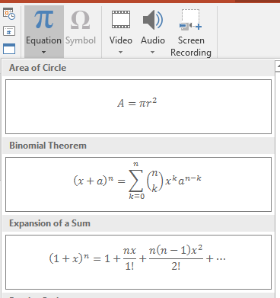
結果はスライド上の編集可能な数式テキストになります。

Aspose.Slides は次の 3 つの主要オブジェクトで数式テキストを構築します。
- math シェイプ は add_math_shape で作成され、数式を含むシェイプです。
- MathPortion はシェイプのテキストフレーム内に数式コンテンツを格納します。
- MathParagraph は 1 つ以上の MathBlock オブジェクトを保持します。
以下の例の多くは MathematicalText と、コードを簡潔に保つために IMathElement のフルエントメソッドを使用しています。
MathML エクスポートのシナリオについては、Export Math Equations from Presentations in Python via .NET を参照してください。
数式の作成
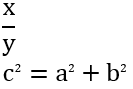
この例は数式シェイプを作成し、ピタゴラスの定理を追加します。
import aspose.slides as slides
import aspose.slides.mathtext as math

with slides.Presentation() as presentation:
    slide = presentation.slides[0]

    math_shape = slide.shapes.add_math_shape(20, 20, 700, 120)
    math_paragraph = math_shape.text_frame.paragraphs[0].portions[0].math_paragraph

    equation = (
        math.MathematicalText("c")
        .set_superscript("2")
        .join("=")
        .join(math.MathematicalText("a").set_superscript("2"))
        .join("+")
        .join(math.MathematicalText("b").set_superscript("2"))
    )

    math_paragraph.add(equation)

    presentation.save("pythagorean-theorem.pptx", slides.export.SaveFormat.PPTX)
add_math_shape はすでに数式段落を含むシェイプを作成します。最初の MathPortion にアクセスし、その MathParagraph を取得して数式ブロックまたは数式要素を追加してください。
分数の追加
divide を使用して分数を作成します。MathFractionTypes で分数スタイルを選択できます。

import aspose.slides as slides
import aspose.slides.mathtext as math

with slides.Presentation() as presentation:
    slide = presentation.slides[0]

    math_shape = slide.shapes.add_math_shape(20, 20, 700, 100)
    math_paragraph = math_shape.text_frame.paragraphs[0].portions[0].math_paragraph

    fraction = math.MathematicalText("1").divide("x", math.MathFractionTypes.SKEWED)

    math_paragraph.add(math.MathBlock(fraction))

    presentation.save("fraction.pptx", slides.export.SaveFormat.PPTX)
積み重ね式の分数の場合は MathFractionTypes.BAR を使用します。
stacked_fraction = math.MathematicalText("x + 1").divide("y - 1", math.MathFractionTypes.BAR)
根号の追加
radical を使用して平方根、立方根、その他の根号を作成します。現在の要素が基底となり、引数が次数になります。

import aspose.slides as slides
import aspose.slides.mathtext as math

with slides.Presentation() as presentation:
    slide = presentation.slides[0]

    math_shape = slide.shapes.add_math_shape(20, 20, 700, 100)
    math_paragraph = math_shape.text_frame.paragraphs[0].portions[0].math_paragraph

    radical = math.MathematicalText("x").radical("n")

    math_paragraph.add(math.MathBlock(radical))

    presentation.save("radical.pptx", slides.export.SaveFormat.PPTX)
関数と極限の追加
as_argument_of_function または function を使用して sin(x), log(x) などの関数やカスタム関数名を追加します。極限は MathLimit に lim を入れるか、set_lower_limit を使用します。

import aspose.slides as slides
import aspose.slides.mathtext as math

with slides.Presentation() as presentation:
    slide = presentation.slides[0]

    math_shape = slide.shapes.add_math_shape(20, 20, 700, 100)
    math_paragraph = math_shape.text_frame.paragraphs[0].portions[0].math_paragraph

    limit = (
        math.MathematicalText("lim")
        .set_lower_limit("x\u2192\u221E")
        .function("x")
    )

    math_paragraph.add(math.MathBlock(limit))

    presentation.save("functions-and-limits.pptx", slides.export.SaveFormat.PPTX)
カスタム関数名を使用する場合は、関数名を現在の要素にします。
custom_function = math.MathematicalText("f").function("x + 1")
N 進演算子と積分の追加
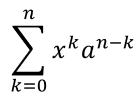
nary を使用して総和、和集合、交差集合などの大きな演算子を追加します。integral を使用して積分を追加します。両方のメソッドで下限と上限を設定できます。
import aspose.slides as slides
import aspose.slides.mathtext as math

with slides.Presentation() as presentation:
    slide = presentation.slides[0]

    math_shape = slide.shapes.add_math_shape(20, 20, 700, 120)
    math_paragraph = math_shape.text_frame.paragraphs[0].portions[0].math_paragraph

    summation_base = (
        math.MathematicalText("x")
        .set_superscript("k")
        .join(math.MathematicalText("a").set_superscript("n-k"))
    )

    summation = summation_base.nary(math.MathNaryOperatorTypes.SUMMATION, "k=0", "n")

    math_paragraph.add(math.MathBlock(summation))

    presentation.save("nary-operators.pptx", slides.export.SaveFormat.PPTX)
N 進演算子はオプションで限界を持つ大きな演算子です。+, -, = などの単純演算子は通常 MathematicalText として追加し、式に結合します。
積分の場合は integral を使用します。
integral_base = math.MathematicalText("x").join(math.MathematicalText("dx").to_box())
integral = integral_base.integral(math.MathIntegralTypes.SIMPLE, "0", "1")
行列の追加
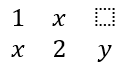
MathMatrix を使用して行と列を作成します。行列はデフォルトで括弧を含まないため、丸括弧、角括弧、波括弧が必要な場合は外側に囲んでください。
import aspose.slides as slides
import aspose.slides.mathtext as math

with slides.Presentation() as presentation:
    slide = presentation.slides[0]

    math_shape = slide.shapes.add_math_shape(20, 20, 700, 120)
    math_paragraph = math_shape.text_frame.paragraphs[0].portions[0].math_paragraph

    matrix = math.MathMatrix(2, 3)
    matrix[0, 0] = math.MathematicalText("1")
    matrix[0, 1] = math.MathematicalText("x")
    matrix[1, 0] = math.MathematicalText("x")
    matrix[1, 1] = math.MathematicalText("2")
    matrix[1, 2] = math.MathematicalText("y")

    math_paragraph.add(math.MathBlock(matrix))

    presentation.save("matrix.pptx", slides.export.SaveFormat.PPTX)
数式配列の追加
整列された数式や縦に並んだ式が必要な場合は to_math_array を使用します。

import aspose.slides as slides
import aspose.slides.mathtext as math

with slides.Presentation() as presentation:
    slide = presentation.slides[0]

    math_shape = slide.shapes.add_math_shape(20, 20, 700, 140)
    math_paragraph = math_shape.text_frame.paragraphs[0].portions[0].math_paragraph

    equation_array = (
        math.MathematicalText("x")
        .join("y")
        .to_math_array()
    )

    math_paragraph.add(math.MathBlock(equation_array))

    presentation.save("equation-array.pptx", slides.export.SaveFormat.PPTX)
三角関数の追加
引数が現在の要素で関数名が既知の場合は、as_argument_of_function を使用します。

import aspose.slides as slides
import aspose.slides.mathtext as math

with slides.Presentation() as presentation:
    slide = presentation.slides[0]

    math_shape = slide.shapes.add_math_shape(20, 20, 700, 100)
    math_paragraph = math_shape.text_frame.paragraphs[0].portions[0].math_paragraph

    cosine = math.MathematicalText("2x").as_argument_of_function(
        math.MathFunctionsOfOneArgument.COS
    )

    math_paragraph.add(math.MathBlock(cosine))

    presentation.save("trigonometric-function.pptx", slides.export.SaveFormat.PPTX)
下付文字・上付文字の追加
インデックスやべき乗のために下付文字・上付文字ヘルパーを使用します。インデックスを基底の左側に表示する必要がある場合は、set_sub_superscript_on_the_left を使用します。

import aspose.slides as slides
import aspose.slides.mathtext as math

with slides.Presentation() as presentation:
    slide = presentation.slides[0]

    math_shape = slide.shapes.add_math_shape(20, 20, 700, 100)
    math_paragraph = math_shape.text_frame.paragraphs[0].portions[0].math_paragraph

    scripts = math.MathematicalText("Y").set_sub_superscript_on_the_left("1", "n")

    math_paragraph.add(math.MathBlock(scripts))

    presentation.save("subscript-superscript.pptx", slides.export.SaveFormat.PPTX)
区切り記号の追加
enclose を使用して式を区切り記号で囲みます。複数要素を含む区切り記号式には区切り文字も設定できます。

import aspose.slides as slides
import aspose.slides.mathtext as math

with slides.Presentation() as presentation:
    slide = presentation.slides[0]

    math_shape = slide.shapes.add_math_shape(20, 20, 700, 100)
    math_paragraph = math_shape.text_frame.paragraphs[0].portions[0].math_paragraph

    delimiter = (
        math.MathematicalText("x")
        .join("y")
        .join("z")
        .enclose("<", ">")
    )
    delimiter.separator_character = "|"

    math_paragraph.add(math.MathBlock(delimiter))

    presentation.save("delimiters.pptx", slides.export.SaveFormat.PPTX)
枠付きボックスの追加
式全体を枠で囲む必要がある場合は to_border_box を使用します。
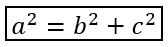
import aspose.slides as slides
import aspose.slides.mathtext as math

with slides.Presentation() as presentation:
    slide = presentation.slides[0]

    math_shape = slide.shapes.add_math_shape(20, 20, 700, 100)
    math_paragraph = math_shape.text_frame.paragraphs[0].portions[0].math_paragraph

    boxed_equation = (
        math.MathematicalText("a")
        .set_superscript("2")
        .join("=")
        .join(math.MathematicalText("b").set_superscript("2"))
        .join("+")
        .join(math.MathematicalText("c").set_superscript("2"))
        .to_border_box()
    )

    math_paragraph.add(math.MathBlock(boxed_equation))

    presentation.save("border-box.pptx", slides.export.SaveFormat.PPTX)
項のグループ化
group を使用して式の上または下にグループ化記号を配置します。限界を追加してグループ化した項にラベルを付けることができます。

import aspose.slides as slides
import aspose.slides.mathtext as math

with slides.Presentation() as presentation:
    slide = presentation.slides[0]

    math_shape = slide.shapes.add_math_shape(20, 20, 700, 120)
    math_paragraph = math_shape.text_frame.paragraphs[0].portions[0].math_paragraph

    grouped = (
        math.MathematicalText("x + y")
        .group(chr(0x23DF), math.MathTopBotPositions.BOTTOM, math.MathTopBotPositions.TOP)
        .set_lower_limit("any text")
    )

    math_paragraph.add(math.MathBlock(grouped))

    presentation.save("grouped-terms.pptx", slides.export.SaveFormat.PPTX)
数式要素の書式設定
書式設定ヘルパーは式の可読性が向上する場合にのみ使用します。例として、overbar は数式要素の上にバーを配置します。

import aspose.slides as slides
import aspose.slides.mathtext as math

with slides.Presentation() as presentation:
    slide = presentation.slides[0]

    math_shape = slide.shapes.add_math_shape(20, 20, 700, 100)
    math_paragraph = math_shape.text_frame.paragraphs[0].portions[0].math_paragraph

    overbar = math.MathematicalText("ABC").overbar()

    math_paragraph.add(math.MathBlock(overbar))

    presentation.save("overbar.pptx", slides.export.SaveFormat.PPTX)
クイックリファレンス
| タスク | 主要 API |
|---|---|
| 数式テキストの作成 | MathematicalText |
| 要素の結合 | IMathElement.join |
| 分数の作成 | IMathElement.divide |
| 上付文字・下付文字の追加 | set_superscript, set_subscript |
| 関数の追加 | function, as_argument_of_function |
| 根号の追加 | radical |
| 極限の追加 | set_lower_limit, set_upper_limit |
| 左側スクリプトの追加 | set_sub_superscript_on_the_left |
| 総和と積分の追加 | nary, integral |
| 行列の追加 | MathMatrix |
| 数式配列の追加 | to_math_array |
| 区切り記号の追加 | enclose |
| バーと枠の追加 | overbar, to_border_box |
| 項のグループ化 | group |
FAQ
既存の PowerPoint 数式を編集できますか?
はい。プレゼンテーションを開き、MathPortion を含むシェイプを見つけ、その MathParagraph を取得して、その段落内の数式ブロックを更新します。
数式は編集可能な PowerPoint 数式として保存されますか?
はい。PPTX に保存すると、Aspose.Slides は数式を編集可能な Office Math コンテンツとして書き込みます。
数式を LaTeX にエクスポートできますか?
はい。MathPortion から MathParagraph を取得し、MathParagraph.to_latex を呼び出すことで直接エクスポートできます。完全な例については、Export Math Equations from Presentations in Python via .NET を参照してください。