
Mathematische Gleichungen zu PowerPoint-Präsentationen in Python hinzufügen
Übersicht
PowerPoint speichert Gleichungen als Office Math Markup Language (OMML). Mit Aspose.Slides für Python über .NET können Sie dieselbe Art von mathematischem Inhalt programmgesteuert erstellen: Brüche, Radikale, Funktionen, Grenzwerte, N‑äre Operatoren, Matrizen, Arrays und formatierte Mathematikblöcke.
In PowerPoint fügen Benutzer Gleichungen normalerweise über Insert > Equation ein:
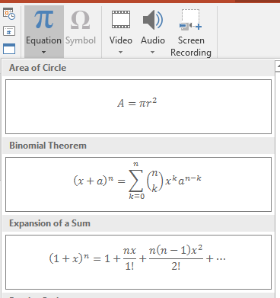
Das Ergebnis ist editierbarer mathematischer Text auf der Folie:

Aspose.Slides erstellt diesen mathematischen Text über drei Hauptobjekte:
- Ein mathematisches Shape, erstellt mit add_math_shape, ist das Shape, das die Gleichung enthält.
- MathPortion speichert mathematischen Inhalt im Textfeld des Shapes.
- MathParagraph enthält ein oder mehrere MathBlock‑Objekte.
Die meisten Beispiele unten verwenden MathematicalText und die Fluent‑Methoden von IMathElement, um den Code kurz und lesbar zu halten.
Für MathML‑Export‑Szenarien siehe Export Math Equations from Presentations in Python via .NET.
Erstellen einer Gleichung
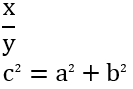
Dieses Beispiel erstellt ein mathematisches Shape und fügt den Satz des Pythagoras hinzu:
import aspose.slides as slides
import aspose.slides.mathtext as math

with slides.Presentation() as presentation:
    slide = presentation.slides[0]

    math_shape = slide.shapes.add_math_shape(20, 20, 700, 120)
    math_paragraph = math_shape.text_frame.paragraphs[0].portions[0].math_paragraph

    equation = (
        math.MathematicalText("c")
        .set_superscript("2")
        .join("=")
        .join(math.MathematicalText("a").set_superscript("2"))
        .join("+")
        .join(math.MathematicalText("b").set_superscript("2"))
    )

    math_paragraph.add(equation)

    presentation.save("pythagorean-theorem.pptx", slides.export.SaveFormat.PPTX)
add_math_shape erstellt ein Shape, das bereits einen mathematischen Absatz enthält. Greifen Sie auf das erste MathPortion zu, holen Sie sein MathParagraph und fügen Sie ihm mathematische Blöcke oder Mathe‑Elemente hinzu.
Brüche hinzufügen
Verwenden Sie divide, um einen Bruch zu erzeugen. Sie können einen Bruchstil mit MathFractionTypes auswählen.

import aspose.slides as slides
import aspose.slides.mathtext as math

with slides.Presentation() as presentation:
    slide = presentation.slides[0]

    math_shape = slide.shapes.add_math_shape(20, 20, 700, 100)
    math_paragraph = math_shape.text_frame.paragraphs[0].portions[0].math_paragraph

    fraction = math.MathematicalText("1").divide("x", math.MathFractionTypes.SKEWED)

    math_paragraph.add(math.MathBlock(fraction))

    presentation.save("fraction.pptx", slides.export.SaveFormat.PPTX)
Für einen gestapelten Bruch verwenden Sie MathFractionTypes.BAR:
stacked_fraction = math.MathematicalText("x + 1").divide("y - 1", math.MathFractionTypes.BAR)
Radikale hinzufügen
Verwenden Sie radical, um eine Quadratwurzel, Kubikwurzel oder andere Wurzel zu erzeugen. Das aktuelle Element wird zur Basis, und das Argument wird zum Exponenten.

import aspose.slides as slides
import aspose.slides.mathtext as math

with slides.Presentation() as presentation:
    slide = presentation.slides[0]

    math_shape = slide.shapes.add_math_shape(20, 20, 700, 100)
    math_paragraph = math_shape.text_frame.paragraphs[0].portions[0].math_paragraph

    radical = math.MathematicalText("x").radical("n")

    math_paragraph.add(math.MathBlock(radical))

    presentation.save("radical.pptx", slides.export.SaveFormat.PPTX)
Funktionen und Grenzwerte hinzufügen
Verwenden Sie as_argument_of_function oder function für Funktionen wie sin(x), log(x) oder benutzerdefinierte Funktionsnamen. Für Grenzwerte setzen Sie lim in ein MathLimit oder verwenden set_lower_limit.

import aspose.slides as slides
import aspose.slides.mathtext as math

with slides.Presentation() as presentation:
    slide = presentation.slides[0]

    math_shape = slide.shapes.add_math_shape(20, 20, 700, 100)
    math_paragraph = math_shape.text_frame.paragraphs[0].portions[0].math_paragraph

    limit = (
        math.MathematicalText("lim")
        .set_lower_limit("x\u2192\u221E")
        .function("x")
    )

    math_paragraph.add(math.MathBlock(limit))

    presentation.save("functions-and-limits.pptx", slides.export.SaveFormat.PPTX)
Für einen benutzerdefinierten Funktionsnamen machen Sie den Funktionsnamen zum aktuellen Element:
custom_function = math.MathematicalText("f").function("x + 1")
N‑äre Operatoren und Integrale hinzufügen
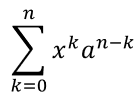
Verwenden Sie nary für Summen, Vereinigungen, Durchschnitte und andere große Operatoren. Verwenden Sie integral für Integrale. Beide Methoden ermöglichen das Festlegen von unteren und oberen Grenzen.
import aspose.slides as slides
import aspose.slides.mathtext as math

with slides.Presentation() as presentation:
    slide = presentation.slides[0]

    math_shape = slide.shapes.add_math_shape(20, 20, 700, 120)
    math_paragraph = math_shape.text_frame.paragraphs[0].portions[0].math_paragraph

    summation_base = (
        math.MathematicalText("x")
        .set_superscript("k")
        .join(math.MathematicalText("a").set_superscript("n-k"))
    )

    summation = summation_base.nary(math.MathNaryOperatorTypes.SUMMATION, "k=0", "n")

    math_paragraph.add(math.MathBlock(summation))

    presentation.save("nary-operators.pptx", slides.export.SaveFormat.PPTX)
N‑äre Operatoren sind für große Operatoren mit optionalen Grenzen gedacht. Einfache Operatoren wie +, - und = werden normalerweise als MathematicalText hinzugefügt und zum Ausdruck kombiniert.
Für ein Integral verwenden Sie integral:
integral_base = math.MathematicalText("x").join(math.MathematicalText("dx").to_box())
integral = integral_base.integral(math.MathIntegralTypes.SIMPLE, "0", "1")
Matrizen hinzufügen
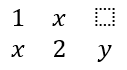
Verwenden Sie MathMatrix für Zeilen und Spalten. Matrizen enthalten standardmäßig keine Klammern, daher setzen Sie die Matrix in Klammern, eckige Klammern oder geschweifte Klammern, wenn Sie diese benötigen.
import aspose.slides as slides
import aspose.slides.mathtext as math

with slides.Presentation() as presentation:
    slide = presentation.slides[0]

    math_shape = slide.shapes.add_math_shape(20, 20, 700, 120)
    math_paragraph = math_shape.text_frame.paragraphs[0].portions[0].math_paragraph

    matrix = math.MathMatrix(2, 3)
    matrix[0, 0] = math.MathematicalText("1")
    matrix[0, 1] = math.MathematicalText("x")
    matrix[1, 0] = math.MathematicalText("x")
    matrix[1, 1] = math.MathematicalText("2")
    matrix[1, 2] = math.MathematicalText("y")

    math_paragraph.add(math.MathBlock(matrix))

    presentation.save("matrix.pptx", slides.export.SaveFormat.PPTX)
Gleichungsarrays hinzufügen
Verwenden Sie to_math_array, wenn Sie ausgerichtete Gleichungen oder einen vertikalen Stapel von Ausdrücken benötigen.

import aspose.slides as slides
import aspose.slides.mathtext as math

with slides.Presentation() as presentation:
    slide = presentation.slides[0]

    math_shape = slide.shapes.add_math_shape(20, 20, 700, 140)
    math_paragraph = math_shape.text_frame.paragraphs[0].portions[0].math_paragraph

    equation_array = (
        math.MathematicalText("x")
        .join("y")
        .to_math_array()
    )

    math_paragraph.add(math.MathBlock(equation_array))

    presentation.save("equation-array.pptx", slides.export.SaveFormat.PPTX)
Trigonometrische Funktionen hinzufügen
Verwenden Sie as_argument_of_function, wenn das Argument das aktuelle Element ist und der Funktionsname bekannt ist.

import aspose.slides as slides
import aspose.slides.mathtext as math

with slides.Presentation() as presentation:
    slide = presentation.slides[0]

    math_shape = slide.shapes.add_math_shape(20, 20, 700, 100)
    math_paragraph = math_shape.text_frame.paragraphs[0].portions[0].math_paragraph

    cosine = math.MathematicalText("2x").as_argument_of_function(
        math.MathFunctionsOfOneArgument.COS
    )

    math_paragraph.add(math.MathBlock(cosine))

    presentation.save("trigonometric-function.pptx", slides.export.SaveFormat.PPTX)
Tief- und Hochstellungen hinzufügen
Verwenden Sie die Hilfsfunktionen für Tief- und Hochstellungen für Indizes und Potenzen. Wenn die Indizes auf der linken Seite der Basis erscheinen müssen, verwenden Sie set_sub_superscript_on_the_left.

import aspose.slides as slides
import aspose.slides.mathtext as math

with slides.Presentation() as presentation:
    slide = presentation.slides[0]

    math_shape = slide.shapes.add_math_shape(20, 20, 700, 100)
    math_paragraph = math_shape.text_frame.paragraphs[0].portions[0].math_paragraph

    scripts = math.MathematicalText("Y").set_sub_superscript_on_the_left("1", "n")

    math_paragraph.add(math.MathBlock(scripts))

    presentation.save("subscript-superscript.pptx", slides.export.SaveFormat.PPTX)
Begrenzer hinzufügen
Verwenden Sie enclose, um einen Ausdruck in Begrenzungszeichen zu setzen. Sie können auch ein Trennzeichen für Ausdrucksbegrenzungen festlegen, die mehrere Elemente enthalten.

import aspose.slides as slides
import aspose.slides.mathtext as math

with slides.Presentation() as presentation:
    slide = presentation.slides[0]

    math_shape = slide.shapes.add_math_shape(20, 20, 700, 100)
    math_paragraph = math_shape.text_frame.paragraphs[0].portions[0].math_paragraph

    delimiter = (
        math.MathematicalText("x")
        .join("y")
        .join("z")
        .enclose("<", ">")
    )
    delimiter.separator_character = "|"

    math_paragraph.add(math.MathBlock(delimiter))

    presentation.save("delimiters.pptx", slides.export.SaveFormat.PPTX)
Rahmenbox hinzufügen
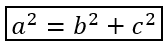
Verwenden Sie to_border_box, wenn die Gleichung selbst gerahmt werden soll.
import aspose.slides as slides
import aspose.slides.mathtext as math

with slides.Presentation() as presentation:
    slide = presentation.slides[0]

    math_shape = slide.shapes.add_math_shape(20, 20, 700, 100)
    math_paragraph = math_shape.text_frame.paragraphs[0].portions[0].math_paragraph

    boxed_equation = (
        math.MathematicalText("a")
        .set_superscript("2")
        .join("=")
        .join(math.MathematicalText("b").set_superscript("2"))
        .join("+")
        .join(math.MathematicalText("c").set_superscript("2"))
        .to_border_box()
    )

    math_paragraph.add(math.MathBlock(boxed_equation))

    presentation.save("border-box.pptx", slides.export.SaveFormat.PPTX)
Terme gruppieren
Verwenden Sie group, um ein Gruppierungszeichen über oder unter einem Ausdruck zu platzieren. Fügen Sie eine Grenze hinzu, um die gruppierten Terme zu beschriften.

import aspose.slides as slides
import aspose.slides.mathtext as math

with slides.Presentation() as presentation:
    slide = presentation.slides[0]

    math_shape = slide.shapes.add_math_shape(20, 20, 700, 120)
    math_paragraph = math_shape.text_frame.paragraphs[0].portions[0].math_paragraph

    grouped = (
        math.MathematicalText("x + y")
        .group(chr(0x23DF), math.MathTopBotPositions.BOTTOM, math.MathTopBotPositions.TOP)
        .set_lower_limit("any text")
    )

    math_paragraph.add(math.MathBlock(grouped))

    presentation.save("grouped-terms.pptx", slides.export.SaveFormat.PPTX)
Mathe‑Elemente formatieren
Verwenden Sie Formatierungs‑Hilfsfunktionen nur dort, wo sie die Formel verdeutlichen. Zum Beispiel setzt overbar, einen Strich über ein Mathe‑Element.

import aspose.slides as slides
import aspose.slides.mathtext as math

with slides.Presentation() as presentation:
    slide = presentation.slides[0]

    math_shape = slide.shapes.add_math_shape(20, 20, 700, 100)
    math_paragraph = math_shape.text_frame.paragraphs[0].portions[0].math_paragraph

    overbar = math.MathematicalText("ABC").overbar()

    math_paragraph.add(math.MathBlock(overbar))

    presentation.save("overbar.pptx", slides.export.SaveFormat.PPTX)
Kurzreferenz
| Aufgabe | Haupt‑API |
|---|---|
| Mathematischen Text erstellen | MathematicalText |
| Elemente kombinieren | IMathElement.join |
| Brüche erstellen | IMathElement.divide |
| Hoch- oder Tiefstellung hinzufügen | set_superscript, set_subscript |
| Funktionen hinzufügen | function, as_argument_of_function |
| Radikale hinzufügen | radical |
| Grenzwerte hinzufügen | set_lower_limit, set_upper_limit |
| Linksseitige Skripte hinzufügen | set_sub_superscript_on_the_left |
| Summen und Integrale hinzufügen | nary, integral |
| Matrizen hinzufügen | MathMatrix |
| Gleichungsarrays hinzufügen | to_math_array |
| Begrenzer hinzufügen | enclose |
| Balken und Rahmen hinzufügen | overbar, to_border_box |
| Terme gruppieren | group |
FAQ
Kann ich eine vorhandene PowerPoint‑Gleichung bearbeiten?
Ja. Öffnen Sie die Präsentation, finden Sie das Shape, das ein MathPortion enthält, holen Sie sein MathParagraph und aktualisieren Sie die mathematischen Blöcke in diesem Absatz.
Werden Gleichungen als editierbare PowerPoint‑Mathematik gespeichert?
Ja. Beim Speichern als PPTX schreibt Aspose.Slides die Gleichung als editierbaren Office‑Math‑Inhalt.
Kann ich Gleichungen nach LaTeX exportieren?
Ja. Holen Sie sich das MathParagraph der Gleichung über ihr MathPortion, und rufen Sie MathParagraph.to_latex auf, um es direkt zu exportieren. Ein vollständiges Beispiel finden Sie unter Export Math Equations from Presentations in Python via .NET.