
مدیریت ردیفها و ستونها در جداول PowerPoint با استفاده از Python
مقدمه
Aspose.Slides for Python via Java به شما امکان مدیریت ساختار جدول و قالببندی در ارائههای PowerPoint را از طریق کلاس جدول میدهد. میتوانید یک ردیف سرصفحه تعیین کنید، ردیفها و ستونها را شبیهسازی یا حذف کنید و قالببندی متن را بر روی یک ردیف یا ستون تمامعیار اعمال کنید.
این مقاله این عملیات را با مثالهای Python توضیح میدهد. همچنین نشان میدهد چگونه پیشتنظیم سبک جدول را بازیابی کنید تا بتوانید آن را دوباره استفاده کنید. شاخصهای ردیف و ستون جدول از صفر شروع میشوند.
کنترل ارتفاع ردیف
از Row.setMinimalHeight برای تنظیم حداقل ارتفاع ردیف بر حسب پوینت استفاده کنید. این یک حد پایین است، نه ارتفاع ثابت. Row.getHeight ارتفاع واقعی را برمیگرداند. برای دسترسی به ردیف از Table.getRows استفاده کنید.
مثال row-height-input.pptx را بارگیری میکند، که در اولین شکل اولین اسلاید یک جدول دارد. ردیف اول آن از ۷۰ پوینت شروع میشود. سلولها متن Arial به اندازه ۱۸ پوینت، با بسته شدن متن و حاشیههای ۶ پوینت در بالا و پایین دارند؛ متن طولانیتر در ستون دوم به خطوط متعدد بسته میشود. مثال حداقل را به ۱۰۰ پوینت افزایش میدهد، سپس به ۲۰ پوینت کاهش میدهد، پس از هر تغییر ارتفاع واقعی را چاپ میکند و هر دو نتیجه را ذخیره میکند.
import jpype
import asposeslides

if not jpype.isJVMStarted():
    jpype.startJVM()

from asposeslides.api import Presentation, SaveFormat

presentation = Presentation("row-height-input.pptx")
try:
    slide = presentation.getSlides().get_Item(0)

    table = slide.getShapes().get_Item(0)
    row = table.getRows().get_Item(0)

    row.setMinimalHeight(100)
    print(f"Increased: minimum = {row.getMinimalHeight():.1f}, actual = {row.getHeight():.1f} pt")
    presentation.save("row-height-increased.pptx", SaveFormat.Pptx)

    row.setMinimalHeight(20)
    print(f"Decreased: minimum = {row.getMinimalHeight():.1f}, actual = {row.getHeight():.1f} pt")
    presentation.save("row-height-decreased.pptx", SaveFormat.Pptx)
finally:
    presentation.dispose()
با ارائهی فراهمشده، افزایش حداقل فضای بیشتری به ردیف اضافه میکند. کاهش آن آن فضای اضافی را حذف میکند، اما ارتفاع واقعی بزرگتر از ۲۰ پوینت باقی میماند زیرا متن و حاشیههای سلول به فضای بیشتری نیاز دارند. کاهش صرف حداقل نمیتواند ردیف را زیر فضایی که محتوا نیاز دارد فشار دهد.
چند عامل بر ارتفاع واقعی تأثیر میگذارند:
- متن و اندازه قلم: متن طولانیتر، شکستخط صریح، یا قلم بزرگتر میتواند به فضای عمودی بیشتری نیاز داشته باشد.
- بسته شدن متن و عرض ستون: با فعال شدن بسته شدن متن، کاهش عرض ستون با استفاده از Column.setWidth میتواند خطوط بیشتری تولید کند. ستون گستردهتر میتواند فضای عمودی مورد نیاز را کاهش دهد.
- حاشیههای سلول: Cell.setMarginTop و Cell.setMarginBottom فضای عمودی اضافه میکنند. Cell.setMarginLeft و Cell.setMarginRight عرض موجود برای متن را کاهش میدهند و میتوانند باعث بسته شدن بیشتر شوند.
برای این جدول بدون سلولهای ادغامشده، سلولی که بیشترین فضای عمودی را نیاز دارد، حد پایین مبتنی بر محتوا را برای کل ردیف تعیین میکند. برای کوتاهتر کردن ردیف ممکن است نیاز باشد متن را کوتاه کنید، اندازه قلم یا حاشیهها را کاهش دهید یا یک ستون را عریضتر کنید.
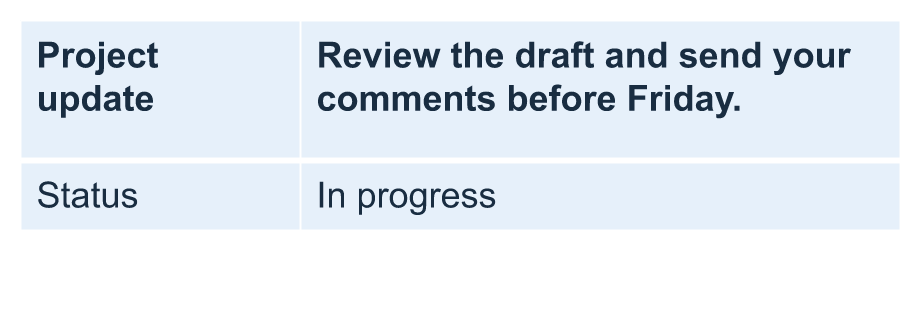
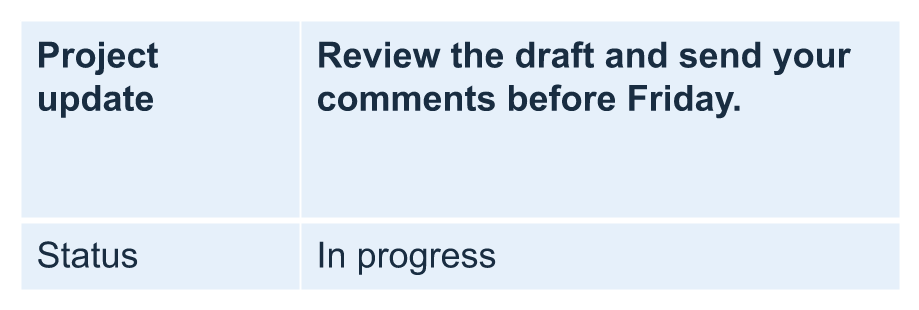
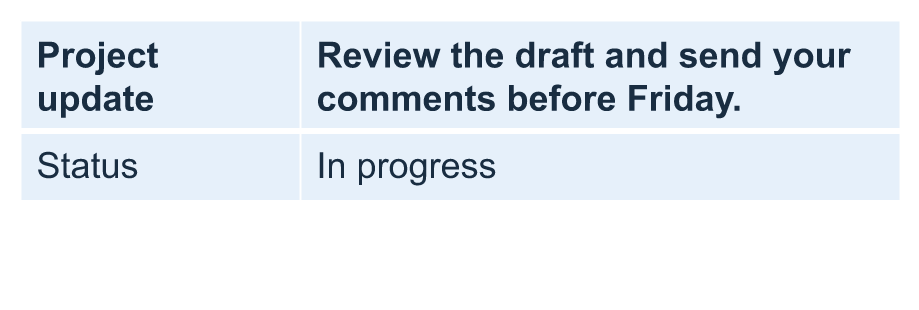
تصاویر زیر همان جدول را در همان مقیاس نشان میدهند. در نتایج نشاندادهشده، ارتفاعهای واقعی ۷۰، ۱۰۰ و ۵۵٫۲ پوینت بودند: ردیف نهایی بلندتر از حداقل ۲۰ پوینت باقی ماند. اندازهگیریهای دقیق متن میتواند با قلمهای موجود در محیط شما متفاوت باشد. نتایج ذخیرهشده را بارگیری کنید: حداقل افزایشیافته و حداقل کاهشیافته.
| اصلی: حداقل ۷۰ پوینت، واقعی ۷۰ پوینت | افزایشیافته: حداقل ۱۰۰ پوینت، واقعی ۱۰۰ پوینت | کاهشیافته: حداقل ۲۰ پوینت، واقعی ۵۵٫۲ پوینت |
|---|---|---|
 |
 |
 |
تنظیم ردیف اول به عنوان سرصفحه
از متد setFirstRow برای علامتگذاری ردیف اول جهت قالببندی سرصفحه استفاده کنید. ظاهر آن بستگی به سبک جدول اعمالشده دارد.
- ارائه را با کلاس Presentation بارگیری کنید.
- به اولین اسلاید دسترسی پیدا کنید.
- جدول ذخیرهشده به عنوان اولین شکل در اسلاید را دسترسی پیدا کنید.
- قالببندی سرصفحه را برای ردیف اول آن فعال کنید.
- ارائه تغییر یافته را ذخیره کنید.
import jpype
import asposeslides

if not jpype.isJVMStarted():
    jpype.startJVM()

from asposeslides.api import Presentation, SaveFormat

presentation = Presentation("table.pptx")
try:
    slide = presentation.getSlides().get_Item(0)

    table = slide.getShapes().get_Item(0)
    table.setFirstRow(True)

    presentation.save("First_row_header.pptx", SaveFormat.Pptx)
finally:
    presentation.dispose()
کلون کردن ردیف یا ستون جدول
ردیفها یا ستونها را کلون کنید تا محتوای آنها و قالببندی را دوباره استفاده کنید. میتوانید یک کپی را به انتهای جدول اضافه کنید یا در موقعیت خاصی وارد کنید.
- ارائه را با کلاس Presentation بارگیری کنید.
- به اولین اسلاید دسترسی پیدا کنید.
- عرض ستونها و ارتفاع ردیفها را تعریف کنید.
- جدول را با متد addTable اضافه کنید.
- ردیفهای مورد نیاز را کلون کنید.
- ستونهای مورد نیاز را کلون کنید.
- ارائه تغییر یافته را ذخیره کنید.
این مثال به Test.pptx نیاز دارد که حداقل یک اسلاید داشته باشد. جدول با سه ستون و پنج ردیف ایجاد میکند، ابعاد را بر حسب پوینت تعیین میکند، کپیهای ردیف و ستون اول را اضافه مینماید، سپس کپیهای ردیف و ستون دوم را در ایندکس ۳ (موقعیت چهارم) وارد میکند. جدول نهایی دارای هفت ردیف و پنج ستون است. آرگومان False کلون کردن در ردیفها یا ستونهای ادغامشده مجاور را غیرفعال میکند؛ این جدول سلولهای ادغامشده ندارد.
import jpype
import asposeslides

if not jpype.isJVMStarted():
    jpype.startJVM()

from asposeslides.api import Presentation, SaveFormat

presentation = Presentation("Test.pptx")
try:
    slide = presentation.getSlides().get_Item(0)

    column_widths = jpype.JArray(jpype.JDouble)([50, 50, 50])
    row_heights = jpype.JArray(jpype.JDouble)([50, 30, 30, 30, 30])
    table = slide.getShapes().addTable(100, 50, column_widths, row_heights)

    table.get_Item(0, 0).getTextFrame().setText("Row 1 Cell 1")
    table.get_Item(1, 0).getTextFrame().setText("Row 1 Cell 2")
    table.getRows().addClone(table.getRows().get_Item(0), False)

    table.get_Item(0, 1).getTextFrame().setText("Row 2 Cell 1")
    table.get_Item(1, 1).getTextFrame().setText("Row 2 Cell 2")
    table.getRows().insertClone(3, table.getRows().get_Item(1), False)

    table.getColumns().addClone(table.getColumns().get_Item(0), False)
    table.getColumns().insertClone(3, table.getColumns().get_Item(1), False)

    presentation.save("table_out.pptx", SaveFormat.Pptx)
finally:
    presentation.dispose()
حذف ردیف یا ستون از جدول
ردیفها یا ستونهایی که دیگر نیازی به آنها ندارید را از جدول حذف کنید. حذف یک آیتم شاخصهای ردیفها یا ستونهای بعدی را جابهجا میکند.
- یک ارائه با کلاس Presentation ایجاد کنید.
- به اولین اسلاید دسترسی پیدا کنید.
- عرض ستونها و ارتفاع ردیفها را تعریف کنید.
- جدول را با متد addTable اضافه کنید.
- ردیف دوم و ستون دوم را حذف کنید.
- ارائه تغییر یافته را ذخیره کنید.
این مثال یک جدول سه در سه ایجاد میکند و ردیف و ستون در شاخص ۱ را حذف میکند، جدول دو در دو باقی میماند و در TestTable_out.pptx ذخیره میشود. ابعاد بر حسب پوینت هستند. آرگومان False حذف ردیفها یا ستونهای ادغامشده مجاور را غیرفعال میکند؛ این جدول سلولهای ادغامشده ندارد.
import jpype
import asposeslides

if not jpype.isJVMStarted():
    jpype.startJVM()

from asposeslides.api import Presentation, SaveFormat

presentation = Presentation()
try:
    slide = presentation.getSlides().get_Item(0)

    column_widths = jpype.JArray(jpype.JDouble)([100, 50, 30])
    row_heights = jpype.JArray(jpype.JDouble)([30, 50, 30])
    table = slide.getShapes().addTable(100, 100, column_widths, row_heights)

    table.getRows().removeAt(1, False)
    table.getColumns().removeAt(1, False)

    presentation.save("TestTable_out.pptx", SaveFormat.Pptx)
finally:
    presentation.dispose()
تنظیم قالببندی متن در سطح ردیف جدول
قالببندی متن را بر روی یک ردیف کامل اعمال کنید تا سلولهای آن یکدست بمانند. میتوانید ویژگیهای قلم، قالببندی پاراگراف و جهت متن را بدون قالببندی جداگانه هر سلول تنظیم کنید.
- ارائه را با کلاس Presentation بارگیری کنید.
- جدول موجود در اولین اسلاید را دسترسی پیدا کنید.
- برای ردیف اول از setFontHeight استفاده کنید.
- برای ردیف اول از setAlignment و setMarginRight استفاده کنید.
- برای ردیف دوم از setTextVerticalType استفاده کنید.
- ارائه تغییر یافته را ذخیره کنید.
مثال به table.pptx نیاز دارد که جدول به عنوان اولین شکل اولین اسلاید داشته باشد و حداقل دو ردیف داشته باشد. متن ۲۵ پوینت، ترازبندی راست و حاشیه پاراگراف راست ۲۰ پوینت را به ردیف اول اعمال میکند، سپس متن عمودی را در ردیف دوم تنظیم میکند.
import jpype
import asposeslides

if not jpype.isJVMStarted():
    jpype.startJVM()

from asposeslides.api import Presentation, SaveFormat, PortionFormat, ParagraphFormat, TextFrameFormat, TextAlignment, TextVerticalType

presentation = Presentation("table.pptx")
try:
    slide = presentation.getSlides().get_Item(0)

    table = slide.getShapes().get_Item(0)

    portion_format = PortionFormat()
    portion_format.setFontHeight(25)
    table.getRows().get_Item(0).setTextFormat(portion_format)

    paragraph_format = ParagraphFormat()
    paragraph_format.setAlignment(TextAlignment.Right)
    paragraph_format.setMarginRight(20)
    table.getRows().get_Item(0).setTextFormat(paragraph_format)

    text_frame_format = TextFrameFormat()
    text_frame_format.setTextVerticalType(TextVerticalType.Vertical)
    table.getRows().get_Item(1).setTextFormat(text_frame_format)

    presentation.save("row_formatting.pptx", SaveFormat.Pptx)
finally:
    presentation.dispose()
تنظیم قالببندی متن در سطح ستون جدول
قالببندی متن را بر روی یک ستون کامل اعمال کنید تا سلولهای آن یکدست بمانند. میتوانید ویژگیهای قلم، قالببندی پاراگراف و جهت متن را بدون قالببندی جداگانه هر سلول تنظیم کنید.
- ارائه را با کلاس Presentation بارگیری کنید.
- جدول موجود در اولین اسلاید را دسترسی پیدا کنید.
- برای ستون اول از setFontHeight استفاده کنید.
- برای ستون اول از setAlignment و setMarginRight استفاده کنید.
- برای ستون دوم از setTextVerticalType استفاده کنید.
- ارائه تغییر یافته را ذخیره کنید.
مثال به table.pptx نیاز دارد که جدول به عنوان اولین شکل اولین اسلاید داشته باشد و حداقل دو ستون داشته باشد. متن ۲۵ پوینت، ترازبندی راست و حاشیه پاراگراف راست ۲۰ پوینت را به ستون اول اعمال میکند، سپس متن عمودی را در ستون دوم تنظیم میکند.
import jpype
import asposeslides

if not jpype.isJVMStarted():
    jpype.startJVM()

from asposeslides.api import Presentation, SaveFormat, PortionFormat, ParagraphFormat, TextFrameFormat, TextAlignment, TextVerticalType

presentation = Presentation("table.pptx")
try:
    slide = presentation.getSlides().get_Item(0)

    table = slide.getShapes().get_Item(0)

    portion_format = PortionFormat()
    portion_format.setFontHeight(25)
    table.getColumns().get_Item(0).setTextFormat(portion_format)

    paragraph_format = ParagraphFormat()
    paragraph_format.setAlignment(TextAlignment.Right)
    paragraph_format.setMarginRight(20)
    table.getColumns().get_Item(0).setTextFormat(paragraph_format)

    text_frame_format = TextFrameFormat()
    text_frame_format.setTextVerticalType(TextVerticalType.Vertical)
    table.getColumns().get_Item(1).setTextFormat(text_frame_format)

    presentation.save("column_formatting.pptx", SaveFormat.Pptx)
finally:
    presentation.dispose()
دریافت خصوصیات سبک جدول
از متد getStylePreset برای بازیابی پیشتنظیم اعمالشده به یک جدول و استفاده مجدد از آن روی جدول دیگر استفاده کنید. این شناسایی پیشتنظیم به جای بازنویسی قالببندی سلولهای تک تک انجام میشود.
مثال یک جدول ایجاد میکند، استایل پیشتنظیم TableStylePreset.DarkStyle1 را اعمال میکند و پیشتنظیم را میخواند. مقدار صحیح عددی مربوط به DarkStyle1 چاپ میشود و جدول در table.pptx ذخیره میشود.
import jpype
import asposeslides

if not jpype.isJVMStarted():
    jpype.startJVM()

from asposeslides.api import Presentation, SaveFormat, TableStylePreset

presentation = Presentation()
try:
    slide = presentation.getSlides().get_Item(0)

    column_widths = jpype.JArray(jpype.JDouble)([100, 150])
    row_heights = jpype.JArray(jpype.JDouble)([5, 5, 5])
    table = slide.getShapes().addTable(10, 10, column_widths, row_heights)
    table.setStylePreset(TableStylePreset.DarkStyle1)

    style_preset = table.getStylePreset()
    print(style_preset)

    presentation.save("table.pptx", SaveFormat.Pptx)
finally:
    presentation.dispose()
سوالات متداول
آیا میتوانم قالبها/استایلهای PowerPoint را به جدول ایجاد‑شده اعمال کنم؟
بله. جدول تم اسلاید/چیدمان/مستر را ارث میبرد و همچنان میتوانید پرکنندهها، حاشیهها و رنگهای متن را روی آن تم بازنویسی کنید.
آیا میتوانم ردیفهای جدول را همانند Excel مرتب کنم؟
نه، جداول Aspose.Slides قابلیت مرتبسازی یا فیلترهای داخلی ندارند. دادههای خود را ابتدا در حافظه مرتب کنید، سپس ردیفهای جدول را به ترتیب آن دوباره پر کنید.
آیا میتوانم ستونهای راهراه داشته باشم در حالی که رنگهای سفارشی را برای سلولهای خاص نگه دارم؟
بله. ستونهای راهراه را فعال کنید، سپس سلولهای خاص را با قالببندی محلی بازنویسی کنید؛ قالببندی سطح سلول بر سبک جدول اولویت دارد.