
Manage Rows and Columns in PowerPoint Tables Using Python
Introduction
Aspose.Slides for Python via Java lets you manage table structure and formatting in PowerPoint presentations through the Table class. You can designate a header row, clone or remove rows and columns, and apply text formatting to an entire row or column.
This article explains these operations with Python examples. It also shows how to retrieve a table’s style preset so you can reuse it. Table row and column indices are zero-based.
Control Row Height
Use Row.setMinimalHeight to set a row’s minimum height in points. It is a lower bound, not a fixed height. Row.getHeight returns the actual height. Access the row through Table.getRows.
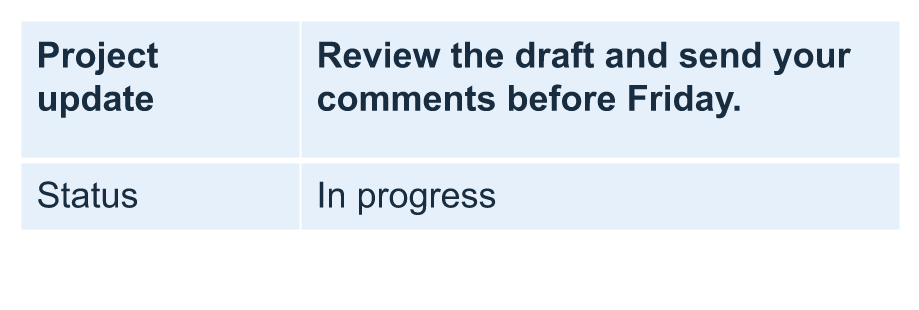
The example loads row-height-input.pptx, which has a table as the first shape on the first slide. Its first row starts at 70 points. The cells use 18-point Arial text, wrapping, and 6-point top and bottom margins; the longer text in the second column wraps onto multiple lines. The example increases the minimum to 100 points, then decreases it to 20 points, prints the actual height after each change, and saves both results.
import jpype
import asposeslides

if not jpype.isJVMStarted():
    jpype.startJVM()

from asposeslides.api import Presentation, SaveFormat

presentation = Presentation("row-height-input.pptx")
try:
    slide = presentation.getSlides().get_Item(0)

    table = slide.getShapes().get_Item(0)
    row = table.getRows().get_Item(0)

    row.setMinimalHeight(100)
    print(f"Increased: minimum = {row.getMinimalHeight():.1f}, actual = {row.getHeight():.1f} pt")
    presentation.save("row-height-increased.pptx", SaveFormat.Pptx)

    row.setMinimalHeight(20)
    print(f"Decreased: minimum = {row.getMinimalHeight():.1f}, actual = {row.getHeight():.1f} pt")
    presentation.save("row-height-decreased.pptx", SaveFormat.Pptx)
finally:
    presentation.dispose()
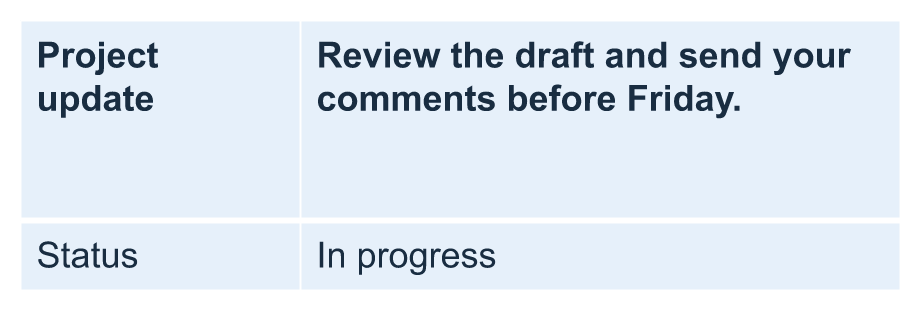
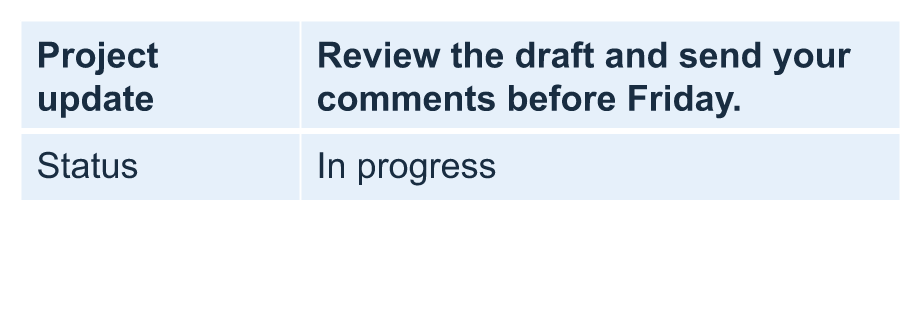
With the supplied presentation, increasing the minimum adds space to the row. Decreasing it removes that extra space, but the actual height remains greater than 20 points because the text and cell margins need more room. Reducing the minimum alone cannot force the row below the space required by its content.
Several factors affect the actual height:
- Text and font size: longer text, explicit line breaks, or a larger font can require more vertical space.
- Wrapping and column width: with wrapping enabled, reducing the column width with Column.setWidth can produce more lines. A wider column can reduce the space required vertically.
- Cell margins: Cell.setMarginTop and Cell.setMarginBottom add vertical space. Cell.setMarginLeft and Cell.setMarginRight reduce the width available for text and can cause additional wrapping.
For this table without merged cells, the cell that needs the most vertical space determines the content-driven lower limit for the entire row. To make the row shorter, you may also need to shorten the text, reduce the font size or margins, or widen a column.
The images below show the same table at the same scale. In the illustrated results, the actual heights were 70, 100, and 55.2 points: the final row remained taller than its 20-point minimum. Exact text measurements can vary with the fonts available in your environment. Download the saved results: increased minimum and decreased minimum.
| Original: minimum 70 pt, actual 70 pt | Increased: minimum 100 pt, actual 100 pt | Decreased: minimum 20 pt, actual 55.2 pt |
|---|---|---|
 |
 |
 |
Set the First Row as a Header
Use the setFirstRow method to mark the first row for header formatting. Its appearance depends on the table style applied to the table.
- Load the presentation with the Presentation class.
- Access the first slide.
- Access the table stored as the first shape on the slide.
- Enable header formatting for its first row.
- Save the modified presentation.
The example requires table.pptx with a table as the first shape on the first slide. It enables header formatting for the first row and saves First_row_header.pptx.
import jpype
import asposeslides

if not jpype.isJVMStarted():
    jpype.startJVM()

from asposeslides.api import Presentation, SaveFormat

presentation = Presentation("table.pptx")
try:
    slide = presentation.getSlides().get_Item(0)

    table = slide.getShapes().get_Item(0)
    table.setFirstRow(True)

    presentation.save("First_row_header.pptx", SaveFormat.Pptx)
finally:
    presentation.dispose()
Clone a Table Row or Column
Clone rows or columns to reuse their content and formatting. You can append a copy to the end of the table or insert it at a specific position.
- Load the presentation with the Presentation class.
- Access the first slide.
- Define the column widths and row heights.
- Add a table with the addTable method.
- Clone the required rows.
- Clone the required columns.
- Save the modified presentation.
The example requires Test.pptx with at least one slide. It creates a table with three columns and five rows, with dimensions specified in points. It appends copies of the first row and column, then inserts copies of the second row and column at index 3 (the fourth position). The resulting table has seven rows and five columns. The False argument disables cloning into adjacent merged rows or columns; this table has no merged cells.
import jpype
import asposeslides

if not jpype.isJVMStarted():
    jpype.startJVM()

from asposeslides.api import Presentation, SaveFormat

presentation = Presentation("Test.pptx")
try:
    slide = presentation.getSlides().get_Item(0)

    column_widths = jpype.JArray(jpype.JDouble)([50, 50, 50])
    row_heights = jpype.JArray(jpype.JDouble)([50, 30, 30, 30, 30])
    table = slide.getShapes().addTable(100, 50, column_widths, row_heights)

    table.get_Item(0, 0).getTextFrame().setText("Row 1 Cell 1")
    table.get_Item(1, 0).getTextFrame().setText("Row 1 Cell 2")
    table.getRows().addClone(table.getRows().get_Item(0), False)

    table.get_Item(0, 1).getTextFrame().setText("Row 2 Cell 1")
    table.get_Item(1, 1).getTextFrame().setText("Row 2 Cell 2")
    table.getRows().insertClone(3, table.getRows().get_Item(1), False)

    table.getColumns().addClone(table.getColumns().get_Item(0), False)
    table.getColumns().insertClone(3, table.getColumns().get_Item(1), False)

    presentation.save("table_out.pptx", SaveFormat.Pptx)
finally:
    presentation.dispose()
Remove a Row or Column from a Table
Remove rows or columns that are no longer needed in a table. Removing an item shifts the indices of the rows or columns that follow it.
- Create a presentation with the Presentation class.
- Access the first slide.
- Define the column widths and row heights.
- Add a table with the addTable method.
- Remove the second row and second column.
- Save the modified presentation.
This example creates a three-by-three table and removes the row and column at index 1, leaving a two-by-two table in TestTable_out.pptx. The dimensions are in points. The False argument disables removal of adjacent merged rows or columns; this table has no merged cells.
import jpype
import asposeslides

if not jpype.isJVMStarted():
    jpype.startJVM()

from asposeslides.api import Presentation, SaveFormat

presentation = Presentation()
try:
    slide = presentation.getSlides().get_Item(0)

    column_widths = jpype.JArray(jpype.JDouble)([100, 50, 30])
    row_heights = jpype.JArray(jpype.JDouble)([30, 50, 30])
    table = slide.getShapes().addTable(100, 100, column_widths, row_heights)

    table.getRows().removeAt(1, False)
    table.getColumns().removeAt(1, False)

    presentation.save("TestTable_out.pptx", SaveFormat.Pptx)
finally:
    presentation.dispose()
Set Text Formatting on the Table Row Level
Apply text formatting to an entire row to keep its cells consistent. You can set font properties, paragraph formatting, and text direction without formatting each cell individually.
- Load the presentation with the Presentation class.
- Access the table on the first slide.
- Use setFontHeight for the first row.
- Use setAlignment and setMarginRight for the first row.
- Use setTextVerticalType for the second row.
- Save the modified presentation.
The example requires table.pptx with a table as the first shape on the first slide and at least two rows. It applies 25-point text, right alignment, and a 20-point right paragraph margin to the first row, then sets vertical text in the second row.
import jpype
import asposeslides

if not jpype.isJVMStarted():
    jpype.startJVM()

from asposeslides.api import Presentation, SaveFormat, PortionFormat, ParagraphFormat, TextFrameFormat, TextAlignment, TextVerticalType

presentation = Presentation("table.pptx")
try:
    slide = presentation.getSlides().get_Item(0)

    table = slide.getShapes().get_Item(0)

    portion_format = PortionFormat()
    portion_format.setFontHeight(25)
    table.getRows().get_Item(0).setTextFormat(portion_format)

    paragraph_format = ParagraphFormat()
    paragraph_format.setAlignment(TextAlignment.Right)
    paragraph_format.setMarginRight(20)
    table.getRows().get_Item(0).setTextFormat(paragraph_format)

    text_frame_format = TextFrameFormat()
    text_frame_format.setTextVerticalType(TextVerticalType.Vertical)
    table.getRows().get_Item(1).setTextFormat(text_frame_format)

    presentation.save("row_formatting.pptx", SaveFormat.Pptx)
finally:
    presentation.dispose()
Set Text Formatting on the Table Column Level
Apply text formatting to an entire column to keep its cells consistent. You can set font properties, paragraph formatting, and text direction without formatting each cell individually.
- Load the presentation with the Presentation class.
- Access the table on the first slide.
- Use setFontHeight for the first column.
- Use setAlignment and setMarginRight for the first column.
- Use setTextVerticalType for the second column.
- Save the modified presentation.
The example requires table.pptx with a table as the first shape on the first slide and at least two columns. It applies 25-point text, right alignment, and a 20-point right paragraph margin to the first column, then sets vertical text in the second column.
import jpype
import asposeslides

if not jpype.isJVMStarted():
    jpype.startJVM()

from asposeslides.api import Presentation, SaveFormat, PortionFormat, ParagraphFormat, TextFrameFormat, TextAlignment, TextVerticalType

presentation = Presentation("table.pptx")
try:
    slide = presentation.getSlides().get_Item(0)

    table = slide.getShapes().get_Item(0)

    portion_format = PortionFormat()
    portion_format.setFontHeight(25)
    table.getColumns().get_Item(0).setTextFormat(portion_format)

    paragraph_format = ParagraphFormat()
    paragraph_format.setAlignment(TextAlignment.Right)
    paragraph_format.setMarginRight(20)
    table.getColumns().get_Item(0).setTextFormat(paragraph_format)

    text_frame_format = TextFrameFormat()
    text_frame_format.setTextVerticalType(TextVerticalType.Vertical)
    table.getColumns().get_Item(1).setTextFormat(text_frame_format)

    presentation.save("column_formatting.pptx", SaveFormat.Pptx)
finally:
    presentation.dispose()
Get Table Style Properties
Use the getStylePreset method to retrieve the preset applied to a table and reuse it on another table. This identifies the preset rather than individual cell formatting overrides.
The example creates a table, applies TableStylePreset.DarkStyle1, and reads the preset back. It prints the integer value corresponding to DarkStyle1 and saves the table in table.pptx.
import jpype
import asposeslides

if not jpype.isJVMStarted():
    jpype.startJVM()

from asposeslides.api import Presentation, SaveFormat, TableStylePreset

presentation = Presentation()
try:
    slide = presentation.getSlides().get_Item(0)

    column_widths = jpype.JArray(jpype.JDouble)([100, 150])
    row_heights = jpype.JArray(jpype.JDouble)([5, 5, 5])
    table = slide.getShapes().addTable(10, 10, column_widths, row_heights)
    table.setStylePreset(TableStylePreset.DarkStyle1)

    style_preset = table.getStylePreset()
    print(style_preset)

    presentation.save("table.pptx", SaveFormat.Pptx)
finally:
    presentation.dispose()
FAQ
Can I apply PowerPoint themes/styles to a table that’s already created?
Yes. The table inherits the slide/layout/master theme, and you can still override fills, borders, and text colors on top of that theme.
Can I sort table rows like in Excel?
No, Aspose.Slides tables don’t have built-in sorting or filters. Sort your data in memory first, then repopulate the table rows in that order.
Can I have banded (striped) columns while keeping custom colors on specific cells?
Yes. Turn on banded columns, then override specific cells with local formatting; cell-level formatting takes precedence over the table style.