
Python を使用して PowerPoint テーブルの行と列を管理する
導入
Aspose.Slides for Python via Java を使用すると、PowerPoint プレゼンテーション内のテーブルの構造と書式設定を Table クラスを介して管理できます。ヘッダー行を指定したり、行や列をクローンまたは削除したり、行や列全体にテキスト書式設定を適用したりできます。
この記事では、これらの操作を Python の例で説明します。また、テーブルのスタイルプリセットを取得して再利用する方法も示します。テーブルの行と列のインデックスは 0 から始まります。
行の高さの制御
Row.setMinimalHeight を使用して、行の最小高さ(ポイント単位)を設定します。これは下限であり、固定高さではありません。Row.getHeight は実際の高さを返します。行は Table.getRows から取得します。
例は row-height-input.pptx を読み込みます。このプレゼンテーションは最初のスライドの最初のシェイプとしてテーブルを含み、最初の行は 70 ポイントから始まります。セルは 18 ポイント Arial のテキスト、折り返し、上下 6 ポイントの余白を使用し、2 列目の長いテキストは複数行に折り返されます。例では最小高さを 100 ポイントに増やし、次に 20 ポイントに減らし、各変更後に実際の高さを出力し、両方の結果を保存します。
import jpype
import asposeslides

if not jpype.isJVMStarted():
    jpype.startJVM()

from asposeslides.api import Presentation, SaveFormat

presentation = Presentation("row-height-input.pptx")
try:
    slide = presentation.getSlides().get_Item(0)

    table = slide.getShapes().get_Item(0)
    row = table.getRows().get_Item(0)

    row.setMinimalHeight(100)
    print(f"Increased: minimum = {row.getMinimalHeight():.1f}, actual = {row.getHeight():.1f} pt")
    presentation.save("row-height-increased.pptx", SaveFormat.Pptx)

    row.setMinimalHeight(20)
    print(f"Decreased: minimum = {row.getMinimalHeight():.1f}, actual = {row.getHeight():.1f} pt")
    presentation.save("row-height-decreased.pptx", SaveFormat.Pptx)
finally:
    presentation.dispose()
提供されたプレゼンテーションでは、最小高さを増やすと行に余白が追加され、減らすと余分なスペースが削除されますが、テキストとセル余白が必要とする領域のため実際の高さは 20 ポイントより大きくなります。最小高さだけを減らしても、コンテンツが必要とするスペース以下に行を強制することはできません。
実際の高さに影響する主な要因は次のとおりです。
- テキストとフォントサイズ: 長いテキスト、明示的な改行、または大きなフォントは、より多くの垂直スペースを必要とします。
- 折り返しと列幅: 折り返しが有効な場合、Column.setWidth で列幅を狭くすると行数が増えます。列幅を広くすると垂直方向の必要スペースが減ります。
- セル余白: Cell.setMarginTop と Cell.setMarginBottom は垂直余白を追加します。Cell.setMarginLeft と Cell.setMarginRight はテキストに利用できる幅を減らし、折り返しを増やす原因となります。
結合セルのないこのテーブルでは、最も垂直スペースを必要とするセルが行全体のコンテンツ主導の下限を決定します。行を短くしたい場合は、テキストを短くしたり、フォントサイズや余白を減らしたり、列幅を広げる必要があります。
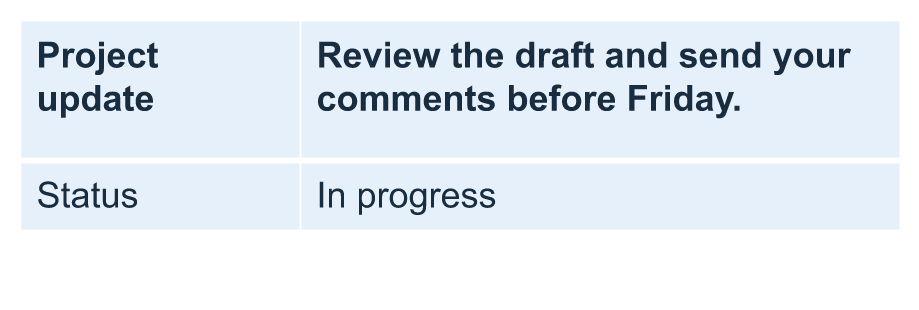
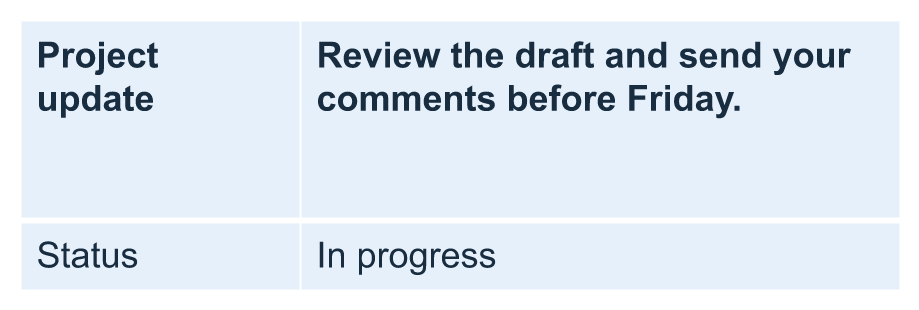
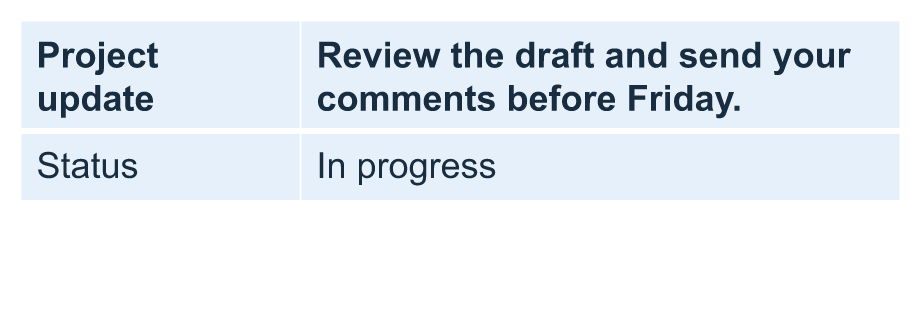
以下の画像は同じスケールで同じテーブルを示しています。示された結果では、実際の高さはそれぞれ 70、100、55.2 ポイントでした。最終行は 20 ポイントの最小高さより高くなっています。フォント環境により正確なテキスト測定は変わる可能性があります。保存された結果は increased minimum と decreased minimum からダウンロードできます。
| 元の: 最小 70 pt、実際 70 pt | 増加: 最小 100 pt、実際 100 pt | 減少: 最小 20 pt、実際 55.2 pt |
|---|---|---|
 |
 |
 |
最初の行をヘッダーとして設定
setFirstRow メソッドを使用して、最初の行をヘッダー書式としてマークします。その外観はテーブルに適用されたテーブルスタイルに依存します。
- Presentation クラスでプレゼンテーションを読み込みます。
- 最初のスライドにアクセスします。
- スライド上の最初のシェイプとして格納されているテーブルにアクセスします。
- 最初の行にヘッダー書式を有効にします。
- 変更されたプレゼンテーションを保存します。
例では、最初のスライドの最初のシェイプとしてテーブルが配置された table.pptx が必要です。最初の行にヘッダー書式を有効にし、First_row_header.pptx として保存します。
import jpype
import asposeslides

if not jpype.isJVMStarted():
    jpype.startJVM()

from asposeslides.api import Presentation, SaveFormat

presentation = Presentation("table.pptx")
try:
    slide = presentation.getSlides().get_Item(0)

    table = slide.getShapes().get_Item(0)
    table.setFirstRow(True)

    presentation.save("First_row_header.pptx", SaveFormat.Pptx)
finally:
    presentation.dispose()
テーブルの行または列をクローン
行や列をクローンして、コンテンツと書式設定を再利用できます。コピーをテーブルの末尾に追加することも、特定の位置に挿入することもできます。
- Presentation クラスでプレゼンテーションを読み込みます。
- 最初のスライドにアクセスします。
- 列幅と行高さを定義します。
- addTable メソッドでテーブルを追加します。
- 必要な行をクローンします。
- 必要な列をクローンします。
- 変更されたプレゼンテーションを保存します。
例では、少なくとも 1 枚のスライドがある Test.pptx が必要です。3 列 5 行のテーブルを作成し、サイズはポイントで指定します。最初の行と列のコピーを末尾に追加し、2 行目と列のコピーをインデックス 3(4 番目の位置)に挿入します。結果としてテーブルは 7 行 5 列になります。False 引数は隣接する結合行や列へのクローンを無効にします。このテーブルには結合セルがありません。
import jpype
import asposeslides

if not jpype.isJVMStarted():
    jpype.startJVM()

from asposeslides.api import Presentation, SaveFormat

presentation = Presentation("Test.pptx")
try:
    slide = presentation.getSlides().get_Item(0)

    column_widths = jpype.JArray(jpype.JDouble)([50, 50, 50])
    row_heights = jpype.JArray(jpype.JDouble)([50, 30, 30, 30, 30])
    table = slide.getShapes().addTable(100, 50, column_widths, row_heights)

    table.get_Item(0, 0).getTextFrame().setText("Row 1 Cell 1")
    table.get_Item(1, 0).getTextFrame().setText("Row 1 Cell 2")
    table.getRows().addClone(table.getRows().get_Item(0), False)

    table.get_Item(0, 1).getTextFrame().setText("Row 2 Cell 1")
    table.get_Item(1, 1).getTextFrame().setText("Row 2 Cell 2")
    table.getRows().insertClone(3, table.getRows().get_Item(1), False)

    table.getColumns().addClone(table.getColumns().get_Item(0), False)
    table.getColumns().insertClone(3, table.getColumns().get_Item(1), False)

    presentation.save("table_out.pptx", SaveFormat.Pptx)
finally:
    presentation.dispose()
テーブルから行または列を削除
テーブルから不要になった行や列を削除します。項目を削除すると、それに続く行や列のインデックスがシフトします。
- Presentation クラスでプレゼンテーションを作成します。
- 最初のスライドにアクセスします。
- 列幅と行高さを定義します。
- addTable メソッドでテーブルを追加します。
- 2 行目と 2 列目を削除します。
- 変更されたプレゼンテーションを保存します。
この例では、3×3 のテーブルを作成し、インデックス 1 の行と列を削除して TestTable_out.pptx に 2×2 のテーブルを残します。サイズはポイントで指定します。False 引数は隣接する結合行や列の削除を無効にします。このテーブルには結合セルがありません。
import jpype
import asposeslides

if not jpype.isJVMStarted():
    jpype.startJVM()

from asposeslides.api import Presentation, SaveFormat

presentation = Presentation()
try:
    slide = presentation.getSlides().get_Item(0)

    column_widths = jpype.JArray(jpype.JDouble)([100, 50, 30])
    row_heights = jpype.JArray(jpype.JDouble)([30, 50, 30])
    table = slide.getShapes().addTable(100, 100, column_widths, row_heights)

    table.getRows().removeAt(1, False)
    table.getColumns().removeAt(1, False)

    presentation.save("TestTable_out.pptx", SaveFormat.Pptx)
finally:
    presentation.dispose()
テーブル行レベルでテキスト書式設定を行う
行全体にテキスト書式設定を適用して、セルの一貫性を保ちます。フォントプロパティ、段落書式、テキスト方向を個別のセルを個別に設定せずに設定できます。
- Presentation クラスでプレゼンテーションを読み込みます。
- 最初のスライドのテーブルにアクセスします。
- 最初の行に対して setFontHeight を使用します。
- 最初の行に対して setAlignment と setMarginRight を使用します。
- 2 行目に対して setTextVerticalType を使用します。
- 変更されたプレゼンテーションを保存します。
例では、最初のスライドの最初のシェイプとしてテーブルが配置された table.pptx と、少なくとも 2 行が必要です。最初の行に 25 ポイントのテキスト、右寄せ、20 ポイントの右段落余白を適用し、2 行目に縦書きテキストを設定します。
import jpype
import asposeslides

if not jpype.isJVMStarted():
    jpype.startJVM()

from asposeslides.api import Presentation, SaveFormat, PortionFormat, ParagraphFormat, TextFrameFormat, TextAlignment, TextVerticalType

presentation = Presentation("table.pptx")
try:
    slide = presentation.getSlides().get_Item(0)

    table = slide.getShapes().get_Item(0)

    portion_format = PortionFormat()
    portion_format.setFontHeight(25)
    table.getRows().get_Item(0).setTextFormat(portion_format)

    paragraph_format = ParagraphFormat()
    paragraph_format.setAlignment(TextAlignment.Right)
    paragraph_format.setMarginRight(20)
    table.getRows().get_Item(0).setTextFormat(paragraph_format)

    text_frame_format = TextFrameFormat()
    text_frame_format.setTextVerticalType(TextVerticalType.Vertical)
    table.getRows().get_Item(1).setTextFormat(text_frame_format)

    presentation.save("row_formatting.pptx", SaveFormat.Pptx)
finally:
    presentation.dispose()
テーブル列レベルでテキスト書式設定を行う
列全体にテキスト書式設定を適用して、セルの一貫性を保ちます。フォントプロパティ、段落書式、テキスト方向を個別のセルを個別に設定せずに設定できます。
- Presentation クラスでプレゼンテーションを読み込みます。
- 最初のスライドのテーブルにアクセスします。
- 最初の列に対して setFontHeight を使用します。
- 最初の列に対して setAlignment と setMarginRight を使用します。
- 2 列目に対して setTextVerticalType を使用します。
- 変更されたプレゼンテーションを保存します。
例では、最初のスライドの最初のシェイプとしてテーブルが配置された table.pptx と、少なくとも 2 列が必要です。最初の列に 25 ポイントのテキスト、右寄せ、20 ポイントの右段落余白を適用し、2 列目に縦書きテキストを設定します。
import jpype
import asposeslides

if not jpype.isJVMStarted():
    jpype.startJVM()

from asposeslides.api import Presentation, SaveFormat, PortionFormat, ParagraphFormat, TextFrameFormat, TextAlignment, TextVerticalType

presentation = Presentation("table.pptx")
try:
    slide = presentation.getSlides().get_Item(0)

    table = slide.getShapes().get_Item(0)

    portion_format = PortionFormat()
    portion_format.setFontHeight(25)
    table.getColumns().get_Item(0).setTextFormat(portion_format)

    paragraph_format = ParagraphFormat()
    paragraph_format.setAlignment(TextAlignment.Right)
    paragraph_format.setMarginRight(20)
    table.getColumns().get_Item(0).setTextFormat(paragraph_format)

    text_frame_format = TextFrameFormat()
    text_frame_format.setTextVerticalType(TextVerticalType.Vertical)
    table.getColumns().get_Item(1).setTextFormat(text_frame_format)

    presentation.save("column_formatting.pptx", SaveFormat.Pptx)
finally:
    presentation.dispose()
テーブルスタイルプロパティの取得
getStylePreset メソッドを使用して、テーブルに適用されたプリセットを取得し、別のテーブルで再利用できます。これにより、個々のセルの書式オーバーライドではなく、プリセット自体が特定されます。
例ではテーブルを作成し、TableStylePreset.DarkStyle1 を適用し、プリセットを読み戻します。DarkStyle1 に対応する整数値を出力し、テーブルを table.pptx に保存します。
import jpype
import asposeslides

if not jpype.isJVMStarted():
    jpype.startJVM()

from asposeslides.api import Presentation, SaveFormat, TableStylePreset

presentation = Presentation()
try:
    slide = presentation.getSlides().get_Item(0)

    column_widths = jpype.JArray(jpype.JDouble)([100, 150])
    row_heights = jpype.JArray(jpype.JDouble)([5, 5, 5])
    table = slide.getShapes().addTable(10, 10, column_widths, row_heights)
    table.setStylePreset(TableStylePreset.DarkStyle1)

    style_preset = table.getStylePreset()
    print(style_preset)

    presentation.save("table.pptx", SaveFormat.Pptx)
finally:
    presentation.dispose()
FAQ
既に作成されたテーブルに PowerPoint のテーマ/スタイルを適用できますか?
はい。テーブルはスライド/レイアウト/マスターテーマを継承しますが、その上に塗りつぶし、枠線、テキスト色などを上書きすることができます。
Excel のようにテーブルの行を並べ替えることはできますか?
いいえ、Aspose.Slides のテーブルには組み込みのソートやフィルター機能はありません。まずメモリ上でデータをソートし、その順序でテーブルの行を再入力してください。
特定のセルにカスタムカラーを保持しながら、バンド(ストライプ)列を設定できますか?
はい。バンド列を有効にした後、特定のセルにローカル書式で上書きすれば、セルレベルの書式がテーブルスタイルより優先されます。