
使用 Python 管理 PowerPoint 表格中的列與欄
簡介
Aspose.Slides for Python via Java 讓您可以透過 Table 類別在 PowerPoint 簡報中管理表格結構與格式設定。您可以指定標題列、複製或移除列與欄,並對整列或整欄套用文字格式。
本篇文章以 Python 範例說明這些操作。它同時示範如何取得表格的樣式預設,以便重複使用。表格的列與欄索引採零基礎計算。
控制列高度
使用 Row.setMinimalHeight 以點為單位設定列的最小高度。這只是下限,並非固定高度。 Row.getHeight 會回傳實際高度。可透過 Table.getRows 取得列。
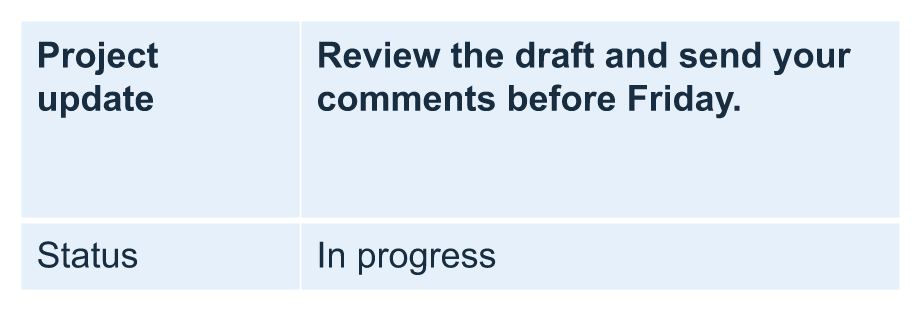
範例載入 row-height-input.pptx,該檔在第一張投影片的第一個圖形中有一個表格。其第一列的起始高度為 70 點。儲存格使用 18 點 Arial 文字、換行,且上下邊距為 6 點;第二欄較長的文字會換行成多行。範例將最小高度提升至 100 點,然後降低至 20 點,於每次變更後列印實際高度,並儲存兩個結果。
import jpype
import asposeslides

if not jpype.isJVMStarted():
    jpype.startJVM()

from asposeslides.api import Presentation, SaveFormat

presentation = Presentation("row-height-input.pptx")
try:
    slide = presentation.getSlides().get_Item(0)

    table = slide.getShapes().get_Item(0)
    row = table.getRows().get_Item(0)

    row.setMinimalHeight(100)
    print(f"Increased: minimum = {row.getMinimalHeight():.1f}, actual = {row.getHeight():.1f} pt")
    presentation.save("row-height-increased.pptx", SaveFormat.Pptx)

    row.setMinimalHeight(20)
    print(f"Decreased: minimum = {row.getMinimalHeight():.1f}, actual = {row.getHeight():.1f} pt")
    presentation.save("row-height-decreased.pptx", SaveFormat.Pptx)
finally:
    presentation.dispose()
使用提供的簡報時,提升最小值會為列新增空間。降低最小值會移除該額外空間,但實際高度仍大於 20 點,因為文字與儲存格邊距需要更大的空間。僅僅降低最小值無法將列的高度低於內容所需的空間。
實際高度受多種因素影響:
- 文字與字型大小: 較長的文字、明確的換行或較大的字型會需要更多垂直空間。
- 換行與欄寬: 開啟換行時,使用 Column.setWidth 縮小欄寬會產生更多行。較寬的欄位可以減少垂直所需的空間。
- 儲存格邊距: Cell.setMarginTop 和 Cell.setMarginBottom 會新增垂直空間。 Cell.setMarginLeft 與 Cell.setMarginRight 會減少文字可用的寬度,可能導致額外換行。
對於此未合併儲存格的表格而言,需要最多垂直空間的儲存格決定整列的內容驅動下限。若要讓列變短,可能也需要縮短文字、減小字型大小或邊距,或是加寬欄位。
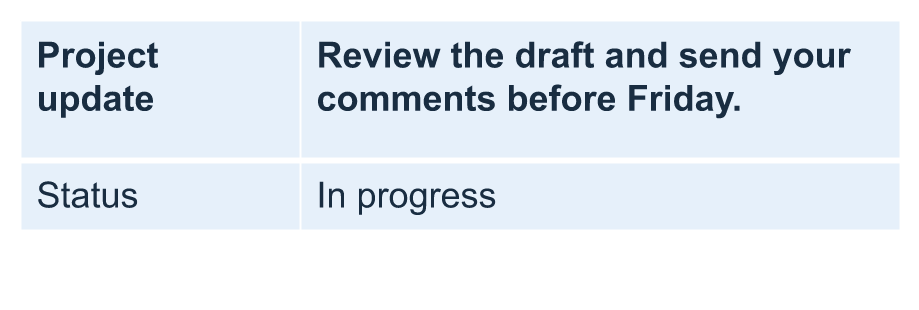
下方圖片顯示相同尺度的表格。於示例結果中,實際高度分別為 70、100 與 55.2 點:最終的列仍比其 20 點的最小值高。文字的精確測量會因環境中可用的字型而異。下載已儲存的結果:increased minimum 與 decreased minimum。
| 原始:最小 70 點,實際 70 點 | 增加:最小 100 點,實際 100 點 | 減少:最小 20 點,實際 55.2 點 |
|---|---|---|
 |
 |
 |
將第一列設為標題列
使用 setFirstRow 方法將第一列標記為標題格式。其外觀取決於套用於表格的表格樣式。
- 使用 Presentation 類別載入簡報。
- 取得第一張投影片。
- 取得投影片上作為第一個圖形的表格。
- 為其第一列啟用標題格式。
- 儲存已修改的簡報。
此範例需要 table.pptx,其在第一張投影片的第一個圖形為表格。範例為第一列啟用標題格式,並儲存為 First_row_header.pptx。
import jpype
import asposeslides

if not jpype.isJVMStarted():
    jpype.startJVM()

from asposeslides.api import Presentation, SaveFormat

presentation = Presentation("table.pptx")
try:
    slide = presentation.getSlides().get_Item(0)

    table = slide.getShapes().get_Item(0)
    table.setFirstRow(True)

    presentation.save("First_row_header.pptx", SaveFormat.Pptx)
finally:
    presentation.dispose()
複製表格列或欄
複製列或欄以重複使用其內容與格式。您可以將副本附加至表格末端,或插入至特定位置。
- 使用 Presentation 類別載入簡報。
- 取得第一張投影片。
- 定義欄寬與列高。
- 使用 addTable 方法新增表格。
- 複製所需的列。
- 複製所需的欄。
- 儲存已修改的簡報。
此範例需要 Test.pptx,至少包含一張投影片。它建立一個三欄五列的表格,尺寸以點為單位指定。它先將第一列與第一欄的副本附加,接著在索引 3(第四個位置)插入第二列與第二欄的副本。最終表格為七列五欄。False 參數會停用對相鄰合併列或欄的複製;此表格未含合併儲存格。
import jpype
import asposeslides

if not jpype.isJVMStarted():
    jpype.startJVM()

from asposeslides.api import Presentation, SaveFormat

presentation = Presentation("Test.pptx")
try:
    slide = presentation.getSlides().get_Item(0)

    column_widths = jpype.JArray(jpype.JDouble)([50, 50, 50])
    row_heights = jpype.JArray(jpype.JDouble)([50, 30, 30, 30, 30])
    table = slide.getShapes().addTable(100, 50, column_widths, row_heights)

    table.get_Item(0, 0).getTextFrame().setText("Row 1 Cell 1")
    table.get_Item(1, 0).getTextFrame().setText("Row 1 Cell 2")
    table.getRows().addClone(table.getRows().get_Item(0), False)

    table.get_Item(0, 1).getTextFrame().setText("Row 2 Cell 1")
    table.get_Item(1, 1).getTextFrame().setText("Row 2 Cell 2")
    table.getRows().insertClone(3, table.getRows().get_Item(1), False)

    table.getColumns().addClone(table.getColumns().get_Item(0), False)
    table.getColumns().insertClone(3, table.getColumns().get_Item(1), False)

    presentation.save("table_out.pptx", SaveFormat.Pptx)
finally:
    presentation.dispose()
從表格中移除列或欄
移除表格中不再需要的列或欄。移除項目會使其後的列或欄索引向前移位。
- 使用 Presentation 類別建立簡報。
- 取得第一張投影片。
- 定義欄寬與列高。
- 使用 addTable 方法新增表格。
- 移除第二列與第二欄。
- 儲存已修改的簡報。
此範例建立一個三乘三的表格,並移除索引 1 的列與欄,留下 TestTable_out.pptx 中的二乘二表格。尺寸以點為單位。False 參數會停用對相鄰合併列或欄的移除;此表格未含合併儲存格。
import jpype
import asposeslides

if not jpype.isJVMStarted():
    jpype.startJVM()

from asposeslides.api import Presentation, SaveFormat

presentation = Presentation()
try:
    slide = presentation.getSlides().get_Item(0)

    column_widths = jpype.JArray(jpype.JDouble)([100, 50, 30])
    row_heights = jpype.JArray(jpype.JDouble)([30, 50, 30])
    table = slide.getShapes().addTable(100, 100, column_widths, row_heights)

    table.getRows().removeAt(1, False)
    table.getColumns().removeAt(1, False)

    presentation.save("TestTable_out.pptx", SaveFormat.Pptx)
finally:
    presentation.dispose()
在表格列層級設定文字格式
對整列套用文字格式,以保持其儲存格一致。您可以設定字型屬性、段落格式與文字方向,無需逐一設定每個儲存格。
- 使用 Presentation 類別載入簡報。
- 取得第一張投影片上的表格。
- 對第一列使用 setFontHeight。
- 對第一列使用 setAlignment 與 setMarginRight。
- 對第二列使用 setTextVerticalType。
- 儲存已修改的簡報。
此範例需要 table.pptx,其在第一張投影片的第一個圖形為表格且至少有兩列。它對第一列套用 25 點文字、右對齊以及 20 點的右側段落邊距,接著在第二列設定垂直文字。
import jpype
import asposeslides

if not jpype.isJVMStarted():
    jpype.startJVM()

from asposeslides.api import Presentation, SaveFormat, PortionFormat, ParagraphFormat, TextFrameFormat, TextAlignment, TextVerticalType

presentation = Presentation("table.pptx")
try:
    slide = presentation.getSlides().get_Item(0)

    table = slide.getShapes().get_Item(0)

    portion_format = PortionFormat()
    portion_format.setFontHeight(25)
    table.getRows().get_Item(0).setTextFormat(portion_format)

    paragraph_format = ParagraphFormat()
    paragraph_format.setAlignment(TextAlignment.Right)
    paragraph_format.setMarginRight(20)
    table.getRows().get_Item(0).setTextFormat(paragraph_format)

    text_frame_format = TextFrameFormat()
    text_frame_format.setTextVerticalType(TextVerticalType.Vertical)
    table.getRows().get_Item(1).setTextFormat(text_frame_format)

    presentation.save("row_formatting.pptx", SaveFormat.Pptx)
finally:
    presentation.dispose()
在表格欄層級設定文字格式
對整欄套用文字格式,以保持其儲存格一致。您可以設定字型屬性、段落格式與文字方向,無需逐一設定每個儲存格。
- 使用 Presentation 類別載入簡報。
- 取得第一張投影片上的表格。
- 對第一欄使用 setFontHeight。
- 對第一欄使用 setAlignment 與 setMarginRight。
- 對第二欄使用 setTextVerticalType。
- 儲存已修改的簡報。
此範例需要 table.pptx,其在第一張投影片的第一個圖形為表格且至少有兩欄。它對第一欄套用 25 點文字、右對齊以及 20 點的右側段落邊距,接著在第二欄設定垂直文字。
import jpype
import asposeslides

if not jpype.isJVMStarted():
    jpype.startJVM()

from asposeslides.api import Presentation, SaveFormat, PortionFormat, ParagraphFormat, TextFrameFormat, TextAlignment, TextVerticalType

presentation = Presentation("table.pptx")
try:
    slide = presentation.getSlides().get_Item(0)

    table = slide.getShapes().get_Item(0)

    portion_format = PortionFormat()
    portion_format.setFontHeight(25)
    table.getColumns().get_Item(0).setTextFormat(portion_format)

    paragraph_format = ParagraphFormat()
    paragraph_format.setAlignment(TextAlignment.Right)
    paragraph_format.setMarginRight(20)
    table.getColumns().get_Item(0).setTextFormat(paragraph_format)

    text_frame_format = TextFrameFormat()
    text_frame_format.setTextVerticalType(TextVerticalType.Vertical)
    table.getColumns().get_Item(1).setTextFormat(text_frame_format)

    presentation.save("column_formatting.pptx", SaveFormat.Pptx)
finally:
    presentation.dispose()
取得表格樣式屬性
使用 getStylePreset 方法取得套用於表格的樣式預設,並在另一個表格上重複使用。此方法辨識的是樣式預設,而非個別儲存格的格式覆寫。
此範例建立表格,套用 TableStylePreset.DarkStyle1,並讀回此預設。它列印對應 DarkStyle1 的整數值,並將表格儲存為 table.pptx。
import jpype
import asposeslides

if not jpype.isJVMStarted():
    jpype.startJVM()

from asposeslides.api import Presentation, SaveFormat, TableStylePreset

presentation = Presentation()
try:
    slide = presentation.getSlides().get_Item(0)

    column_widths = jpype.JArray(jpype.JDouble)([100, 150])
    row_heights = jpype.JArray(jpype.JDouble)([5, 5, 5])
    table = slide.getShapes().addTable(10, 10, column_widths, row_heights)
    table.setStylePreset(TableStylePreset.DarkStyle1)

    style_preset = table.getStylePreset()
    print(style_preset)

    presentation.save("table.pptx", SaveFormat.Pptx)
finally:
    presentation.dispose()
常見問題
我可以將 PowerPoint 主題/樣式套用到已建立的表格嗎?
可以。表格會繼承投影片/版面/母片的主題,且您仍可在此基礎上覆寫填滿、邊框與文字顏色。
我可以像 Excel 那樣排序表格列嗎?
不能,Aspose.Slides 的表格沒有內建排序或篩選功能。請先在記憶體中排序資料,然後依該順序重新填入表格列。
我可以在保留特定儲存格自訂顏色的同時,使用交錯(條紋)欄位嗎?
可以。開啟交錯欄位後,對特定儲存格套用本地格式;儲存格層級的格式會優先於表格樣式。