
Python का उपयोग करके PowerPoint तालिकाओं में पंक्तियों और स्तंभों का प्रबंधन
परिचय
Aspose.Slides for Python via Java आपको PowerPoint प्रस्तुतियों में तालिका संरचना और स्वरूपण को Table क्लास के माध्यम से प्रबंधित करने की अनुमति देता है। आप हेडर पंक्ति निर्धारित कर सकते हैं, पंक्तियों और स्तंभों को क्लोन या हटाकर सकते हैं, और पूरी पंक्ति या स्तंभ पर पाठ स्वरूपण लागू कर सकते हैं।
यह लेख इन क्रियाओं को Python उदाहरणों के साथ समझाता है। यह दिखाता है कि तालिका की शैली प्रीसेट को कैसे प्राप्त करें ताकि आप इसे पुनः उपयोग कर सकें। तालिका पंक्ति और स्तंभ सूचकांक शून्य-आधारित होते हैं।
पंक्ति की ऊँचाई नियंत्रित करें
पंक्ति की न्यूनतम ऊँचाई पॉइंट में सेट करने के लिए Row.setMinimalHeight का उपयोग करें। यह एक निचली सीमा है, न कि निश्चित ऊँचाई। Row.getHeight वास्तविक ऊँचाई लौटाता है। पंक्ति तक पहुँचने के लिए Table.getRows का उपयोग करें।
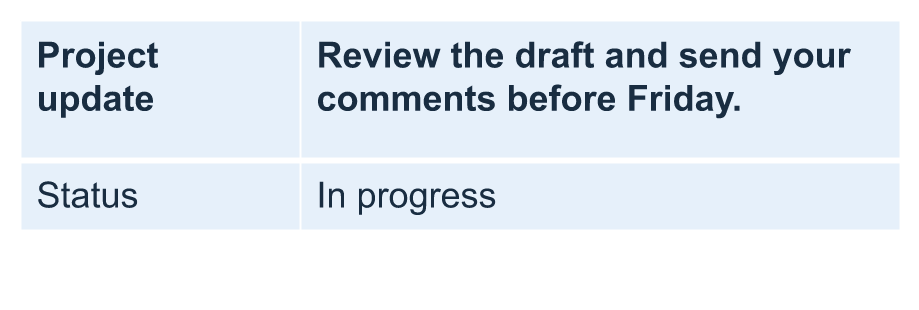
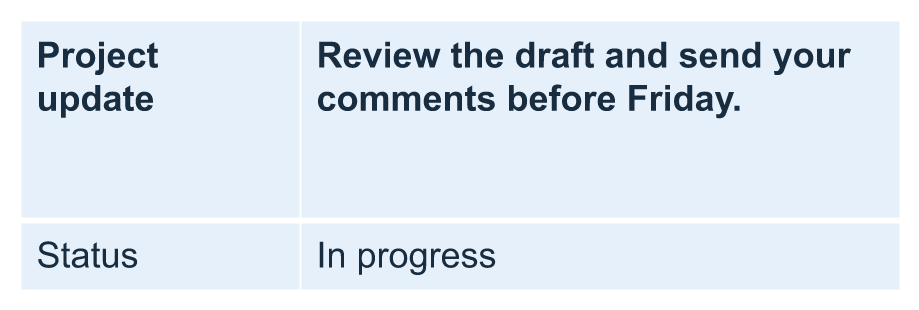
उदाहरण row-height-input.pptx लोड करता है, जिसमें पहली स्लाइड पर पहली आकृति के रूप में एक तालिका होती है। इसकी पहली पंक्ति 70 पॉइंट से शुरू होती है। कोशिकाओं में 18‑पॉइंट Arial पाठ, रैपिंग, और 6‑पॉइंट शीर्ष और नीचे मार्जिन होते हैं; दूसरे स्तंभ में लंबा पाठ कई पंक्तियों में रैप हो जाता है। उदाहरण न्यूनतम को 100 पॉइंट तक बढ़ाता है, फिर इसे 20 पॉइंट तक घटाता है, प्रत्येक परिवर्तन के बाद वास्तविक ऊँचाई प्रिंट करता है, और दोनों परिणाम सहेजता है।
import jpype
import asposeslides

if not jpype.isJVMStarted():
    jpype.startJVM()

from asposeslides.api import Presentation, SaveFormat

presentation = Presentation("row-height-input.pptx")
try:
    slide = presentation.getSlides().get_Item(0)

    table = slide.getShapes().get_Item(0)
    row = table.getRows().get_Item(0)

    row.setMinimalHeight(100)
    print(f"Increased: minimum = {row.getMinimalHeight():.1f}, actual = {row.getHeight():.1f} pt")
    presentation.save("row-height-increased.pptx", SaveFormat.Pptx)

    row.setMinimalHeight(20)
    print(f"Decreased: minimum = {row.getMinimalHeight():.1f}, actual = {row.getHeight():.1f} pt")
    presentation.save("row-height-decreased.pptx", SaveFormat.Pptx)
finally:
    presentation.dispose()
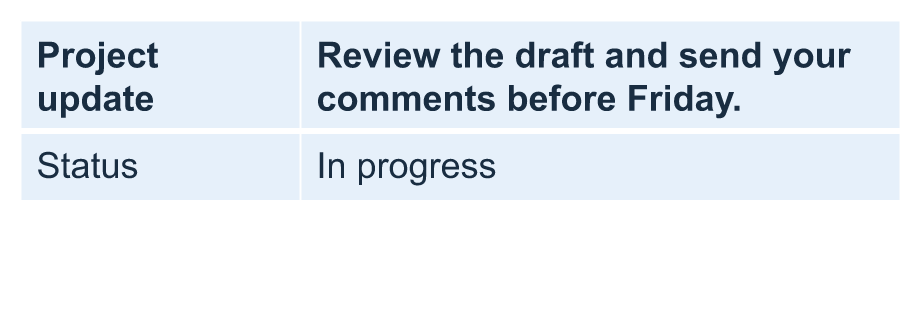
प्रदान किए गए प्रस्तुतीकरण के साथ, न्यूनतम बढ़ाने से पंक्ति में स्थान जुड़ता है। इसे घटाने से वह अतिरिक्त स्थान हट जाता है, लेकिन वास्तविक ऊँचाई 20 पॉइंट से अधिक रहती है क्योंकि पाठ और कोशिका मार्जिन को अधिक स्थान चाहिए। केवल न्यूनतम घटाने से पंक्ति को उसकी सामग्री द्वारा आवश्यक स्थान से नीचे नहीं धकेला जा सकता।
वास्तविक ऊँचाई को प्रभावित करने वाले कई कारक:
- पाठ और फ़ॉन्ट आकार: लंबा पाठ, स्पष्ट लाइन ब्रेक, या बड़ा फ़ॉन्ट अधिक ऊर्ध्वाधर स्थान की आवश्यकता कर सकता है।
- रैपिंग और स्तंभ चौड़ाई: रैपिंग सक्रिय होने पर, Column.setWidth के साथ स्तंभ चौड़ाई घटाने से अधिक पंक्तियां बन सकती हैं। व्यापक स्तंभ ऊर्ध्वाधर स्थान की आवश्यकता को कम कर सकता है।
- कोशिका मार्जिन: Cell.setMarginTop और Cell.setMarginBottom ऊर्ध्वाधर स्थान जोड़ते हैं। Cell.setMarginLeft और Cell.setMarginRight पाठ के लिए उपलब्ध चौड़ाई घटाते हैं और अतिरिक्त रैपिंग का कारण बन सकते हैं।
इस बिना मर्ज की गई तालिका में, वह कोशिका जो सबसे अधिक ऊर्ध्वाधर स्थान चाहती है, पूरी पंक्ति की सामग्री‑निर्धारित न्यूनतम सीमा तय करती है। पंक्ति को छोटा करने के लिए, आपको पाठ को छोटा करना, फ़ॉन्ट आकार या मार्जिन घटाना, या स्तंभ को चौड़ा करना पड़ सकता है।
नीचे की छवियां समान स्केल पर वही तालिका दिखाती हैं। दर्शाए गए परिणामों में वास्तविक ऊँचाइयाँ 70, 100 और 55.2 पॉइंट थीं: अंतिम पंक्ति अपना 20‑पॉइंट न्यूनतम से अधिक ऊँची बनी रही। सटीक पाठ माप आपके वातावरण में उपलब्ध फ़ॉन्ट पर निर्भर कर सकते हैं। सहेजे गए परिणाम डाउनलोड करें: increased minimum और decreased minimum.
| मूल: न्यूनतम 70 pt, वास्तविक 70 pt | बढ़ाया: न्यूनतम 100 pt, वास्तविक 100 pt | घटाया: न्यूनतम 20 pt, वास्तविक 55.2 pt |
|---|---|---|
 |
 |
 |
पहली पंक्ति को हेडर के रूप में सेट करें
पहली पंक्ति को हेडर स्वरूपण के लिए चिह्नित करने के लिए setFirstRow मेथड का उपयोग करें। इसका स्वरूपण तालिका पर लागू शैली पर निर्भर करता है।
- Presentation क्लास से प्रस्तुति लोड करें।
- पहली स्लाइड तक पहुँचें।
- स्लाइड पर पहली आकृति के रूप में संग्रहीत तालिका तक पहुँचें।
- उसकी पहली पंक्ति के लिए हेडर स्वरूपण सक्षम करें।
- संशोधित प्रस्तुति सहेजें।
उदाहरण को table.pptx की आवश्यकता है, जिसमें पहली स्लाइड पर पहली आकृति के रूप में एक तालिका हो। यह पहली पंक्ति के लिए हेडर स्वरूपण सक्षम करता है और First_row_header.pptx सहेजता है।
import jpype
import asposeslides

if not jpype.isJVMStarted():
    jpype.startJVM()

from asposeslides.api import Presentation, SaveFormat

presentation = Presentation("table.pptx")
try:
    slide = presentation.getSlides().get_Item(0)

    table = slide.getShapes().get_Item(0)
    table.setFirstRow(True)

    presentation.save("First_row_header.pptx", SaveFormat.Pptx)
finally:
    presentation.dispose()
तालिका की पंक्ति या स्तंभ को क्लोन करें
सामग्री और स्वरूपण को पुनः उपयोग करने के लिए पंक्तियों या स्तंभों को क्लोन करें। आप कॉपी को तालिका के अंत में जोड़ सकते हैं या किसी विशिष्ट स्थिति पर डाल सकते हैं।
- Presentation क्लास से प्रस्तुति लोड करें।
- पहली स्लाइड तक पहुँचें।
- स्तंभ चौड़ाइयाँ और पंक्ति ऊँचाइयाँ निर्धारित करें।
- addTable मेथड से एक तालिका जोड़ें।
- आवश्यक पंक्तियों को क्लोन करें।
- आवश्यक स्तंभों को क्लोन करें।
- संशोधित प्रस्तुति सहेजें।
उदाहरण को Test.pptx की आवश्यकता है, जिसमें कम से कम एक स्लाइड हो। यह तीन स्तंभों और पाँच पंक्तियों की तालिका बनाता है, जहाँ आयाम पॉइंट में निर्दिष्ट हैं। यह पहली पंक्ति और स्तंभ की प्रतियाँ अंत में जोड़ता है, फिर दूसरी पंक्ति और स्तंभ की प्रतियाँ इंडेक्स 3 (चौथे स्थान) पर डालता है। परिणामी तालिका में सात पंक्तियाँ और पाँच स्तंभ होते हैं। False आर्ग्युमेंट आसन्न मर्ज की गई पंक्तियों या स्तंभों में क्लोनिंग को अक्षम करता है; इस तालिका में कोई मर्ज्ड सेल नहीं है।
import jpype
import asposeslides

if not jpype.isJVMStarted():
    jpype.startJVM()

from asposeslides.api import Presentation, SaveFormat

presentation = Presentation("Test.pptx")
try:
    slide = presentation.getSlides().get_Item(0)

    column_widths = jpype.JArray(jpype.JDouble)([50, 50, 50])
    row_heights = jpype.JArray(jpype.JDouble)([50, 30, 30, 30, 30])
    table = slide.getShapes().addTable(100, 50, column_widths, row_heights)

    table.get_Item(0, 0).getTextFrame().setText("Row 1 Cell 1")
    table.get_Item(1, 0).getTextFrame().setText("Row 1 Cell 2")
    table.getRows().addClone(table.getRows().get_Item(0), False)

    table.get_Item(0, 1).getTextFrame().setText("Row 2 Cell 1")
    table.get_Item(1, 1).getTextFrame().setText("Row 2 Cell 2")
    table.getRows().insertClone(3, table.getRows().get_Item(1), False)

    table.getColumns().addClone(table.getColumns().get_Item(0), False)
    table.getColumns().insertClone(3, table.getColumns().get_Item(1), False)

    presentation.save("table_out.pptx", SaveFormat.Pptx)
finally:
    presentation.dispose()
तालिका से पंक्ति या स्तंभ हटाएँ
तालिका में उन पंक्तियों या स्तंभों को हटाएँ जो अब आवश्यक नहीं हैं। किसी आइटम को हटाने से उसके बाद आने वाली पंक्तियों या स्तंभों के सूचकांक स्थानांतरित हो जाते हैं।
- Presentation क्लास से एक प्रस्तुति बनाएं।
- पहली स्लाइड तक पहुँचें।
- स्तंभ चौड़ाइयाँ और पंक्ति ऊँचाइयाँ निर्धारित करें।
- addTable मेथड से एक तालिका जोड़ें।
- दूसरी पंक्ति और दूसरा स्तंभ हटाएँ।
- संशोधित प्रस्तुति सहेजें।
यह उदाहरण तीन‑बाय‑तीन तालिका बनाता है और इंडेक्स 1 पर पंक्ति और स्तंभ हटाकर TestTable_out.pptx में दो‑बाय‑दो तालिका बचाता है। आयाम पॉइंट में हैं। False आर्ग्युमेंट आसन्न मर्ज की गई पंक्तियों या स्तंभों के हटाने को अक्षम करता है; इस तालिका में कोई मर्ज्ड सेल नहीं है।
import jpype
import asposeslides

if not jpype.isJVMStarted():
    jpype.startJVM()

from asposeslides.api import Presentation, SaveFormat

presentation = Presentation()
try:
    slide = presentation.getSlides().get_Item(0)

    column_widths = jpype.JArray(jpype.JDouble)([100, 50, 30])
    row_heights = jpype.JArray(jpype.JDouble)([30, 50, 30])
    table = slide.getShapes().addTable(100, 100, column_widths, row_heights)

    table.getRows().removeAt(1, False)
    table.getColumns().removeAt(1, False)

    presentation.save("TestTable_out.pptx", SaveFormat.Pptx)
finally:
    presentation.dispose()
तालिका पंक्ति स्तर पर पाठ स्वरूपण सेट करें
पूरी पंक्ति पर पाठ स्वरूपण लागू करके उसकी कोशिकाओं को सुसंगत रखें। आप फ़ॉन्ट गुण, अनुच्छेद स्वरूपण और पाठ दिशा सेट कर सकते हैं बिना प्रत्येक कोशिका को अलग‑अलग स्वरूपित किए।
- Presentation क्लास से प्रस्तुति लोड करें।
- पहली स्लाइड पर तालिका तक पहुँचें।
- पहली पंक्ति के लिए setFontHeight का उपयोग करें।
- पहली पंक्ति के लिए setAlignment और setMarginRight का उपयोग करें।
- दूसरी पंक्ति के लिए setTextVerticalType का उपयोग करें।
- संशोधित प्रस्तुति सहेजें।
उदाहरण को table.pptx की आवश्यकता है, जिसमें पहली स्लाइड पर पहली आकृति के रूप में एक तालिका और कम से कम दो पंक्तियाँ हों। यह पहली पंक्ति पर 25‑पॉइंट पाठ, दाएँ संरेखण और 20‑पॉइंट दाएँ पैराग्राफ मार्जिन लागू करता है, फिर दूसरी पंक्ति में लम्बवत पाठ सेट करता है।
import jpype
import asposeslides

if not jpype.isJVMStarted():
    jpype.startJVM()

from asposeslides.api import Presentation, SaveFormat, PortionFormat, ParagraphFormat, TextFrameFormat, TextAlignment, TextVerticalType

presentation = Presentation("table.pptx")
try:
    slide = presentation.getSlides().get_Item(0)

    table = slide.getShapes().get_Item(0)

    portion_format = PortionFormat()
    portion_format.setFontHeight(25)
    table.getRows().get_Item(0).setTextFormat(portion_format)

    paragraph_format = ParagraphFormat()
    paragraph_format.setAlignment(TextAlignment.Right)
    paragraph_format.setMarginRight(20)
    table.getRows().get_Item(0).setTextFormat(paragraph_format)

    text_frame_format = TextFrameFormat()
    text_frame_format.setTextVerticalType(TextVerticalType.Vertical)
    table.getRows().get_Item(1).setTextFormat(text_frame_format)

    presentation.save("row_formatting.pptx", SaveFormat.Pptx)
finally:
    presentation.dispose()
तालिका स्तंभ स्तर पर पाठ स्वरूपण सेट करें
पूरे स्तंभ पर पाठ स्वरूपण लागू करके उसकी कोशिकाओं को सुसंगत रखें। आप फ़ॉन्ट गुण, अनुच्छेद स्वरूपण और पाठ दिशा सेट कर सकते हैं बिना प्रत्येक कोशिका को अलग‑अलग स्वरूपित किए।
- Presentation क्लास से प्रस्तुति लोड करें।
- पहली स्लाइड पर तालिका तक पहुँचें।
- पहले स्तंभ के लिए setFontHeight का उपयोग करें।
- पहले स्तंभ के लिए setAlignment और setMarginRight का उपयोग करें।
- दूसरे स्तंभ के लिए setTextVerticalType का उपयोग करें।
- संशोधित प्रस्तुति सहेजें।
उदाहरण को table.pptx की आवश्यकता है, जिसमें पहली स्लाइड पर पहली आकृति के रूप में एक तालिका और कम से कम दो स्तंभ हों। यह पहले स्तंभ पर 25‑पॉइंट पाठ, दाएँ संरेखण और 20‑पॉइंट दाएँ पैराग्राफ मार्जिन लागू करता है, फिर दूसरे स्तंभ में लम्बवत पाठ सेट करता है।
import jpype
import asposeslides

if not jpype.isJVMStarted():
    jpype.startJVM()

from asposeslides.api import Presentation, SaveFormat, PortionFormat, ParagraphFormat, TextFrameFormat, TextAlignment, TextVerticalType

presentation = Presentation("table.pptx")
try:
    slide = presentation.getSlides().get_Item(0)

    table = slide.getShapes().get_Item(0)

    portion_format = PortionFormat()
    portion_format.setFontHeight(25)
    table.getColumns().get_Item(0).setTextFormat(portion_format)

    paragraph_format = ParagraphFormat()
    paragraph_format.setAlignment(TextAlignment.Right)
    paragraph_format.setMarginRight(20)
    table.getColumns().get_Item(0).setTextFormat(paragraph_format)

    text_frame_format = TextFrameFormat()
    text_frame_format.setTextVerticalType(TextVerticalType.Vertical)
    table.getColumns().get_Item(1).setTextFormat(text_frame_format)

    presentation.save("column_formatting.pptx", SaveFormat.Pptx)
finally:
    presentation.dispose()
तालिका शैली गुण प्राप्त करें
[tabel स्टाइल प्रीसेट को प्राप्त करने के लिए getStylePreset मेथड का उपयोग करें और उसे किसी दूसरी तालिका पर पुनः उपयोग करें। यह व्यक्तिगत कोशिका स्वरूपण ओवरराइड के बजाय प्रीसेट की पहचान करता है।
उदाहरण एक तालिका बनाता है, TableStylePreset.DarkStyle1 लागू करता है, और प्रीसेट को वापस पढ़ता है। यह DarkStyle1 से संबंधित पूर्णांक मान प्रिंट करता है और तालिका को table.pptx में सहेजता है।
import jpype
import asposeslides

if not jpype.isJVMStarted():
    jpype.startJVM()

from asposeslides.api import Presentation, SaveFormat, TableStylePreset

presentation = Presentation()
try:
    slide = presentation.getSlides().get_Item(0)

    column_widths = jpype.JArray(jpype.JDouble)([100, 150])
    row_heights = jpype.JArray(jpype.JDouble)([5, 5, 5])
    table = slide.getShapes().addTable(10, 10, column_widths, row_heights)
    table.setStylePreset(TableStylePreset.DarkStyle1)

    style_preset = table.getStylePreset()
    print(style_preset)

    presentation.save("table.pptx", SaveFormat.Pptx)
finally:
    presentation.dispose()
अक्सर पूछे जाने वाले प्रश्न
क्या मैं पहले से बनाई गई तालिका पर PowerPoint थीम/शैलियाँ लागू कर सकता हूँ?
हां। तालिका स्लाइड/लेआउट/मास्टर थीम को विरासत में प्राप्त करती है, और आप उस थीम के ऊपर भराव, बॉर्डर और पाठ रंगों को फिर भी अधिलेखित कर सकते हैं।
क्या मैं Excel की तरह तालिका पंक्तियों को सॉर्ट कर सकता हूँ?
नहीं, Aspose.Slides तालिकाओं में अंतर्निहित सॉर्टिंग या फ़िल्टर नहीं होते। पहले अपने डेटा को मेमोरी में सॉर्ट करें, फिर उस क्रम में तालिका पंक्तियों को पुनः भरें।
क्या मैं बैंडेड (धारीदार) स्तंभ रख सकते हूँ जबकि विशिष्ट कोशिकाओं पर कस्टम रंग बनाए रखूँ?
हां। बैंडेड स्तंभ को सक्रिय करें, फिर विशिष्ट कोशिकाओं को स्थानीय स्वरूपण से अधिलेखित करें; कोशिका‑स्तर का स्वरूपण तालिका शैली पर प्राथमिकता रखता है।